
Before you start
The Yard is part of the Truck Yard Manager add-on. Once an admin turns it on, Yard appears in the top menu.
What a yard manager can open comes from their access preset. The Yard manager preset gives Yard operations, Purchase orders & vendors and Expenses to edit, Approvals to view, and Yard reports. Those parts of the app work branch by branch, so the person also needs the branches they run ticked under Runs the yard, as the next section shows. If you have more than one yard, the Yard: picker at the top right of every yard page switches between them. If no yard is ticked for you yet, the Yard pages say so and show nothing else.
Give someone a yard
Someone who manages access on your team does this, on the yard manager’s own page.
- Open Team Members, click the person, then click Edit.
- In the card that shows what the person can open, pick the Yard manager preset, or another preset with the yard parts they need.
- Under Locations, tick each branch they run in the Runs the yard column. To give them every branch, now and later, switch on Runs the yard: all branches instead.
- Click Save access. The change reaches them within seconds, and they stay signed in.
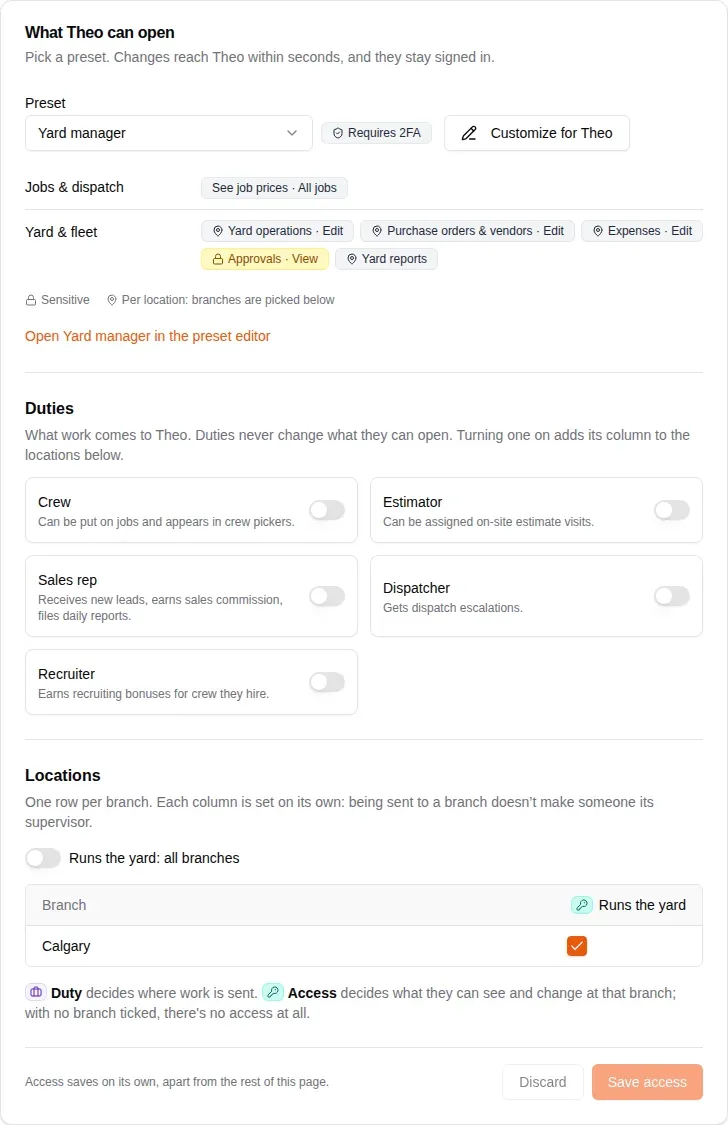
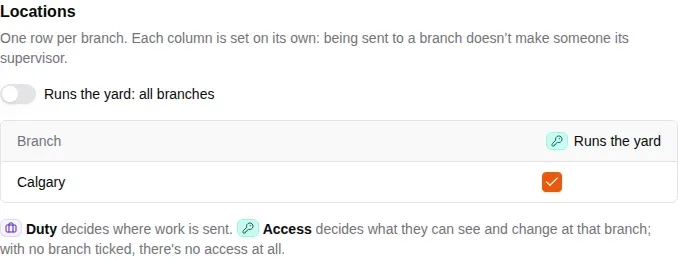
Access saves on its own, apart from the rest of the page, so click Save access before you leave. With no branch ticked and the switch off, the person has no yard at all.
When the person also has the Crew duty, a Yard at their primary branch button appears above the grid. It ticks Runs the yard for the branch they are mainly sent on jobs from.
Start on the yard home
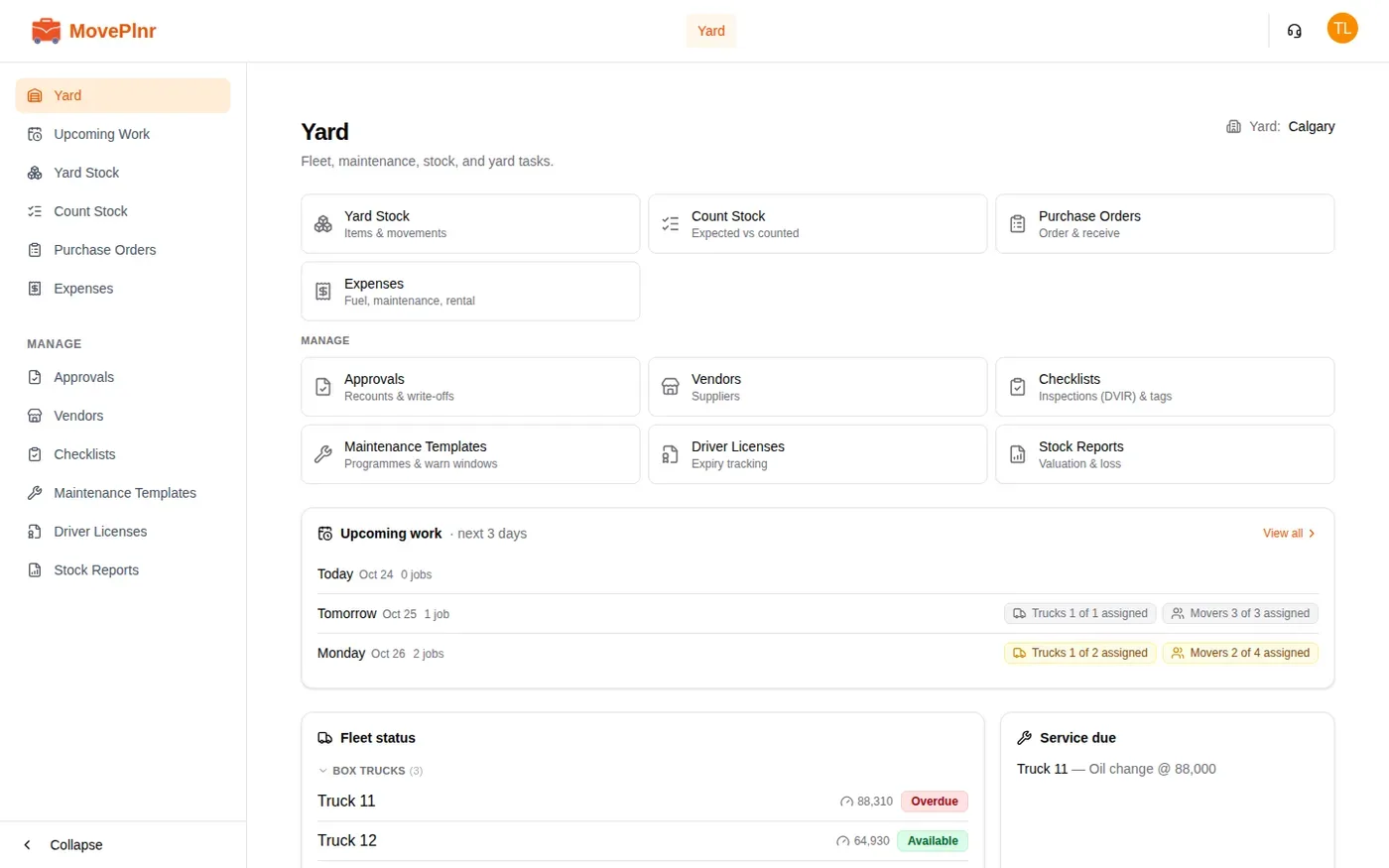
Yard opens the yard home. The tiles at the top lead to every part of the yard, and the cards below answer the morning questions.
- Upcoming work shows the next few days: how many jobs, and how many trucks and movers they need against how many are assigned.
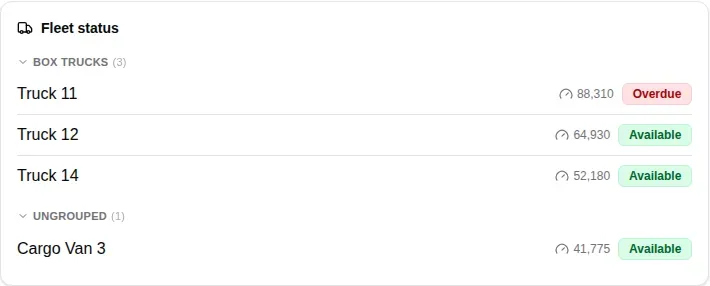
- Fleet status lists every truck by group, with its mileage and a badge: Available, Overdue for service, or out of commission.
- Service due names the service each truck needs and when.
- Low stock lists any item under its reorder level, as on hand over reorder level.
- Checklists due lists the trucks that owe an inspection, each with Run.
- Tasks is the yard’s own to do list. Add a task with a due date and an assignee. A checklist that is due shows here too.
See the work coming up
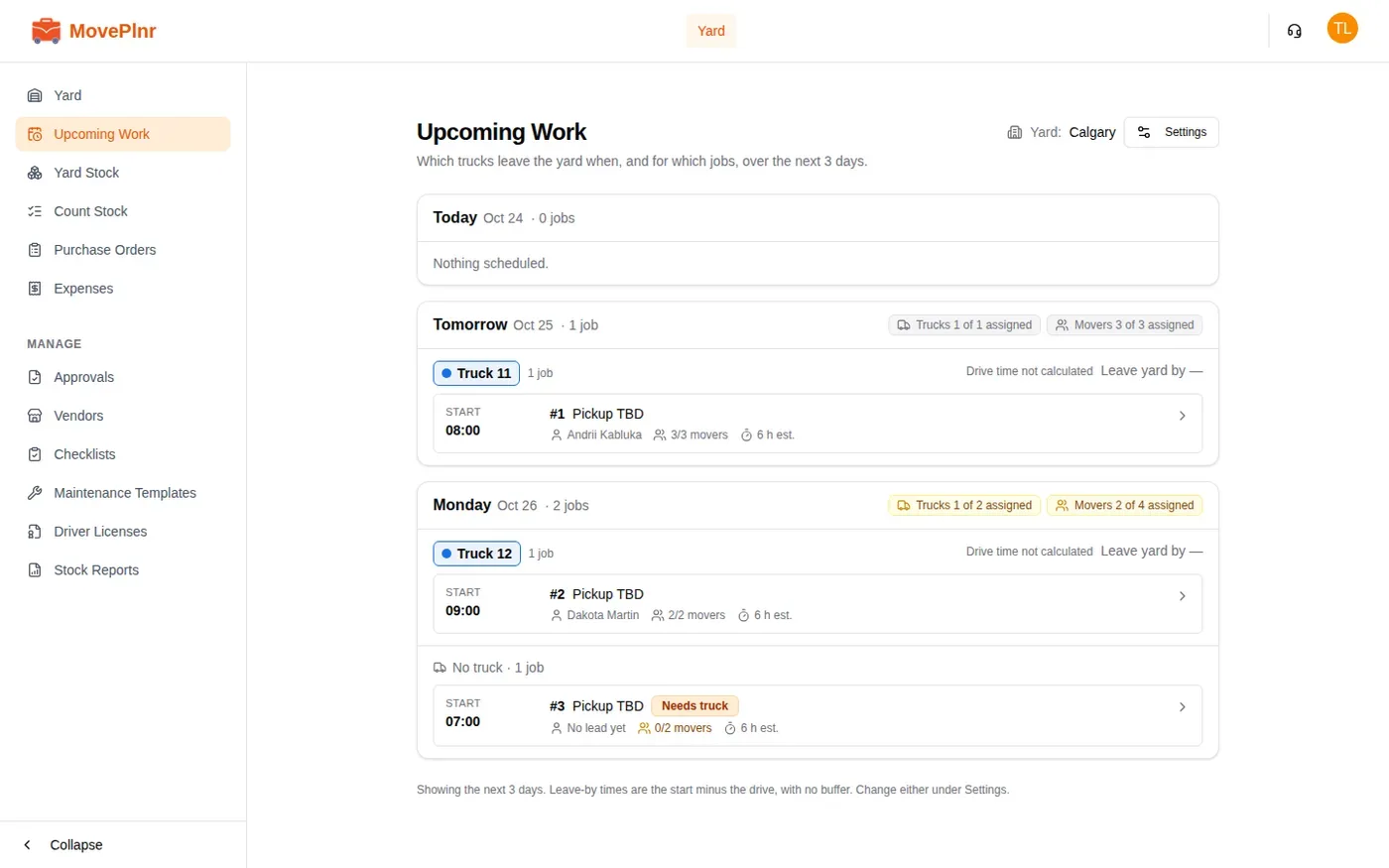
Upcoming Work lists the next few days, truck by truck. Each job shows its start time, its crew lead, and how many movers it has against how many it needs. A job with no truck yet is marked Needs truck, so you can sort it out with dispatch before the morning.
Each truck also shows when it should leave the yard: the job’s start minus the drive. Click Settings to change how many days the page covers and the buffer added to the drive. Click a job to open its details.
Look after one truck
Click a truck’s name to open its page. It holds everything about that truck.
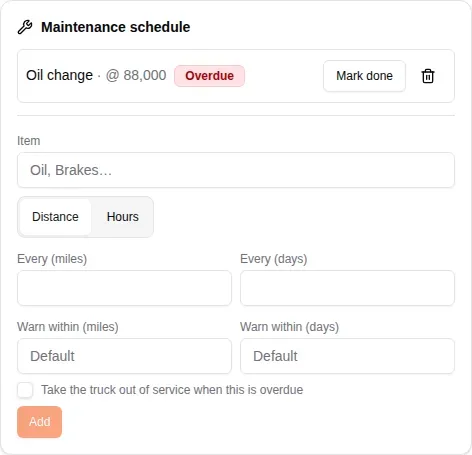
- Maintenance schedule lists each service with its interval in miles or days. An overdue one is marked Overdue. When the work is done, click Mark done. To add one, type what it is, set the interval, and click Add. Tick the box to take the truck out of service automatically when the service is overdue.
- Out of commission takes the truck off the road with a reason and dates. Click Take OOC.
- Mileage & fluids records the odometer and fluid top ups.
- Captured costs totals the fuel, supplies and repairs booked against the truck, and Recurring costs holds insurance and other regular bills.
Run an inspection
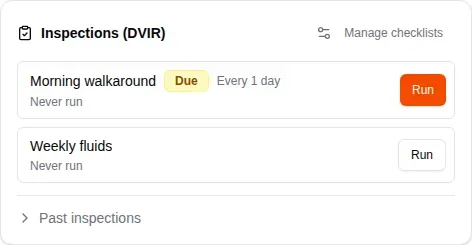
Inspections (DVIR) lists the checklists the truck owes. A checklist with a repeat shows Due once the last inspection is too old.
- Click Run beside the checklist.
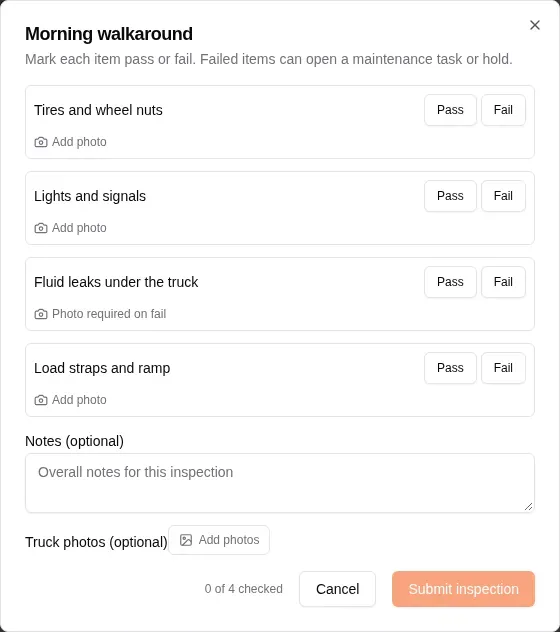
- Mark each item Pass or Fail. Some items need a photo when they fail.
- Add notes or truck photos if you like.
- Click Submit inspection. A failed item can open a maintenance task or a hold.
Count and sell stock
Yard Stock lists every item the yard holds, with what is on hand and its reorder level. Each item has one count for the whole yard. Search finds an item by name. Click the arrow beside an item to see its history.
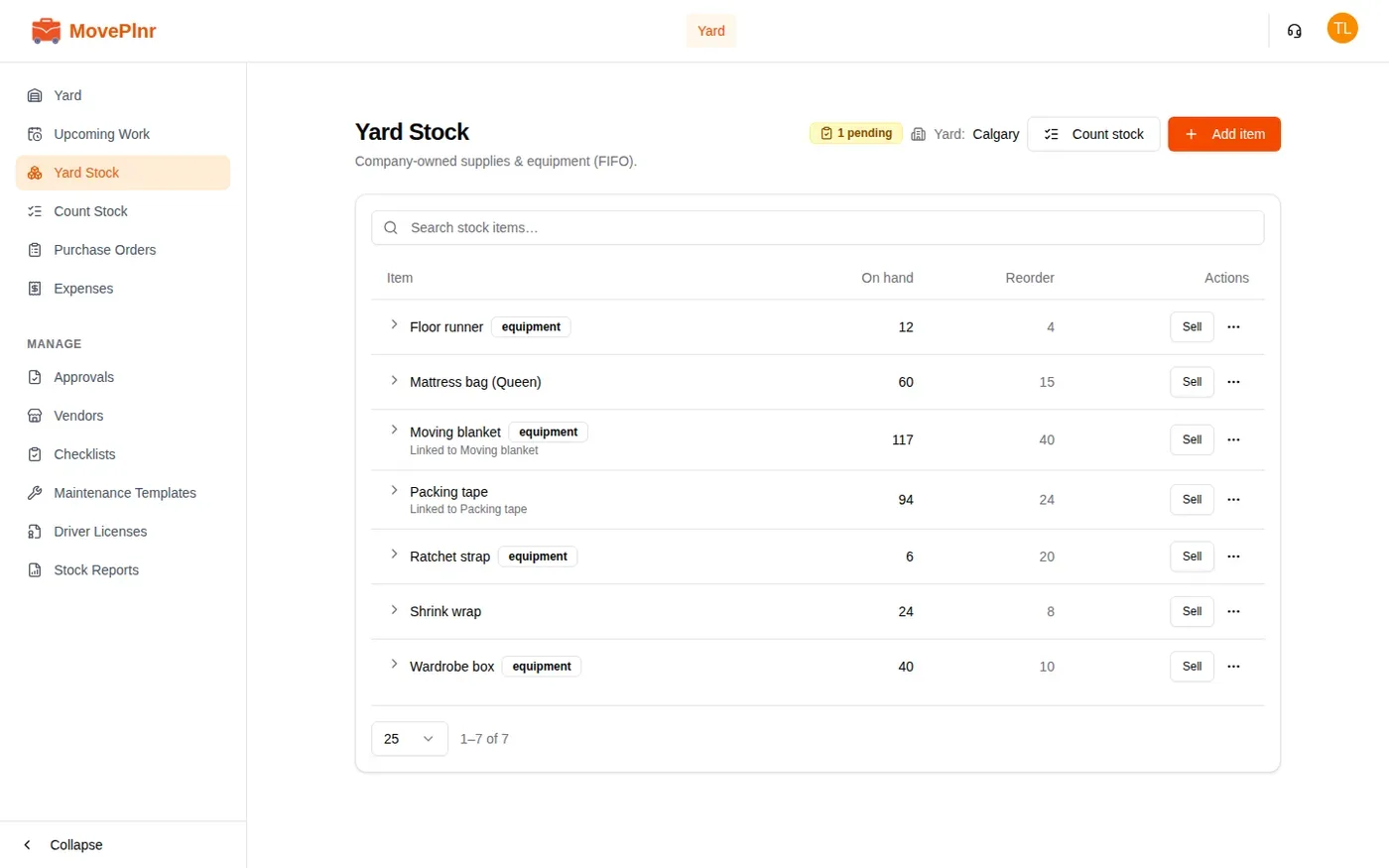
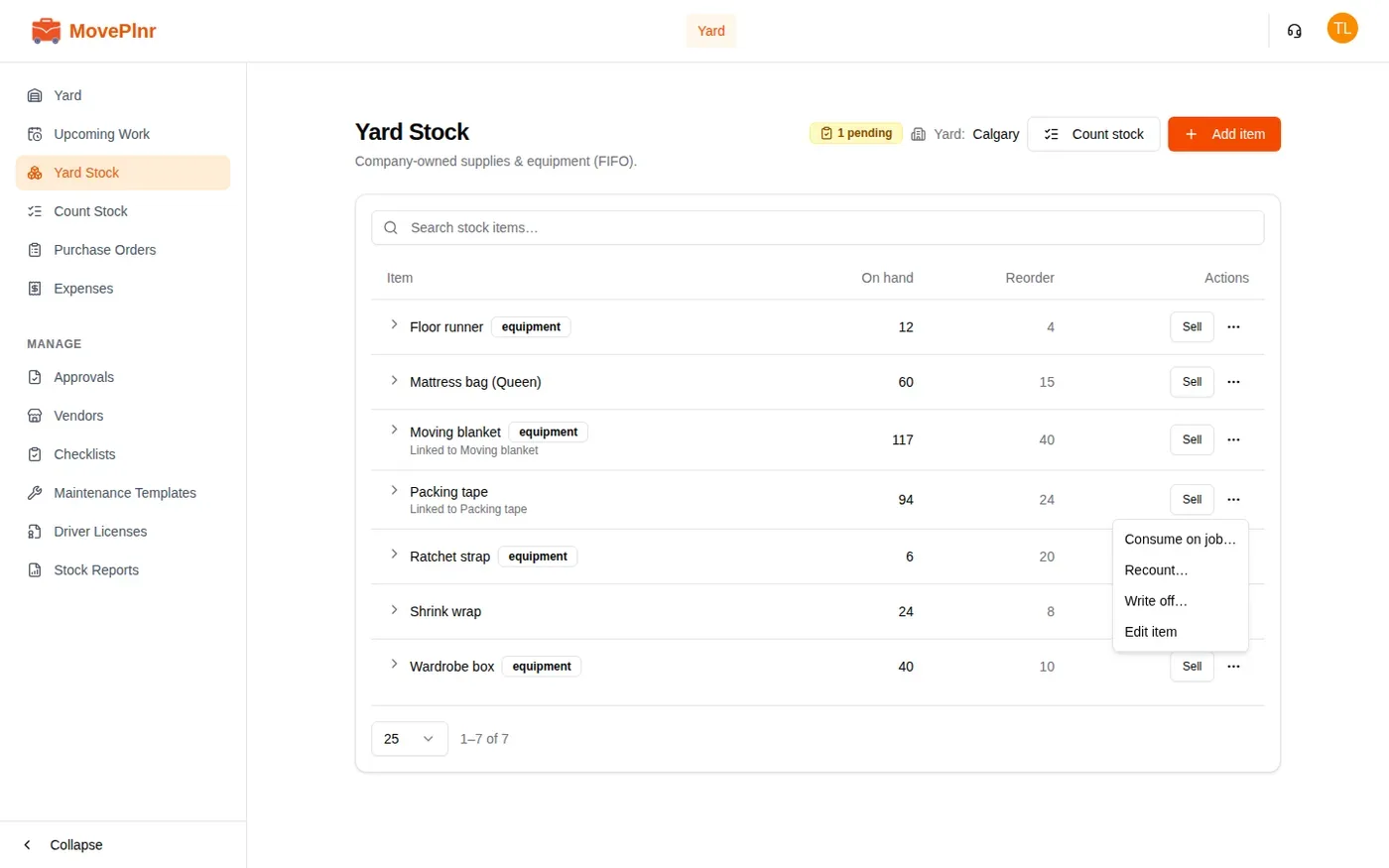
Sell on a row rings up a counter sale, priced from your supplies list, with tax and the payment method. The three dots menu does the rest:
- Consume on job… records stock used on a move.
- Recount… corrects the count of one item.
- Write off… takes damaged or lost stock off the books.
- Edit item changes its name, its reorder level or the supply it is linked to.
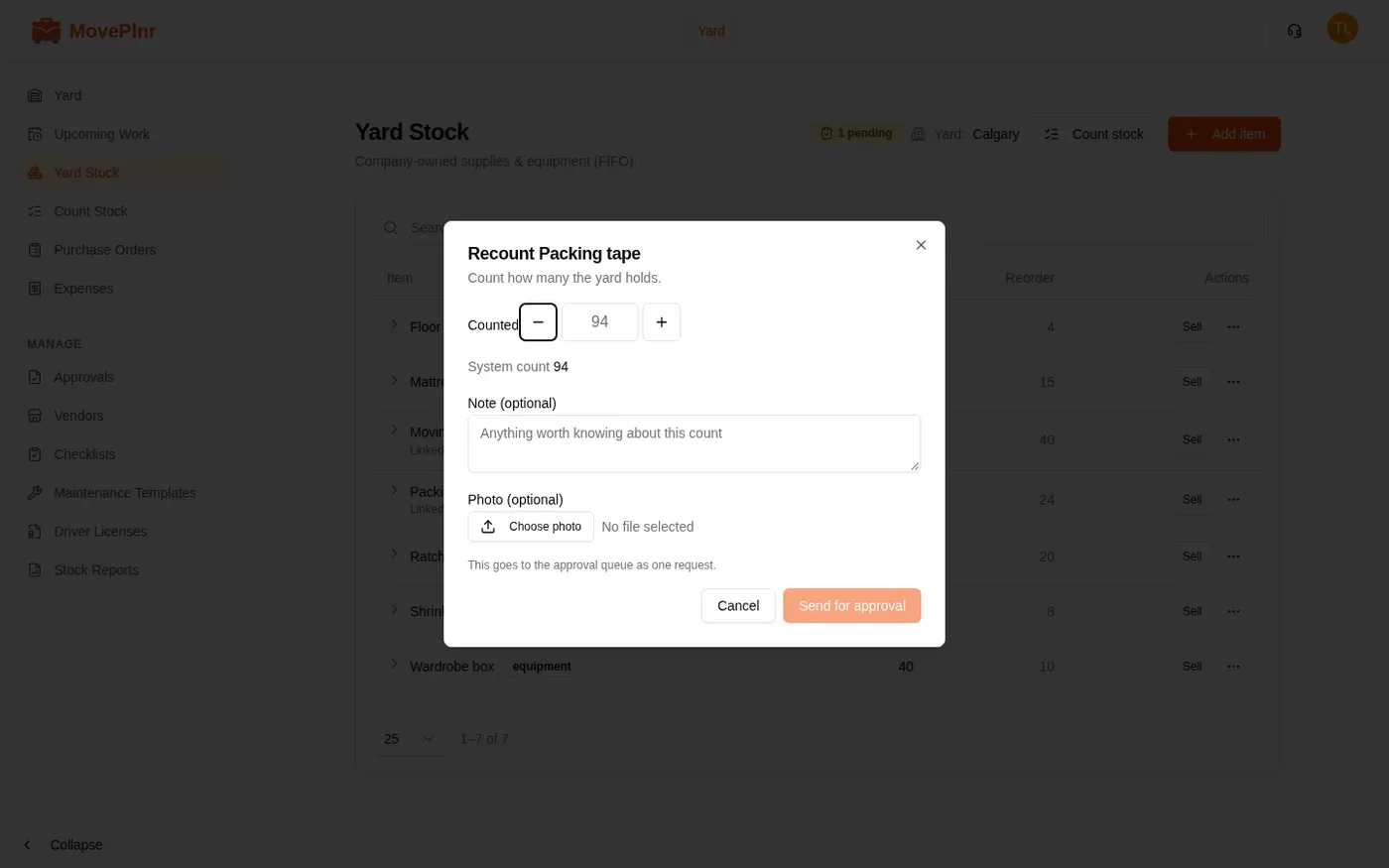
A recount or a write off does not change the count straight away. It waits under Approvals until someone who approves stock changes approves it, and the Yard Stock header shows how many are pending.
Count the whole yard
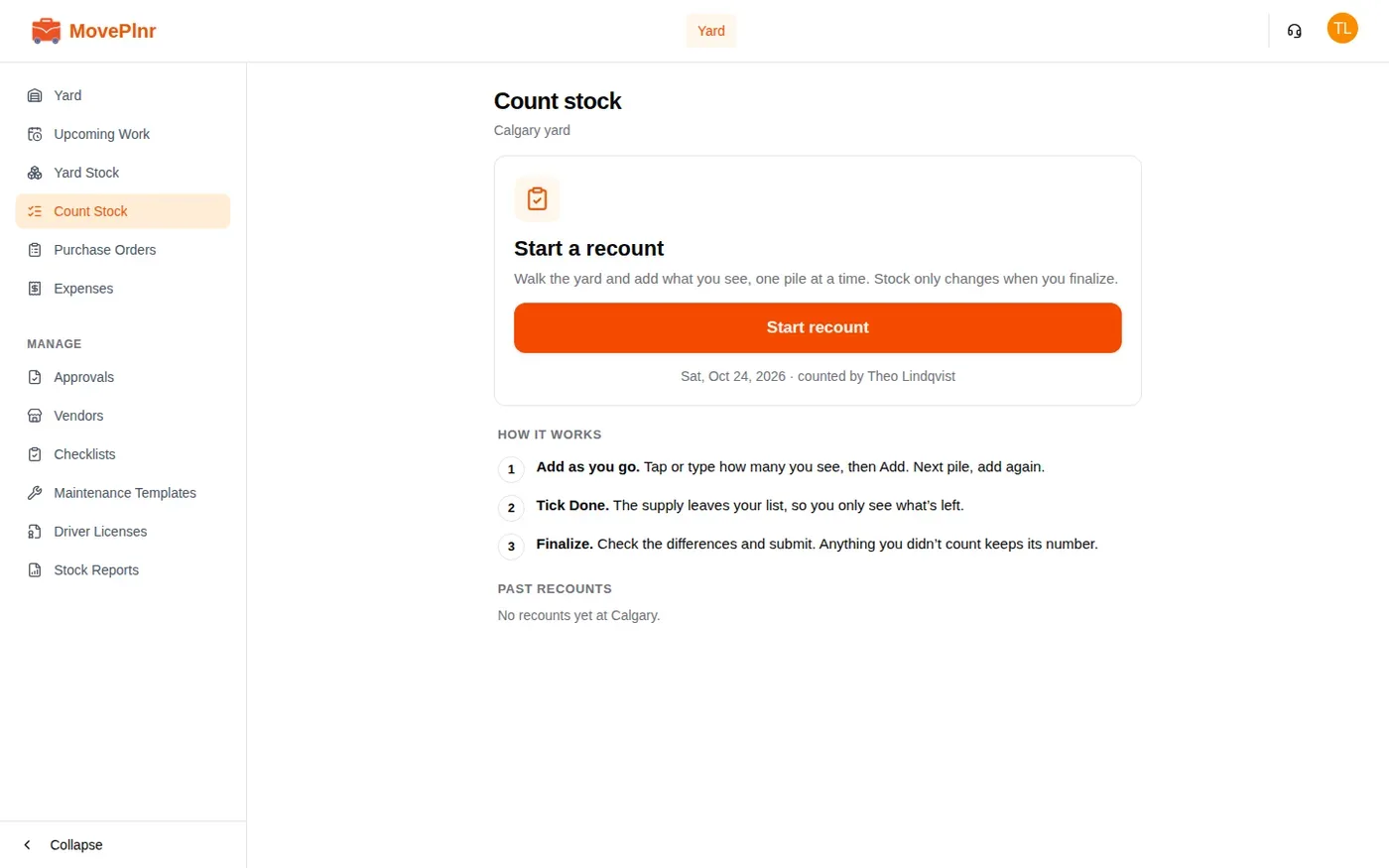
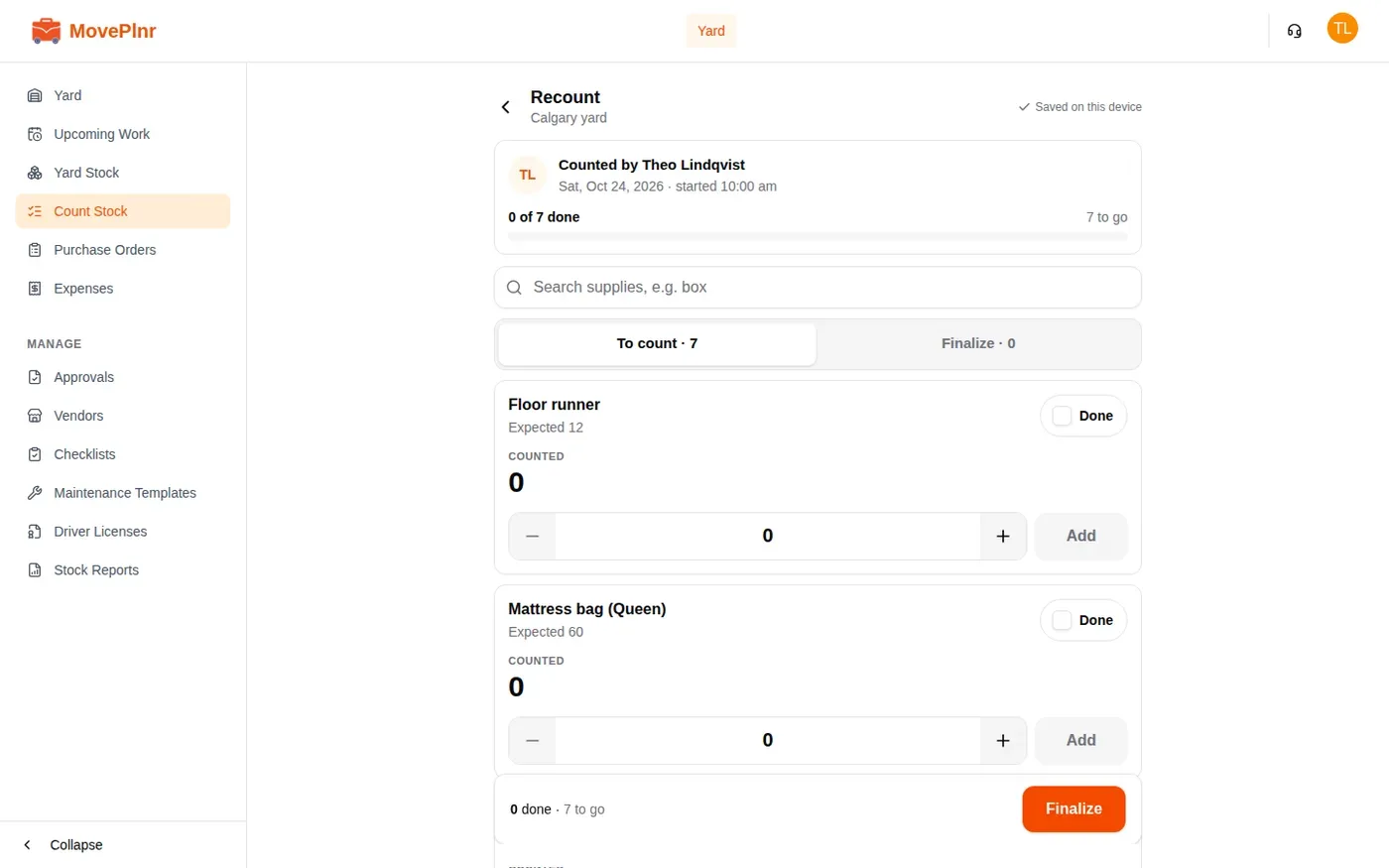
Count Stock walks the whole yard in one go. Nothing changes until you finalize, and the count in progress is saved on your device.
- Click Start recount.
- For each item, enter how many you see and click Add. Add again for the next pile.
- Tick Done when an item is counted. It leaves the list, so you only see what is left.
- Click Finalize, check the differences, and send the count. An approver gets one approval card for the whole count. Anything you did not count keeps its number.
Order and receive stock
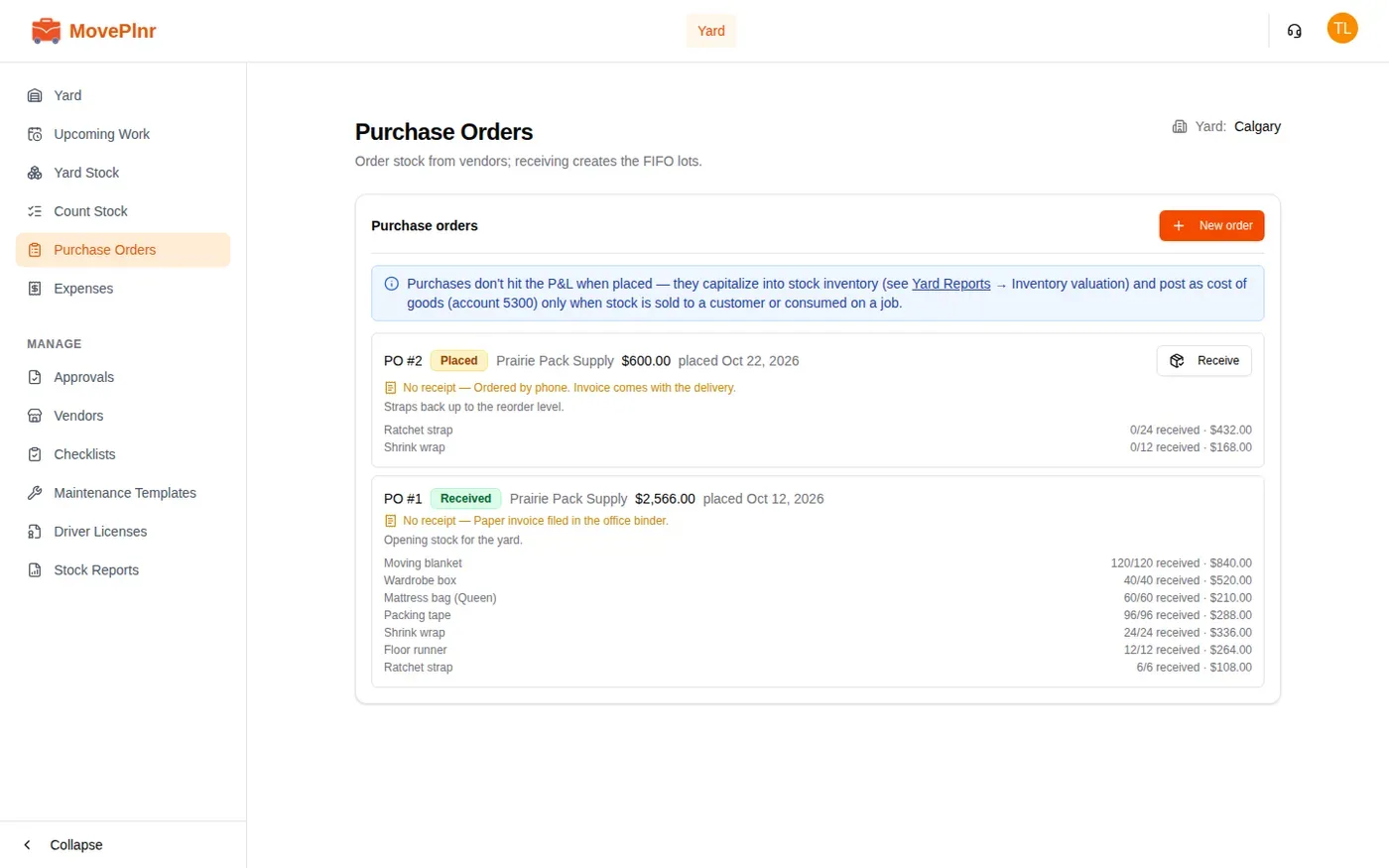
Stock comes into the yard through Purchase Orders. Each order shows its vendor, its total, the date it was placed, and how much of each line has come in.
- Click New order, pick the vendor and the date it was placed, and add a line for each item. Attach the vendor’s paperwork, or say why there is none.
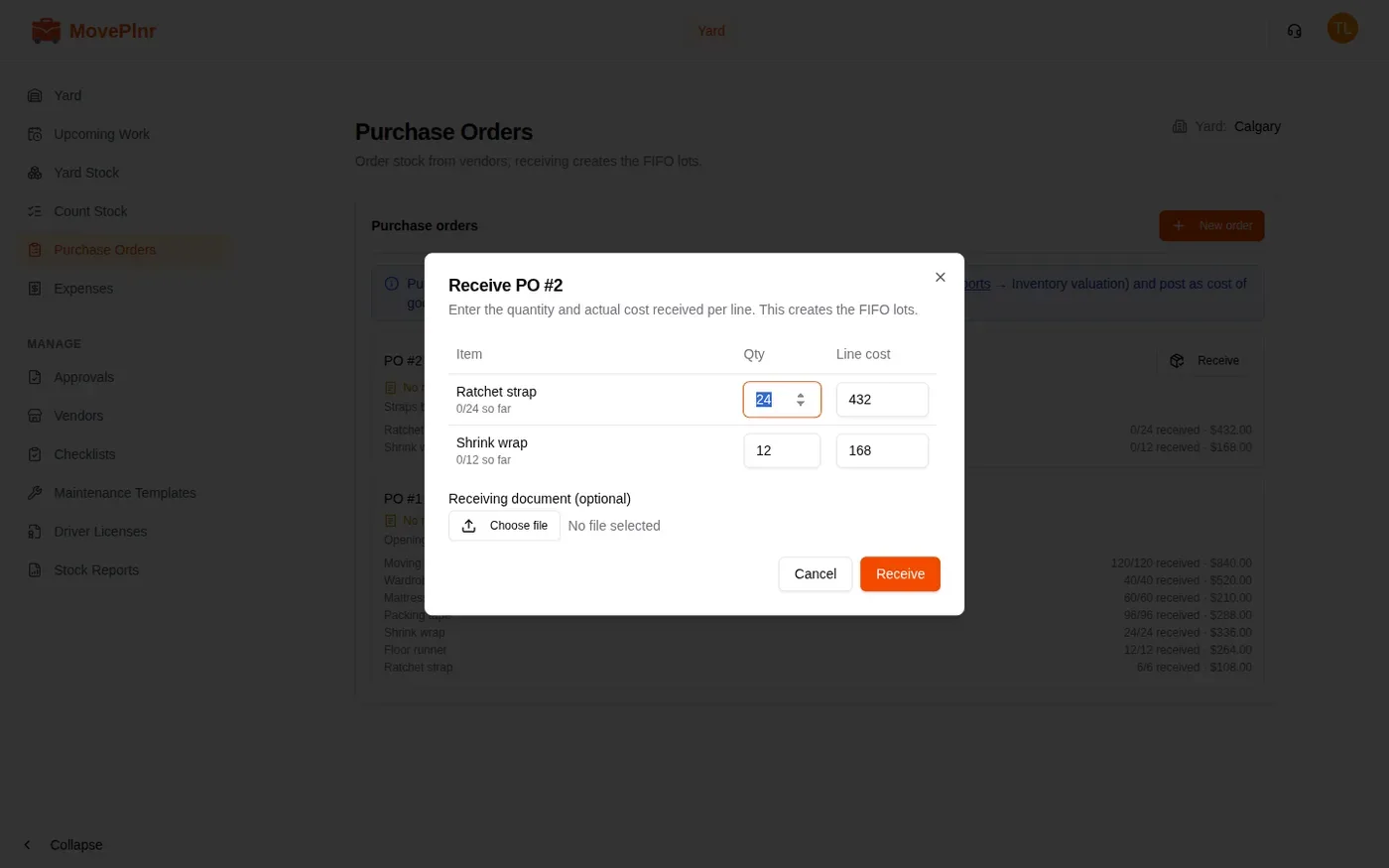
- When the delivery arrives, click Receive on the order.
- Enter the quantity and the actual cost of each line.
- Click Receive. The stock is now on hand.
Set the standard
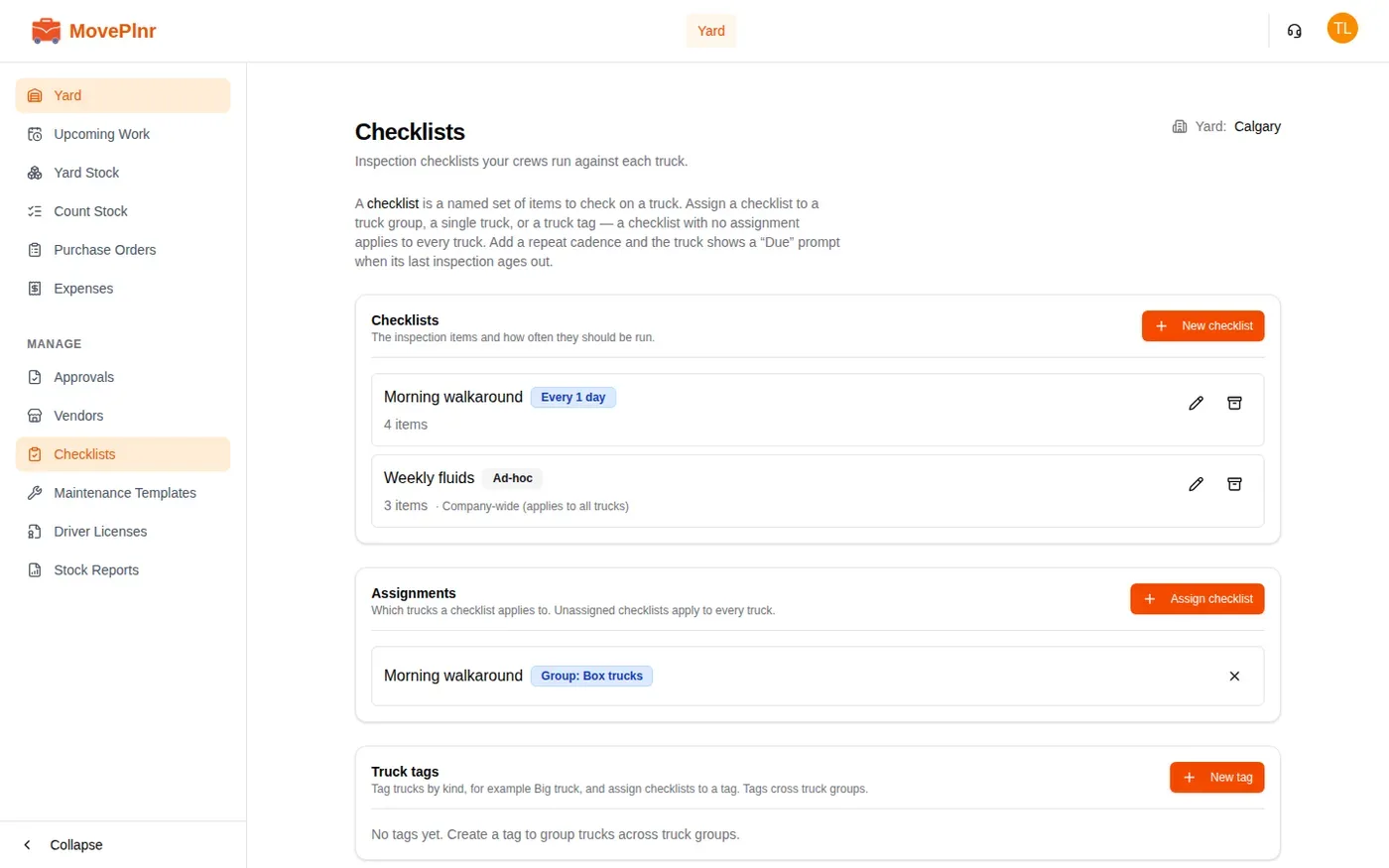
Checklists holds the inspection checklists. Each one has its items, which can ask for a photo, and an optional repeat, like every day. Assign a checklist to a truck group, a single truck, or a truck tag. A checklist with no assignment applies to every truck.
The rest of the yard
- Expenses records fuel, maintenance and rental costs against a truck.
- Vendors lists your suppliers and fuel stops.
- Maintenance Templates saves a service programme you can apply to many trucks.
- Driver Licenses tracks each driver’s licence and its expiry date.
- Stock Reports values the stock and shows what was lost.