What Claude can do in MovePlnr
Claude reads your MovePlnr account and answers in plain words: moves, customers, the sales pipeline, reports, payments, reviews, tracked calls, trucks and your team. It acts as you. It sees what you can see in MovePlnr, in your company only.
When you connect it, you pick one of three levels:
Read only
Do this: the place to start.
Safe writes
Do this: small changes nobody outside sees.
Full access
Do this: what customers and crews see.
What you need: a Claude account (the free plan allows one custom connector), and two-step verification on your MovePlnr account if you want more than Read only.
Turn on the Claude connector
A company admin does this once for the whole company.
- In MovePlnr, choose your initials at the top right, then Company Controls, then Company Settings.
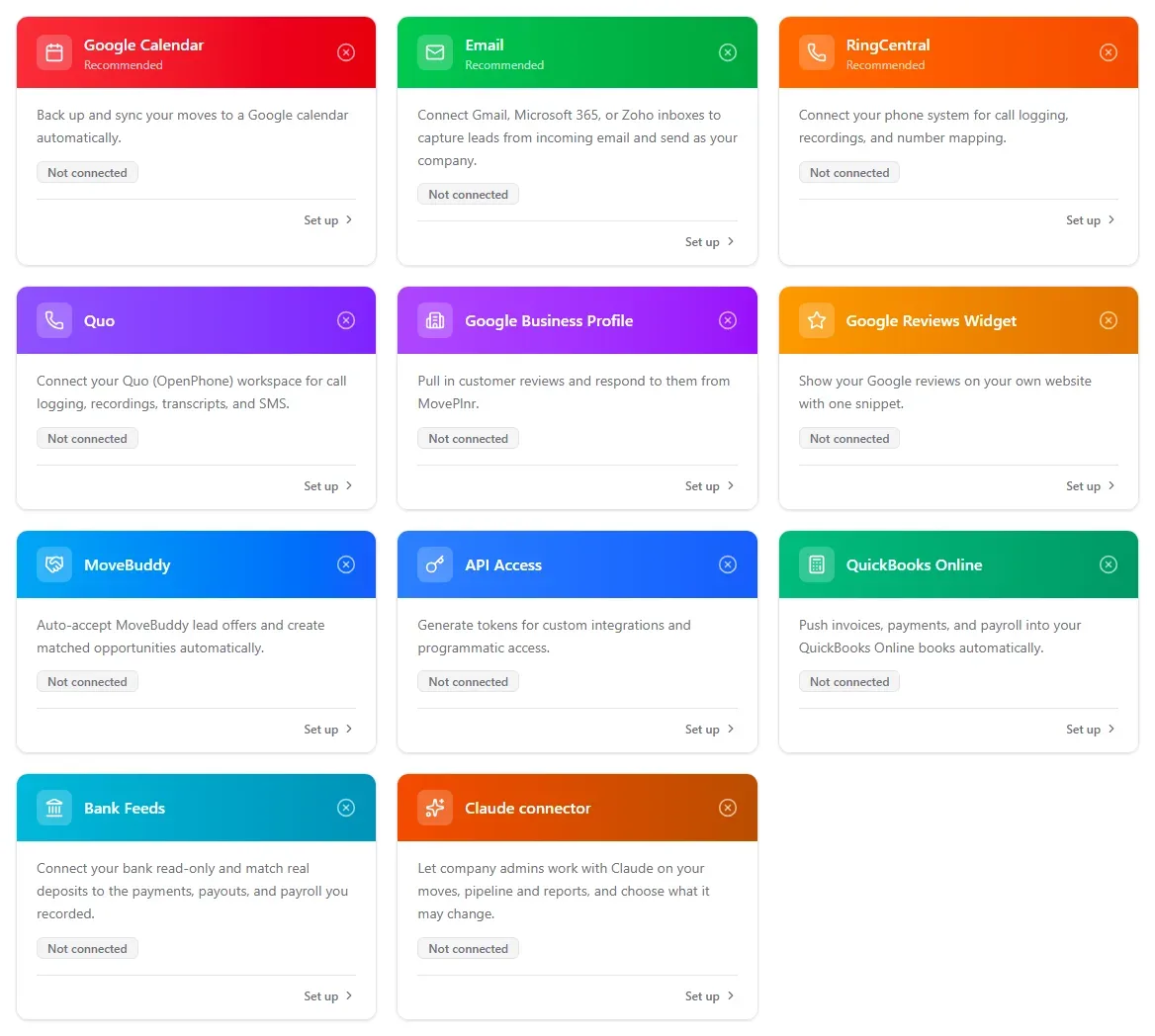
- Choose Integrations Settings, then Set up on the Claude connector card.
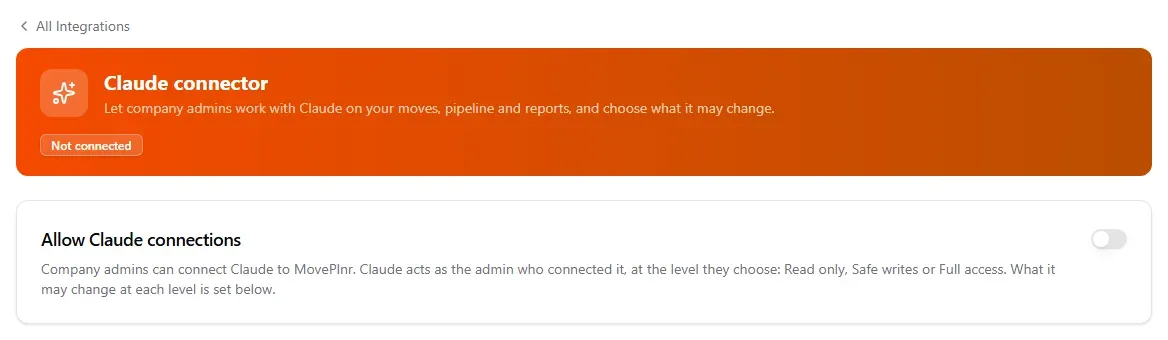
- Turn on Allow Claude connections.
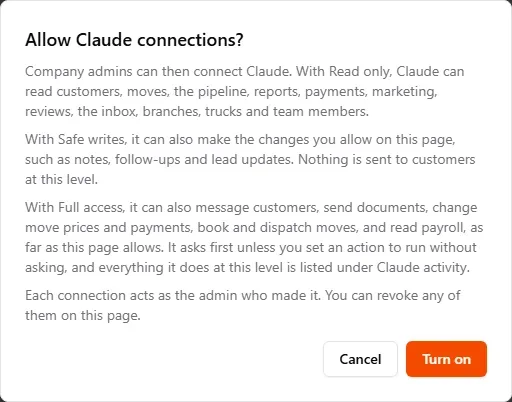
- Read what each level allows, then choose Turn on.
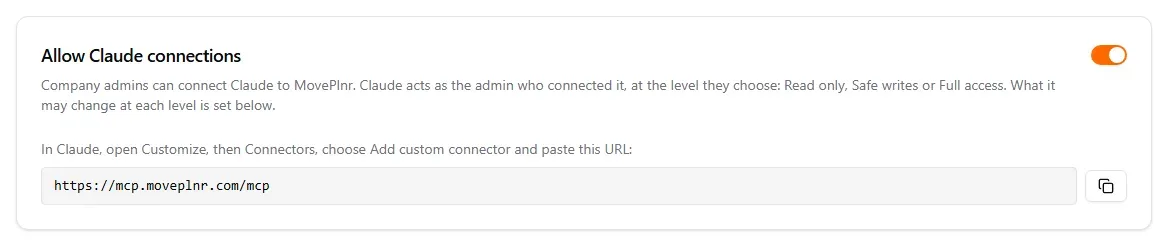
The card now shows the address Claude connects to. It’s the same for every company:
https://mcp.moveplnr.com/mcpAdd MovePlnr to Claude
Do this in Claude on the web (claude.ai) or in the Claude desktop app. They share one connection, so you add it once.
- In Claude, open Customize, then Connectors.
- Choose Add custom connector.
- Name it MovePlnr and paste the connector URL.
- Leave the sign-in settings as they are. If Claude asks how it should identify itself, keep Use Claude’s published identity.
- Choose Add, then Connect. A MovePlnr page opens in your browser. If you’re signed out, sign in and it brings you back.
On a Claude Team or Enterprise plan
An owner of your Claude organization adds the connector once: Organization settings, then Connectors, Add, Custom, paste the connector URL and choose Add. Each admin then opens Customize, then Connectors, finds MovePlnr and chooses Connect.
Approve the connection
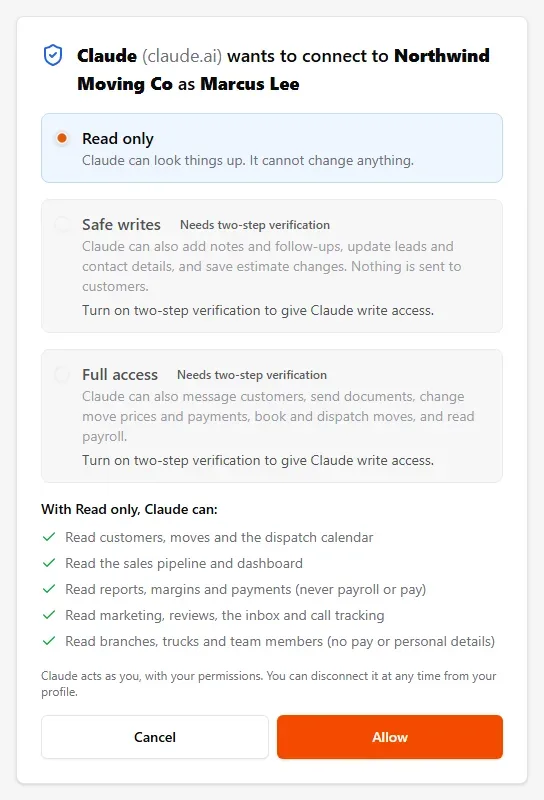
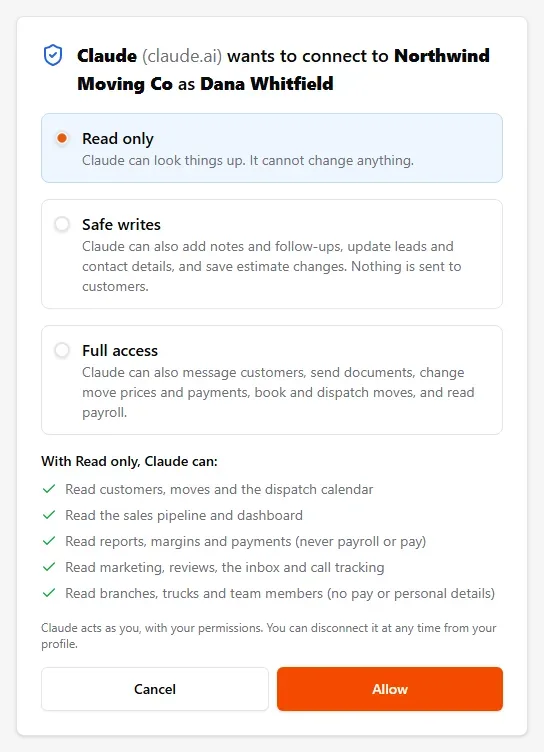
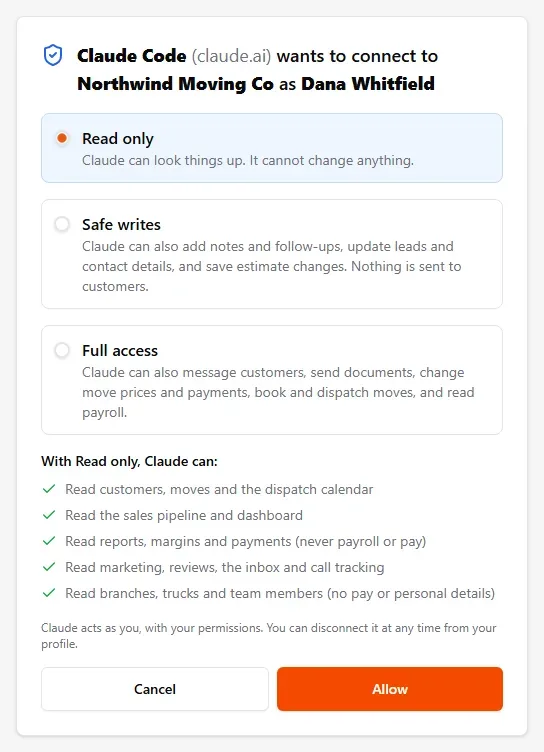
The MovePlnr page names who is connecting: Claude, your company and you. Check it, then pick a level.
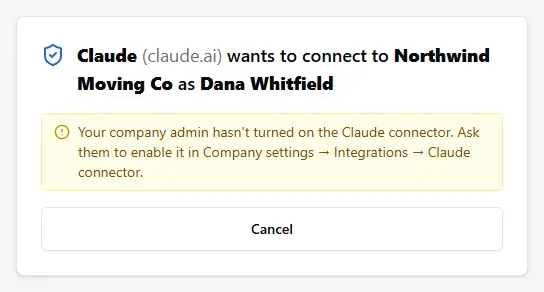
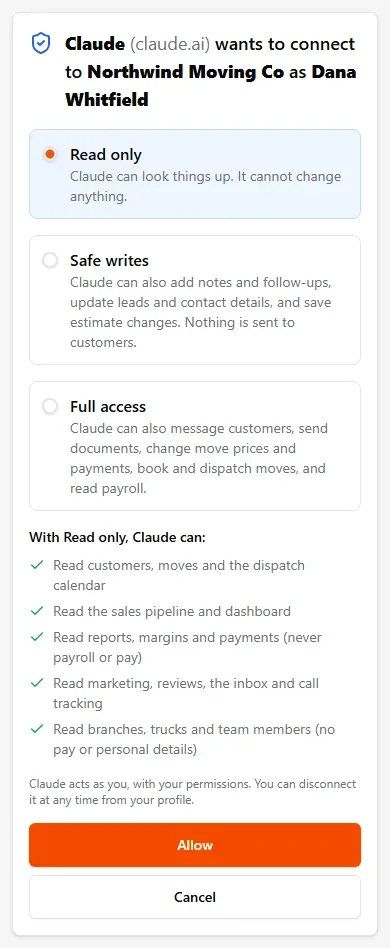
- Check the line at the top. It reads like “Claude (claude.ai) wants to connect to Northwind Moving Co as Dana Whitfield”, with your company and your name.
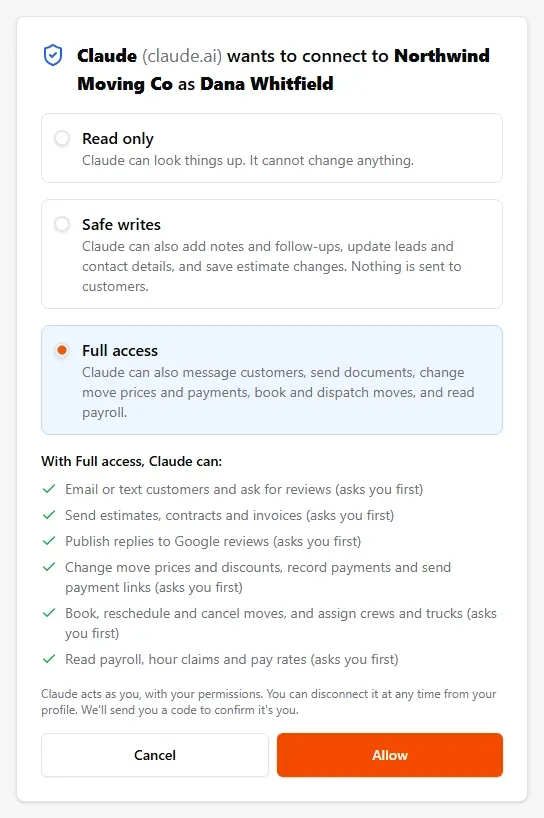
- Pick Read only, Safe writes or Full access. The list under the levels shows what the one you picked lets Claude do, and whether it asks you first.
- Choose Allow. Choosing Cancel tells Claude you said no.
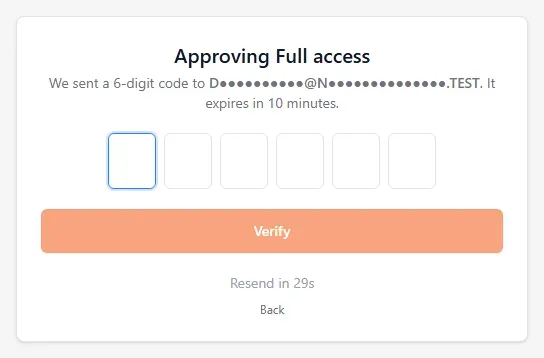
- For Safe writes or Full access, MovePlnr emails you a 6-digit code. The page and the email both name the level, for example Approving Full access. Enter the code within 10 minutes.
You’re back in Claude, and MovePlnr shows as connected.
Set up a MovePlnr project and the skill
Two optional steps make Claude’s answers sharper. A project keeps your MovePlnr chats together with standing instructions. The MovePlnr skill teaches Claude how to read your data well: branches and their time zones, date ranges, and how to treat text your customers wrote.
Create a MovePlnr project
- In Claude, open Projects and create a new project named MovePlnr.
- Open the project’s Instructions and paste the text below. Change the parts in brackets.
- Start your MovePlnr chats inside this project.
I work at [your company name] and we run the business on MovePlnr. Use the MovePlnr connector to answer my questions about our moves, customers, sales pipeline, payments, reviews and team.

- Start each conversation by checking the MovePlnr connection, so you know our branches, their time zones and today's date in each one.
- Our main branch is [branch name]. If I don't say which branch I mean, ask me.
- When you give a figure, say which dates and which branch it covers.
- Before you change anything in MovePlnr, tell me what you'll change and wait for my yes.
- Keep answers short: a few lines, or a small table when there are numbers.
Add the MovePlnr skill
- Download the skill: moveplnr-skill.zip. Keep it zipped.
- In Claude, open Settings, then Capabilities, and make sure Code execution and file creation is on. Skills need it.
- Open Customize, then Skills. Choose +, then Create skill, then Upload a skill, and pick the file.
- Check that moveplnr is in your skills list and switched on.
Skills you add on claude.ai also work in the desktop app when you’re signed in to the same account. On a Team or Enterprise plan, an owner may need to allow members to upload their own skills.
Stop the prompts for lookups
Claude asks before every MovePlnr tool it uses, lookups included. That’s Claude’s default for every custom connector. Lookups can’t change anything, so you can let them run without asking.
- In Claude, open Customize, then Connectors, and choose MovePlnr.
- Set the read-only tools to Always allow.
- Leave every tool that changes something on Needs approval.
Ask your first questions
In a chat, choose +, then Connectors, and check that MovePlnr is on. Then ask the way you’d ask a colleague:
- “How did Calgary do in September compared with last year?”
- “What moves do we have tomorrow in Edmonton?”
- “Which estimates went out last week and haven’t booked yet?”
- “Who still owes us money, oldest first?”
- “Show me this month’s reviews under four stars.”
- With Safe writes: “Remind me to call the Okafor lead Thursday at 10.”
- With Full access: “Text the Jensens that their crew will arrive at 9.”
Dates follow each branch’s own time zone, so “tomorrow” in Calgary means Calgary’s tomorrow.
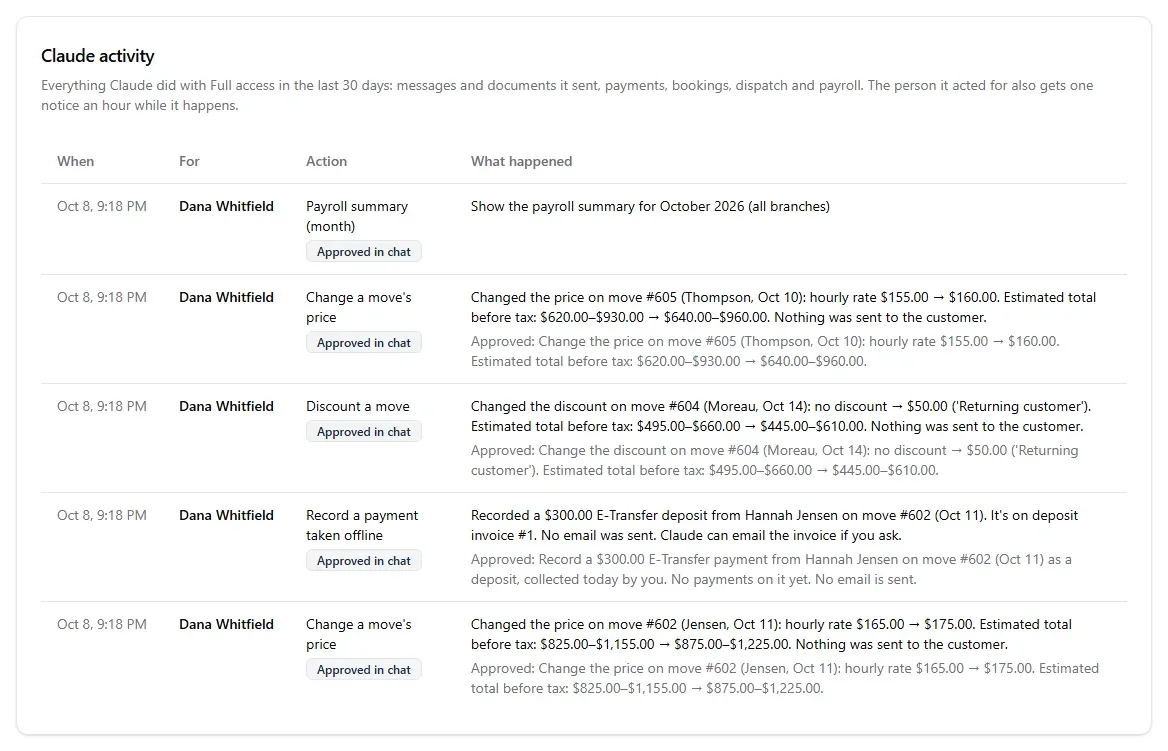
When a change is set to ask first, Claude answers “Prepared, not done yet” and shows you exactly what will change, for example “Change the price on move #602 (Jensen, Oct 11): hourly rate $165.00 → $175.00”. Nothing changes until you say yes. A prepared change waits 10 minutes. If the record changed in MovePlnr in the meantime, Claude shows you the new summary and asks again.
Use Claude Code
If you use Claude Code in a terminal, add the connector with one command:
claude mcp add --transport http --scope user moveplnr https://mcp.moveplnr.com/mcp- Start Claude Code, run /mcp, choose moveplnr, then Authenticate. The same MovePlnr page opens in your browser, this time for Claude Code.
- The page always opens on Read only for Claude Code. To pick more, click Safe writes or Full access before you choose Allow, then enter the code.
- To add the skill, unzip moveplnr-skill.zip into the skills folder in your home folder, so the file ends up at ~/.claude/skills/moveplnr/SKILL.md.
To stop the prompts for lookups in Claude Code, allow the read-only MovePlnr tools with /permissions.
Give Claude more access later
You don’t need to start over. Ask Claude for something your level doesn’t cover. For example, on Read only: “Add an office note to the Jensen move: piano needs a fourth mover.”
- Claude on the web and the desktop app: Claude shows a Connect button. Choose it. The MovePlnr page opens on the level Claude needs. Choose Allow, enter the code, and Claude carries on.
- Claude Code: Claude tells you to run /mcp and authenticate again. The page opens on Read only, so click the level you want, choose Allow, enter the code, and ask again.
On the web and in the desktop app, your old, lower-level connection ends by itself, so Connected apps shows one connection. Claude Code keeps each sign-in as its own connection, one per computer. Revoke the old ones whenever you like.
Choose what Claude may change
On the Claude connector page, the What Claude may change card lists each kind of change with three buttons:
- Auto-allow. Claude makes the change and tells you what it did.
- Ask first. Claude shows you the change in the chat and waits for your yes.
- Never. Claude can’t make that kind of change, whatever level someone connected at.
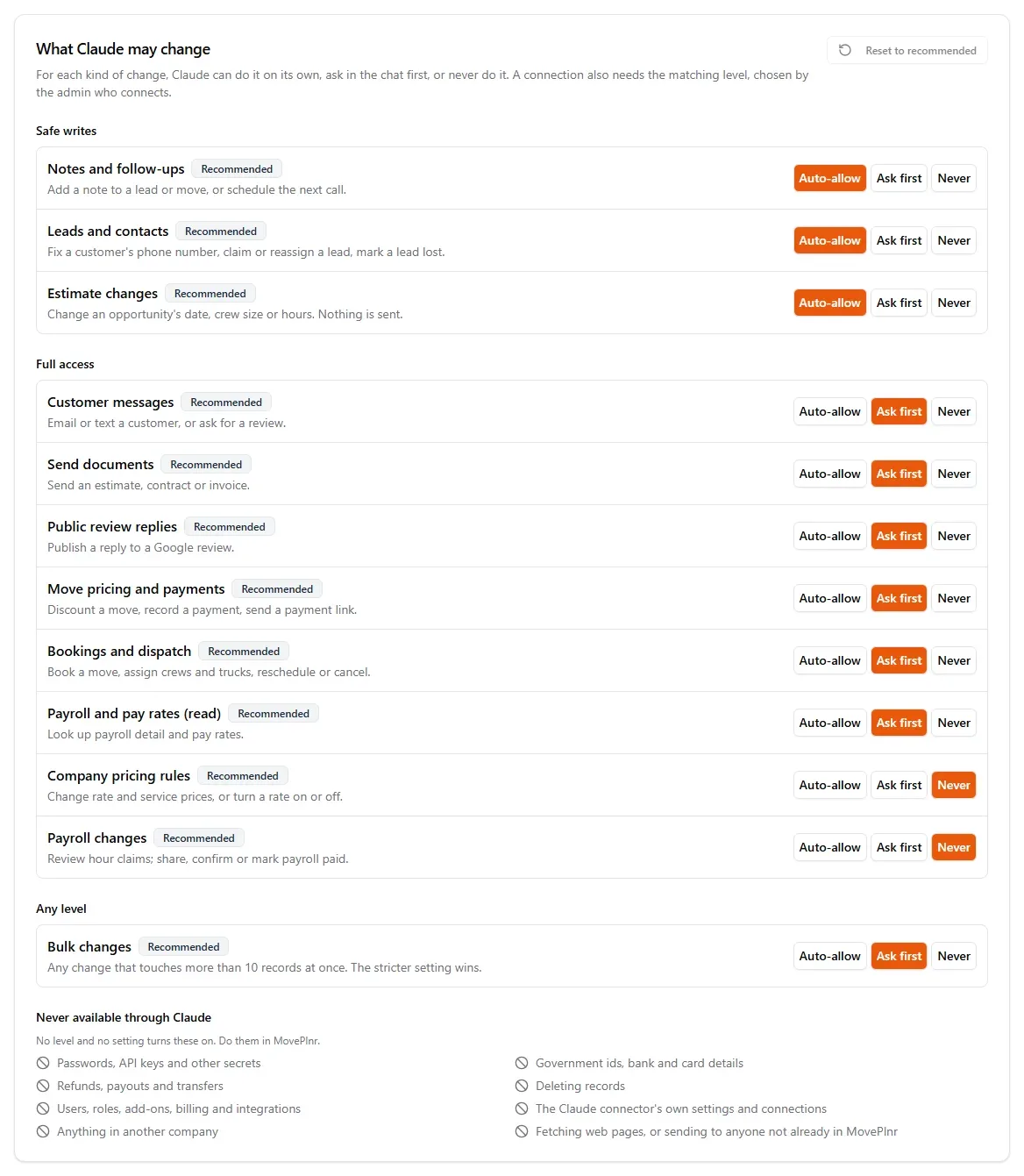
The Safe-writes kinds start on Auto-allow. The Full-access kinds start on Ask first, except Company pricing rules and Payroll changes, which start on Never. Bulk changes covers any change that touches more than 10 records at once, and the stricter of the two settings wins. A setting applies to every connection in your company.

An untouched row shows Recommended. A row you’ve changed shows our recommended setting beside its name, and Reset to recommended puts every row back. Connections stay connected.
The card ends with what Claude can never do, whatever the level or setting: refunds, payouts and transfers, deleting records, changing users, roles, add-ons, billing or integrations, and anything in another company. Do those in MovePlnr.
See what Claude did
Everything Claude does with Full access, for anyone in your company, is listed under Claude activity on the Claude connector page, newest first, for the last 30 days. Each row says when, who it acted for, the action, what happened, and whether it was Approved in chat or Automatic.
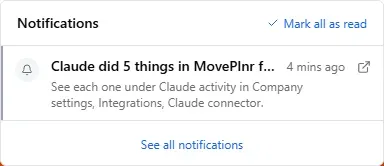
If your company has the Inbox add-on, the person Claude acted for also gets one notice an hour in the bell while it’s happening, and the notice links to this card.
Safe writes, such as notes and follow-ups, don’t appear under Claude activity. MovePlnr’s own history shows each change made through Claude under the name of the person who connected it, marked as coming from Claude.
Disconnect Claude
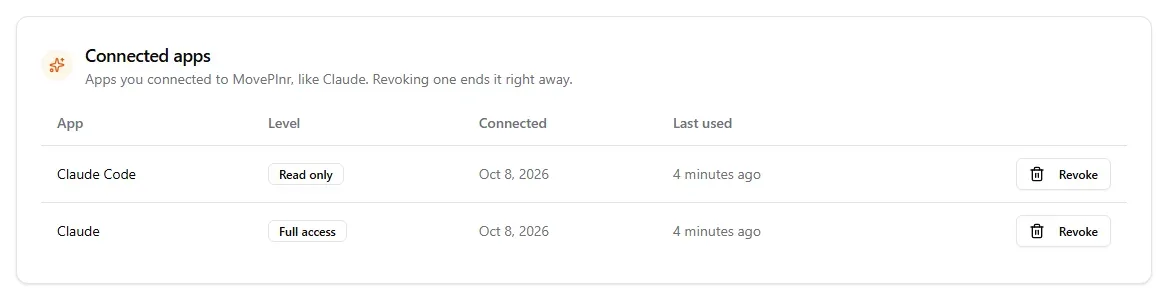
- Your own connection: choose your initials, then Profile Settings, then Connected Accounts. Under Connected apps, choose Revoke.
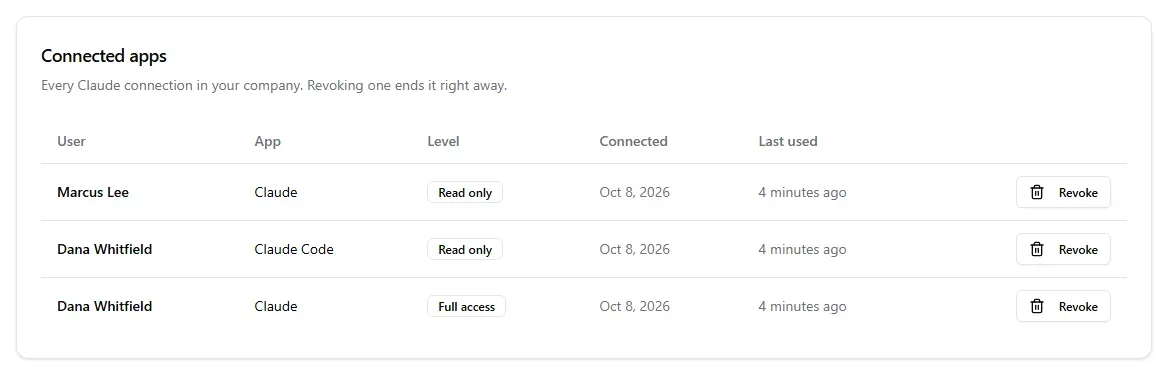
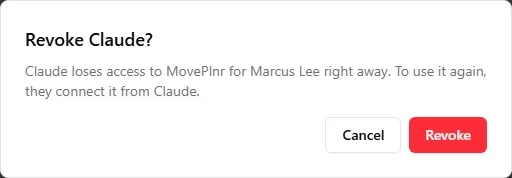
- Anyone’s connection (company admins): on the Claude connector page, choose Revoke next to it under Connected apps.
Revoking takes effect right away. To use Claude again, connect it from Claude.
To pause everyone at once, turn off Allow Claude connections. Claude then answers every request with “The Claude connector is turned off for your company”, and nobody can make a new connection. Existing connections stay listed and work again when you turn it back on. To end them for good, revoke them.
A connection also ends when you change your password, an admin resets it, or your account is deactivated. Claude then shows Connect again. If you stop being a company admin, Claude stops working for you, and starts again if you become one.
If something goes wrong
| What you see | What to do |
|---|---|
| ”Your company admin hasn’t turned on the Claude connector” or “The Claude connector is turned off for your company” | A company admin turns on Allow Claude connections. |
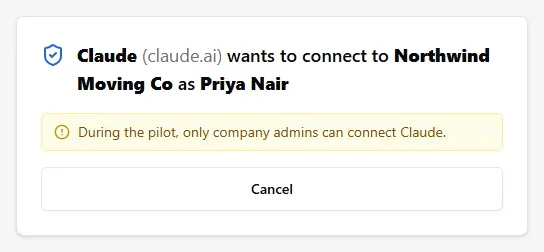
| ”During the pilot, only company admins can connect Claude” | Ask a company admin to connect, or to give you the company admin role. |
| ”Needs two-step verification” beside Safe writes and Full access | Your MovePlnr account doesn’t use two-step verification, so only Read only is offered. Contact MovePlnr support to turn it on. |
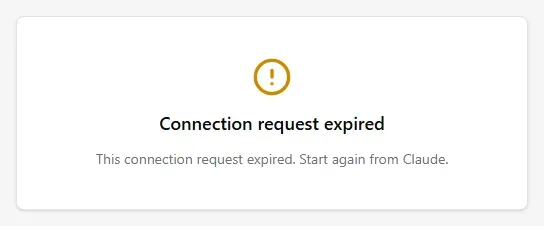
| ”This connection request expired. Start again from Claude.” | The page waited more than 10 minutes. Start the connection again in Claude. |
| ”That code was sent for a different level. Send a new one.” | You picked another level after the code was sent. Go Back and ask for a new code. |
| ”That code expired or was used. Send a new one.” | Ask for a new code. Each one works once, for 10 minutes. |
| ”This confirmation expired; ask me to do it again.” | More than 10 minutes passed before you said yes. Ask Claude again. |
| Claude says a kind of change isn’t allowed | It’s set to Never under What Claude may change. A company admin can change it. |
| Claude says a usage limit was reached | Wait for the time Claude gives you, then ask again. |