
Before you start
- Prices is in Company Settings, in the side menu. It replaces the old Move Rates and Additional Services pages, and their old links open the matching tab here.
- To add or change prices you need edit access to rates, services, supplies and move sizes in your access preset. The owner and the Admin preset have it. With view access the lists show, the buttons are off and the page says “You have view access.”
- Branch prices need more than one branch. Journey prices, the AI can quote switch and the Journey bar on an opportunity need the Quote Pages add-on.
Your price list
Your company keeps each rate and each service once. Every branch sells from the same list, and a branch or a journey that charges differently keeps its own price on the line instead of a copy of it.
- Open Company Settings and pick Prices.
- The Rates tab lists your rates with their Price, Minimum and Crew. A rate with a crew is picked for a job with that crew automatically. A rate with none reads Picked by hand.
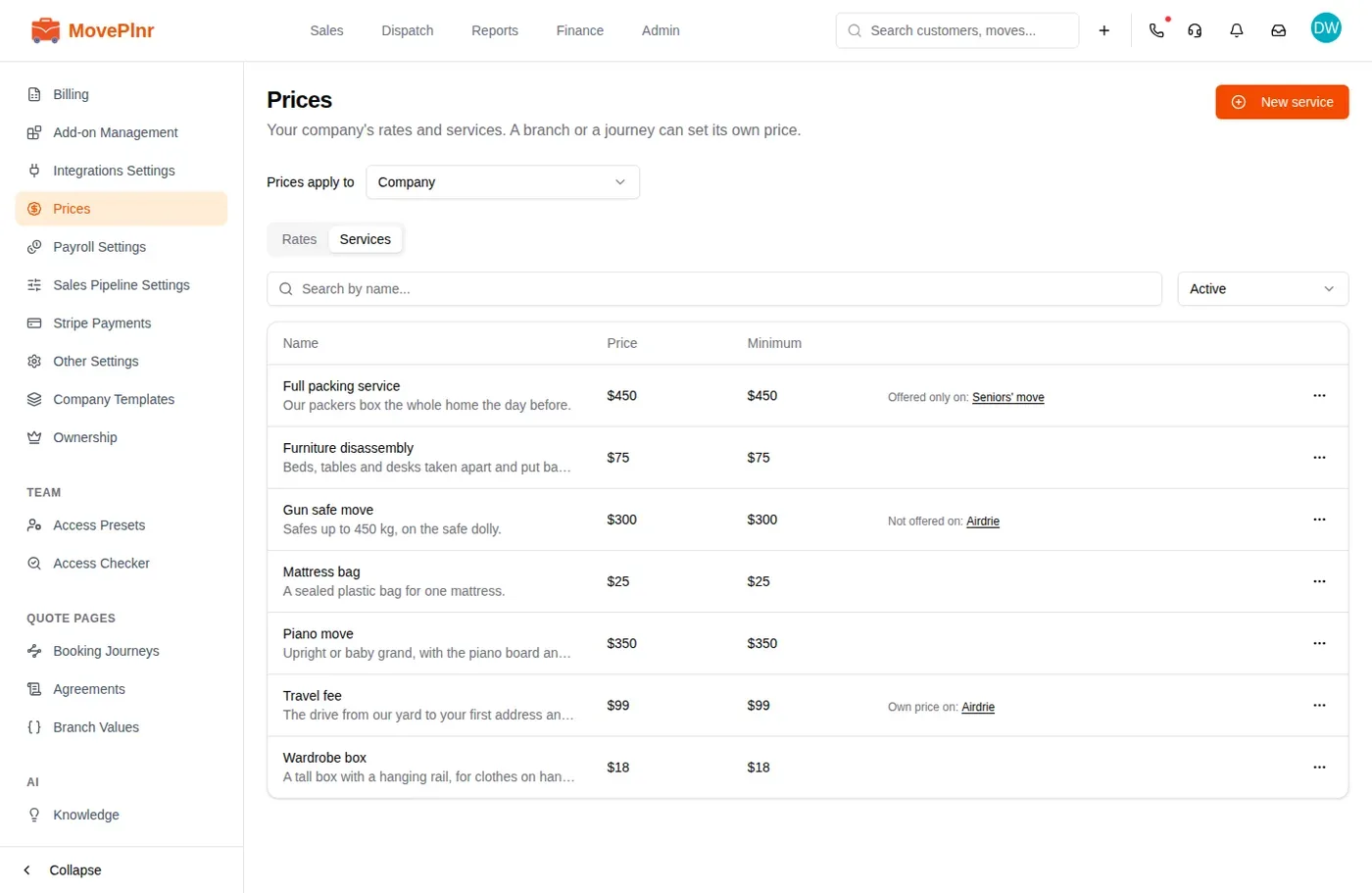
- The Services tab lists your additional services with their price and minimum.
- Search by name, or switch the status filter from Active to see archived lines.
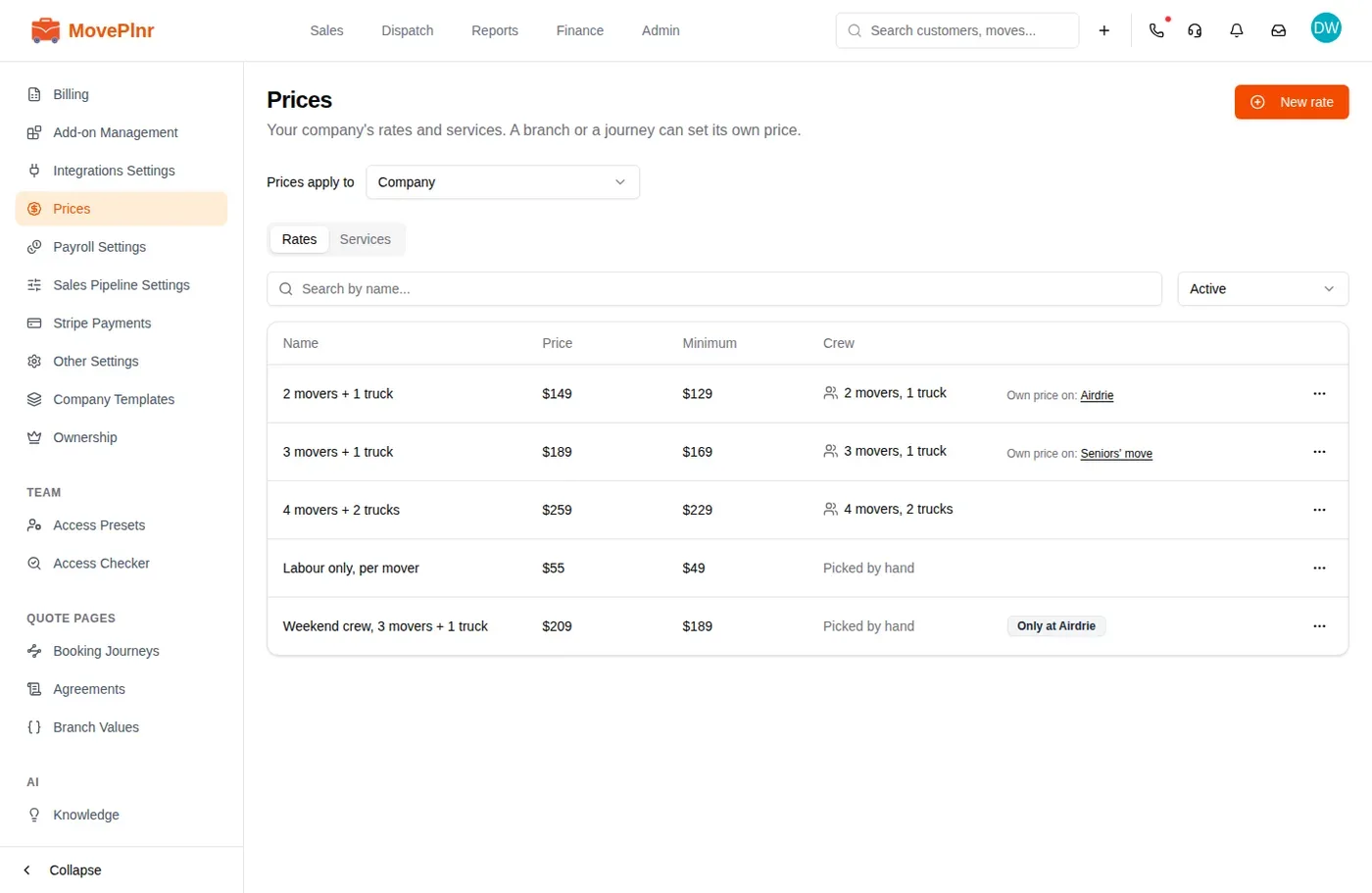
The notes beside a line tell you where it differs:
- Own price on names each branch or journey that charges its own price for it, as a link to where that price is set.
- Only at and a branch’s name marks a line that one branch keeps for itself.
- Not offered on and Offered only on name the places that switched a line off, or the only places that sell it.
Add a rate
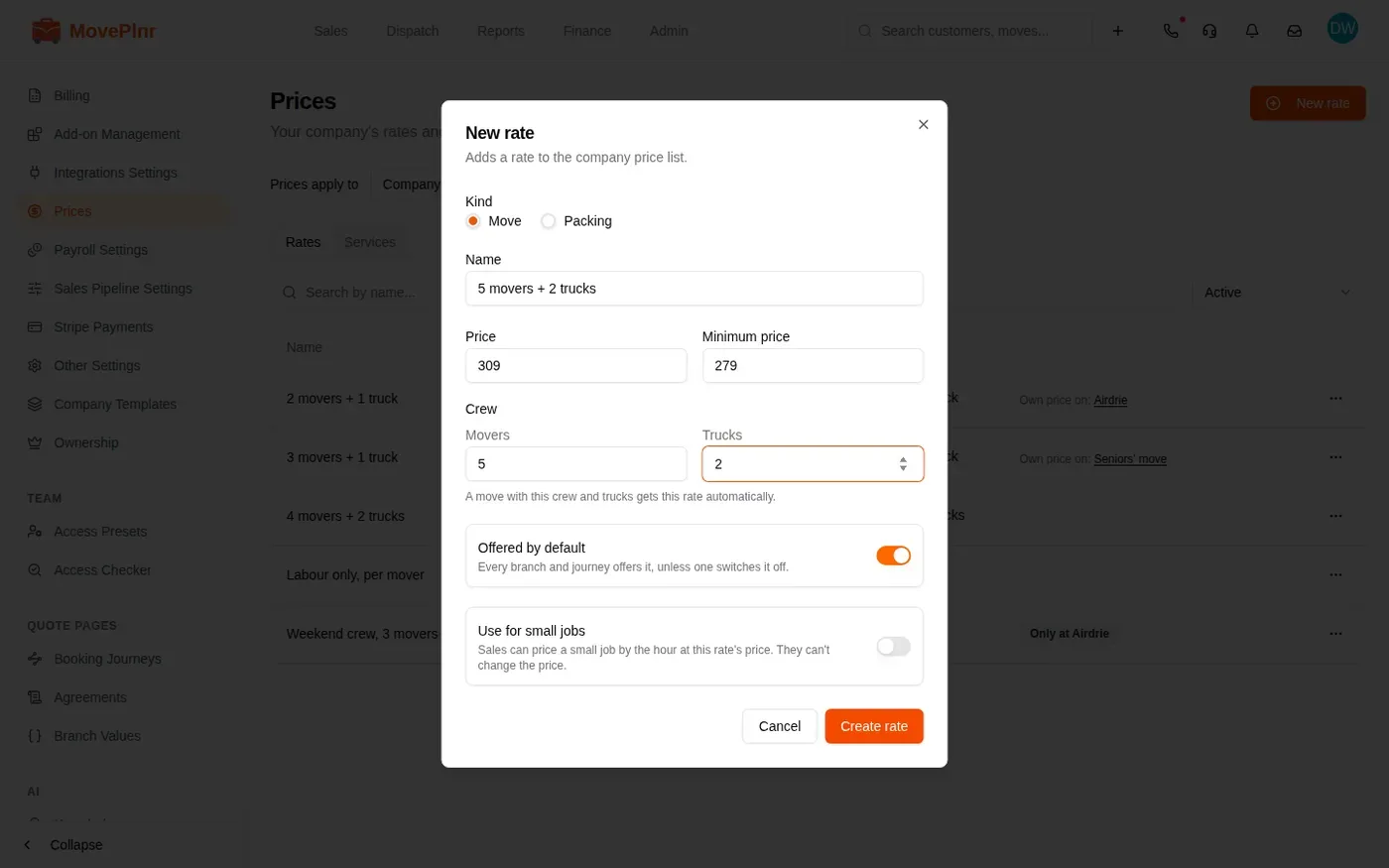
- On the Rates tab, with Prices apply to on Company, click New rate.
- Type a Name, the Price and the Minimum price. The minimum can’t be above the price.
- Under Crew, enter the Movers and Trucks if the rate is for a set crew. A move with that crew and those trucks then gets this rate automatically. Leave them empty for a rate your team picks by hand, such as a labour-only rate.
- Leave Offered by default on to sell it at every branch and on every journey, unless one switches it off. Turn it off to sell it only where a branch or journey switches it on.
- Click Create rate.
Add a service
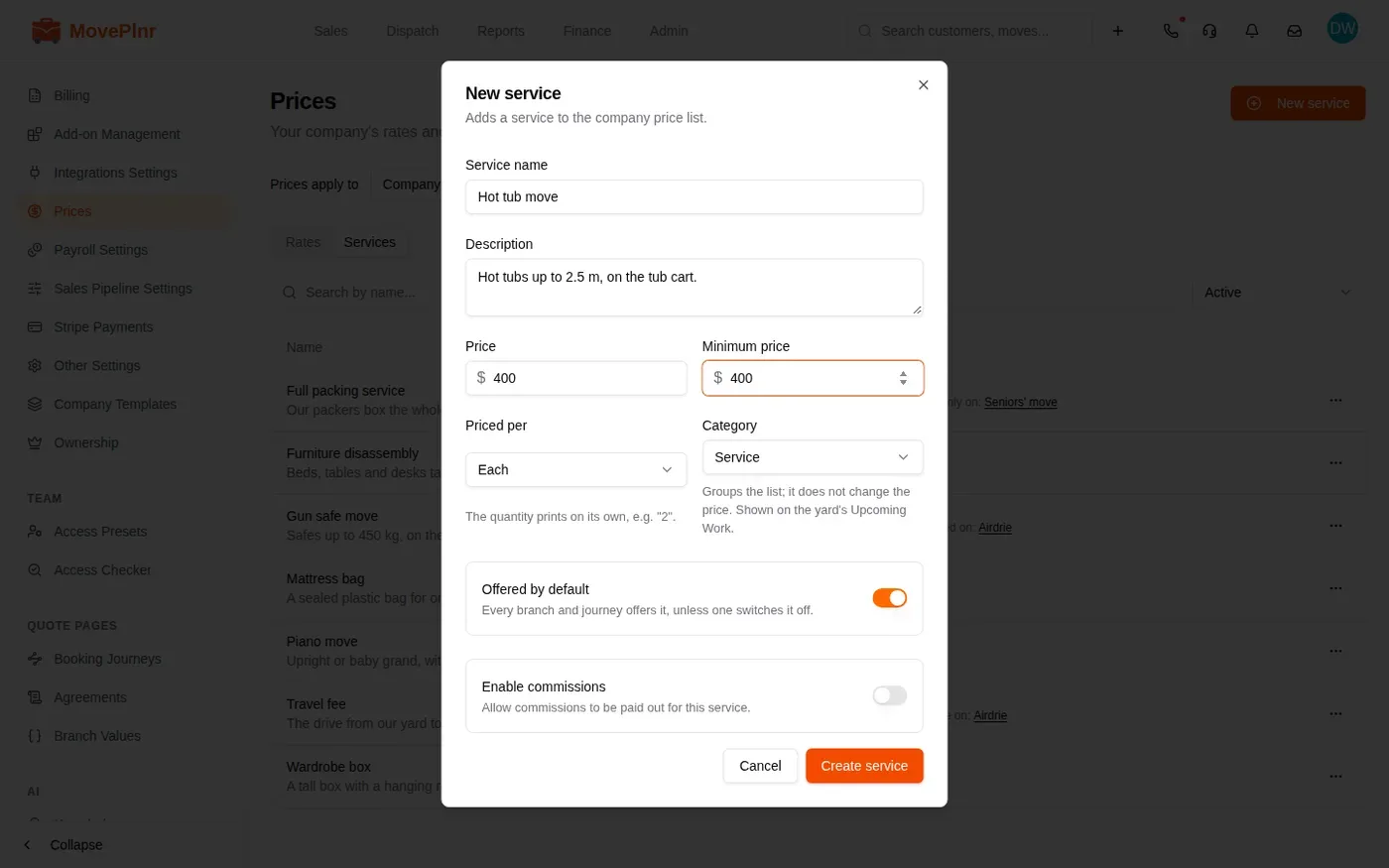
- Open the Services tab and click New service.
- Type the Service name and a Description, then the Price and Minimum price.
- Pick what it is Priced per and its Category. The category groups the list and does not change the price.
- Leave Offered by default on to sell it everywhere, then click Create service.
Give a branch its own price
When one branch charges a little more or less for a line, give it its own price. The line stays one line, and every other branch keeps the company price.
- On Prices, change Prices apply to from Company to the branch. The list now shows that branch’s prices, and lines the branch doesn’t sell sit at the bottom, greyed.
- Open the three dots at the end of the line and choose the edit for that branch’s price.
- Change the Price or Minimum price, then click Save changes.
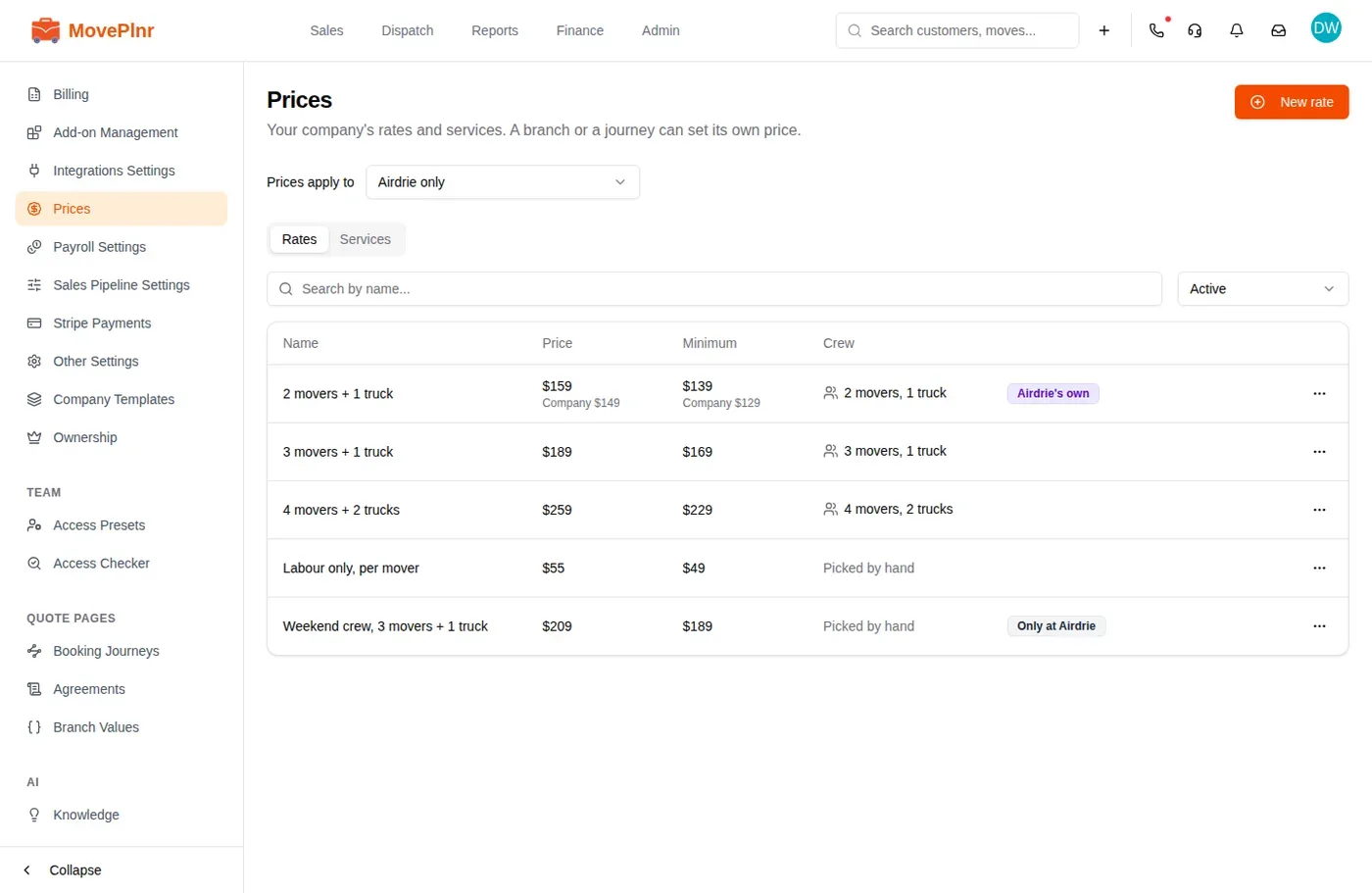
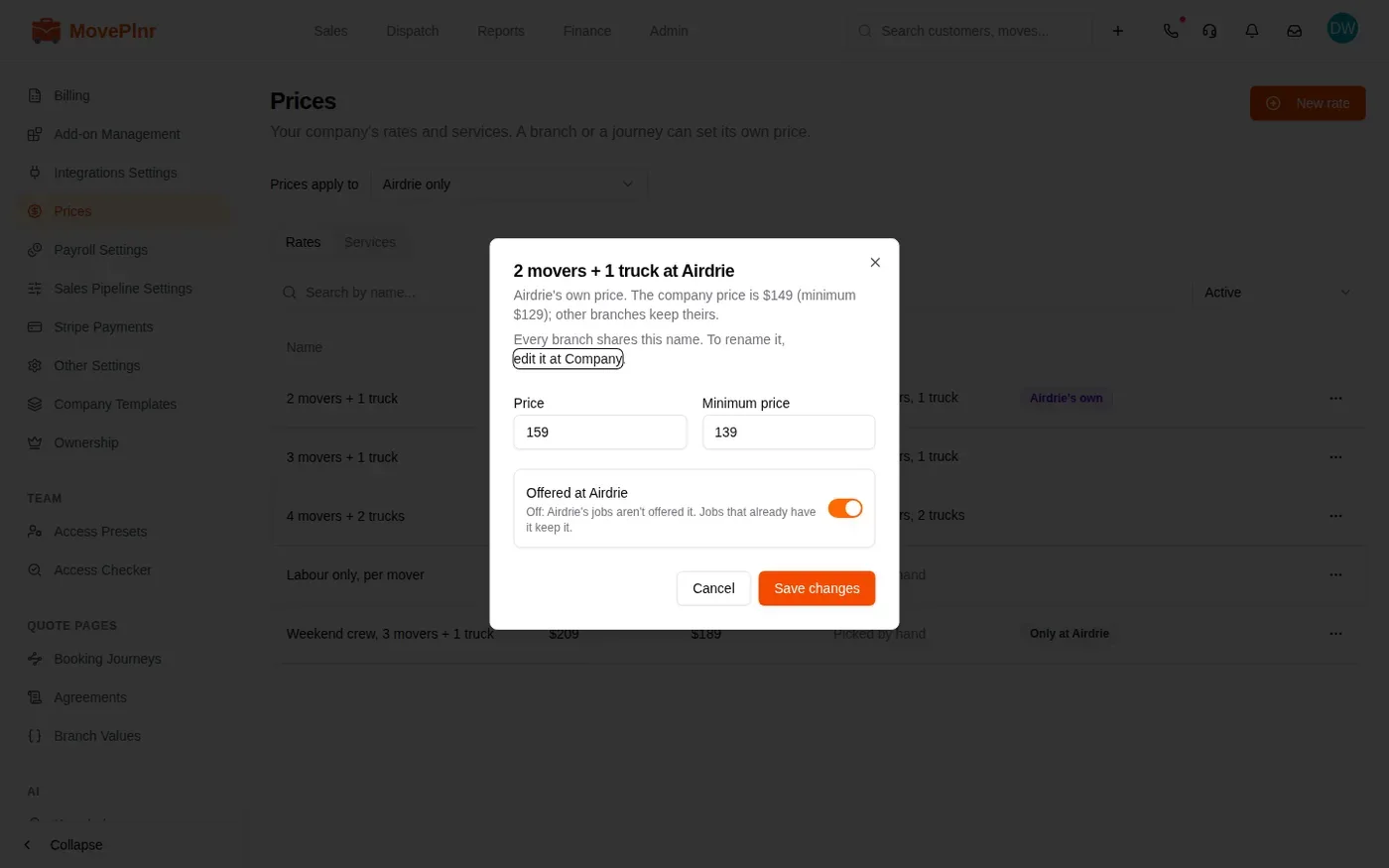
The row then carries a badge with the branch’s name, and the company list names the branch under Own price on. To go back, open the three dots on the row and choose Reset to company. It asks first. Jobs already priced keep their prices.
A line only one branch sells
With Prices apply to on a branch, New rate and New service add a line that only that branch sells, such as a weekend crew one branch runs. At Company it reads Only at and the branch’s name.
Choose where a line is sold
- With Prices apply to on Company, open the three dots on the line and choose Edit.
- Under Offered by default, Offered at lists every branch, ticked where the line sells today.
- Untick the branches that don’t sell it, tick the ones that do, and click Save changes.
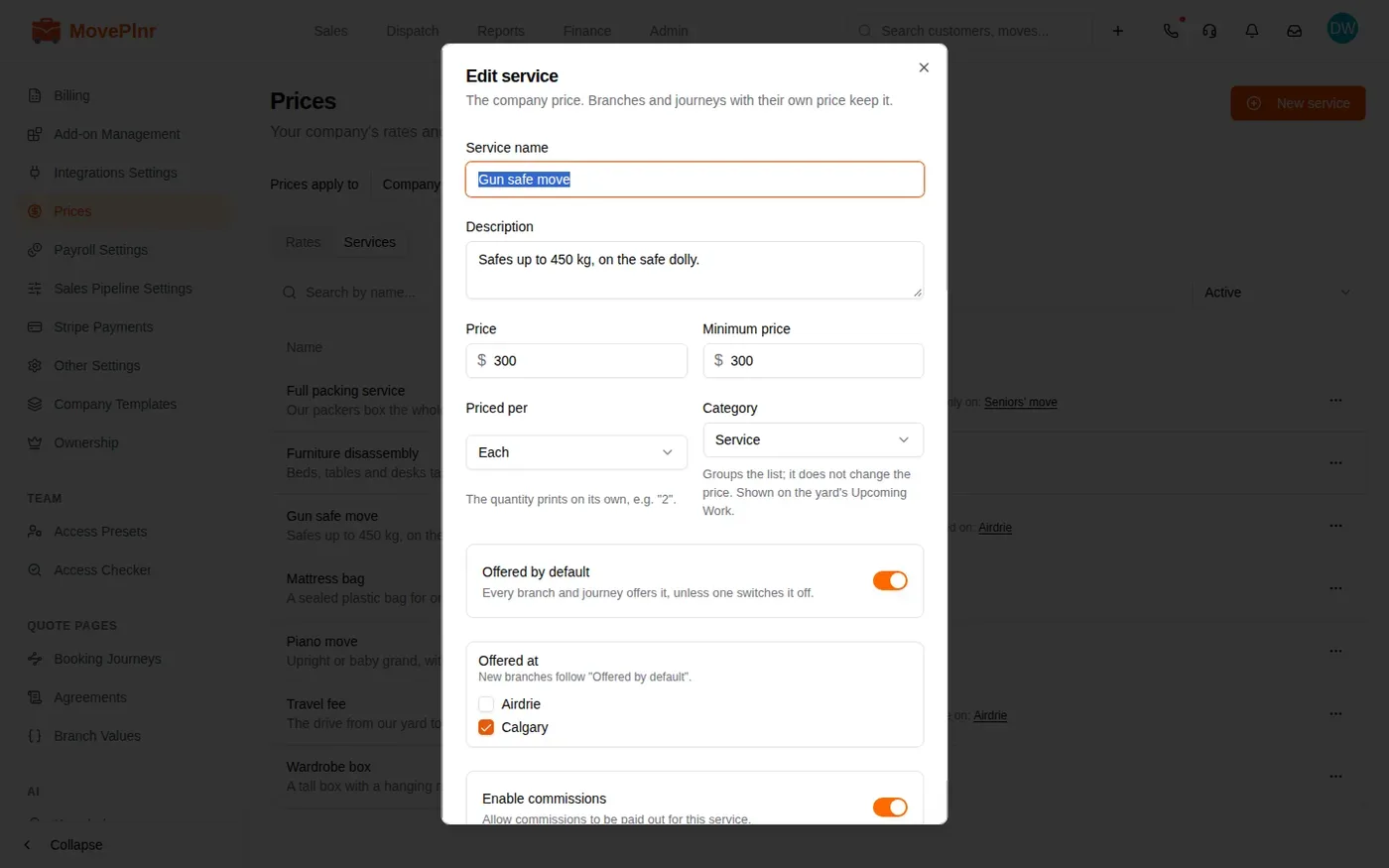
The line then reads Not offered on with the branches you unticked. A job that already has the line keeps it.
Prices on a journey
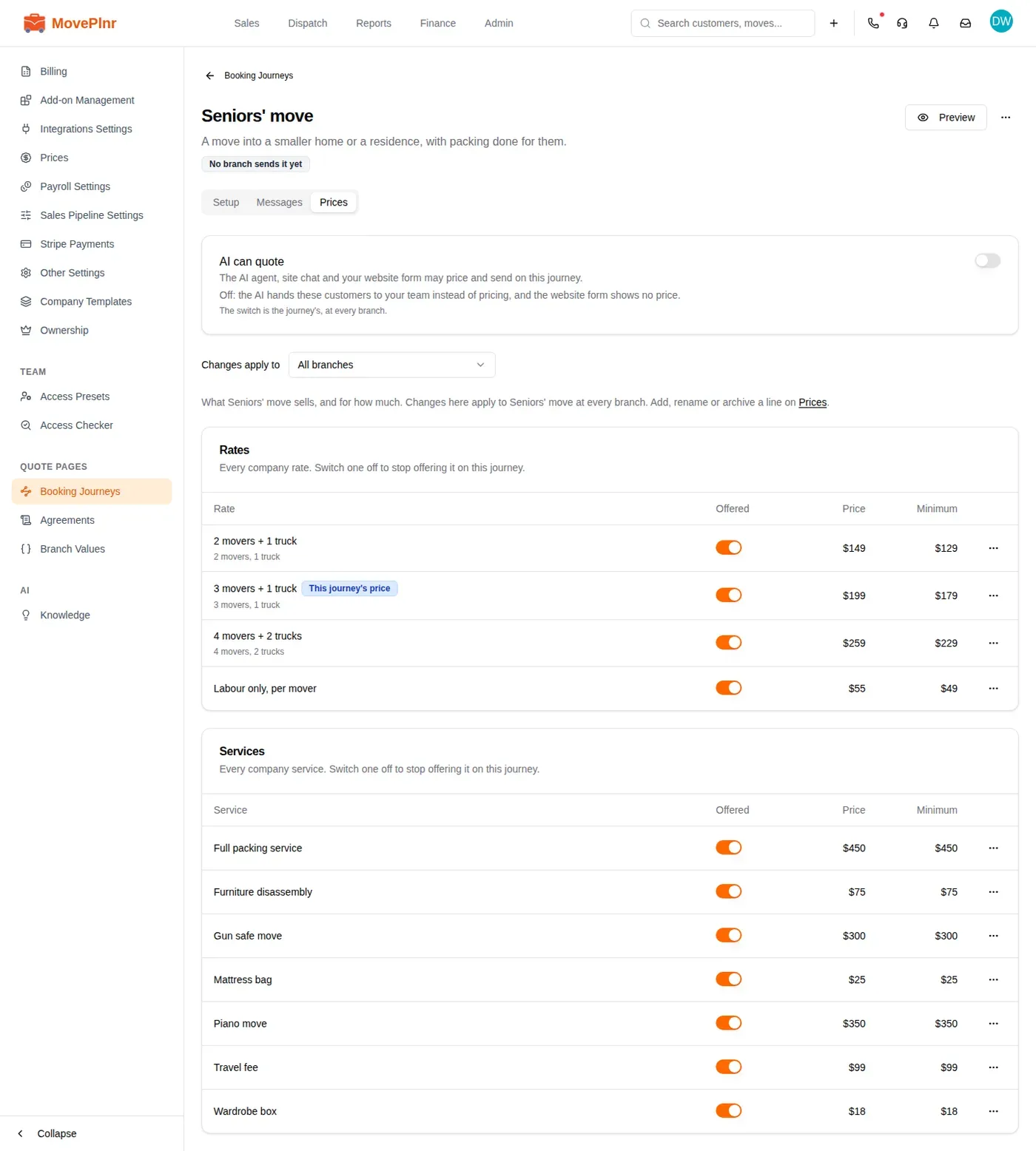
With Quote Pages, each booking journey has its own Prices tab. Use it when a kind of move is priced differently wherever it is sold, such as a move with packing done for the customer.
- Open Booking Journeys in Company Settings, open the journey and click the Prices tab.
- Every company rate and service is listed. Switch Offered off for a line the journey shouldn’t sell, or on for one that is off by default.
- To change a line’s price on this journey, open its three dots, choose Edit, set the Price and Minimum price, and click Save. The line then reads This journey’s price.
- Changes apply to is All branches at first. Pick one branch to set a price for the journey at that branch only.
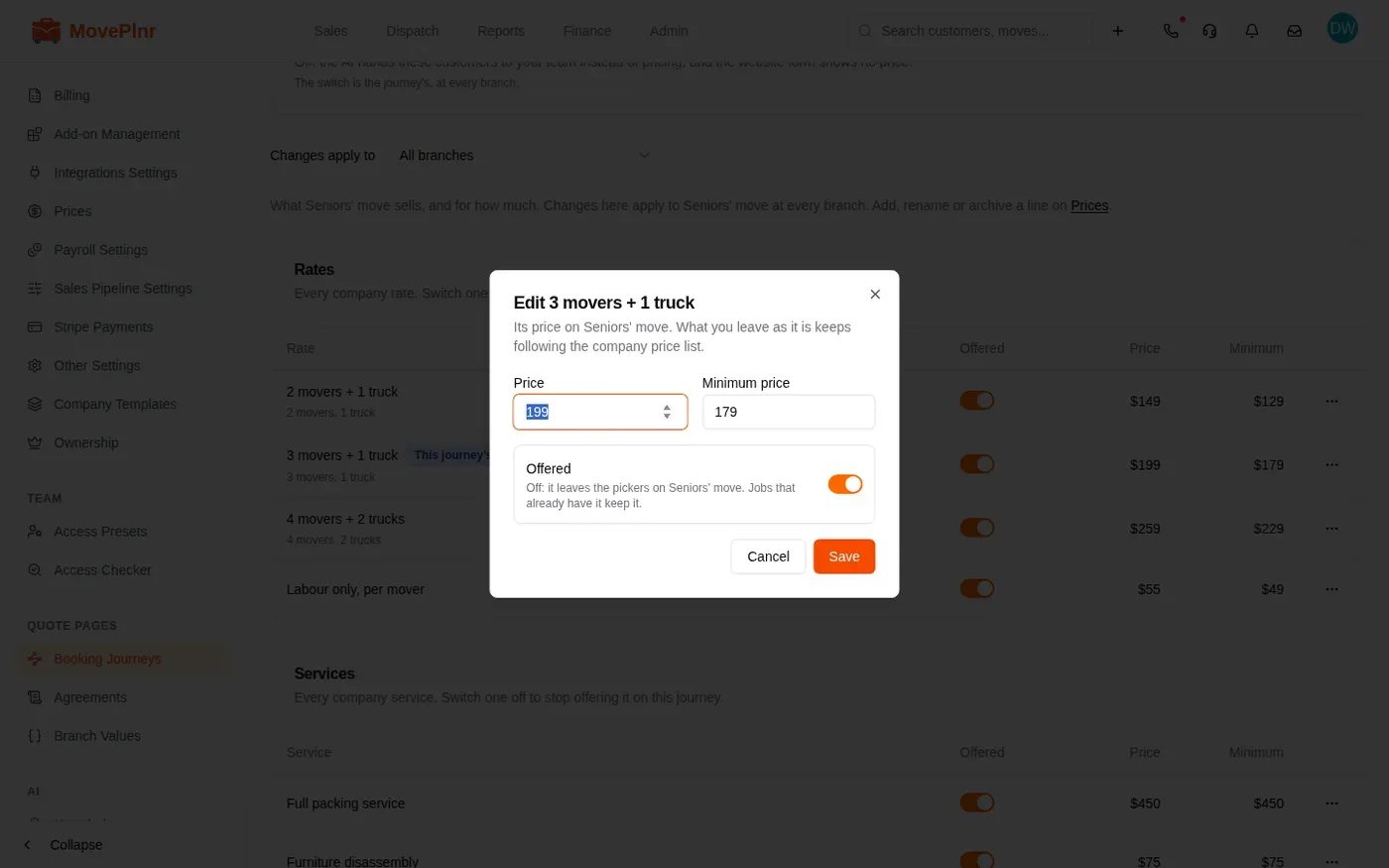
When a job is priced, the most specific setting wins: the journey at the job’s branch, then the journey, then the branch, then the company line.
AI can quote
AI can quote at the top of the tab decides whether the AI agent, your site chat and your website form may price and send on this journey. Turn it off for work you always want a person to quote. The AI then hands those customers to your team, and the website form shows no price. The switch is the journey’s at every branch.
The journey a quote follows
On an opportunity, the Journey bar sits under the booking location. It names the journey whose prices the job’s rate and service pickers use, and (branch default) when the job follows its branch’s default journey. Sending the quote and closing the job use the same journey.
- On the opportunity, click Change on the Journey bar.
- Pick another journey from the list.
- Click Change journey to confirm. The pickers reload with that journey’s prices. Prices already saved on the job stay.
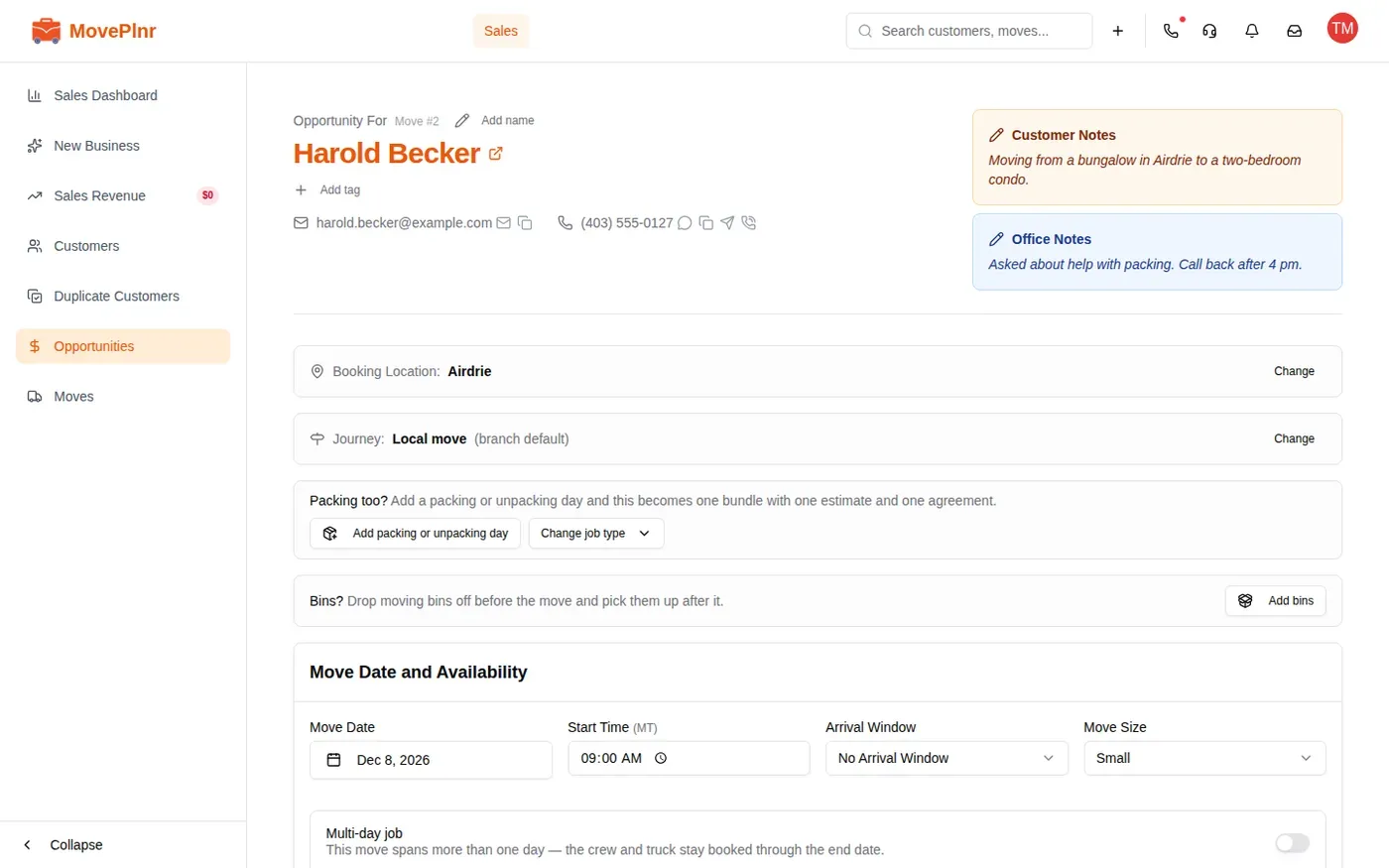
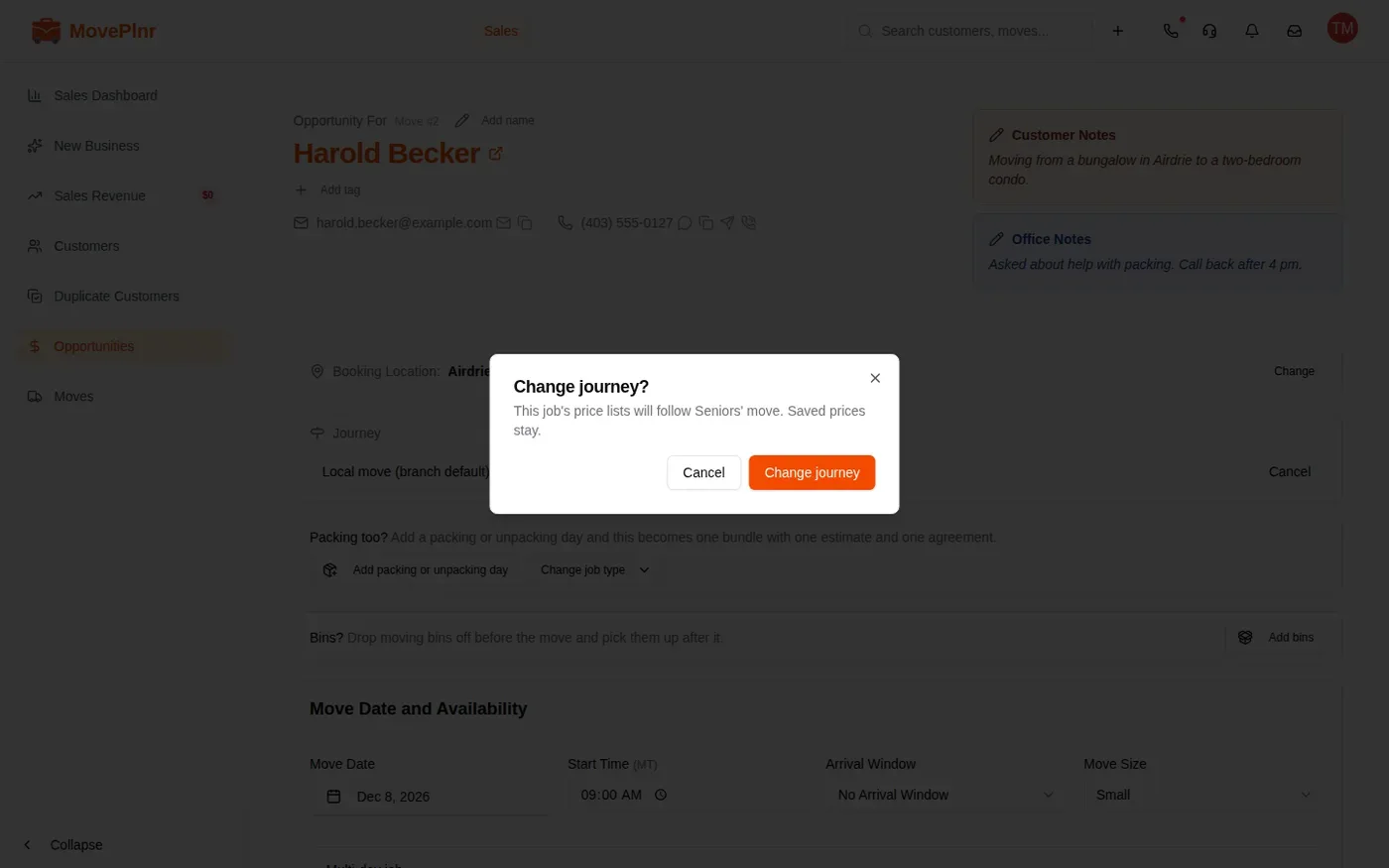
Once the job is booked, its journey can no longer change.