
Before you start
- The Partners & Referrals add-on, which needs Sales Pipeline first.
- You are the owner, or your preset has Manage partner leads. That gives you the Campaigns and Setup tabs.
- To connect Calendly, your preset also needs Integrations (connect accounts).
Partner leads is for the businesses you are still courting. Partners who already signed up live under Partners, with their referral codes and commission. When a partner lead says yes, a rep turns it into a partner in one step.
Turn on the add-on
- Open Company Settings and choose Add-on Management, then the Sales section.
- Turn on Sales Pipeline if it is off, then turn on Partners & Referrals.
- Partner leads now shows in the Sales menu, after Partners.
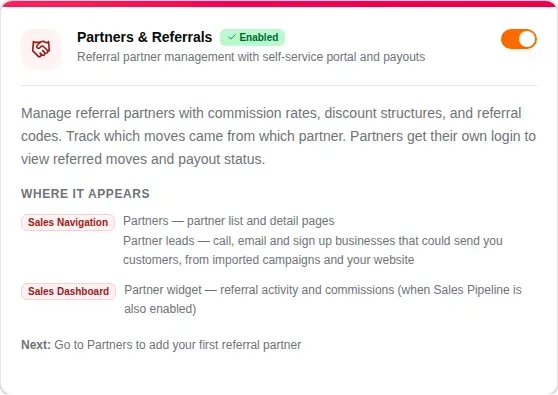
Add-ons in general are covered in Connect your integrations and add-ons.
Give your team access
At first only you and the Admin preset hold Partner leads. A rep sees nothing until their preset has it. Open Company Settings, then Access Presets, open the preset (Sales rep, for most companies) and find the Sales & customers section.
Partner leads has three levels:
- Their own: a rep works their own leads, claims new ones from the New tab and reads the scripts.
- See everyone’s: they can also read every rep’s leads and open the Summary tab.
- Everyone’s: they can also change, assign and release anyone’s lead.
Manage partner leads adds the Campaigns and Setup tabs: campaigns and imports, adding a lead by hand, archiving, industries, playbooks and the settings. It needs Partner leads at Everyone’s. Anyone who turns a lead into a partner also needs Partners.

How presets work is in Access presets and the Access checker.
Add an industry
An industry is a kind of business your reps call, and each one has its own playbook of scripts and emails. Open Partner leads, then Setup, then Playbooks.
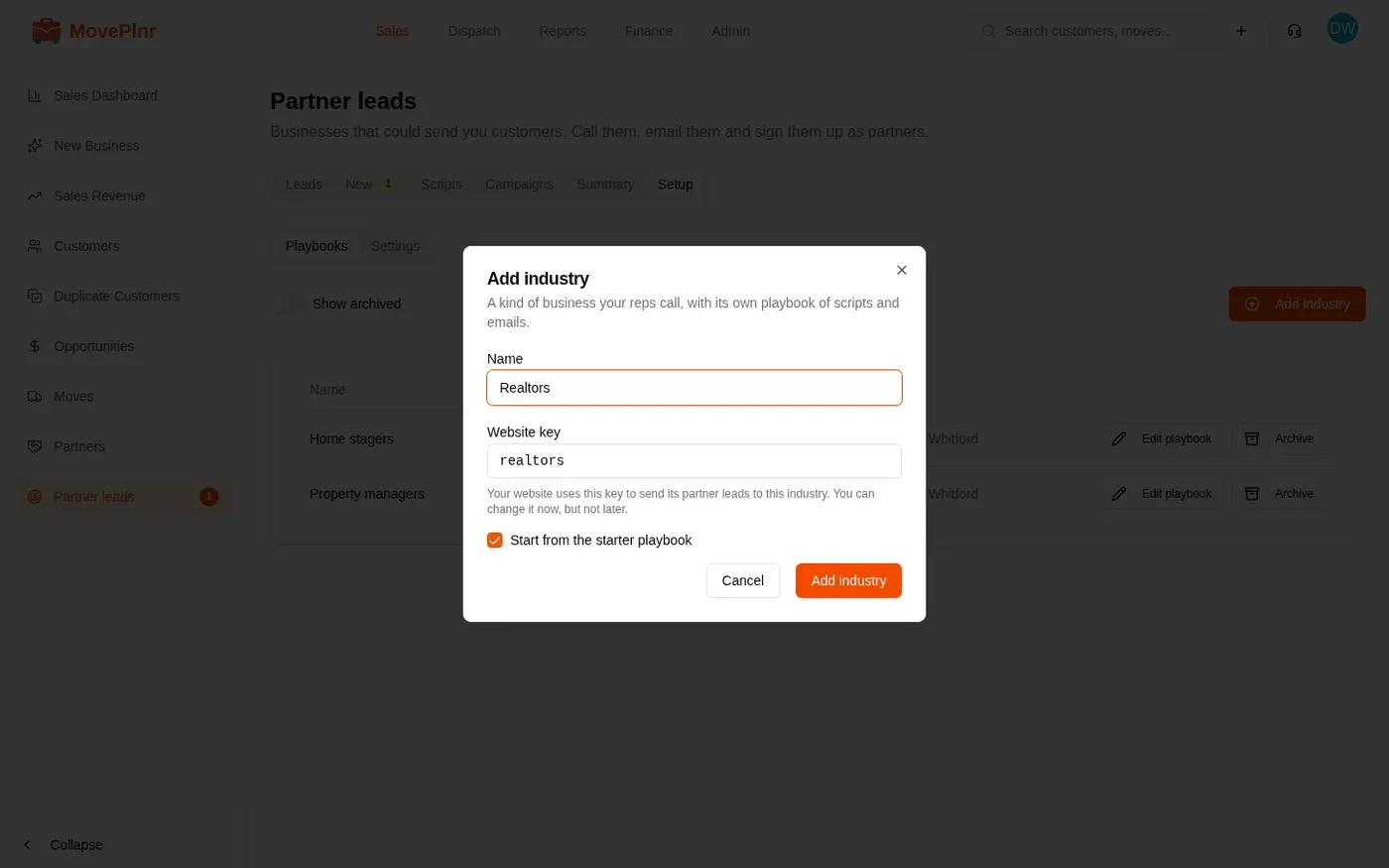
- Choose Add industry and type the Name, such as Realtors.
- The Website key fills in from the name. Use lower-case letters, numbers and single hyphens. You can change it now, but not later.
- Leave Start from the starter playbook ticked. You get starter text in every section and five emails.
- Choose Add industry. Its playbook opens.
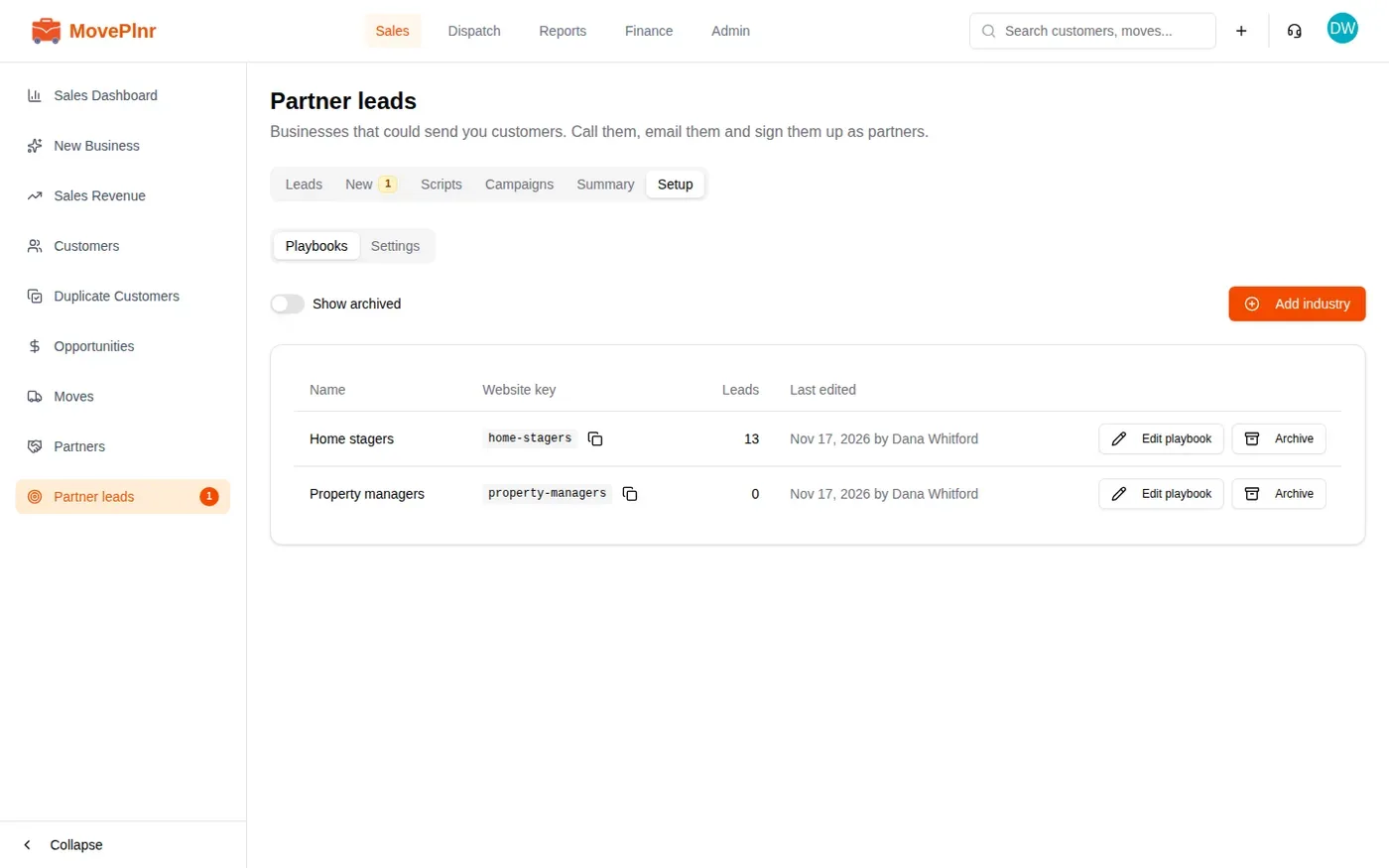
The list shows each industry’s Website key with a copy button, how many leads use it and when it was last edited. Archive takes an industry out of use once no live lead or campaign uses it.
Write the playbook
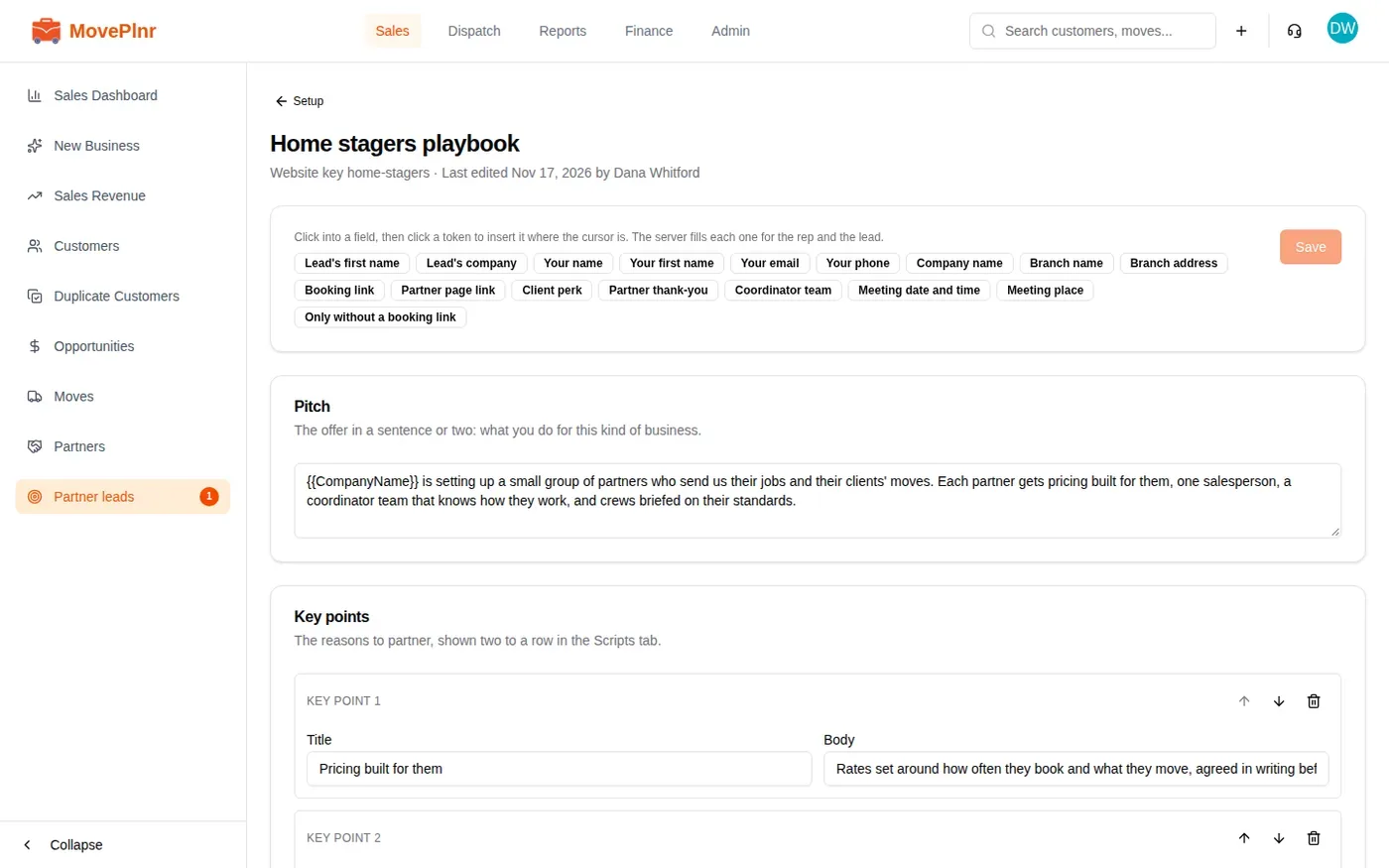
Choose Edit playbook on an industry. The page has a card for each part of what your reps say and send:
- Pitch, Key points and Plus points: the offer.
- Cold-call steps, Voicemail and Text message.
- Objections, Meeting questions and Facts.
- Follow-up schedule: a plan for the reps to follow. MovePlnr never sends a follow-up by itself.
- Section intros: the first line of each section on the Scripts tab.
- Emails: the emails reps pick from when they email a lead.
- Partner page per branch: this industry’s page on your website, for each branch.
Nothing is saved until you choose Save at the top.
The five starter emails
The starter playbook comes with First email, Day 4 nudge, Day 10 last note, Meeting confirmation and Welcome after the meeting. Edit opens one: its name, when to send it, a hint for the rep, the subject and the message. Add email adds your own, and the arrows set the order reps see.
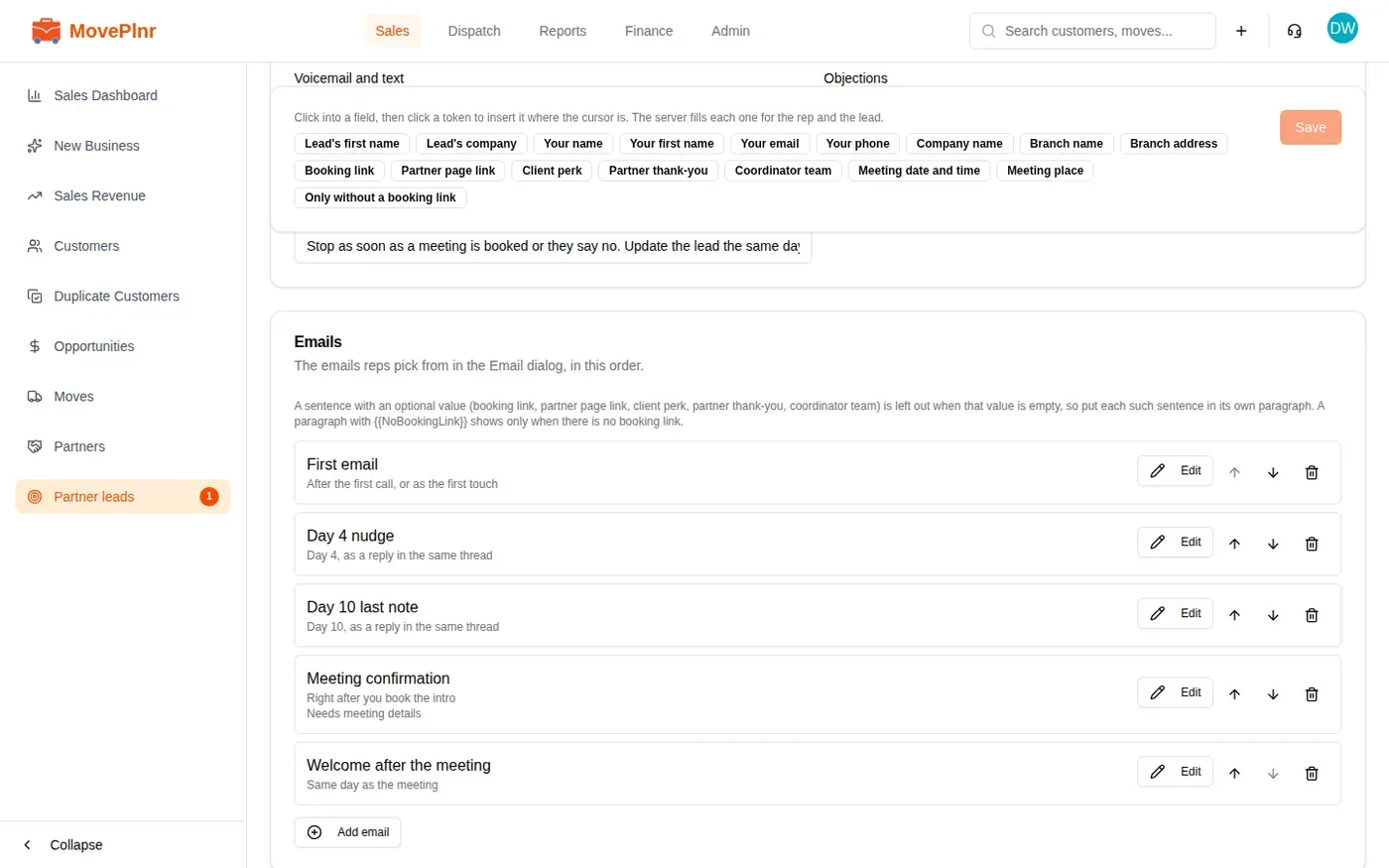
How the tokens fill in
A token is a placeholder in double braces. MovePlnr fills it in for the rep and the lead when an email is drafted or the scripts are shown:
- the lead’s first name and company come from the lead;
- your name, email and phone come from the rep who sends it;
- the company, branch name and branch address come from your company and the lead’s branch;
- the booking link, client perk, partner thank-you and coordinator team come from the settings below;
- the partner page link comes from Partner page per branch.
A first name the lead doesn’t have yet shows as a blank in square brackets, and the rep fills it in before sending. Gmail doesn’t add a signature to these emails, so keep the starter emails’ last lines with the rep’s name and phone.
Fill in the settings
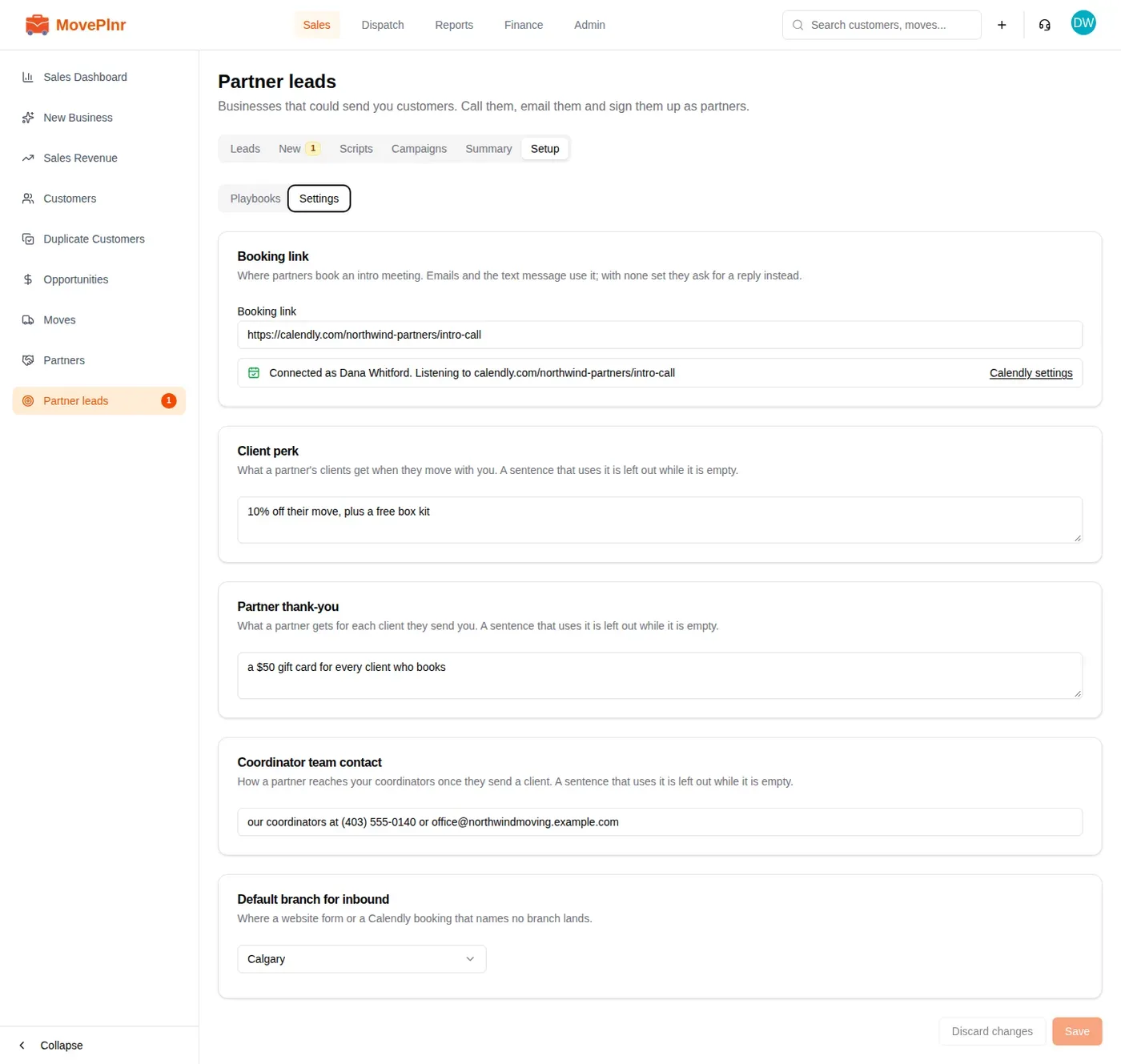
Open Setup, then Settings. These values are shared by every playbook. Fill them in, then choose Save at the bottom.
- Booking link: where partners book an intro meeting. It starts with https://. With none set, emails and the text message ask for a reply instead.
- Client perk: what a partner’s clients get when they move with you.
- Partner thank-you: what a partner gets for each client they send.
- Coordinator team contact: how a partner reaches your coordinators once they send a client.
- Default branch for inbound: where a website form or a Calendly booking that names no branch lands.
Connect Calendly
With Calendly connected, every booking on your booking link lands in Partner leads, on the lead it belongs to. A booking from no lead you know arrives as a new lead.
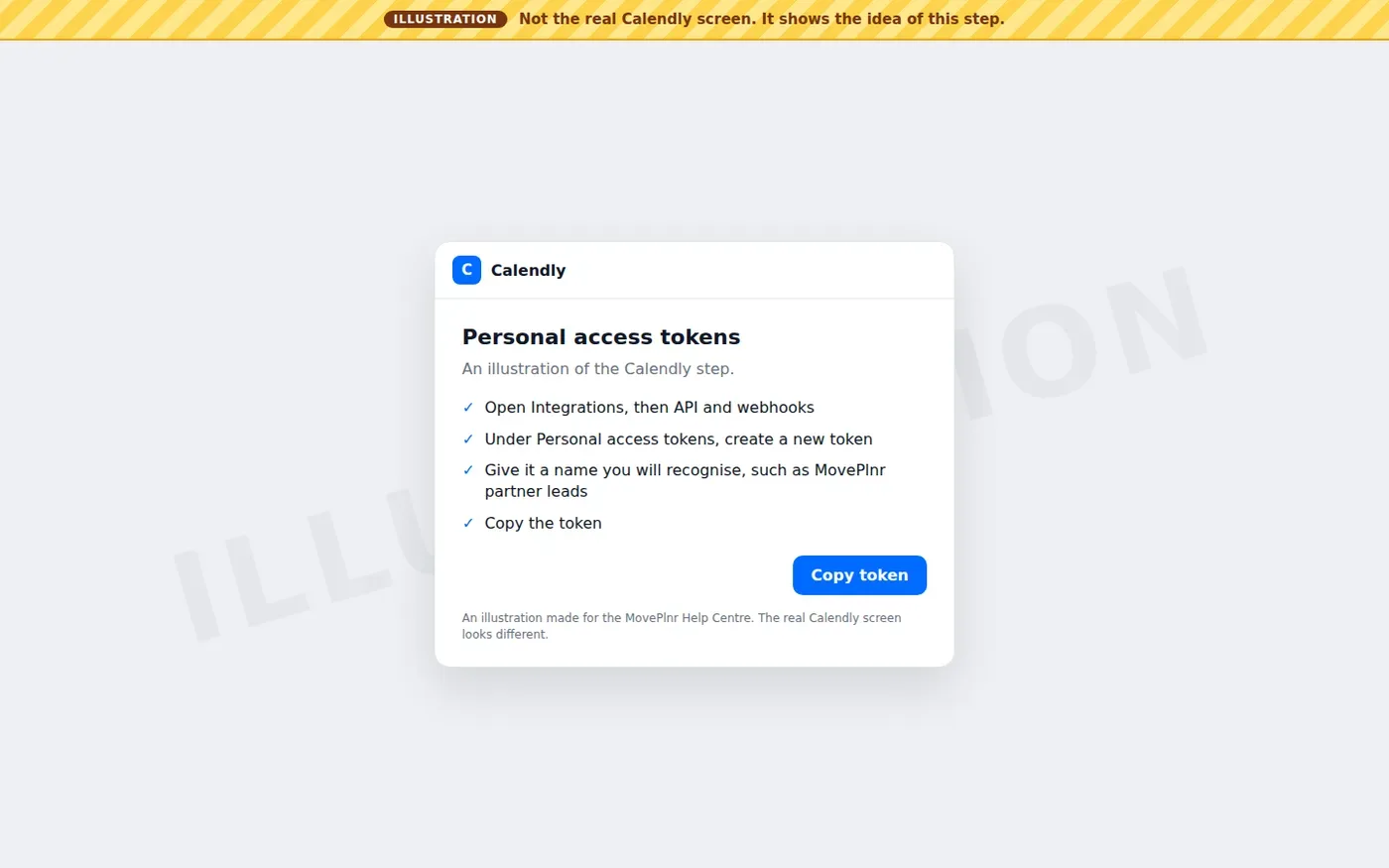
- In Calendly, open Integrations, then API and webhooks, and create a personal access token. Copy it.
- In MovePlnr, open Company Settings, Integrations Settings, then the Calendly card.
- Paste the token in Personal access token and choose Connect.
- Check that the Booking link in Partner leads settings is one of this Calendly account’s own event links. Only bookings on that link come in.
You’ll see a Calendly screen like the illustration below. It is not a capture of Calendly, and their real screen looks different.
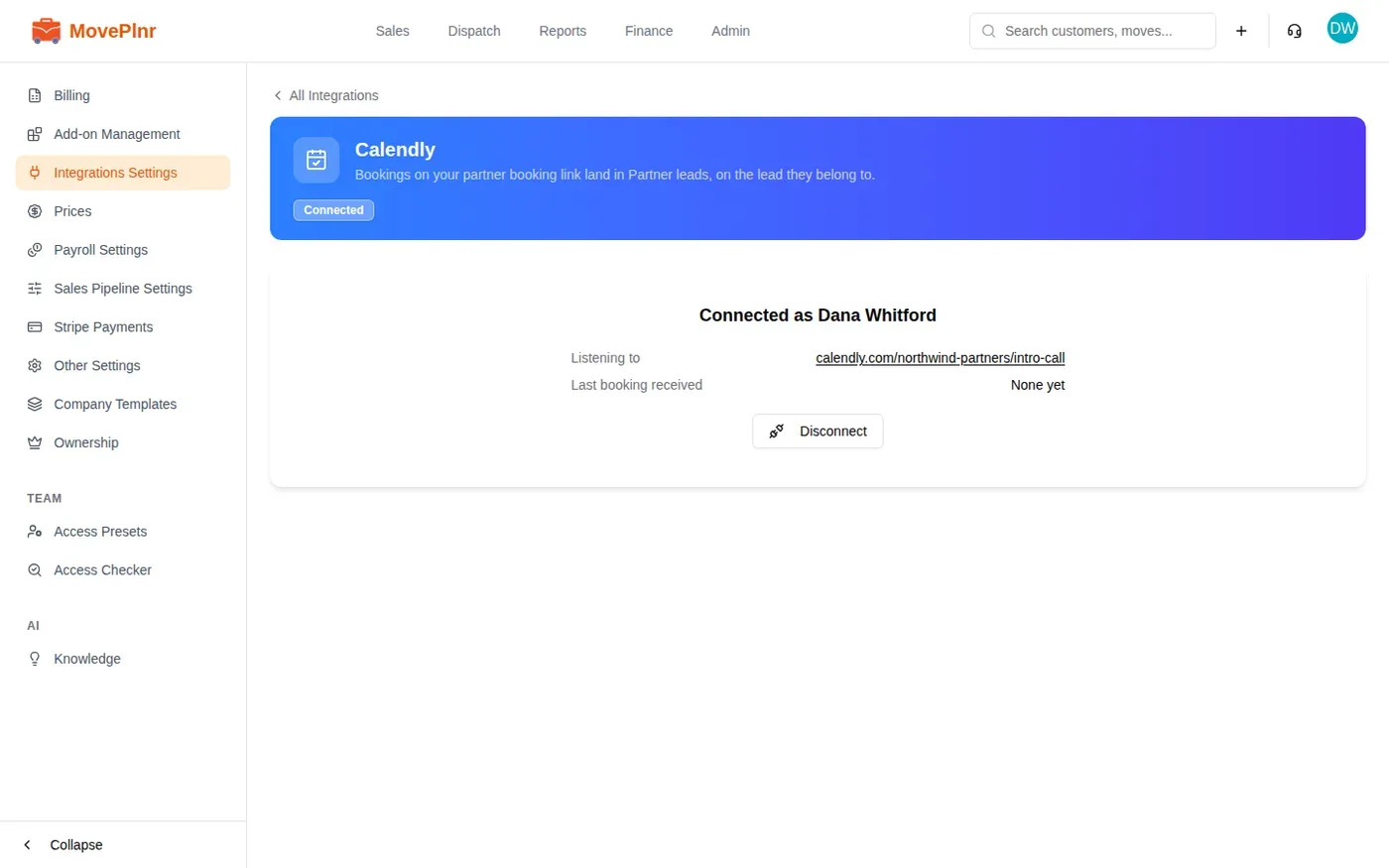
Once connected, the Calendly page says who it is connected as, the link it is Listening to and the Last booking received. Bookings made before you connected aren’t brought in. Disconnect stops new bookings; meetings already on your leads stay.
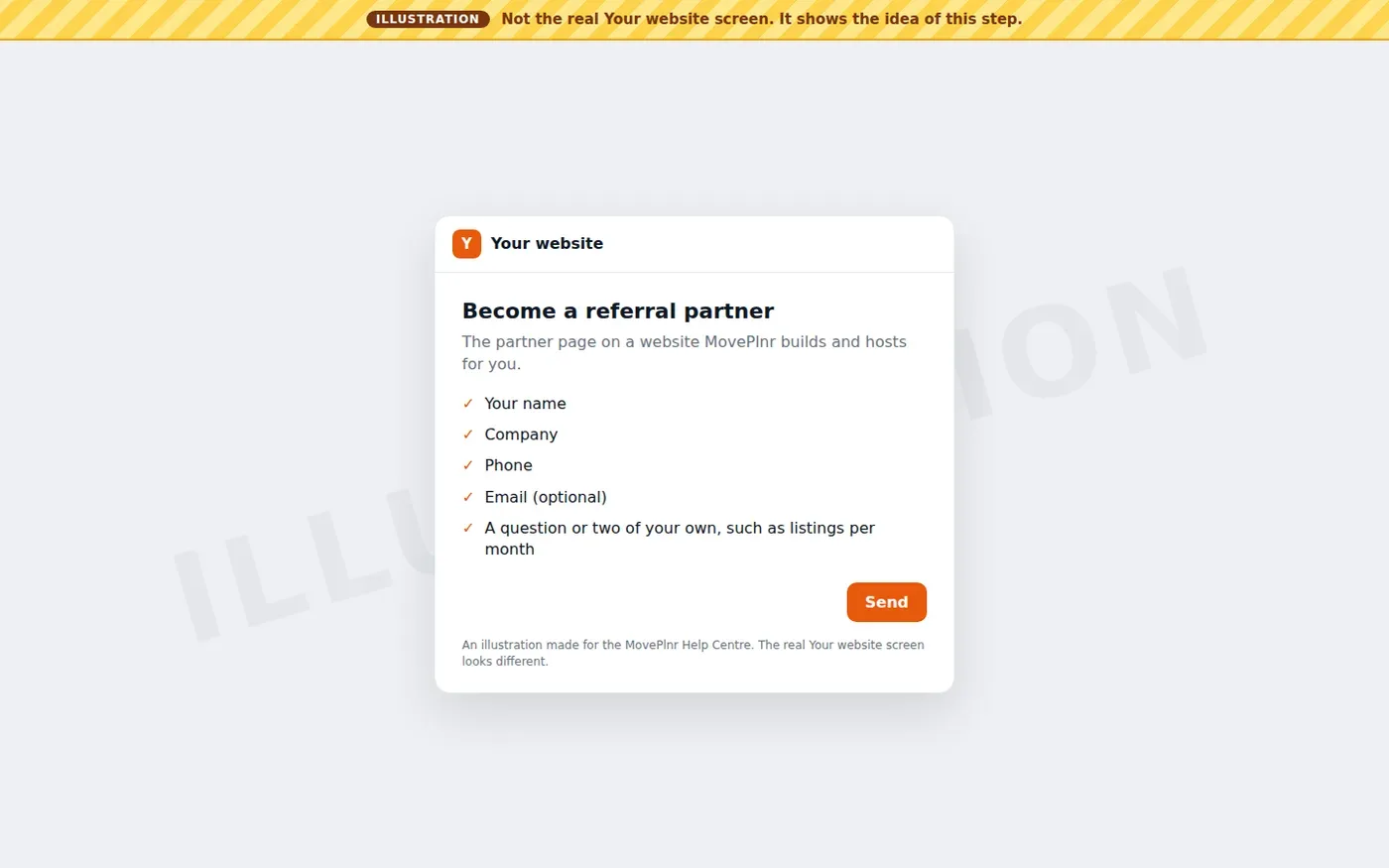
The partner form on your website
A business can ask to become your partner from the partner page of your website.
- The form is part of a website MovePlnr builds and hosts for you. There is no snippet or embed code to copy, and a website built somewhere else can’t send to it.
- The page sends the industry’s website key. That is how a form lands in the right industry, and a key you don’t have leaves the lead with no industry. Give the key from Setup, then Playbooks, to the MovePlnr team building your site. A website built somewhere else can’t use the key: link your booking link from it instead.
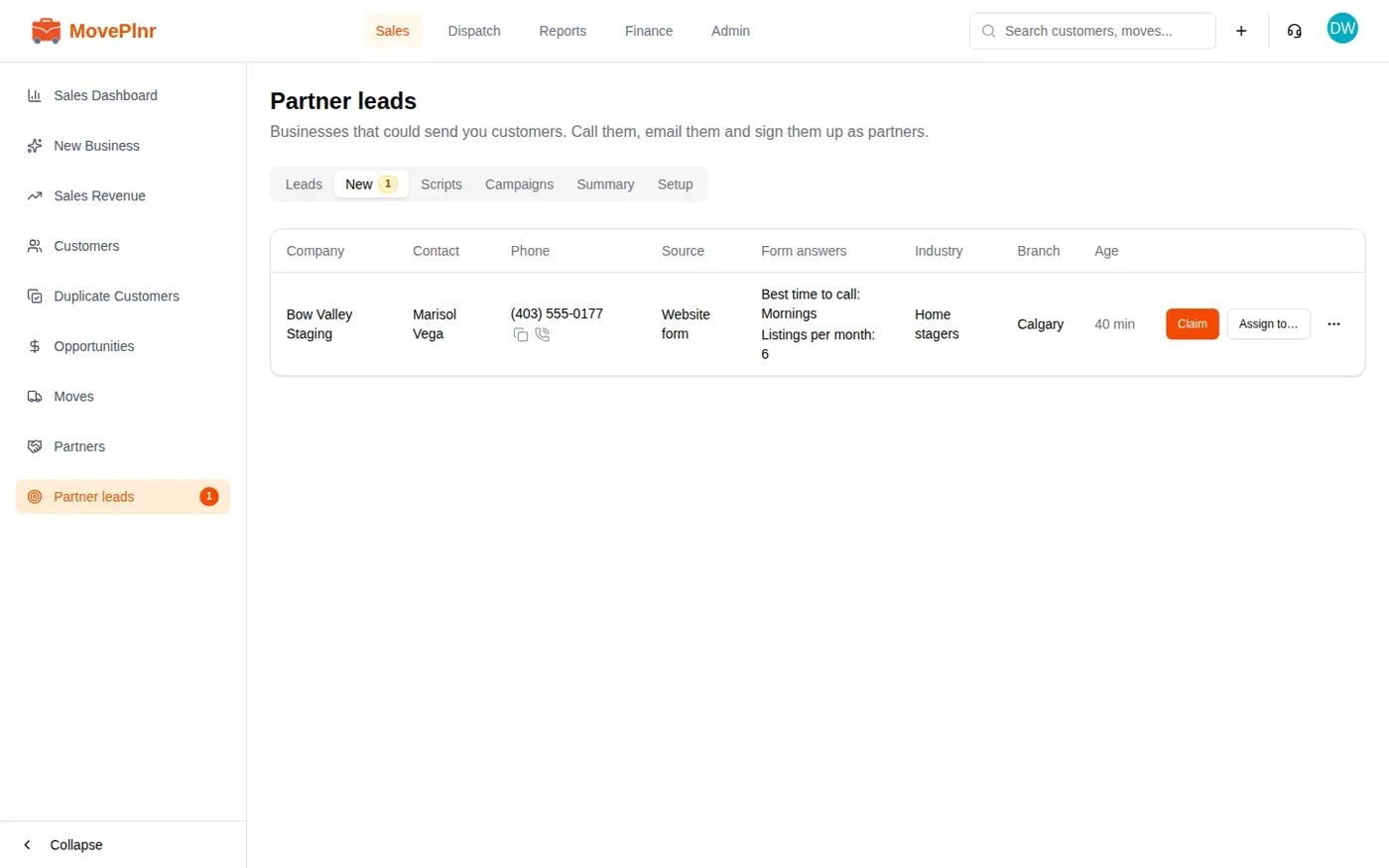
- Every form lands on the New tab, with the source Website form, its answers, the industry and the branch: the page’s own branch, else Default branch for inbound, else your first active branch.
- Everyone with Partner leads gets a notice when new ones arrive, at most once an hour. A form from a business you already have goes on that lead instead.
Your partner page looks something like the illustration below. It lives on your own website, not in MovePlnr.
Import a campaign and hand it out
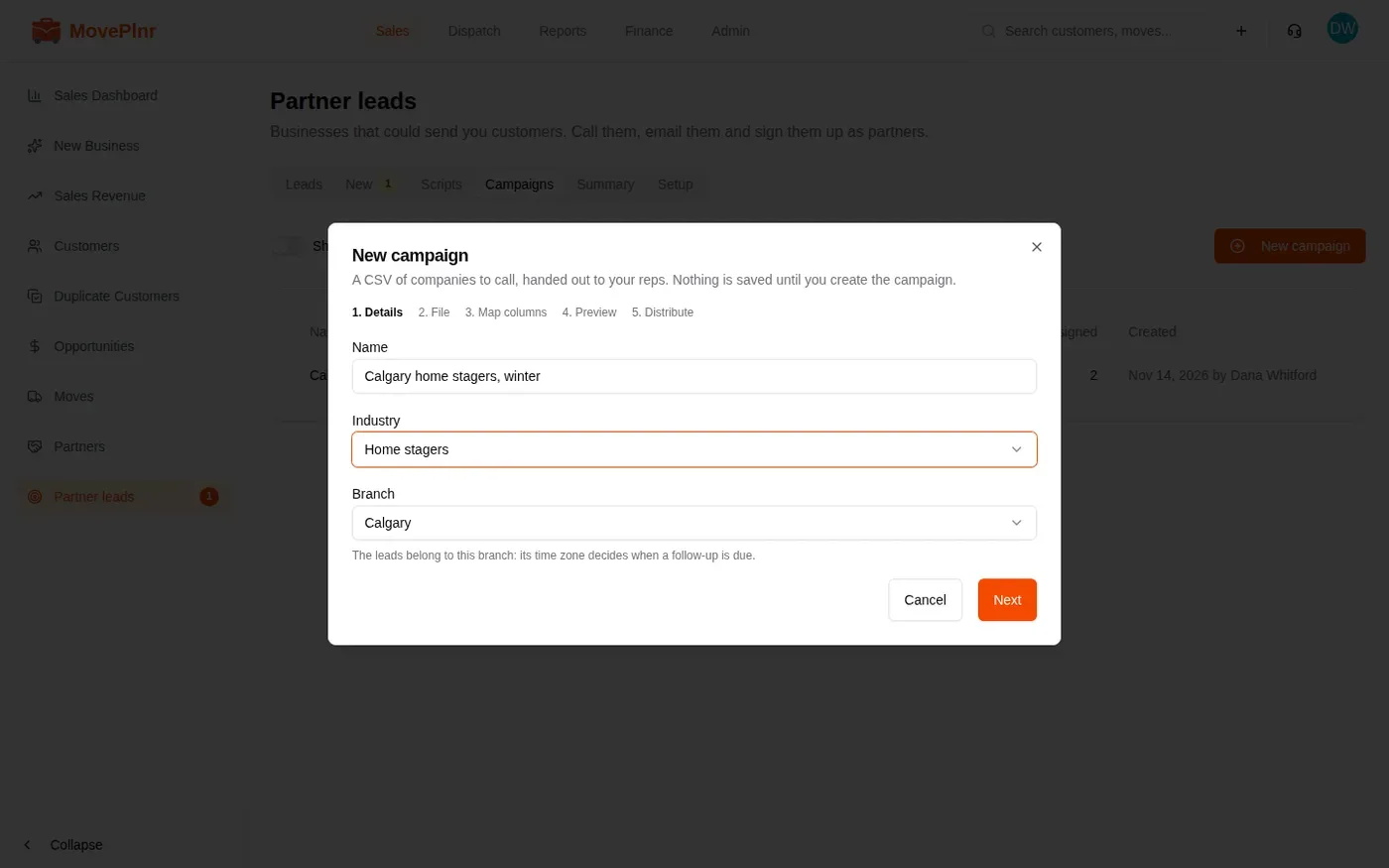
A campaign is a list of companies from one CSV file, for one industry and one branch, handed out to your reps. Open Campaigns and choose New campaign.
- Details: type a Name, pick the Industry and the Branch, and choose Next. The branch’s time zone decides when follow-ups are due.
- File: choose or drop a CSV with a header row and one company per row, up to 2,000 rows and 5 MB.
- Map columns: pick the file’s column for each field. Company is required. Map the first name when the file has it, because the emails start with it.
- Preview: check the rows. A flagged row starts unticked: a missing company, a bad email or phone, a duplicate in the file, or a business that is already a partner lead or a partner. Tick one to import it anyway.
- Distribute: hand the leads out to reps (Split evenly fills in the counts) or leave them unassigned.
- Choose Create campaign. Nothing is saved before this. Each rep gets one notice.
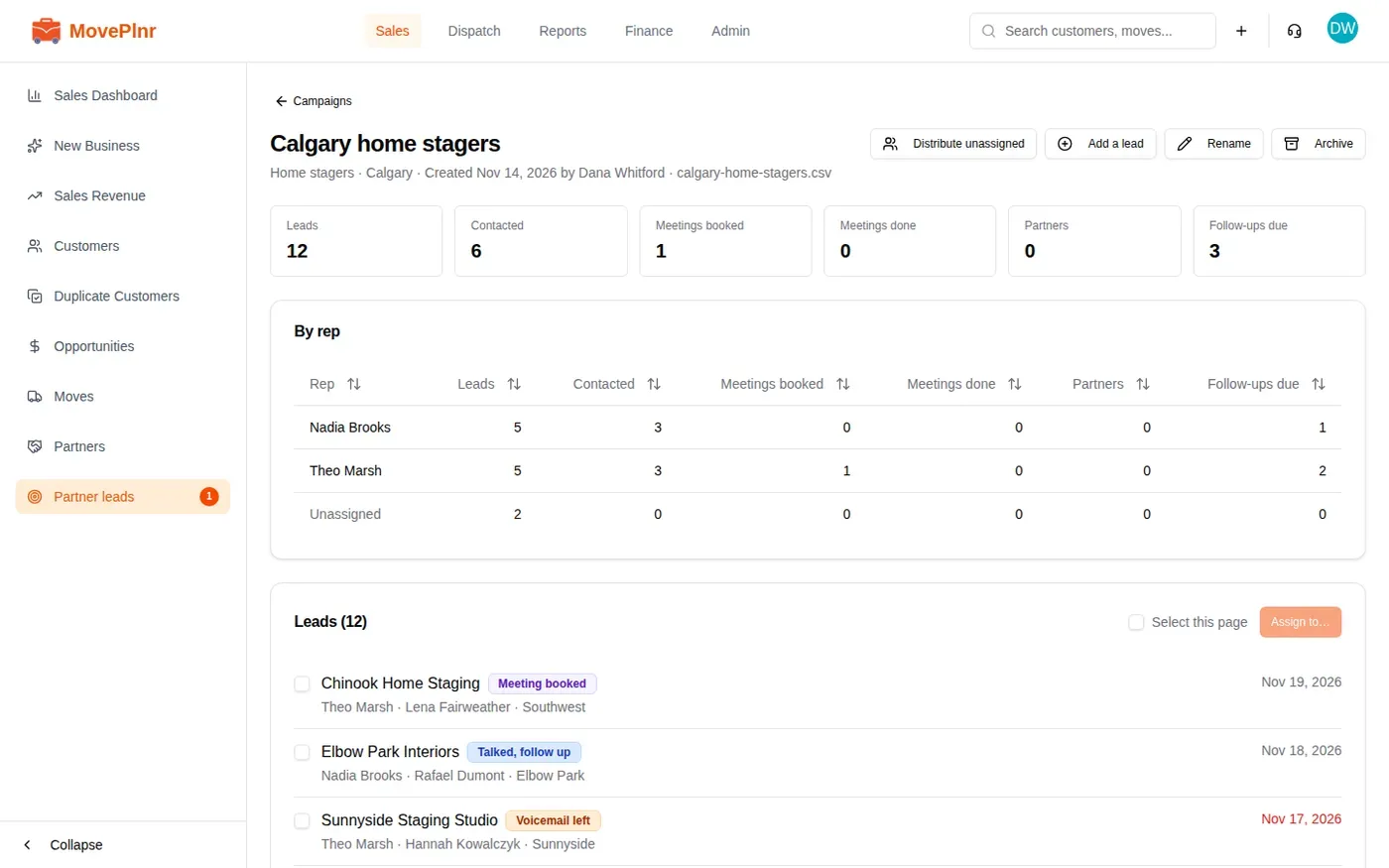
The campaign’s page shows its funnel, a By rep table and every lead with its status, owner and next step. Distribute unassigned hands out the leads nobody has yet, and Add a lead adds one company by hand. Unassigned campaign leads don’t go to the New tab, so reps can’t claim them.
Keep an eye on it
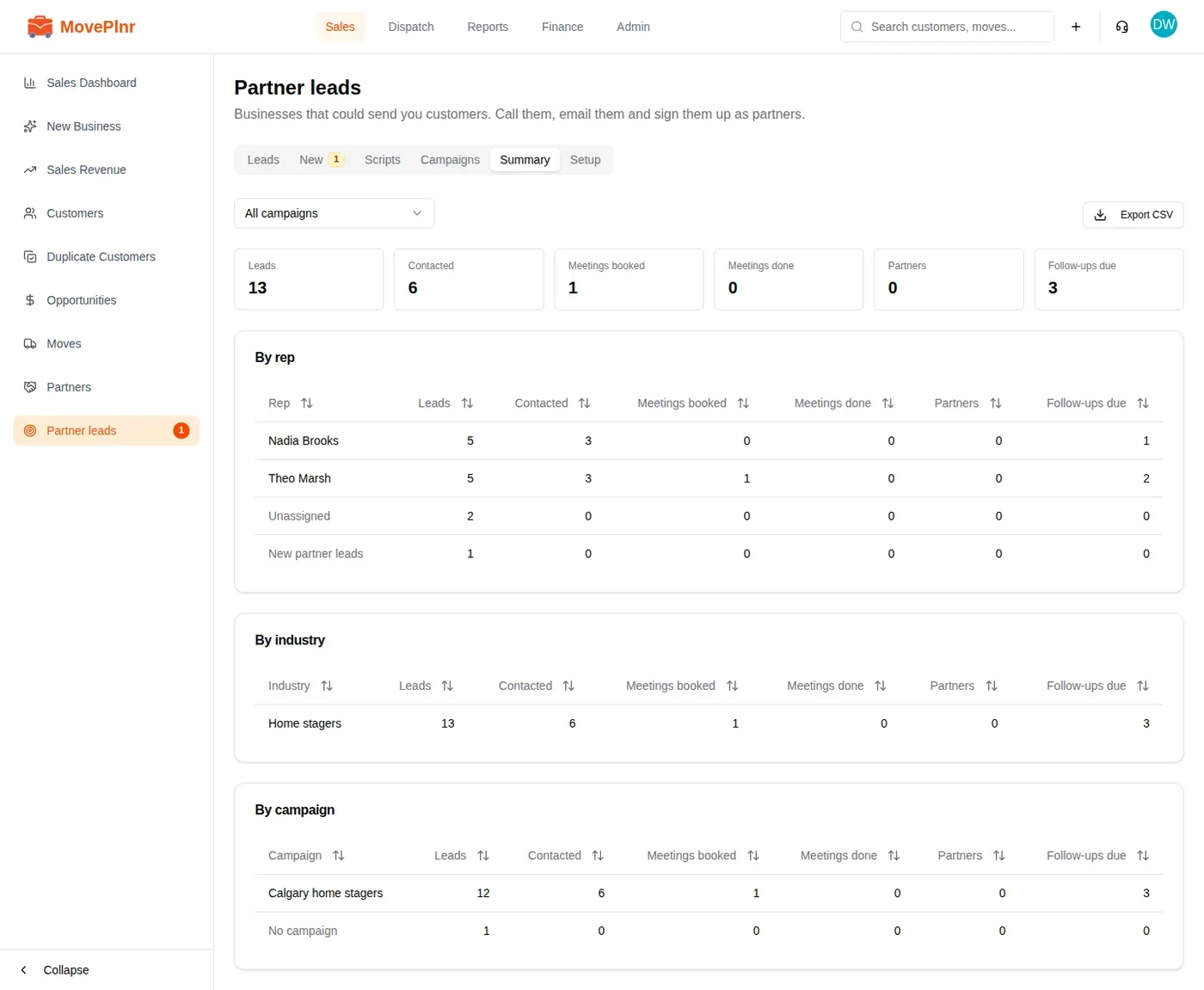
The Summary tab shows how the whole team is doing: leads, contacted, meetings booked and done, partners and follow-ups due, by rep, by industry and by campaign. Export CSV downloads the three tables.
Each person can send 60 partner emails a day and the whole company 300. An email Gmail refuses doesn’t count. Reps send from their own Gmail, so each one connects theirs.
What comes next, calling, emailing, claiming and converting, is in the rep’s guide to Partner leads.