Before you start
- Your company has the Partners & Referrals add-on turned on.
- An owner or admin has given you Partner leads access. To convert a lead into a partner you also need Partners access.
- Your own Gmail is connected to MovePlnr, for emails. The steps are below.
An owner or admin sets the rest up first: the industries and their playbooks, the booking link, the settings and the campaigns that hand you lists of companies. Those steps are in Set up Partner leads. This guide covers the work after that.
Your list
Open Partner leads under Sales. The Leads tab shows a card for every lead that is yours.
- Read the tiles across the top: Companies, Contacted, Meetings booked, Partners and Follow-ups due. They count like a funnel, so a partner also counts as contacted.
- Pick a chip to narrow the list: All, To do, Follow-ups due, Meetings, Partners or Done. Each one shows its count.
- Search by company, contact, email or area, or pick an industry or a campaign.
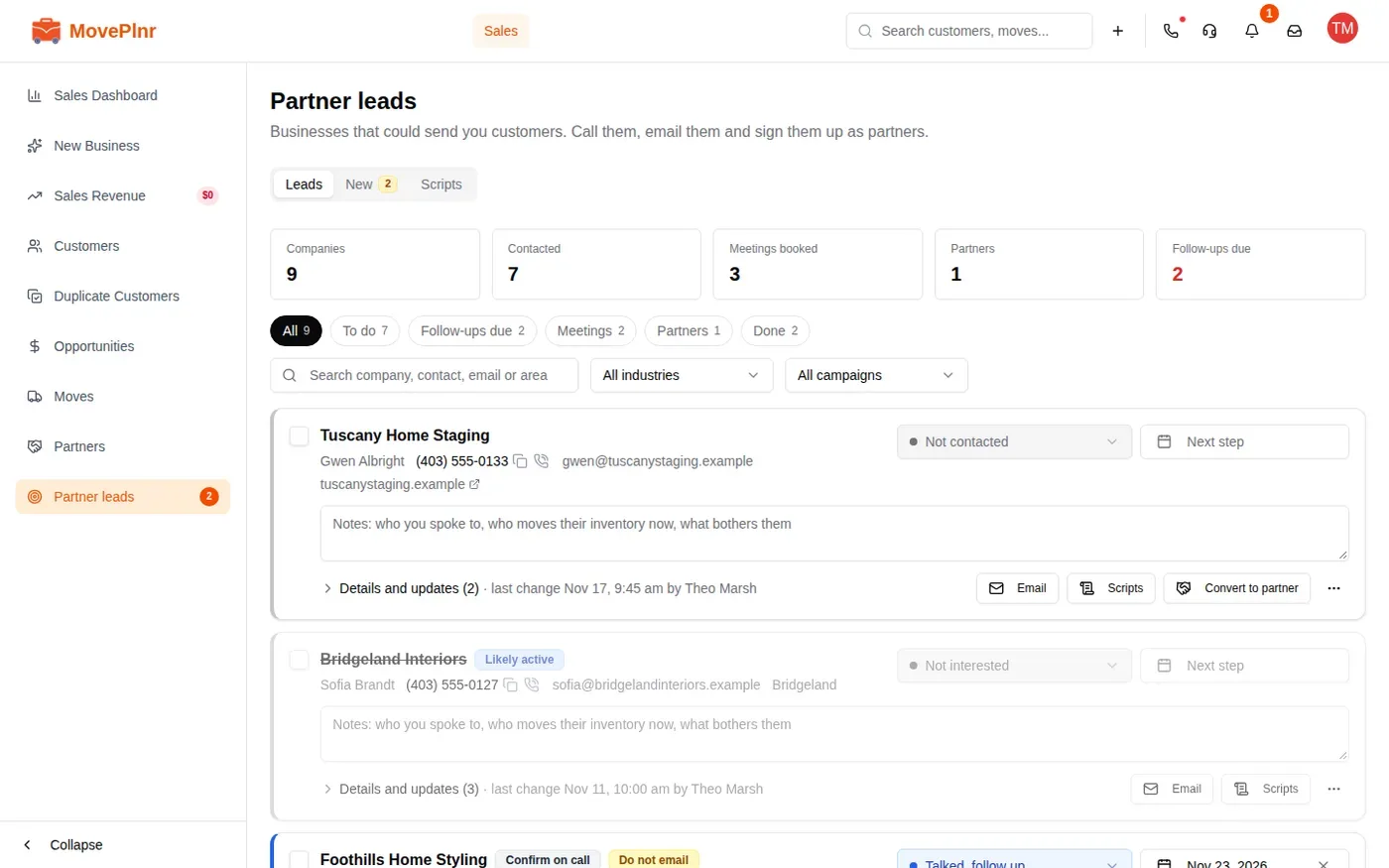
Each card has the contact, a phone you can click to call or copy, the email, the area and the website. A pill such as Active says how sure the research is that the company still operates.
Claim a new lead
Businesses that come to you wait on the New tab until someone claims them. They come from three places:
- the partner form on your company’s website, with the answers the company gave;
- a booking on your company’s Calendly link that matches no lead you have, already marked Meeting booked;
- a lead another rep released back.
- Open the New tab. The number beside it is how many are waiting.
- Click Claim on the lead you want. It becomes yours and its page opens.
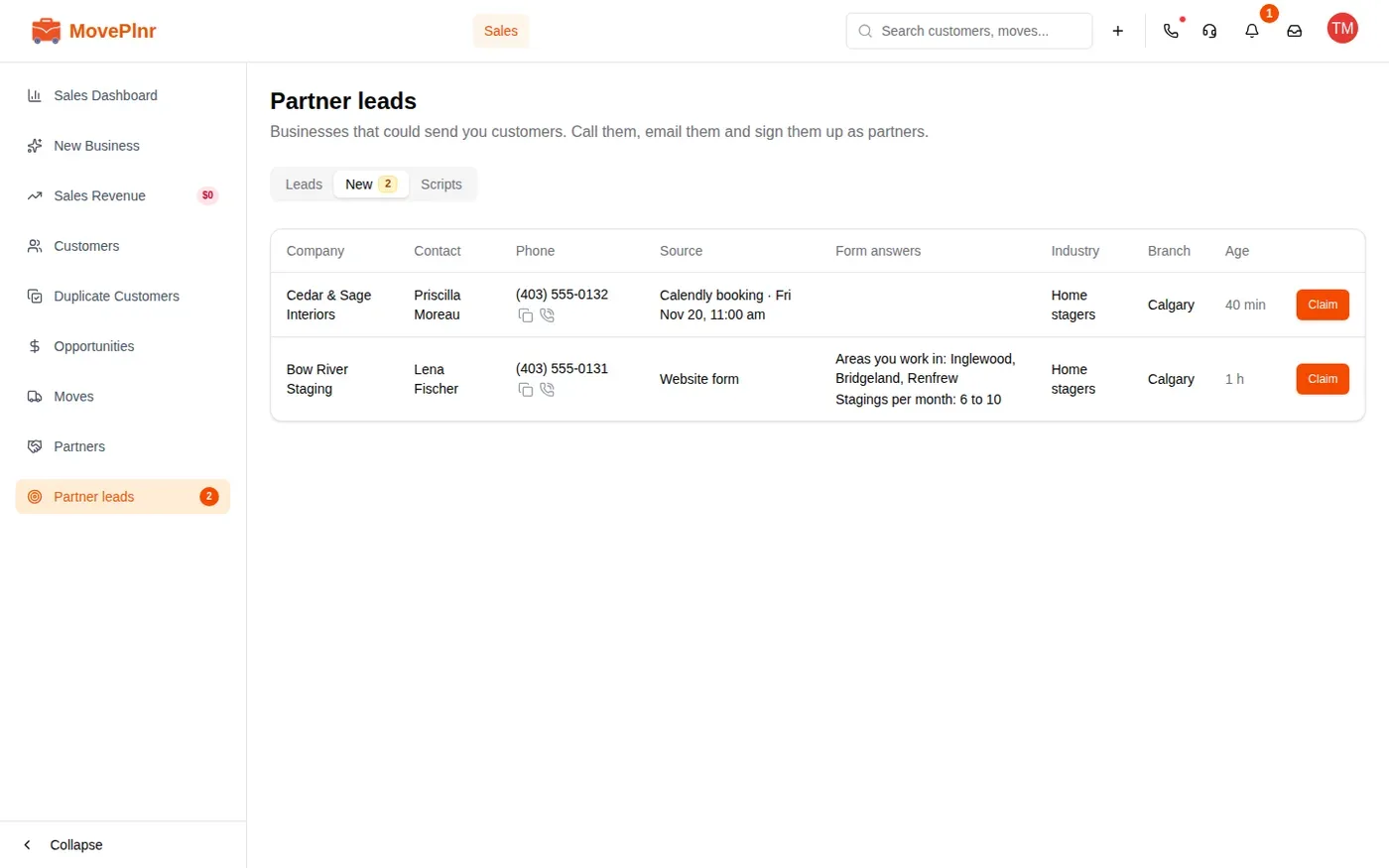
The first person to click Claim wins. If someone beat you to it by a moment, a notice names them and the lead leaves your list.
Call with the script
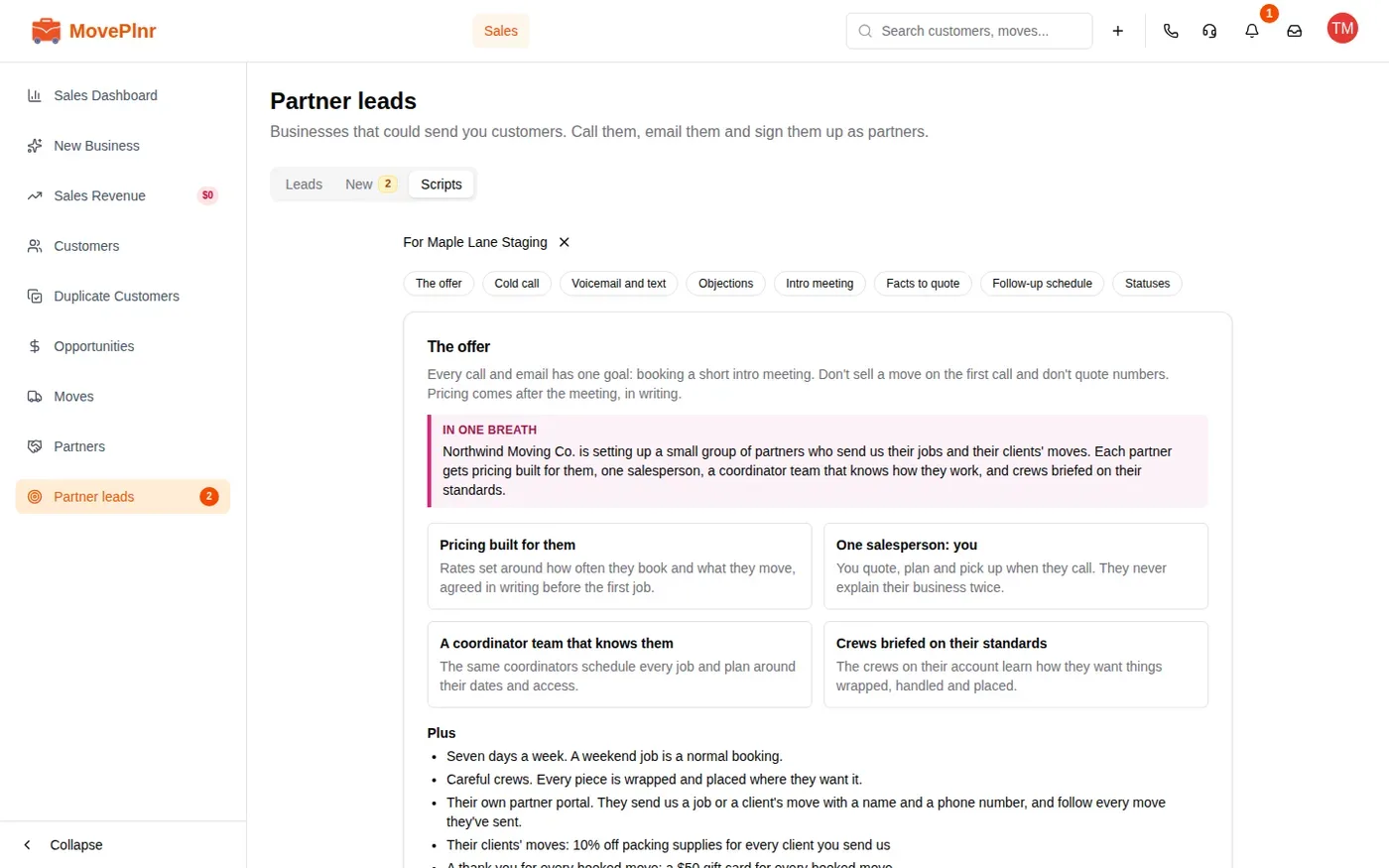
- Click Scripts on the lead’s card. The Scripts tab opens on that lead’s industry, with the lead’s name and company filled in.
- Use the pills at the top to jump to a part: the offer, Cold call, the voicemail and text, the objections, the intro meeting questions and the follow-up schedule.
- For the text after a missed call, copy it and send it from your own phone. MovePlnr doesn’t text partner leads.
Log what happened
After the call, put it on the lead. Everything below works on the card in the list and on the lead’s page.
- Pick the status, such as Voicemail left. Each change goes in the log.
- Pick the next step date: the day you plan to try again. A date that is today or earlier shows in red.
- Type in the notes box. It saves by itself a moment after you stop typing.
- Open Details and updates to see the company’s facts beside its log, and to add an update such as who you spoke to.
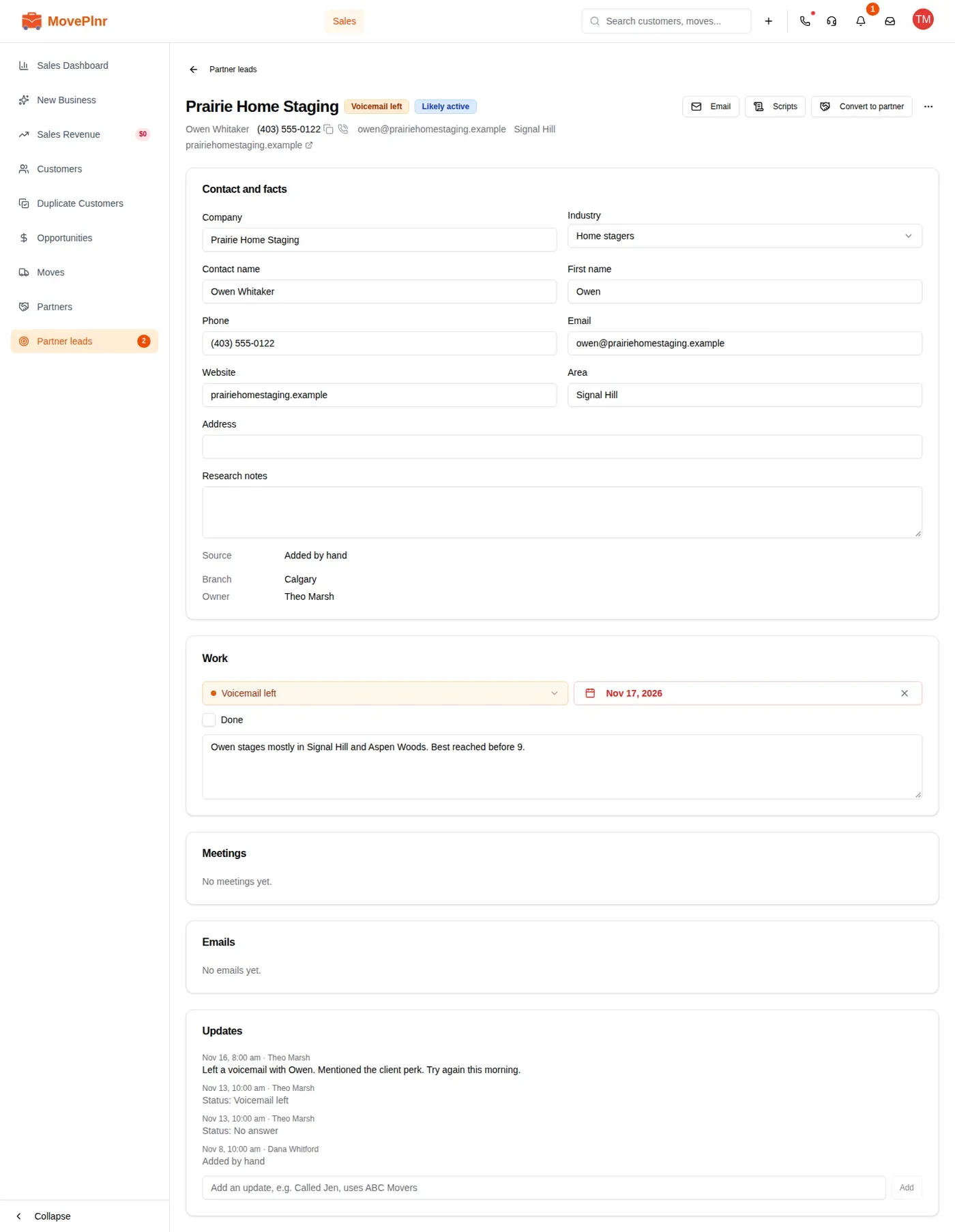
Tick the box at the left of a card when you have finished with a company. Not interested and Not active leads fade the same way.
Connect your Gmail
Partner emails go from your own Gmail, with your name, so the reply comes back to you. Connect it once.
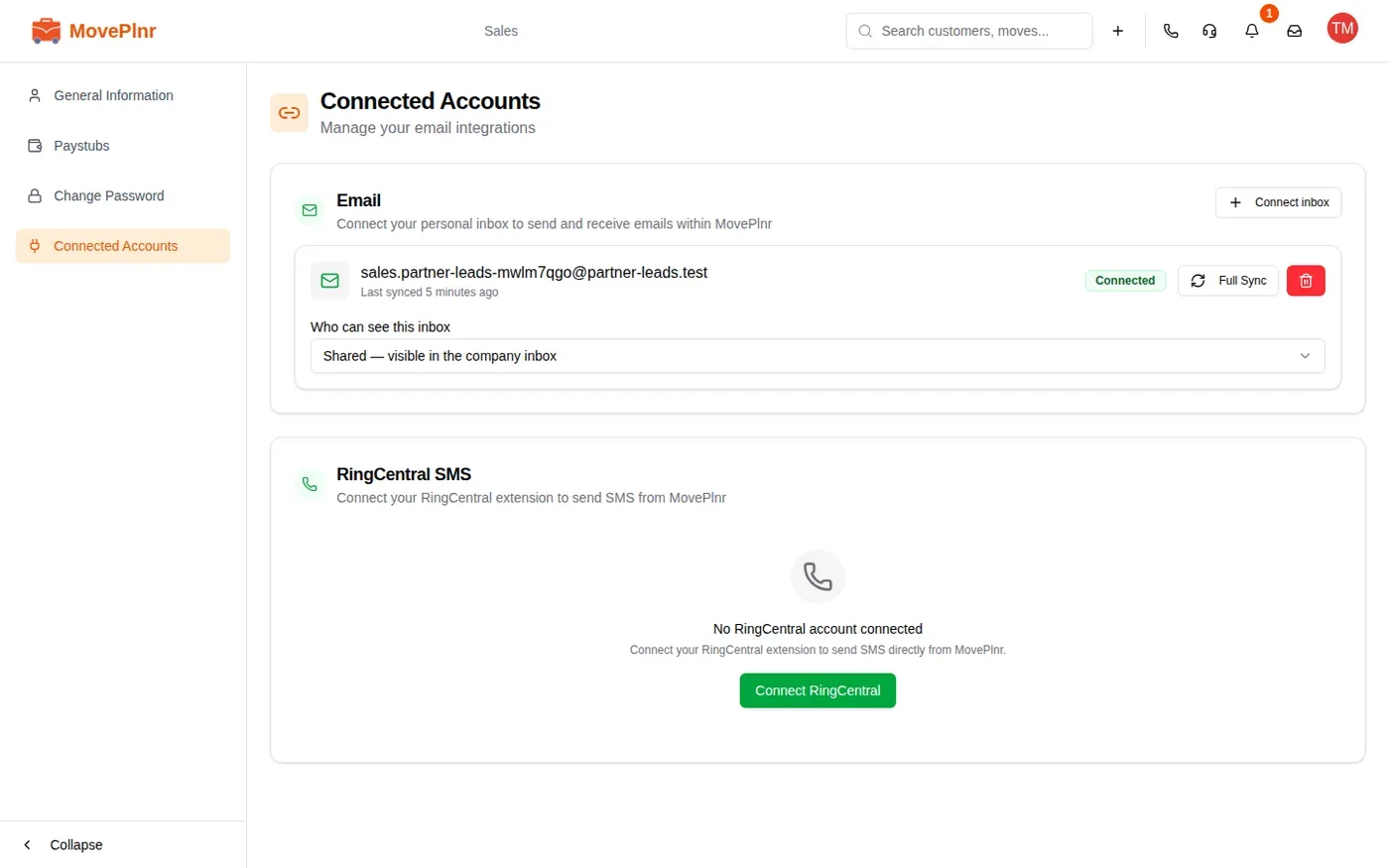
- Open your profile, then Connected Accounts.
- Click Connect inbox and pick Gmail.
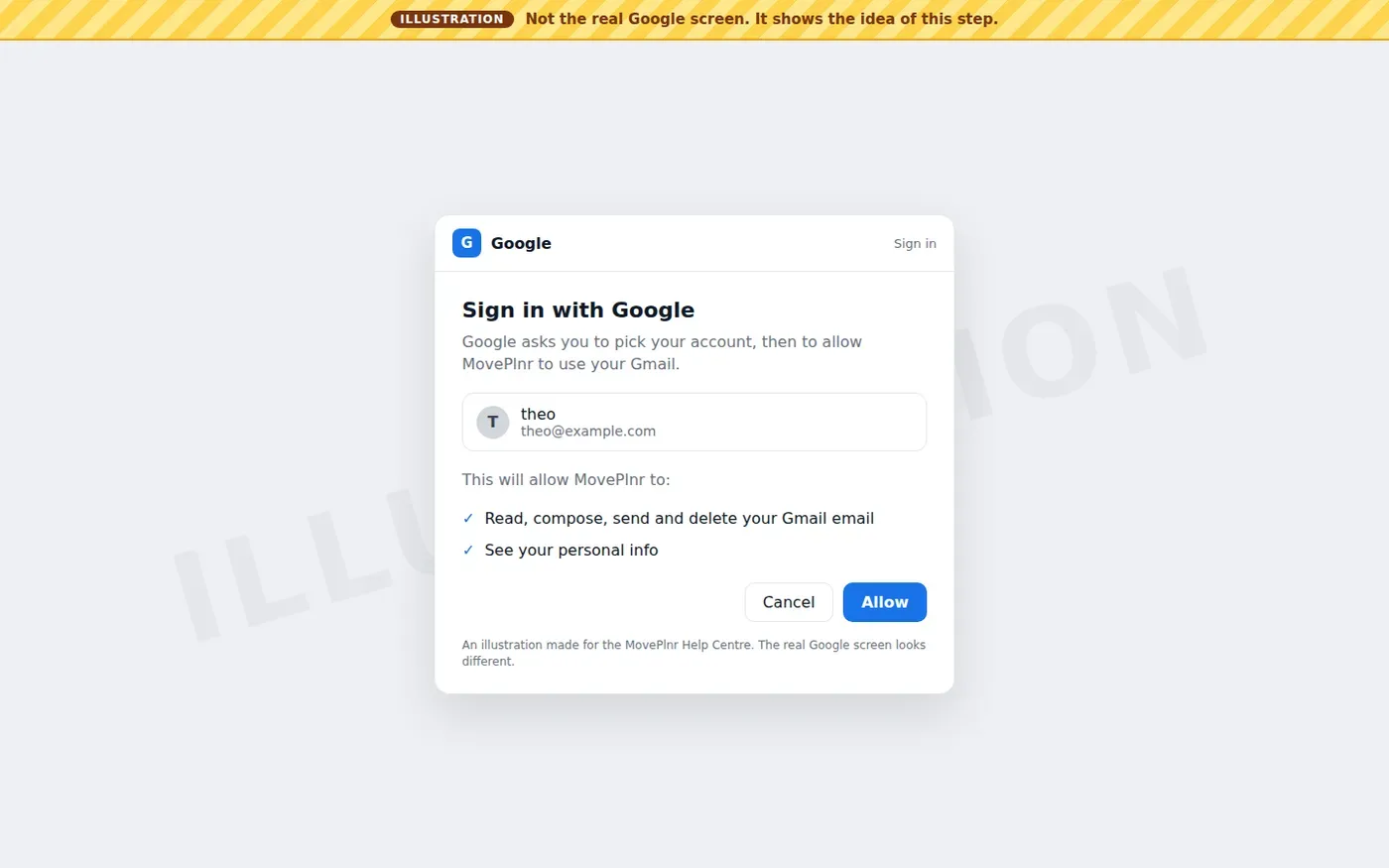
- Sign in with Google and allow MovePlnr to use your mail.
You’ll see a Google screen like the illustration below. It is not a capture of Google’s own page, which looks different.
Email a lead
- Click Email on the lead’s card or page.
- Pick an email from the playbook on the left, such as Meeting confirmation. The subject and message fill in from the lead and the playbook.
- For an email about a meeting, fill in the date and time and pick where it happens. A booked meeting fills in its date for you.
- Read it over and change anything you like, then send it.
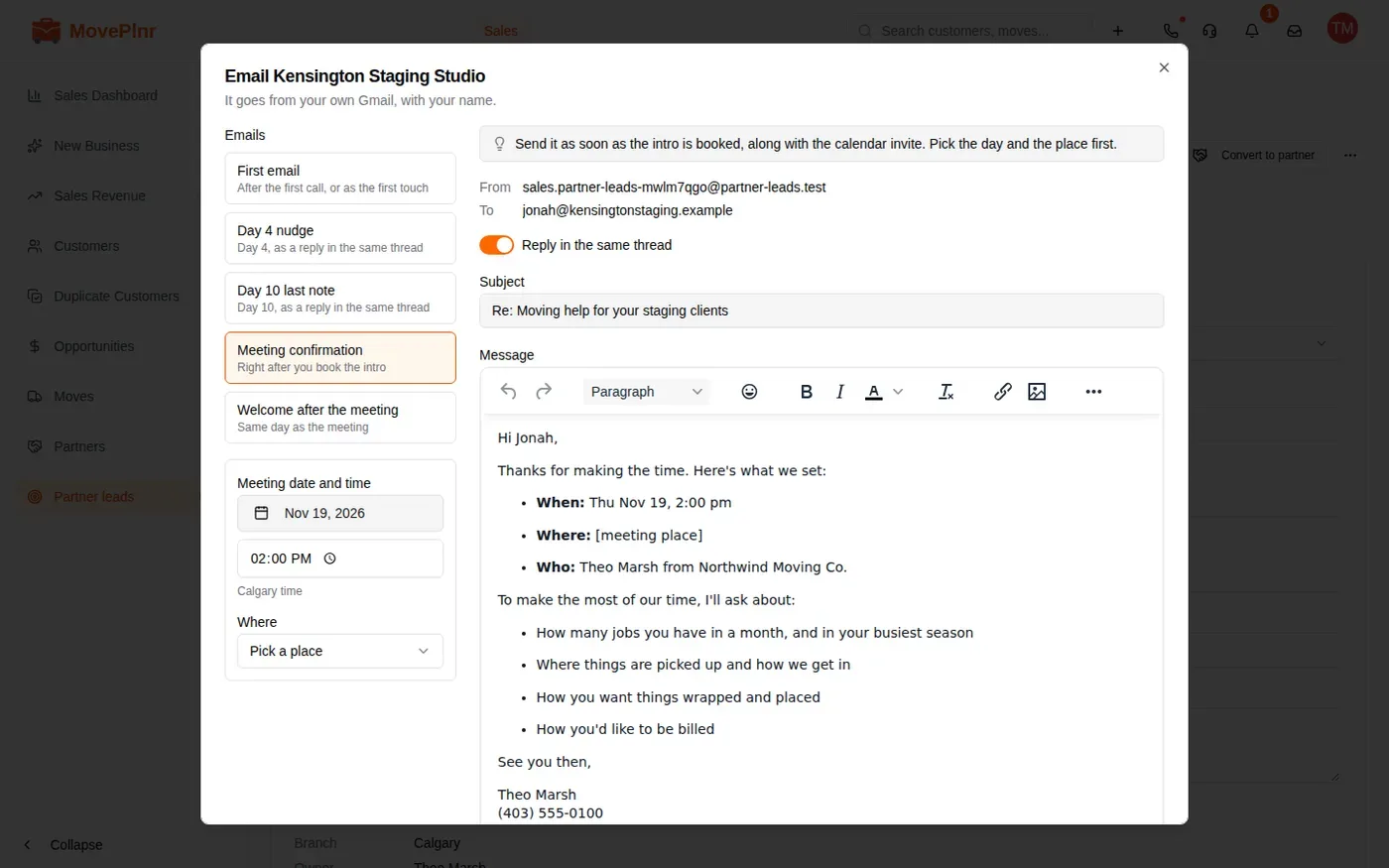
Send stays greyed out until the email can go, and the reason shows under it. The usual ones:
- a blank in square brackets is left, such as [meeting place]: type the real value or fill in the meeting fields;
- the lead has no email address, or asked not to be emailed;
- your Gmail isn’t connected, or its connection needs attention.
MovePlnr adds the footer under Added to every email to every partner email, and you can’t remove it. Each person can send 60 partner emails a day, and the whole company 300. MovePlnr never sends a follow-up by itself: every email is one you send.
Replies and meetings
When a company answers, the reply lands on the lead, never in the shared inbox.
- Look for New reply beside the company’s name on your list.
- Open the lead’s page. The Emails card lists each thread with its last message.
- Click the thread to read it and answer it from your Gmail. Opening it clears New reply.
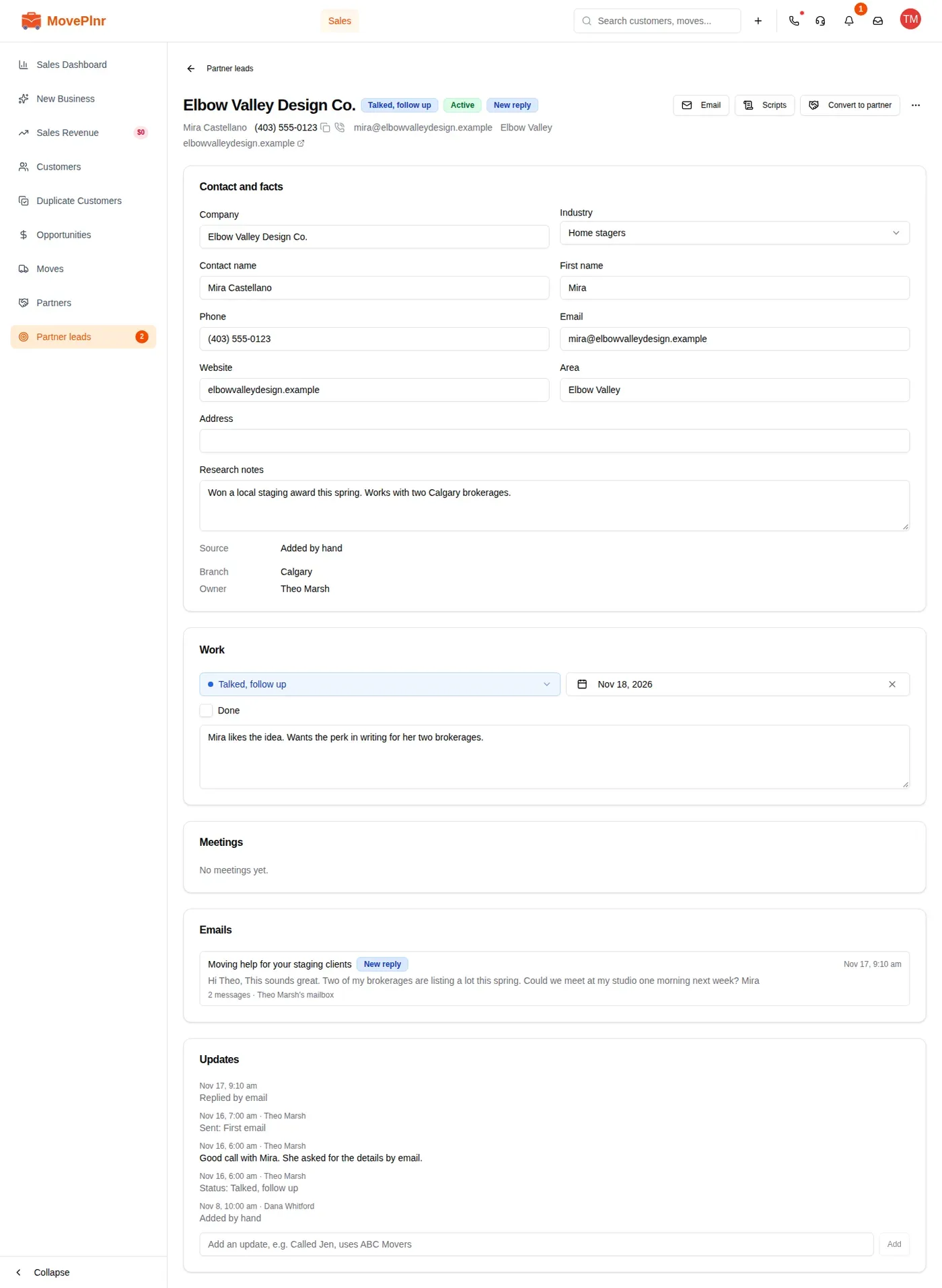
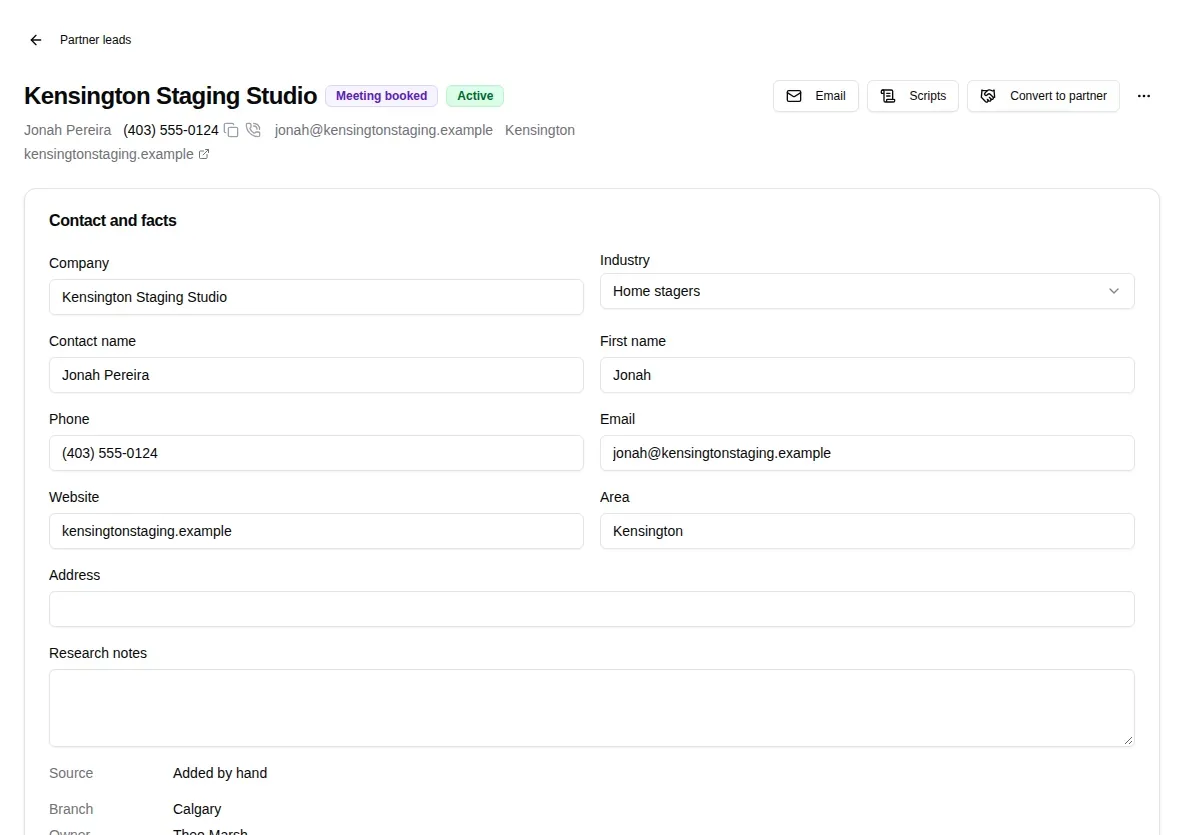
When a company books a meeting through your company’s booking link, the lead turns to Meeting booked and its next step becomes the meeting’s day. The Meetings card shows the time, the place or a join link, and the host.
Follow-ups
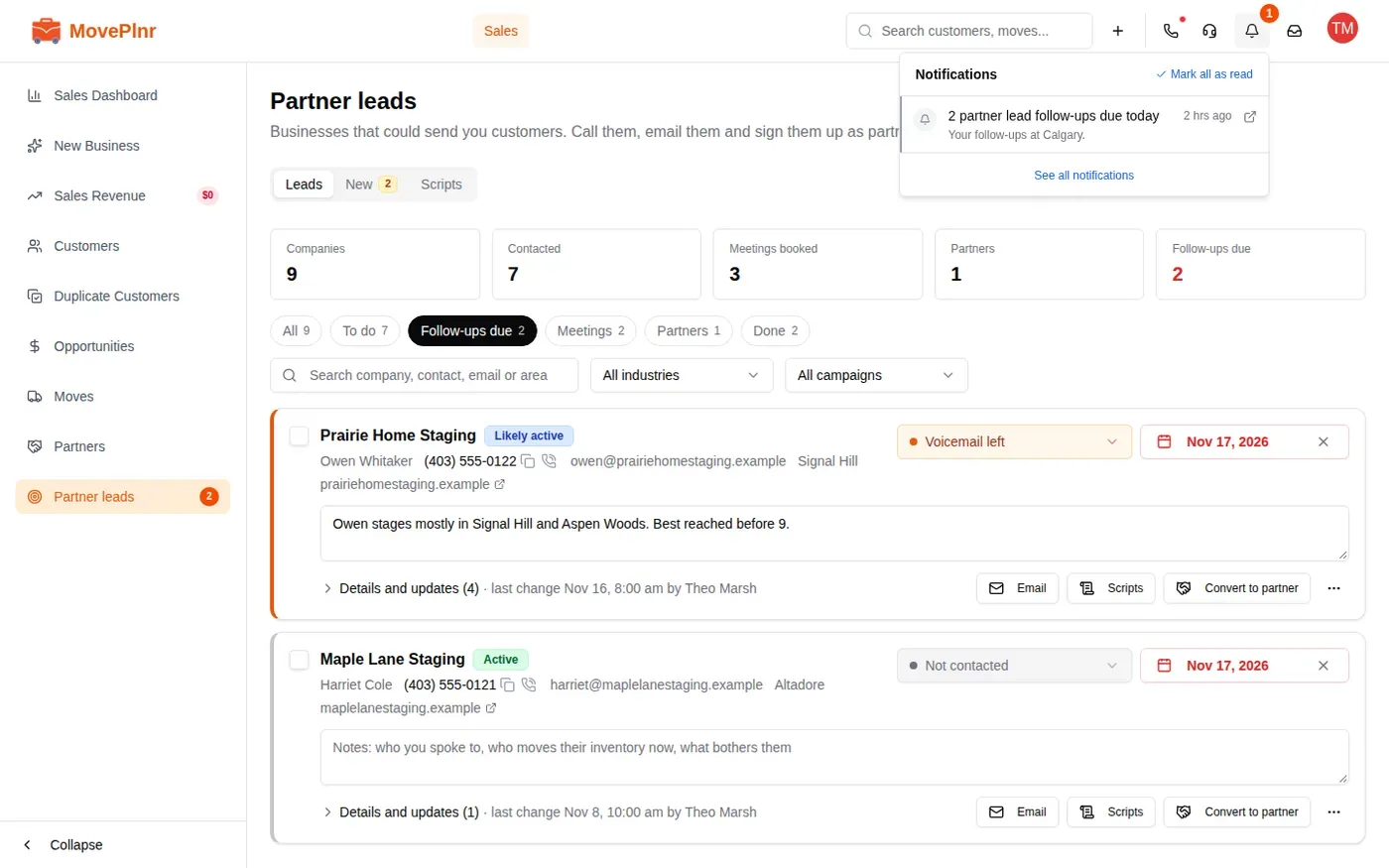
A lead is due when its next step is today or earlier. Each morning from 8 am you get one notice, such as “2 partner lead follow-ups due today”. Click it to open your Follow-ups due list.
Set the next step every time you touch a lead. The playbook’s follow-up schedule is a plan for you to follow, not a timer.
Release a lead or stop emailing it
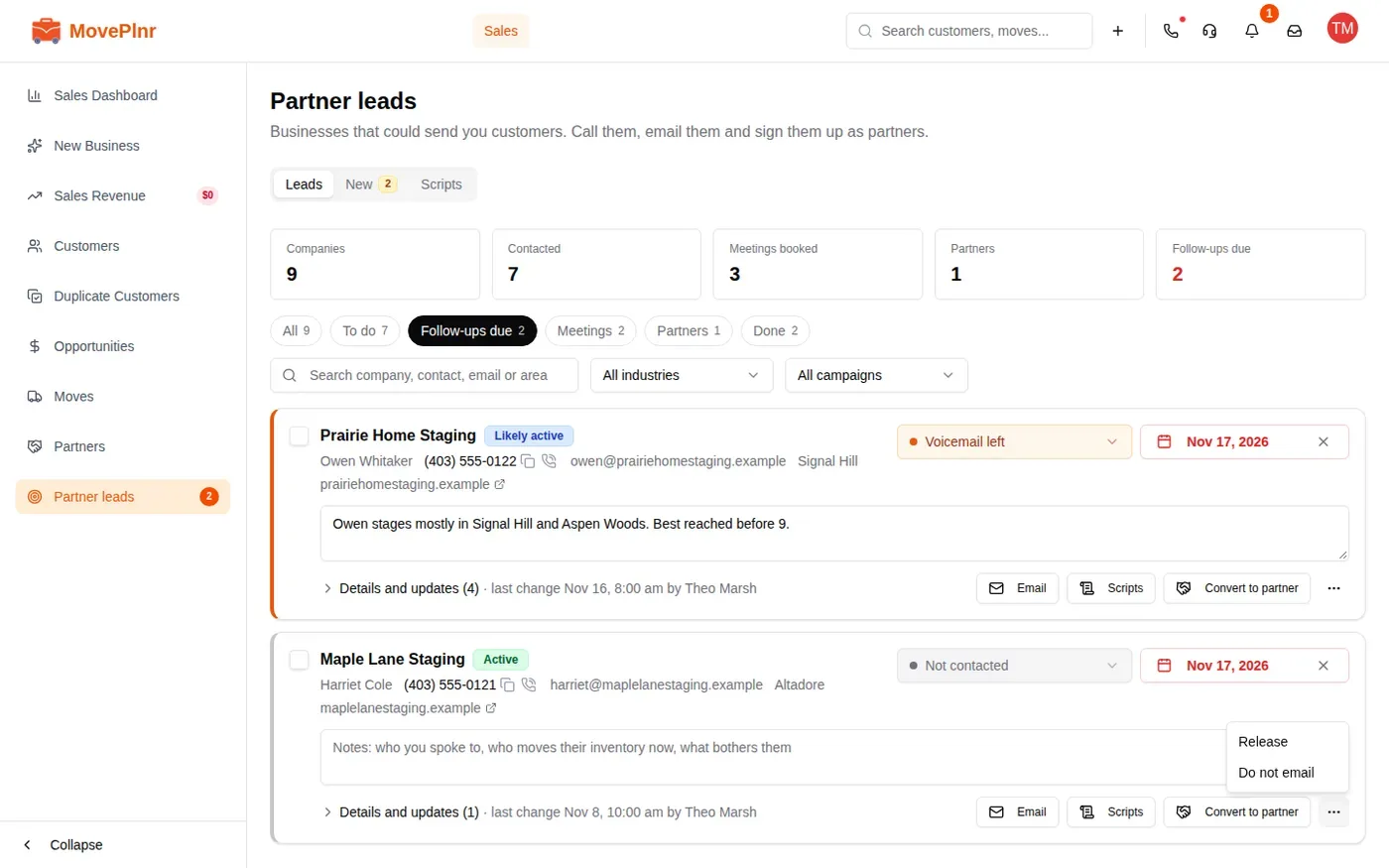
The three dots menu on a card holds two more actions:
- Release gives a lead you won’t work back to the New tab, where anyone can claim it.
- Do not email stops every partner email to that address for your whole company. You can still call. Only someone who manages partner leads can allow email again.
Convert to partner
When a company agrees to send you customers, sign it up.
- Click Convert to partner on the lead’s card or page.
- The partner form opens, filled in from the lead. Check the referral code, set the commission and the customer discount, and choose whether the partner can log in.
- Create the partner.
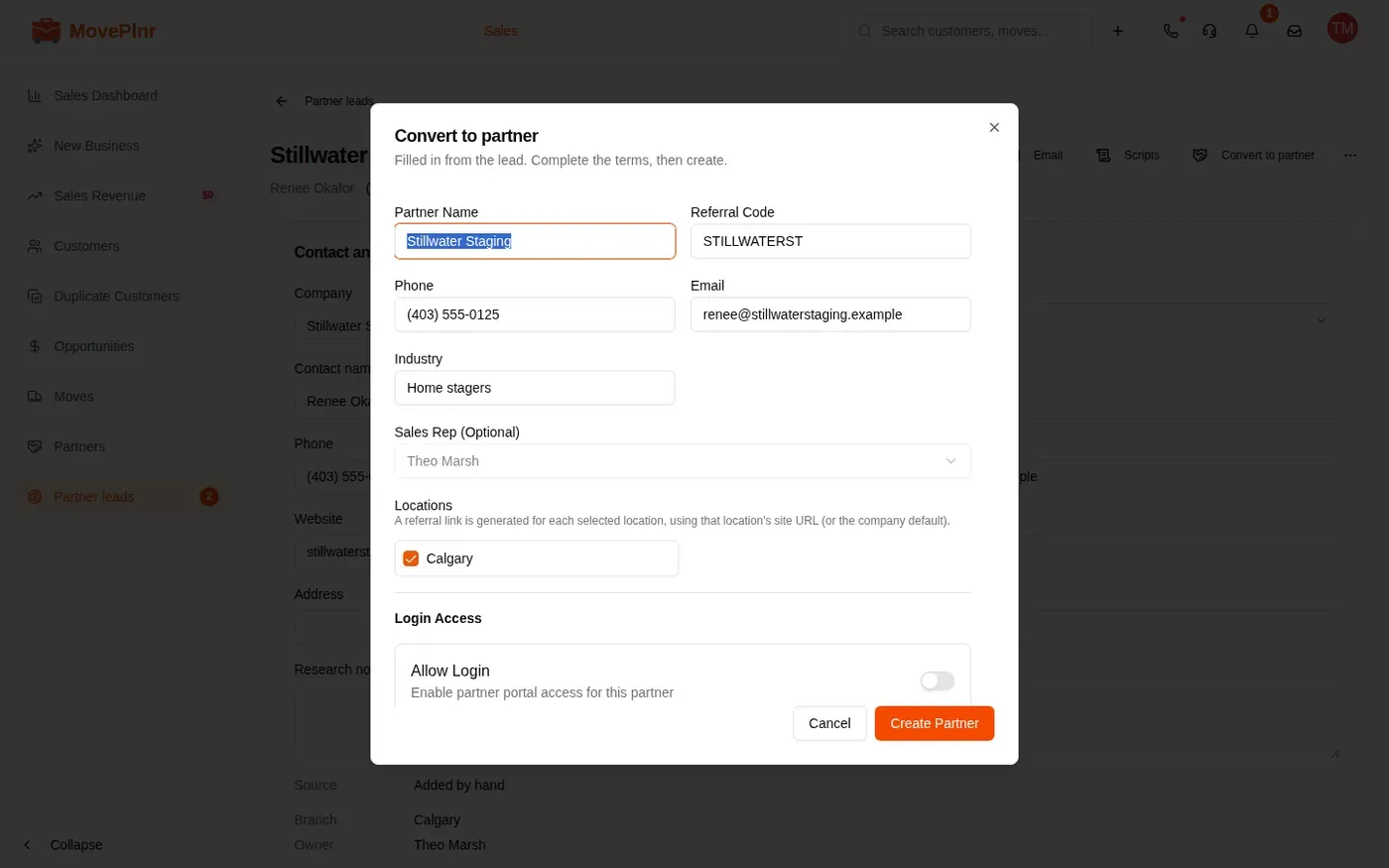
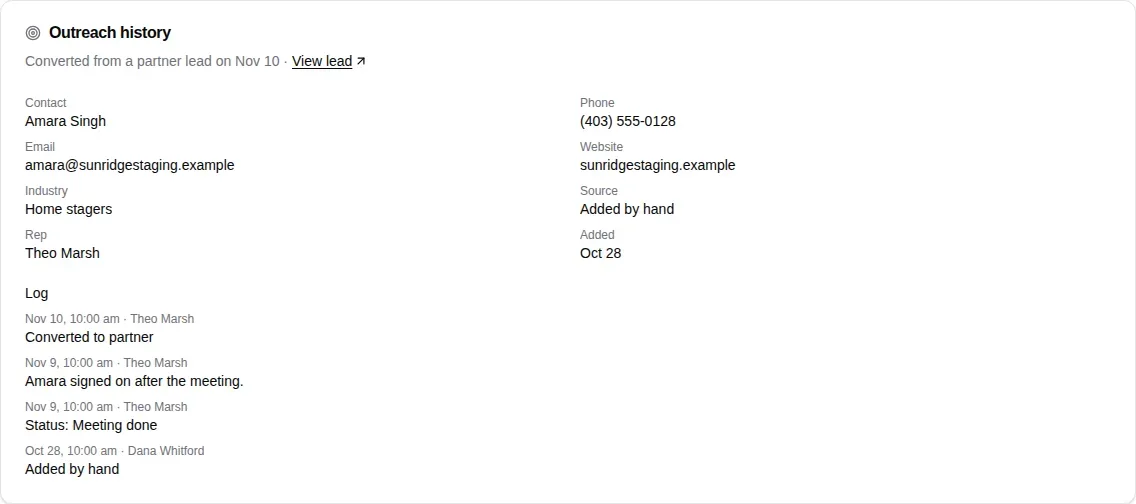
The lead becomes a partner and turns read-only, apart from emails and updates. On the new partner’s page, Outreach history keeps the lead’s contact, its log and its meetings, with View lead to open it. To work with partners after that, see Partners and referrals.