
Before you start
Partners comes with the Partners & Referrals add-on, which works alongside the Sales Pipeline add-on. An admin turns add-ons on for the company. Once it is on, Partners appears in the Sales menu.
Sales reps, dispatchers, marketing managers and admins can all open the Partners page and every partner on it. Who can change a partner is narrower, and the section on editing below covers it.
Find your partners
Open Partners from the Sales menu. Each row shows the partner, their sales rep, their commission and customer discount, how many moves they referred, their lifetime value and the balance you still owe them.
As a sales rep, the page opens on My Partners: only the partners assigned to you.
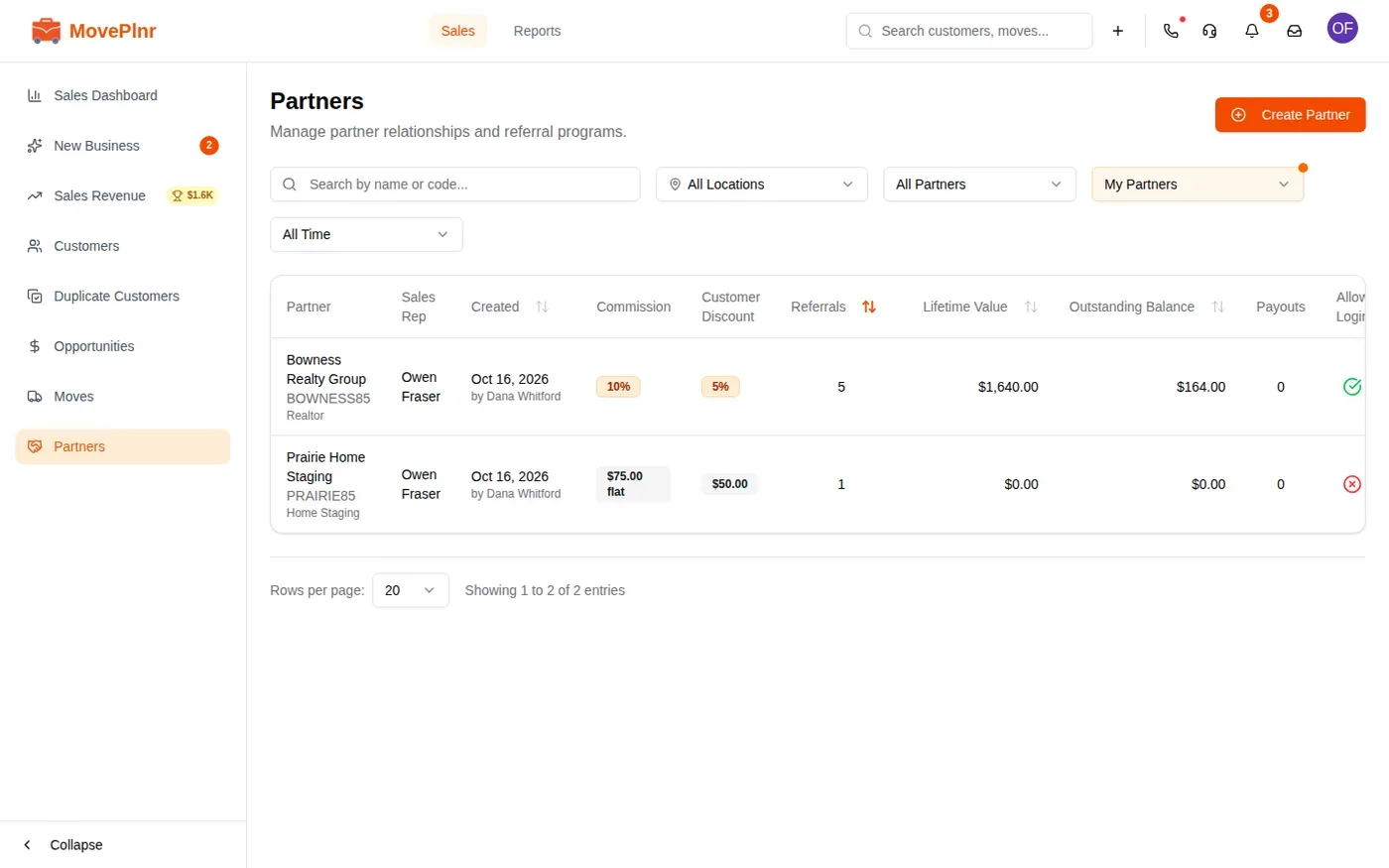
To see every partner in the company, switch that filter to All Partners. Admins get a sales rep picker in the same place instead, so they can look at one rep’s partners at a time.
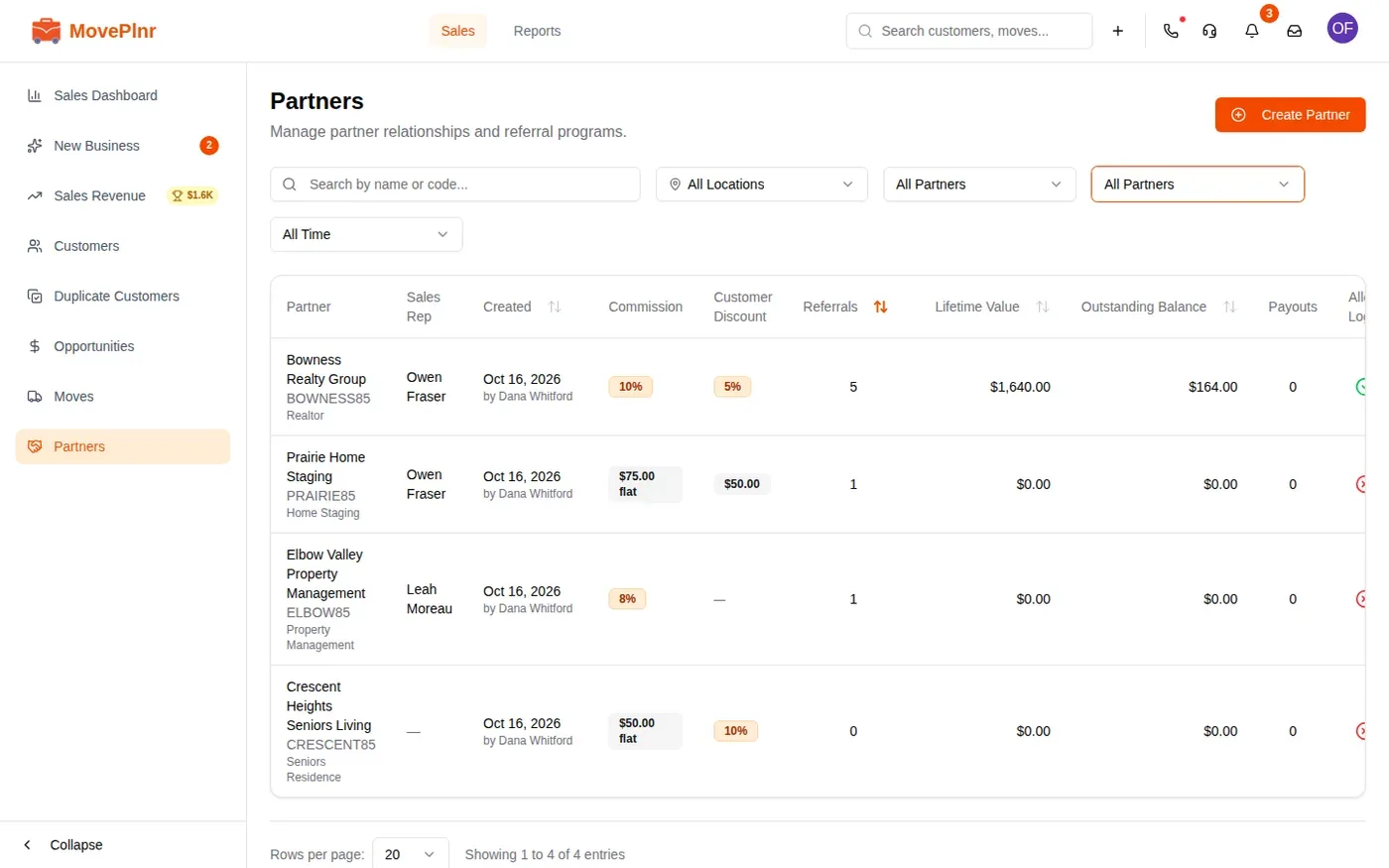
The other filters narrow the list by location, by status (active, outstanding payment or archived) and by when the partner was added. Searching by name or referral code looks across all partners and ignores the other filters, so you can always find a partner by their code.
Add a partner
- On the Partners page, click Create Partner.
- Enter the partner’s name, a referral code, their phone and email, and their industry.
- Pick their sales rep. Leave it on None if nobody owns them yet.
- Tick the locations they refer to. Each one gets its own referral link.
- Turn on Allow Login if the partner should have their own portal.
- Set the commission (a percentage or a flat amount per move) and the customer discount their referrals get.
- Click Create Partner.
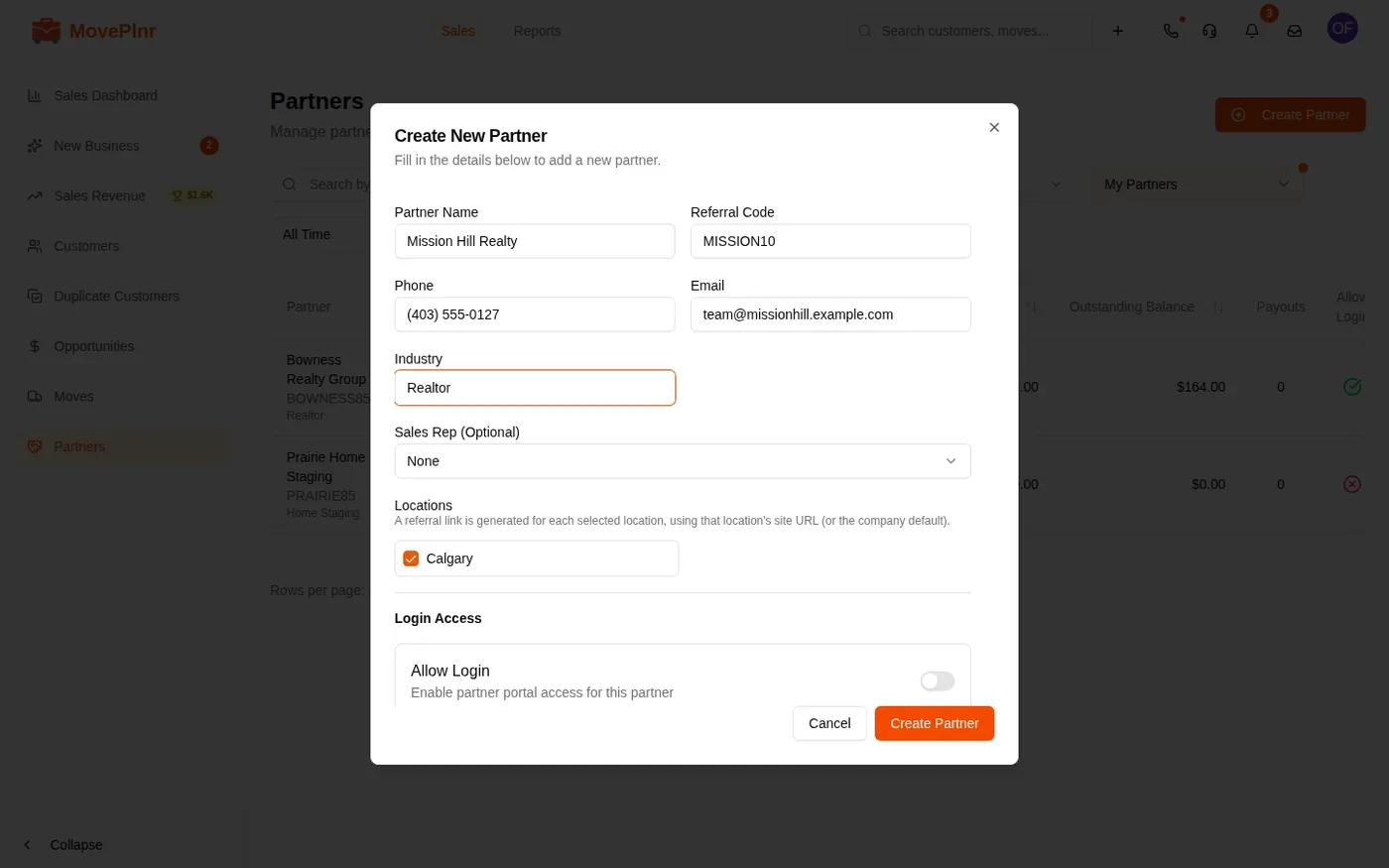
Referral codes must be unique. When you turn on portal login, MovePlnr offers the partner’s introduction email next. It carries a link for the partner to set their password; you can send it now or later.
Read a partner’s page
Click a partner to open their page. The top card holds everything about the relationship:
- The referral code, and a referral link for each location. Copy the link and give it to the partner: a customer who requests a quote through it arrives already credited to them.
- Their commission and customer discount, their sales rep, and the share of the move’s commission that goes to that rep (Commission to Partner Owner).
- What they have earned: the lifetime value of their moves, the outstanding balance, the last payout and the number of payouts.
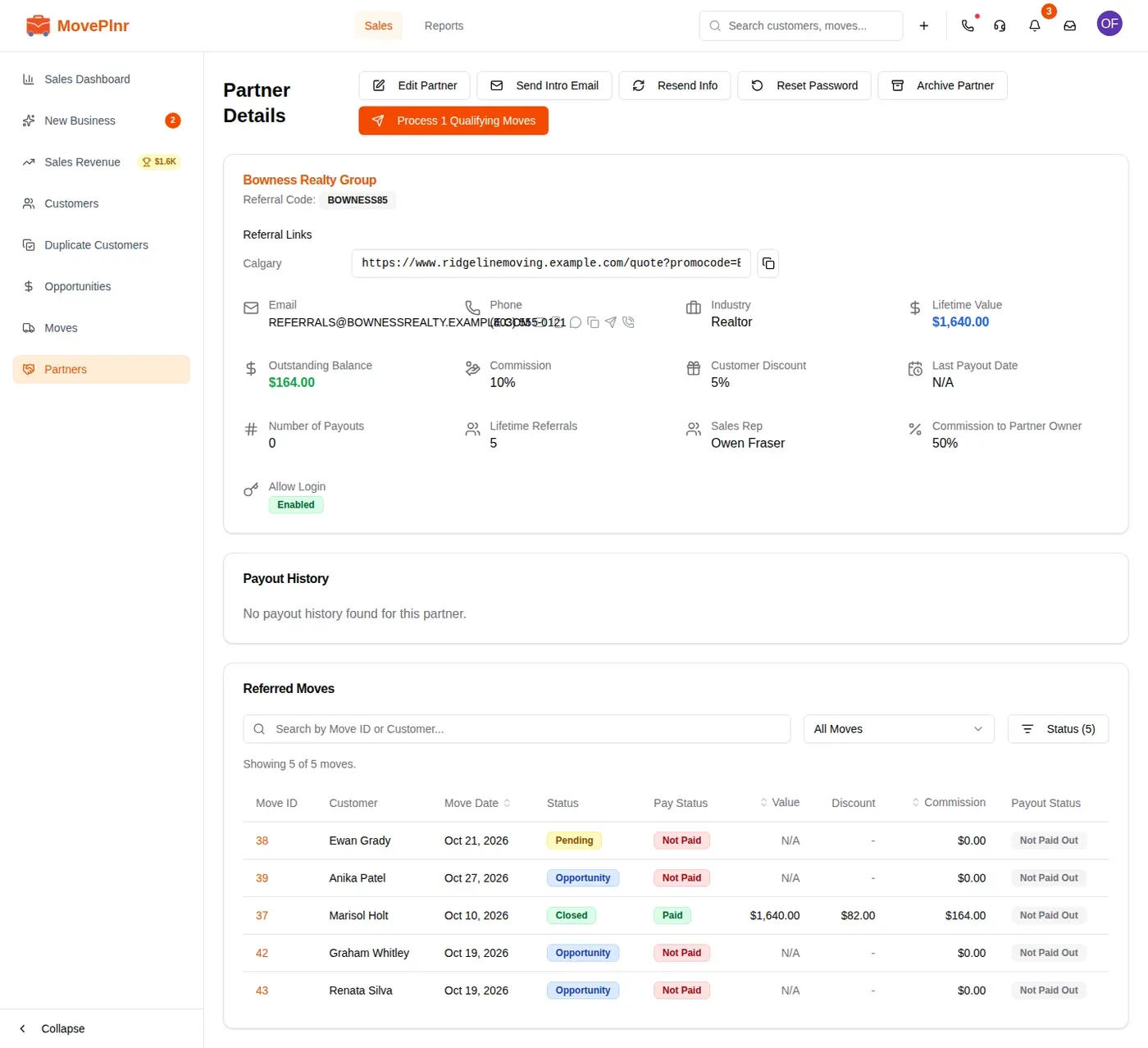
Referred Moves lists each move credited to the partner with its status, what the customer paid, the discount, the commission and whether it has been paid out. Search it by move number or customer, or narrow it by status.
Edit a partner
You can edit a partner if you are their sales rep or an admin. Click Edit Partner, make the change and click Save Changes.
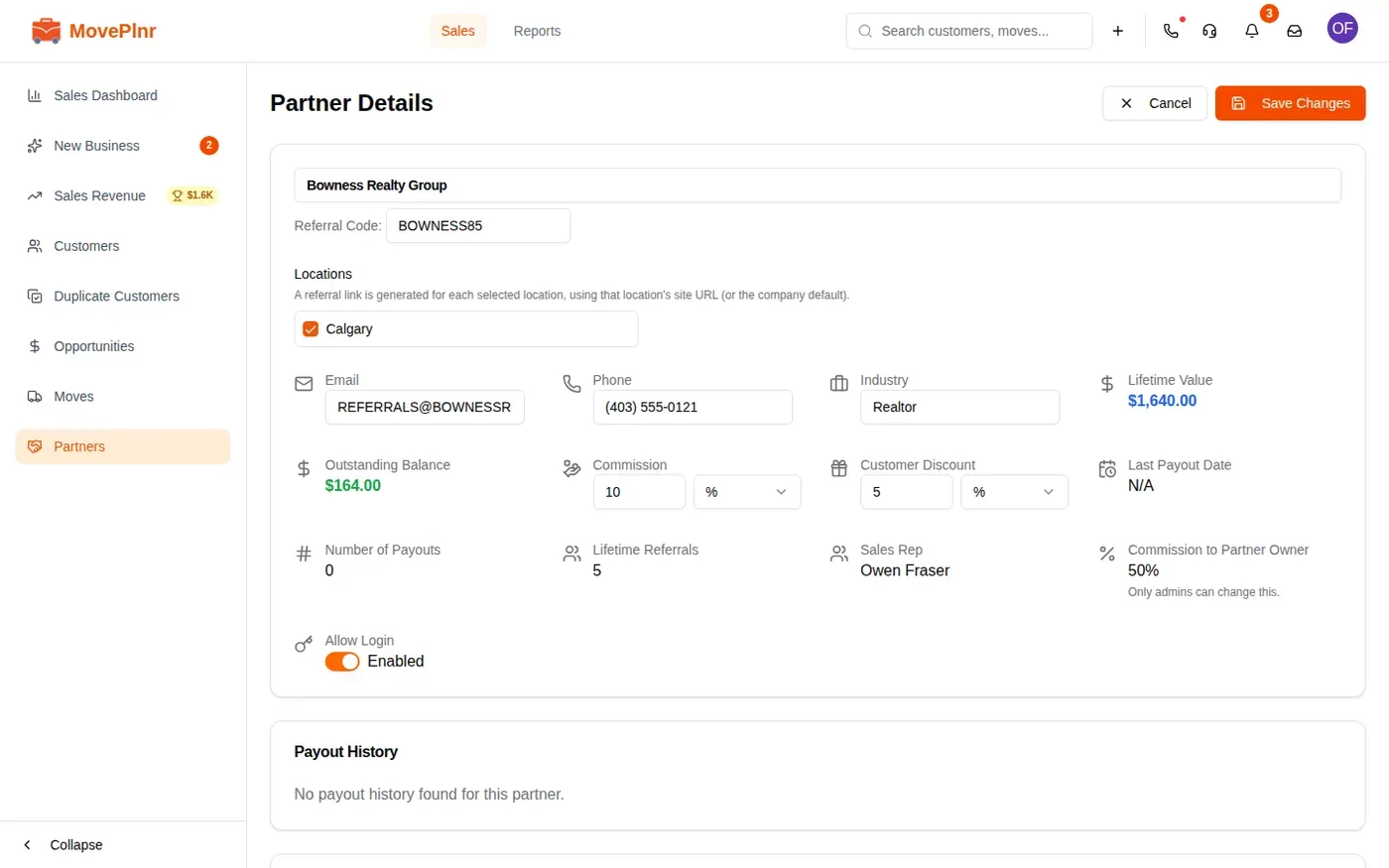
A few fields are for admins only. Only an admin can change the partner’s sales rep and the commission to the partner owner; a rep sees Only admins can change this. under it.
When the partner belongs to another rep, you see the same page without the buttons. You can read everything, but you cannot change it.
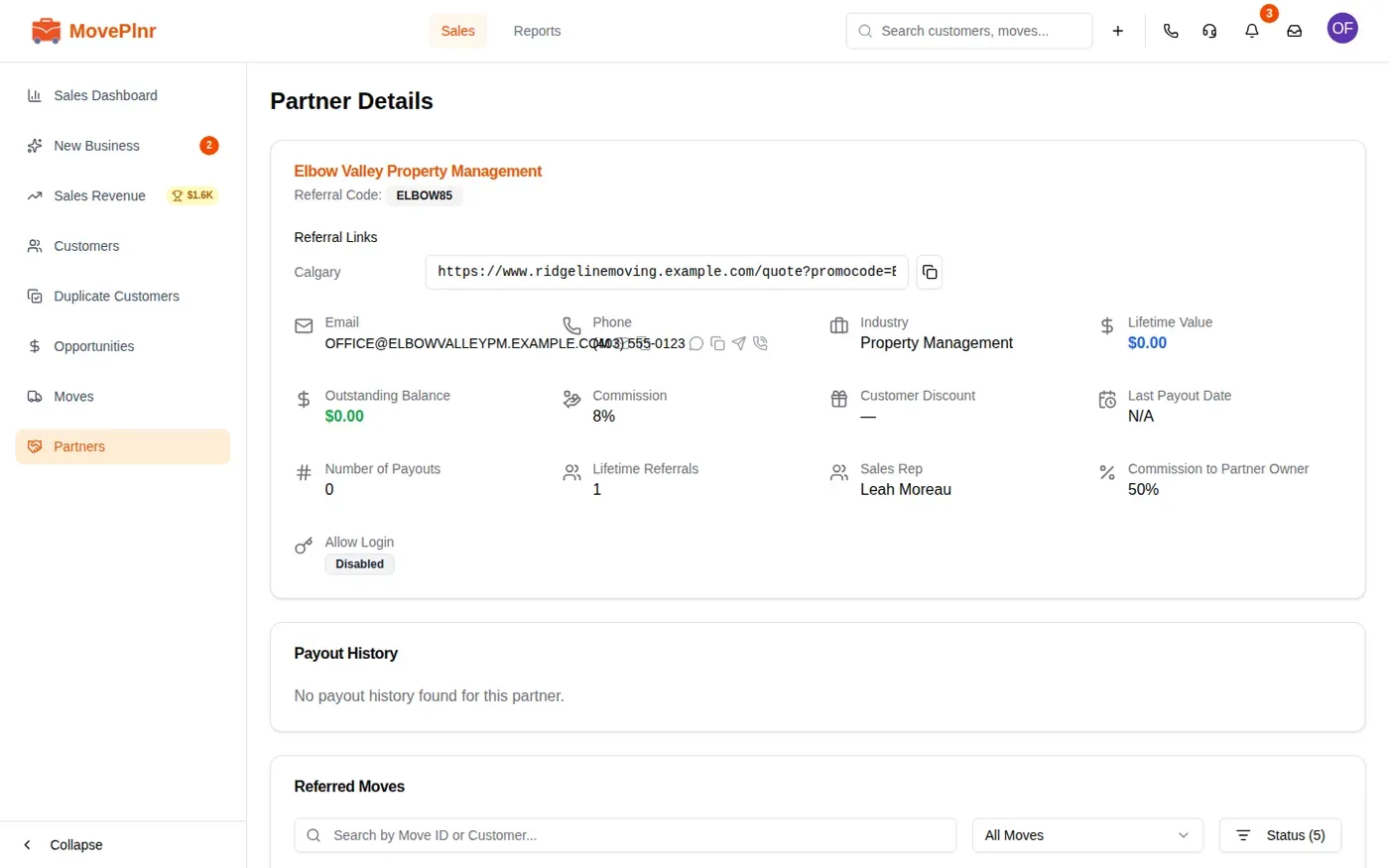
From the same row of buttons you can also send the partner their introduction email, resend their portal details, reset their password, or archive a partner you no longer work with. Archived partners stay on file, and you can find them with the archived filter.
Credit a move to a partner
Leads that come in through a partner’s referral link or their portal are credited to that partner automatically. For a customer who mentions a partner on the phone, set it yourself on the move.
- Open the move.
- In the Office Only card, open Partner Assigned and search for the partner by name or code.
- Pick the partner. The change saves straight away.
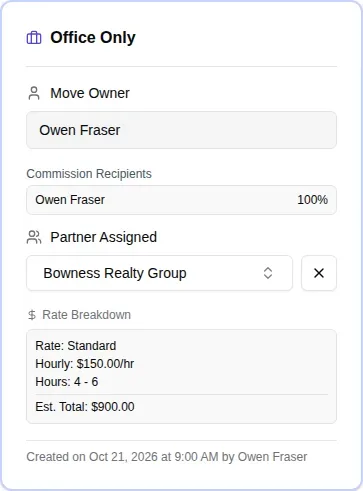
Setting a partner also splits the move’s commission between the person who booked it and the partner’s sales rep, using the partner’s owner share. To take the partner off, click the cross beside their name. Once a move is closed, reopen it to change its partner.
Pay out commission
A move is ready for payout when it is closed and fully paid. The button at the top of the partner’s page counts them, for example Process 1 Qualifying Moves.
- Click the button to open Process New Payout.
- Untick any move you want to leave for a later payout.
- Add a note, such as the e-transfer reference.
- Click Confirm Payout to record it, or Confirm & Mark Paid if the money has already gone out.
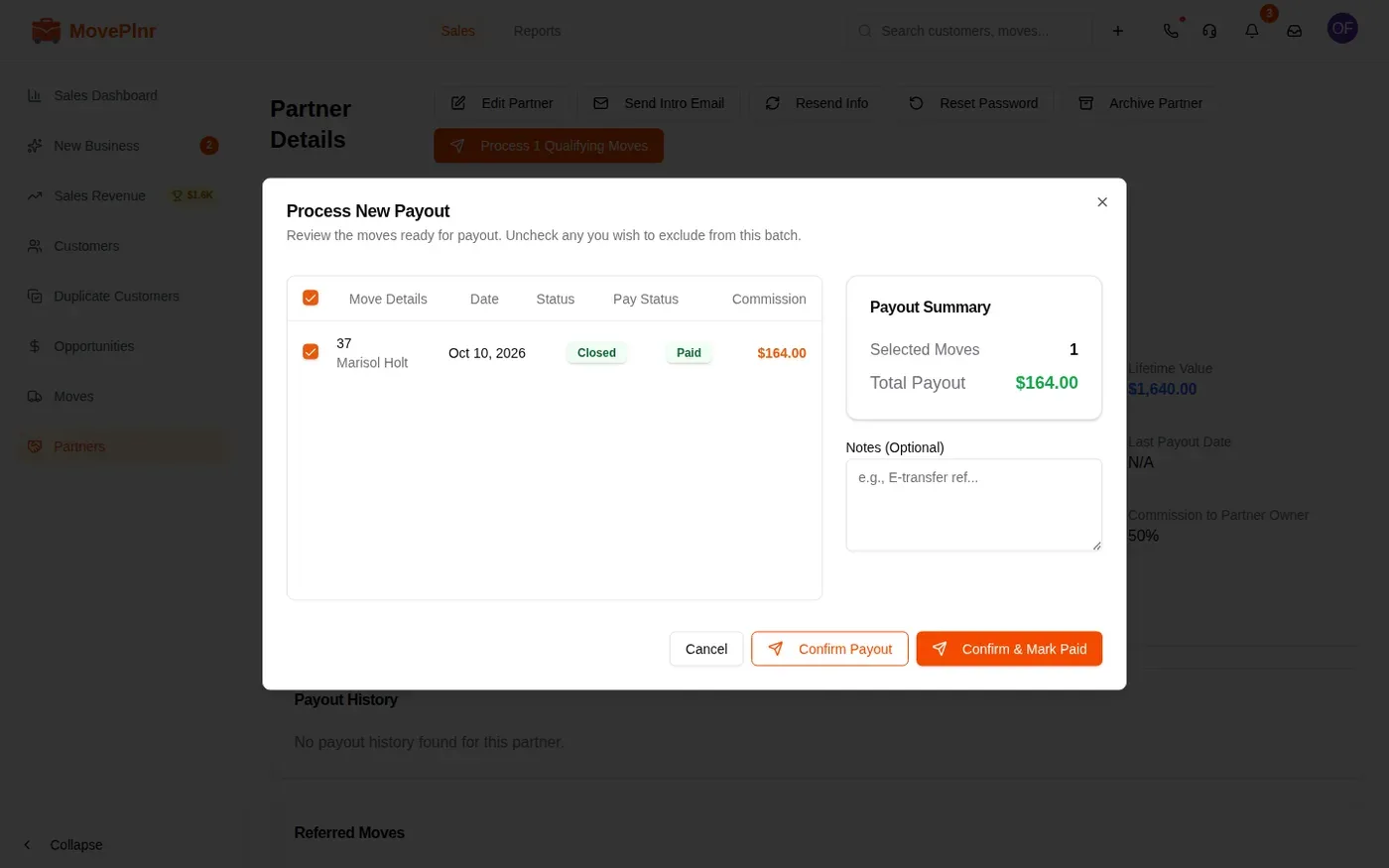
The payout appears in the partner’s Payout History, and its moves show as paid out. A payout you confirmed without marking paid can be marked paid from there later.
Spot referrals in New Business
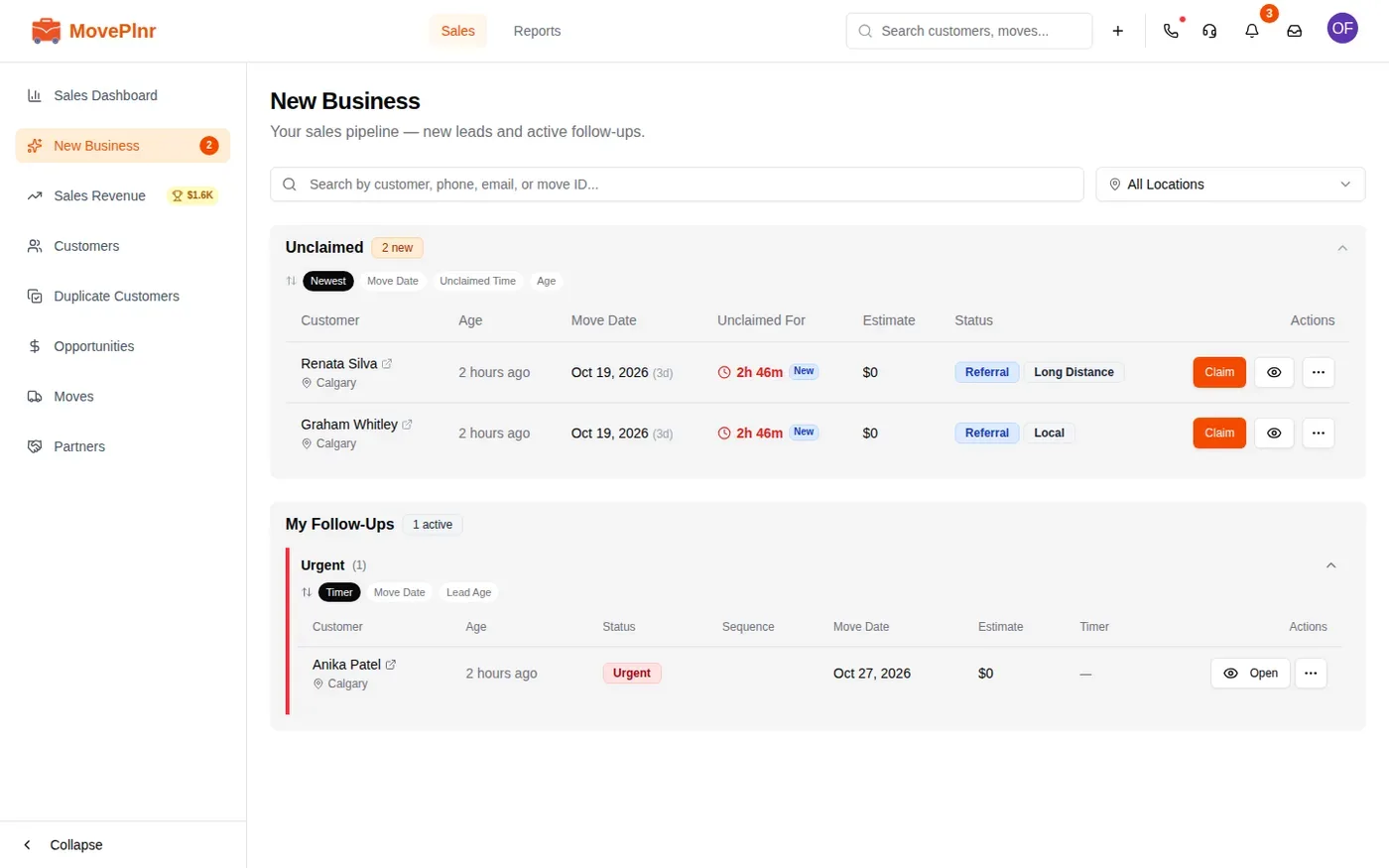
Leads a partner sends from their portal land in New Business like any other lead, with a Referral badge and the partner’s choice of Local or Long Distance. Claim and work them as usual.
What your partners see
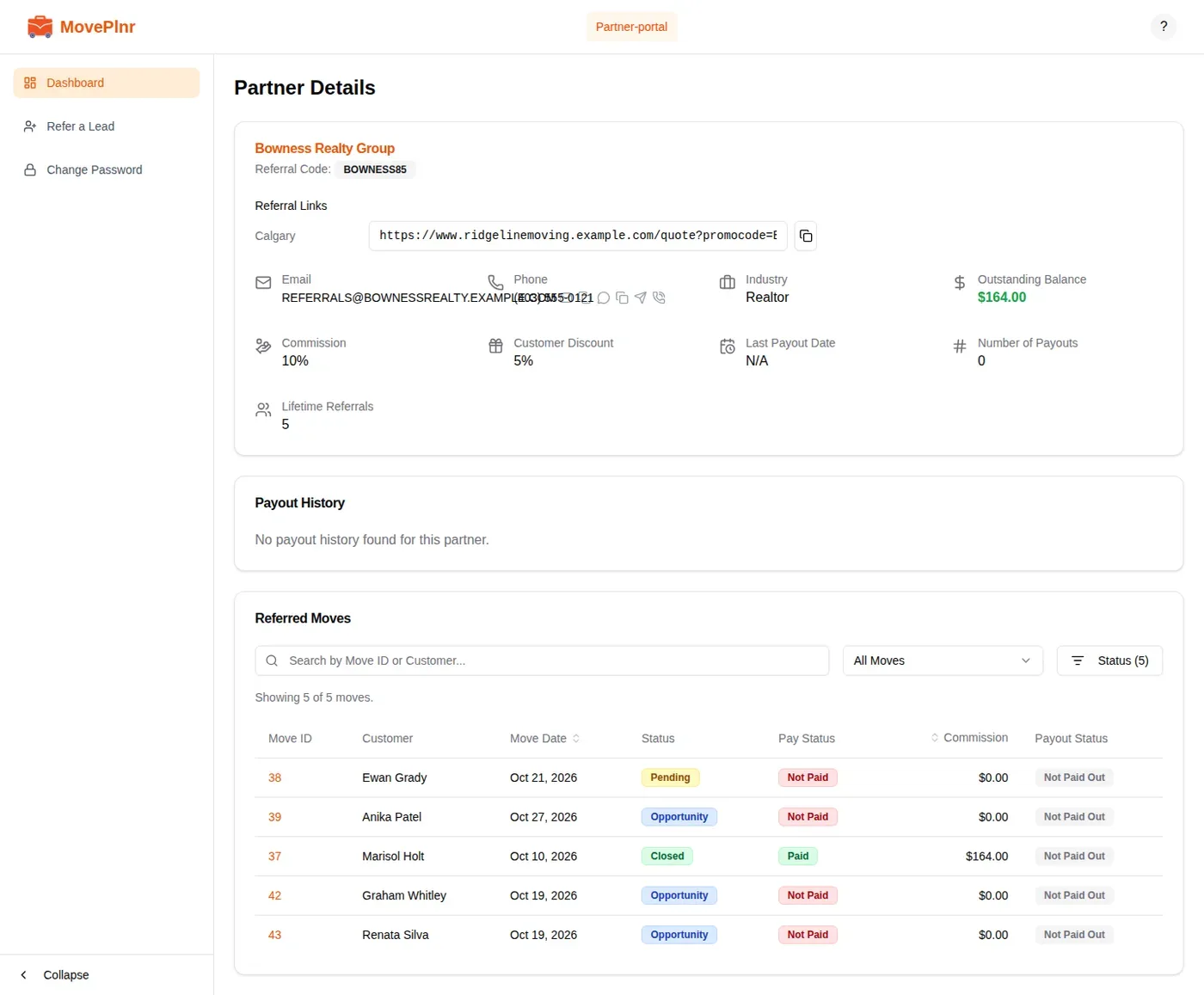
A partner with portal login signs in on the partner sign in page with their email and the password they chose. Admins can check that view with View as Partner on the partner’s page.
The partner’s dashboard shows their own page: their referral code and links, their commission and discount, their outstanding balance, their payouts, and every move they referred with its status. It does not show your lifetime value figures, your reps or anyone else’s partners.
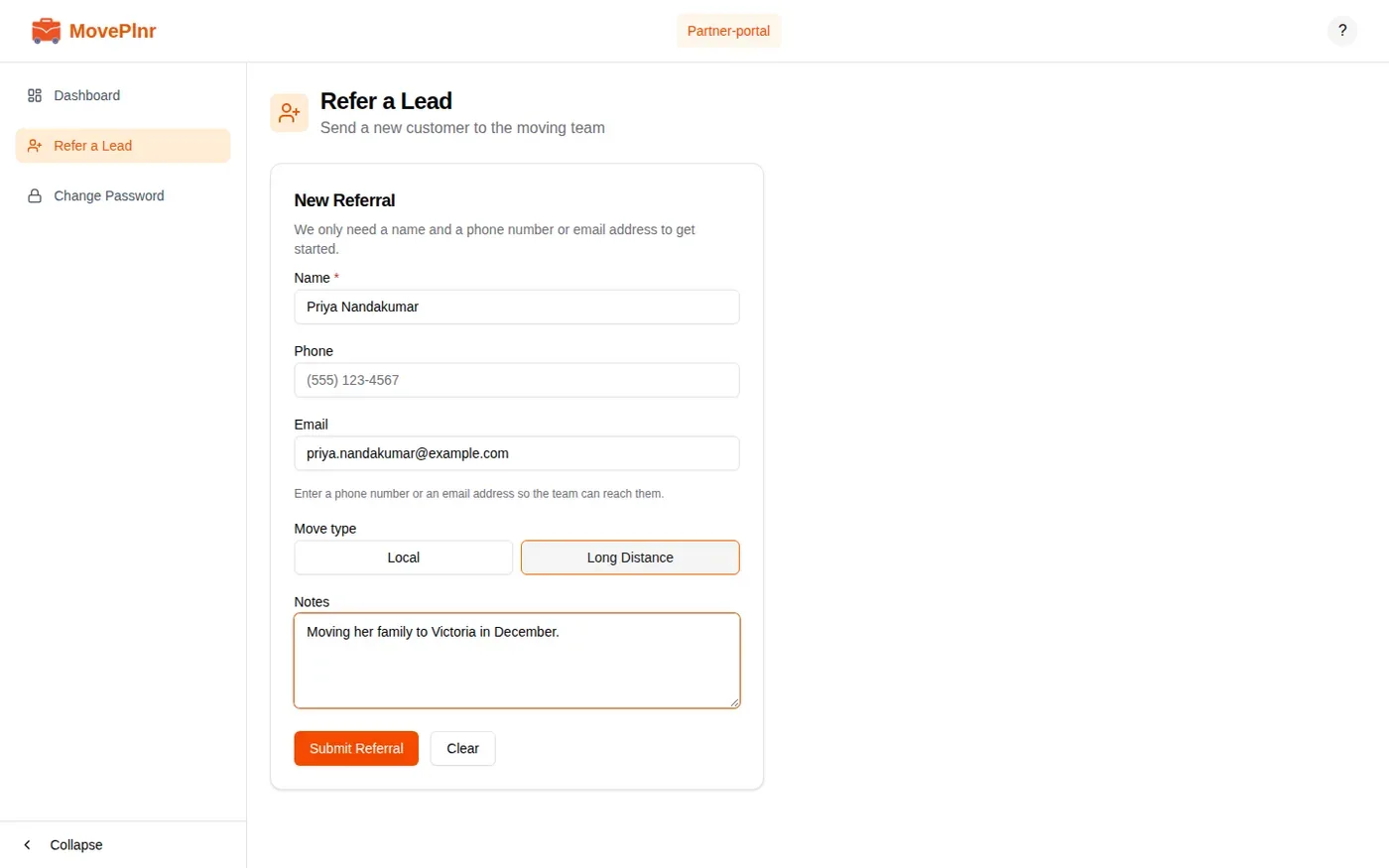
To send you a customer, the partner opens Refer a Lead:
- Enter the customer’s name.
- Enter a phone number or an email address. One of the two is enough.
- Pick Local or Long Distance.
- Add any notes for your team.
- Click Submit Referral.
The lead arrives in New Business at once, credited to the partner. They can also change their password from Change Password in the portal menu.
For owners: what partners bring in
The Source of Sale report, under Reports, has a Partner Referral Sales card. It shows the revenue, referrals and closed moves each partner brought in for the month you pick. Admins and marketing managers can open it.
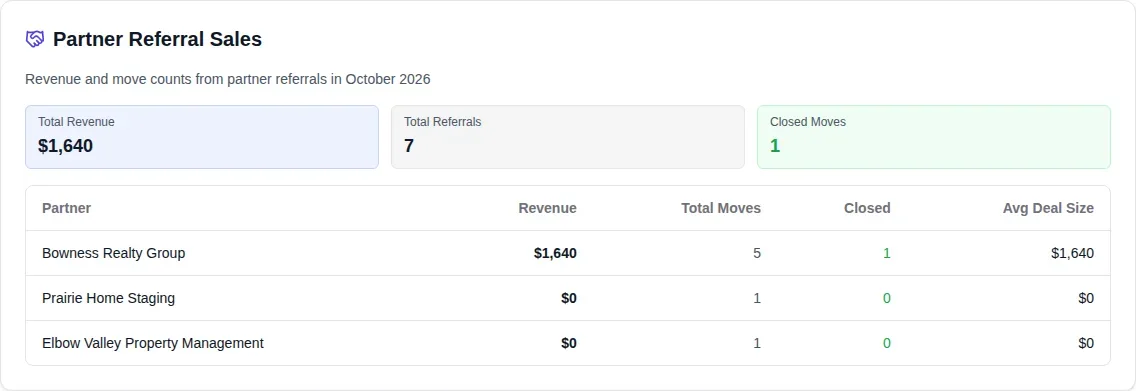
Revenue counts closed moves only, so a partner whose referrals are still booked shows referrals with no revenue yet.