
Before you start
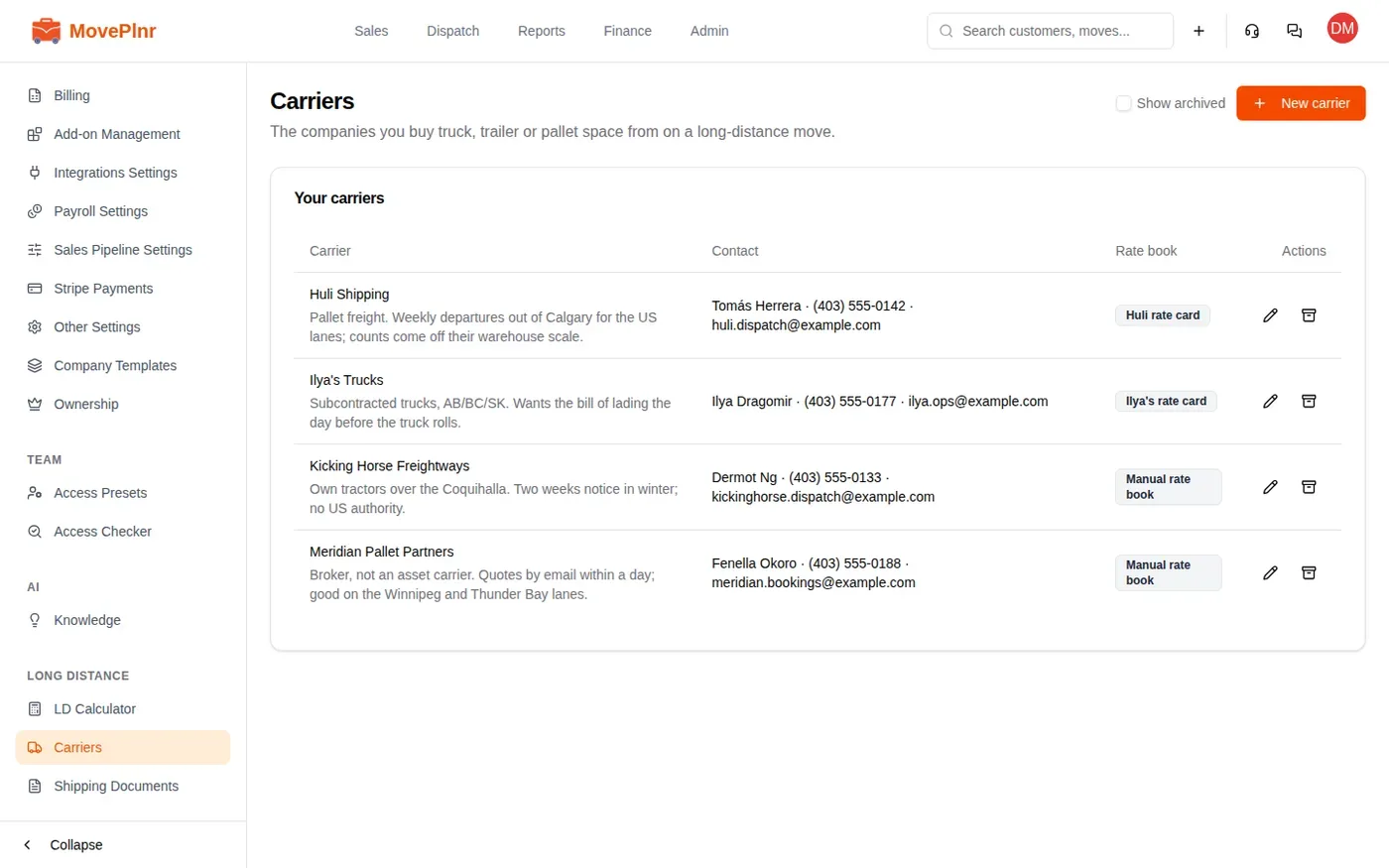
Long distance is an add-on. When an admin turns it on, MovePlnr adds a Long distance section to the settings sidebar with three pages: the LD Calculator, Carriers and Shipping Documents. It also creates two rate-book carriers and a standard set of shipping documents for you, so you start with something to edit rather than an empty list.
Each branch also needs a one-time pricing setup before its first quote. It is in the next section.
Carriers
- Open Settings and choose Carriers. Every company you buy truck, trailer or pallet space from is listed here.
- Click New carrier to add one. Give it a name, a contact and an email. The email matters: it is where shipping documents are forwarded.
- Pick a Rate book. A carrier with a rate card can be priced by the quote tool. Pick the manual option for a carrier you phone for a price.
Shipping documents
Shipping Documents is the catalogue of paperwork a shipment can need: a passport, a customs inventory, a power of attorney, a building certificate of insurance and so on. Each one says which corridors need it by default, for example within a province, province to province, or Canada to the US. When a job’s addresses put it on one of those corridors, its checklist is built from this list.
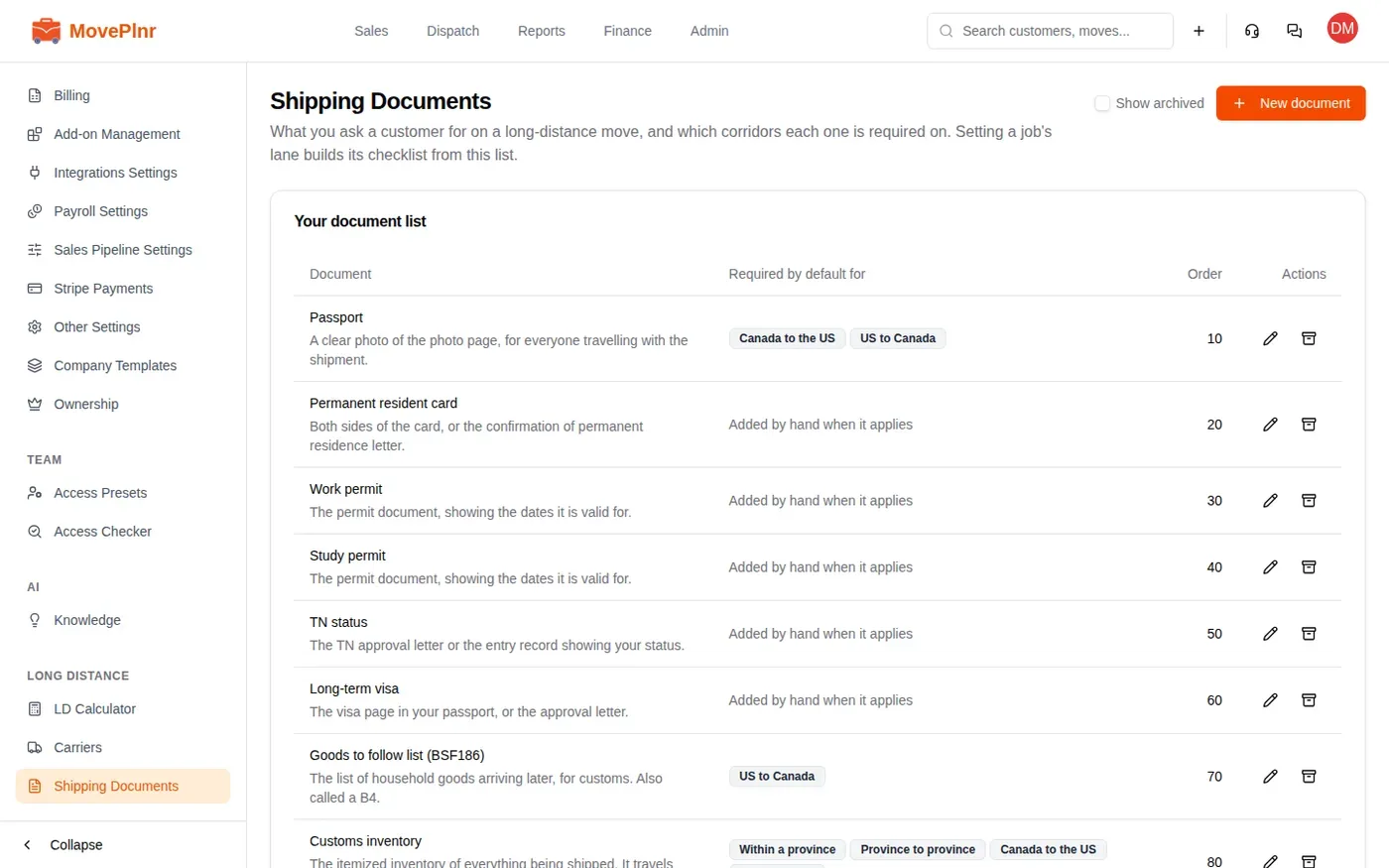
Editing the catalogue changes future checklists only. A checklist already built for a job keeps the rows it was built with.
Set up long distance pricing
A long-distance quote writes its price onto your own services and rates, so each branch says which service carries which part of the price. Do this once per branch, before the first quote. It needs edit access to rates, services, supplies and move sizes.
A long-distance service or rate stops being offered on ordinary moves as soon as you save it. Moves that already have it keep it. So do the setup on the day you start selling long distance as long-distance jobs.
Long distance services
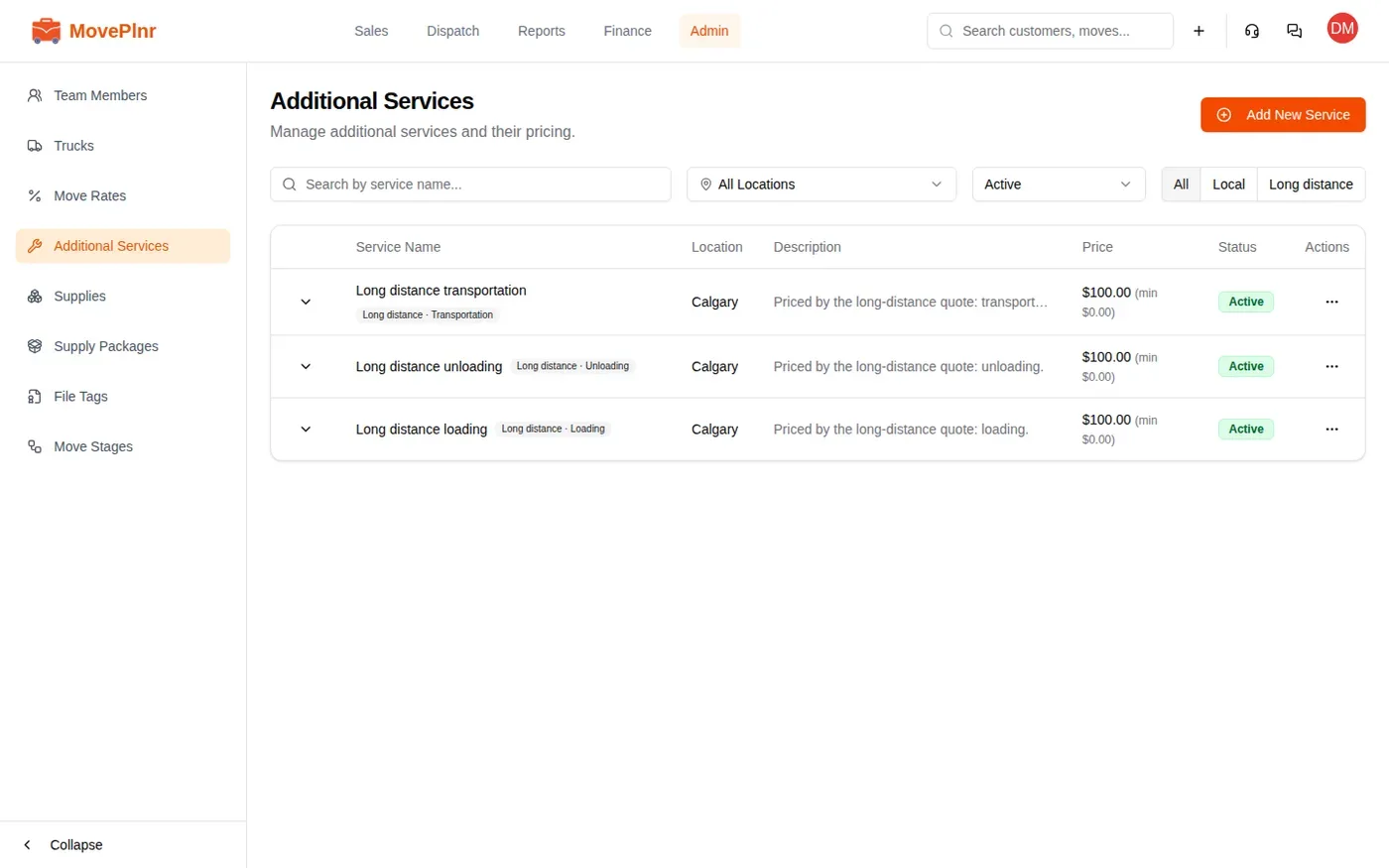
- Open Admin, then Additional Services, and edit the service that carries a part of the price, or add a new one.
- Set Scope to Long distance.
- Pick its Role. You need one service each for Transportation, Unloading and Loading.
- Save, then repeat for the next role.
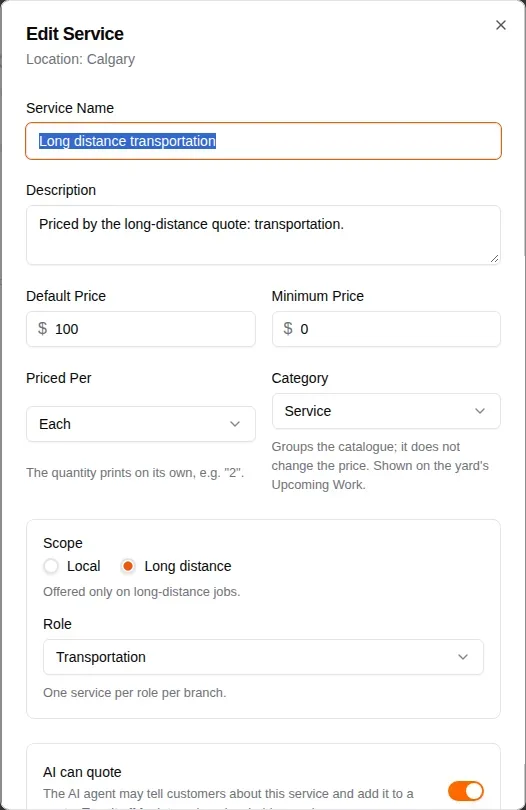
Crating, storage, vehicle loading and customs are optional roles. With no service holding one, that amount goes into the Transportation line, and the line’s note says so. Each branch has one service per role: choosing a role takes it off the branch’s other service, and the window says which one.
Long distance rates
On your own truck, loading is billed by the hour at a long-distance rate. The quote picks that rate by the number of trucks and movers.
- Open Admin, then Move Rates, and edit a rate or create one.
- Set Scope to Long distance.
- Switch on Is this a smart rate?, then set # of Trucks to 1 and # of Operators to the crew size.
- Click Save changes. Add one rate for each crew size you send.
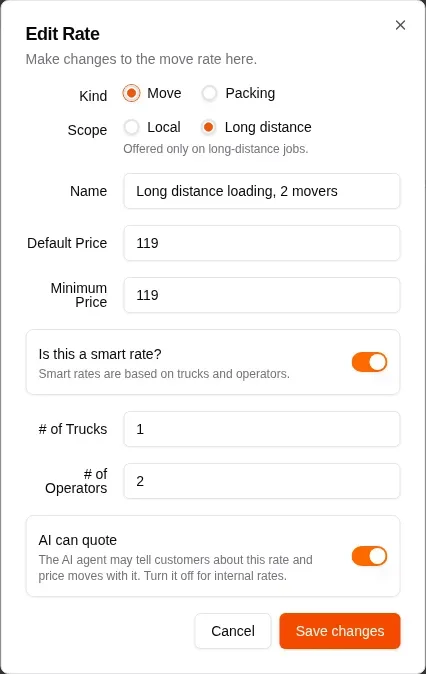
Scope and Role show only with the Long Distance add-on, or once a long-distance service or rate is saved.
The deposit
If your deposit is a percentage, set its Percent of to Transportation services only, on each long-distance contract template or in the Deposit section of each booking journey. The deposit is then that percentage of the Transportation line: 30% of a $2,000 line is $600. A job with no such line uses the whole estimate.
Start a long-distance job
A new opportunity
- Start a new opportunity the way you always do.
- Under What kind of job is this?, choose Long distance.
- Choose How is it moving?: your own truck, a carrier’s truck, or pallets. Pick Decide later if you don’t know yet.
- Check the Booking location, then pick the customer.
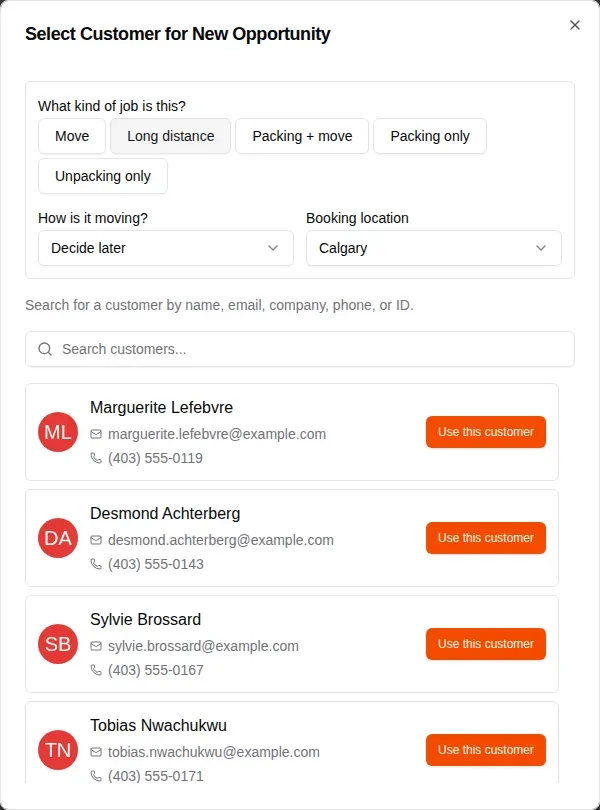
A long-distance job books with no truck picked, on any mode. On your own truck, a dispatcher adds the truck from the dispatch board once it is booked. Pallet and carrier shipments never take a truck of yours: only their leg jobs are dispatched.
An opportunity you already booked as a move
When an ordinary opportunity turns out to be leaving town, you don’t have to start over. Its page asks whether you are shipping this one out of town, with a button to convert it to long distance. Click it, then Convert.
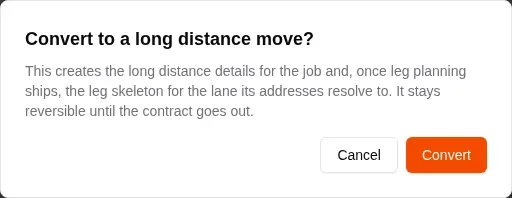
Until the contract is sent, a converted job shows Revert to a regular move in case you change your mind. Once a contract has gone out, the kind is locked.
What a long-distance opportunity looks like
At the top of the opportunity you see the Long distance badge, a Documents outstanding badge while anything required is missing, and the milestone strip from Quoted to Delivered. Hover the badge to see the corridor, for example Calgary to Seattle with a stop in the United States.

Which sections to work through
To sell the move, work down the page: Long distance quote, then Additional Services, then Estimate & Finalize. Each section says what it is for under its title.
Under After it’s booked are Charges, Legs and Shipping Documents. Charges is office only, for carrier cost and margin: you open it when a carrier’s price changes or to set the final pallet count.
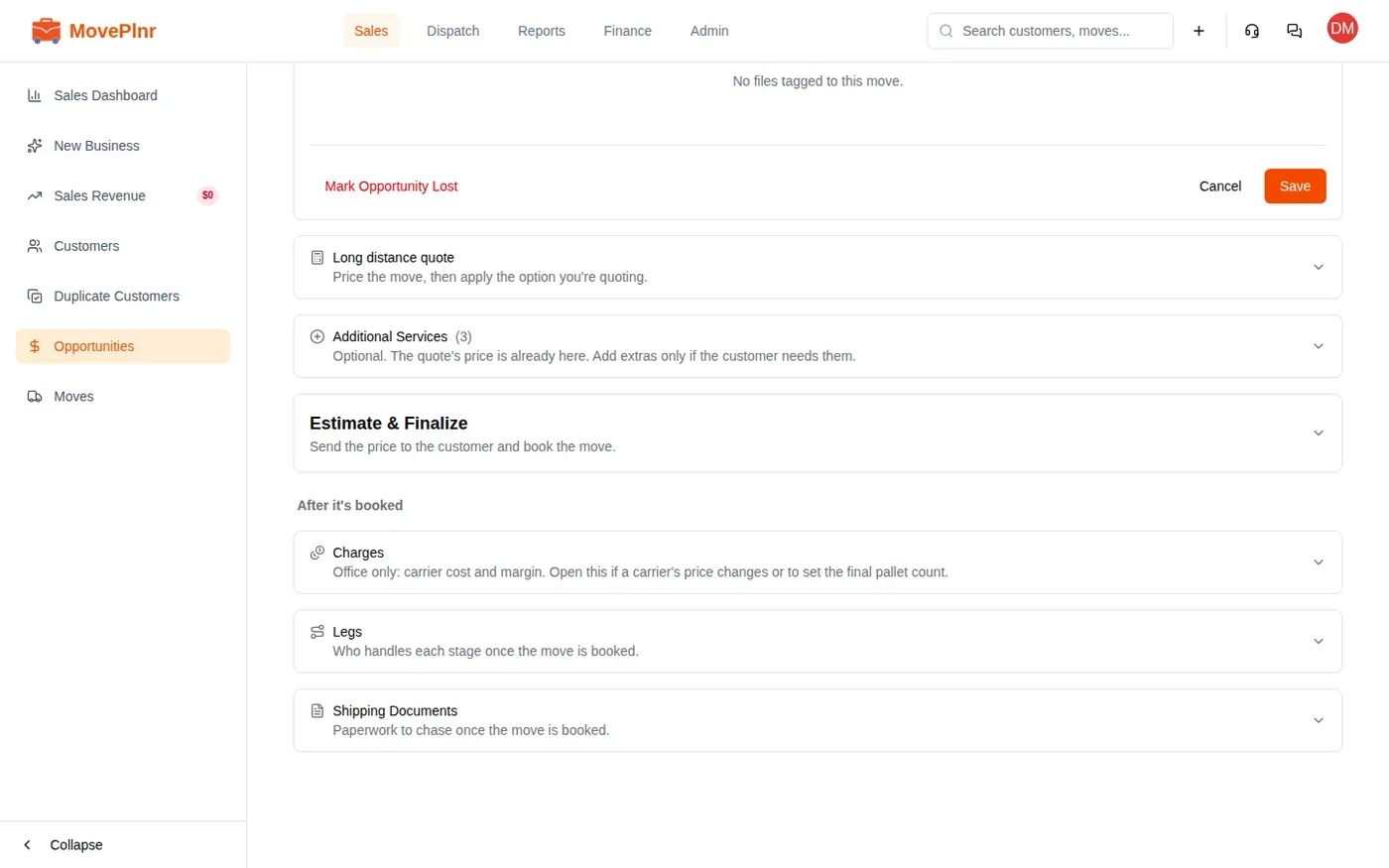
Nothing you type resets when you collapse a section or open another. If you leave the page and come back in the same browser tab within 12 hours, the quote and your unsaved entries are still there.
Price the shipment
Open Long distance quote. It starts from the route and the inventory saved on the job, and prices three options side by side: Huli Shipping’s shared truck space by the pallet or a whole truck, a dedicated truck from Ilya’s Trucks loaded by your crew, and your own truck and crew. Your own truck isn’t offered when the round trip is over 24 hours of driving.
The carrier figures are customer prices: the carrier’s cost plus your margin. Each line shows its price with the cost and margin under it, and each option ends with the base before margin, the margin and the total. When a carrier doesn’t serve the lane, its card asks for what the carrier quoted you, and adds the margin the same way.
Apply the quote to the job
- Price the move in Long distance quote.
- Under Save this quote to the deal, pick the option in Option to apply. The cheapest one is picked to start with, marked with a star.
- Click Apply to job. It saves the quote and writes the job’s service lines and its rate.
A green note confirms it, and Additional Services and Estimate & Finalize update on their own. Save quote keeps a copy on the deal without changing the job. Applying needs a destination on the job.
Every quote you save stays in Quote history with the date, the option, who priced it and which rate files it used. Open an old one to see the figures exactly as they were priced.

What applying writes
Applying writes the customer’s price onto the job as service lines, on the services you set up, margin included. Each line carries a Long-distance quote badge.
- Transportation: one line for the whole haul. Its note names the mode, the equipment and the lane.
- Unloading: one line. A curbside quote has none.
- Loading: one flat line, on a pallet or carrier job only.
- Crating, storage, vehicle loading and customs: a line each when a service holds that role.
A pallet quote is a range, so each line carries the price at the lowest and the highest count you quoted, and its note says the final price depends on the pallets used.
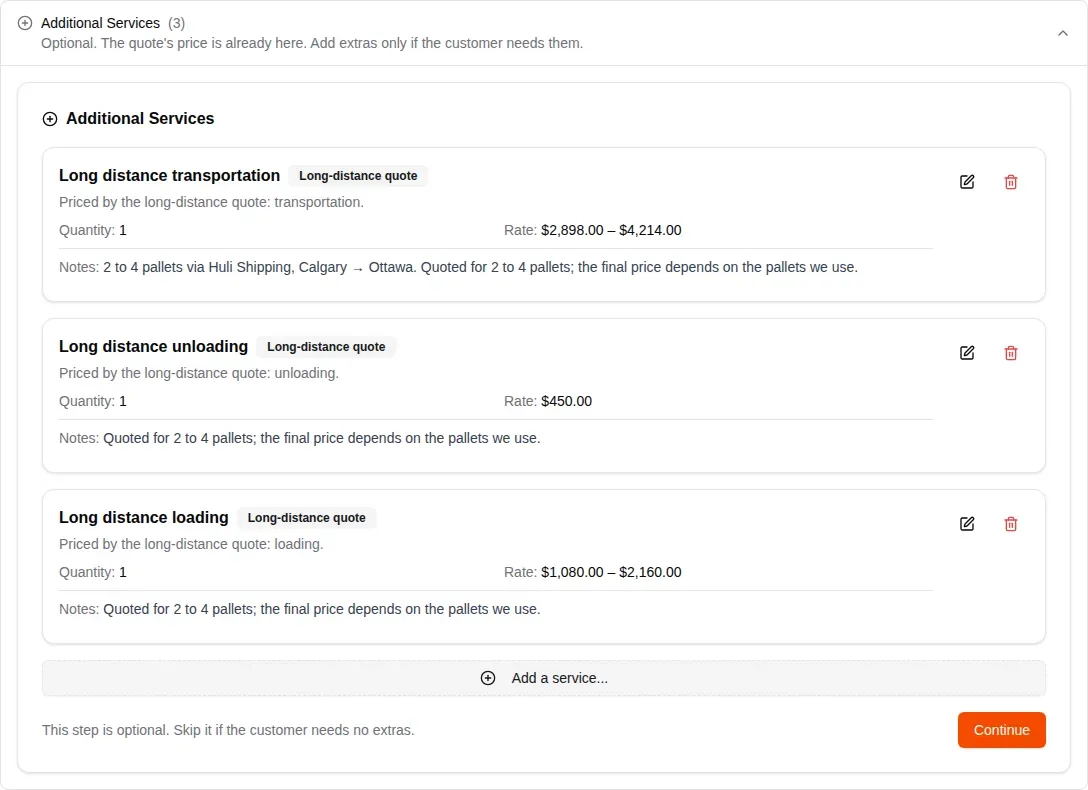
Don’t add the transportation, unloading or loading again with Add a service…: that bills the customer twice. Add only extras beside them, such as packing or a crate. If the customer needs none, click Continue.
A price you type on a quote line doesn’t last: applying again, setting the final pallet count or editing a charge writes it again. To change a price for good, edit the charge’s final figure in Charges, and the line follows.
The estimate
On your own truck, loading isn’t a line. The job becomes hourly at the branch’s long-distance rate for that crew, and Estimated Total adds the service lines to the rate times the hours. The crew and truck counts in Estimate & Finalize stay, because they pick the loading rate.
On a pallet or carrier job there is no hourly rate. Estimate & Finalize reads “Priced by the services on this job”, and Estimated Total is the lines’ total. While a pallet quote is a range, it shows both ends.
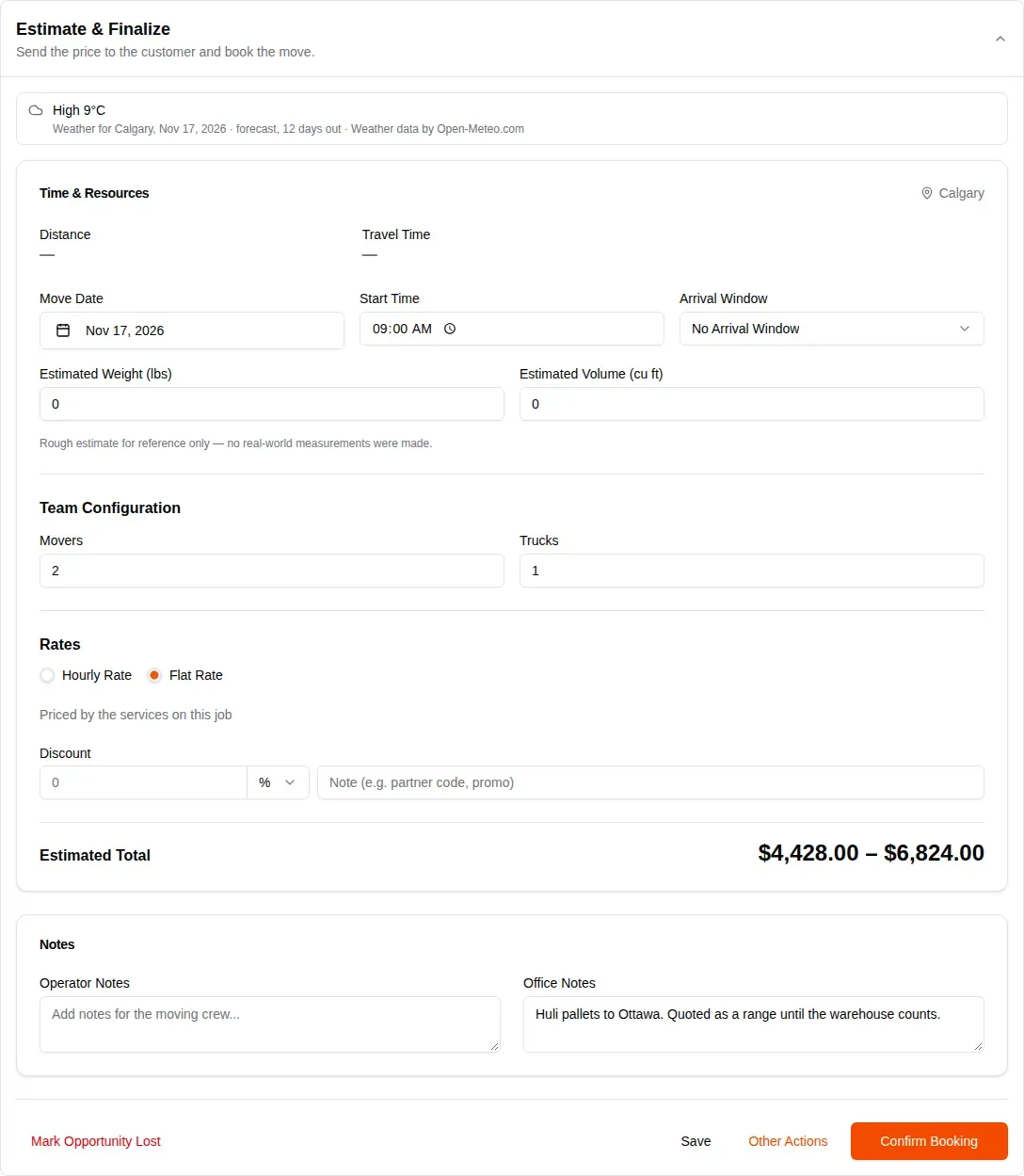
A pallet or carrier job has no labour, so the estimate, quote page, signed agreement and invoice show no labour line at all. While the quote is a range, the deposit is worked on the low end.
Send the price
Under Estimate & Finalize, Send Pricing comes first in the other actions, with Send Estimate under it. On your own truck it shows the service lines and the loading rate per hour, with no total, because the hours aren’t known yet. On a pallet or carrier job it shows the lines with their total, and a pallet quote shows each line’s range and the range of the total.
Journey emails can fill in two long-distance details for you. In a journey message, Insert token has a Long distance group:
- Shipment: what is being shipped, such as “about 2 to 4 pallets”, then the count once it is final, or “a dedicated 26’ truck”.
- Delivery type: “into your home” when the quote includes unloading, or “curbside”.
Anything only your rep knows, such as a shuttle price, can stay in the email as text in square brackets, like [$___]. The send window lists any bracket text still there and holds Send until each one is filled in or deleted, brackets included.
To put the charges on a contract, use the Additional Services placeholder. It prints each service line and its note. The old Long Distance Charges field is gone.
Change a quote the customer already has
Once a quote page is out, applying is refused so the price can’t change under the customer. To revise it, click Withdraw quote page on the opportunity’s quote page card, apply the new option, then send the customer a new quote.
If the job already has lines you typed by hand on the services the quote writes, which is usual on a converted move, applying asks whether to replace them and lists them. Replacing swaps those lines for the quote’s and leaves your other lines as they are. Applying another option later replaces the lines the last quote wrote and leaves the ones you added yourself.
Charges
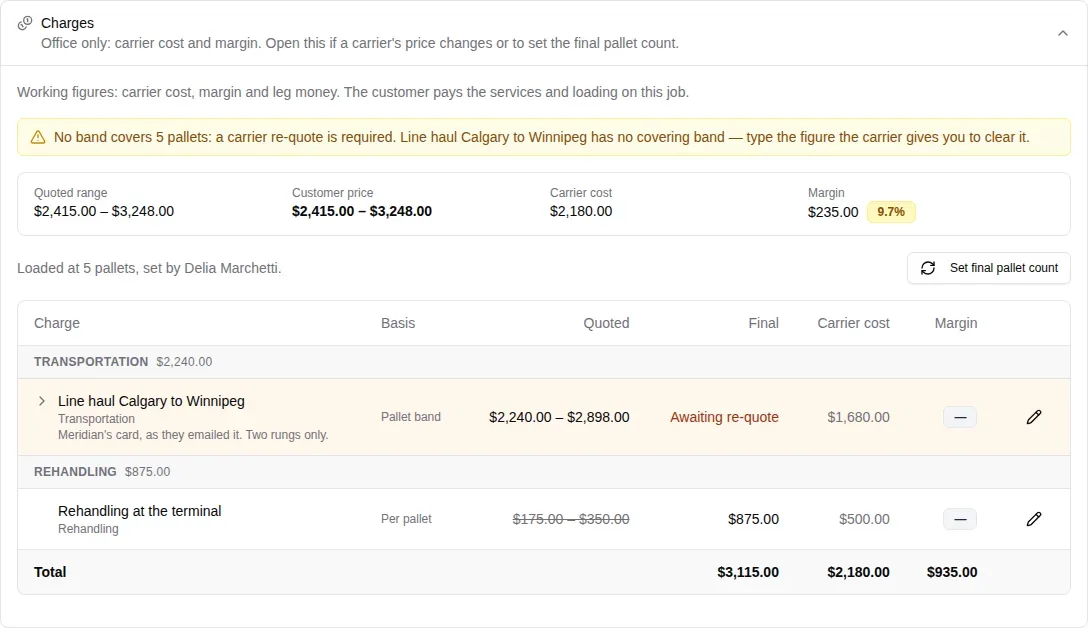
Open Charges to see what the shipment is worth to you. It holds the office’s working figures: what each part costs you from the carrier, your margin and what each leg is worth. The customer is never billed from it: they pay the service lines and the rate.
The tiles across the top show the Quoted range, the Customer price, the Carrier cost and your Margin. The customer price adds up the quote’s lines before tax, so on a branch with tax it reads lower than the total the customer sees. Below the tiles, every charge is grouped by kind, with its basis, what you quoted, the final figure and what the carrier charges you.
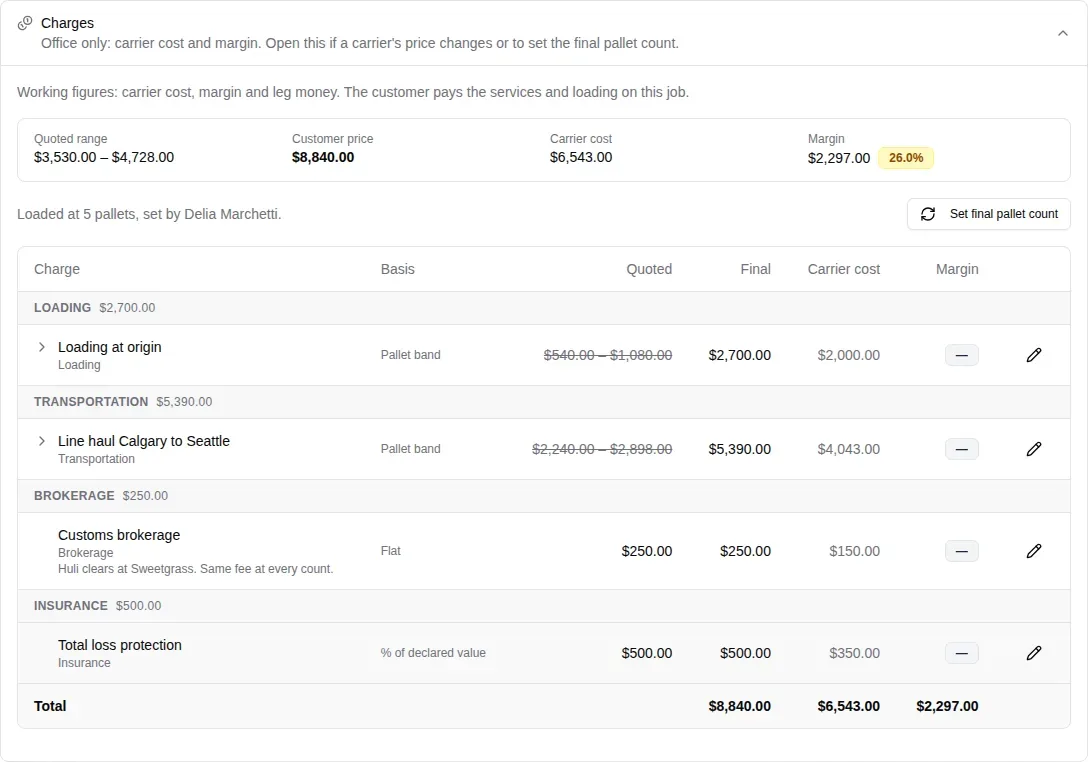
- A pallet band charge has a chevron. Open it to see what that line costs at each pallet count.
- The pencil on a row edits its final figure and carrier cost. The service line follows.
- When the final figure differs from the quote, the quoted range is struck through.
Set the final pallet count
A pallet shipment is quoted as a range, like two to four pallets, because nobody knows the real count until the warehouse loads it. Until the count is set, Charges says the warehouse count has not been set yet, and the job can’t close: a close would bill the low end, and a closed job can’t be re-rated.
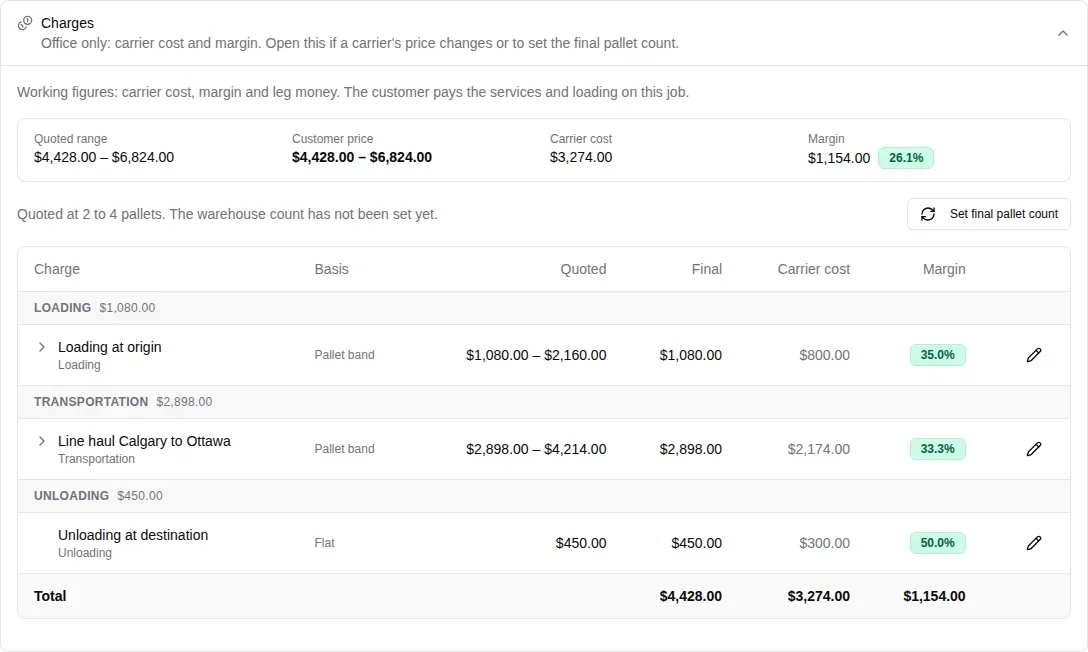
When the carrier tells you the count:
- In Charges, click Set final pallet count.
- Enter the Pallets loaded. You can add where the count came from. That note stays in the office.
- Click Re-rate.
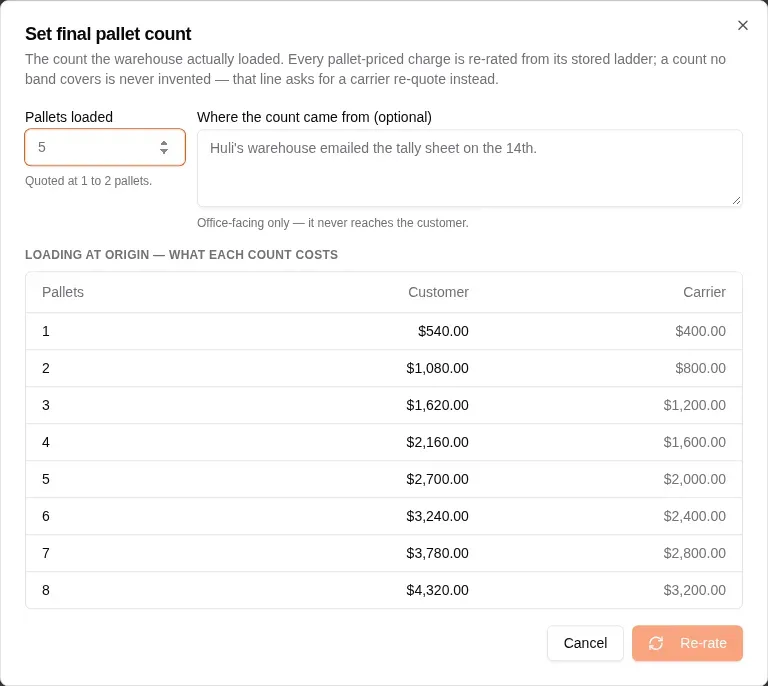
MovePlnr copies each pallet charge from the rung that covers the new count, and the service lines change to the real figures. Flat charges and charges priced on declared value stay as they are. The charges then read who set the count, for example “Loaded at 5 pallets”.
The customer gets one email, “Your updated moving total”, with what you quoted and the final total, tax included. There is nothing else to send. On your own truck the loading bills by the hour, so that total leaves it out and shows the rate beside it.
When you later save a charge that changes what the customer pays, MovePlnr asks whether to email them the updated total. You aren’t asked while another charge is still waiting on a re-quote, because the total isn’t final yet.
When no rung covers the count
MovePlnr never invents a price. If the loaded count is outside a charge’s ladder, that charge reads Awaiting re-quote and a warning names it. The customer gets a note saying you have asked the carrier, with no figure in it, and that part’s service line stays as it was. The job can’t be closed until you ask the carrier for a figure and type it into the charge’s final figure with the pencil.
Collect shipping documents
Shipping Documents on the opportunity is this shipment’s checklist, split into required and optional rows. Each row shows whether it is received, requested, waived or not requested yet, with the date and who asked.
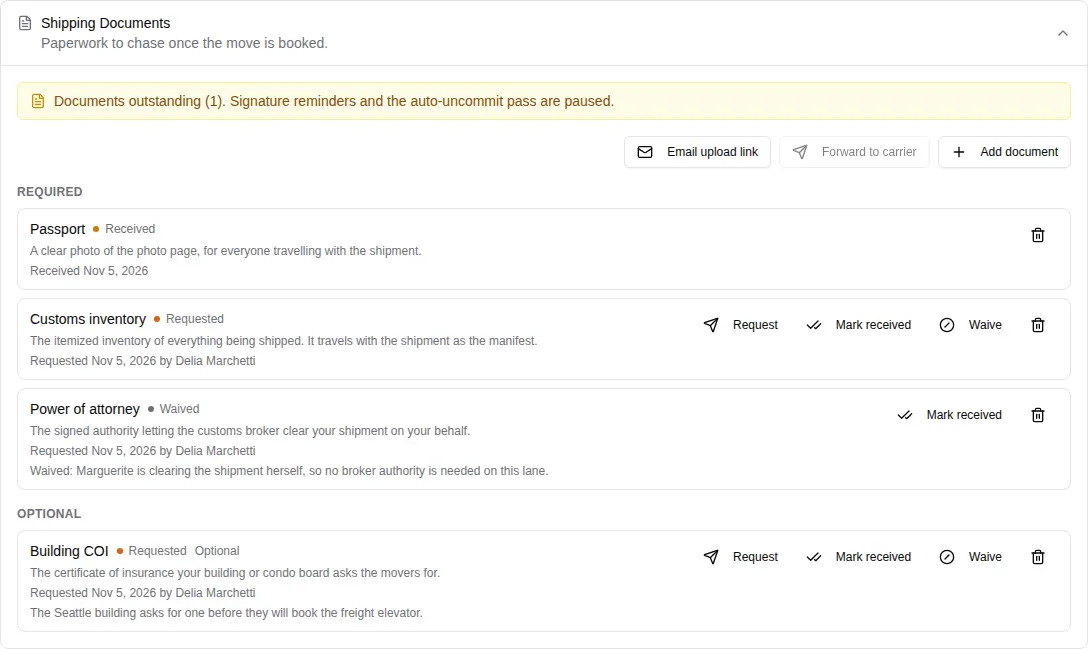
- Request marks a row as asked for and copies the customer’s upload link to your clipboard.
- Email upload link sends that link to the customer.
- Mark received records a document you got some other way, by email or on paper.
- Waive takes a reason. Write one a colleague will understand months from now.
- Add document puts any other document from the catalogue on this checklist.
- Forward to carrier sends the files you have received to the carrier’s email, once there is something to send.
While a required document is outstanding, contract signature reminders and the automatic uncommit pass are paused for this job.
What your customer sees
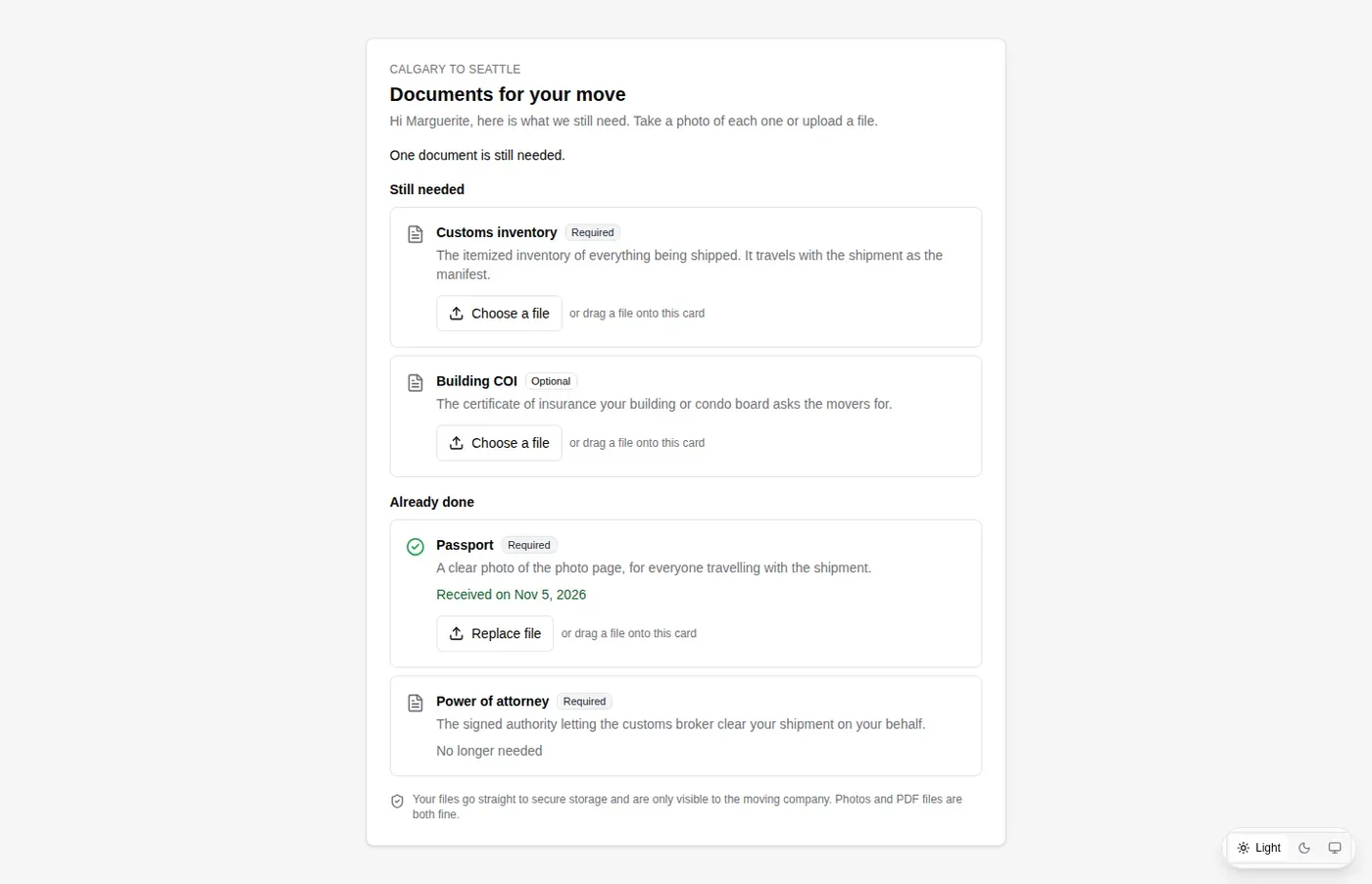
The upload link opens a page with your customer’s name, what is still needed and what is already done, each with a plain description. They can take a photo on their phone or choose a file.
Plan the legs
A leg is one stage of the trip from door to door: who performs it, where its depot is, when it happens and what it costs. Applying a quote builds the legs for that mode and corridor. A pallet shipment to the US, for example, gets an origin pickup, palletizing, customs, the line haul, destination storage and the delivery.
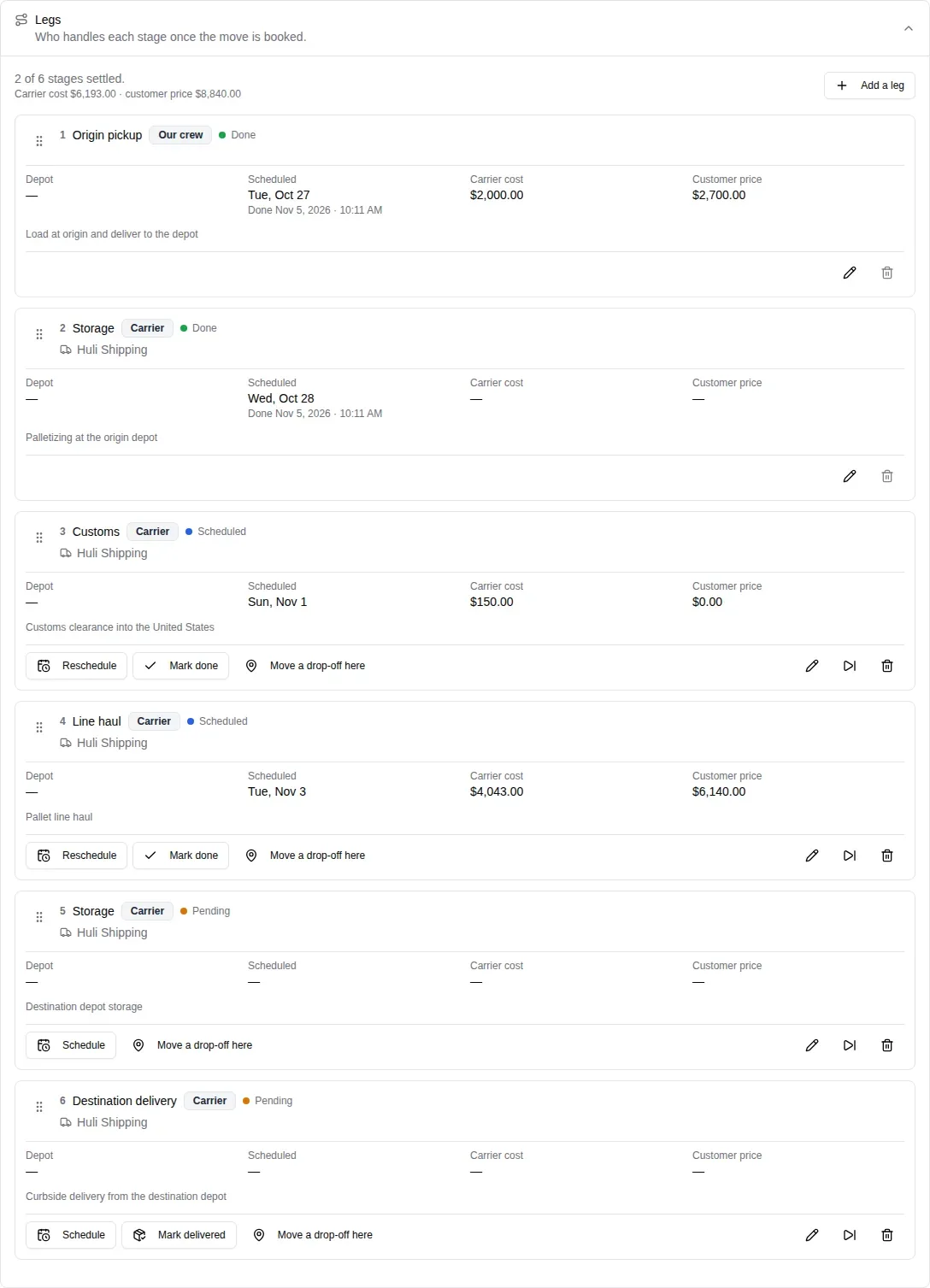
- Schedule or Reschedule sets a leg’s date. It is read in the branch’s timezone.
- Mark done settles a leg once it has happened.
- Add a leg adds a stage, and the dotted handle on each card reorders them.
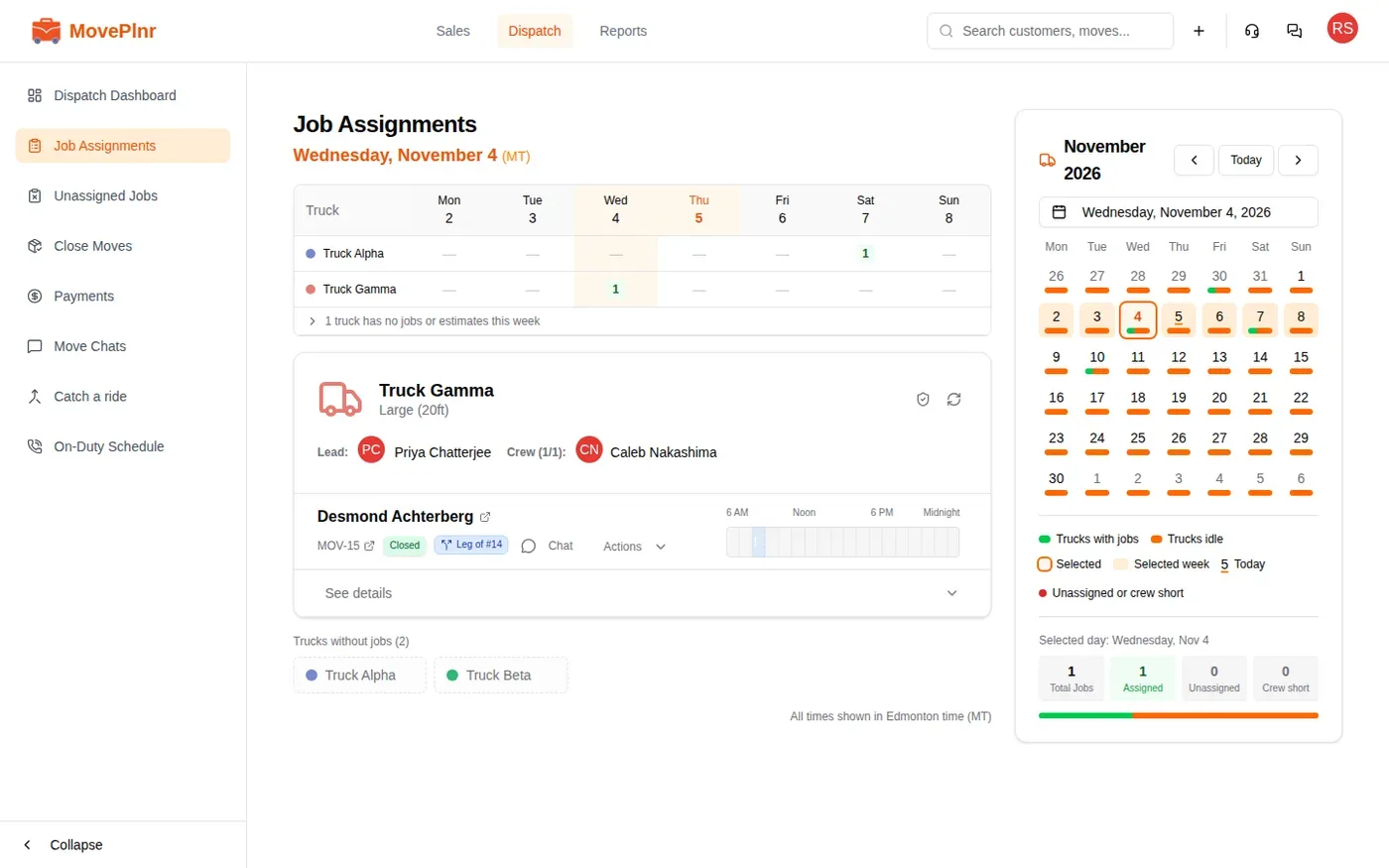
- A leg your own crew performs can be dispatched as its own job at a branch. That job appears on the branch’s dispatch board like any other, linked back to the shipment, and its leg is marked done when the job is closed.
Take a leg out of the plan
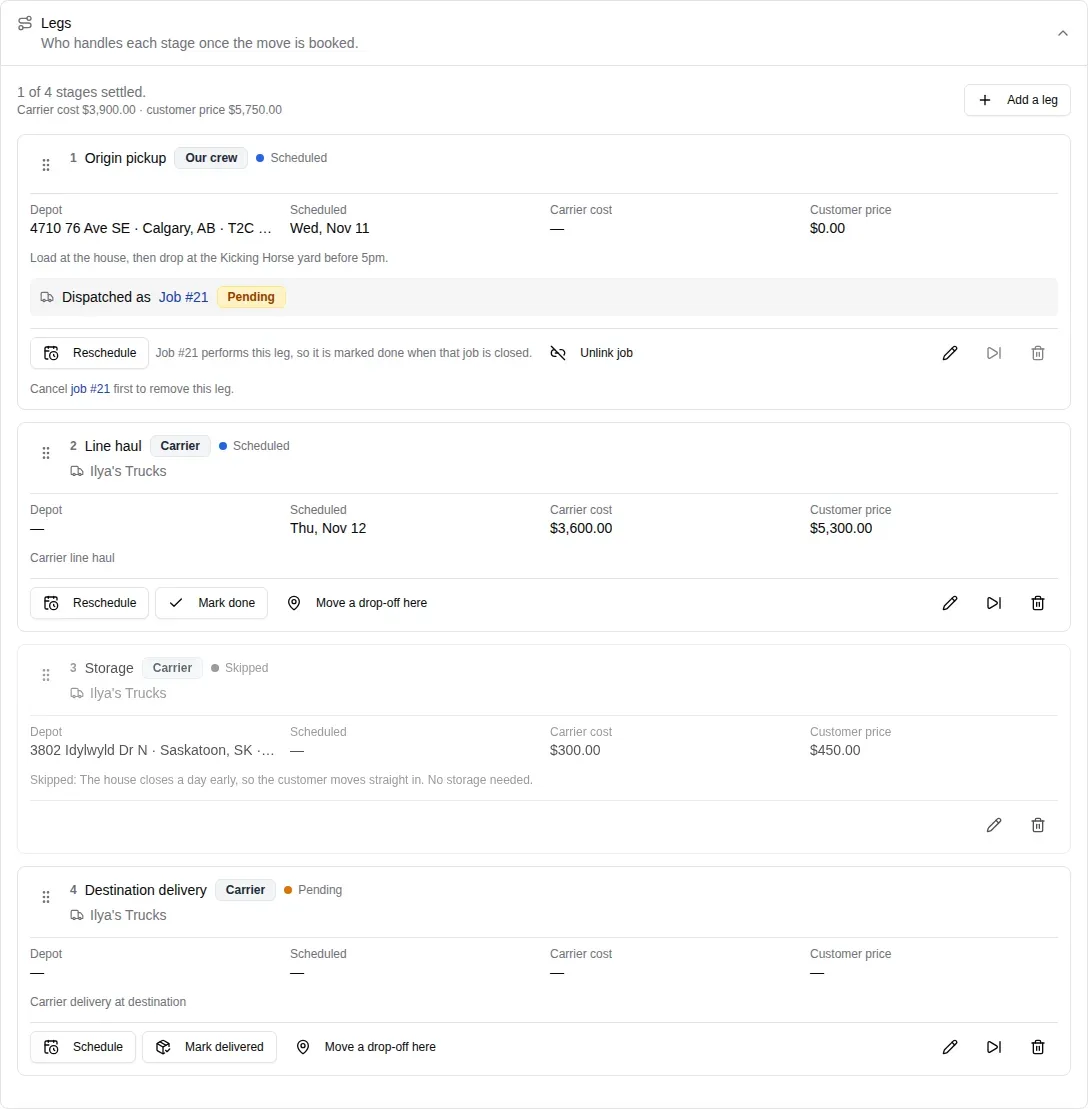
Plans change: the customer decides against storage, or a stage was added by mistake. Each leg card has two ways to take a stage out, at the right of its bottom row: the skip icon and the bin icon.
Skip a stage that won’t happen
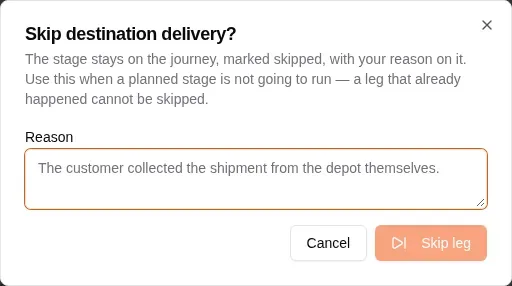
Skipping keeps the stage in the list of legs, marked Skipped, with your reason on it, so months later anyone can see why it never ran.
- Click the skip icon on the leg.
- Type a Reason. The button stays unavailable until you do.
- Click Skip leg.
Delete a stage that shouldn’t be there
Deleting removes the stage with its schedule and depot, and the stages after it renumber.
- Click the bin icon on the leg.
- Check the stage number and name in the confirmation, then click Delete stage.
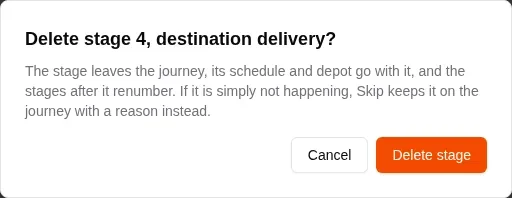
MovePlnr confirms with “Leg removed from the journey.” If the stage isn’t happening, skip it instead: a skipped stage keeps the record of what was planned.
When the icons are greyed out
- A leg that is done can’t be skipped or deleted. It already happened, so it is part of the shipment’s record.
- A leg whose job is still live can’t be skipped or deleted either, because a crew could still turn up for it. Under the buttons, the card names the job to cancel first, with a link to it. Cancel that job, and the icons come back.
Hover a greyed-out icon to see which of these applies.
Unlink a job from a leg
If you created a job for a leg by mistake, Unlink job on the card takes it off the leg. The job itself is untouched: its crew, truck and schedule stay as they are, and the leg goes back to needing a job. Unlinking works only while that job is still a draft that nobody has been dispatched to. Once it has a crew or a truck, or is under way, cancel the job instead.
The balance hold
A shipment can’t leave on its line haul while part of the balance is unpaid. The opportunity says so at the top of Charges and Legs, and marking the line haul done is refused. A Customer Admin or Dispatch user can release it anyway with a reason, which is written to the job’s activity. Sales reps see the hold but can’t release it.
Follow the shipment
The milestone strip moves as the legs are settled, from Quoted through Documents, Scheduled, Picked up, the depots, In transit and customs to Delivered.
Click Copy tracking link to copy a link you can send your customer any way you like. It opens a page showing where the shipment has got to, how it is travelling and who is hauling it.
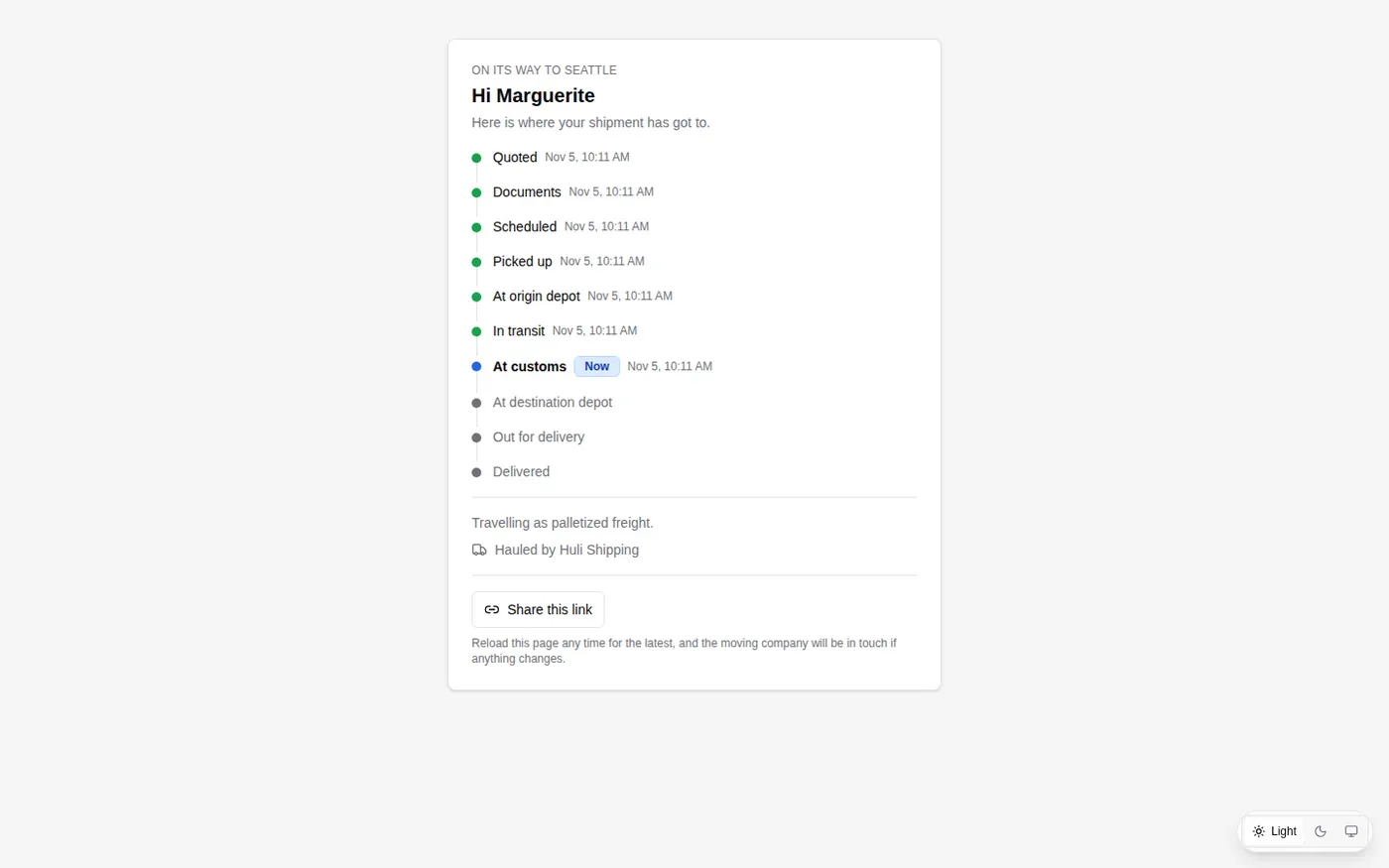
When the goods are with the customer, click Mark delivered on the delivery leg. On a long-distance job, the customer’s invoice email, the invoice reminders and the review request wait for delivery rather than for the close.
See what you made
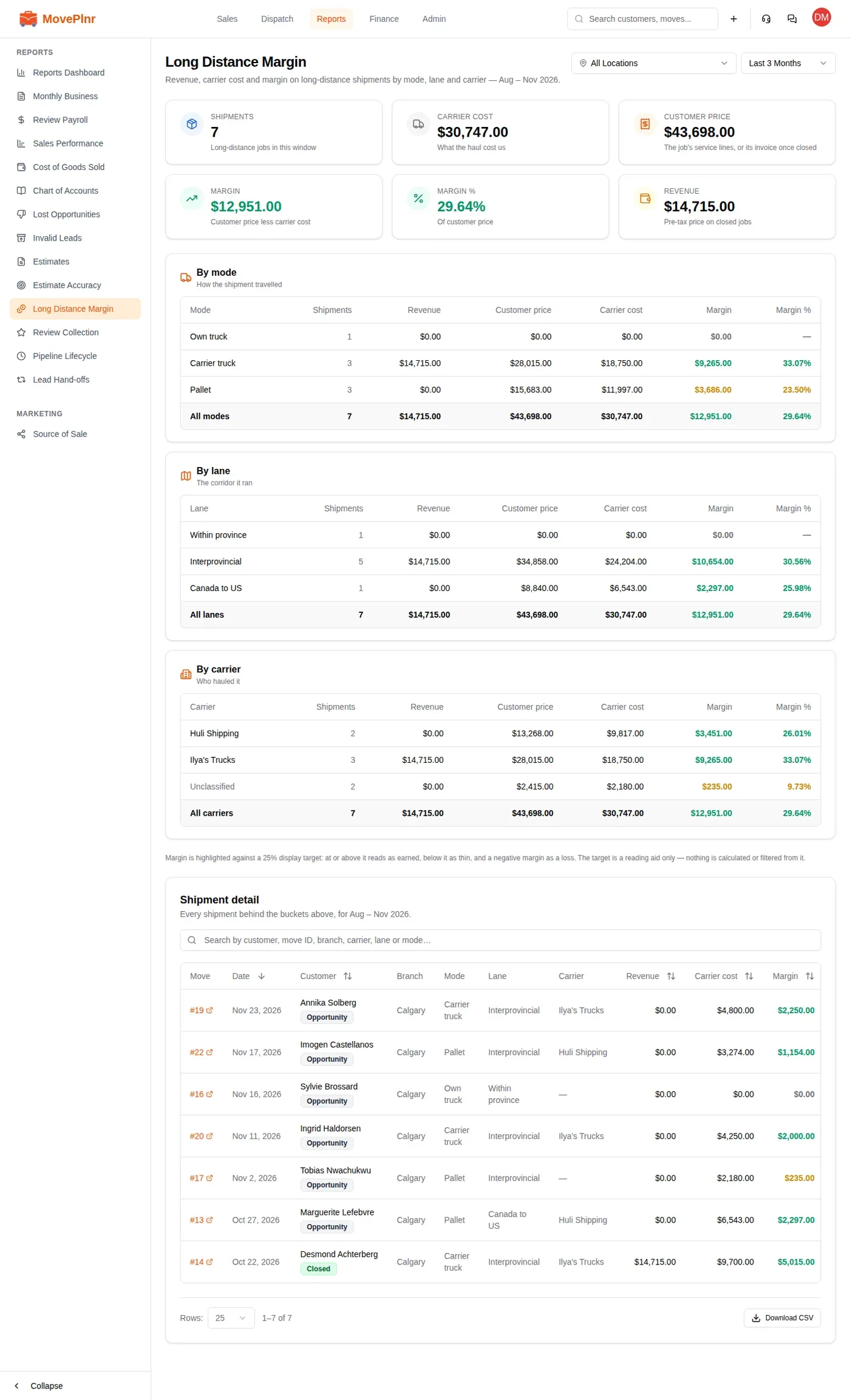
The Long Distance Margin report, under Reports, shows your shipments, carrier cost, customer price and margin for any period, broken down by mode, by corridor and by carrier. Shipment detail lists every shipment behind the numbers, and Download CSV exports it.
Questions the office asks
Yes, with Revert to a regular move, until the contract goes out. After that the kind is locked.
Its price is still a range, or a charge is waiting on a carrier re-quote. Set the final pallet count in Charges, or type the carrier’s figure into the waiting charge, and the job can close.
No. A long-distance job books with no truck. On your own truck, a dispatcher adds it from the dispatch board once the move is booked.
The branch has no long-distance service holding a role the quote needs. Set Scope and Role on that service in Additional Services, then apply again.
No. Requesting marks the row and copies the upload link. Use Email upload link to send it, or paste the link into a message yourself.
A Customer Admin or a Dispatch user, with a reason. The reason, their name and the time go on the job’s activity.
Click the bin icon on the leg, then Delete stage. If the stage was planned but won’t run, use the skip icon instead and give a reason: the stage stays in the list, marked Skipped.
Either the leg is done, which makes it part of the shipment’s record, or a job still performs it. Cancel that job first, and the leg can be skipped or deleted.