
Before you start
- Sales alerts work on quote pages, so the Quote pages add-on must be on and your branch must send quote pages. See the quote pages guide to set that up.
- Each alert goes to people who can open the sales dashboard.
- The bell in the top bar needs the Unified Inbox add-on. Alerts on your phone need the MovePlnr app with notifications allowed.
Turn on Sales alerts
Sales alerts is a free add-on. It is off until an owner turns it on.
- Open Add-on Management from the admin settings.
- Open the Sales group.
- Turn on Sales alerts. If Quote pages is off, turn that on first.
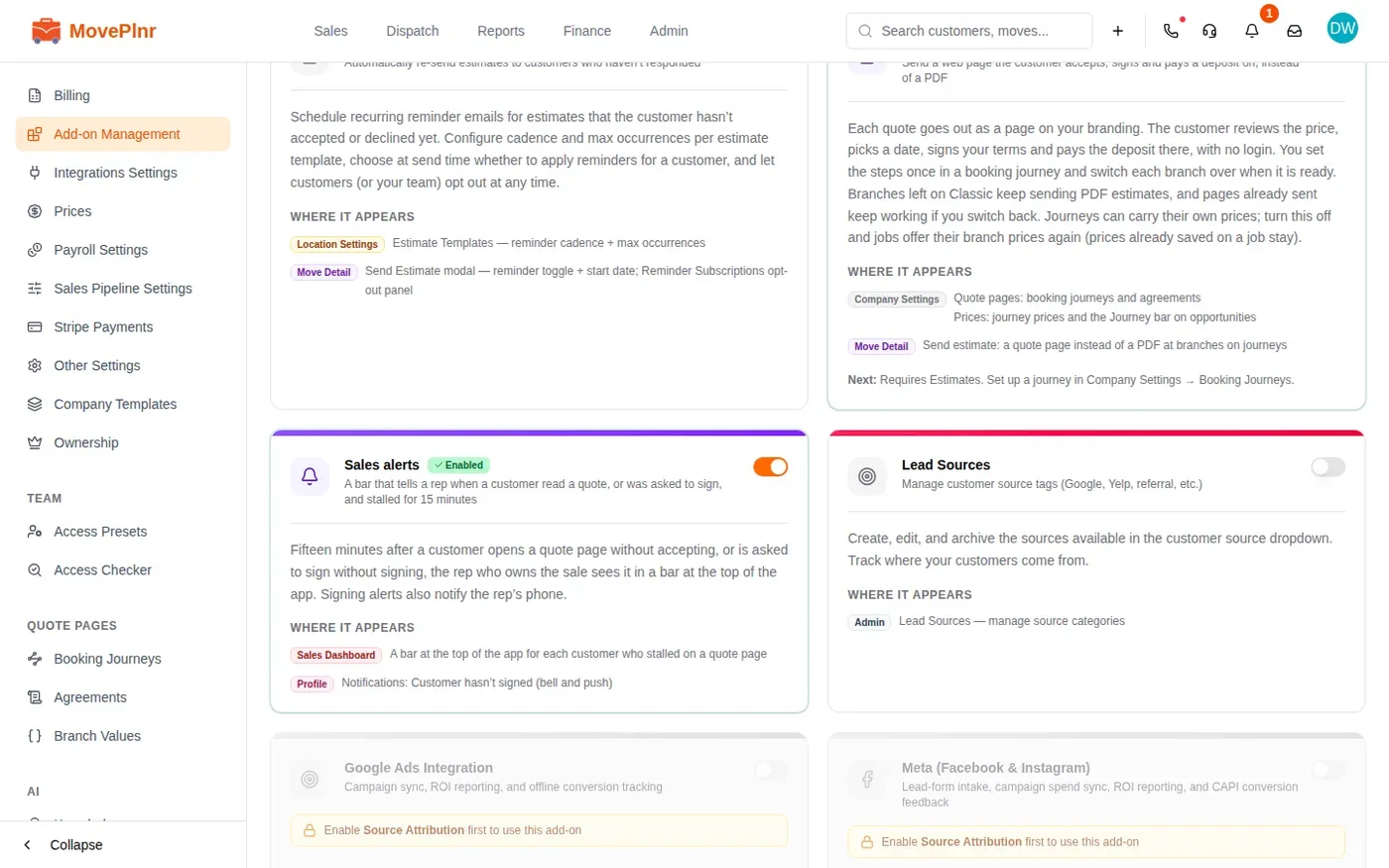
From then on, MovePlnr watches every quote page your team sends. It already records each visit and each time a customer opens the sign sheet, so alerts start with the next stall.
What sets off an alert
An alert comes 15 minutes after a customer does one of three things and then nothing else:
- They read the quote and don’t accept it: the customer opened the quote page and never tapped the button to accept and sign. When the page offers options, the row says they viewed the options and haven’t picked one.
- They open a page sent for signature and don’t sign: the quote was already accepted and sent back to sign, for example after an office review.
- They start signing and don’t finish: the customer opened the sign sheet and closed it, or left it open and stopped.
The two signing stalls matter most: that customer has already said yes once. They show first, in orange, and they also ring your bell and your phone. A quote that was read but not accepted shows in blue, in the bar only.
Read the alerts bar
Alerts appear in a bar across the top of every page, one row per customer. Each row shows the customer’s name, the move number, the move date and the branch, what the customer did and how long ago.
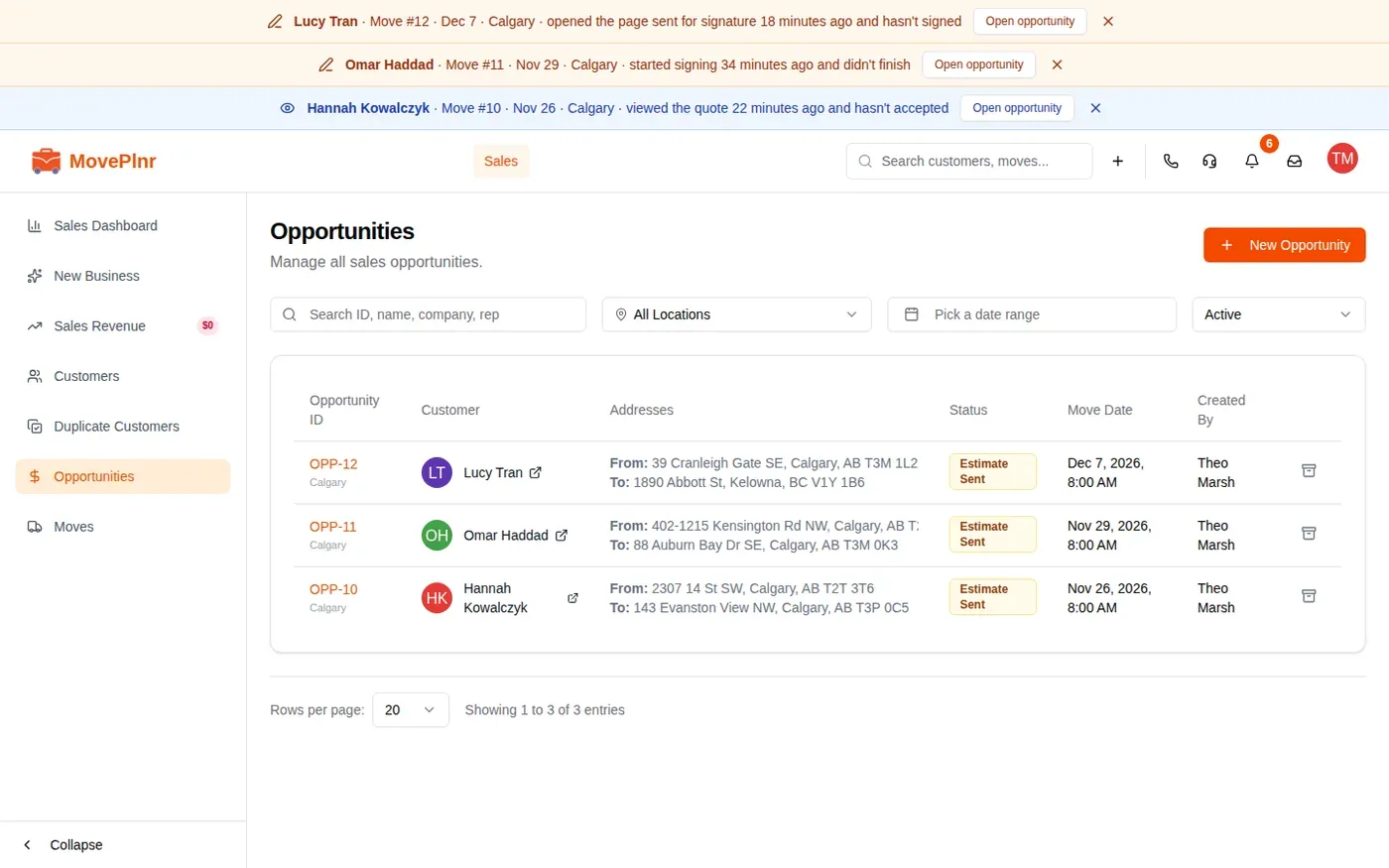

When more than three customers are waiting, the bar shows the first three and a button to show the rest.
On your phone
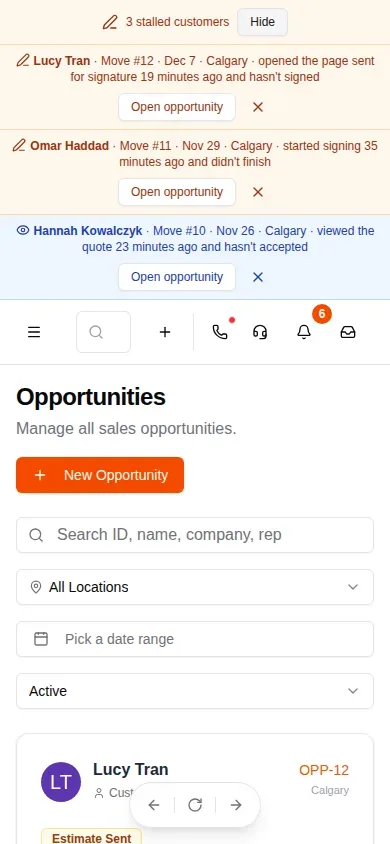
On a phone, the bar folds into one line that counts your stalled customers. Tap Show to open the rows, and Hide to fold them again.
Follow up on an alert
- Tap Open opportunity on the customer’s row. The opportunity opens, and the row leaves the bar.
- Check the Quote page card: when the page was sent and when the customer first viewed it.
- Call or text the customer while the quote is fresh. Log the call or the text on the opportunity as you always do.
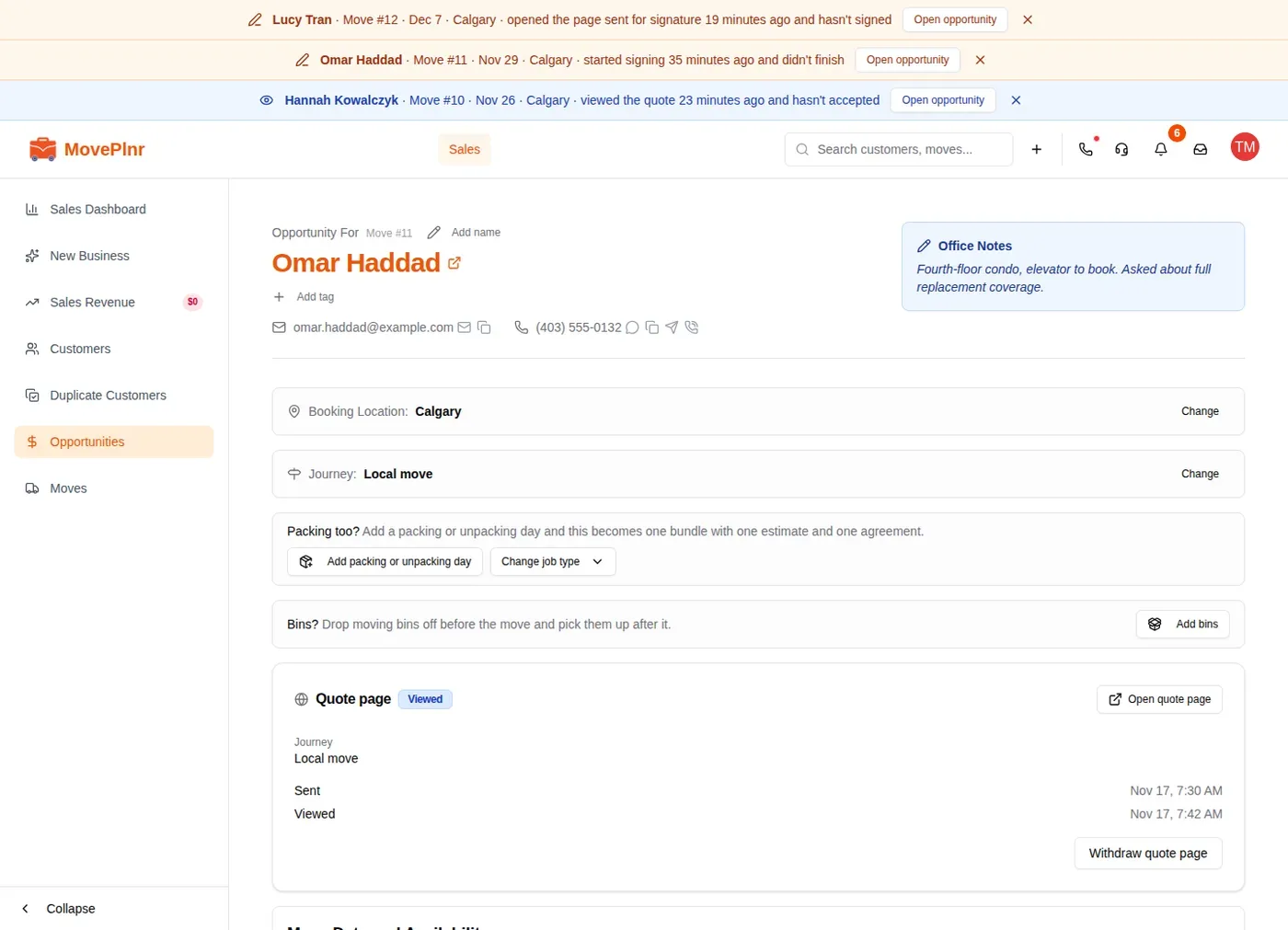
To clear a row without opening the opportunity, tap the X at its end.
What clears an alert
- You open it or dismiss it. The row goes for everyone who sees it, until the customer comes back to the page or opens the sign sheet again.
- Someone logs a call, text, email or pause on the sale. That counts as the follow up. A note doesn’t.
- The customer finishes. Once the quote is accepted and signed, the page is no longer waiting on them.
- A day passes. An alert ends 24 hours after the customer stopped.
An alert also stops when the move is no longer an open quote, for example when it is marked lost.
The bell and your phone
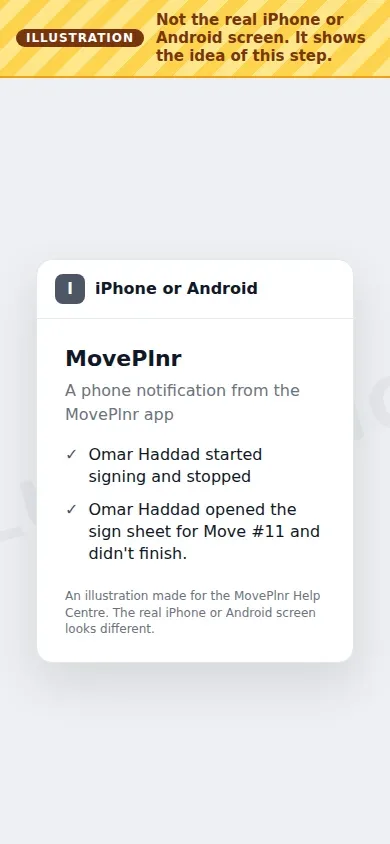
A signing stall also sends a notification, once: to the bell in the top bar and to the MovePlnr app on your phone. It goes out only while the stall is fresh, within about 45 minutes, and a quote page sends at most one in a day.
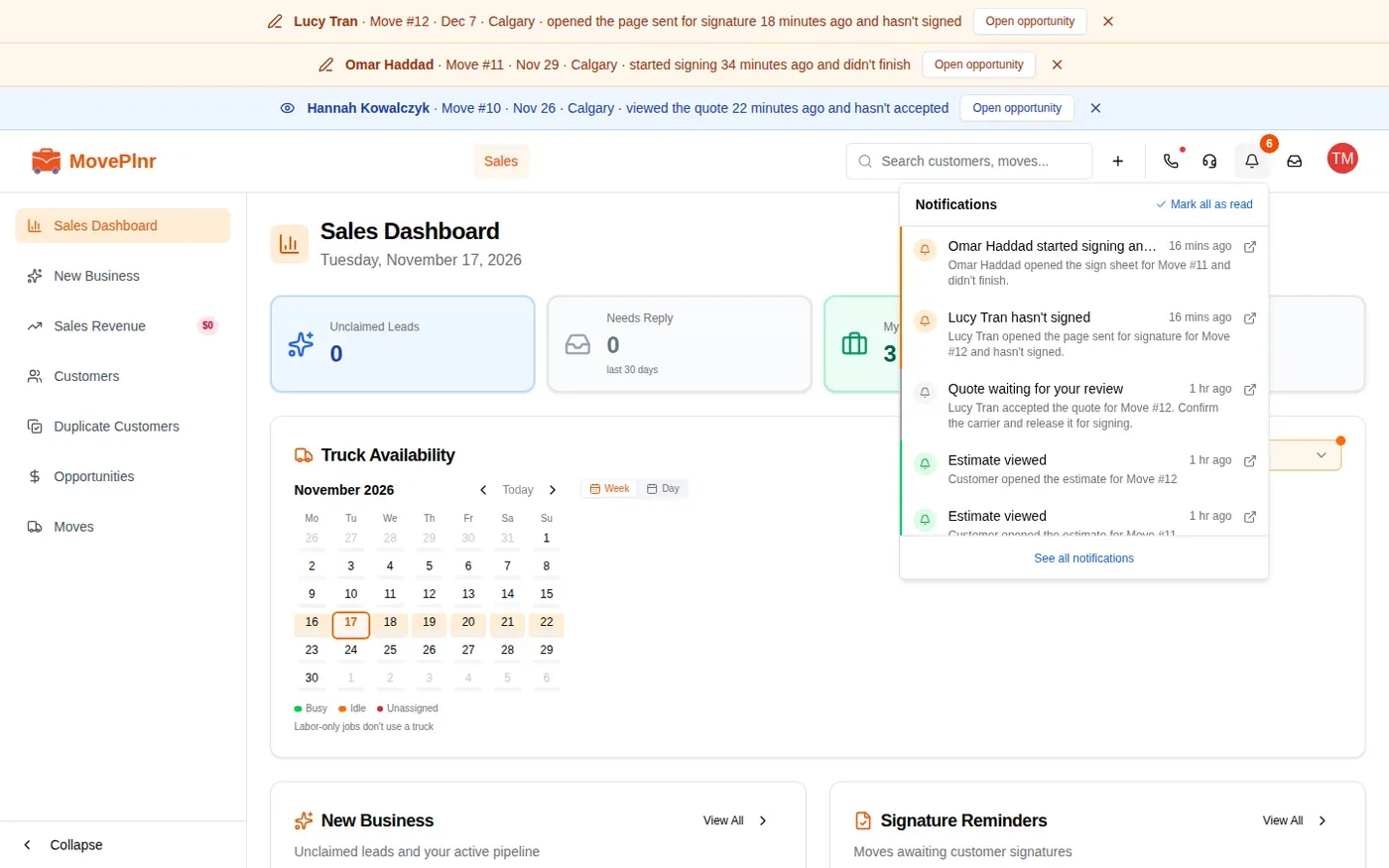
You’ll see a phone notification like the illustration below. Your phone’s own screen looks different.
Choose the sound
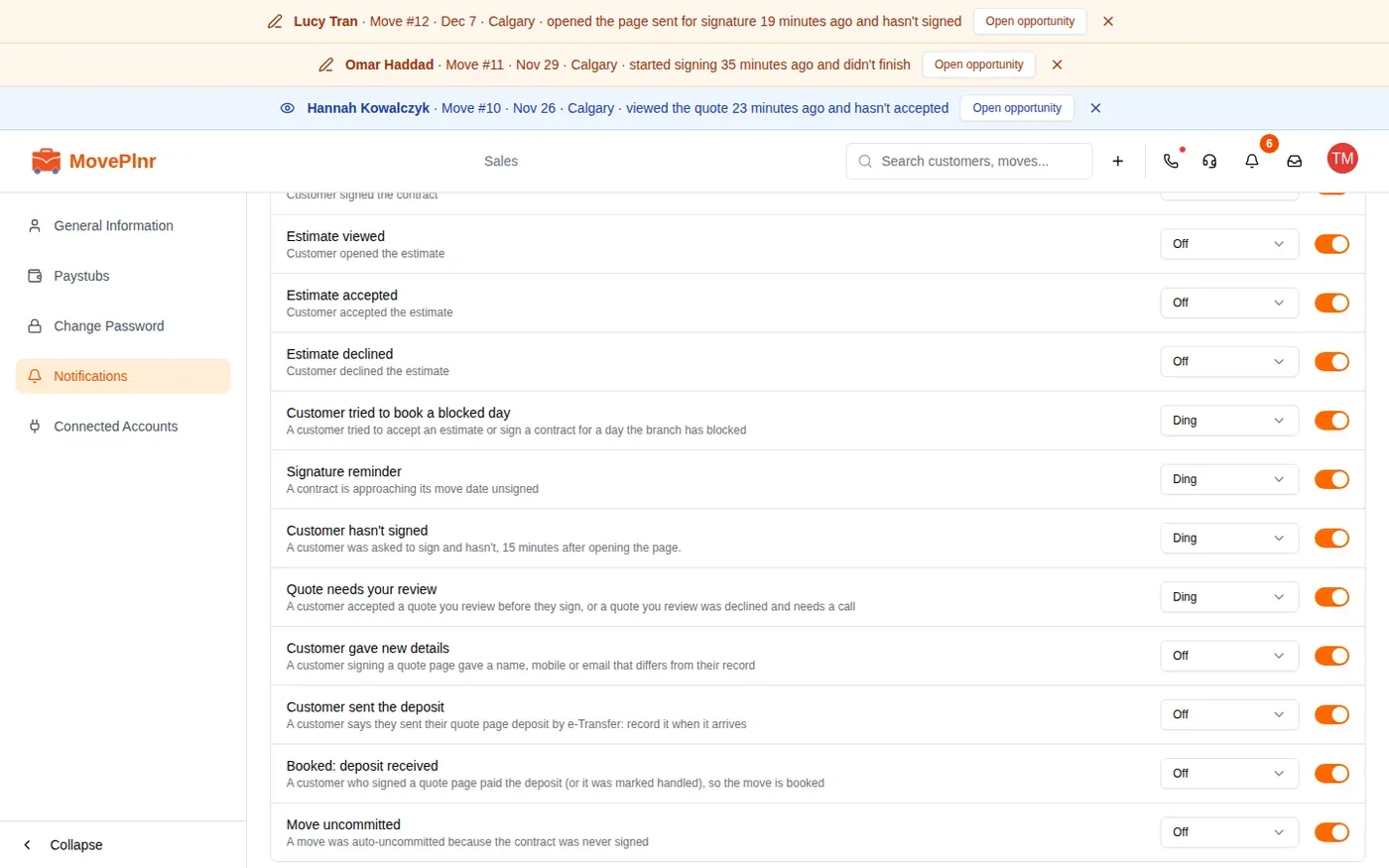
The bell notice for these alerts is called Customer hasn’t signed. Open your profile, then Notifications. Pick the sound it plays in the list beside it, and use the switch to keep it out of your bell altogether.
Who gets an alert
Each alert goes to one person when MovePlnr can tell whose sale it is:
- The rep who owns the sale.
- If nobody owns it, the person who sent the quote page.
- If neither can open the sales dashboard, everyone at that branch who can.
So a rep sees only their own customers, and a quote nobody owns still reaches the team.