Before you start
- The AI agent needs the AI Agent and AI Sales add-ons. MovePlnr turns them on, company by company, and the AI Agent page says they are enabled by MovePlnr once they are. If you can’t find the AI Agent page, ask support.
- You set it up as the owner, or as someone the owner gave the AI Agent settings to.
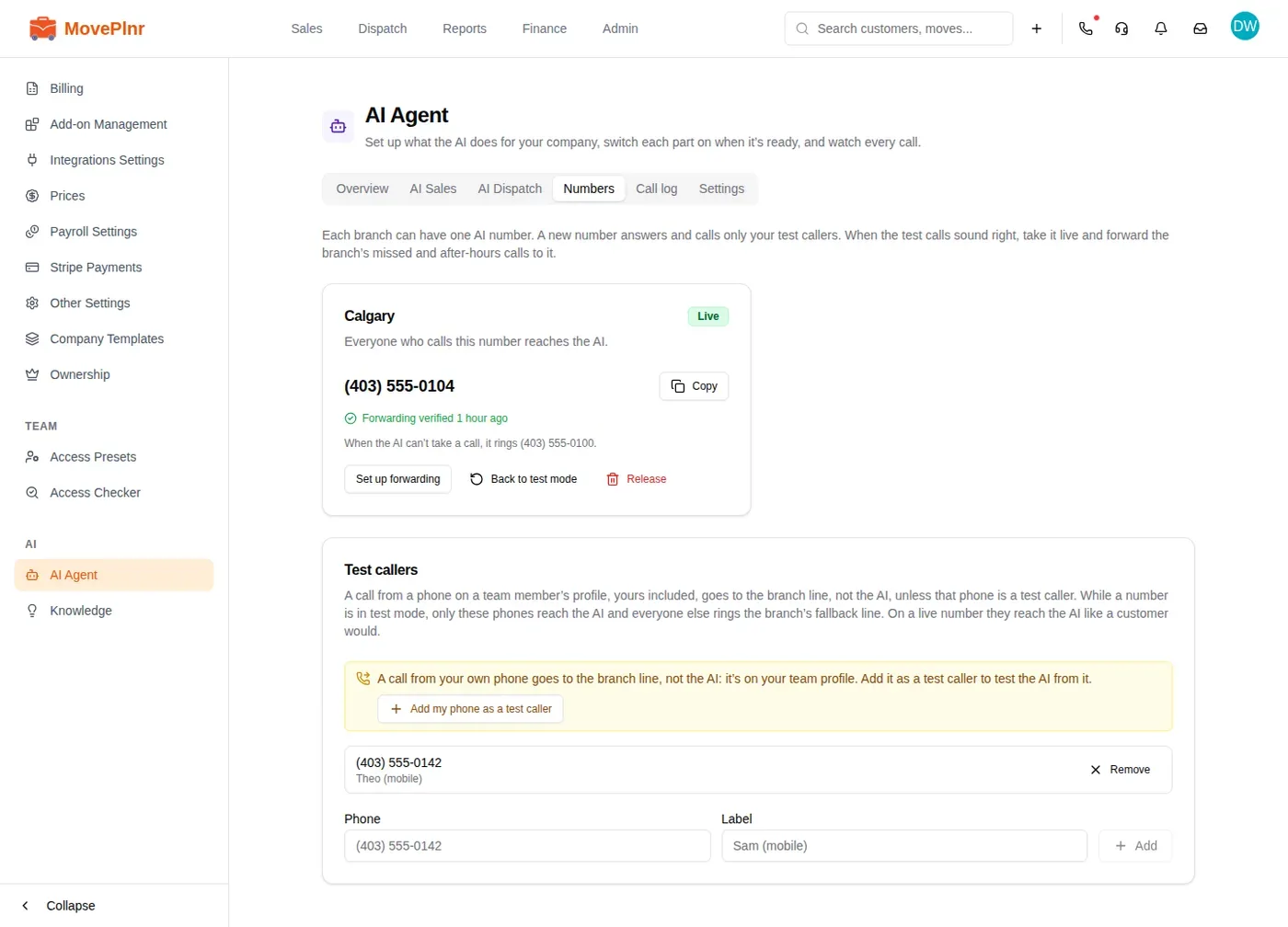
- Each branch that takes AI calls needs its own AI number, bought on the Numbers tab.
How a call reaches the AI
Each branch gets one AI number. You forward your branch line’s missed and after-hours calls to it, and the AI answers them for you. Open AI Agent from the admin settings to set it up.
A new number starts in test mode. In test mode only your test callers reach the AI, and every other caller rings your branch’s fallback line, so no customer hears the AI before you are ready.
Once the number is live, everyone who calls it reaches the AI, with two exceptions that go straight to the branch line before the AI says a word:
- A phone on a team member’s profile. A dispatcher calling from their own mobile reaches a person, not the AI, and nobody is paged for it.
- A customer with a booked move. The AI doesn’t discuss a booked move, so the call goes to your team.
On the call itself, the AI asks for one detail at a time: the move date, the pickup address, the drop-off address, the kind of home, the number of bedrooms, then stairs and anything large or heavy. It never asks again for something the caller already said, and it asks about stairs and heavy items before it gives a price. It saves addresses, dates and home sizes the way the caller said them.
Test the AI from your own phone
A call from your own phone goes to the branch line, because your phone is on your team profile. To hear the AI from it, make it a test caller.
- Open AI Agent and go to Numbers.
- Under Test callers, click Add my phone as a test caller. The hint only shows while your phone is on your profile and isn’t a test caller yet.
- To add someone else’s phone, type it in Phone, give it a Label you’ll recognize in the call log, and click Add.
- Call the AI number from that phone. The call shows in the Call log under the label you gave it.
A test call never becomes a lead. When a test caller hangs up before the price, the call log says so and adds that a real caller would now be a lead for your team, so you can see the safety net without filling your pipeline.
Take the number live
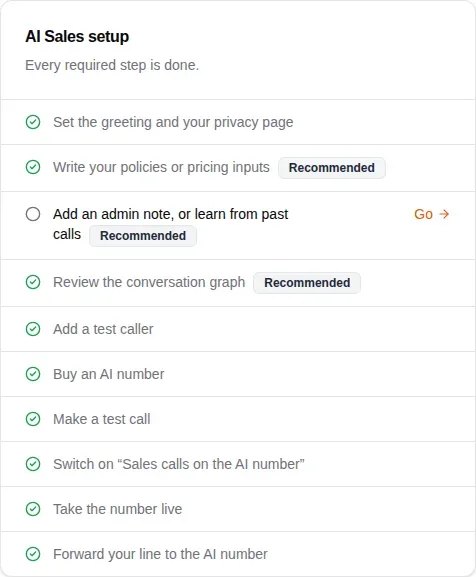
The Overview tab carries the AI Sales setup checklist. Each step links to the place you do it, and the checklist says when every required step is done.
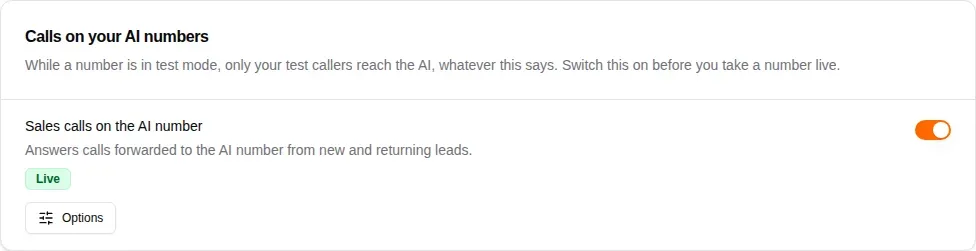
- On the AI Sales tab, under Calls, switch on Sales calls on the AI number.
- Go back to Numbers and take the branch’s number live.
- Click Set up forwarding on the number’s card and follow the steps to forward your branch line to it. Once a real call comes through, the number card says the forwarding is verified.
To stop the AI answering a number without giving it up, click Back to test mode on its card. Release gives the number up for good.
Read the call log
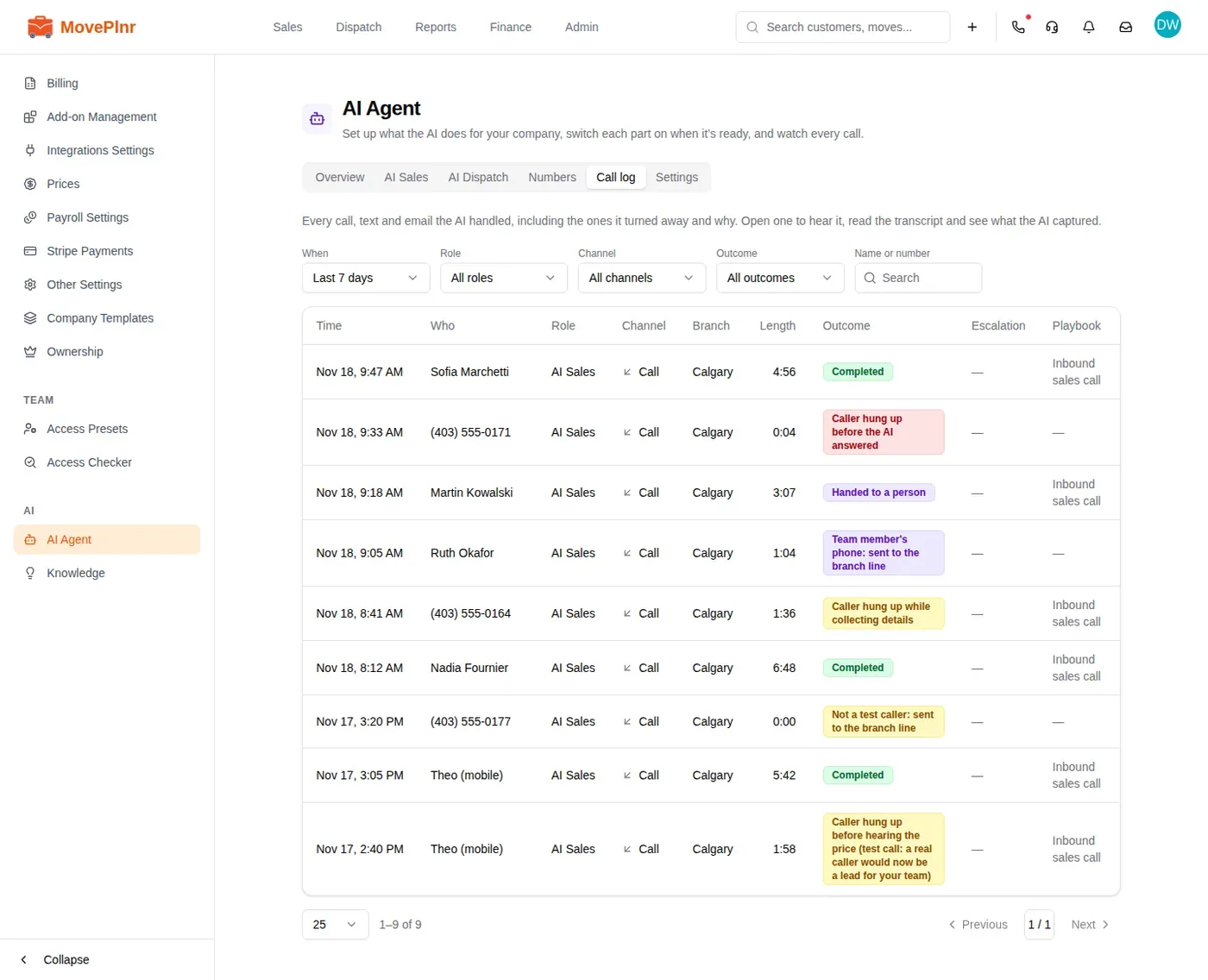
The Call log tab lists every call the AI handled, newest first, including the ones it turned away and why. Filter it by date, outcome or Name or number. The Outcome column says how each call really ended:
- Completed: the call ran to its end.
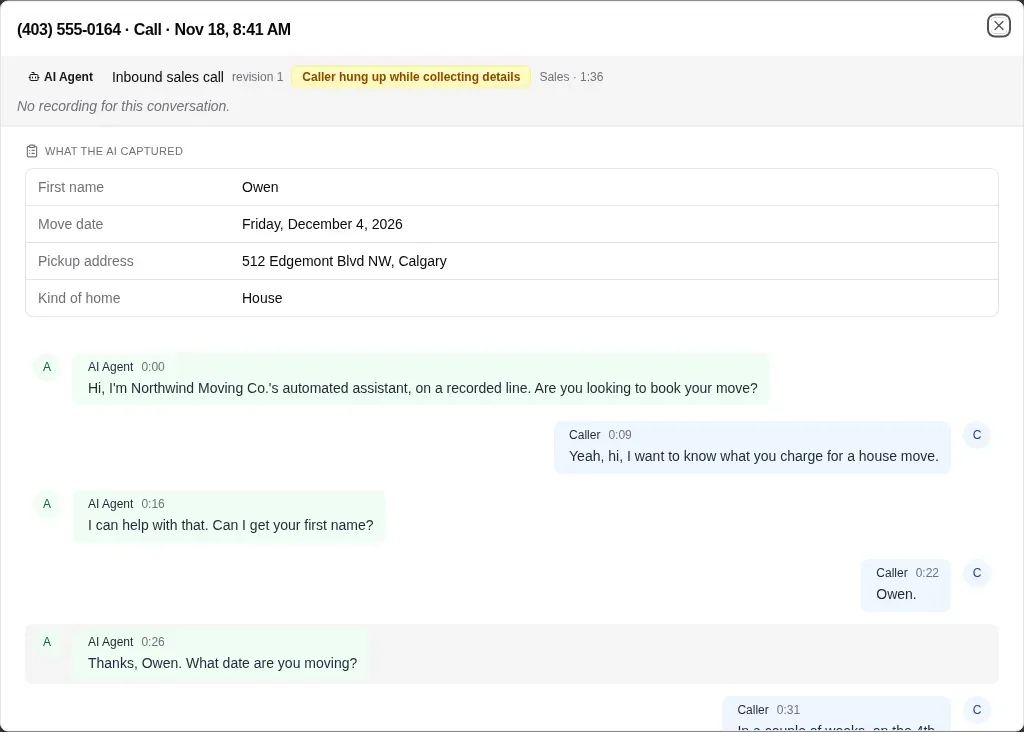
- Caller hung up while collecting details, or before hearing the price: the caller left early. The badge is amber so it doesn’t read as a success.
- Handed to a person: the AI passed the caller to your team.
- Team member’s phone: sent to the branch line: a colleague called from their own phone.
- Not a test caller: sent to the branch line: someone called while the number was in test mode.
- Caller hung up before the AI answered: nobody spoke.
See what the AI captured
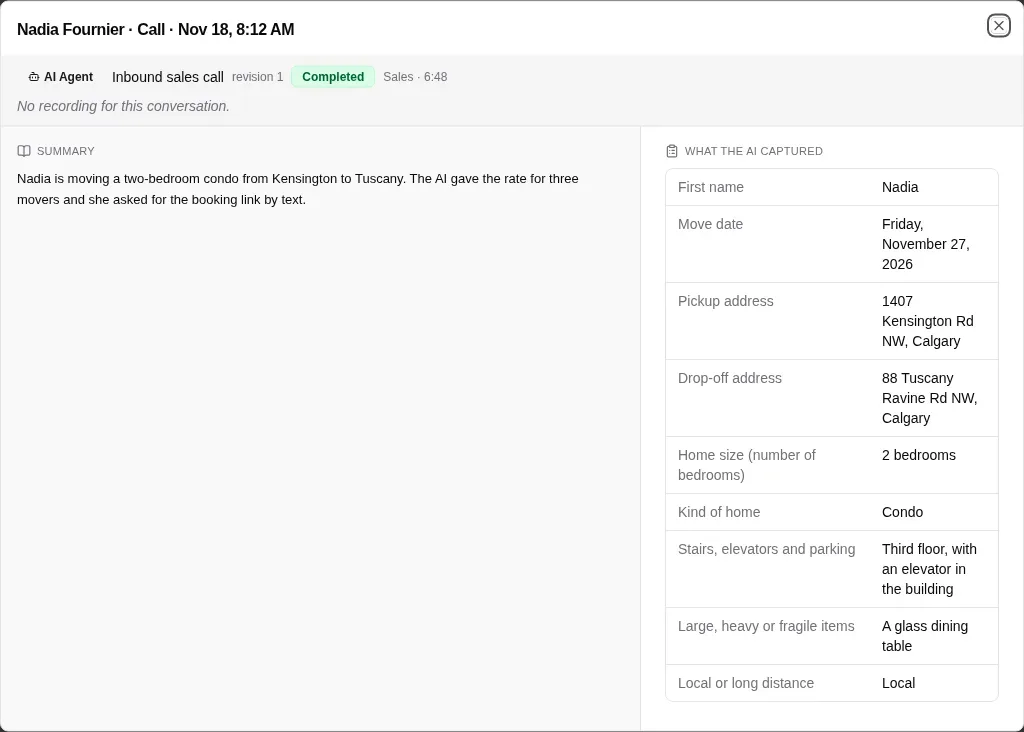
Click a call to open it. A call the AI took shows what it captured: the caller’s first name, the move date, both addresses, the kind and size of home, stairs and access, and any large items. Below that are the summary and the transcript, line by line.
A caller who hangs up before the price isn’t lost. The details the AI captured become a lead for your team, and its notes open with a line that says the call ended before a price and asks your team to call them back to finish the quote. A caller who heard a rate and didn’t book gets a lead too, with the rate they were given. Test callers, callers who asked not to be contacted, and abusive calls never become leads.
A call that never reached the AI says why, and what to change if it should have:

Change how the AI handles a call
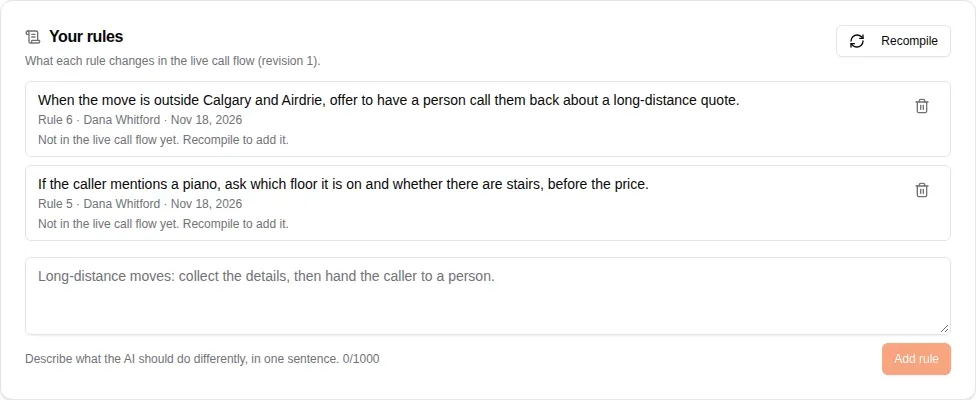
The AI follows MovePlnr’s sales call flow. You change it with rules, one sentence each, on the AI Sales tab under the conversation graph.
- Under Your rules, describe what the AI should do differently, in one sentence, and click Add rule.
- Click Recompile. MovePlnr builds a new draft of the call flow from all your rules. It works whether or not a draft is open.
- Read what each rule changed. A rule that changed nothing says so, with a hint to reword it or to put the fact in Knowledge instead.
- Publish the draft when it reads right. Calls keep using the live flow until you do.