
A supply package is a set of your own supplies sold at one price: 30 small boxes, 25 medium boxes, tape and paper for $329, say. You build it once per location. After that, a rep adds the whole package to an estimate in one pick, and it prints as one line with its contents listed underneath.
Before you start
- Your supplies are set up on the Supplies page in Admin, with their prices. A package can only hold supplies the location already sells.
- To build or change packages you need the pricing settings permission (rates, services, supplies and move sizes). Owners and office admins usually have it.
- Reps add packages from the opportunity page, so the Sales Pipeline add-on is on.
- The close screen part needs the Dispatch Dashboard add-on. The truck stock warning needs Truck Yard.
Build a package
- Open Admin, then Supply Packages. It sits right under Supplies.
- Click Add Package.
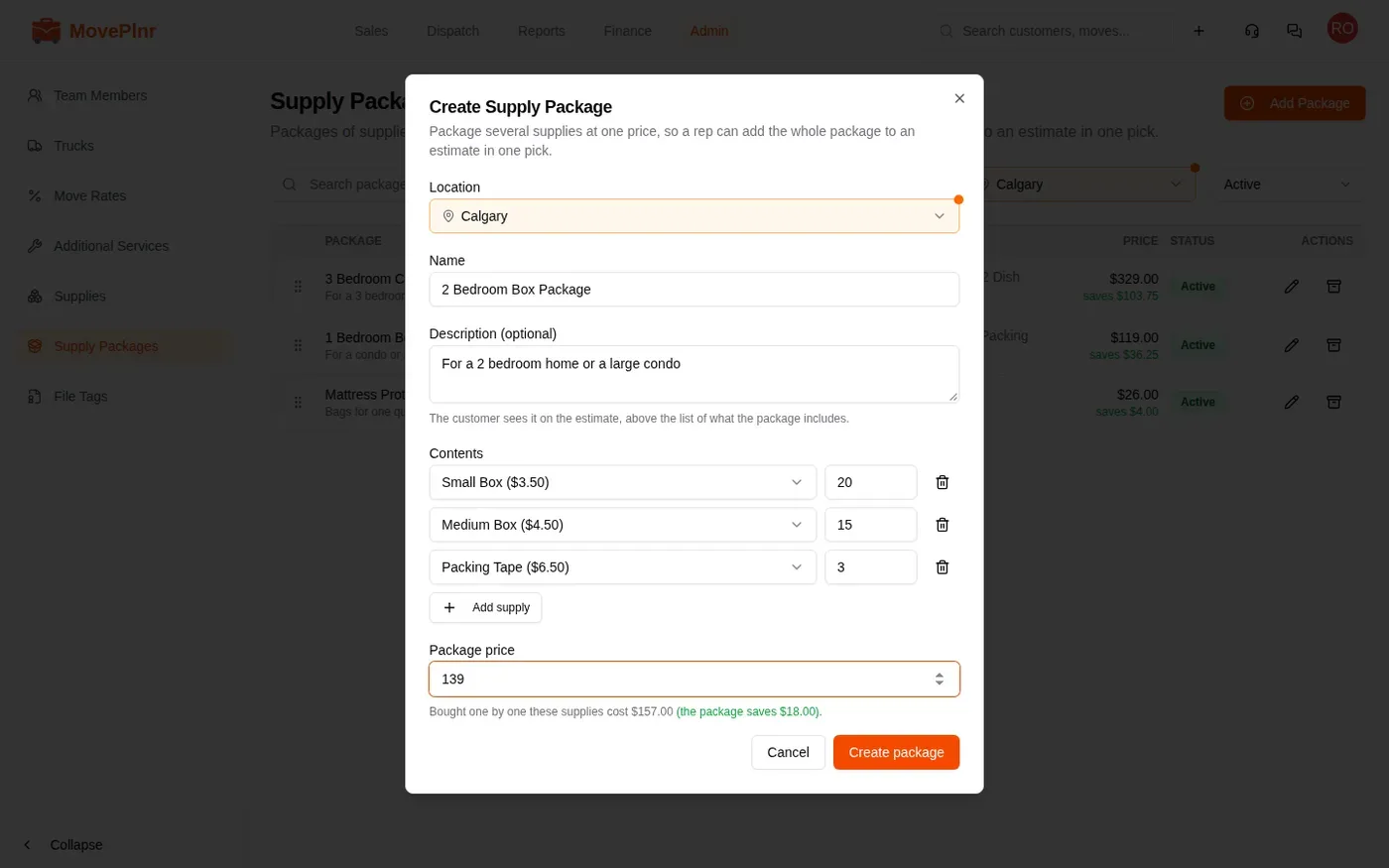
- Pick the location, give the package a Name, and add a short description if it helps. The customer sees the description on the estimate, above the list of what the package includes.
- Under Contents, pick a supply and type how many go in the package. Click Add supply for each next supply. Each supply appears once per package.
- Type the Package price. Under the price, MovePlnr shows what the same supplies cost bought one by one, and how much the package saves.
- Click Create package.
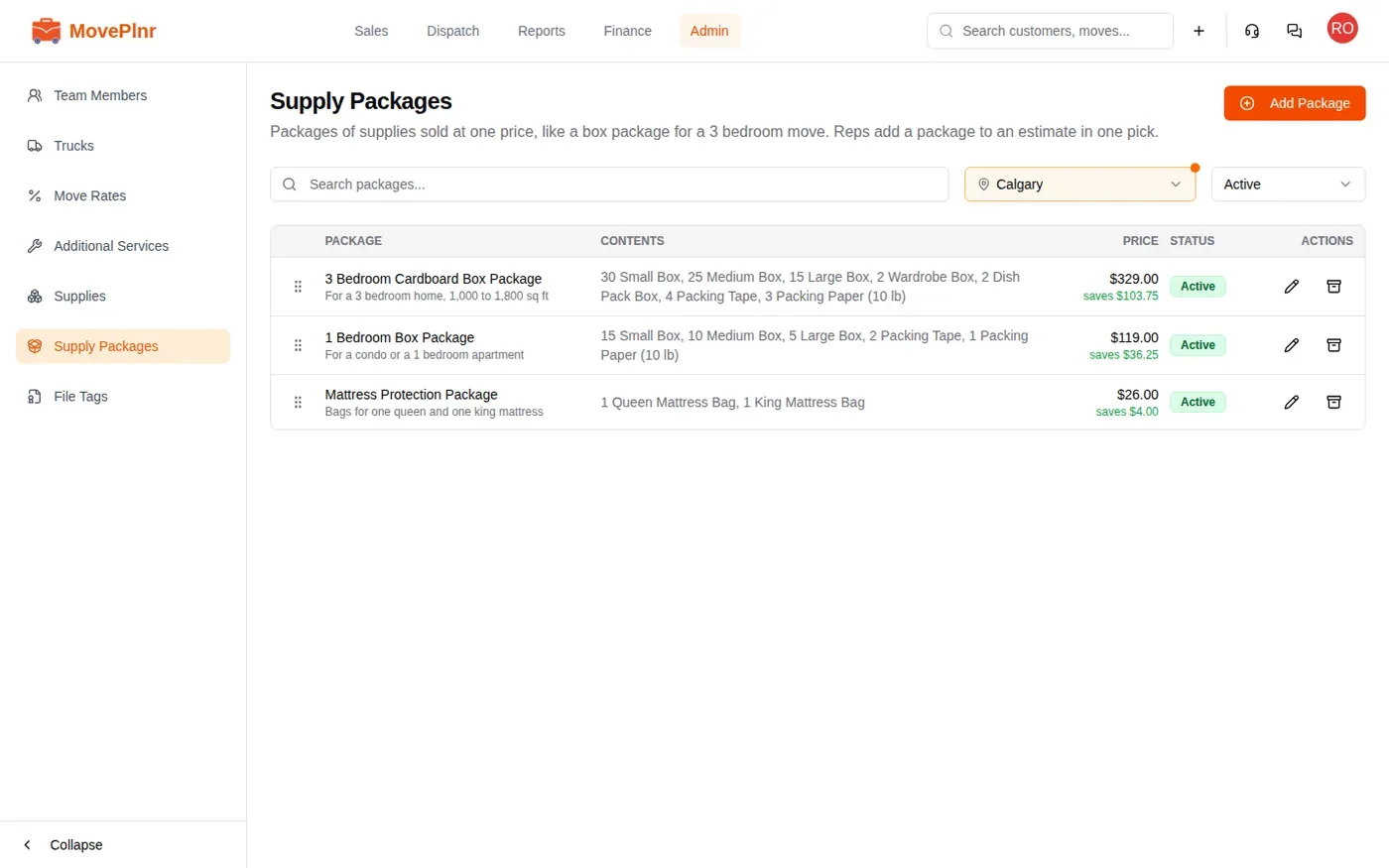
The list shows every package for the location you pick: its contents, its price, how much it saves against the parts, and whether it is Active.
Order, edit and archive
- To change the order, drag a package by its handle on the left to change where it sits. Reps see packages in this order on the estimate. Dragging works when one location is picked and the search box is empty.
- To edit a package, click the pencil and change the name, contents or price. An estimate already sent keeps the package as it was quoted.
- To archive a package you no longer sell, click the box icon. It leaves the estimate picker, and estimates that already have it keep it. Switch the filter from Active to Archived or All to see it again and restore it.
Add a package to an estimate
- Open the opportunity and expand Estimate & Finalize.
- Open Other Actions and choose Send Estimate.
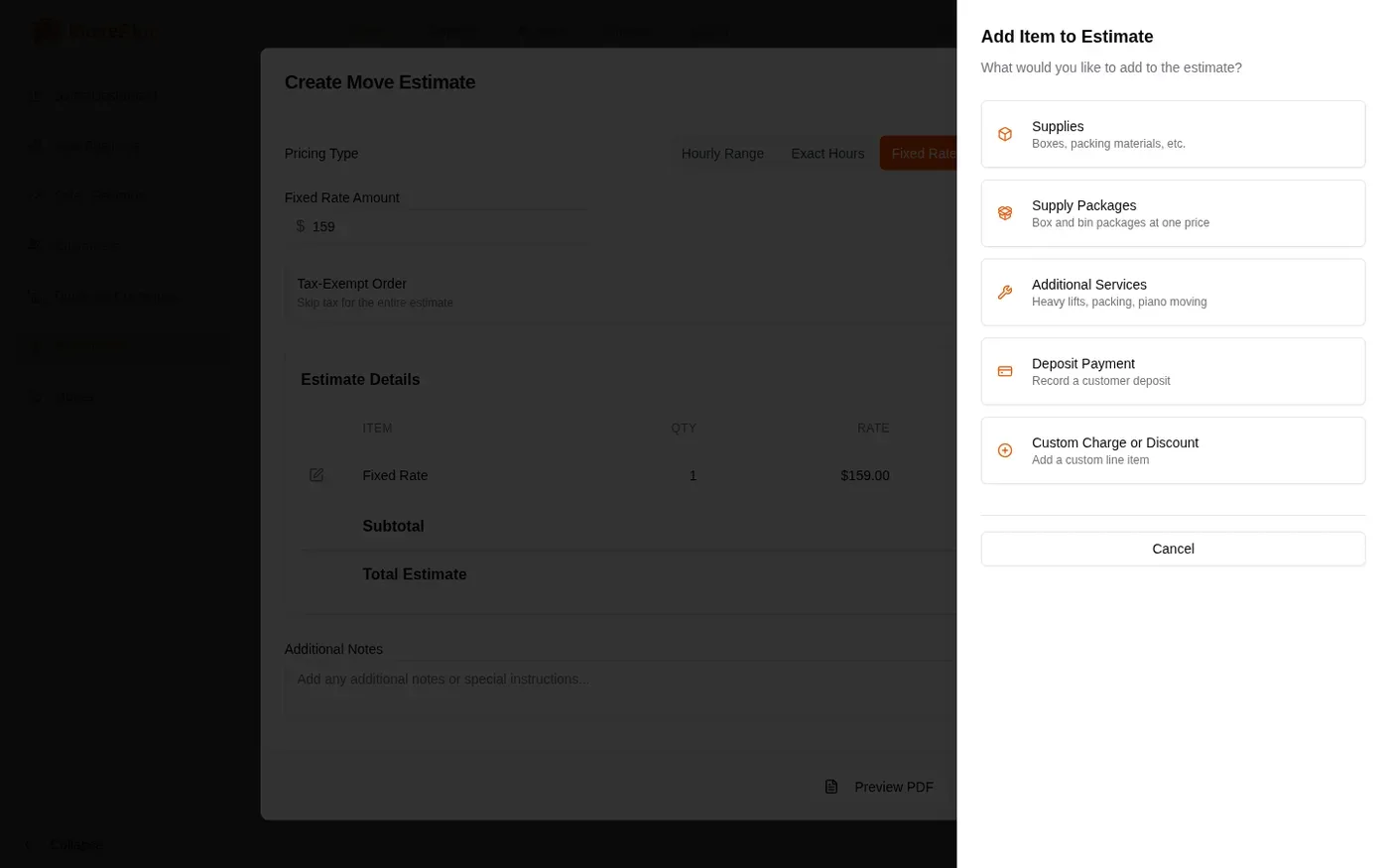
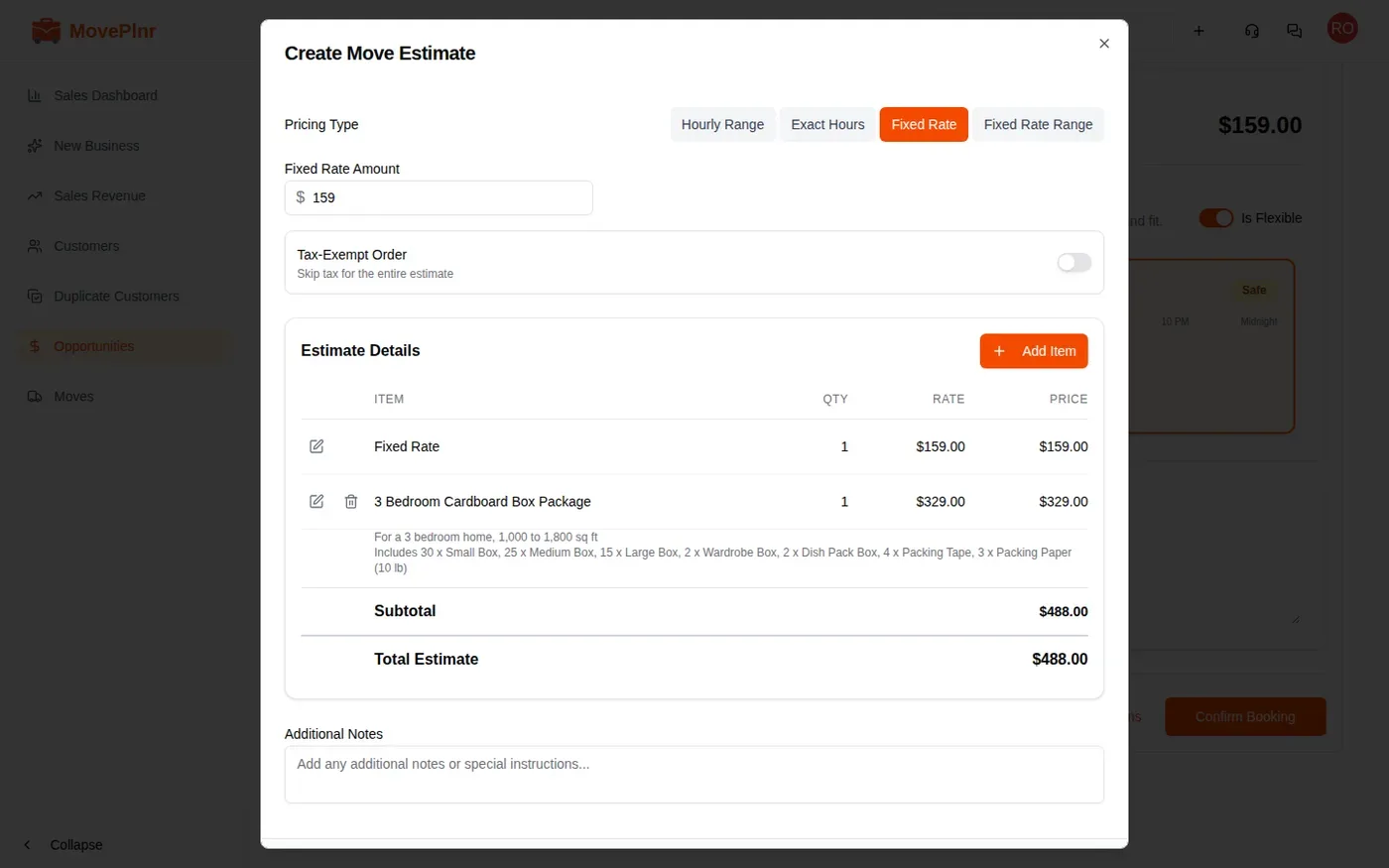
- In Estimate Details, click Add Item, then Supply Packages. The choice shows once the location has at least one active package.
- Pick the package under Select Package. Its description and contents show under the list.
- Set the Quantity if the customer wants more than one, then click Add to Estimate.
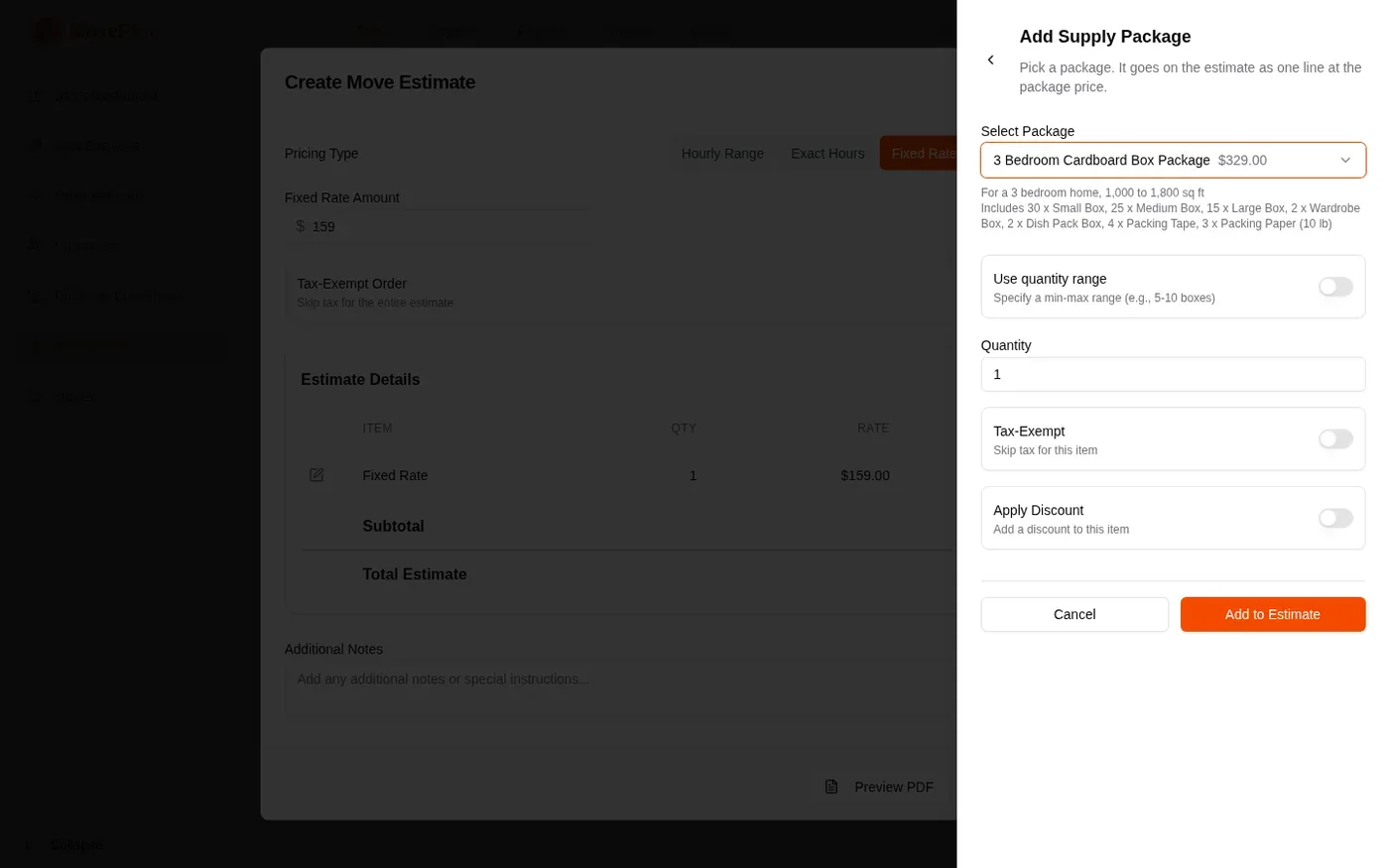
The package lands on the estimate as one line at the package price, with its description and contents underneath. Each package can go on an estimate once; raise its quantity to sell two.
Close a move with a package
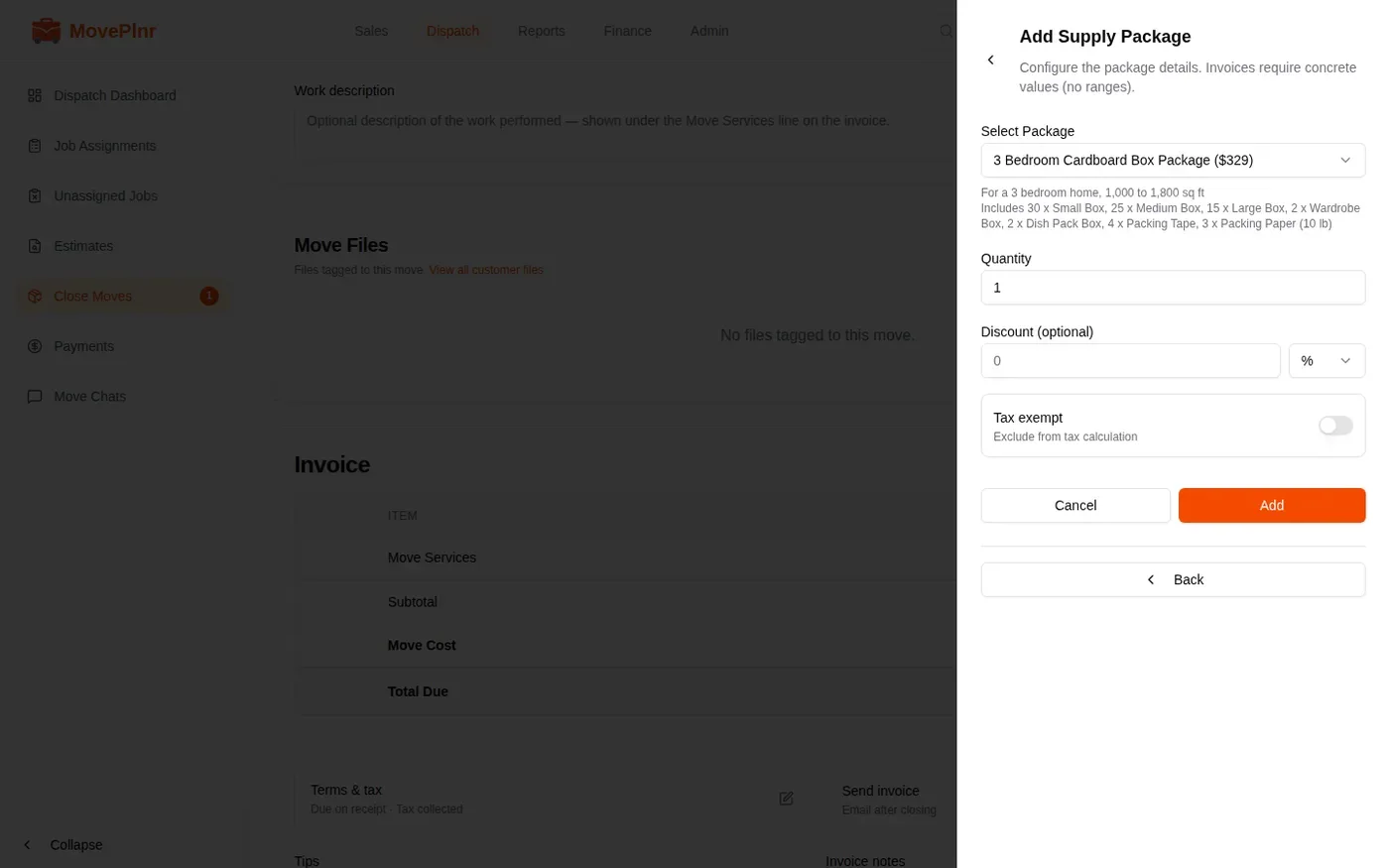
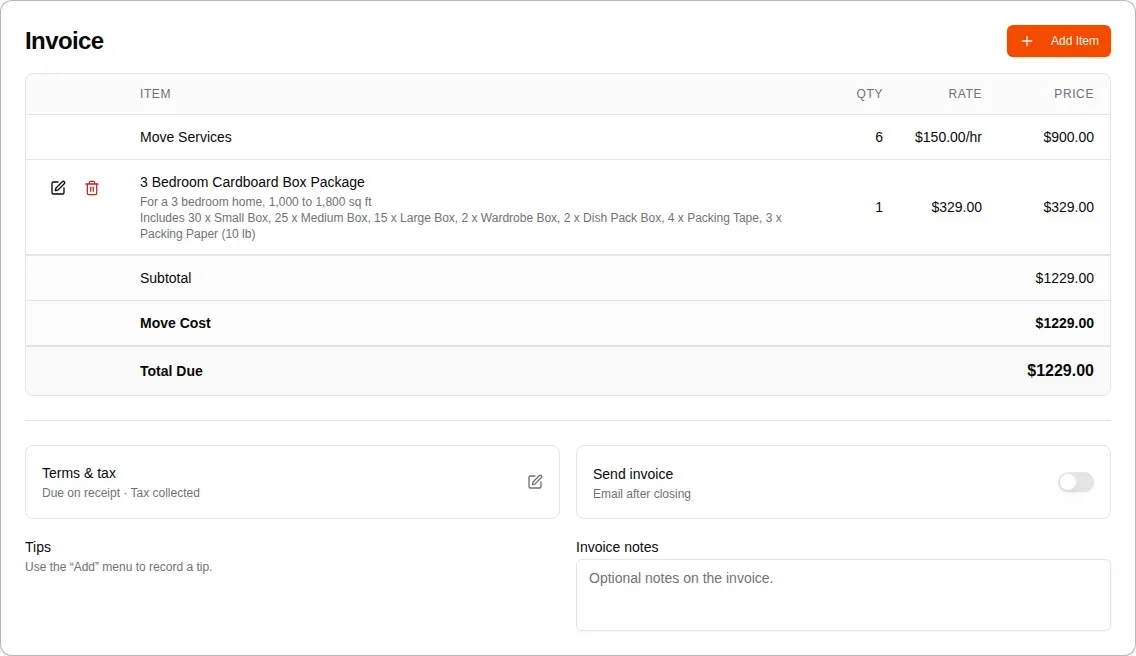
When a move closes, the package from the estimate is already on the invoice as one line, at its own price and with its own contents. You can also add one on the close screen: click Add Item in the Invoice card, choose Supply Packages, pick the package and click Add.
Truck stock
If your trucks carry stock in Truck Yard, closing the move takes every supply inside the package off the truck: the contents as the estimate quoted them, times the number of packages sold. If the truck runs short of one of those supplies, the line warns you and names the supply. The warning never stops the close. The truck’s count goes below zero and dispatch hears about it, so someone can restock.
What the crew earns
A package pays the crew the commission its supplies would earn sold one by one, as one amount per package:
- A supply with a flat commission earns it for every unit in the package.
- A supply with a percentage commission earns its percent of its share of the package price. A package sold below the parts total lowers every share by the same amount.
- A supply with no commission earns nothing.
Payroll multiplies that amount by the number of packages on the line and splits it across the crew, the same way it does for supplies.