Before you start
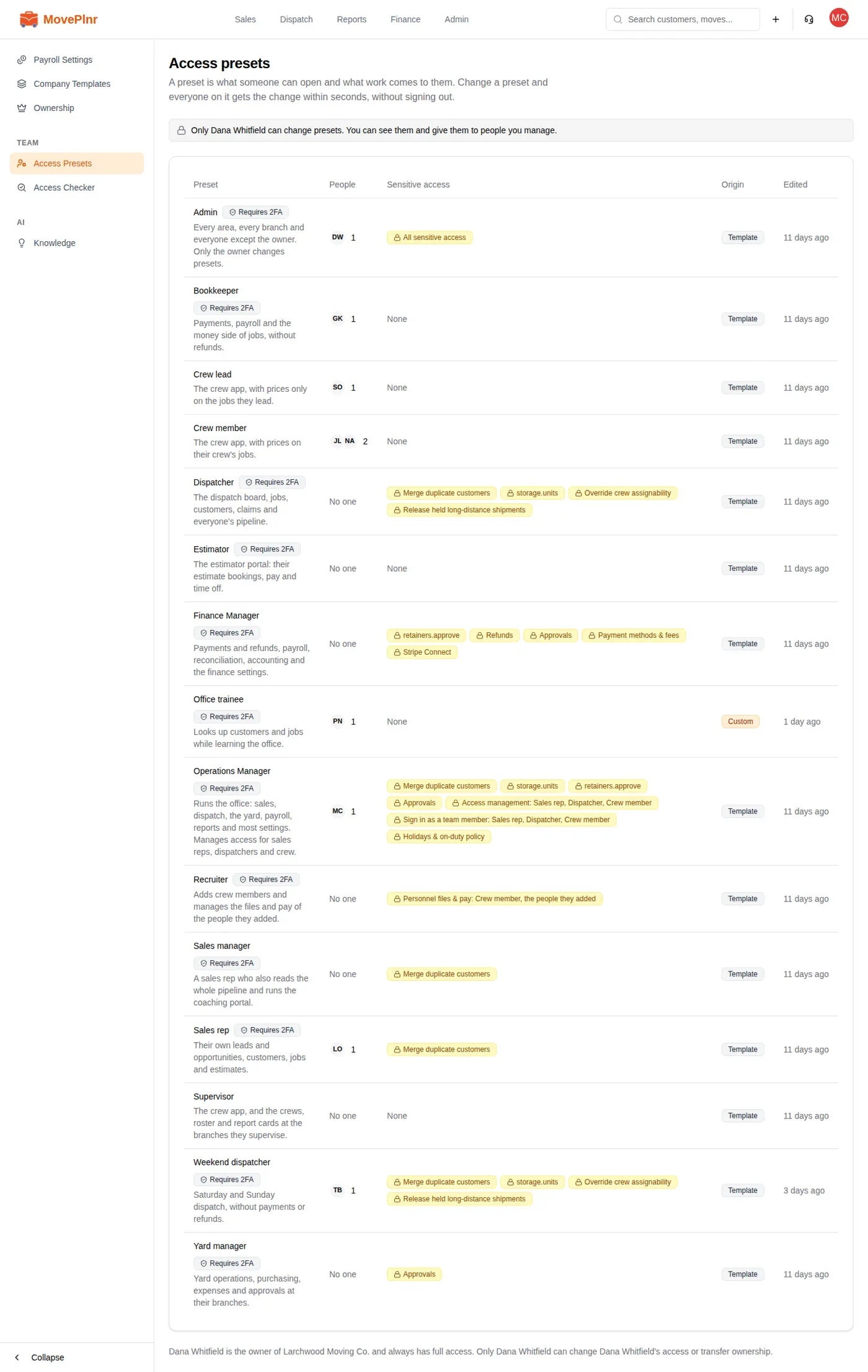
- Only the owner of the company creates, changes, duplicates and archives presets, gives someone a Custom set and transfers ownership.
- Anyone whose preset includes access management (the Operations Manager template does, for sales reps, dispatchers and crew) can read every preset, give people the presets they manage and use the Access checker.
- You find all three pages in Company Settings, under TEAM: Access Presets and Access Checker. Ownership sits just above them.
What a preset is
A preset is a set of capabilities: one line for each part of MovePlnr, with a level on each line. Most lines go from No access to View to Edit. Lines about records that belong to someone go from Their own to See everyone’s to Everyone’s. A few are a plain Allowed.
Every company starts with a preset for each common job: Admin, Operations Manager, Finance Manager, Bookkeeper, Sales rep, Sales manager, Dispatcher, Crew member, Crew lead, Supervisor, Yard manager, Estimator and Recruiter. Rename them, change them or add your own.
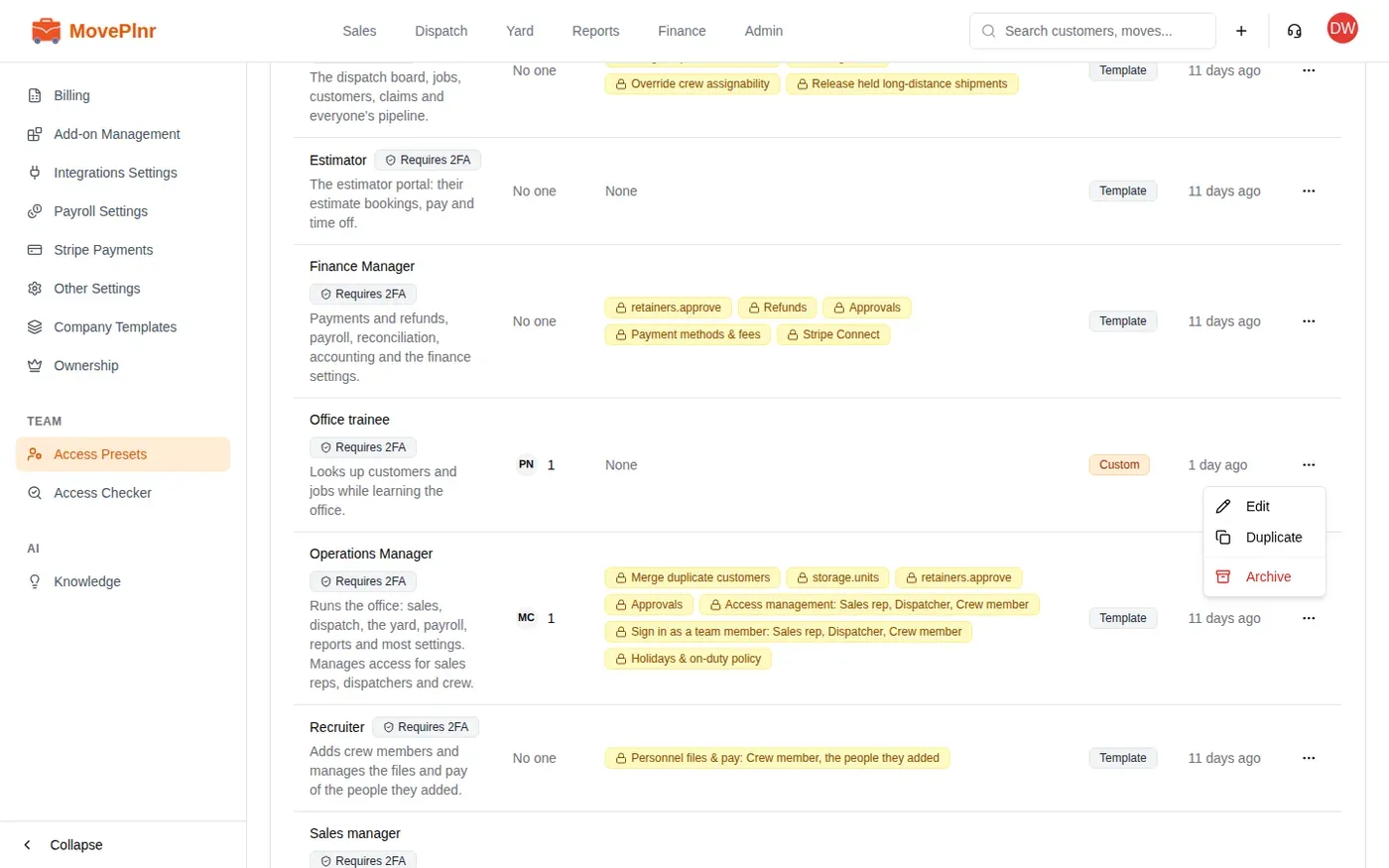
- Open Company Settings and pick Access Presets.
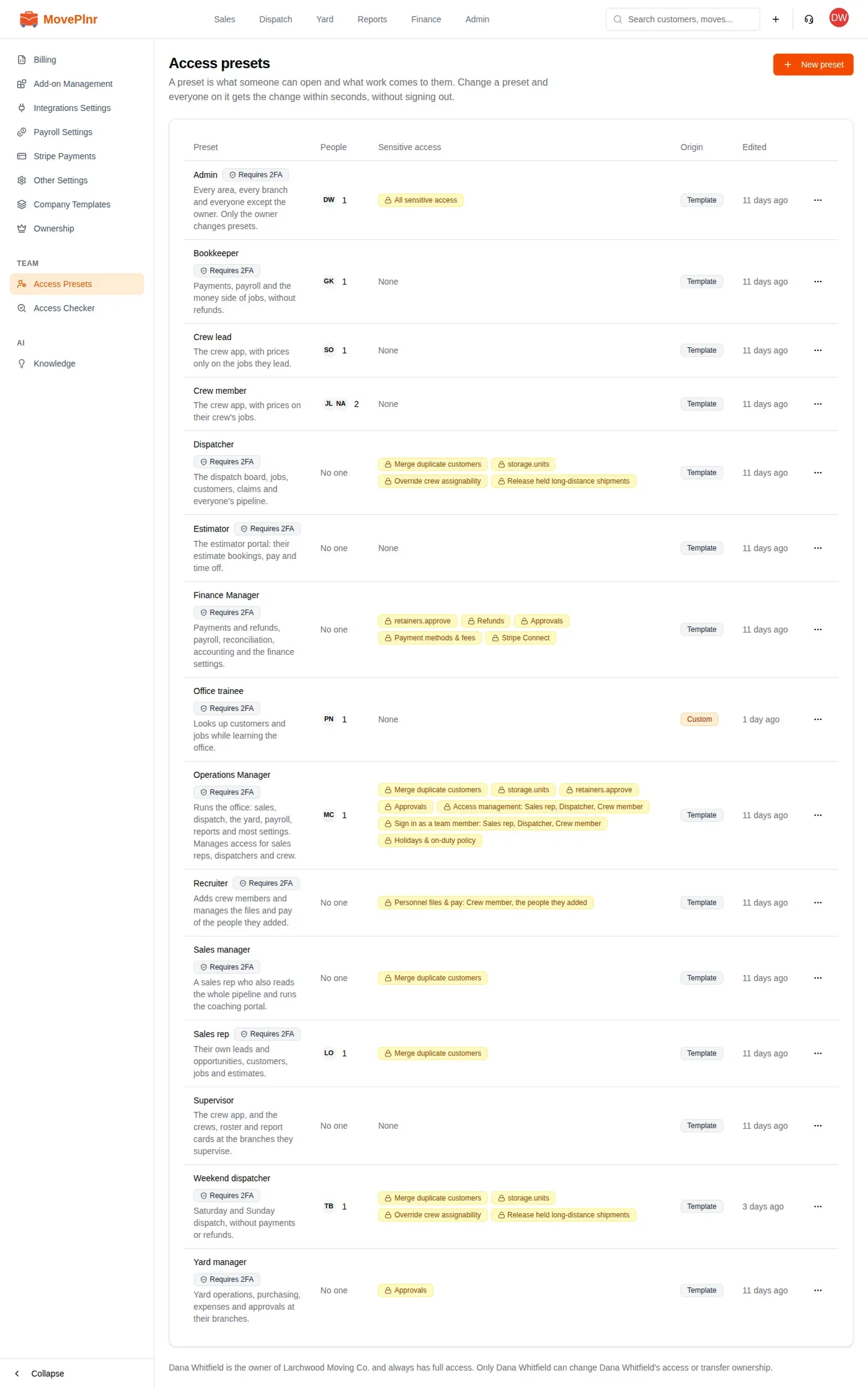
- Each row shows the preset, how many people are on it, its sensitive access, where it came from and when it was last edited.
- A Requires 2FA badge means the preset reaches office work, so the people on it are asked to set up two-step sign-in.
Duties route work, presets decide access
Duties are separate from presets: Crew, Estimator, Sales rep, Dispatcher and Recruiter. A duty decides what work comes to a person (crew pickers, new leads, dispatch escalations, recruiting bonuses). It never changes what they can open. A preset can carry default duties, which new people on it get.
Start a new preset
- On Access presets, click New preset.
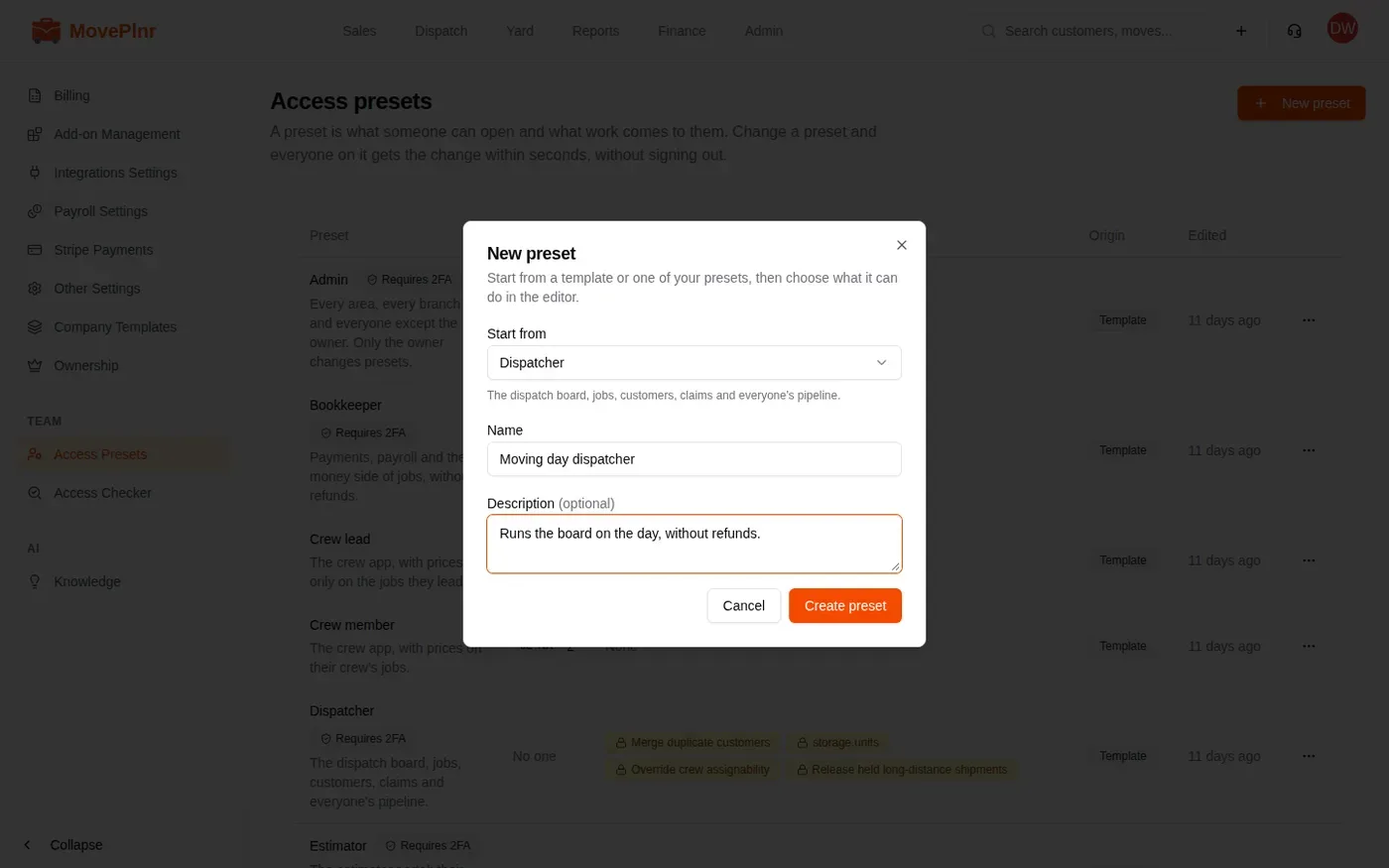
- Under Start from, pick Blank, one of the templates, or one of your own presets to copy.
- Type a Name and, if you like, a description, then click Create preset. The new preset opens in the editor.
Edit the preset
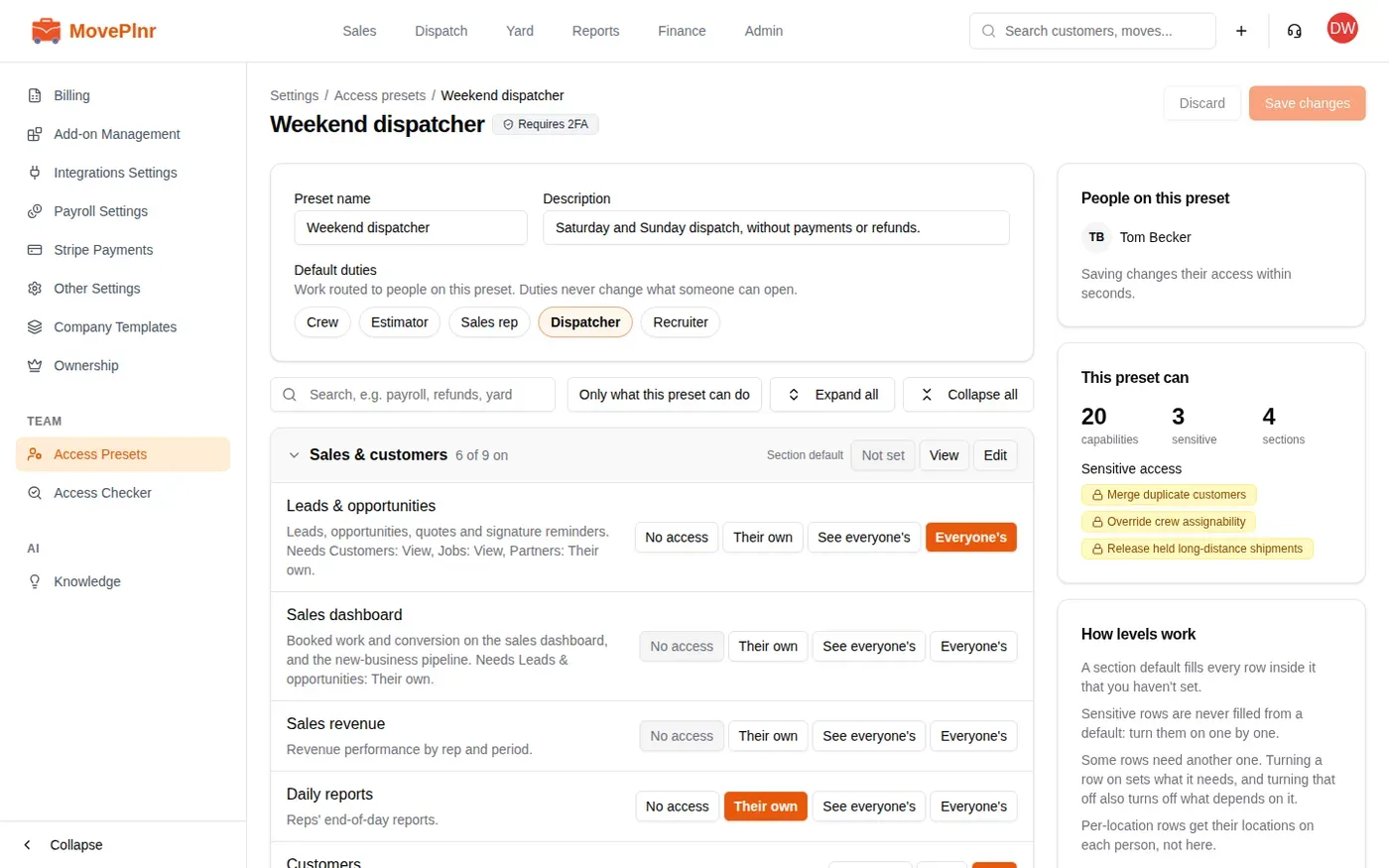
The editor lists every part of MovePlnr in sections: Sales & customers, Jobs & dispatch, Payments & claims, Finance, Reports, Marketing, Yard & fleet, Team, Crew app, Settings and Ownership.
- Under Default duties, turn on the duties people on this preset usually have.
- Open a section and pick a level on each line. Section default sets every line in a section at once, and you can still change a line on its own after that.
- Search for a line, or turn on Only what this preset can do to see just what it holds. Expand all opens every section.
- Some lines need another one to work, and the line says so (for example, closing jobs needs jobs at View). Turning on a line turns on what it needs, and the editor tells you what it changed.
- A line marked Sensitive (refunds, merging customers, signing in as someone) is never turned on by a section default. For a line about people, such as signing in as a team member, pick which presets it covers.
- Click Save changes. You are asked to confirm, with the number of people the change reaches. They get it within seconds, without signing out.
Archive or duplicate a preset
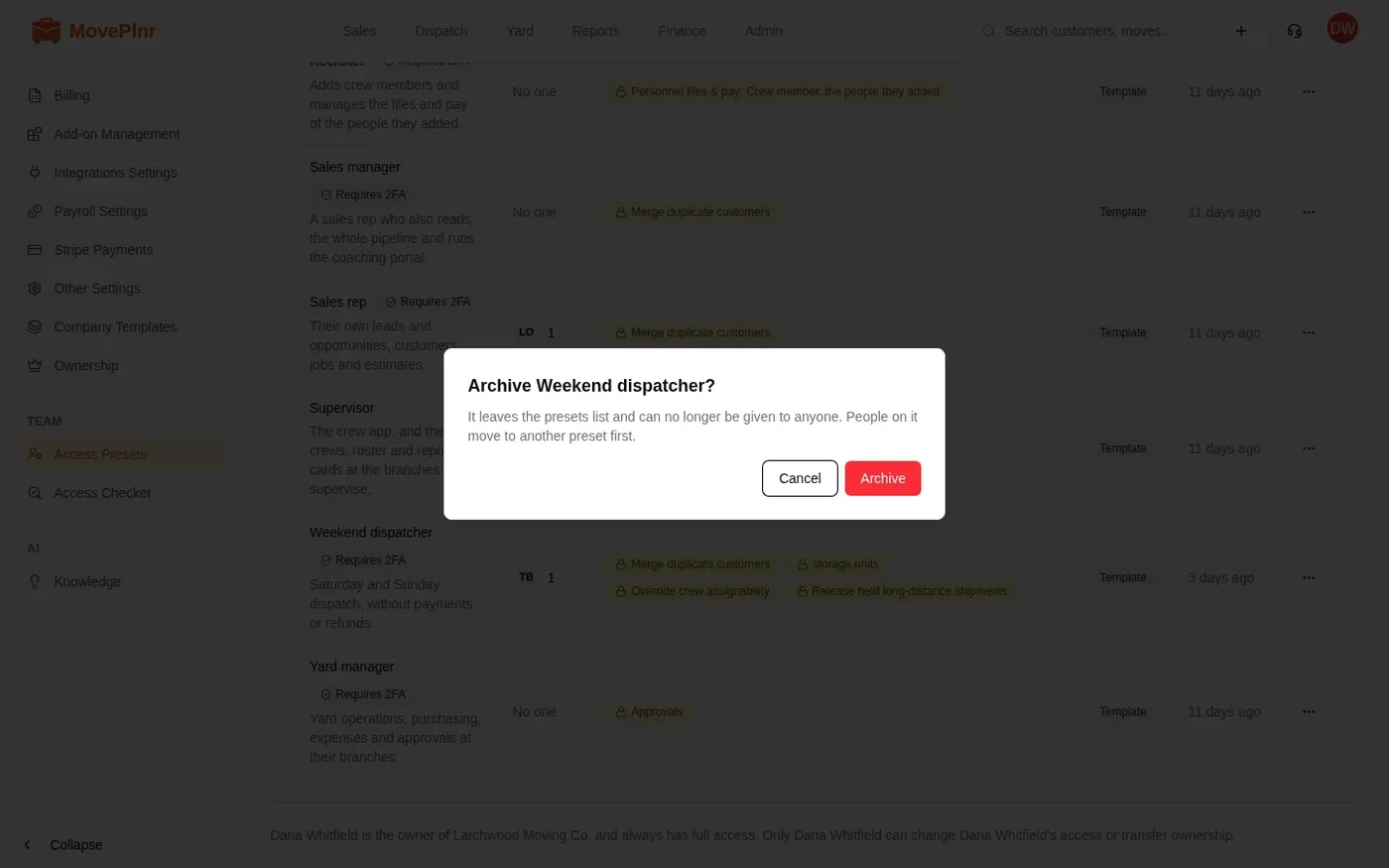
Click the three dots at the end of a preset’s row.
- Edit opens it in the editor.
- Duplicate makes a copy and opens it, ready to rename and change.
- Archive takes it off the list so it can no longer be given to anyone. If people are still on it, you move them to another preset first, in the same window.
Give one person a Custom set
Sometimes one person needs a little more or less than their preset. The owner can give them a Custom set: a copy that belongs to that person alone.
- Open the person under Team Members and click edit.
- In the access card, click the button to customize for them. Their preset’s lines are copied into a set you can change.
- Change the levels you need, then click Save access. Changes to the preset they came from no longer reach them.
- To share the set, click Save as a new preset, name it, and it joins your presets list. To undo, go back to the preset they were on.
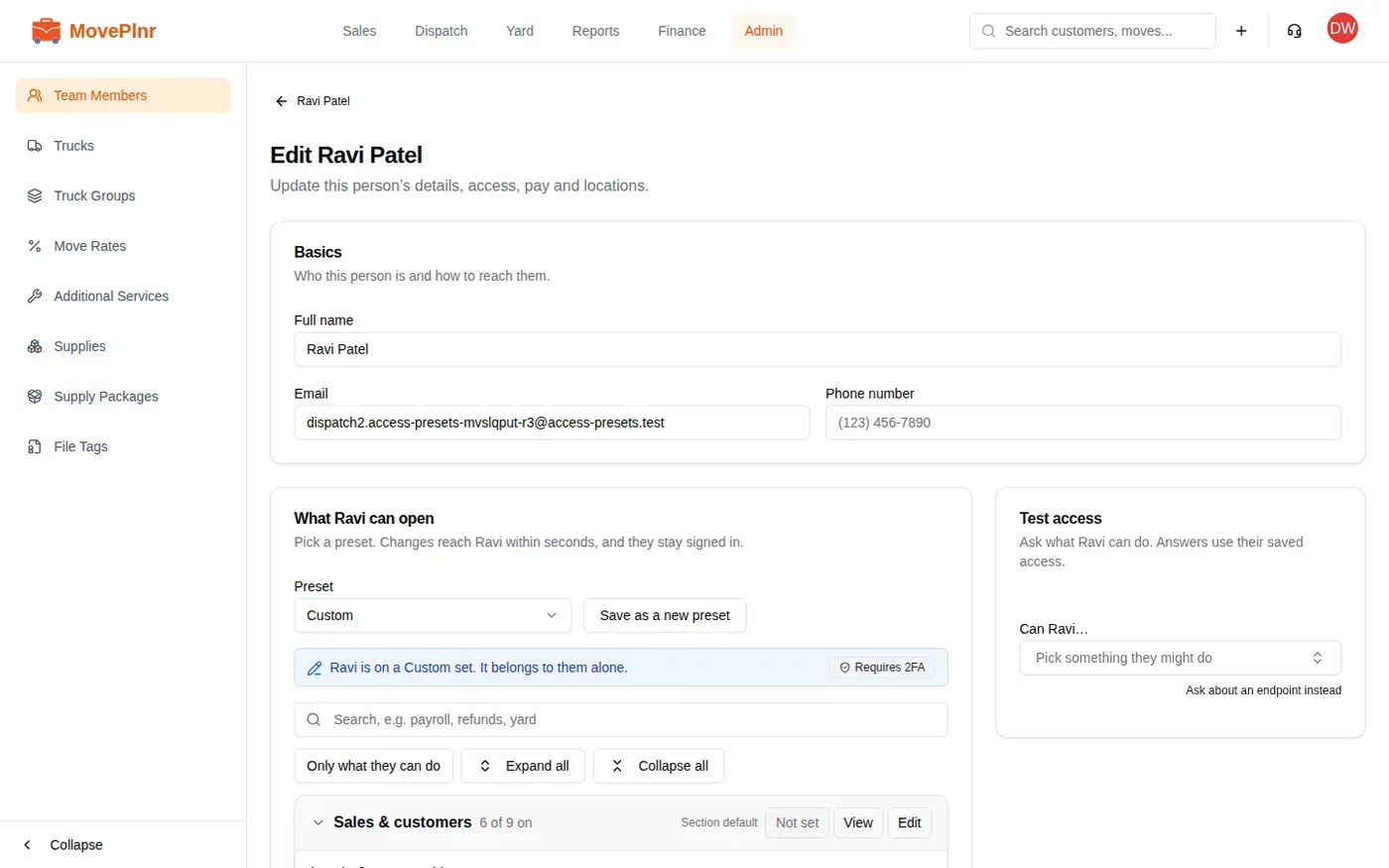
The rest of the person’s access card (picking a preset, duties and branches) is in Add and manage your team.
Ask the Access checker
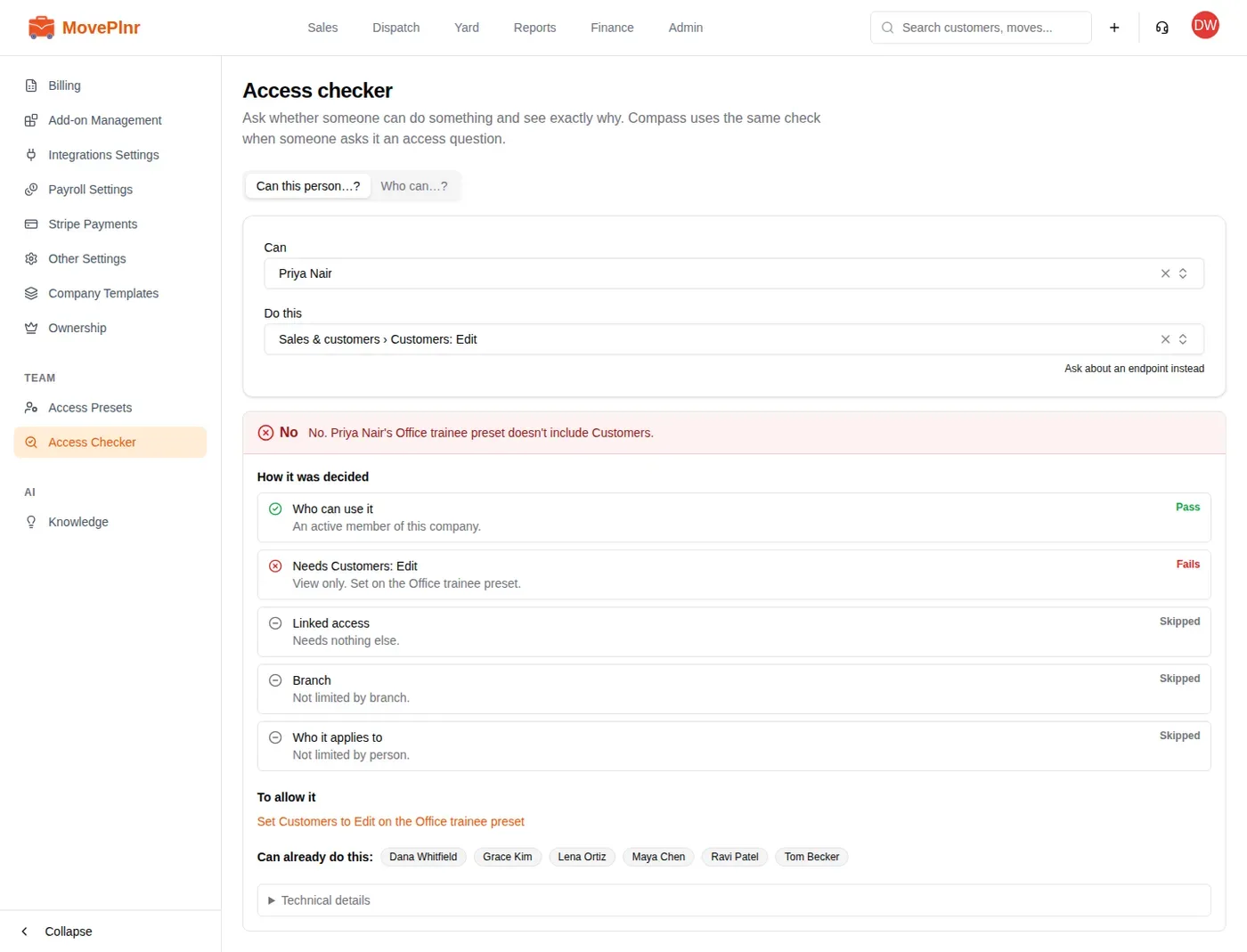
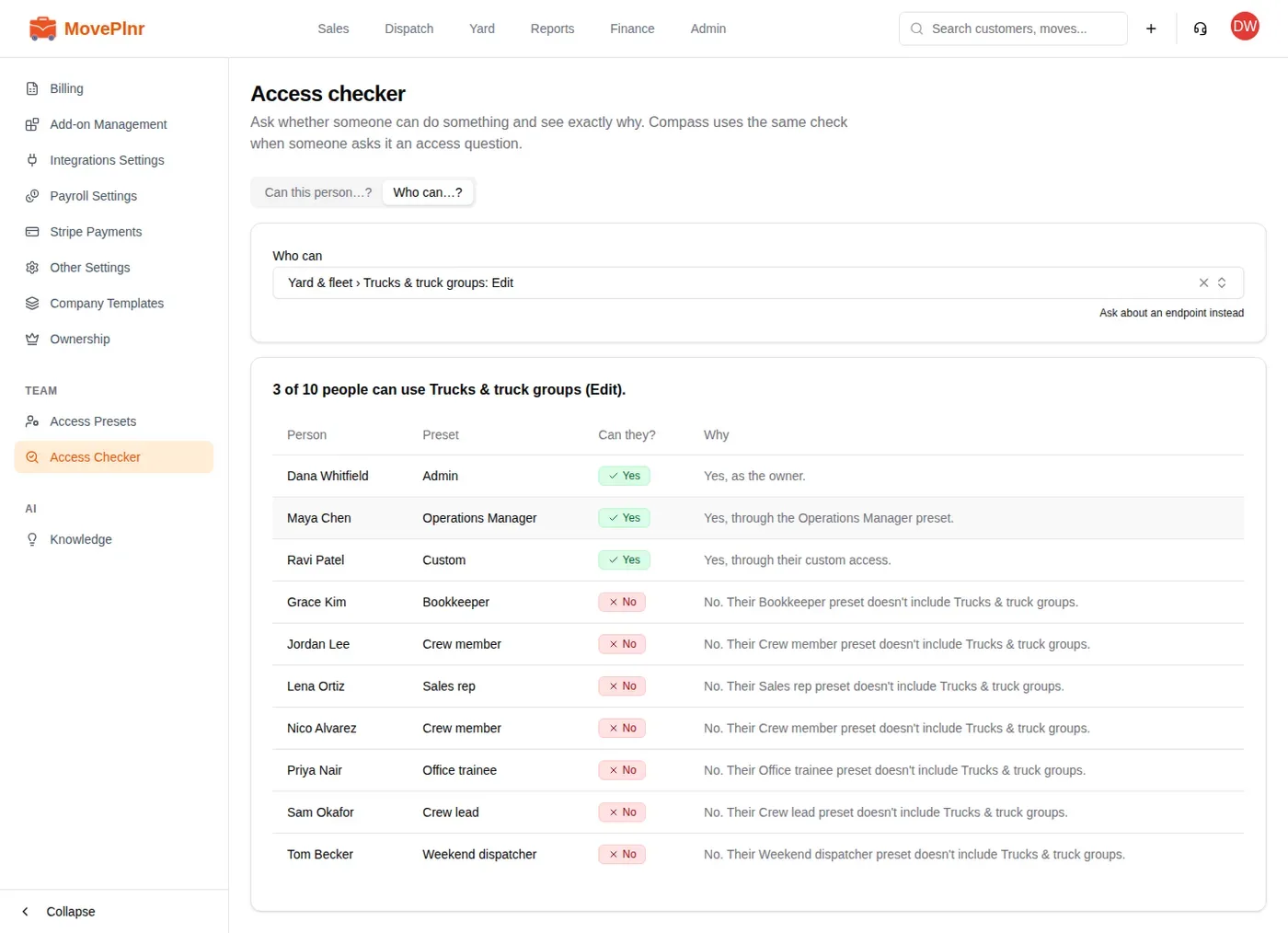
The Access checker answers two questions and says exactly why. Compass uses the same check when someone asks it about access.
- Open Access Checker in Company Settings.
- On Can this person…?, pick a person, then under Do this pick something they might do, such as editing customers or opening the payroll page.
- The answer shows each step of the decision, and under To allow it, the change that would let them. The people who can already do it are listed below.
- On Who can…?, pick something to do and see everyone on your team, their preset, yes or no, and why.
Test access on their page
The same check sits beside a person’s access card, in the Test access panel. Pick something they might do and the answer appears there. It answers from their saved access, so save your changes first, then test.
Transfer ownership
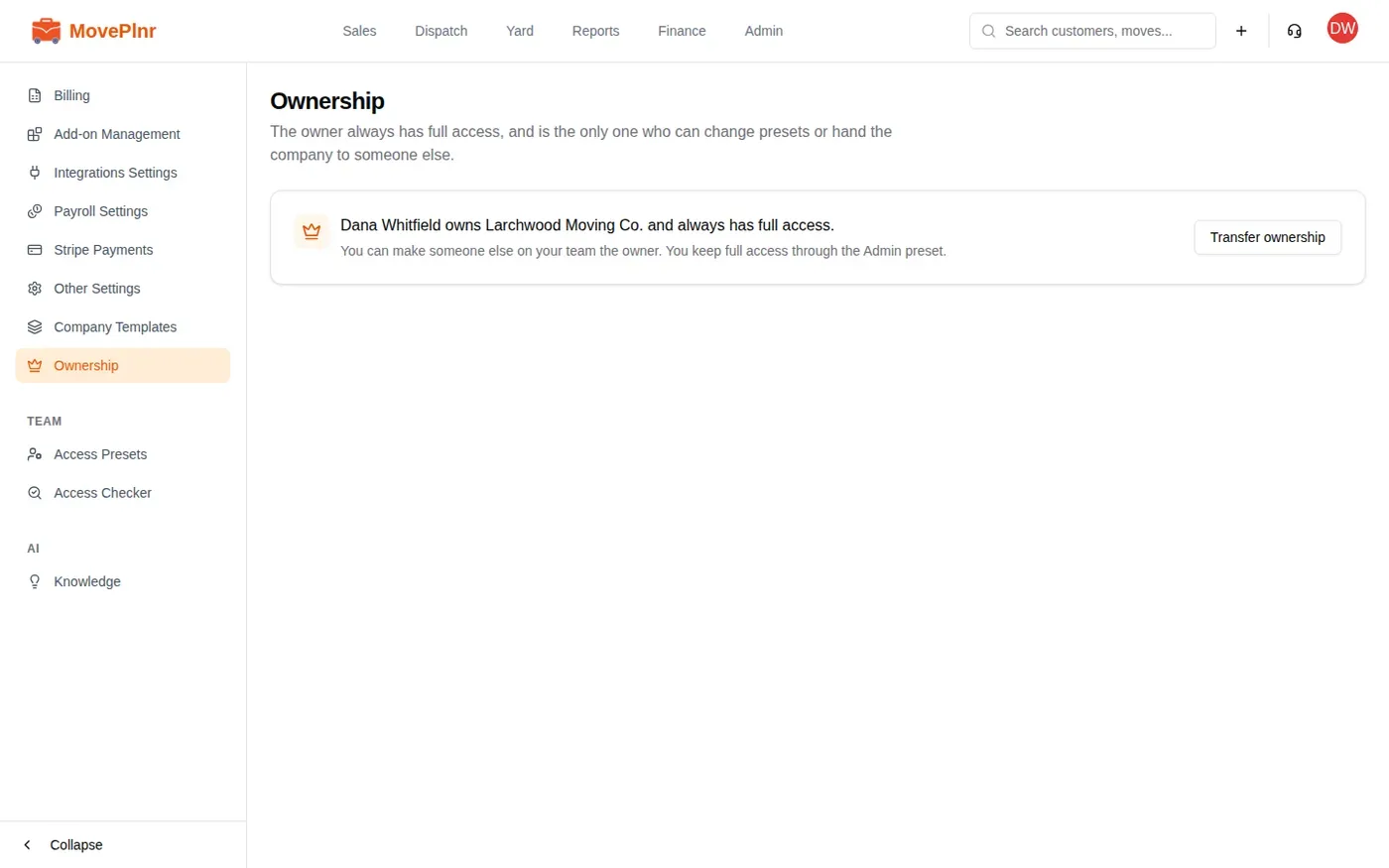
- Open Ownership in Company Settings. It says who owns the company.
- Click Transfer ownership.
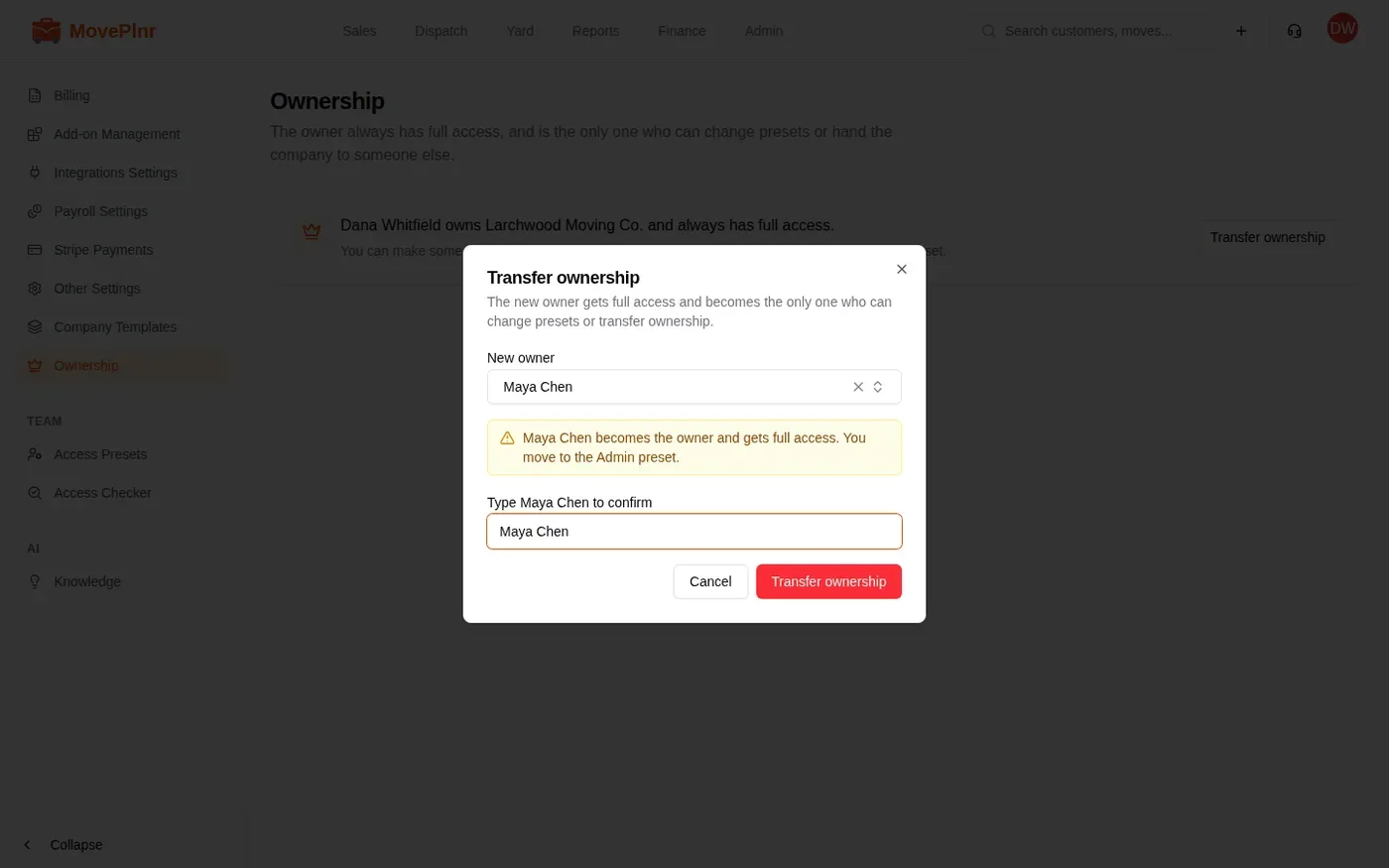
- Under New owner, pick someone on your team.
- Type their full name to confirm, then click Transfer ownership.
The new owner gets full access and becomes the only one who can change presets or transfer ownership. You move to the Admin preset, so you keep full access to the rest of the company.
Impersonate a team member
To see MovePlnr exactly as someone else sees it, sign in as them.
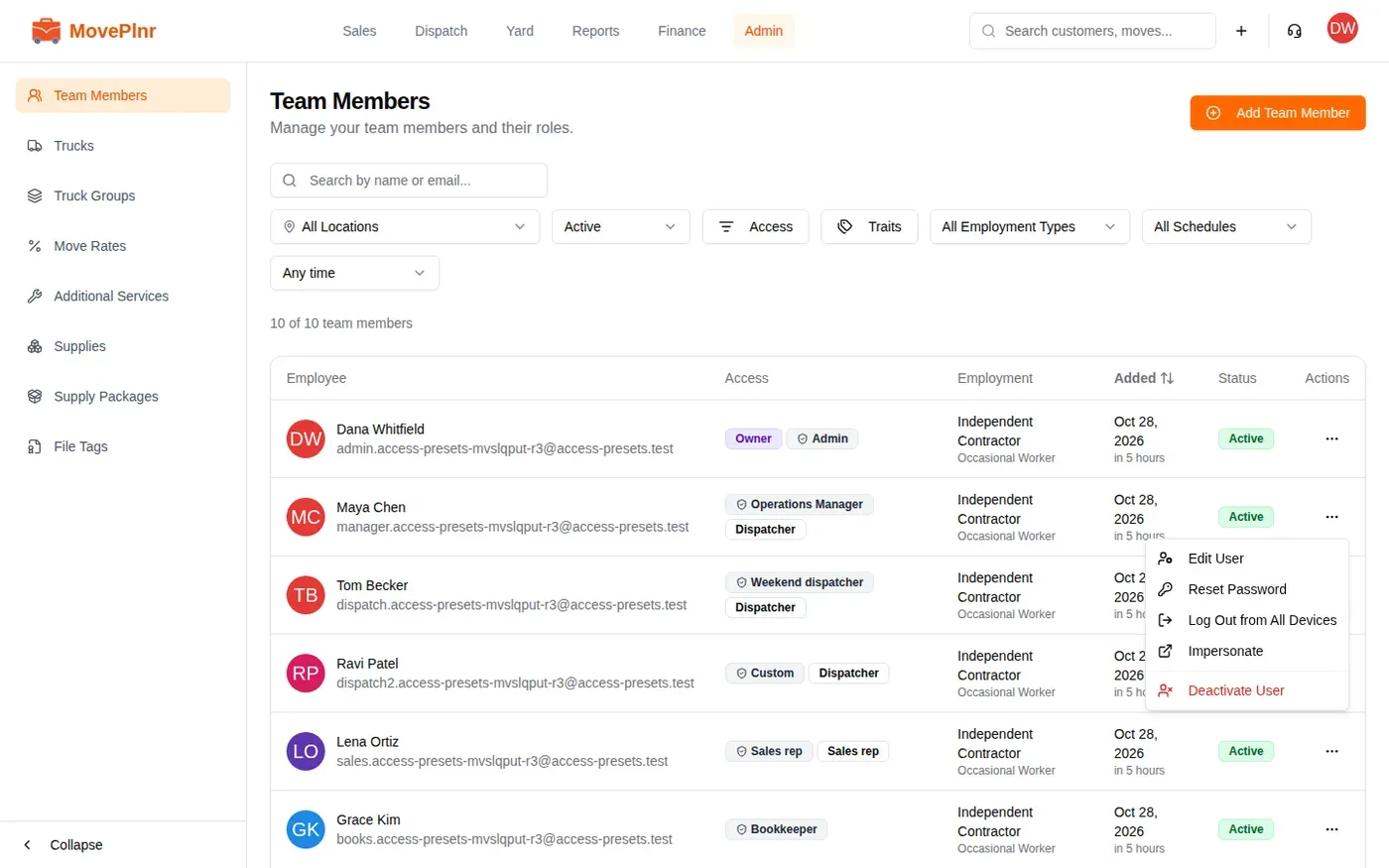
- Open Team Members and click the three dots on the person’s row.
- Click Impersonate. The page reloads, signed in as them.
- When you are done, open the account menu at the top right and choose Exit impersonation, above Log out. You are back in your own account.
- You can never impersonate the owner.
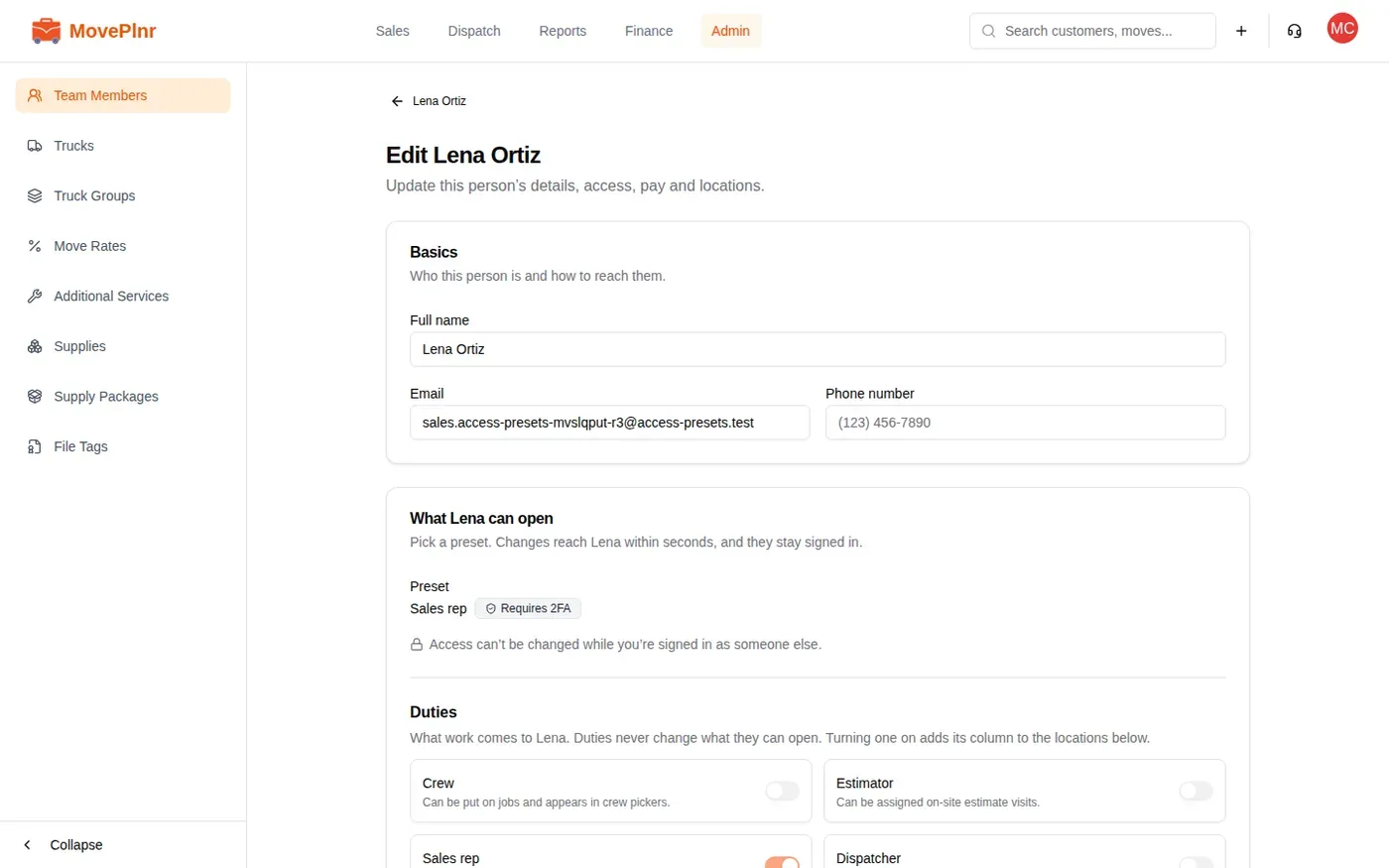
- While you are signed in as someone else, access can’t be changed: the access card says so, and presets are read only.
- Impersonating needs the capability to sign in as a team member, and it covers only the presets that capability lists.
When someone sees View only
When a person’s preset holds a part of MovePlnr at View and they try to change something there, the app shows a “View only” message saying they have view access to that part and that changes need edit access. Most buttons they can’t use are hidden, so they rarely meet it.
- Ask the Access checker whether that person can do the thing they tried.
- The answer names the line that fell short and the preset it is set on. To allow it says what to change.
- As the owner, raise that line on their preset (everyone on it gets the change), or give that one person a Custom set.
Someone who manages access but isn’t the owner sees presets read only, with a note that only the owner can change them. They can still move a person to another preset they manage.