
Your roster
Open Admin in the top menu. Team Members is the first page. Each row shows a person’s preset and duties, how they are employed, when they were added, and whether their account is Active.
- Type a name or an email in the search box to find one person.
- Narrow the list by location, status, Access, Traits, employment type, schedule and how long they have been on the team. Access filters by duty (Crew, Estimator, Sales rep, Dispatcher, Recruiter) and by preset. The line under the filters counts what is showing.
- Click a row to open that person’s page.
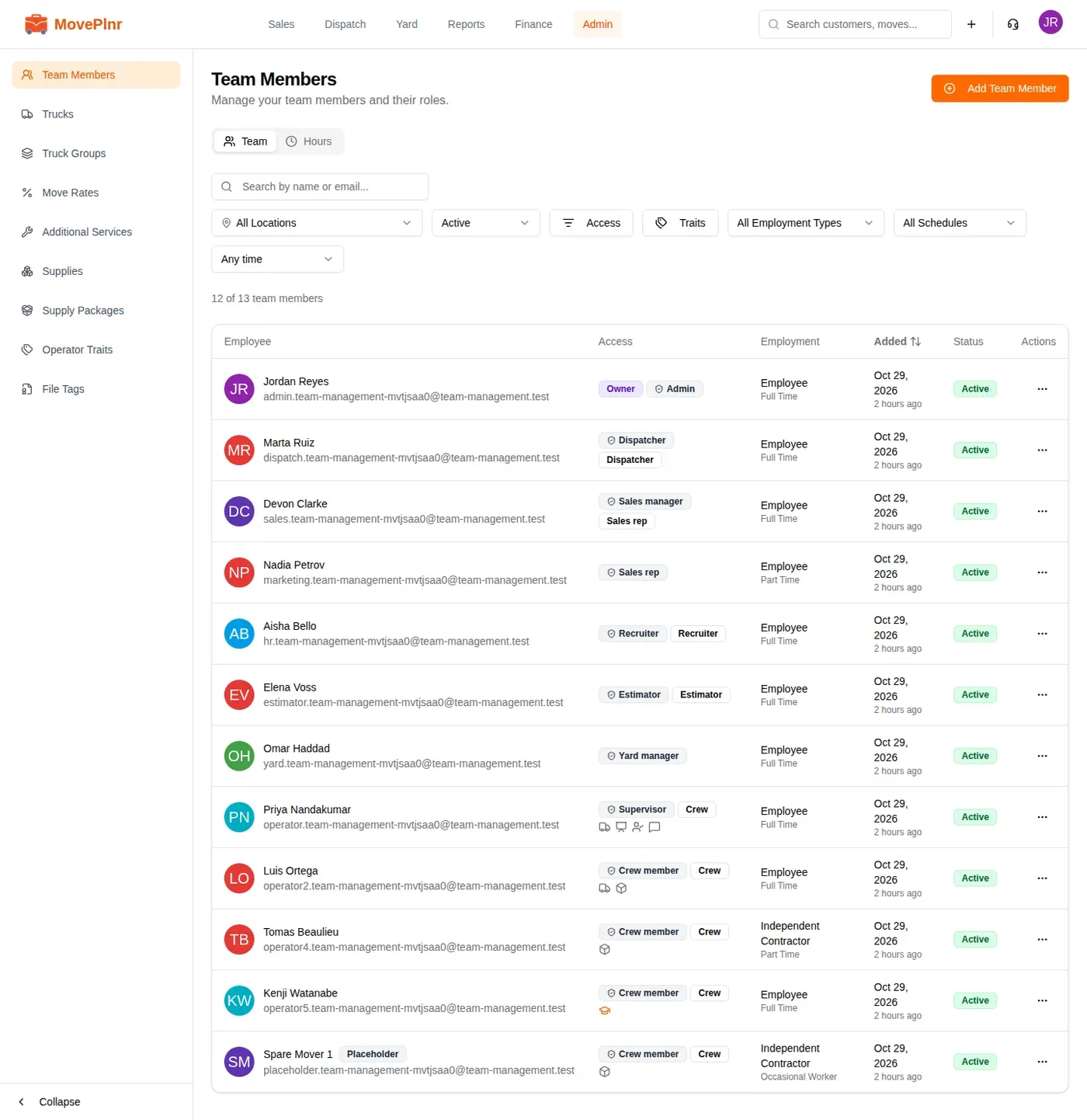
Status starts on Active. Switch it to Deactivated to see only former staff, or to All statuses to see everyone.
When your company has the HR / Recruiting add-on turned on, the page has two tabs. Team is the roster. Hours adds up the hours each person has worked, from closed moves and payroll, and keeps its own filters.
The row menu
The three dots at the end of a row open the tools for that person.
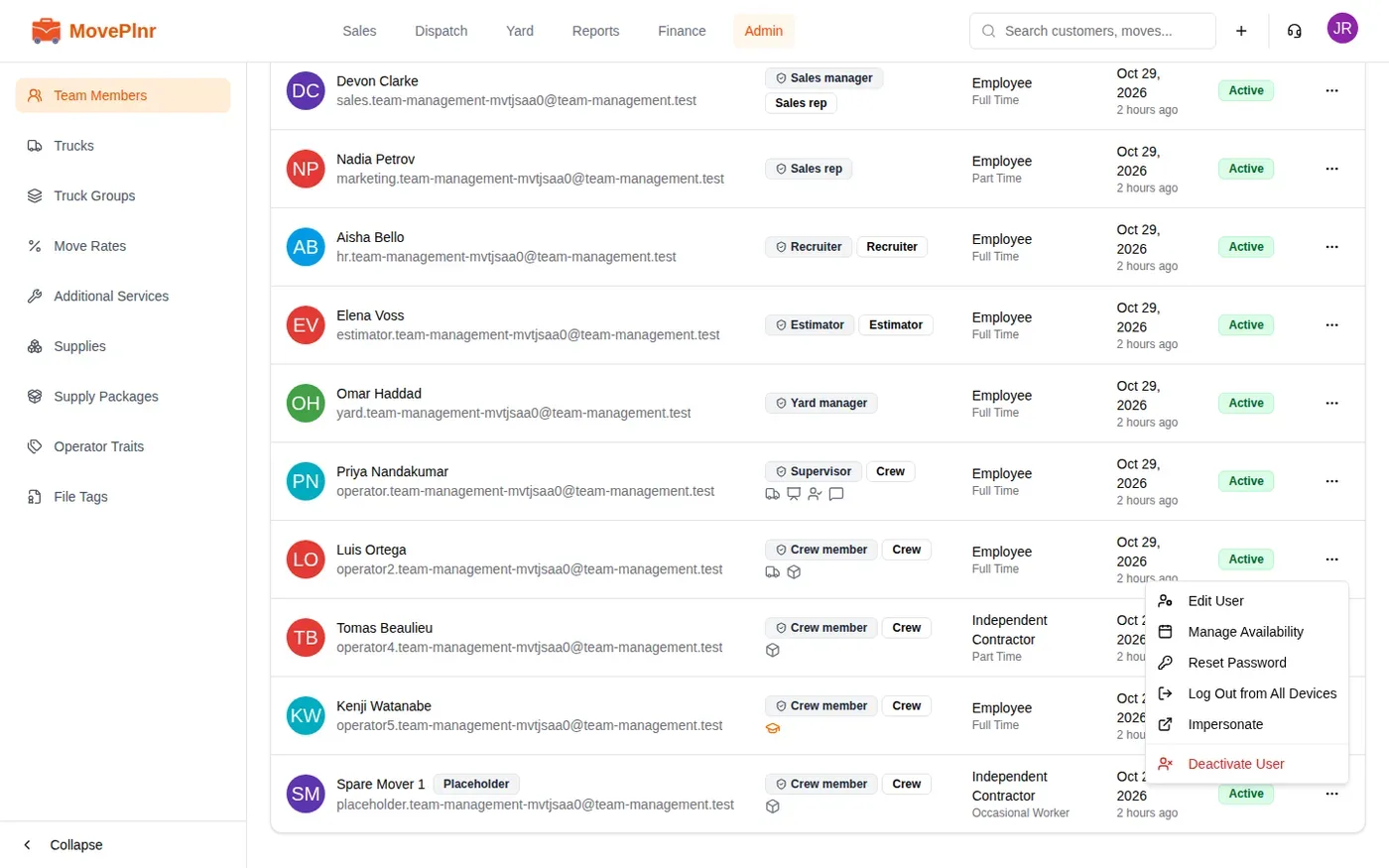
- Edit User opens their form.
- Manage Availability sets the days a mover can work.
- Reset Password sets a new password for them, and they are told it changed.
- Log Out from All Devices ends every open session without touching their access. Use it when a phone goes missing.
- Impersonate shows MovePlnr exactly as that person sees it. It is the fastest way to check what their preset lets them open. It is never offered on the owner’s row, on your own row, or for someone who is deactivated.
- Deactivate User closes their account (see below).
Add a team member
Click Add Team Member, top right. Only two cards are needed to save: Basics and the card that sets what the person can open. Everything else is marked Optional and starts closed, so you can fill it in now or later.
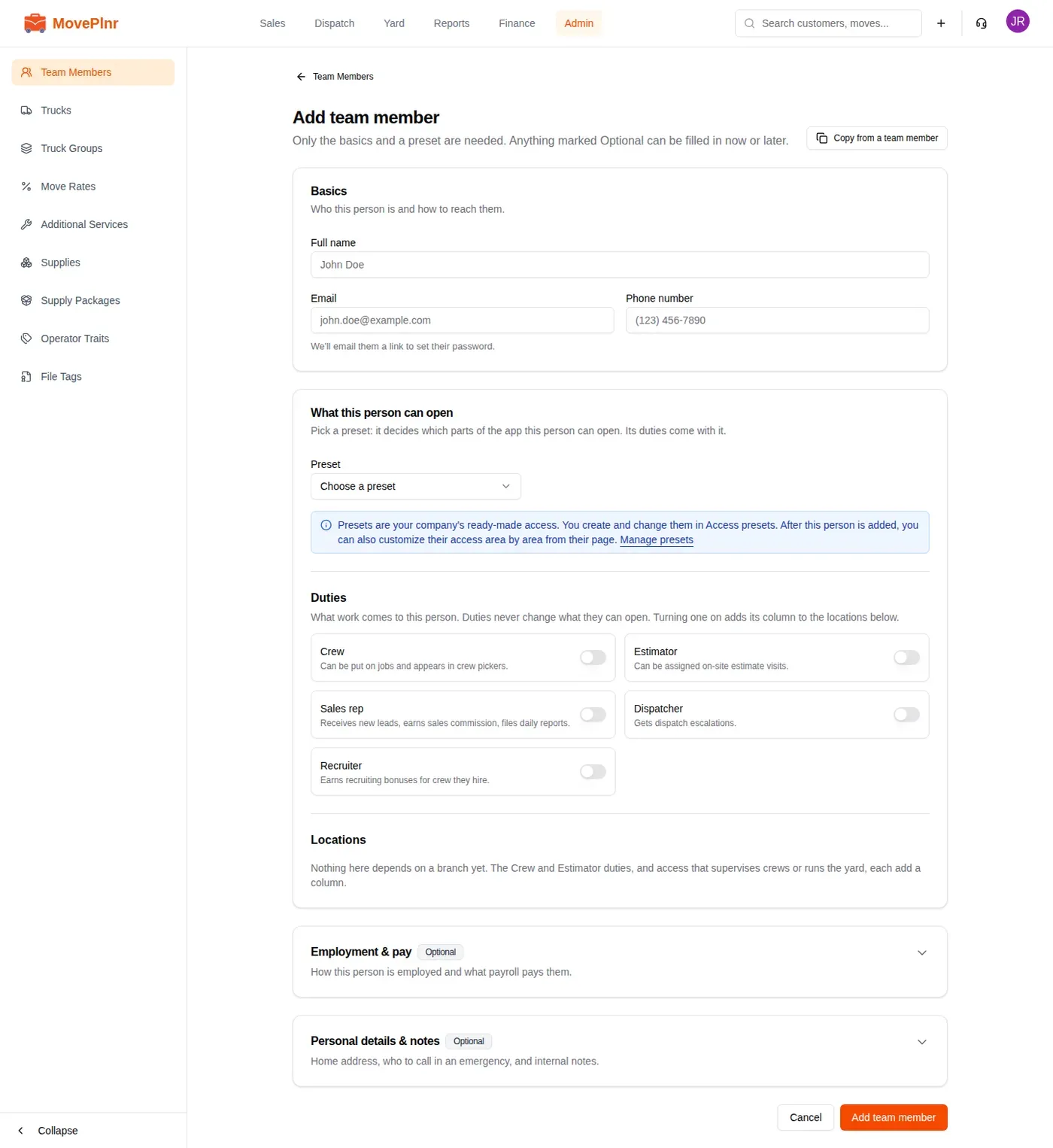
- In Basics, type their full name, email and phone number. There is no password to type: MovePlnr emails them a link to set their own, so use an address they actually read. That email is their sign-in.
- Pick a Preset. It decides which parts of the app this person can open, and the duties that come with it.
- Check the Duties and the Locations grid underneath, then click Add team member at the bottom.
You land on their page, with their first history entry already written. If a field fails when you save, MovePlnr opens the card that holds it and puts you on the field.
Pick a preset
Presets are your company’s ready-made access: Crew member, Dispatcher, Sales rep, Recruiter, Yard manager and the rest. Picking one lists what it opens, area by area, and turns on its duties. The list holds only the presets you are allowed to give, and when that is a single preset it is picked for you.
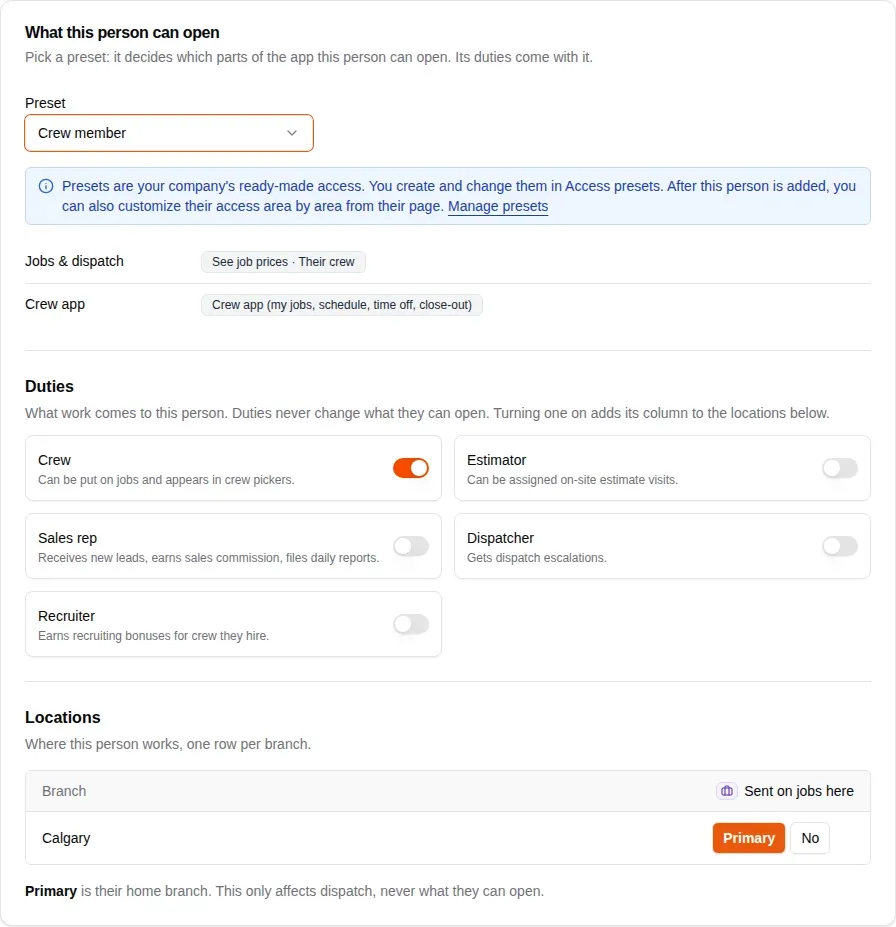
- Duties decide what work comes to the person: Crew puts them on jobs and in crew pickers, Estimator sends them estimate visits, Sales rep gives them new leads, Dispatcher gets dispatch escalations and Recruiter earns recruiting bonuses. Duties never change what they can open.
- Locations has one row per branch. A duty that is tied to a branch, such as Crew, adds a column so you can say where they are sent on jobs. Primary is their home branch.
The blue box under Preset depends on who is adding the person. The owner sees Manage presets, which opens Access presets in Company Settings, and is told the new person’s access can be customized from their page after they are added. Someone else who manages access is told that only the owner creates or changes presets, can switch the preset, duties and branches from the person’s page afterwards, and gets a link to see what each preset gives. Anyone else is told that the owner manages presets.
Copy from a team member
Adding someone who does the same job as a person you already have? Click Copy from a team member, top right, and pick that person. MovePlnr copies their preset, duties, branches, crew settings, traits and pay setup. It never copies their name, contact details or personal details.
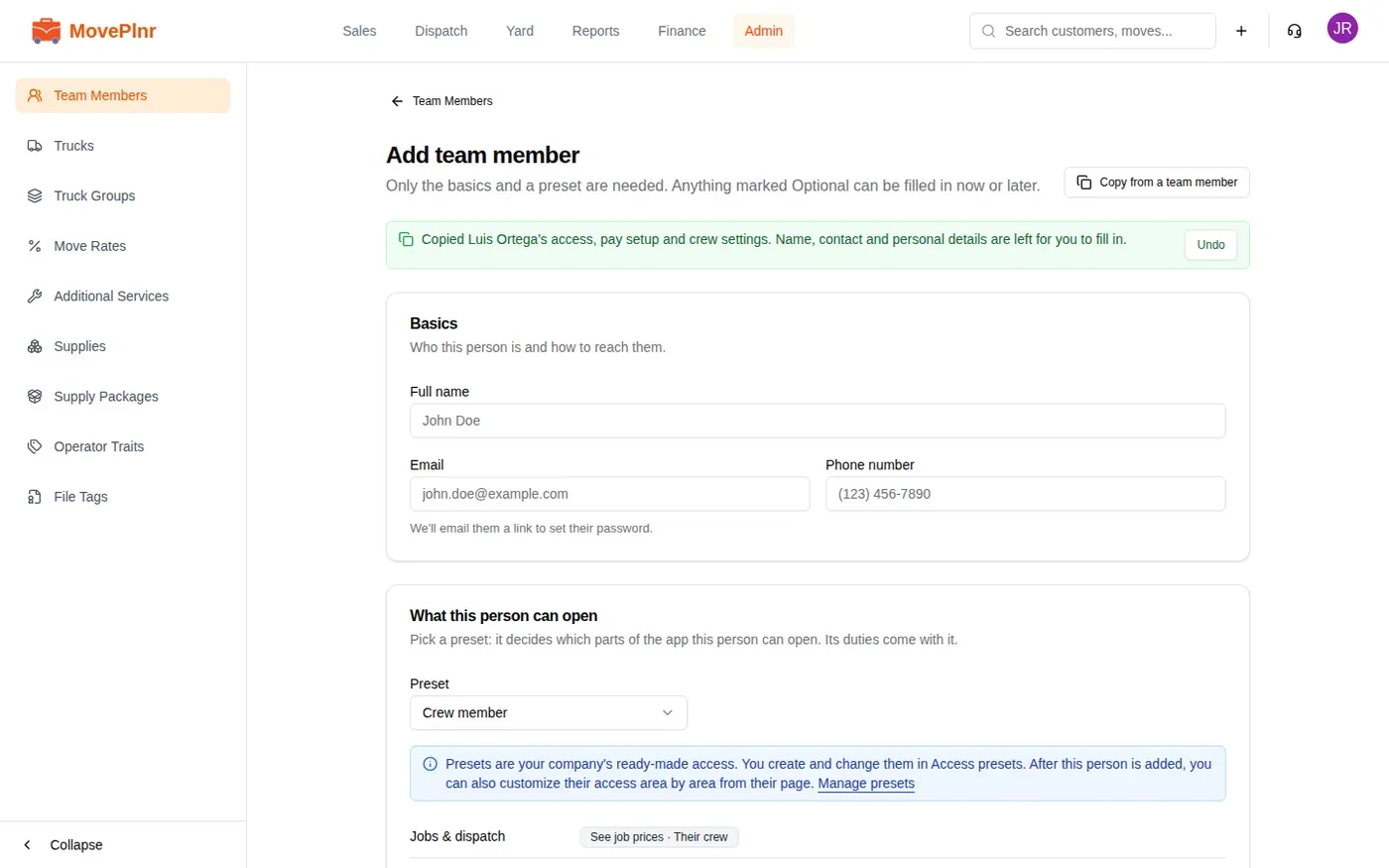
A green box says what came over, and the cards that received something open so you can check them. Click Undo to put the form back.
Crew settings
Crew settings appears when the person has the Crew duty. Choose whether their time off needs approval, whether travel time is paid, and tick the traits dispatch builds crews with, such as Driver, Trainer or In Training. A driver also gets a licence number and a place for their driving abstract.
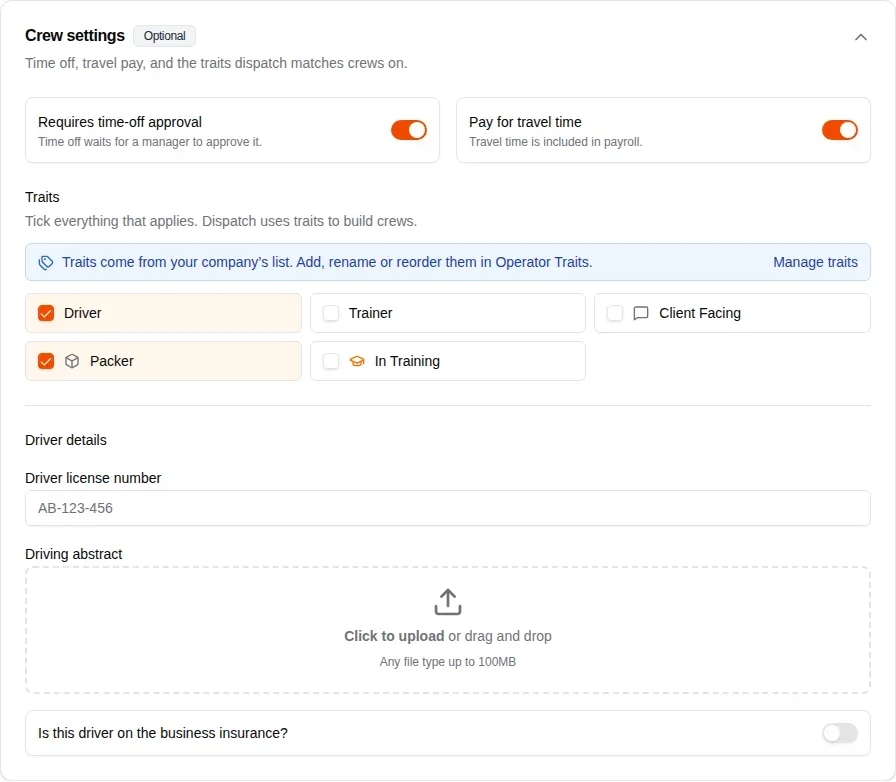
Traits come from your company’s list. If you can manage that list, the blue box above the traits has Manage traits, which opens Operator Traits.
Employment and pay
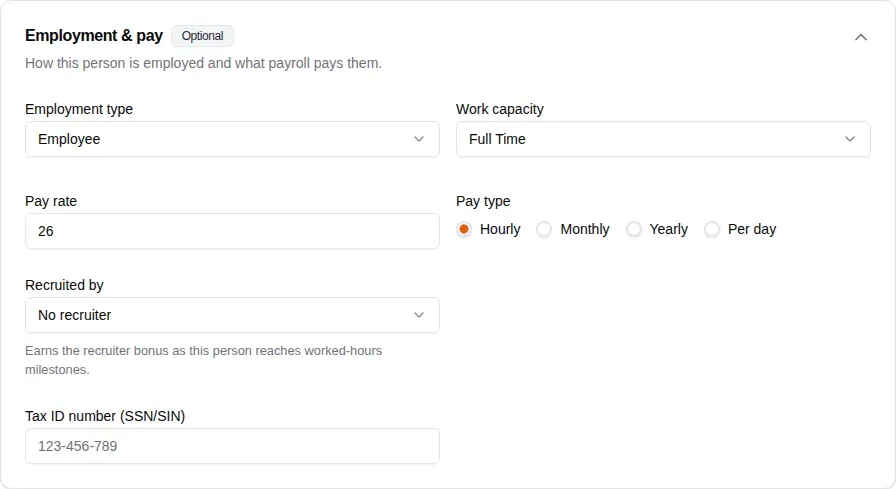
Open Employment & pay to choose the Employment type (employee or independent contractor) and the Work capacity (full time, part time or occasional). Then set the pay rate and how it is paid: Hourly, Monthly, Yearly or Per day. Recruited by credits the recruiter who brought them on.
Personal details & notes holds their home address, an emergency contact and notes for other admins.
Pay, the tax ID, the home address and the rest of the personnel file belong to people whose preset gives them personnel files. When someone without that access adds a person, those fields are left out, and the form says they are added later by someone with access to personnel files.
Their page
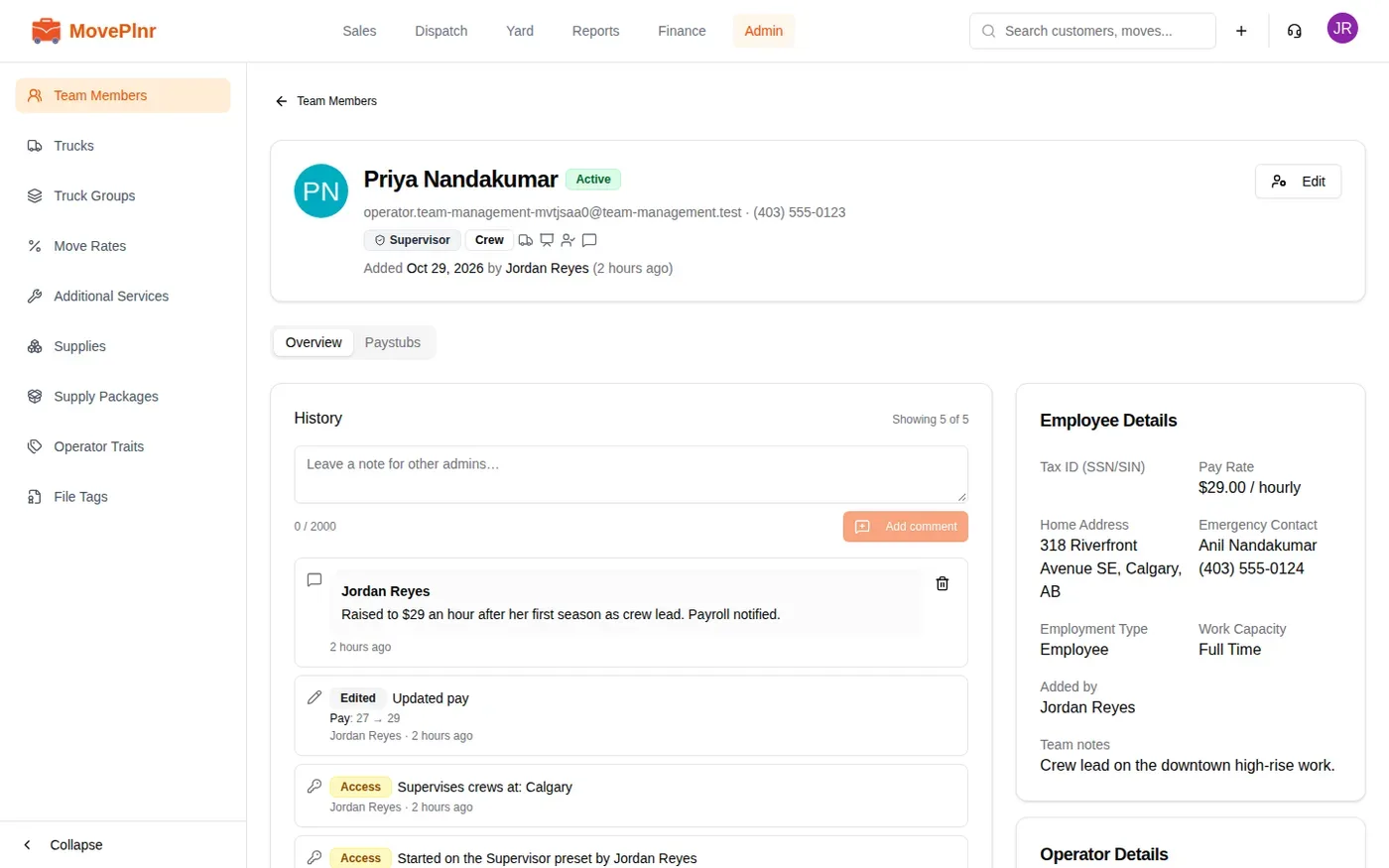
Every person has one page: their preset and duties, contact details, who added them and when, their employee and operator details, and their files. Click Edit to change anything on it.
Change what they can open
On their edit page, the card that sets their access is titled with their first name: What, the name, then can open. It holds the same three parts as the add form: the Preset, the Duties and the Locations grid.
- Pick a different Preset to change what they can open. Its duties come with it.
- Turn Duties on or off to change what work comes to them.
- In the Locations grid, each branch has a Duty column, which says where work is sent, and an Access column, which says where their preset applies. With no branch ticked under Access, they can open nothing there.
- Click Save access.
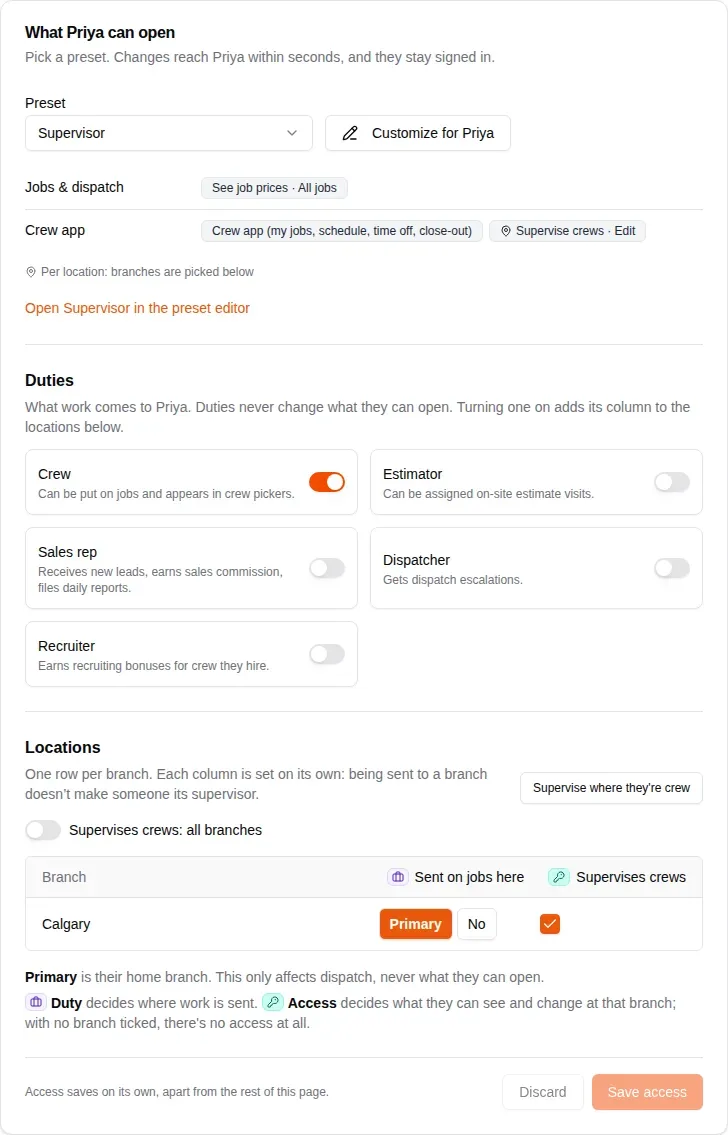
Access saves on its own, with Save access at the bottom of that card, apart from the rest of the page. The change reaches the person within seconds, and they stay signed in. Discard puts the card back as it was saved.
Customize access for one person
Only the owner sees this. The button beside the preset reads Customize for, then their first name. Click it and the person moves to a Custom set copied from their preset: every area of the app is listed with its own level, so you can give or take away one thing without changing the preset for everyone else on it. A blue line says the set is theirs alone, and that changes to the preset no longer reach them. A button named Back to and the preset’s name undoes it before you save.
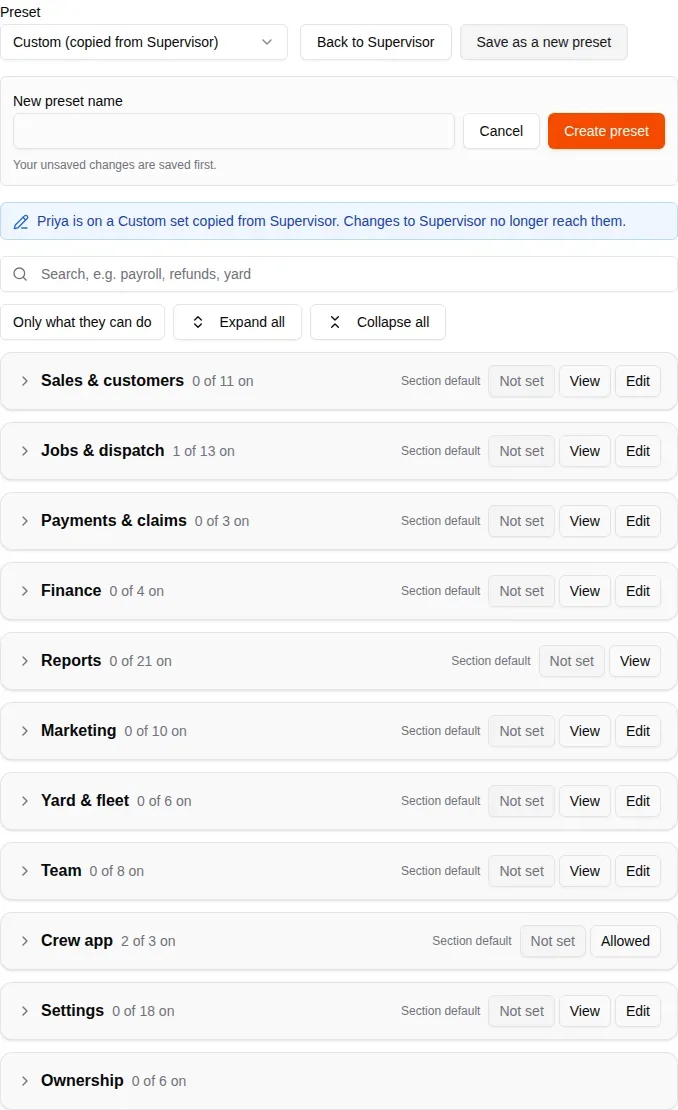
When the Custom set is something you will want again, click Save as a new preset, type a New preset name and click Create preset. Any unsaved changes are saved first, and the person moves onto the new preset. Building and editing presets for the whole company happens in Access presets, under Company Settings.
Test access
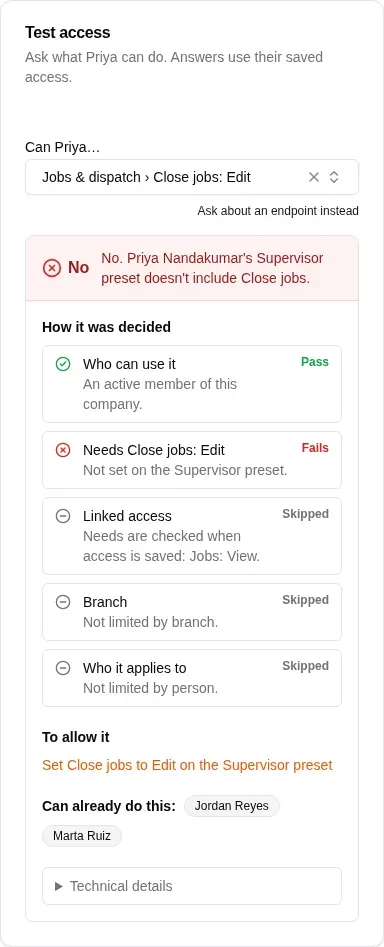
People who manage access see Test access beside the card on someone’s edit page. Pick something they might do and it answers yes or no, shows how it was decided step by step, says what would allow it, and names who can already do it. It reads their saved access, so save first when you have changes on the card.
When someone sees View only
When a person’s preset lets them see an area but not change it, and they try a change there, a message titled View only says they have view access to that area and that changes need edit access. That is the preset working as set. If they need to make the change, give them a preset with edit access to that area, or customize theirs.
History and files
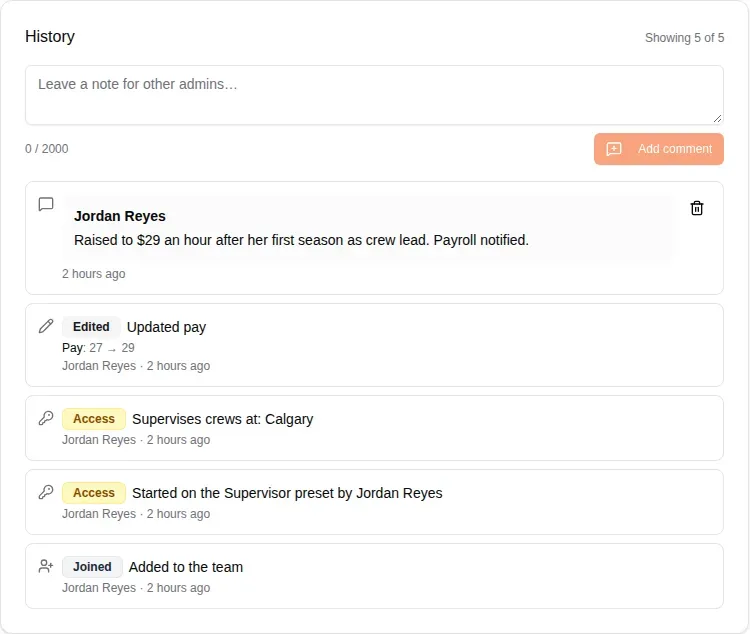
History records every change automatically. A pay change shows the old rate and the new one, an access change says what changed, and each entry carries who made it. The box at the top is for notes to other admins; the person never sees it. Type up to 2000 characters and click Add comment.
Licences, certificates and signed contracts go in Files: click Upload File and add a note saying what it is.
Stand-in movers
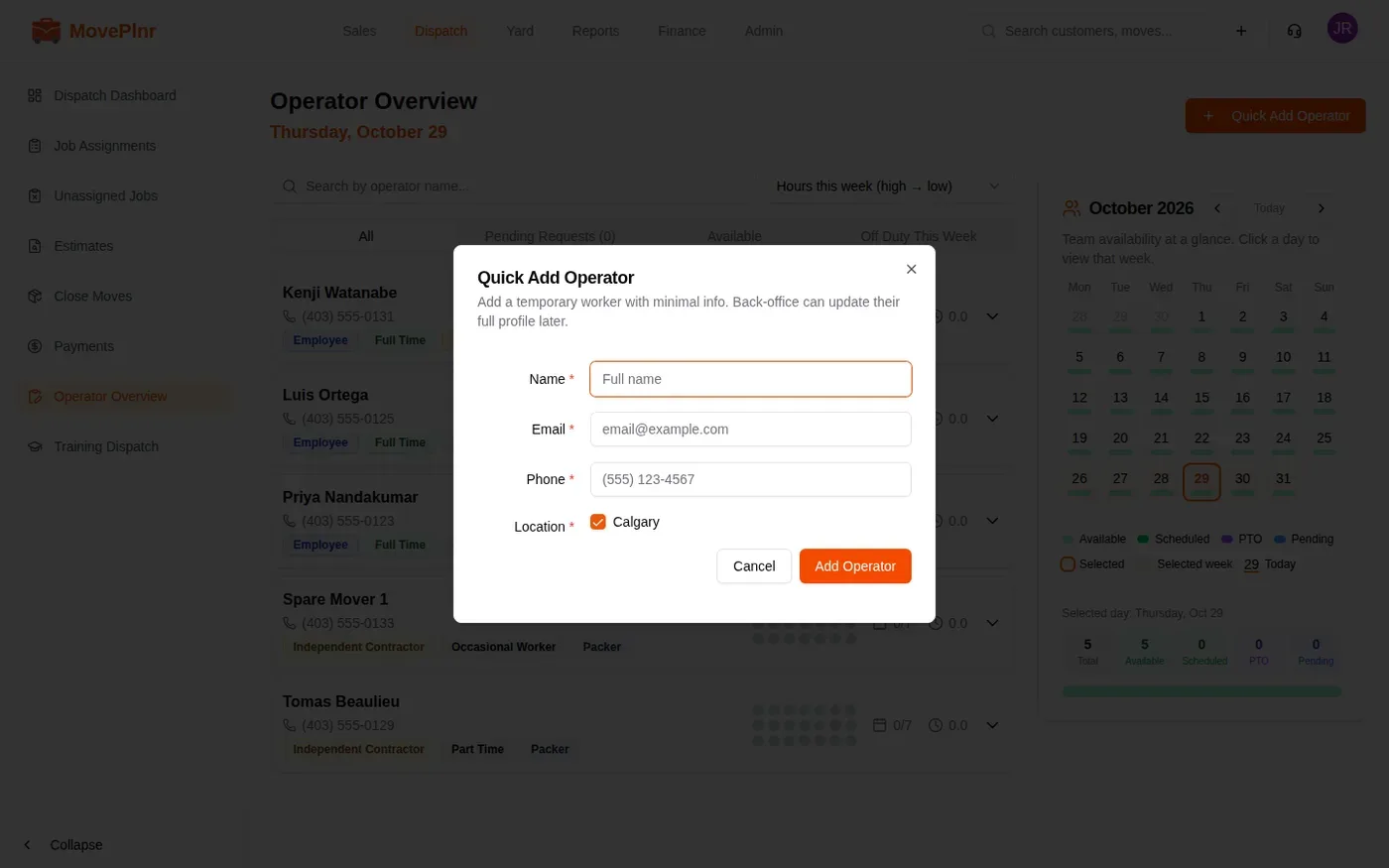
On a busy day, dispatch can add a temporary mover without the full form. Open Operator Overview under Dispatch and click Quick Add Operator. Name, email, phone and location are all it asks for; the office fills in the rest later.
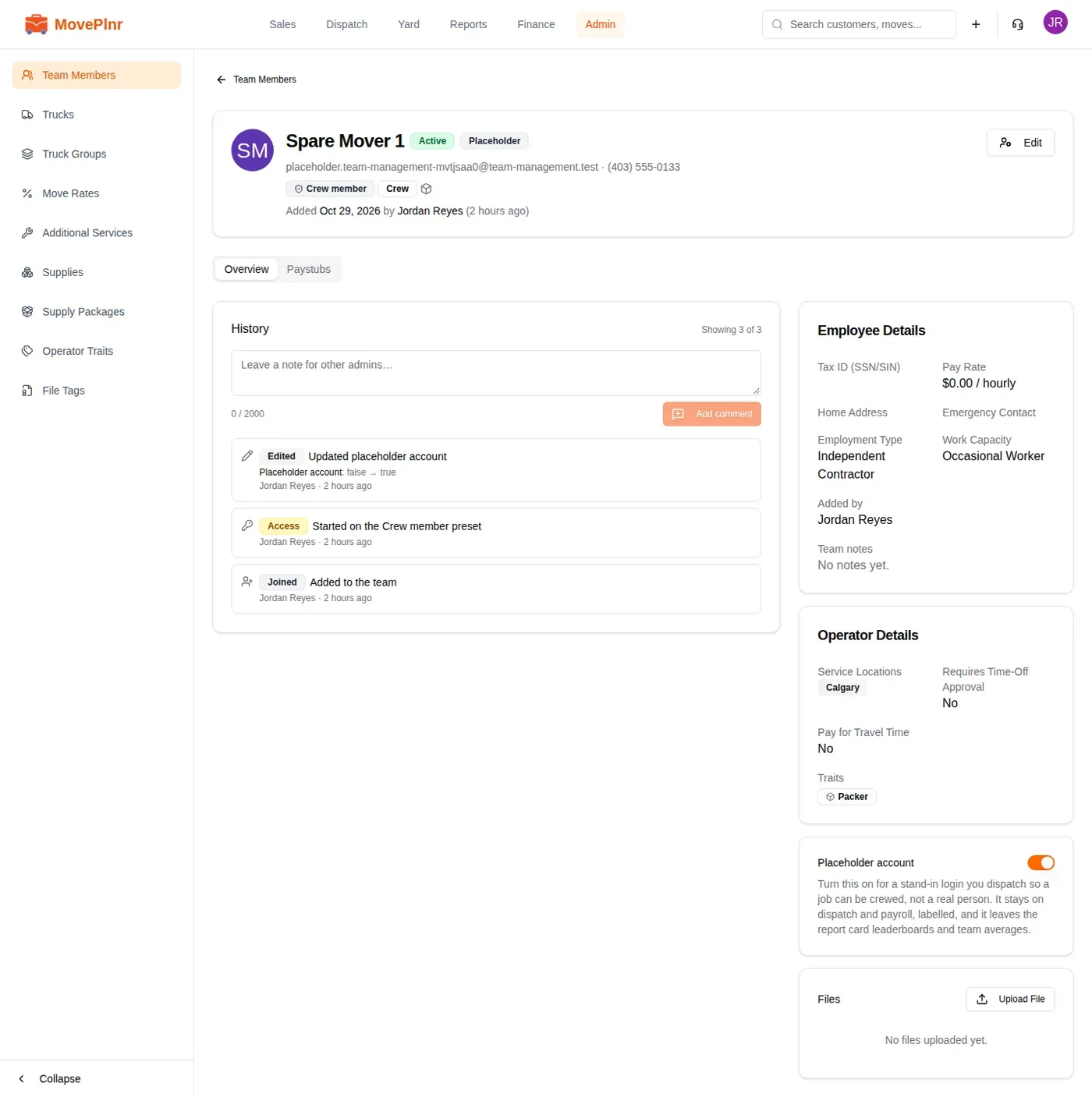
Some companies keep a few pool logins that dispatch crews jobs with, rather than real people. Open one of those and turn on Placeholder account. It stays on dispatch and payroll with a Placeholder label, and it leaves the report card leaderboards and team averages.
Book a training session
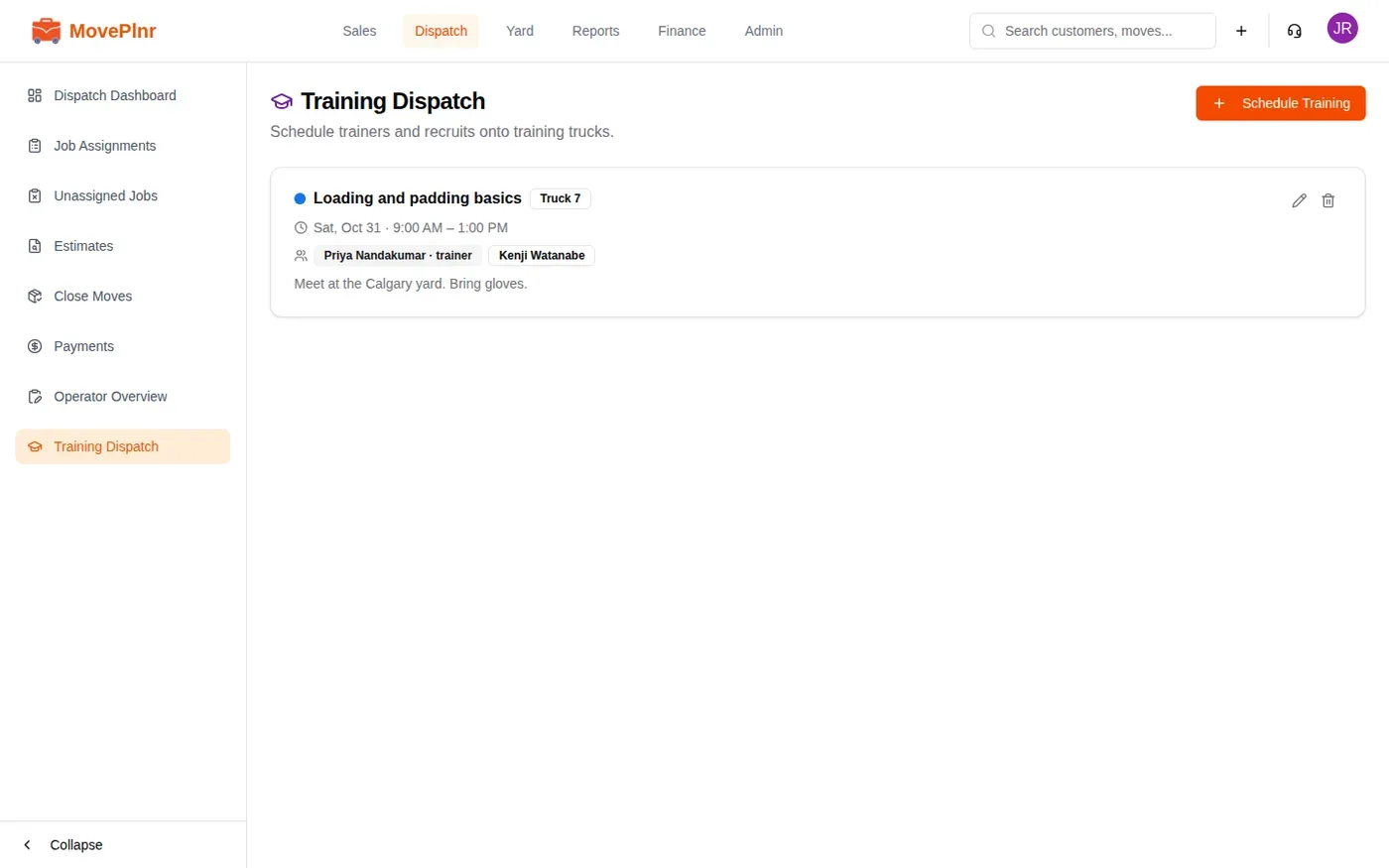
Training Dispatch puts trainers and recruits on a training truck. It needs at least one truck in a truck group marked as a training group.
- Open Training Dispatch and click Schedule Training.
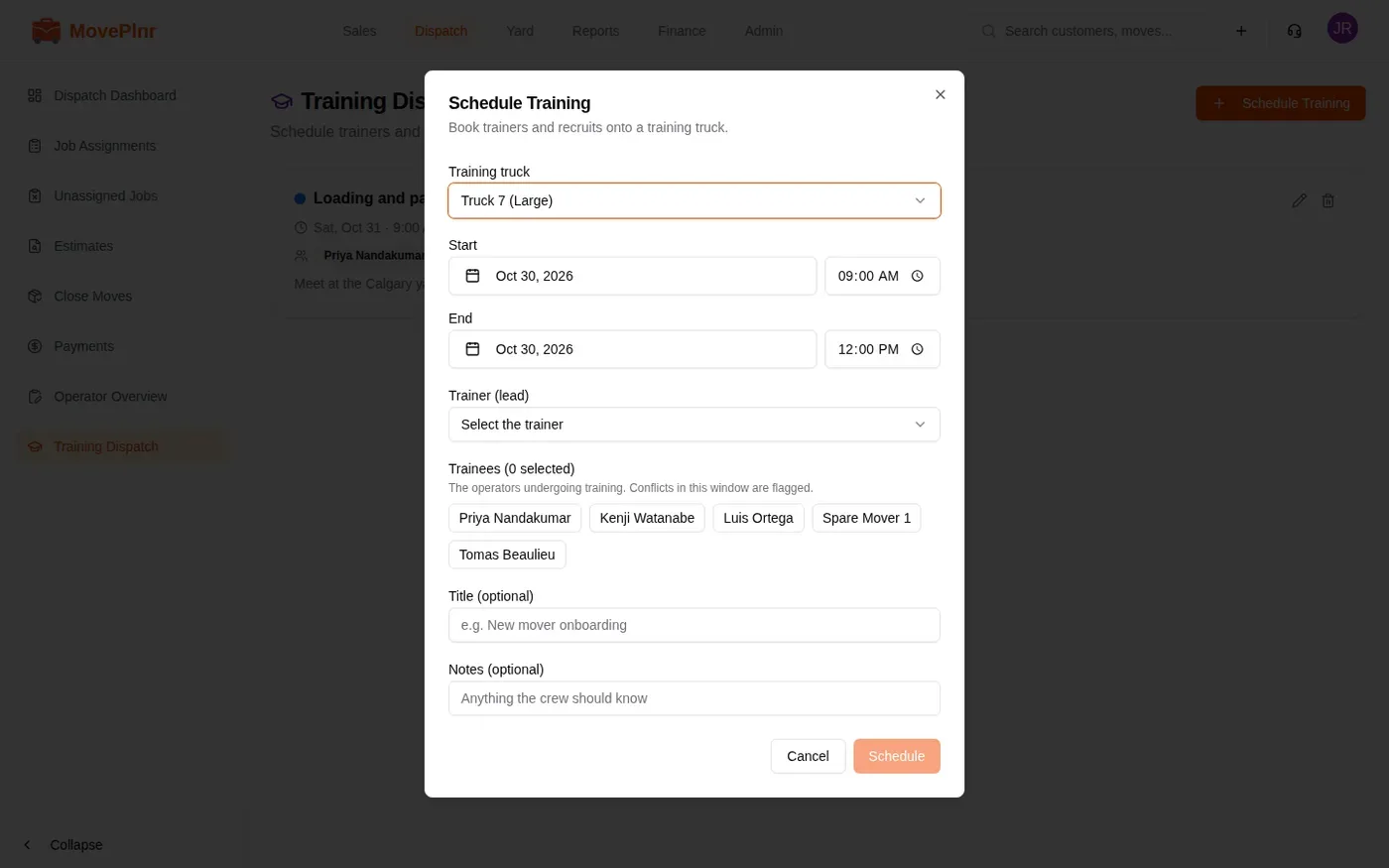
- Pick the Training truck, the start and end, and the Trainer (lead).
- Pick the trainees. Anyone already booked in that window is flagged.
- Add a title and notes if they help, then click Schedule.
What a recruiter sees
Give the person who hires your crew the Recruiter preset rather than Admin, and turn on the Recruiter duty so they earn recruiting bonuses for the crew they hire. They add crew, see the people they added, and change where those people are sent on jobs. Their menu has four pages: Team Members, Operator Traits, Training Dispatch and Process Payroll. They never see your customers or your revenue.
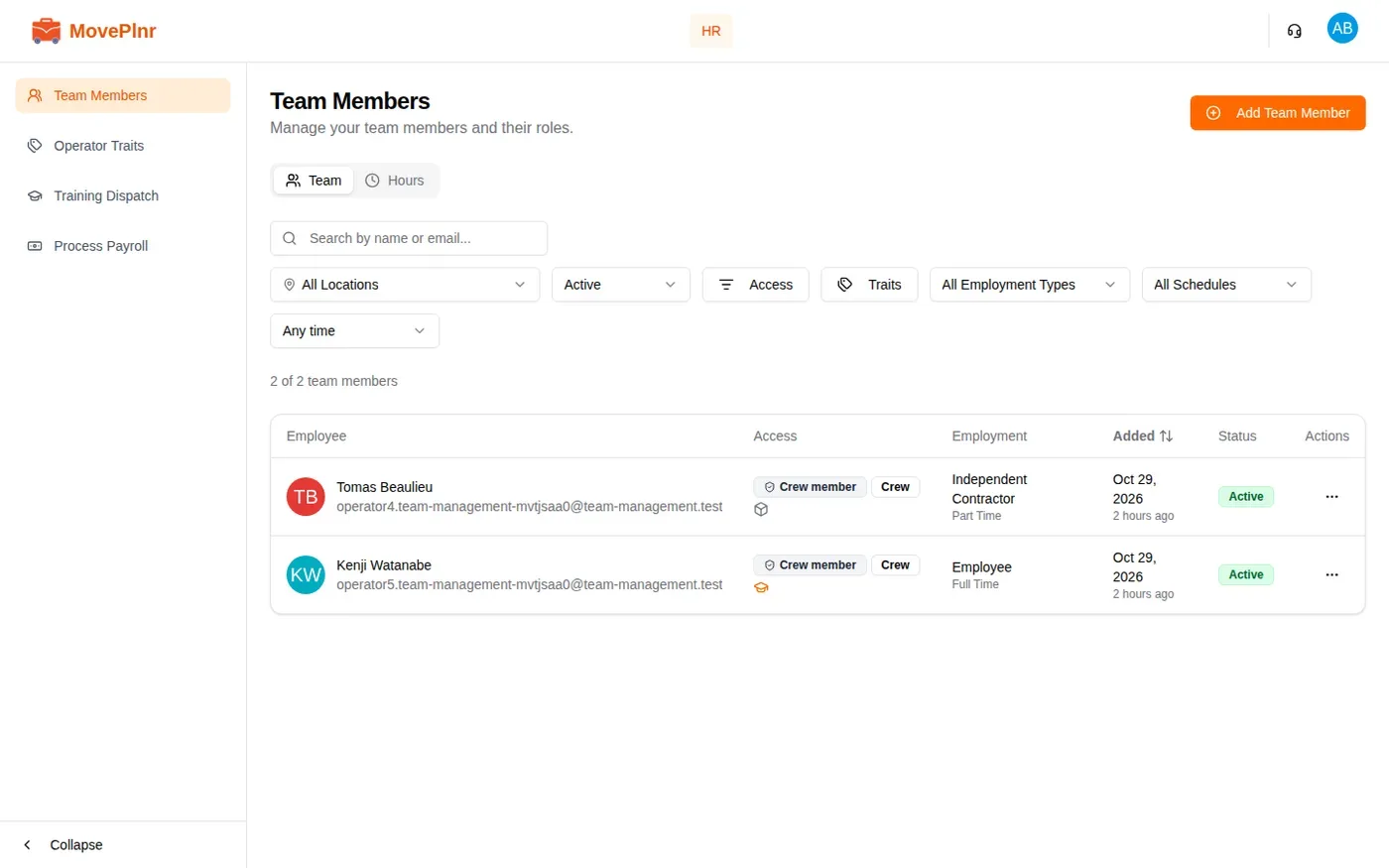
When a recruiter adds someone, the preset they can give is Crew member, and the blue box tells them the owner manages presets.
Choose what crews see about rates
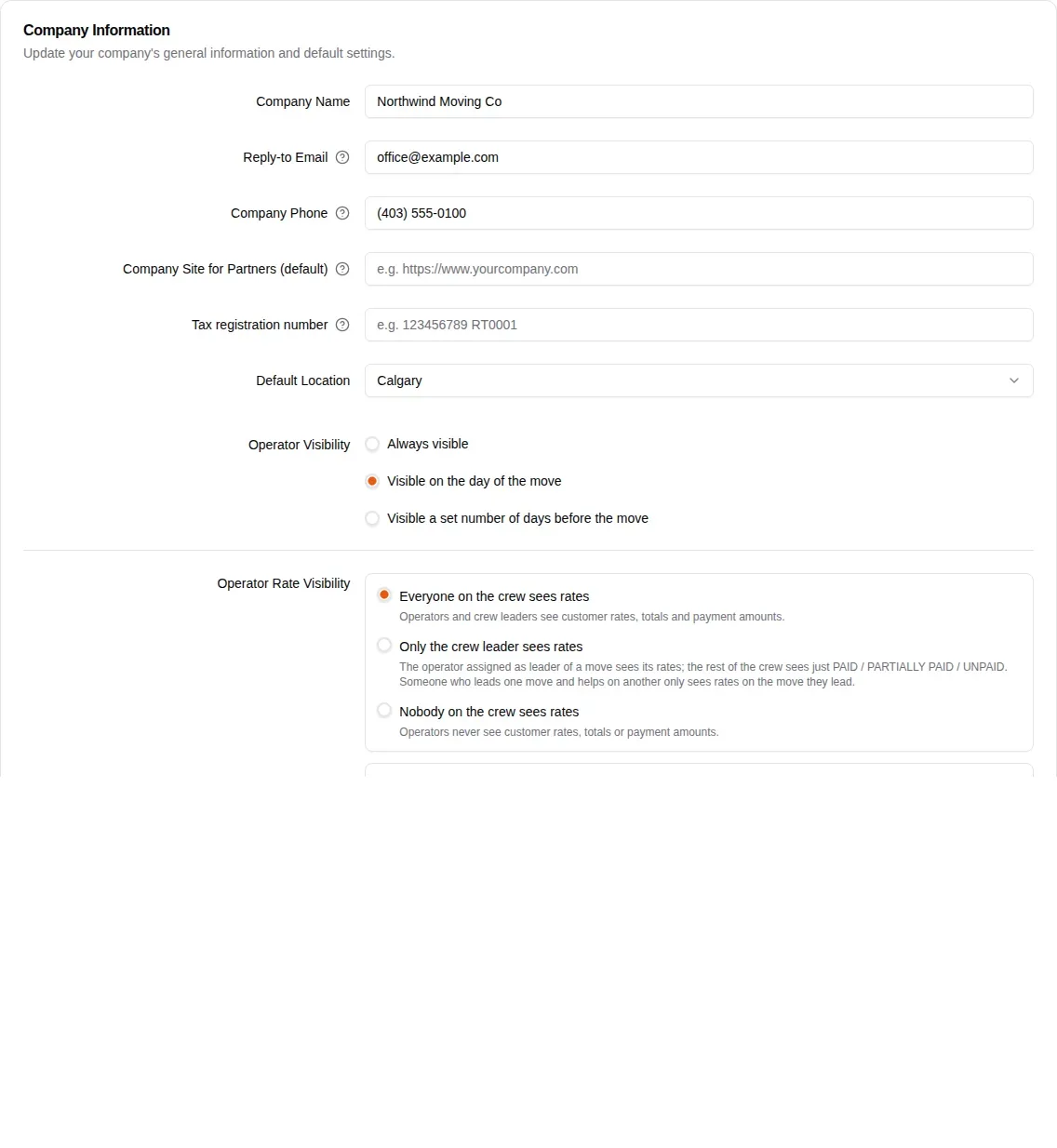
Open Other Settings in your company settings. Under Operator Rate Visibility, choose one:
- Everyone on the crew sees rates: movers and crew leads see customer rates, totals and payment amounts.
- Only the crew leader sees rates: the lead on a move sees its rates; the rest of the crew sees only whether it is paid.
- Nobody on the crew sees rates: movers never see customer rates, totals or payment amounts.
Hide rates from supervisors applies the same rule to supervisors. Click Update Company Settings to save.
When someone leaves
Open their row menu and choose Deactivate User. The dialog says what happens before you commit: they are signed out of every device straight away, they lose access, and they come off any future jobs for dispatch to cover. It also tells you how many future jobs that is.
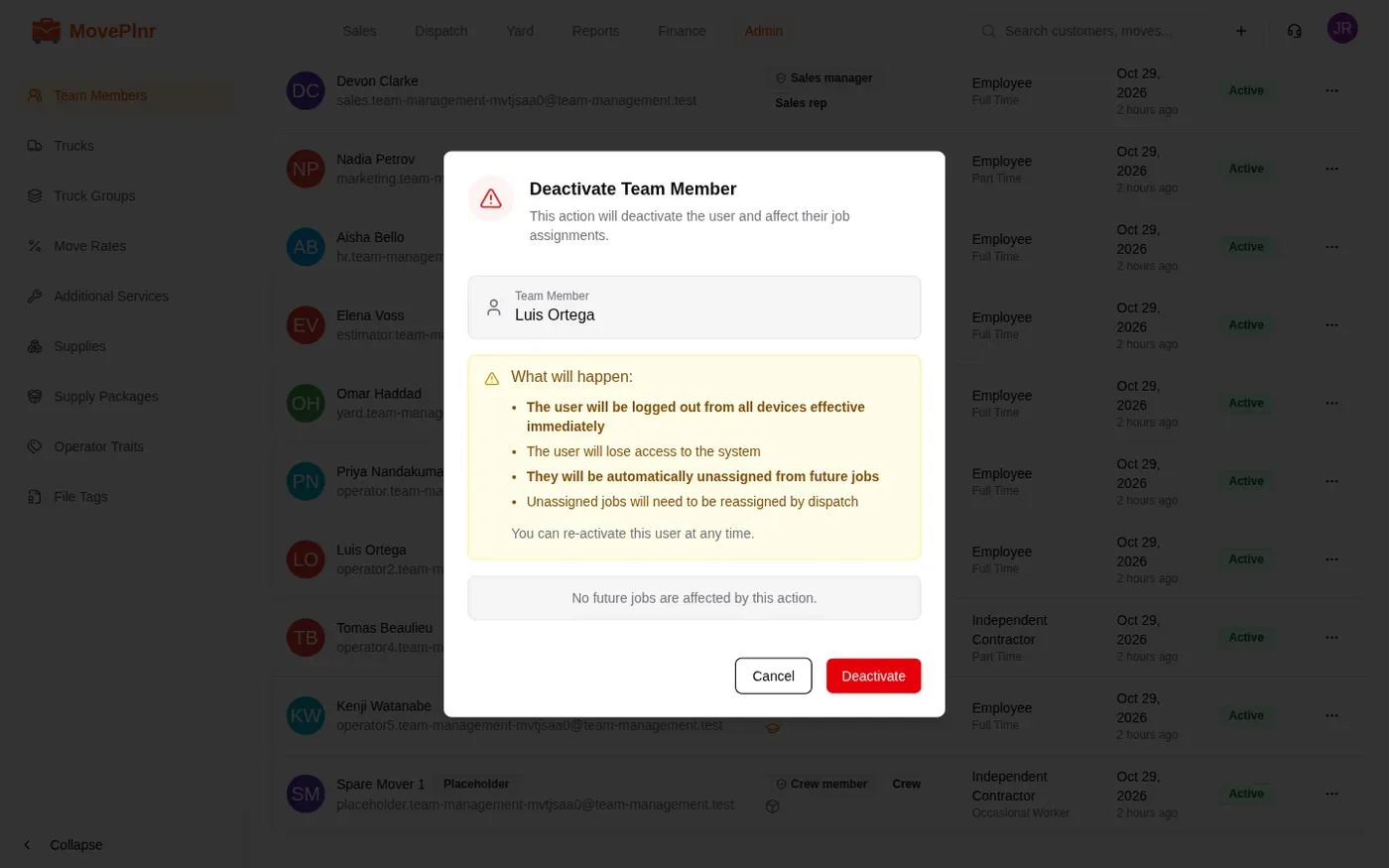
Nothing is deleted. Their record and history stay where they were, and you can re-activate them from the same menu at any time.
Signing in with a code
Two-factor sign-in comes from the preset. A preset that opens office work asks for a verification code on a new sign-in, sent by email or by text, and the code lasts 10 minutes. Crew presets sign in without one. If someone gets no text, check that their phone number is on their page.