
Your stages
Open Admin in the top menu, then Move Stages in the side menu. The list runs top to bottom in the order a job moves through it. Each row shows the stage name and, under it, the button your crew taps in the move chat to enter that stage.
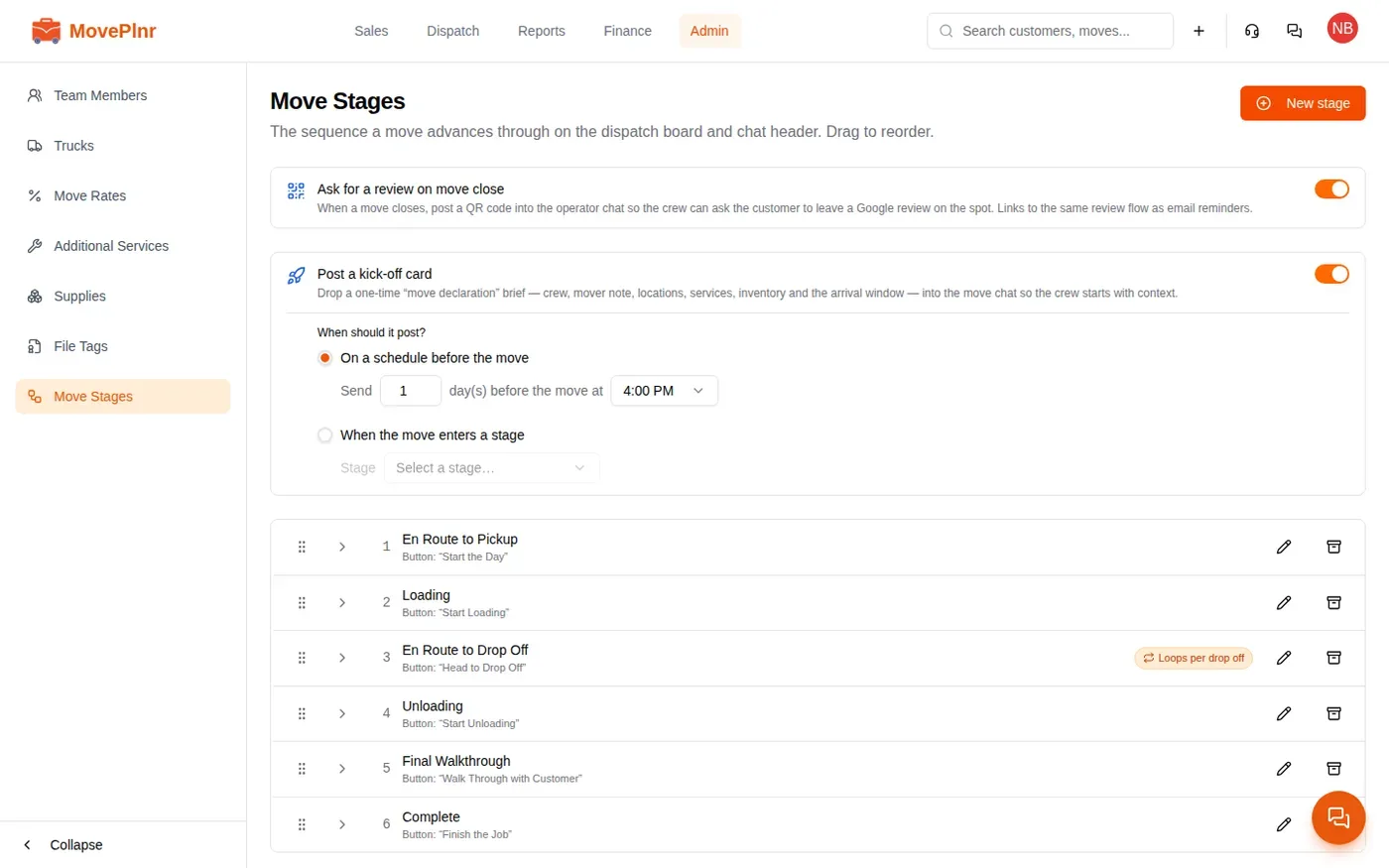
The first time you open the page, Seed default stages fills in five to start from: En Route to Pickup, Loading, En Route to Drop Off, Unloading and Complete. Rename them, add your own and put them in the order your crews actually work.
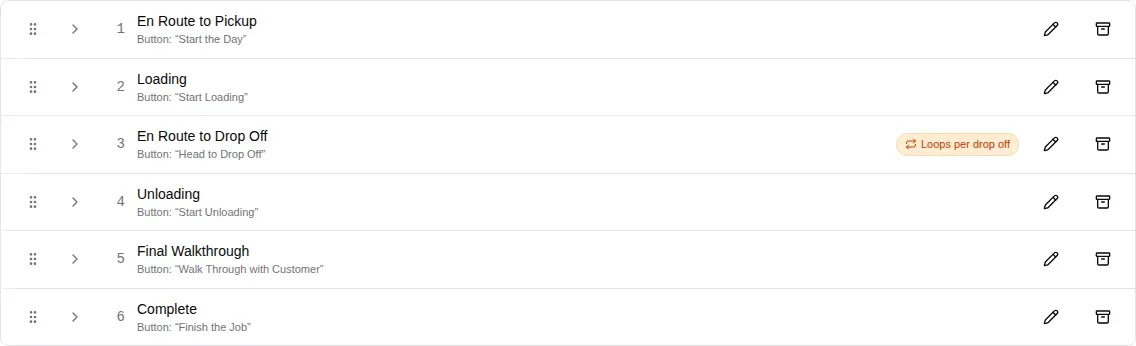
Add, reorder and archive
- Click New stage, top right. Give it a name and a button label, then click Save. A new stage lands at the bottom of the list.
- Drag the handle on the left of a row to move a stage up or down. The order saves as soon as you drop it.
- Click the archive icon at the end of a row to retire a stage. Jobs already using it keep working; new jobs don’t get it.
Each job keeps the list of stages it had when it was booked. A change you make today applies to the jobs booked after it.
Edit a stage
Click the pencil on a row to open Edit stage.
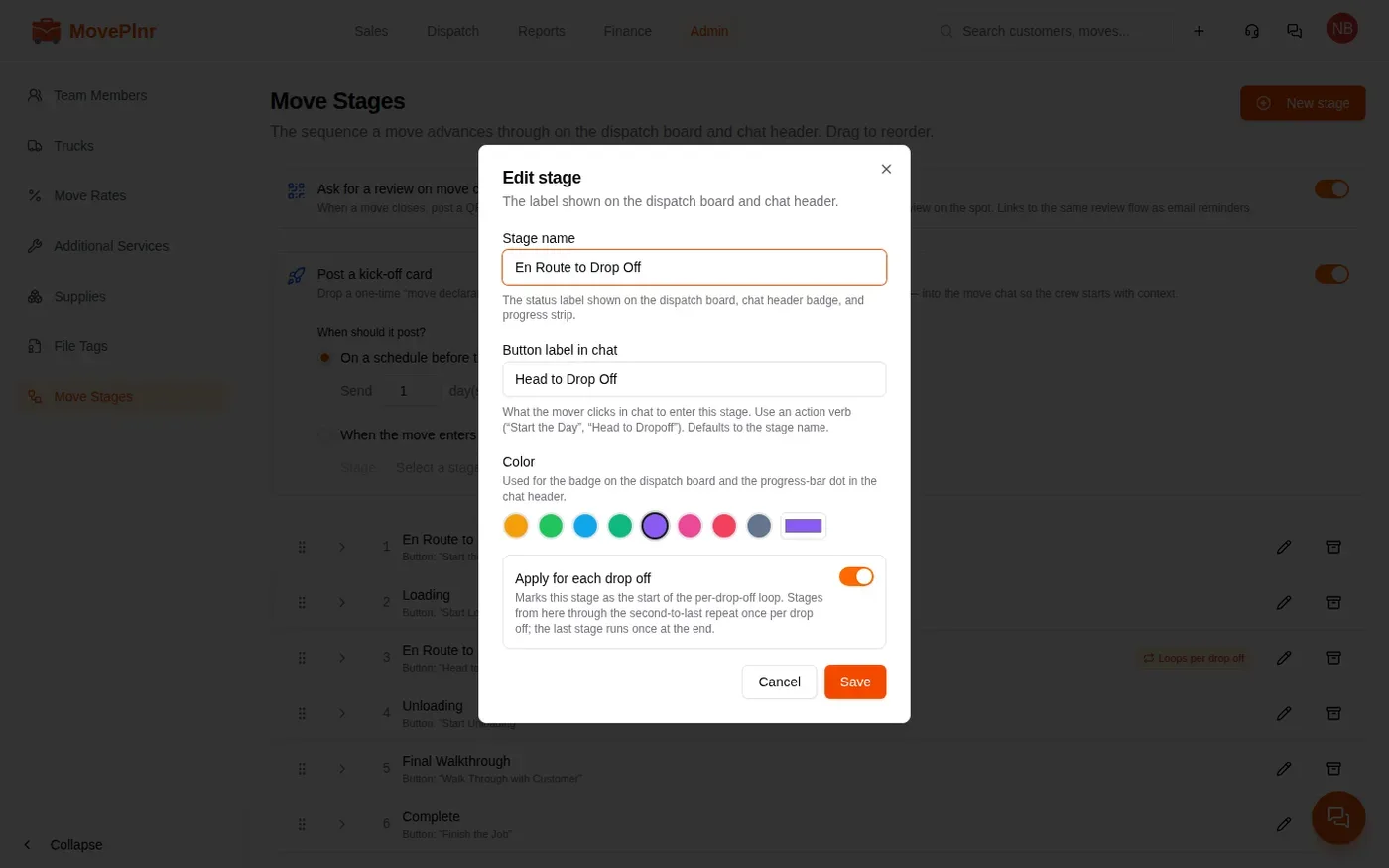
- Stage name is the label on the dispatch board, in the chat header and on the progress strip.
- Button label in chat is what the mover taps to enter the stage. Use an action, like Start the Day or Head to Drop Off. Until you change it, it matches the stage name.
- Color marks the stage on the dispatch board and in the chat header.
- Apply for each drop off starts a loop for jobs with more than one stop. The stages from this one through the second to last repeat once per drop off, and the last stage runs once at the end. Only one stage carries it at a time, and the list marks it Loops per drop off.
Add steps to a stage
A step posts a card into the move chat when a job enters the stage, so the crew does the right thing at the right moment. Open the arrow beside a stage to see its steps.
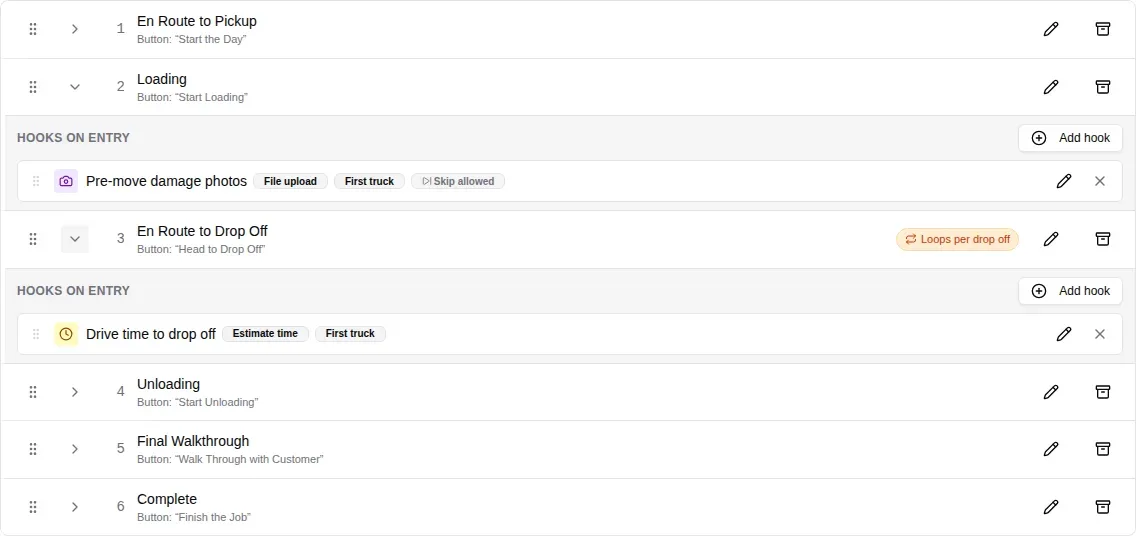
- Open the arrow beside the stage and click Add hook.
- Pick the kind of step, give it a name and choose when it fires: when the first truck on the job enters the stage, or the last.
- Write the prompt the crew reads on the card, then click Create.
A stage can hold several steps. Drag them by their handle into the order the crew should see them. The pencil edits a step, and the cross takes it off this stage.
There are four kinds of step:
| Step | What the crew gets |
|---|---|
| Call customer | A card with the number and Call and Text buttons. You choose who to call: the job’s customer, the contact saved on the pickup, or the contact saved on the current drop off. |
| File upload + notes | A card to attach photos or files and add a note. |
| Estimate time remaining | A card asking how many minutes they need, which dispatch alerts can watch. |
| Waiver signature | A waiver for the customer to sign, chosen per location. It needs the Customer Waivers add-on and at least one waiver template. |
Let the crew skip a photo step
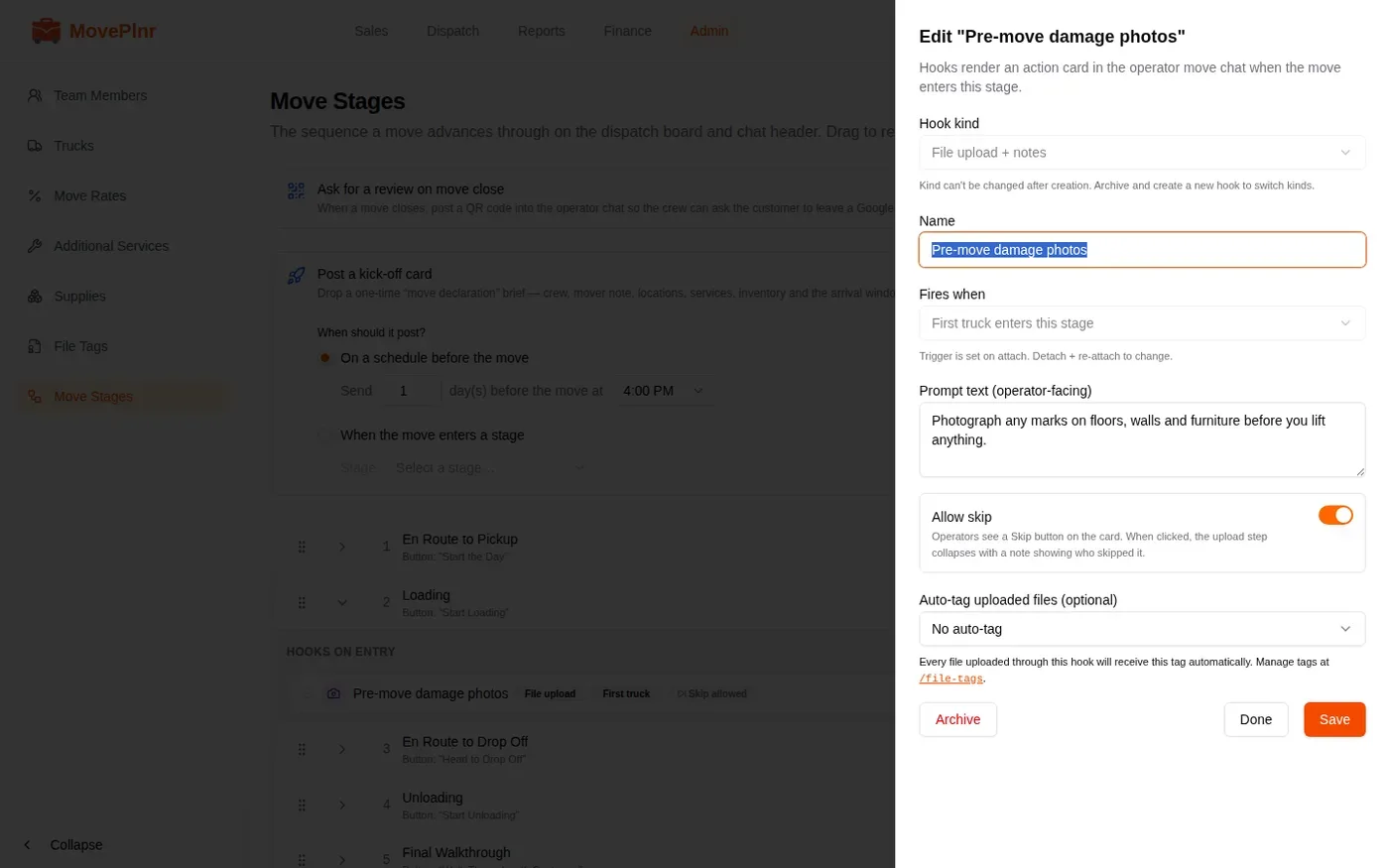
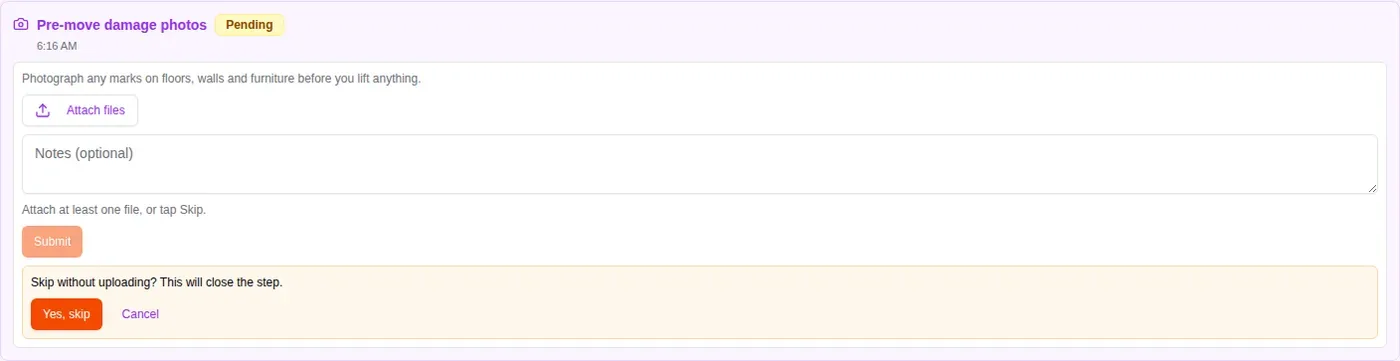
Turn on Allow skip on a File upload + notes step and its card gets a Skip button, for the day the photos really cannot be taken. The chat records who skipped it, and the list marks the step Skip allowed. To file every upload under a tag, pick one under Auto-tag uploaded files (optional).
Alerts on a time estimate
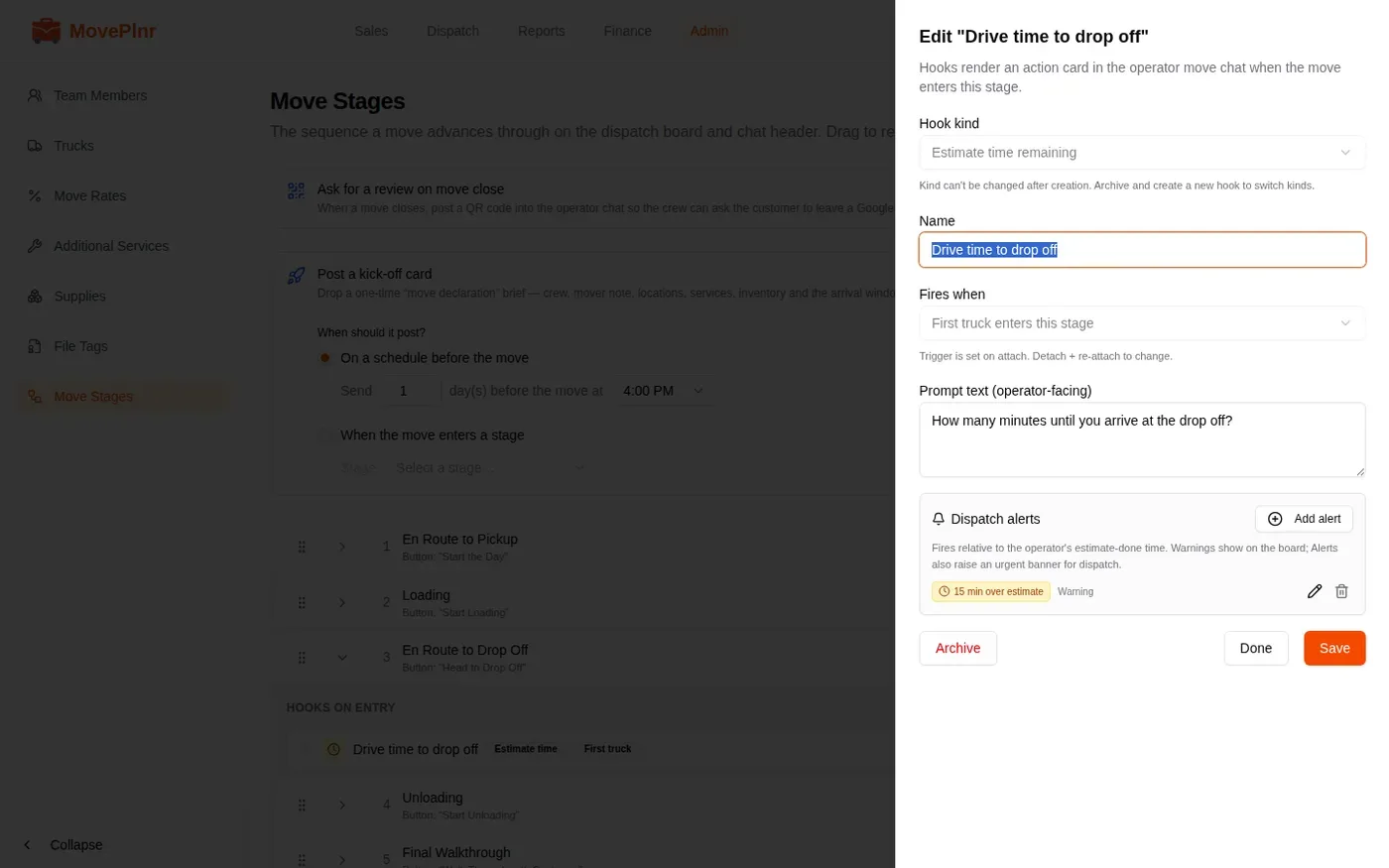
An Estimate time remaining step asks the crew how long they need. Once you create it, the panel stays open so you can add Dispatch alerts: a warning before or after the estimate, in minutes or as a percentage. Warnings show on the dispatch board; an Alert also raises an urgent banner for dispatch.
The kick-off card and the review code
Two company settings sit at the top of the page.
- Ask for a review on move close posts a review QR code into the move chat when the job closes, so the crew can ask the customer on the spot. It needs the Review Collection add-on.
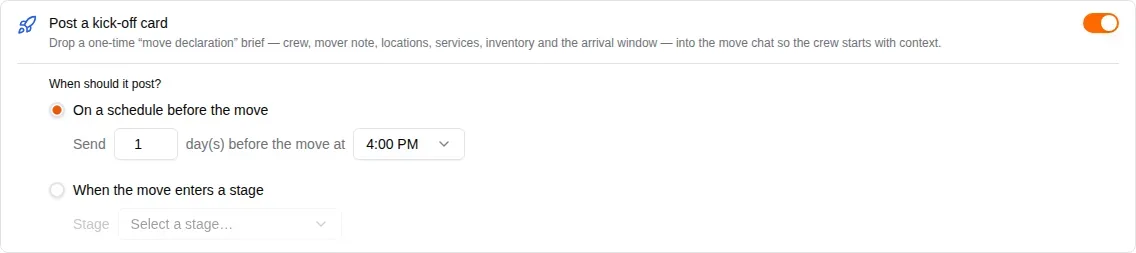
- Post a kick-off card drops a brief into the move chat so the crew starts with context: the crew, the mover note, the locations, the services, the inventory and the arrival window. Choose On a schedule before the move or When the move enters a stage.
Custom timers
Under the list, Custom timers measure a stretch of the job between two stages, such as the time the customer pays for from the start of Loading until Unloading is done. Click Add timer, name it and pick the two stages. Every move then shows how long that stretch took.

What the crew sees
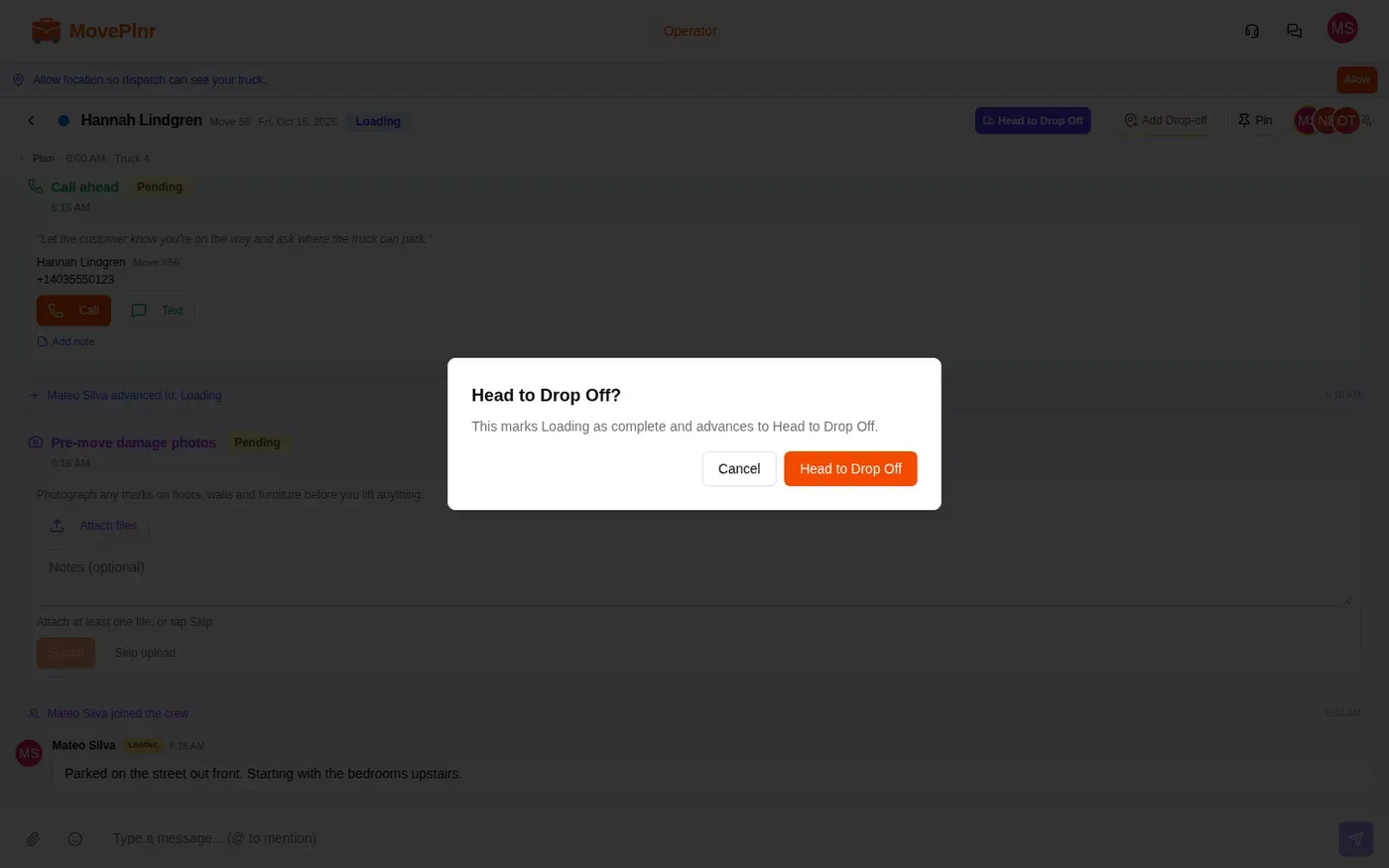
In the move chat, the header shows the stage the job is in and a button for the next stage, with the label you set. The steps for each stage post as cards in the chat as the job enters it.
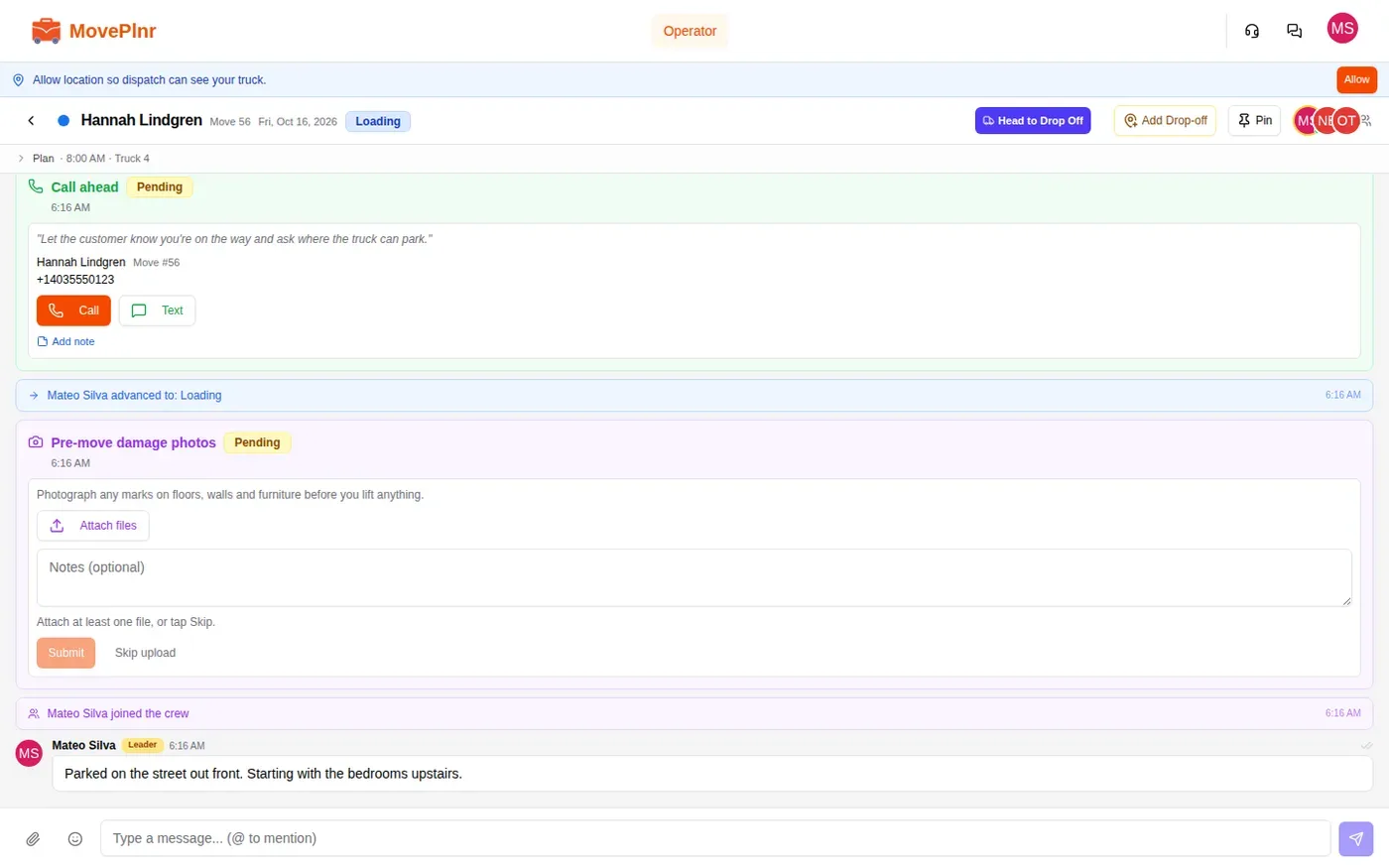
- When the crew finishes a stage, they tap the button in the header, here Head to Drop Off.
- MovePlnr asks first. They confirm, the job moves on, the chat logs it and the dispatch board updates.
- On a photo step, they attach files, add a note if they want and submit. If you allowed it, Skip upload closes the step instead, after they confirm.
Anyone on the crew can move a job to its next stage. Dispatch can move it from the dispatch board too.