
Your truck groups
Open Admin in the top menu and choose Truck Groups. Each card is one group, listed in priority order. The first card carries a green note: its trucks appear first in dispatch and sales. Below the groups, Ungrouped Trucks lists every active truck that is not in a group yet.
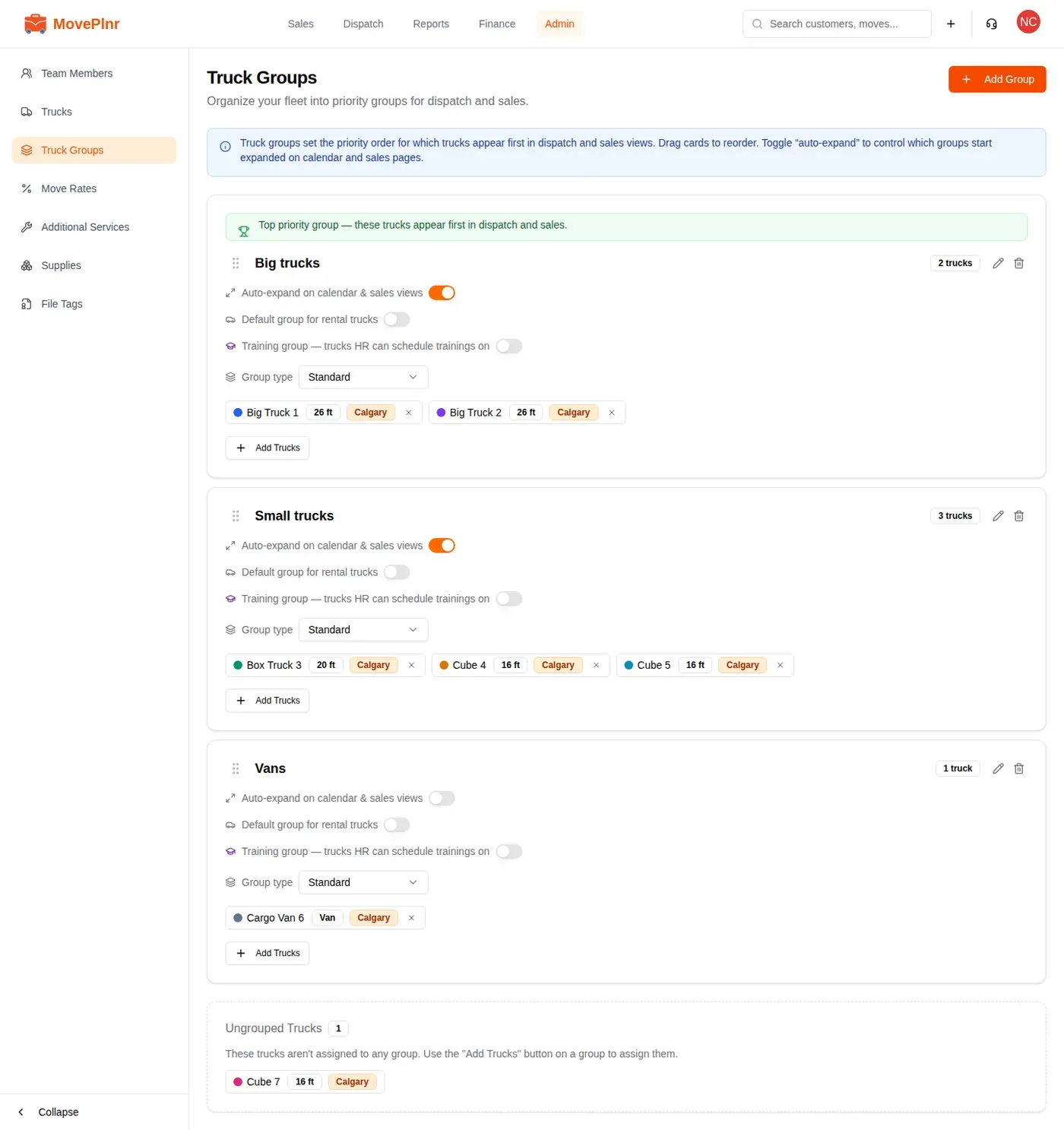
Each truck chip shows the truck’s colour, its capacity and the locations it serves.
Change the order
Drag a card by the dots to the left of its name and drop it where it belongs. The new order applies everywhere trucks are listed by group, and the top card gets the green note.
Add a group
- Click Add Group, top right.
- Type a name, such as Long distance or Weekend trucks.
- Press Enter or click the check mark. Press Escape to cancel.
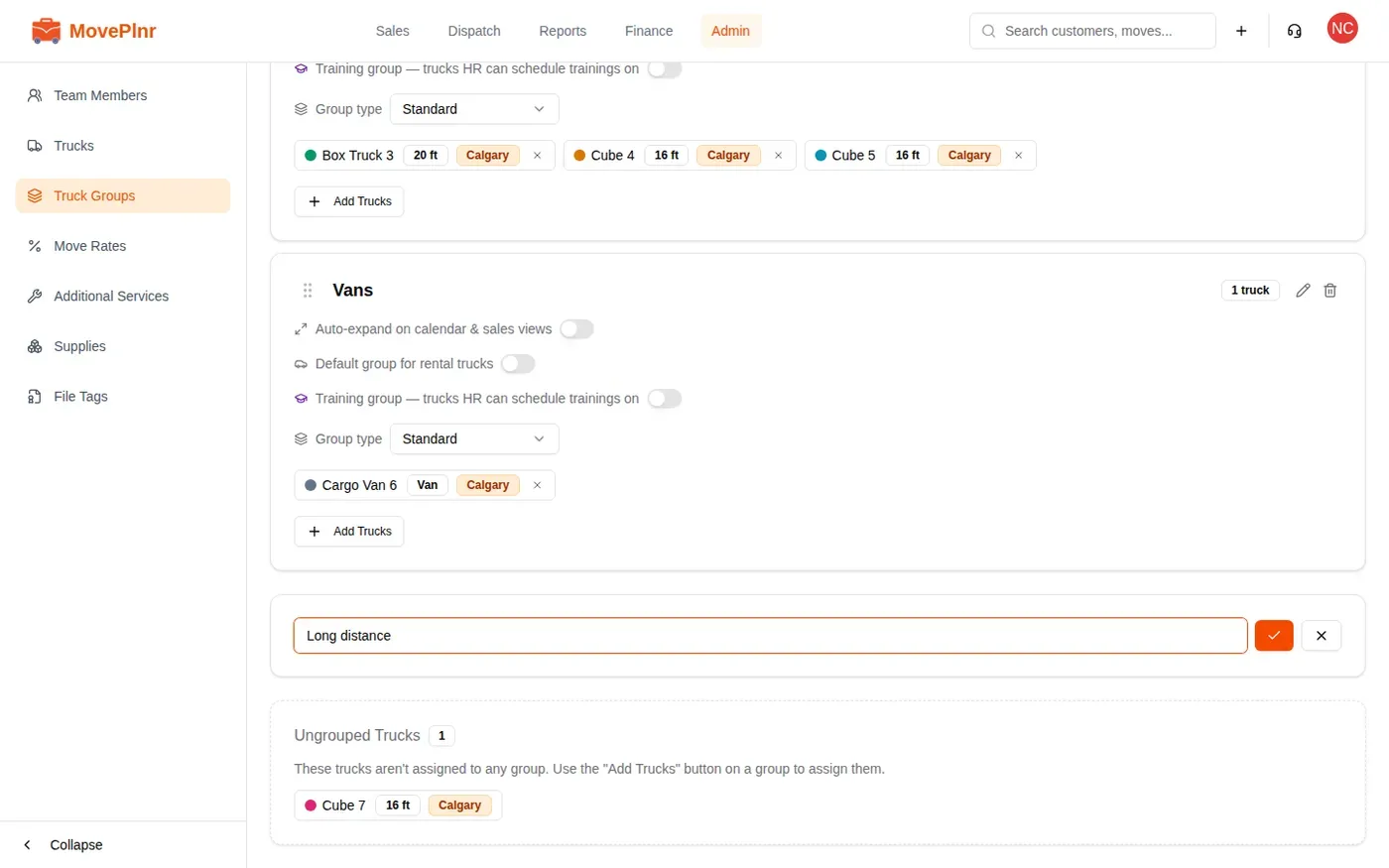
The new group starts empty, at the bottom of the list. To rename a group, click the pencil beside its name. To delete one, click the bin; its trucks move to Ungrouped Trucks, and nothing else about them changes.
Put trucks in a group
Click Add Trucks on the group’s card. The list shows every active truck that is not already in this group. Type in the search box to find one, then click it to add it.
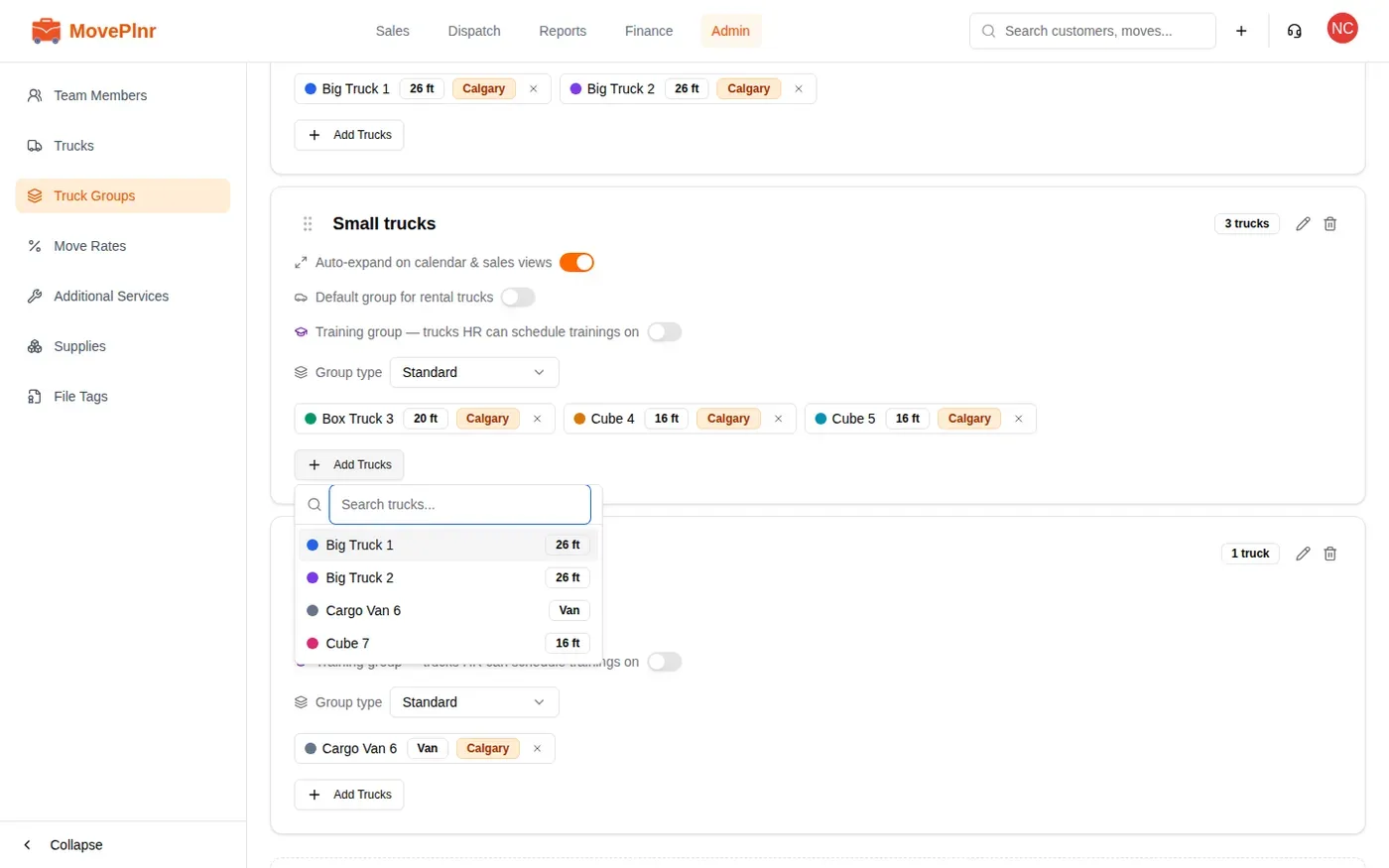
A truck belongs to one group at a time, so picking a truck from another group moves it. To take a truck out, click the small × on its chip. When your trucks serve more than one location, the list also shows a button for each location, so you can see one branch’s trucks at a time.
You can also set a truck’s group from its own form: open Trucks, choose Edit from the truck’s menu, and pick the group.
The switches on each group
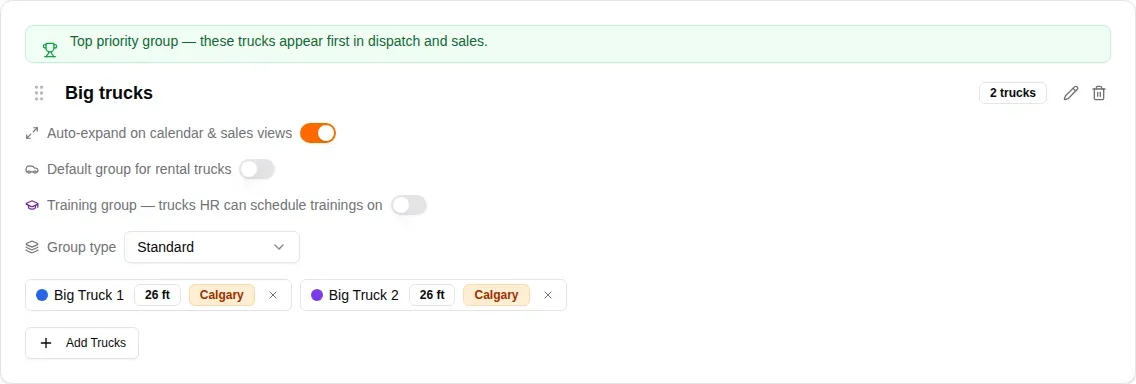
- Auto-expand on calendar & sales views: the group starts open on Job Assignments and the Sales Dashboard. Turn it off for groups you rarely book, such as a spare van. A collapsed group still opens by itself on a day or week it has work, so a job is never hidden.
- Default group for rental trucks: new short-term rental trucks land in this group. Only one group can hold this switch; turning it on here turns it off on the others. With it off everywhere, rentals start ungrouped.
- The training group switch appears when your company has the HR add-on. Trucks in a training group are the ones HR can book training sessions on in Training Dispatch.
- Group type: leave it on Standard. The other type adds a currency window, a number of days within which an operator must have worked that group’s vehicles.
How groups show up for dispatch
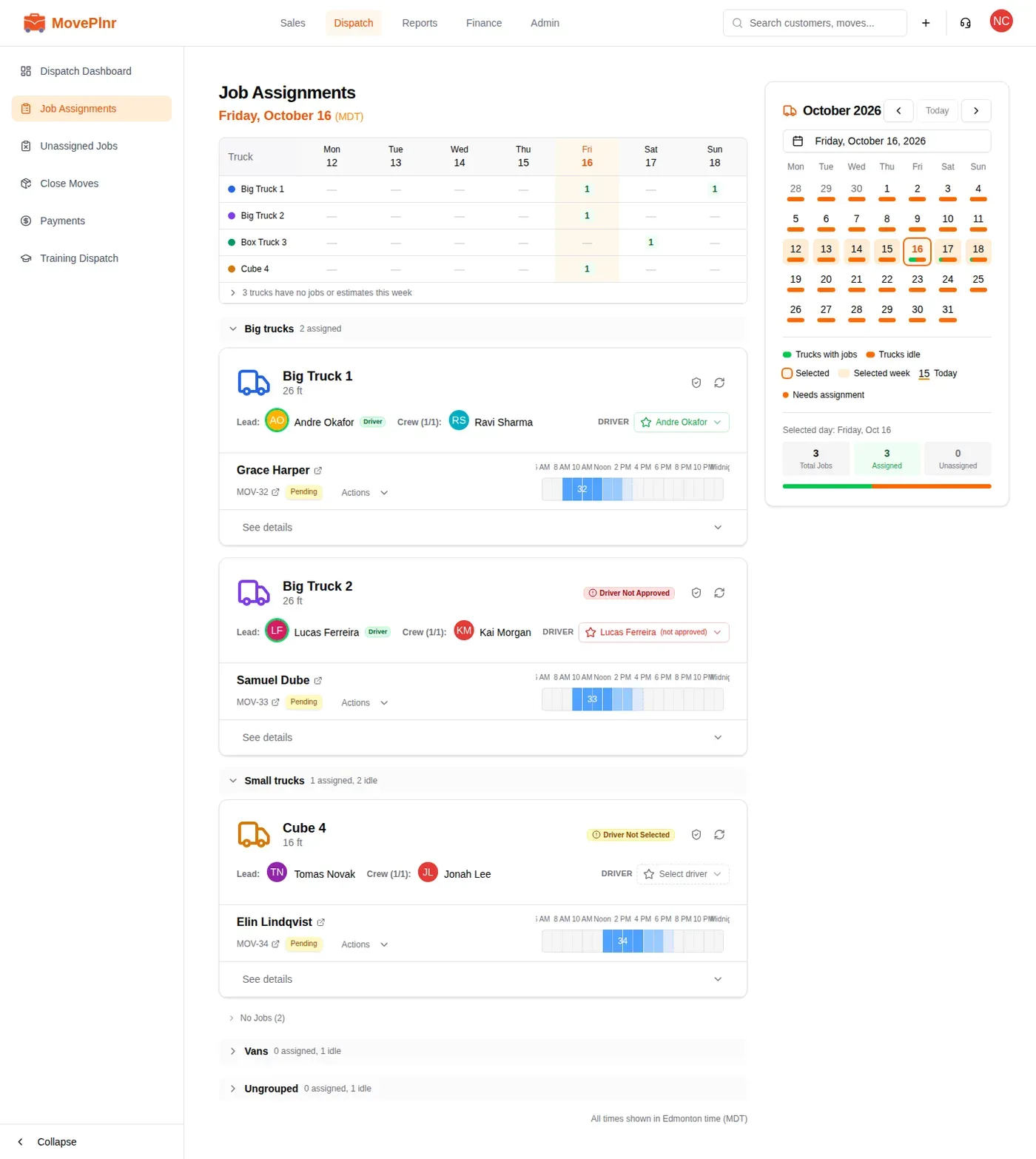
On Job Assignments, trucks are listed under their group’s name, in your priority order. The line beside each name counts the trucks with jobs and the idle ones. Click a group’s name to fold it away or open it again. Trucks with no group sit at the end under Ungrouped.
How groups show up for sales
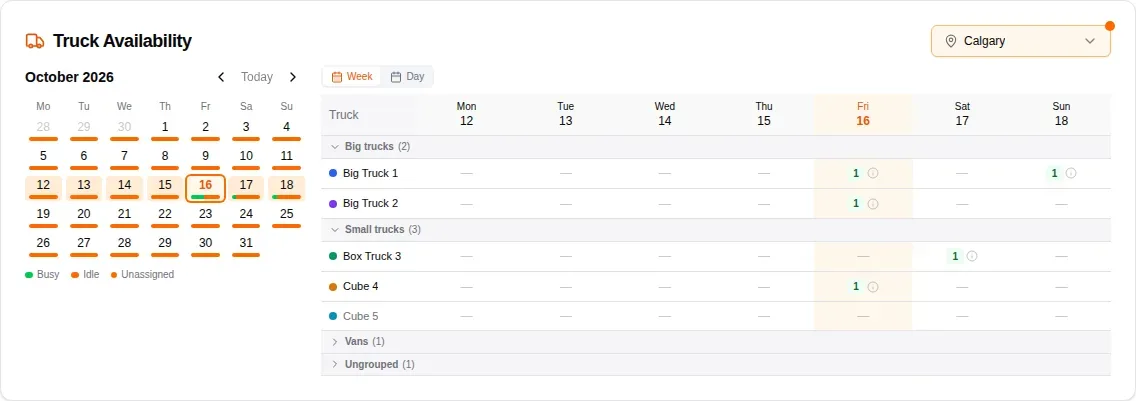
The Truck Availability card on the Sales Dashboard follows the same groups and the same order. In the week view, each row is a truck and each day shows how many jobs it has. A group with auto-expand off starts folded unless it has work that week.
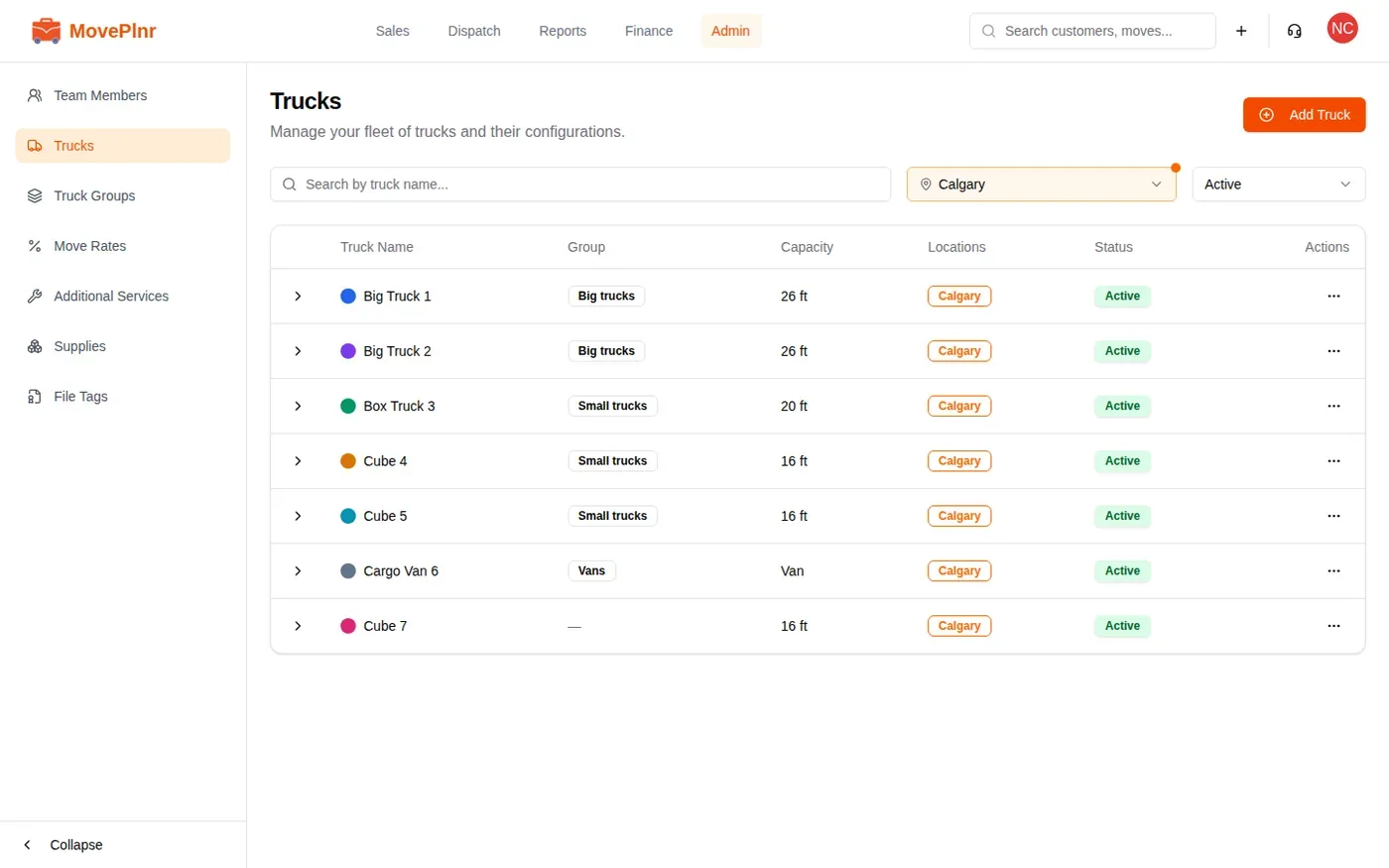
The truck list on the Trucks page shows each truck’s group in the Group column.
Approve drivers for each truck
With the Manage Truck Drivers add-on, you can say who may drive each truck. Dispatch then picks a driver for every truck on every job, and MovePlnr flags anyone who is not on that truck’s list.
- Open Trucks and click the arrow at the start of the truck’s row.
- In Approved Operators, click Manage.
- Click each mover who may drive this truck. Each one you pick shows Approved.
- Click Save.
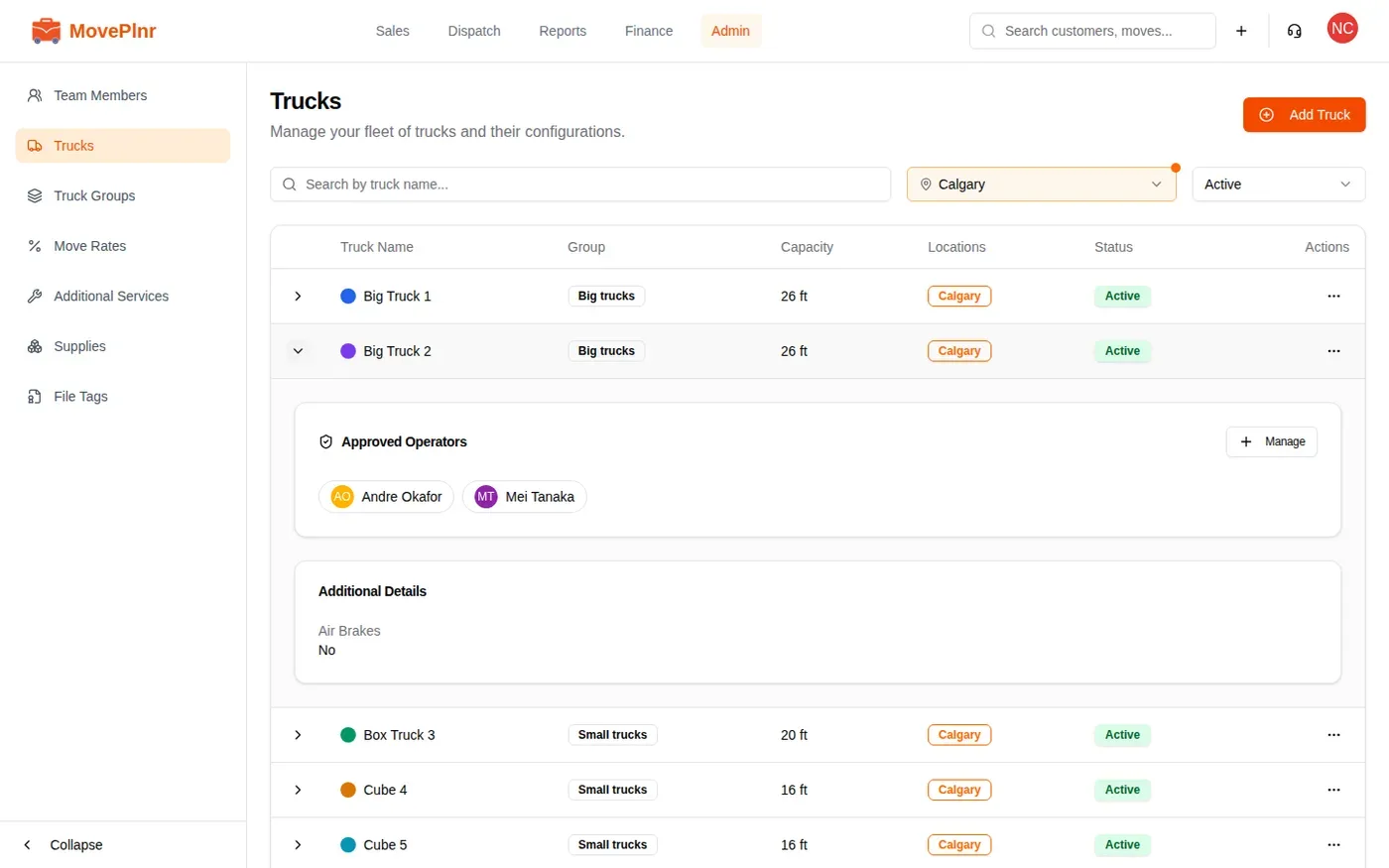
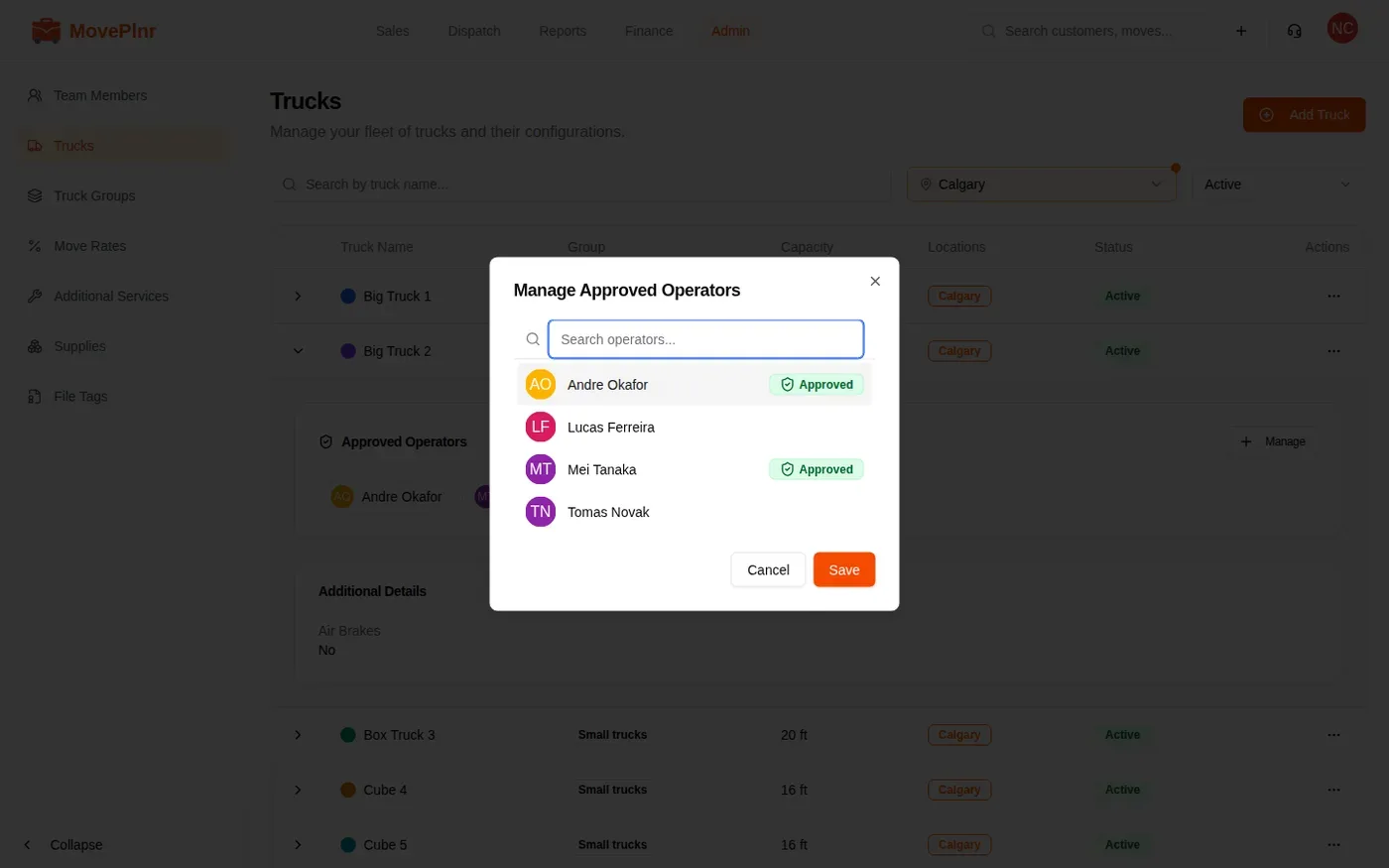
The list shows the movers at your location who have the Driver trait on their team member page. A truck with nobody approved can be driven by any operator.
Picking the driver on Job Assignments
Every truck on a job has a driver picker beside its crew. It lists the lead and the movers on that truck. Anyone who is not approved for the truck is marked Not approved.
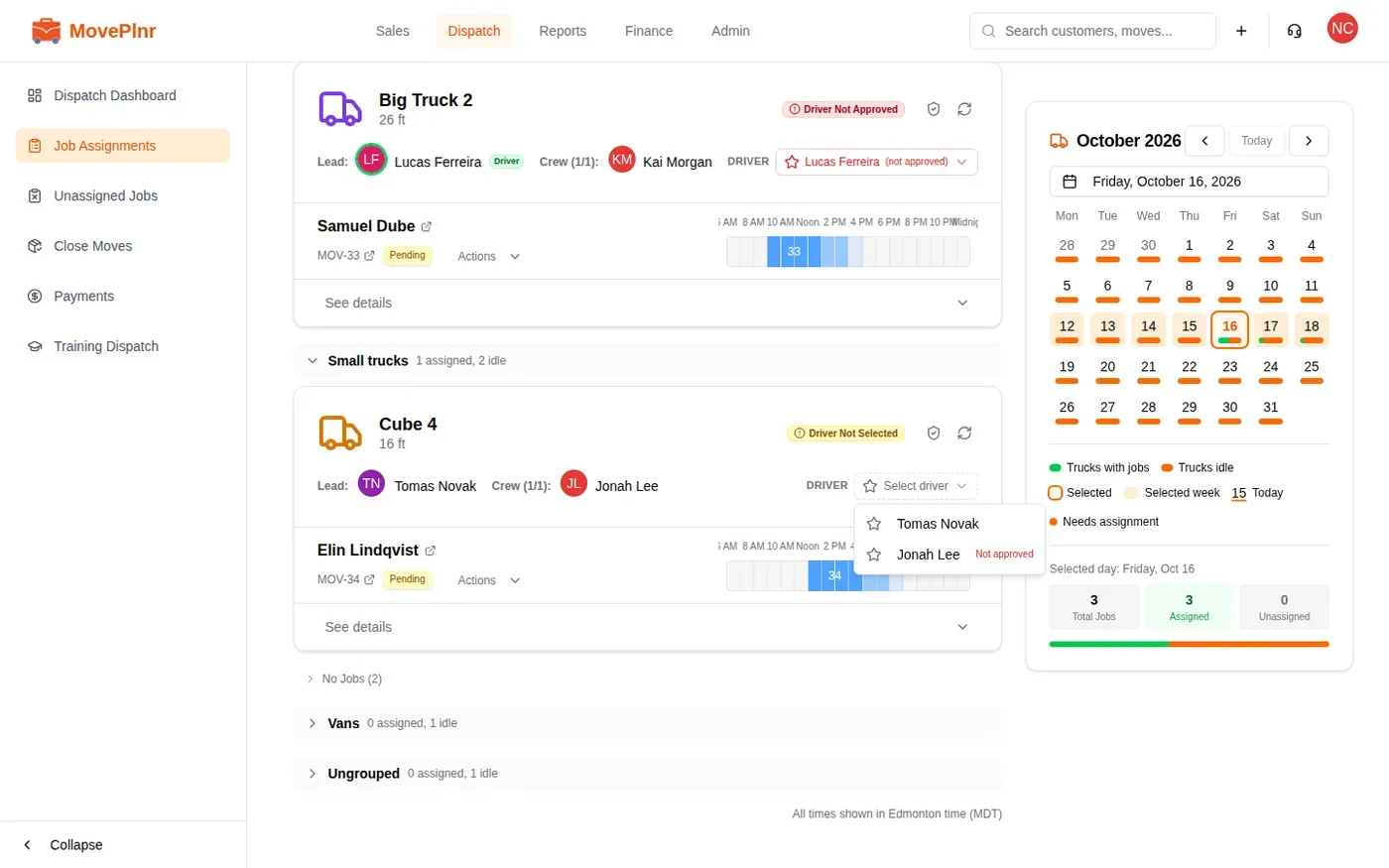
Two warnings sit at the top of a truck’s card:
- Driver Not Selected: the truck has a crew but nobody is driving it yet.
- Driver Not Approved: the driver picked is not on that truck’s approved list.
MovePlnr warns rather than blocks, so a dispatcher can still send someone off the list on a busy day. When you add a crew member with Assign as Driver turned on, the list shows only that truck’s approved drivers until you search for someone else.