Before you start
Delivery routes and combined invoicing are add-ons. An admin turns them on for the company, and then Delivery routes appears in the Dispatch menu. Office admins, dispatchers and owners can plan routes and combine invoices. Voiding a combined invoice is for admins only.
Routes are made for trade accounts: a staging company, a furniture rental shop, a retailer that sends you the same kind of run every week. Each account is a customer in MovePlnr.
See your routes
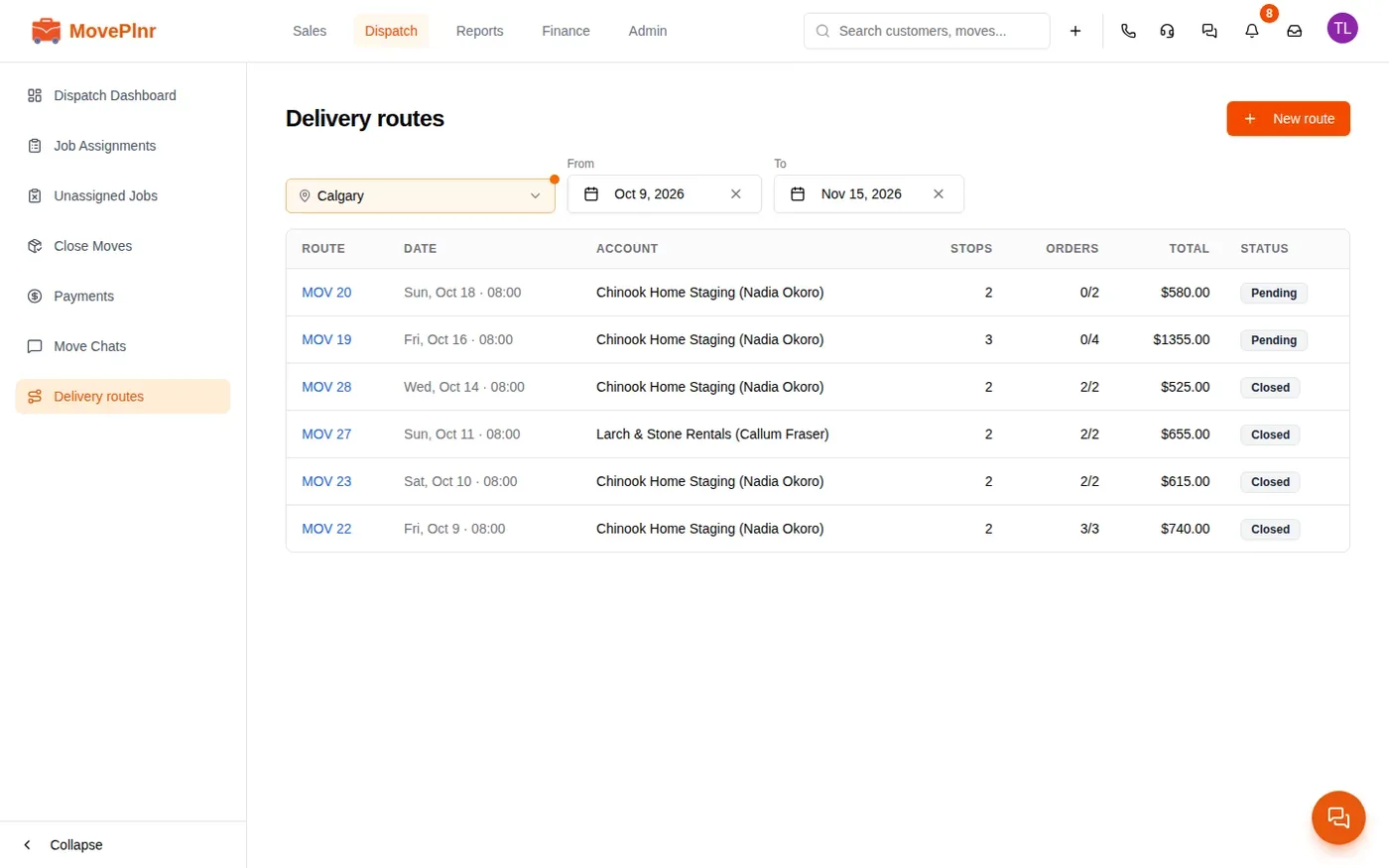
Delivery routes lists every route for the location you pick, from a week ago to a month ahead. Each row shows the date and departure time, the account, the number of stops, how many orders are done, the route total and its status. Change the From and To dates to look further back or ahead. Click a route to open it.
Plan a route
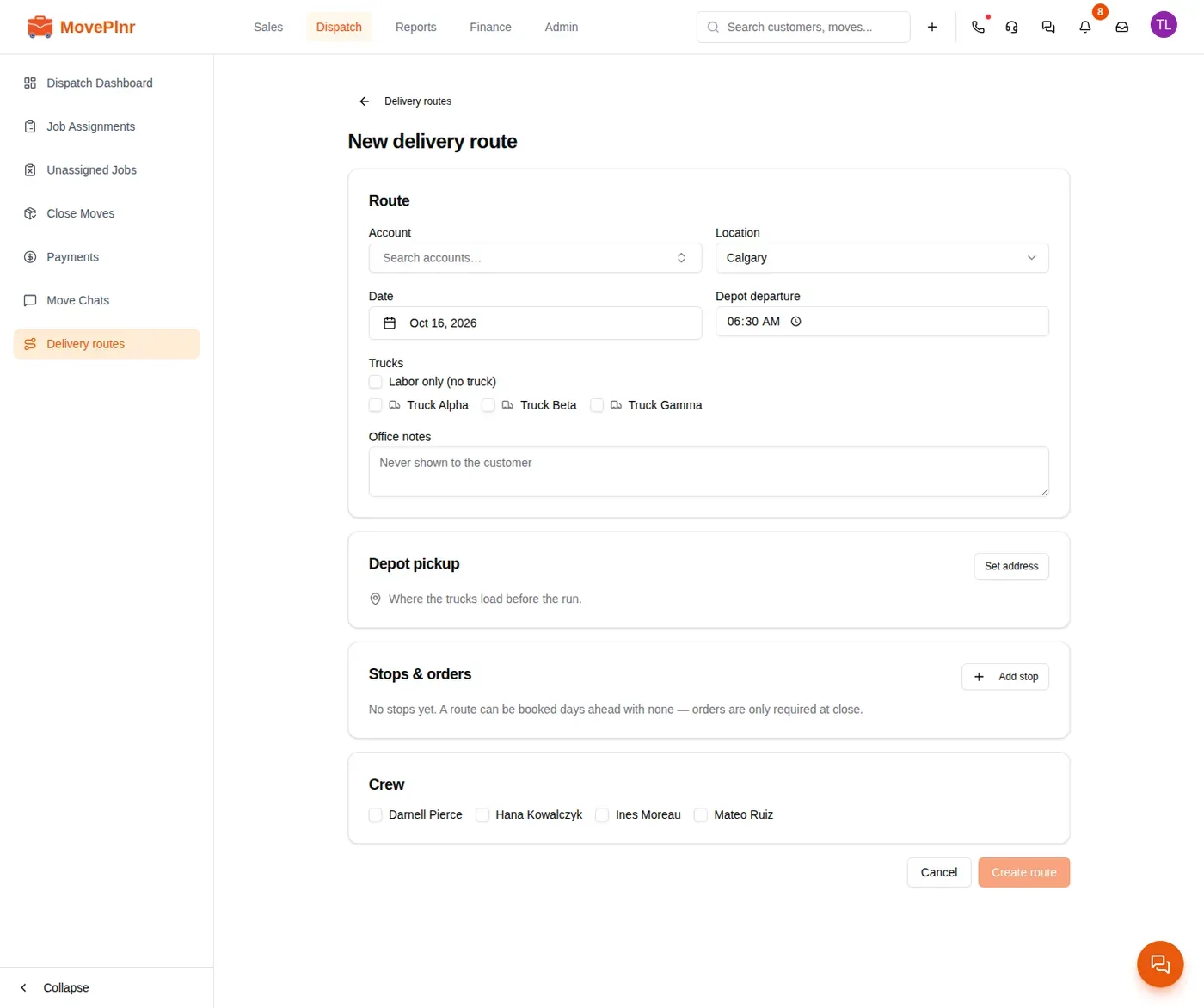
- Open Delivery routes and click New route.
- Under Route, pick the Account, the Location, the Date and the Depot departure time.
- Tick the trucks for the run, or Labor only (no truck). Add Office notes if the office needs them. The customer never sees them.
- Under Depot pickup, click Set address: this is where the trucks load before the run.
- Under Stops & orders, click Add stop for each address. At each stop, add the orders: deliver, pick up or exchange, the account’s order number, the piece count, the amount and a note.
- Tick the Crew and click Create route.
Work the orders
Open a route and its Orders card lists every stop in order, with the recipient, phone number, amount and status of each order. The crew marks each order Completed, Refused or Cancelled at the door, and so can the office.
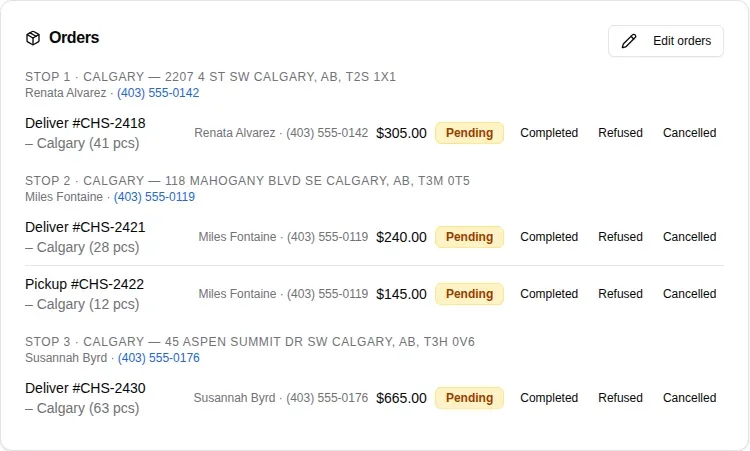
To change the orders, click Edit orders. Add an order with Add order, change an amount or a piece count, remove an order with the bin, then click Save orders.
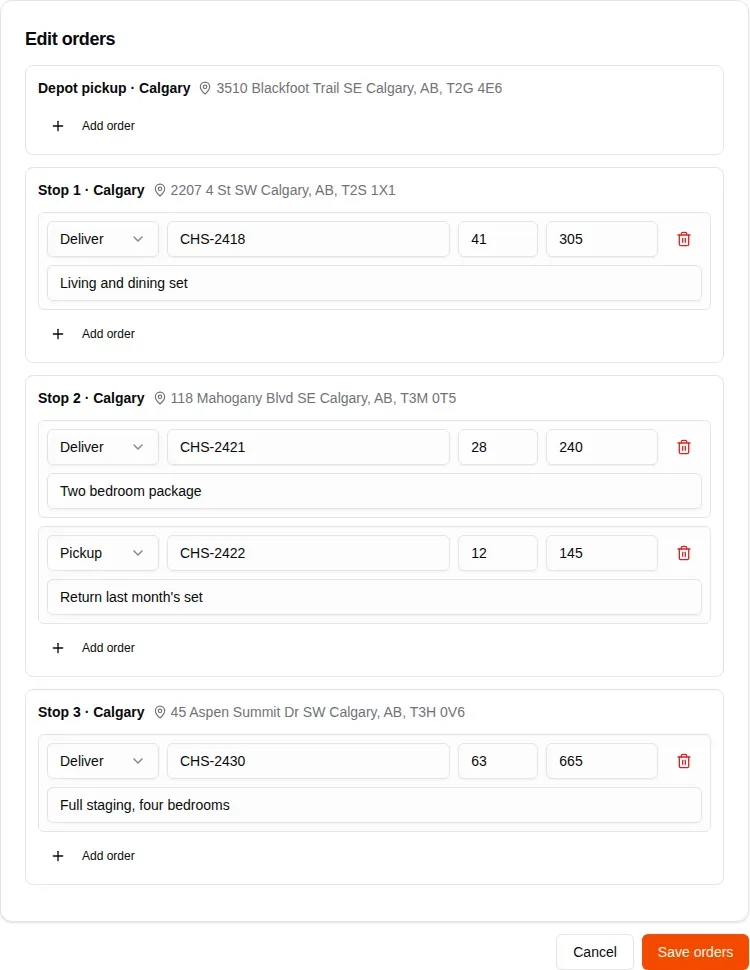
If the account requires an order number, every order must carry one before you can save. You set that on the account’s Billing card (below).
Close the route
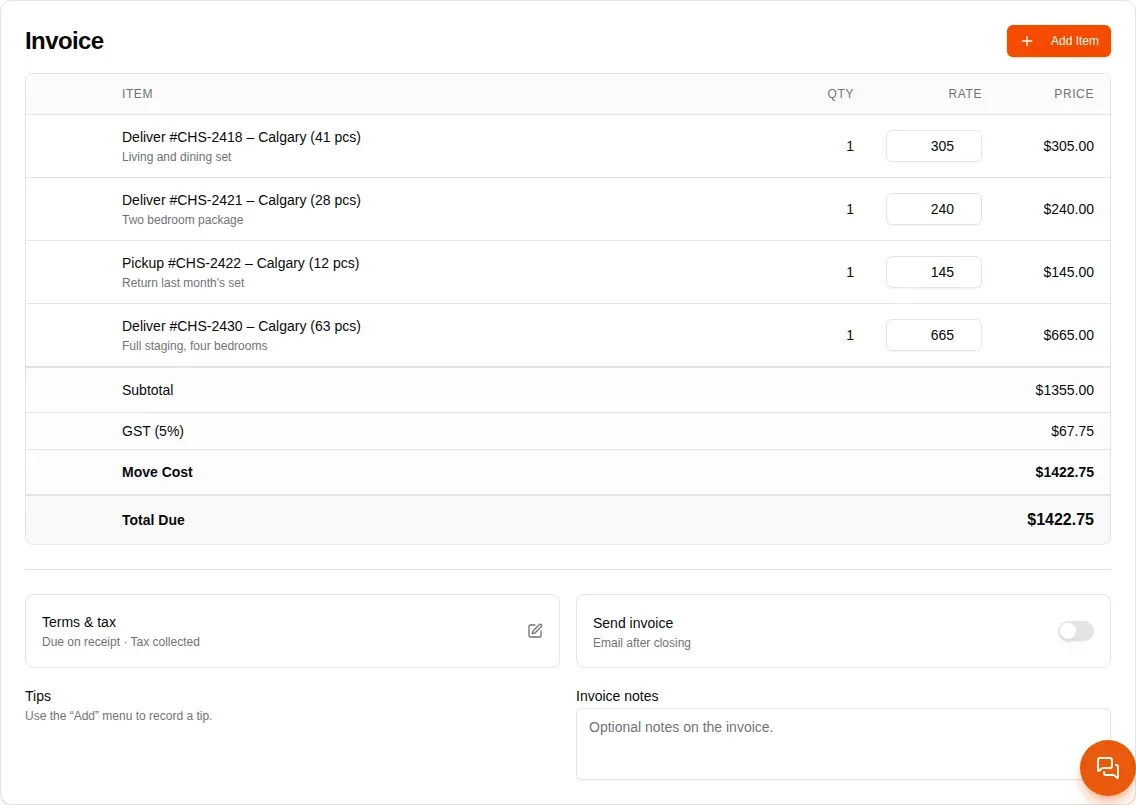
Close a route from Close Moves, like any move. On a route, the orders take the place of the hourly rate on the invoice: one line per order, with its amount. The route’s price is the total of its billable orders, plus tax.
A Refused or Cancelled order is struck out and not billed. If the account still pays for it, tick its bill anyway box on the close screen. Crew members can close a route too. They can choose to bill an order anyway, and the amounts stay read-only for them.
Combine invoices
By default, each closed route is invoiced on its own. To send an account one invoice for several routes, combine them.
- Open Payments and choose Open invoices.
- Tick the moves to bill together. Once you tick one, the list shows only that customer’s moves.
- Click Combine.
- Check the moves, pick the Terms and add invoice notes if you like.
- Click Create combined invoice.
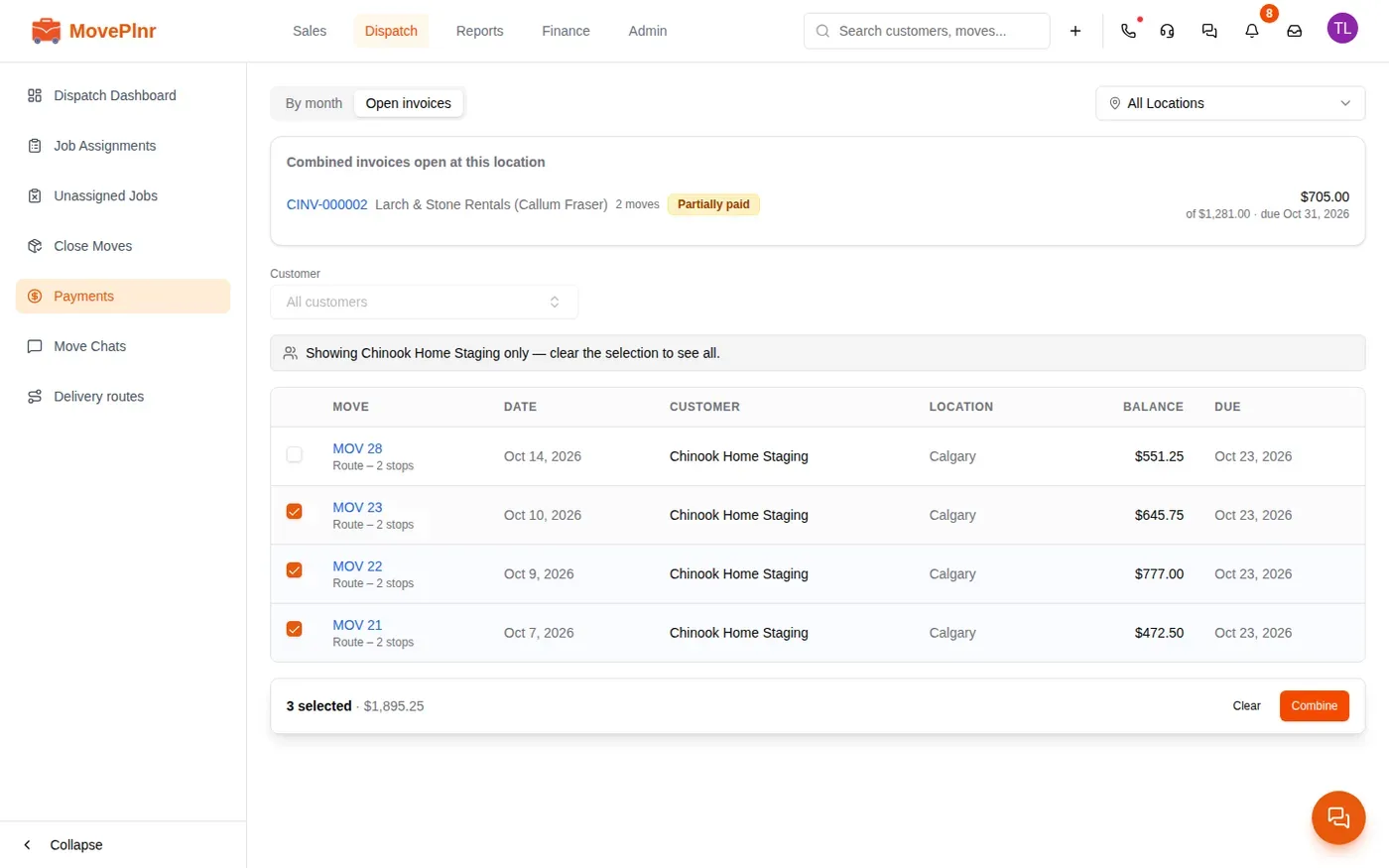
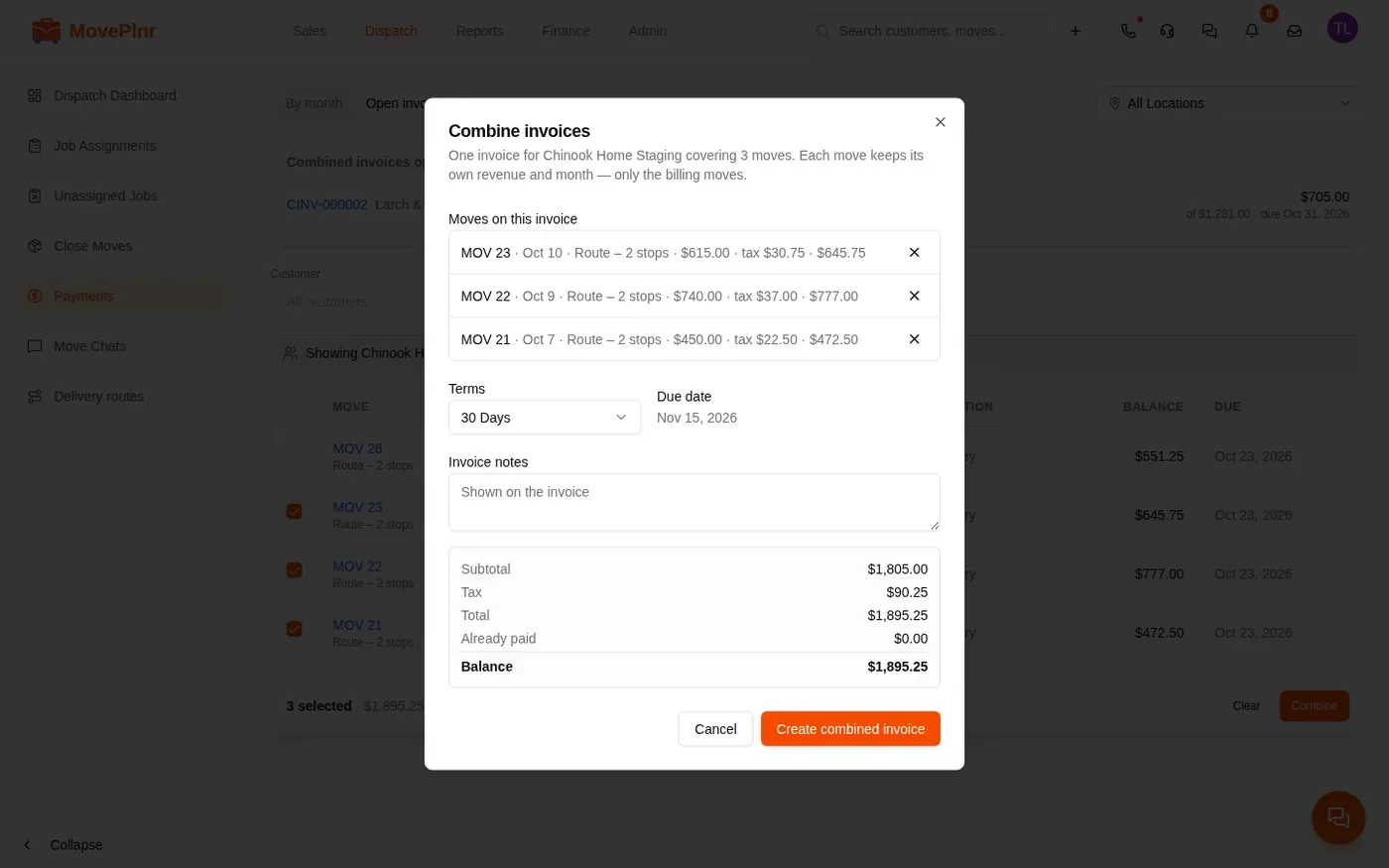
A combined invoice needs at least two moves from the same customer. It gets its own number, starting with CINV.
Work a combined invoice
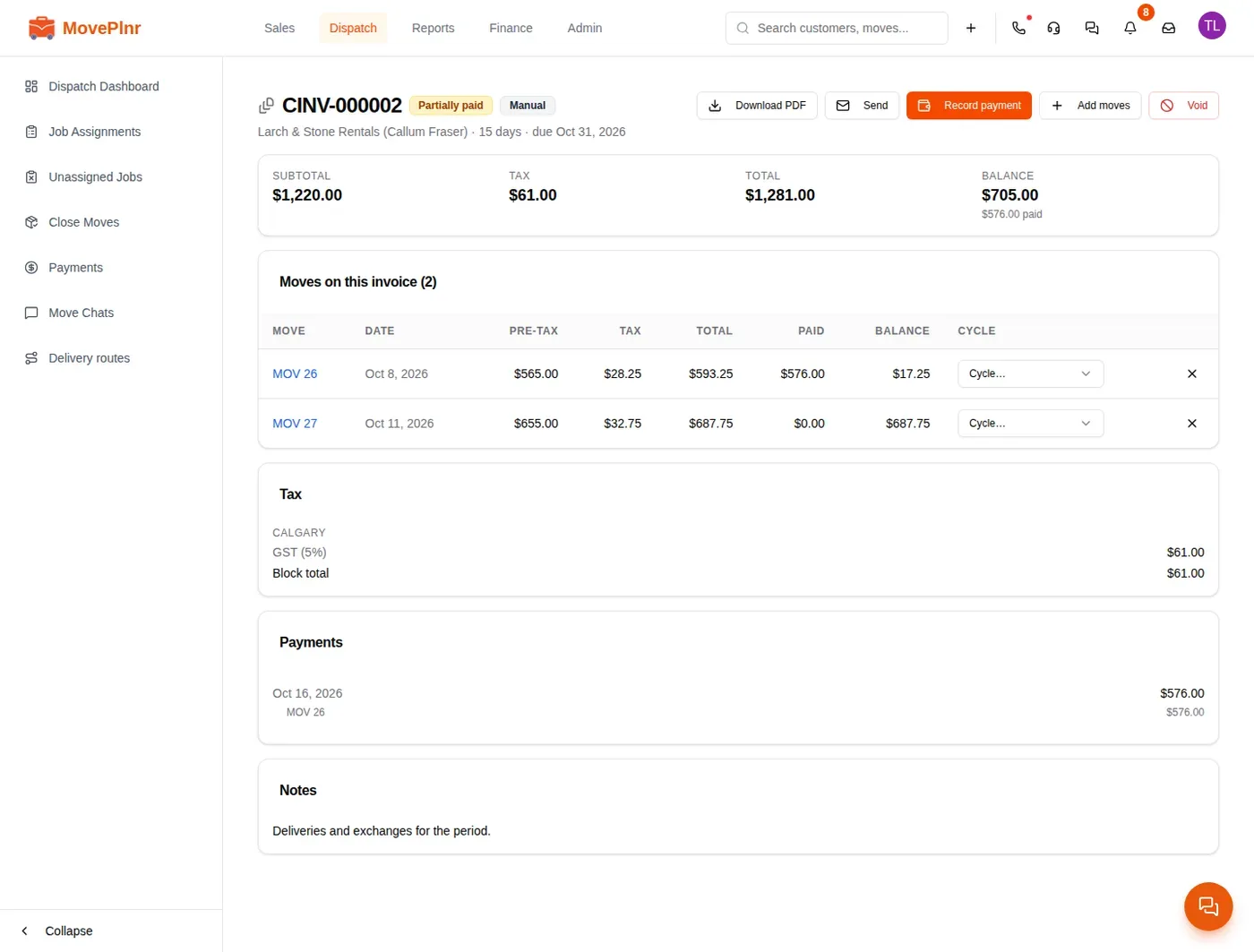
The combined invoice page shows the totals, each move on it with what is paid and still owing, the tax, the payments and the notes. From the top of the page:
- Download PDF for a copy to print or attach.
- Send emails it to the account. A combined invoice carries one payment link, so the moves on it no longer print their own.
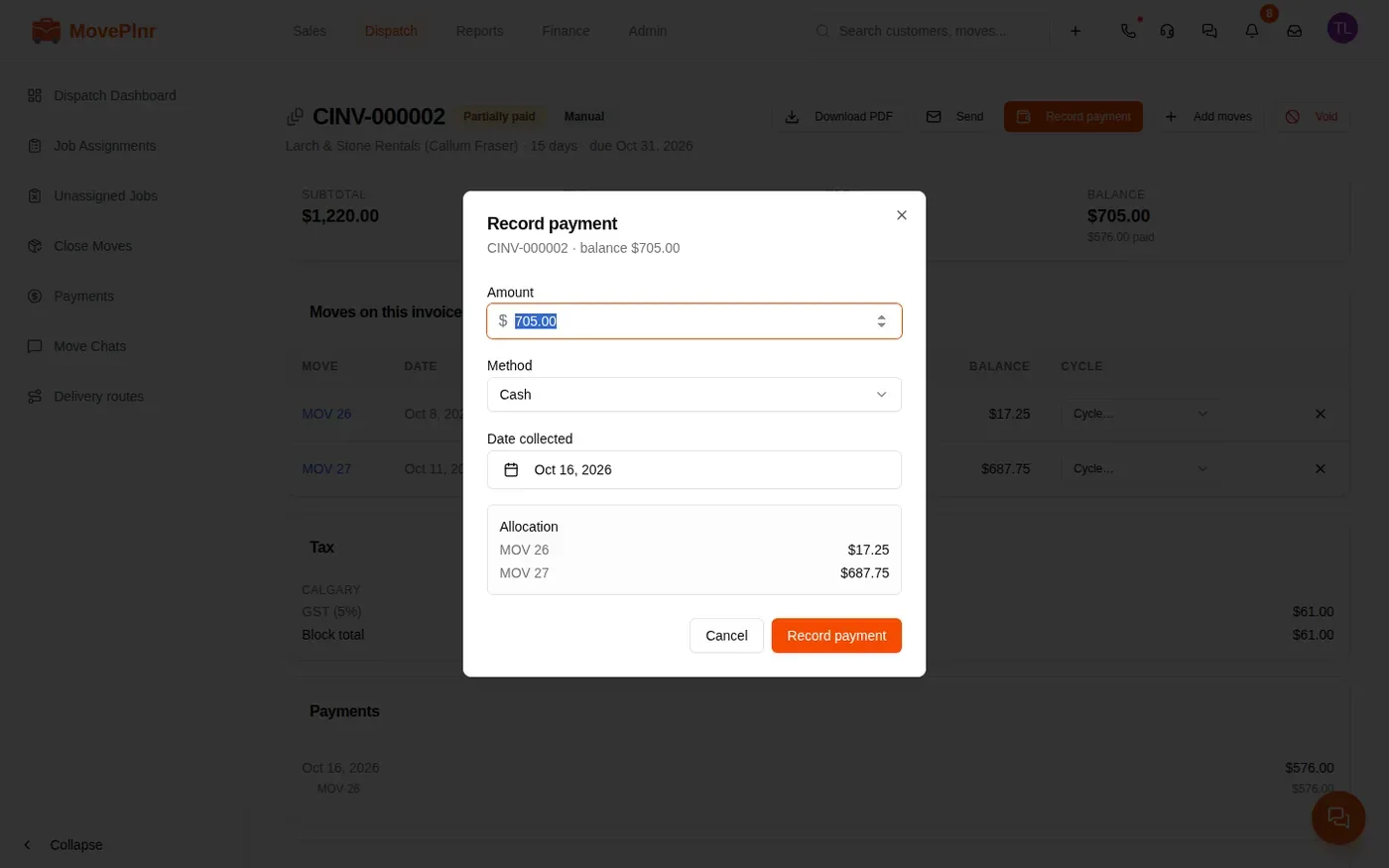
- Record payment when the account pays. The payment is spread across the moves on the invoice, oldest first, and the dialog shows how before you save.
- Add moves adds another closed move to it. The X on a move’s row takes it off.
- Void cancels the invoice. Admins only.
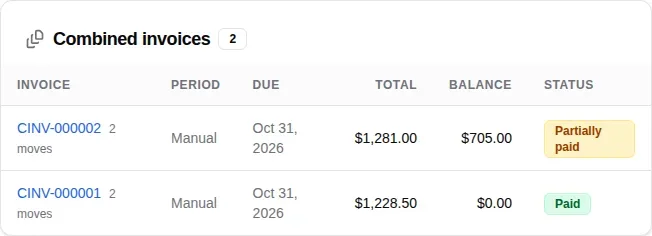
The customer’s page lists every combined invoice for the account, with its period, due date, total, balance and status.
Bill on a schedule
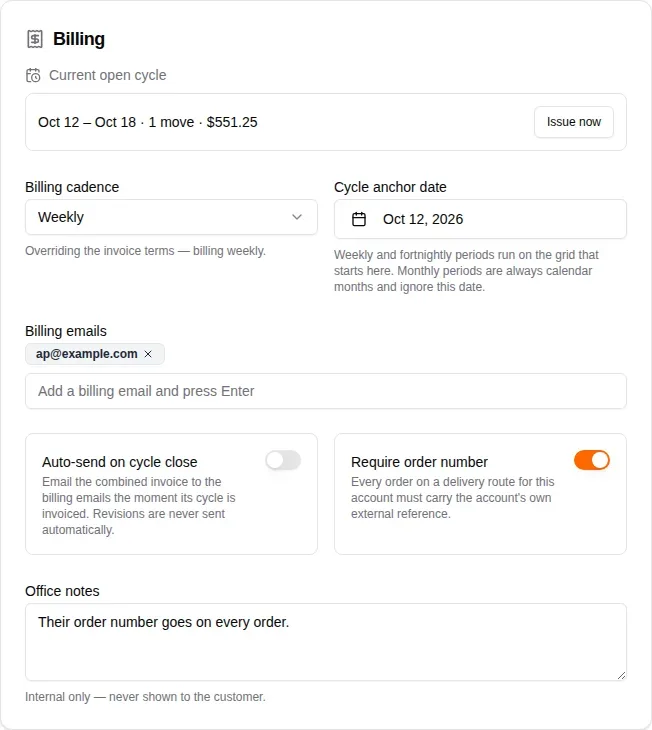
Rather than combining by hand, you can bill an account on a cycle. Open the customer and find the Billing card.
- Billing cadence sets the cycle. Manual is the default: each move is invoiced on its own until you combine them yourself. Weekly, every 2 weeks and monthly cycles collect every closed move into one invoice per period. Follow invoice terms takes the cycle from the account’s invoice terms.
- Cycle anchor date is the day weekly and two-week periods count from. Monthly periods are calendar months.
- Billing emails are where combined invoices go. With none set, they go to the customer’s own email.
- Auto-send on cycle close emails the invoice as soon as its cycle is invoiced.
- Require order number makes every order on this account’s routes carry the account’s own reference.
Once the account is on a cycle, each route you close joins the open cycle, shown at the top of the card. When the period ends, MovePlnr issues the cycle as one combined invoice. Click Issue now to close the cycle early.