Before you start
Team chat comes with the Crew Communication add-on, the same one that runs your move chats. Once it is on, everyone at your company can use it: owners, the office, sales, dispatch and crews. Partners can’t. If you see “Team chat isn’t turned on for your company yet”, ask an admin to turn on Crew Communication.
Open Team chat
Click the chat icon at the top right of any page, next to the bell. The number on it is how many team messages you haven’t read yet.
The Team chat page lists your conversations on the left: pinned chats first, then direct messages, then groups, newest activity at the top. The open conversation sits in the middle and its details on the right.
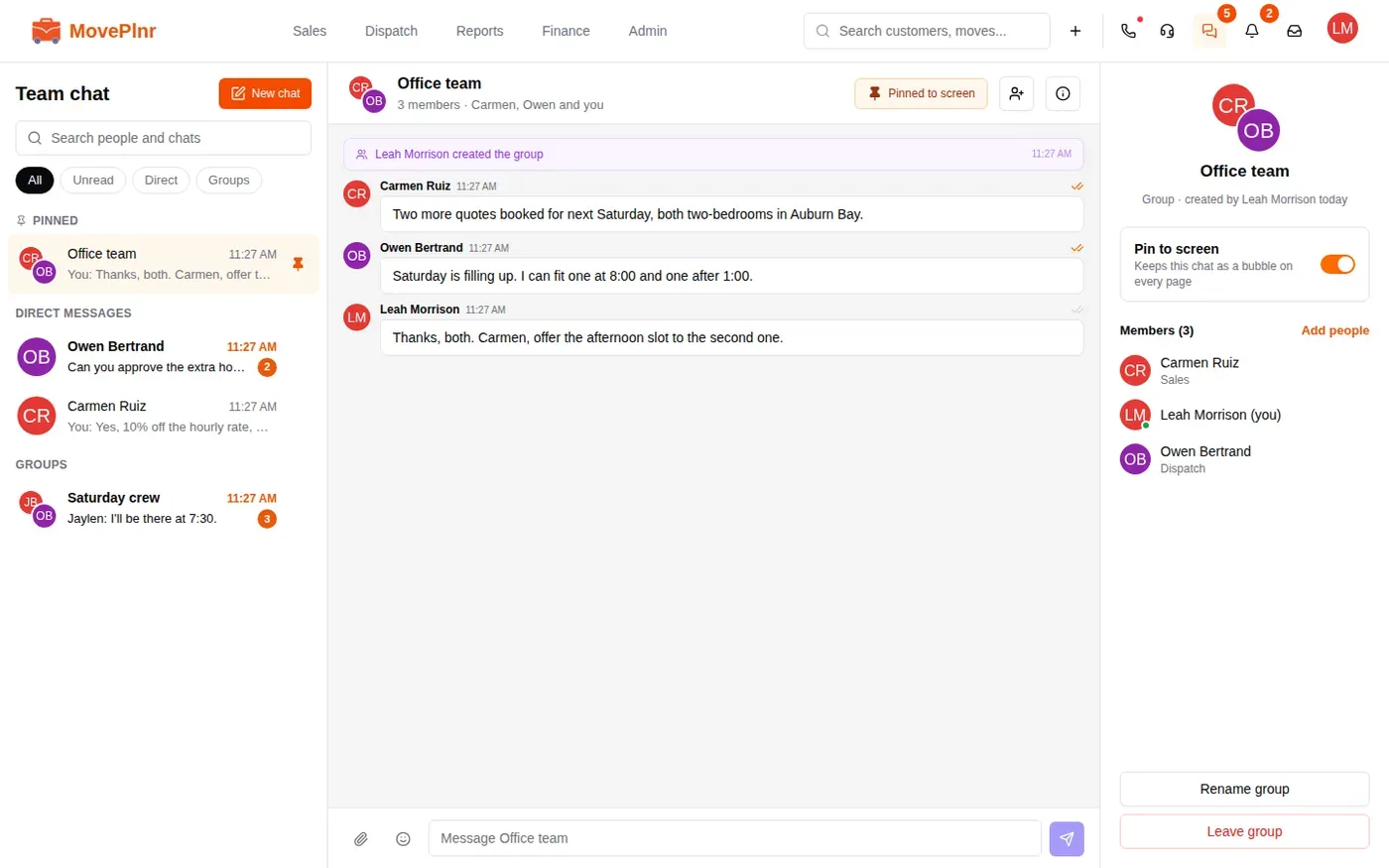
- Use All, Unread, Direct and Groups above the list to narrow it down.
- Type in the search box to find a chat or a person. Someone you haven’t messaged yet shows up under People with a Message link: click it to start a direct message with them.
Start a chat
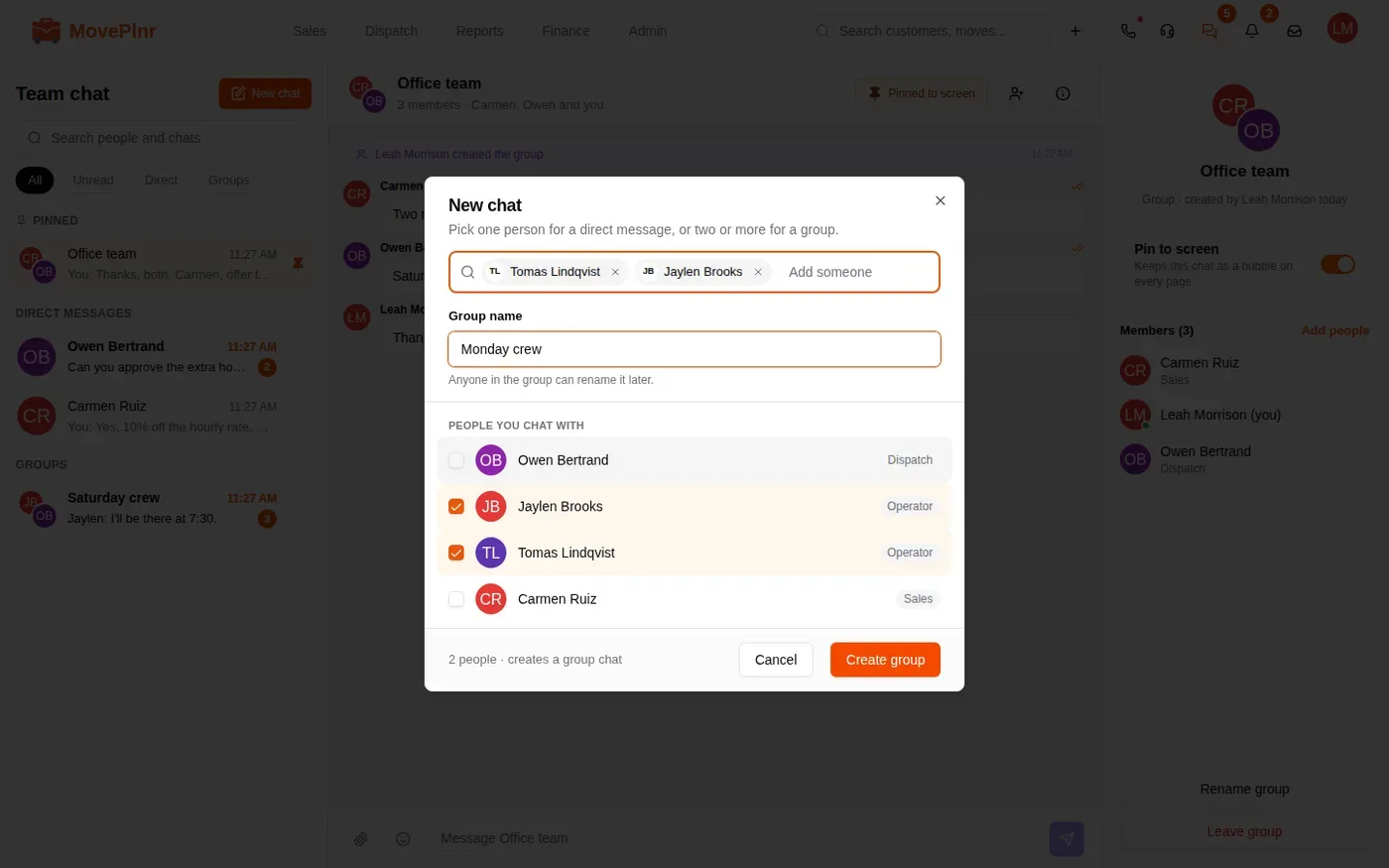
- Click New chat.
- Tick one person to open a direct message with them. If you already have one, it opens that conversation instead of starting a new one.
- Tick two or more people to make a group. A Group name field appears. A name is optional, and anyone in the group can change it later.
- Click Create group, or Message when you picked one person.
Send messages, photos and files
Type in the box at the bottom and press Enter. Messages work the way they do in a move chat: react with an emoji, reply to a message, or edit one you sent.
To share photos or documents, click the paperclip beside the message box. You can pick several files at once, up to 100 MB each. Files stay with the conversation, so everyone in it can open them.
Run a group
The details column on the right of the Team chat page holds a group’s settings. On a smaller screen, click the i button at the top of the chat to open it.
- Add people adds someone to the group. They see the whole conversation from the moment they join.
- Rename group changes the name for everyone in it.
- Leave group takes you out. You stop getting its messages.
- Whoever started the group, and any admin, can remove a member: point at their name in the list and click the remove button.
Pin a chat to your screen
A pinned chat stays as a bubble in the bottom right of every page, so it is one click away wherever you are working. Pins are yours alone and follow you to every computer and phone you sign in on.
- Open the chat on the Team chat page.
- Click Pin to screen at the top of the chat. It reads Pinned to screen while it is on. The Pin to screen switch in the details column does the same.
- Click it again to unpin.
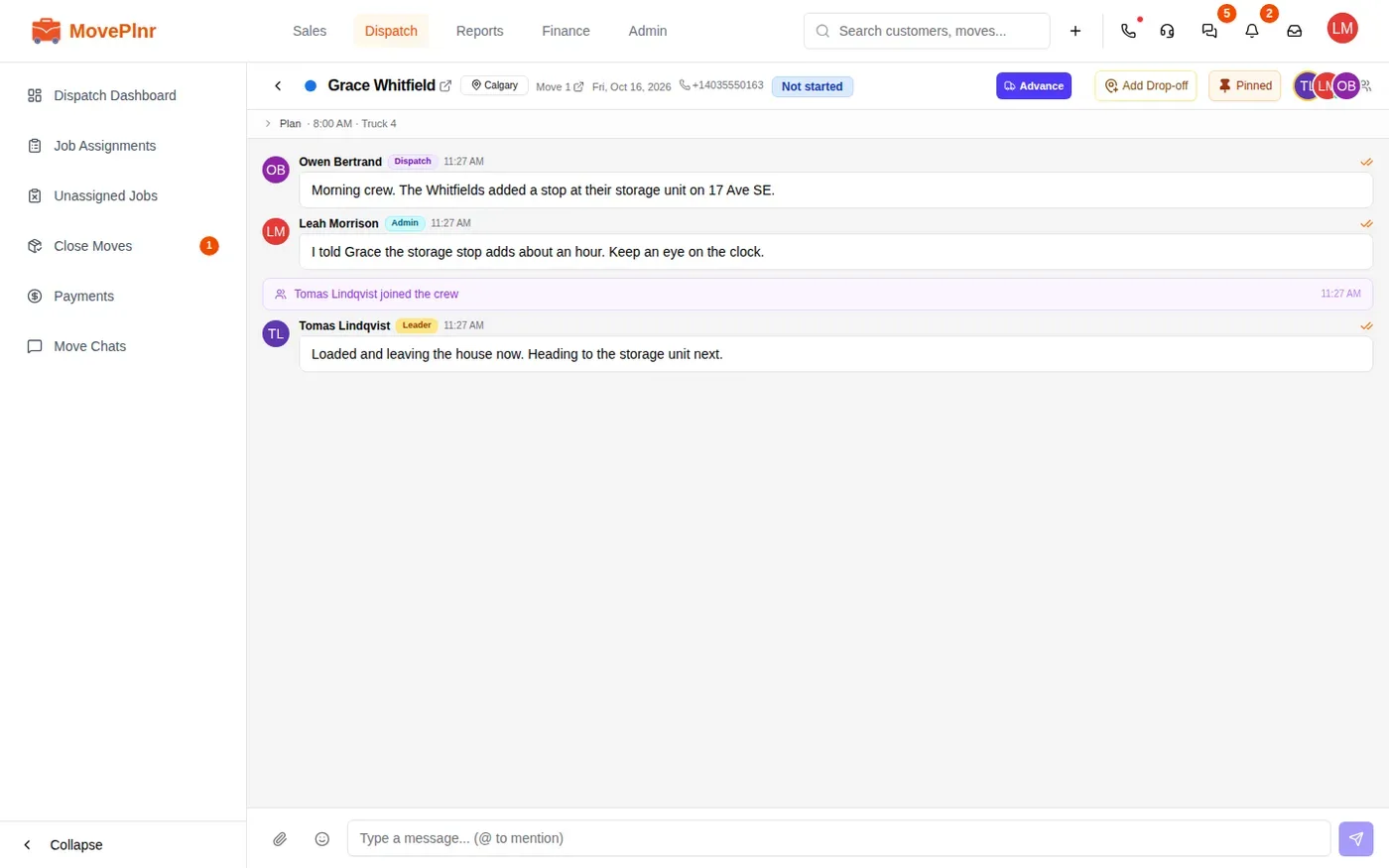
You can also pin a move’s crew chat or a claim’s chat. Open it and click the pin button at the top, next to the crew. It reads Pinned once it’s on. If you have never posted in that chat, send a message there first, then pin it.
Chat heads on every page
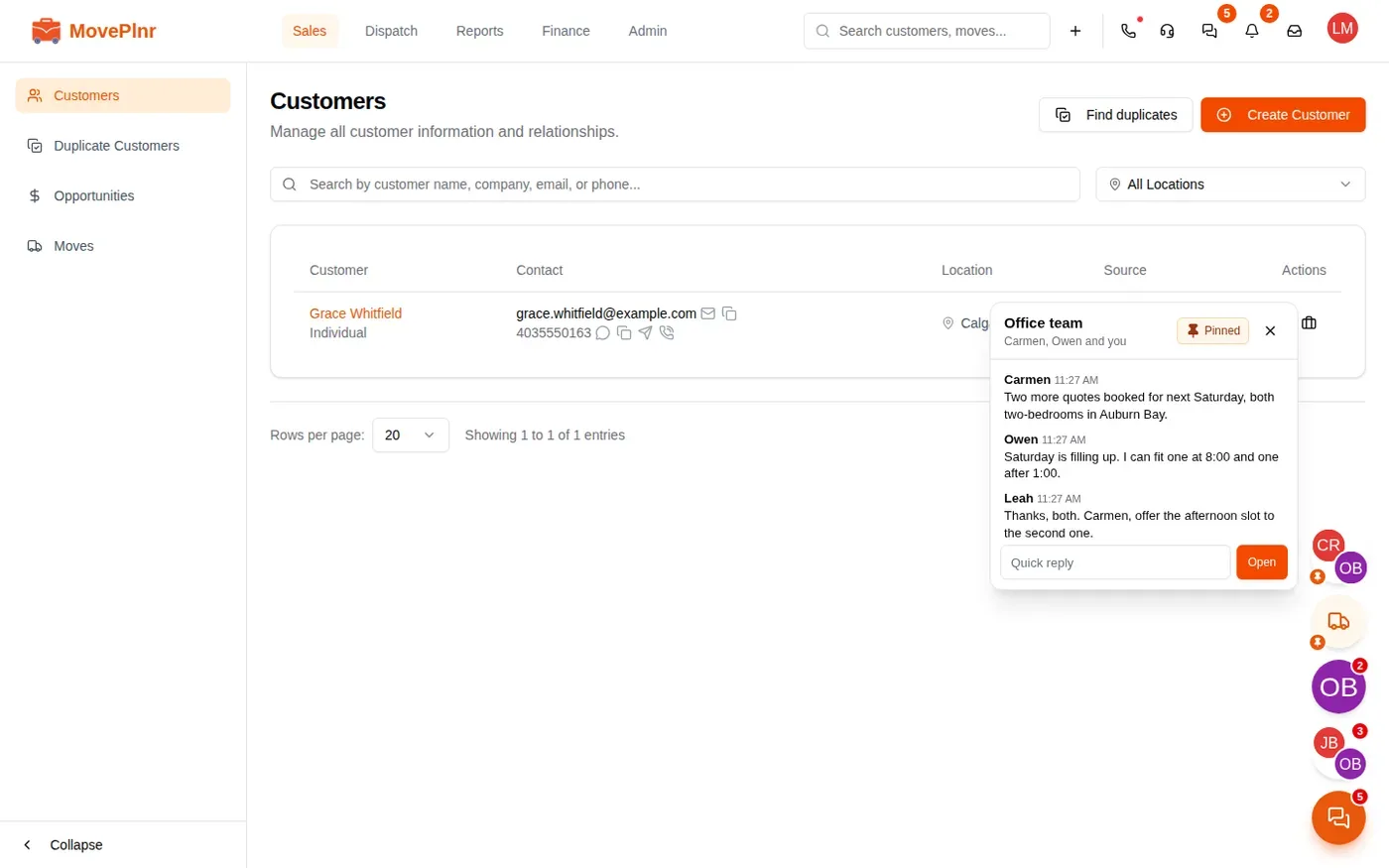
The bubbles in the bottom right are your chat heads. They show your pinned chats first, then any team chat with something new, then the chats you opened from them earlier in the day. Up to five show at once; the rest fold into a +N bubble. A red number is how many messages are new in that chat.
- Point at a head to see its last three messages. Type in the quick reply box and press Enter to answer without leaving the page, or click Open.
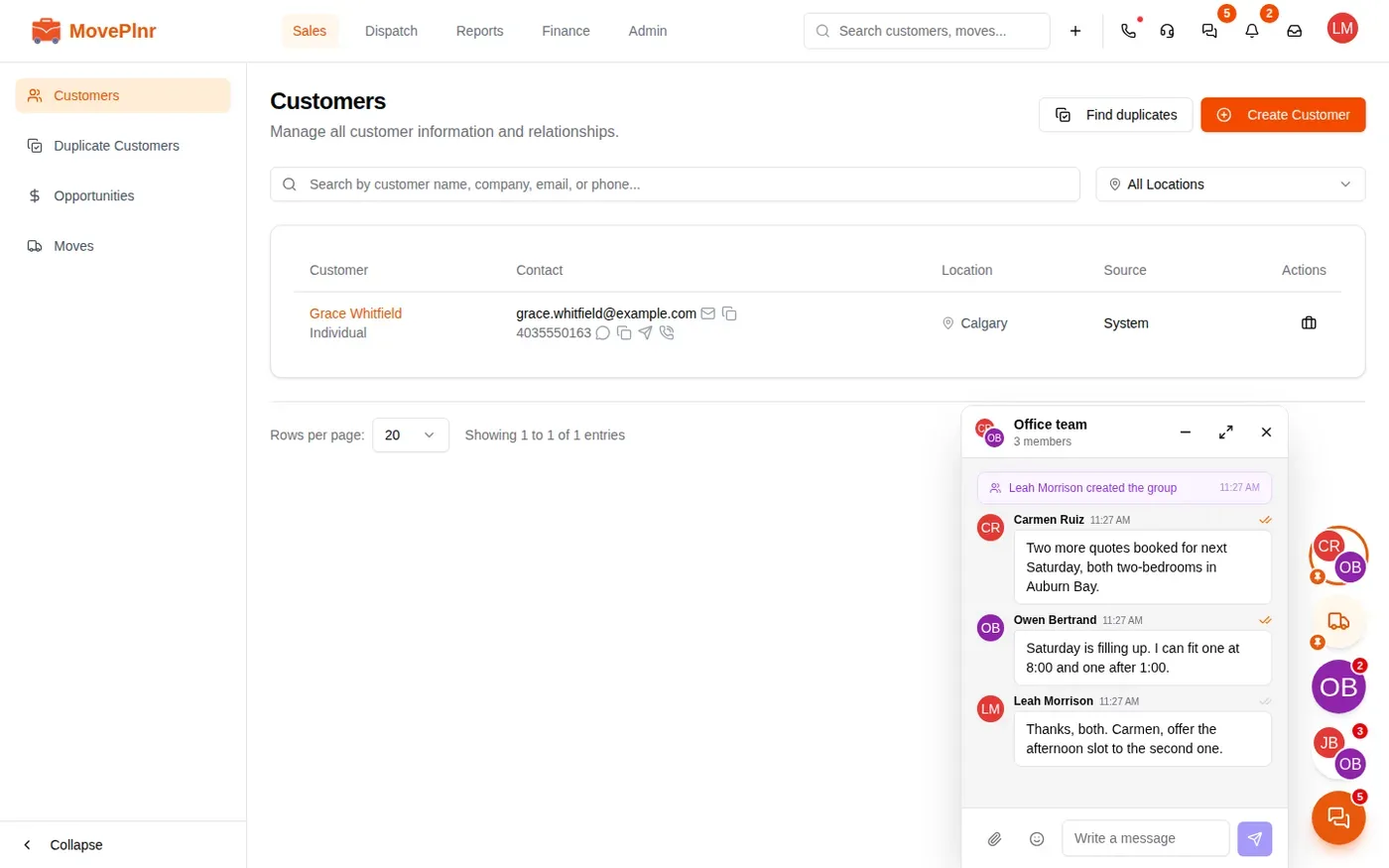
- Click a head to open the chat. A team chat opens as a small window at the bottom of the page. A move or claim chat opens its full page.
- In the small window, use the buttons at the top to shrink it back to its head, open it on the Team chat page, or close it.
- Click the x on a head’s preview to put that head away. It comes back when a new message arrives.
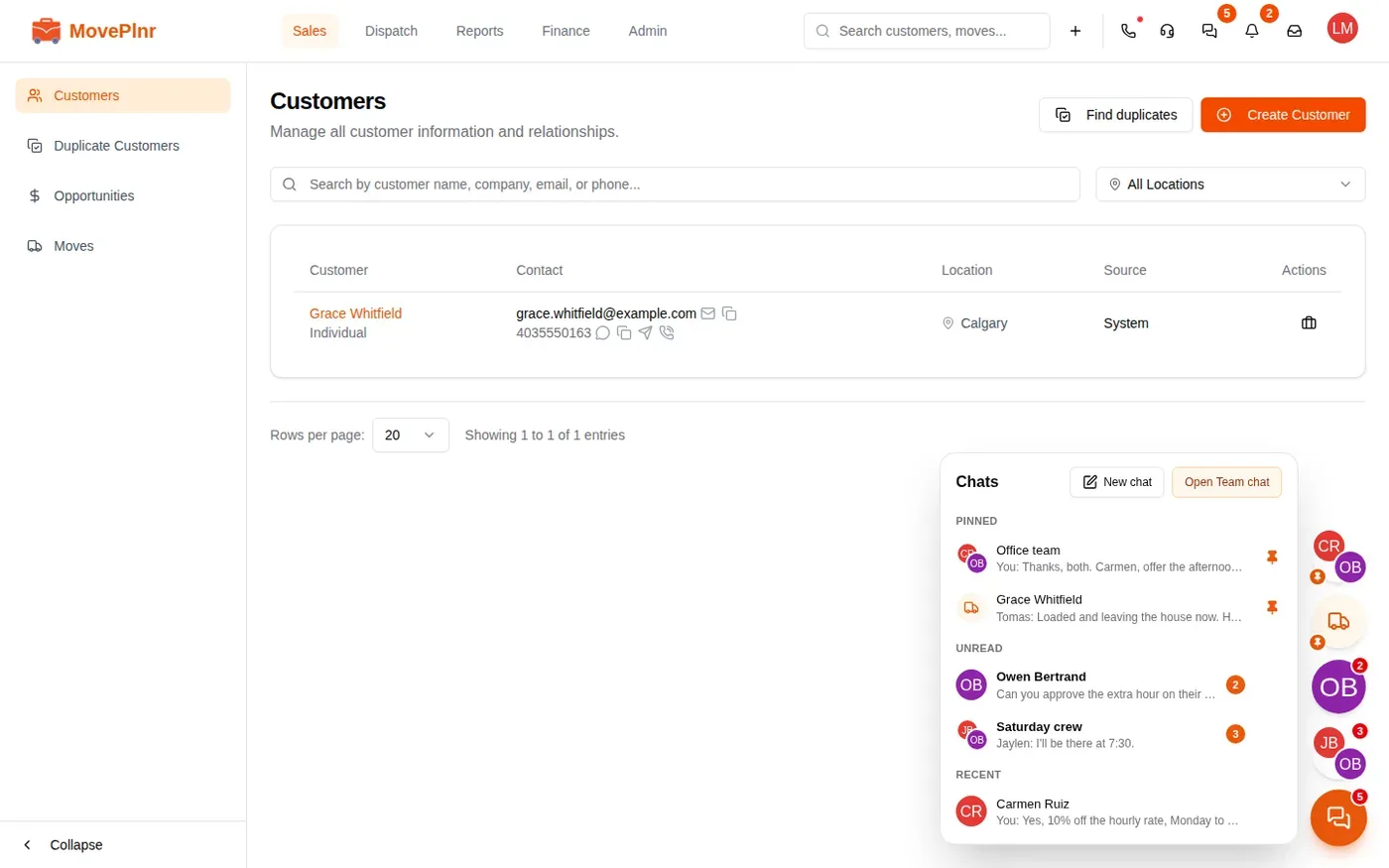
The orange button at the bottom lists every chat in one place: pinned, unread and recent. Click New chat there to start one, or Open Team chat to go to the full page. Pin or unpin a chat from the list with the pin beside it.
On a phone
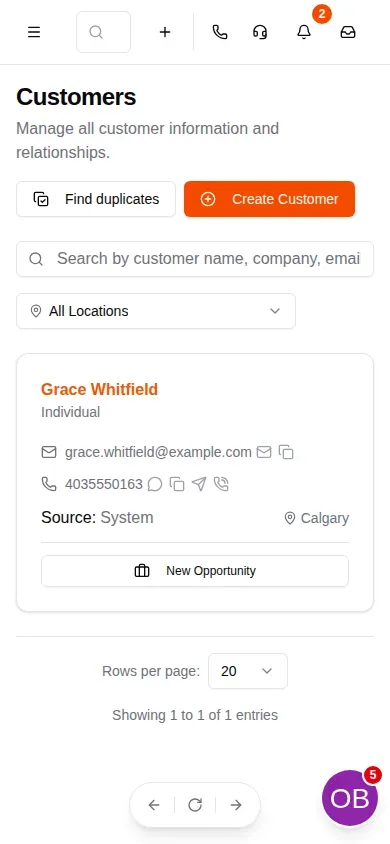
On a phone your chats come together in one bubble in the bottom right corner. Tap it to open the chat that needs you. Drag it anywhere along the edge of the screen, or drag it onto the X to put it away. Team chat is always in the menu too.