
The bell
The bell sits in the top bar. The number on it counts the notifications you have not read yet. Click it to see the latest ones.
- Click a notification to open the page it is about, such as the new lead or the move. It is marked as read on the way.
- Click Mark all as read to clear the count in one go.
- Click See all notifications for the full history.
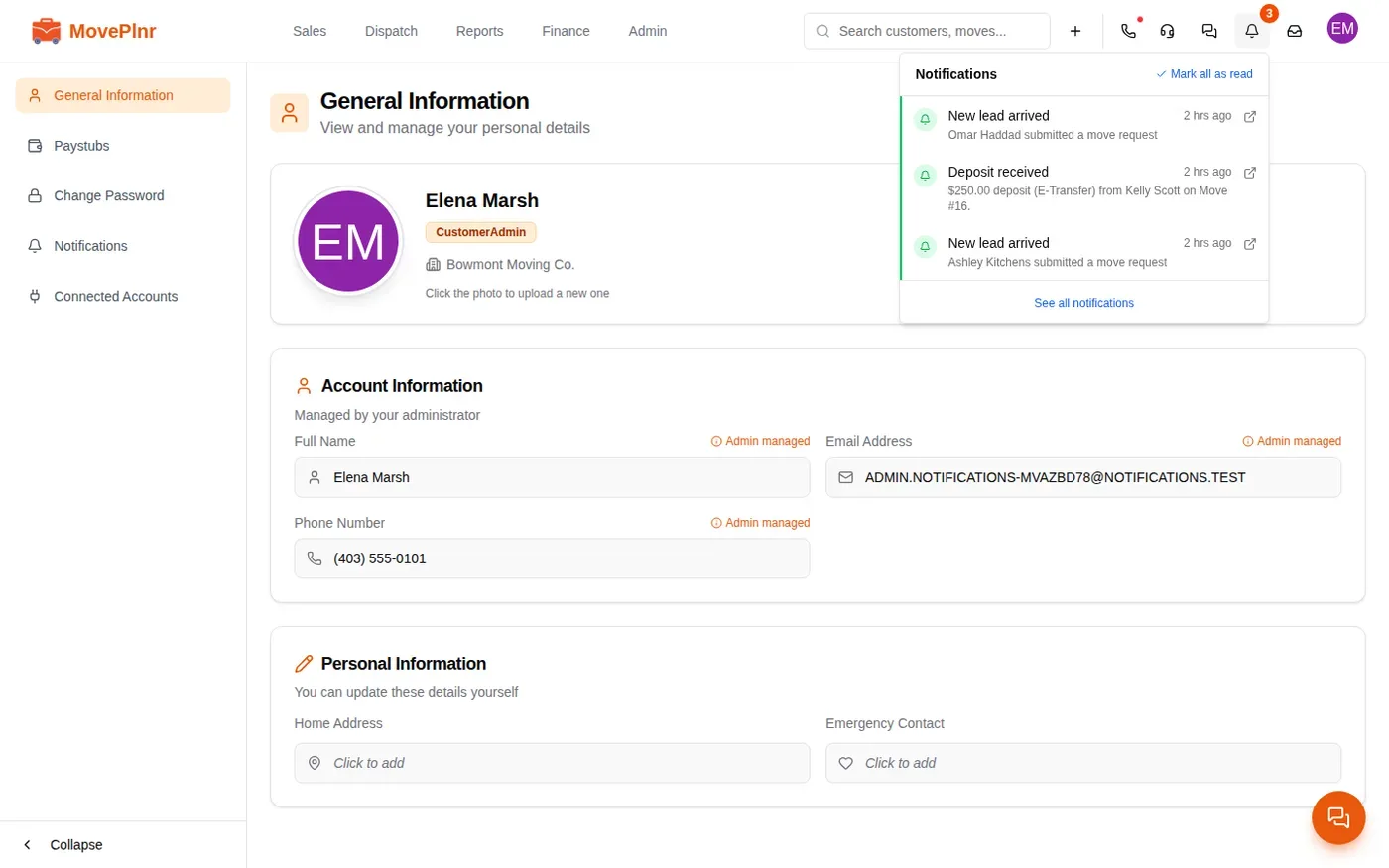
While MovePlnr is open, a new notification also pops up in the corner for a few seconds and plays its sound. If you are already on the page it is about, it stays quiet.
The Notifications page
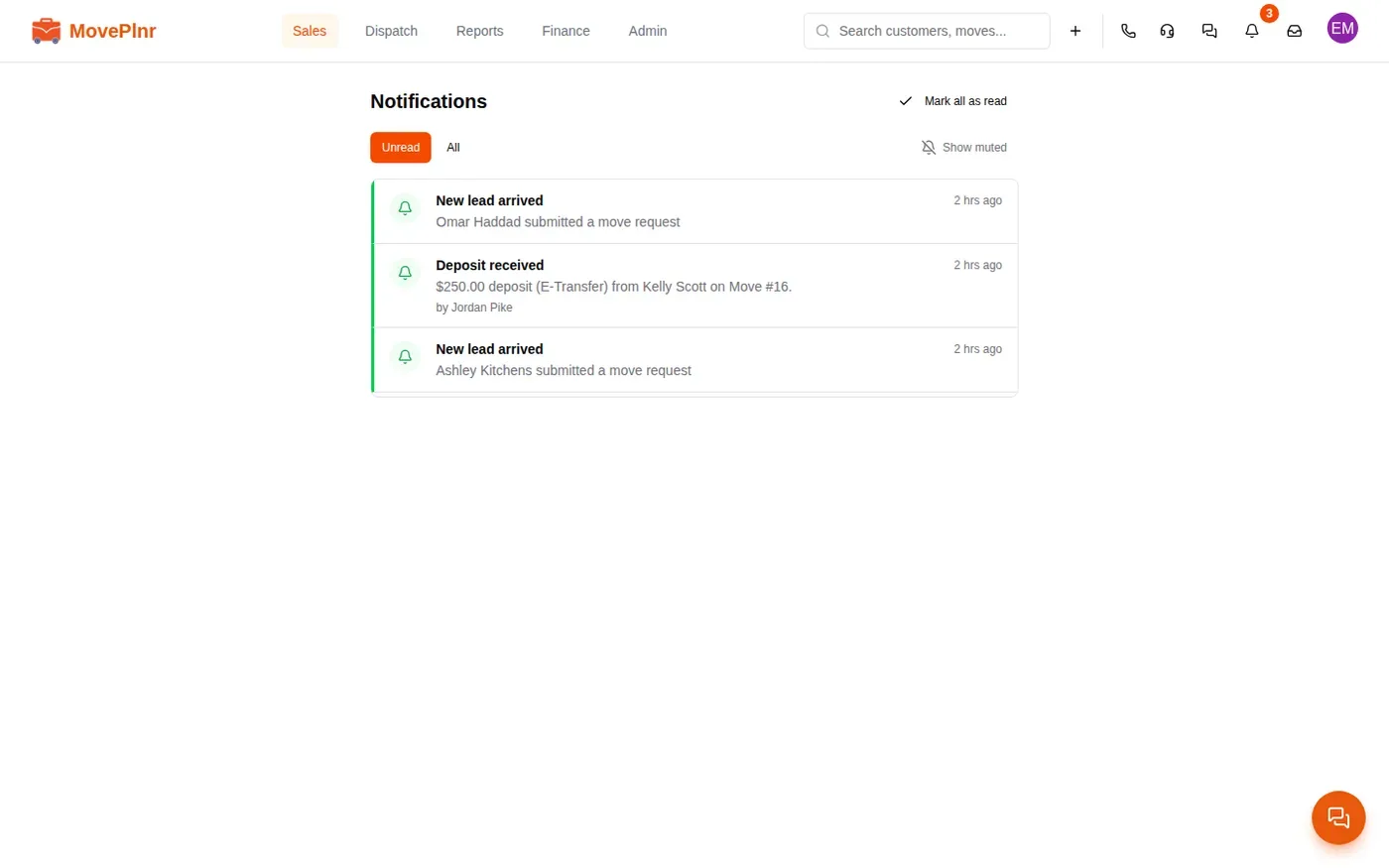
See all notifications opens the whole list, newest first. Each row says what happened, and when someone on your team caused it, a line underneath says who. A deposit that a teammate entered on your move reads “by” and their name.
- Unread shows what you have not opened yet.
- All shows everything, read or not.
- Mark all as read clears the list.
Muted notifications
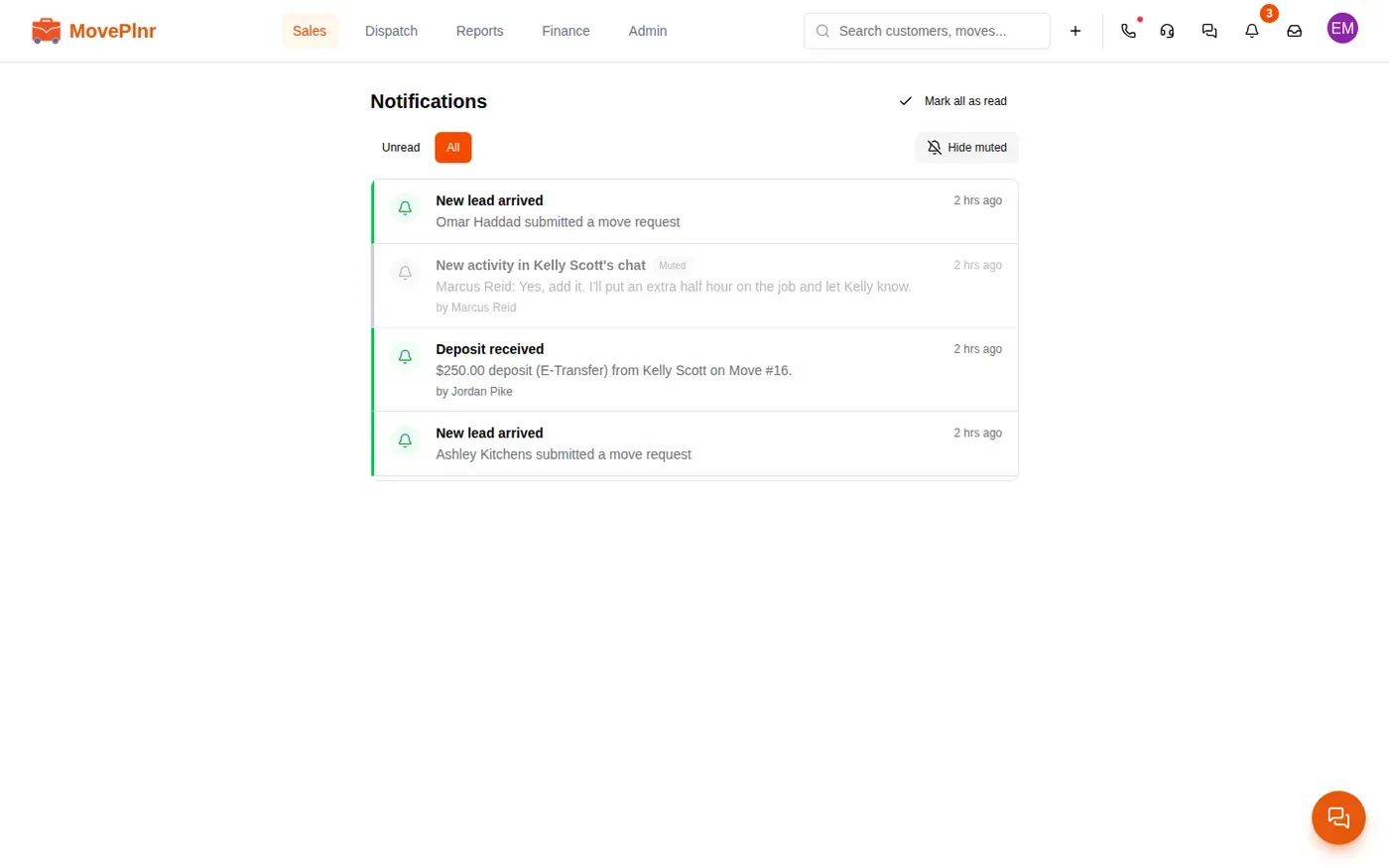
A notification you have muted is still saved, but it never counts on the bell, never pops up and never plays a sound. It stays out of Unread. To see muted ones, open All and click Show muted. They appear faded, with a Muted label. Click Hide muted to put them away again.
Choose what you get
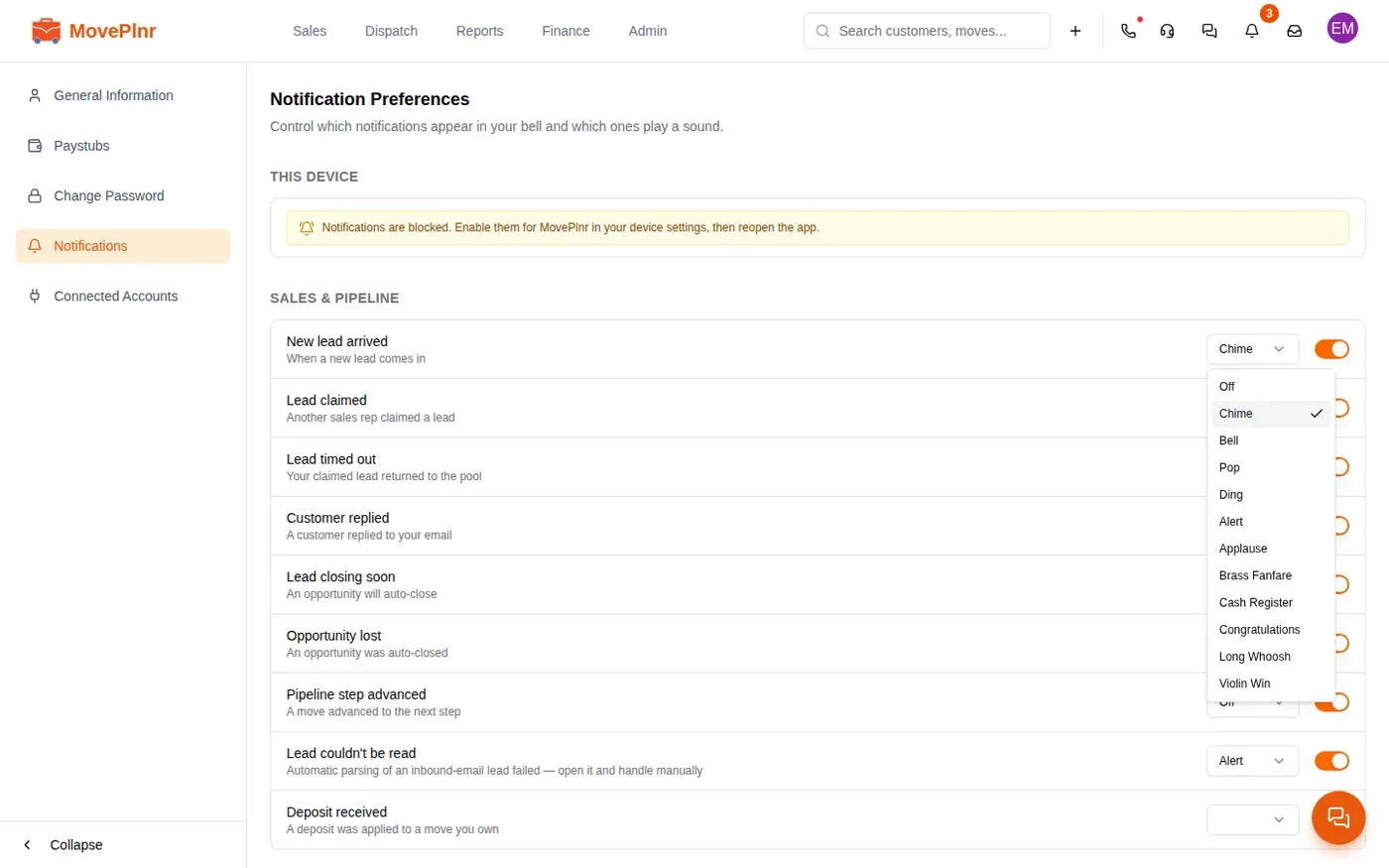
Open your profile from your initials at the top right, then click Notifications. Notification Preferences lists every notification your role can receive, grouped by area. A crew member sees a short list. An owner sees nearly all of them.
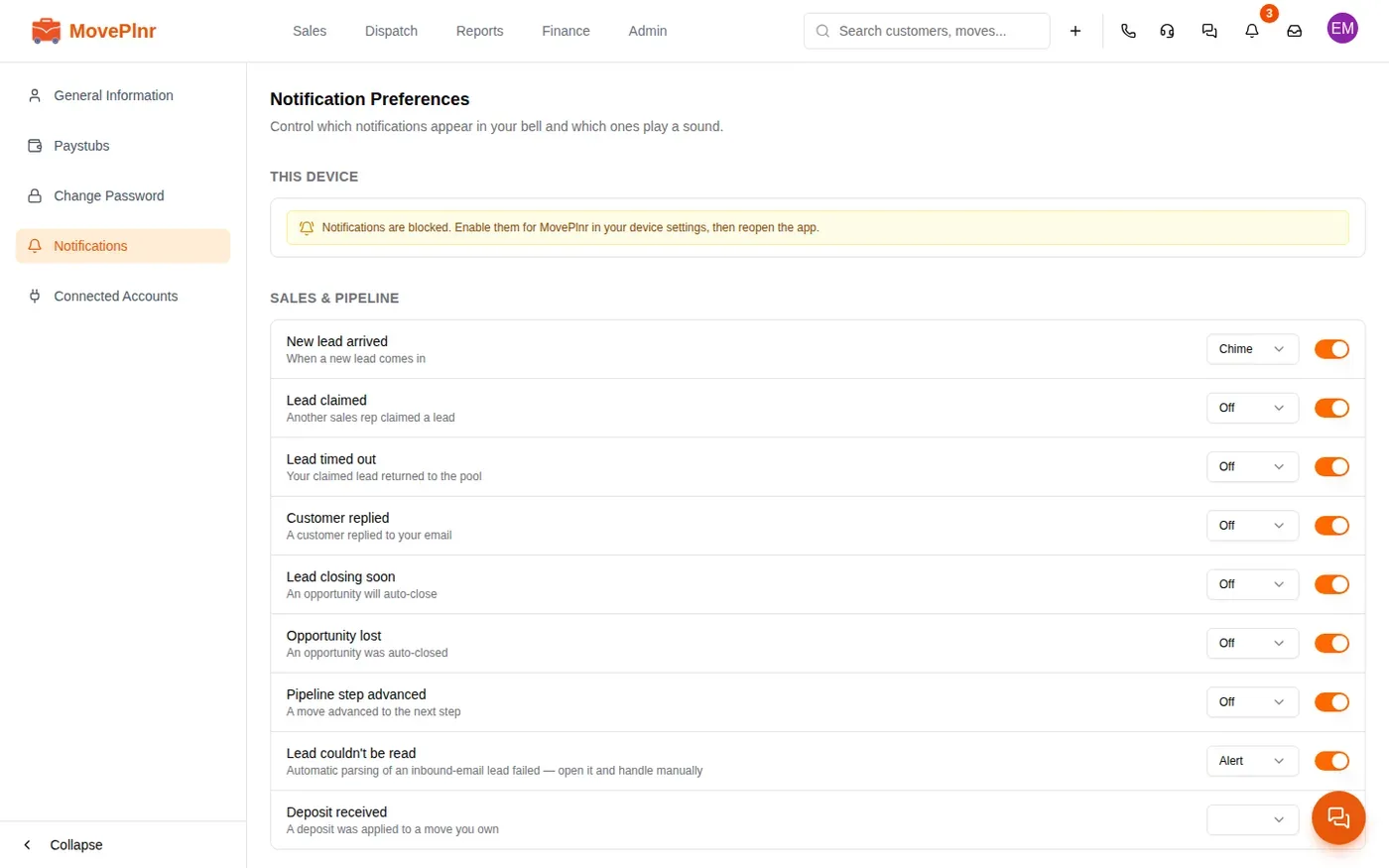
Each row has two controls.
- The switch turns the notification on or off. Off means muted: it is still saved on the Notifications page, but you are not told about it.
- The sound picker chooses what plays when it arrives. Off keeps it silent but still shows it on the bell. Picking a sound plays it once so you can hear it.
Changes save as you make them. There is no save button.
A setup that works
- Sales reps: keep New lead arrived loud. Speed to lead wins jobs. Deposit received tells you when anyone books money on a move you own.
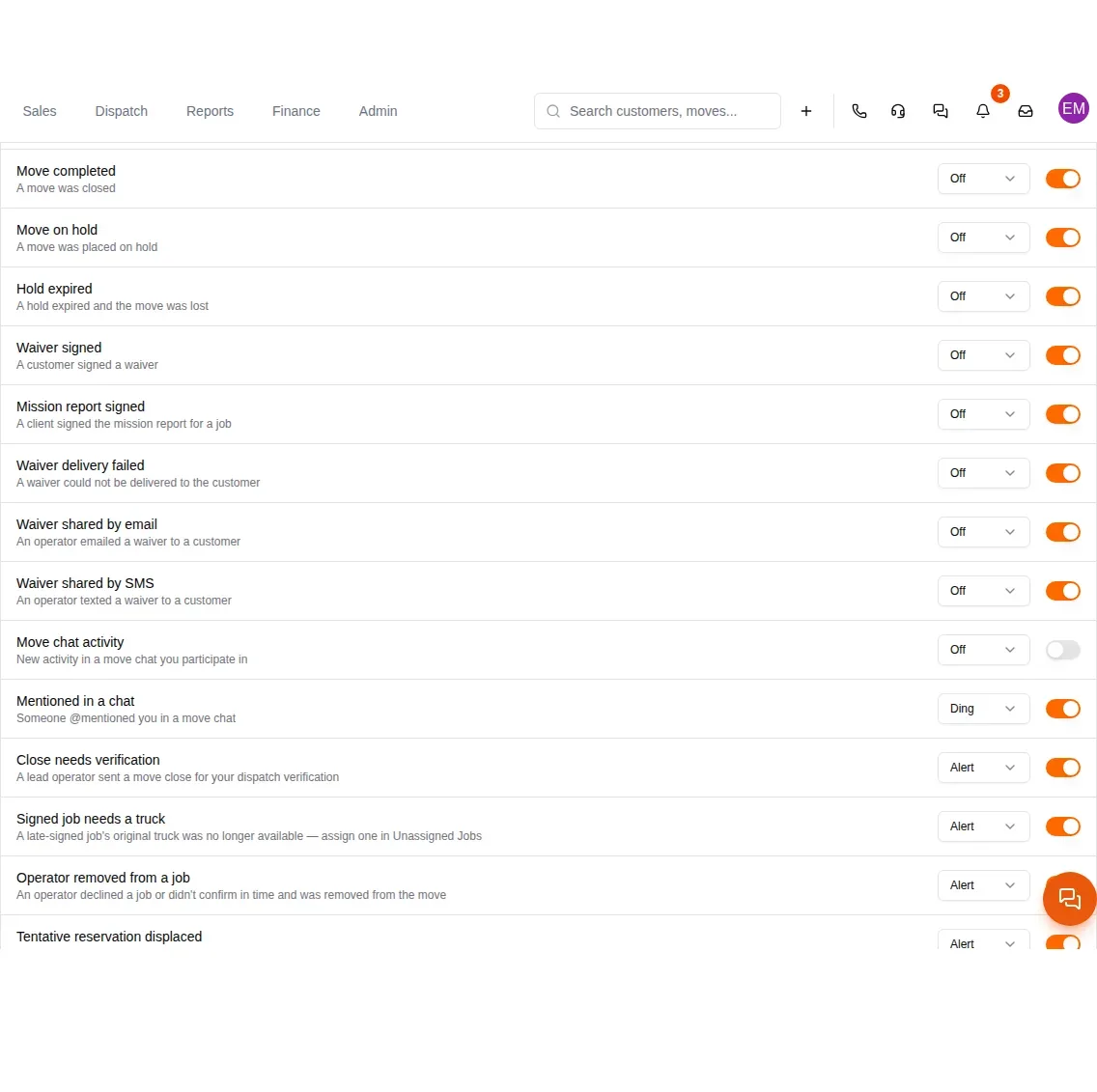
- Owners and dispatchers: mute Move chat activity if chats are busy, and keep Mentioned in a chat on. You still hear it when someone tags you by name.
- Lead claimed tells you another rep took a lead. It is silent by default. Turn it off if you don’t need it.
On your phone
Crews and anyone on the road can get notifications on their phone even when MovePlnr is closed. The top of the page has a card for this device. Turn on its switch and allow notifications when your phone asks. Each phone has its own switch.
- On an iPhone, use the MovePlnr app from the App Store. In Safari, add MovePlnr to your home screen first (Share, then Add to Home Screen) and open it from there. Until you do, the card says so.
- If the card says notifications are blocked, allow them for MovePlnr in your phone’s settings and reopen the app.
- A phone alert goes out only while the app is closed. When it is open, you get the pop-up instead, never both.
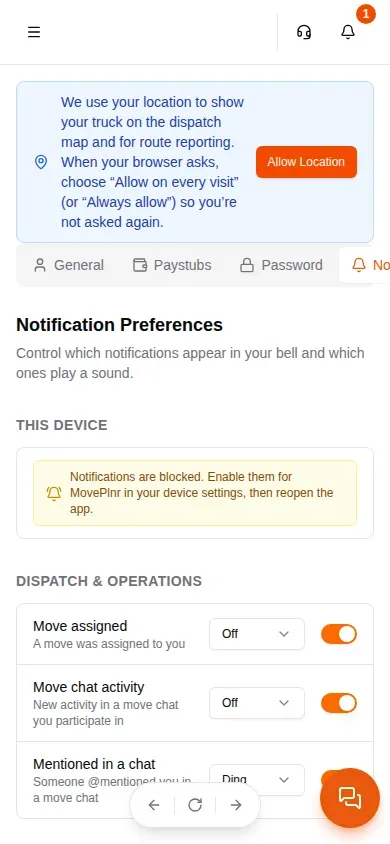
The blocked notice in this picture is what a phone shows before notifications are allowed for MovePlnr.
Send reminders by text
Customer reminders are a different kind of notification: they go to your customer, not to your team. When a customer has not answered an estimate, MovePlnr sends reminders by email, and it can text them too. An admin sets this per estimate template.
- Open Estimate Settings in your location settings and edit the template.
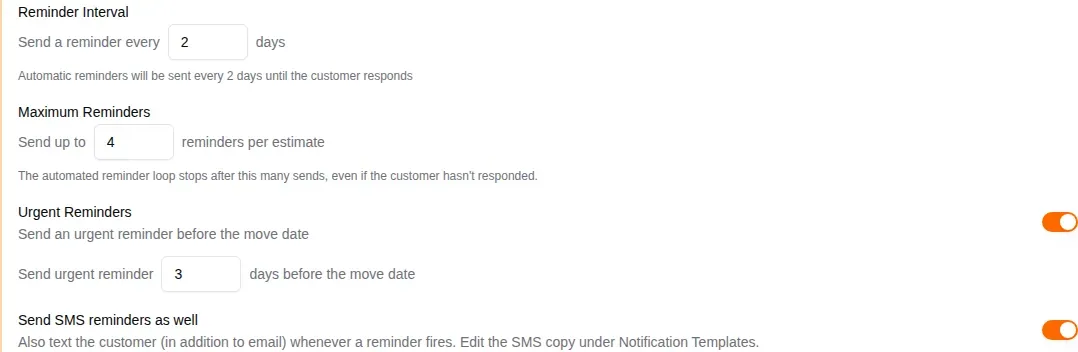
- Turn on Send Reminders. Set the Reminder Interval and the Maximum Reminders.
- Turn on Urgent Reminders for one more nudge a few days before the move.
- Turn on Send SMS reminders as well, then save.
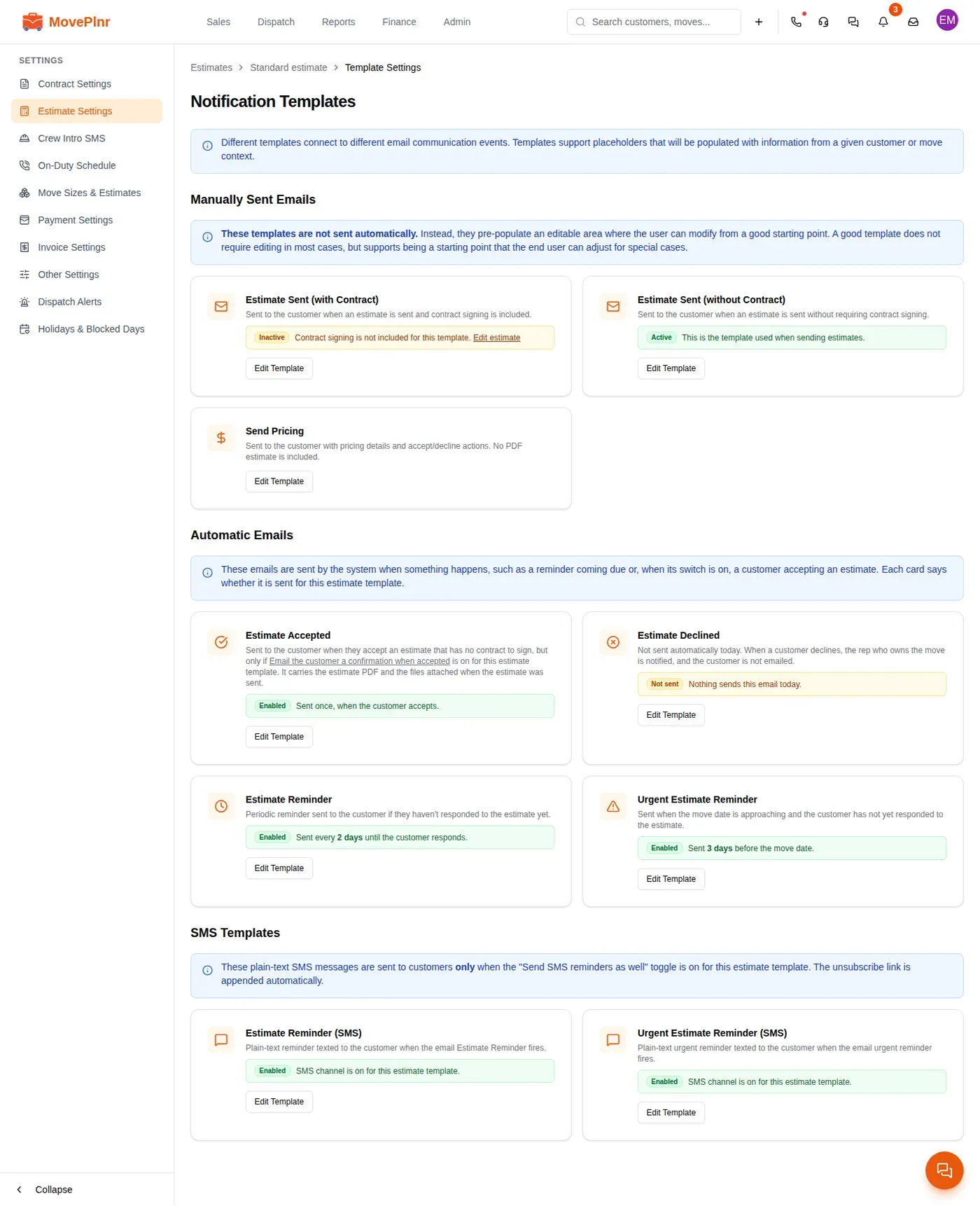
The texts have their own wording. Open the template’s Notification Templates and scroll to SMS Templates: Estimate Reminder (SMS) and Urgent Estimate Reminder (SMS) are plain text, so keep them short. Every text ends with an unsubscribe link, added for you. A customer who opts out gets no more reminder texts.
Contract templates have the same Send SMS reminders as well switch, for signature reminders.