
Open Tasks
Tasks is for everyone in the office: owners, office admins, sales, dispatch, estimators, HR, marketing and yard managers. Crews never see it.
The Tasks button sits in the top bar, beside your profile picture. The number on it counts your own tasks that are overdue or due today. Click it to open the Tasks page. On a phone, Tasks is in the menu.

Find your tasks
The page opens on Assigned to me: everything you need to do. Your tasks are grouped by when they are due: overdue first, then today, upcoming, and tasks with no due date. An overdue task shows its date in red.
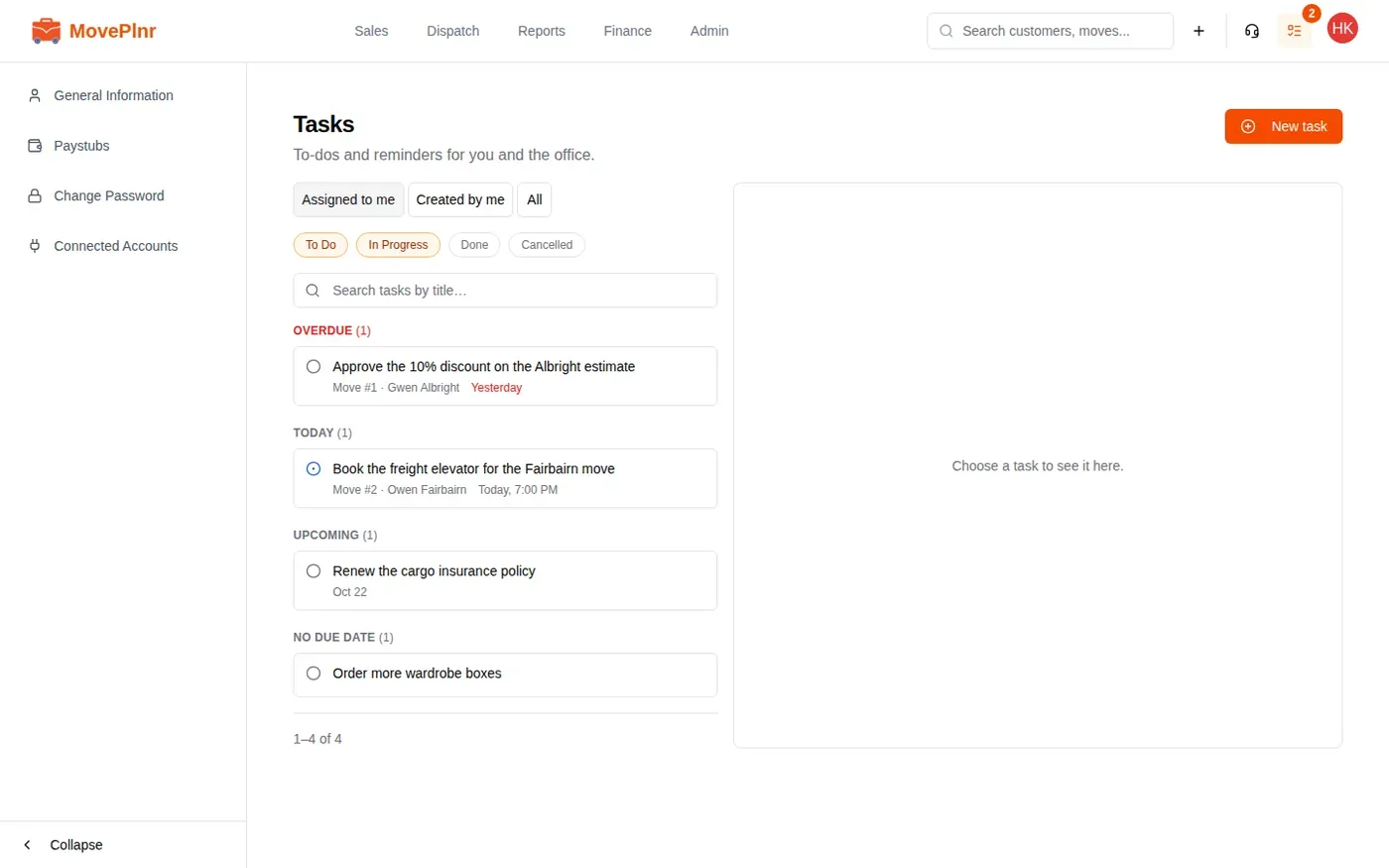
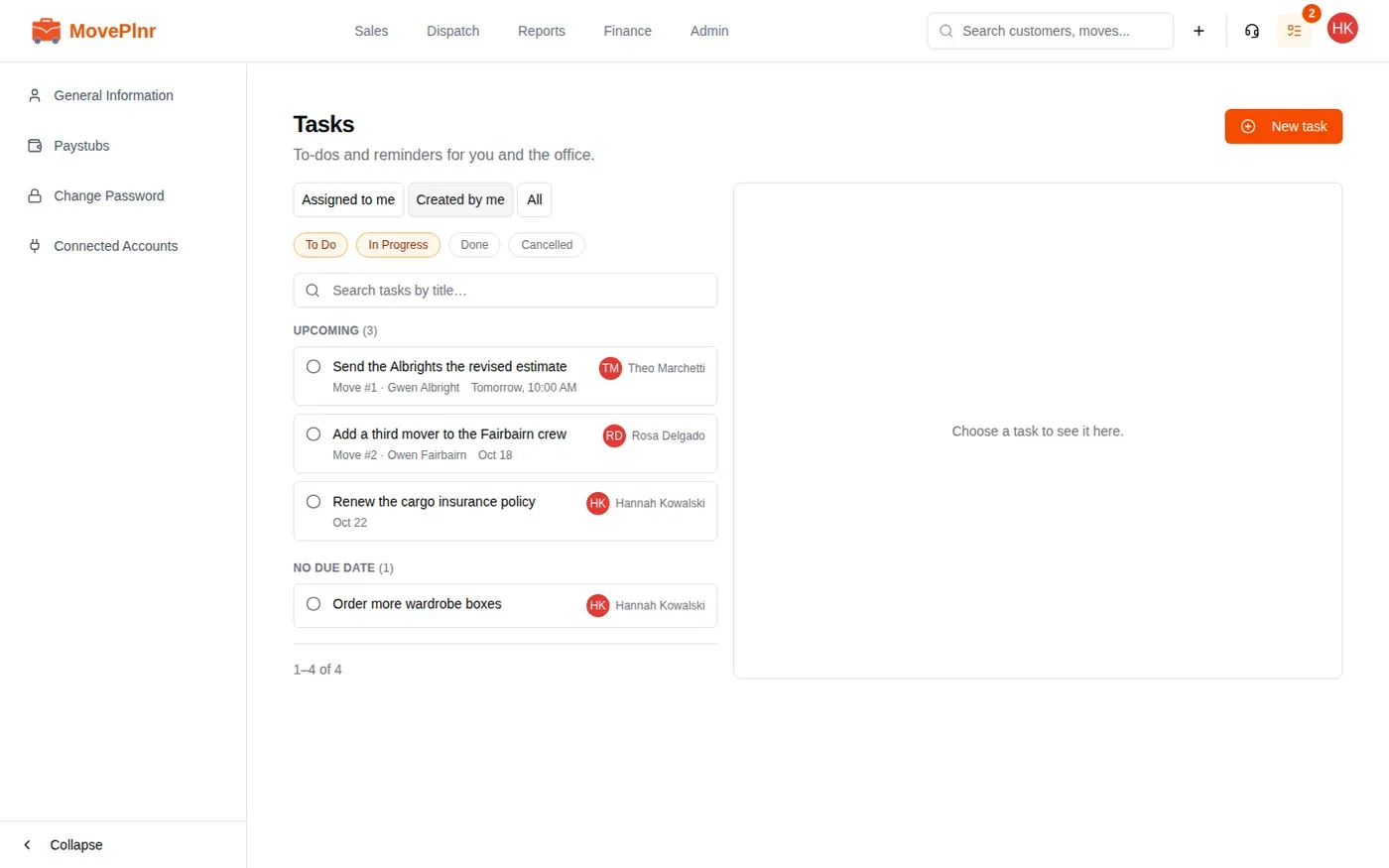
- Pick a tab: Assigned to me, or Created by me for the tasks you gave to yourself or someone else.
- Use the status buttons to choose what shows. To Do and In Progress are on when the page opens. Turn on Done or Cancelled to see finished tasks.
- Type in the search box to find a task by its title.
- Click a task to open it beside the list.
See every task in the company
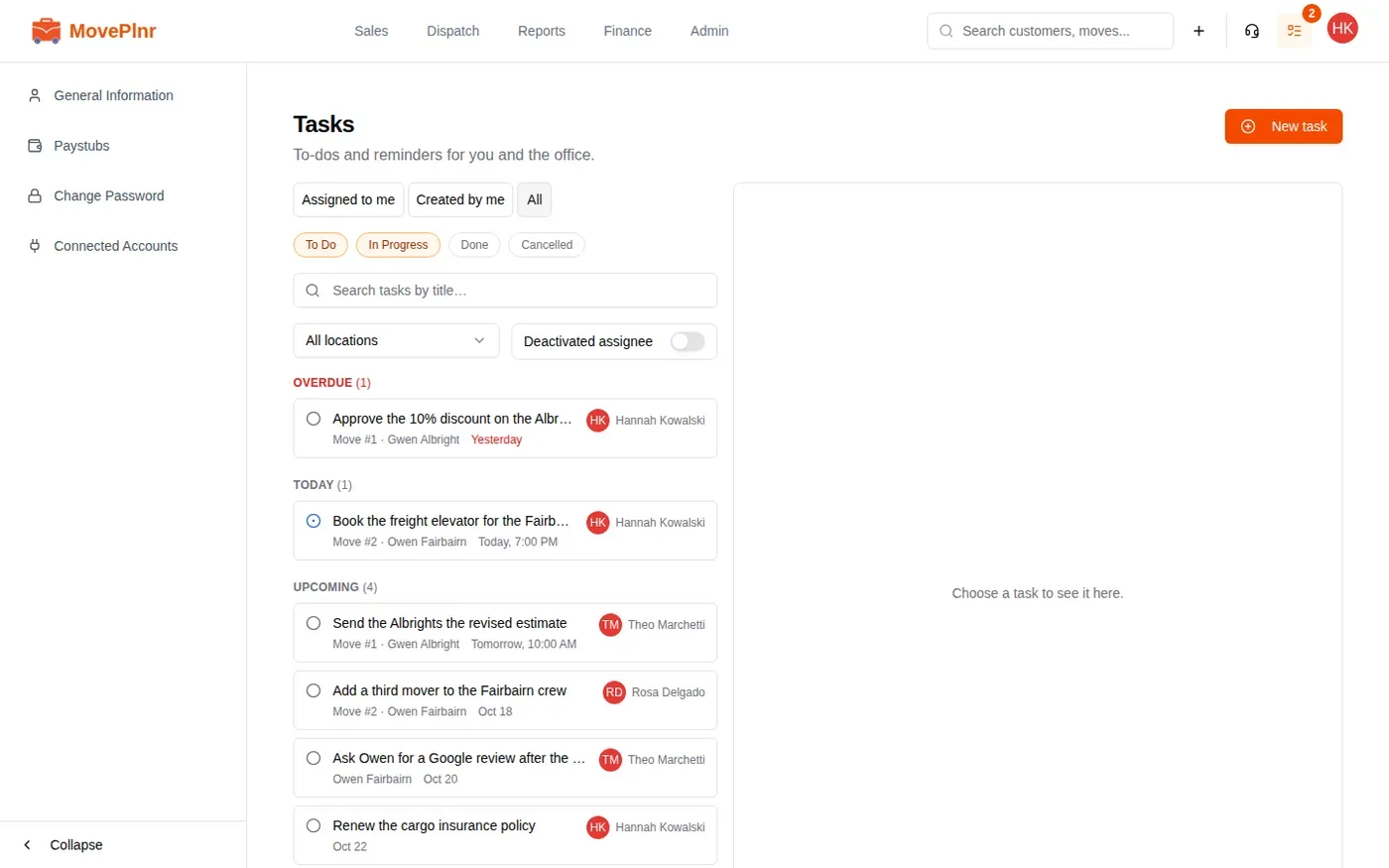
Customer Admins get a third tab, All. It lists every task in the company with the person who has it. Pick a branch to narrow the list, or turn on Deactivated assignee to find tasks still held by someone who has left.
Create a task
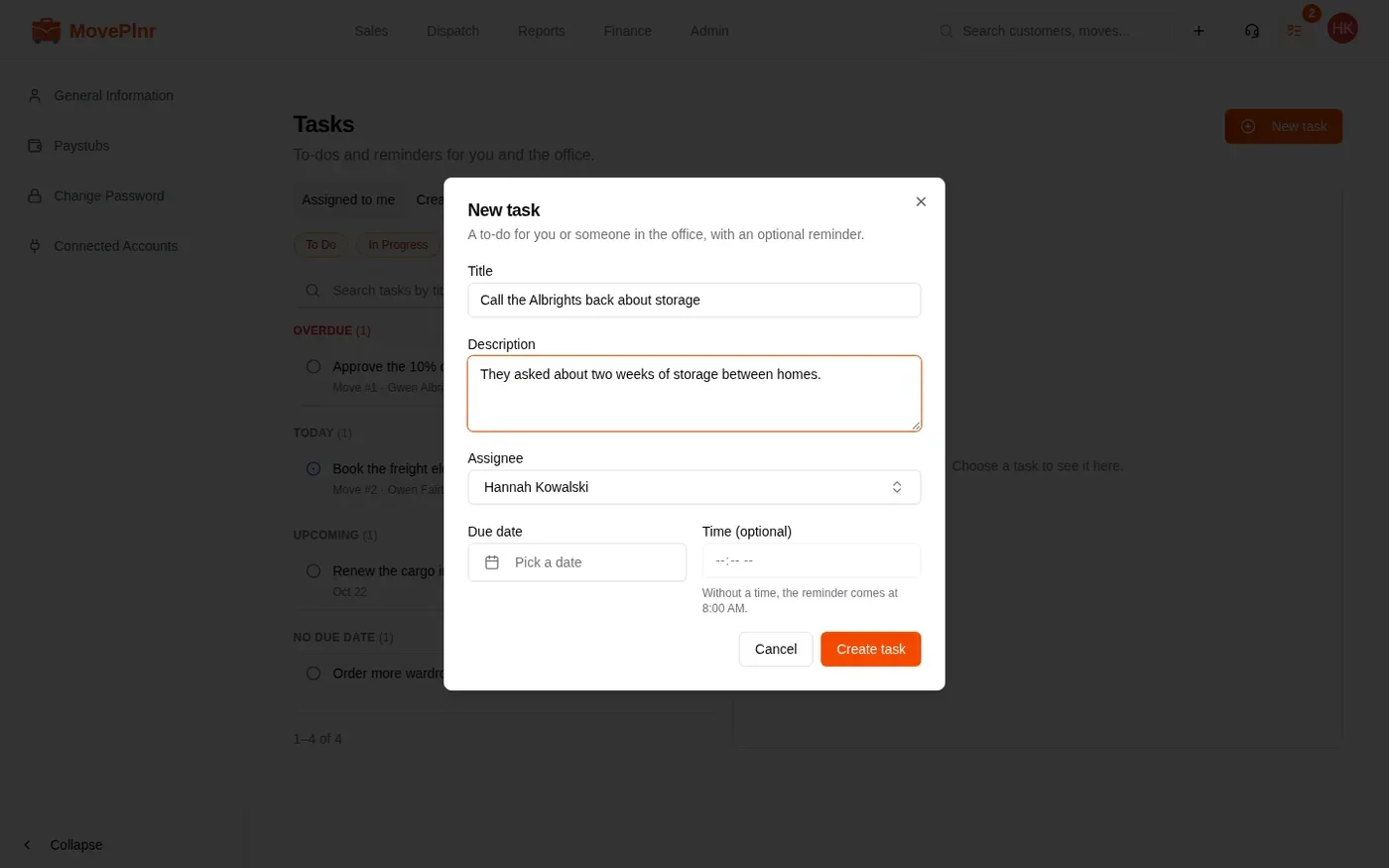
- Click New task.
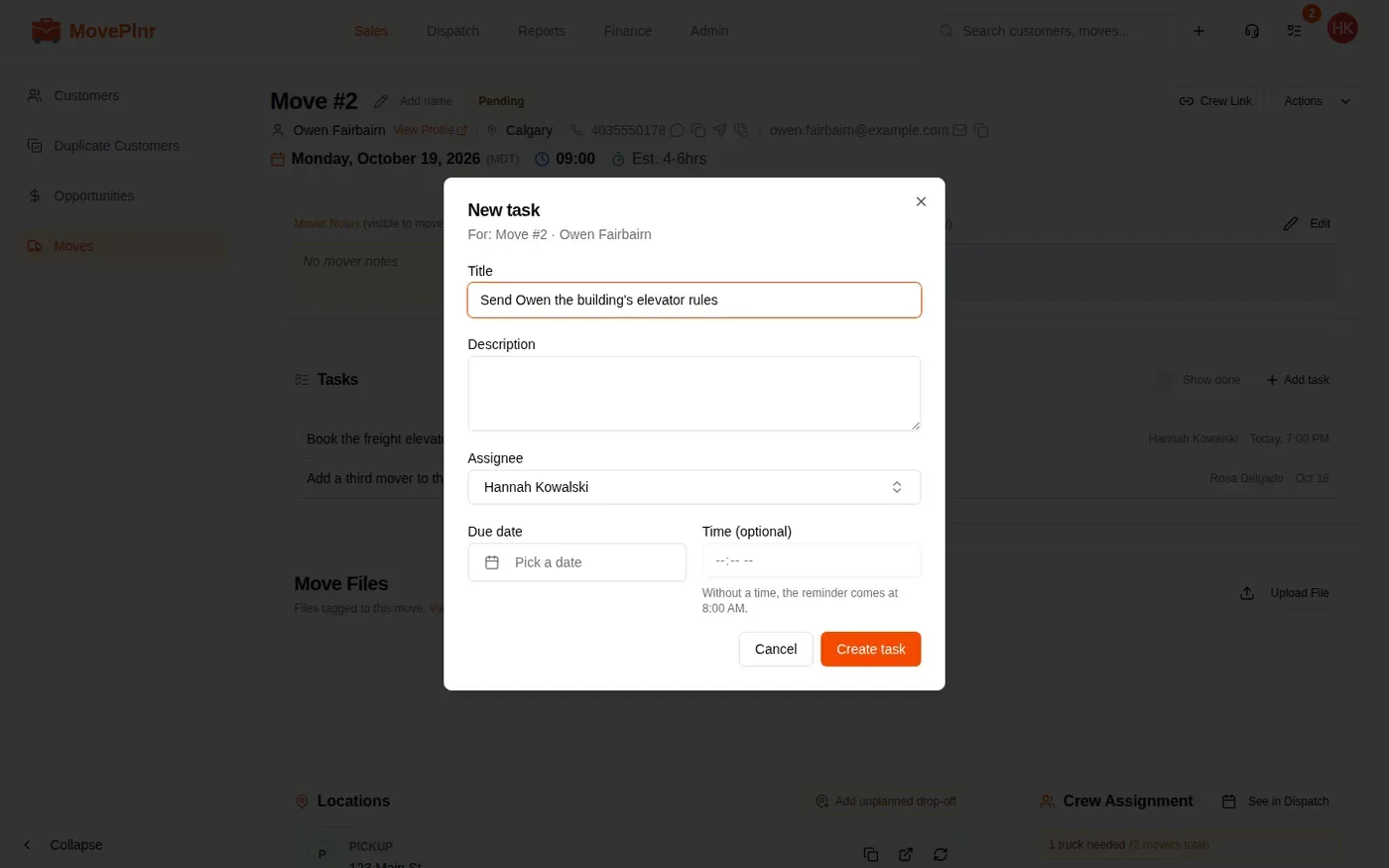
- Type a Title, and a Description if it helps.
- Pick the Assignee. It starts as you. Anyone in the office can be picked.
- Pick a Due date if there is one, and a time if it matters. Without a time, the task is due at 8:00 AM.
- Click Create task.
The person you assign gets a notification straight away. When the task comes due, they get a reminder.
Work on a task
Open a task to change anything about it. Your changes save as you make them.
- Status: move it from To Do to In Progress, then Done. Use Cancelled for a task nobody needs to do any more.
- Assignee: hand it to someone else. They get a notification.
- Due date and Time: change them, or clear the date.
- The title: click it and type. It saves when you click away.
- Description: type, then click Save.
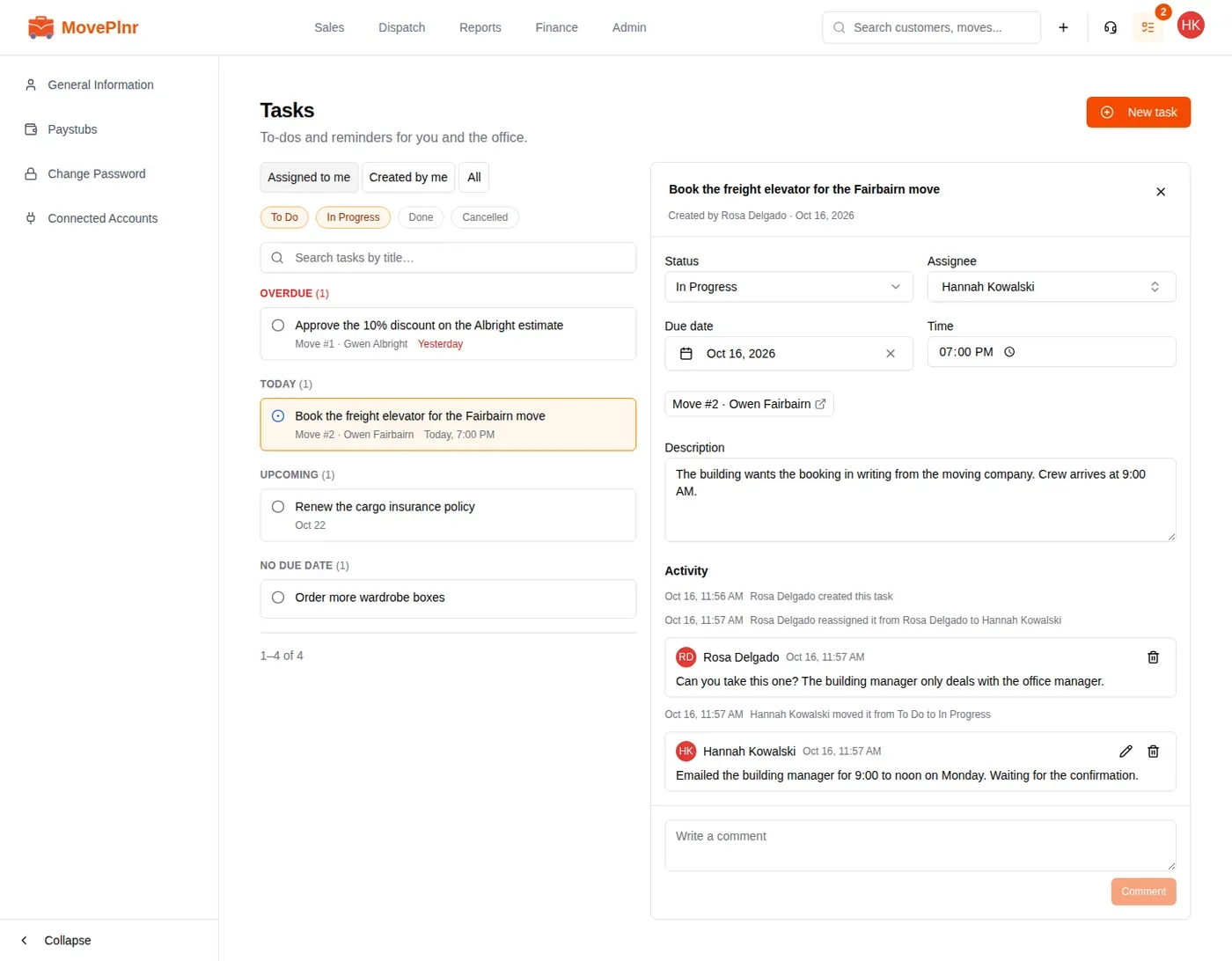
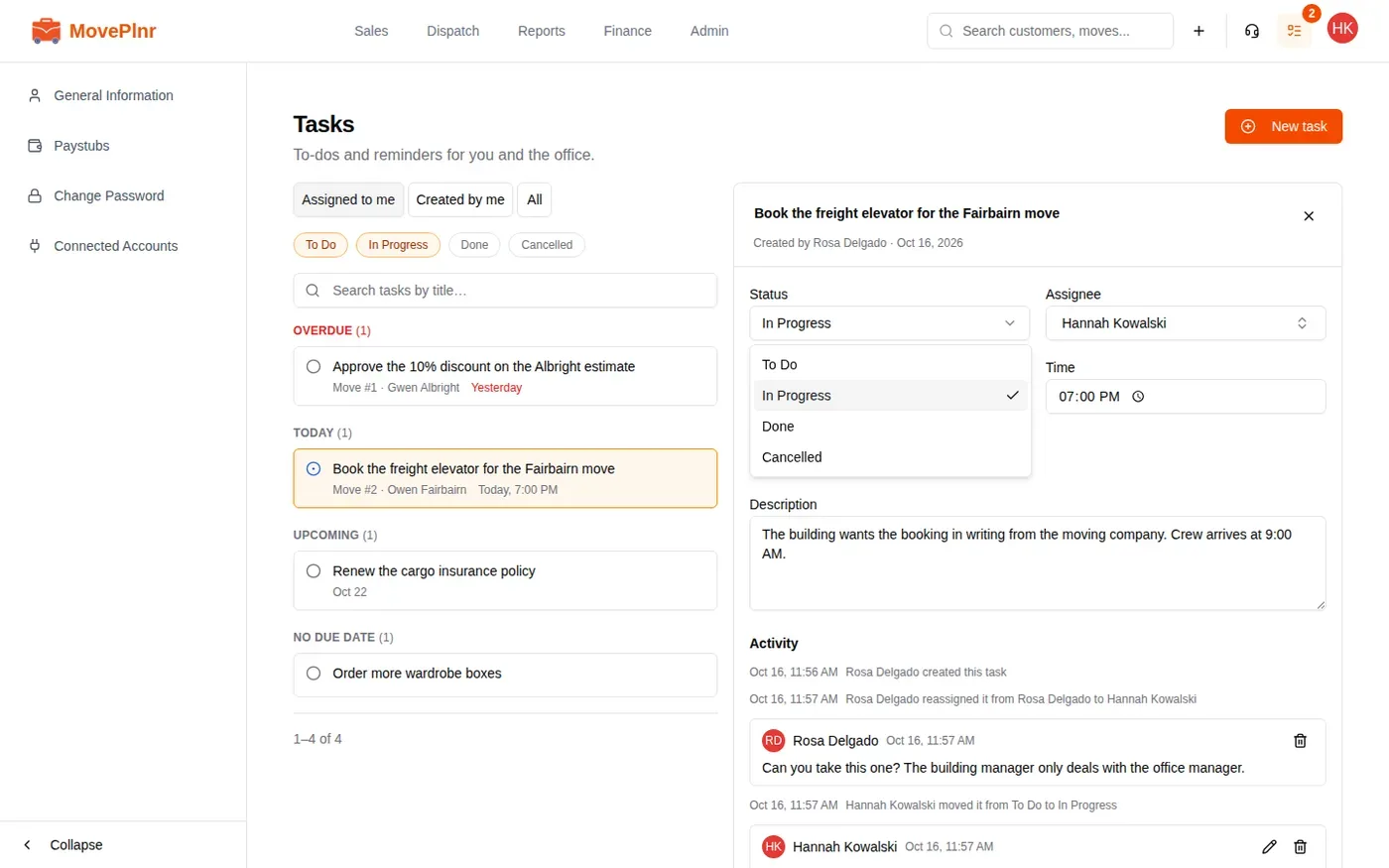
Click the move or customer under the due date to jump to that record.
Who can see a task
The person it is assigned to, the person who created it, and Customer Admins. If you hand off a task that someone else created, it leaves your list, so MovePlnr asks you to confirm first.
Talk about it
Every change shows under Activity, with who made it. To ask a question or leave an update, type in the box at the bottom and click Comment. The assignee and the creator get a notification. You can edit or delete your own comments.
Tasks on a move, opportunity or customer
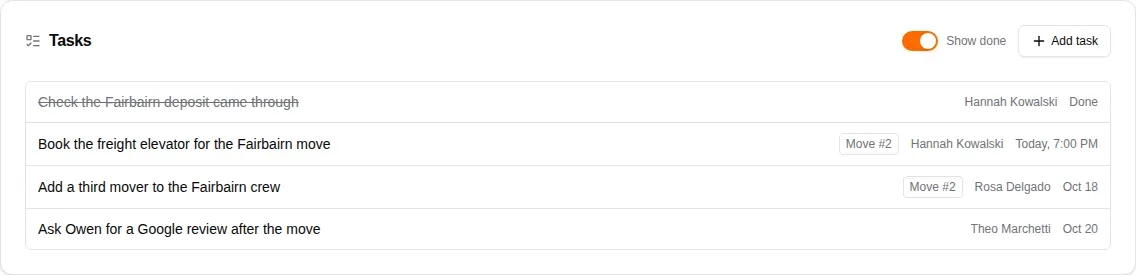
Opportunities, booked moves and customers each have a Tasks card. It lists the open tasks about that record, with who has each one and when it is due.

- Open the opportunity, move or customer.
- On the Tasks card, click Add task.
- Fill in the task as usual. It is already linked to the record you started from.
- Click Create task.
Turn on Show done to include finished tasks. On a customer, the card also lists the tasks on that customer’s moves, each with its move number.
Set a financing reminder
Financing providers only take a hold when the move is close enough. When a move is too far out, a “Remind me on” button with a date shows beside the button that sends the financing application. The date is the first day every financing provider on your account can take the hold.
Click it, and MovePlnr creates a task for you, due that day at 8:00 AM, to send the financing application. The button then reads “Reminder set for” with the date, and opens the task.
If the move date changes, the reminder moves with it. Once the application is sent, the task is marked Done by itself. If the move is cancelled or lost, the task is cancelled.