Logo for MovePlnr - the Best Residential Moving Company CRMMovePlnr
For dispatchers, sales reps, office admins and crew leads

Tag moves and filter by tag

A tag is a short label on a move: Piano, Elevator booked, Long carry. Add as many as a move needs, then find every move that carries one from the Moves list or the search bar. The same tags show on the dispatch board, the opportunity and the crew's own move page, so nobody has to open a note to learn what matters. Start with the video.

Before you start

  • Permission to edit moves, to add or remove tags (crews see them read-only)
Do this in MovePlnr

In this video

Tap a chapter to jump straight to it. Captions are on; turn them off with the CC button.

Before you start

  • Anyone who can edit a move can add and remove its tags: office admins, dispatchers and sales reps on the moves they work.
  • Crew leads and movers see a move’s tags on their own move page. They can’t change them.
  • Tags are on for every company. There is nothing to switch on.

Add a tag to a move

Tags sit right under the move’s number and name, at the top of the move page.

  1. Open the move.
  2. Click Add tag beside the tags it already has.
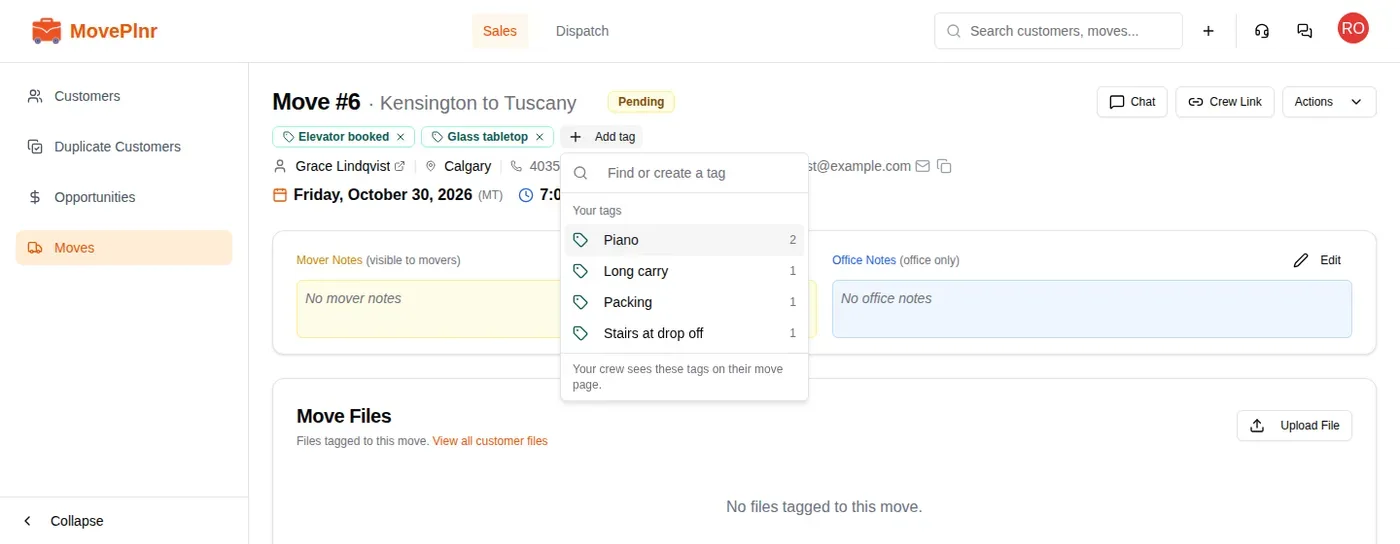
  3. Pick one of Your tags, the tags your company already uses. The most used come first, and the number beside each says how many moves carry it.
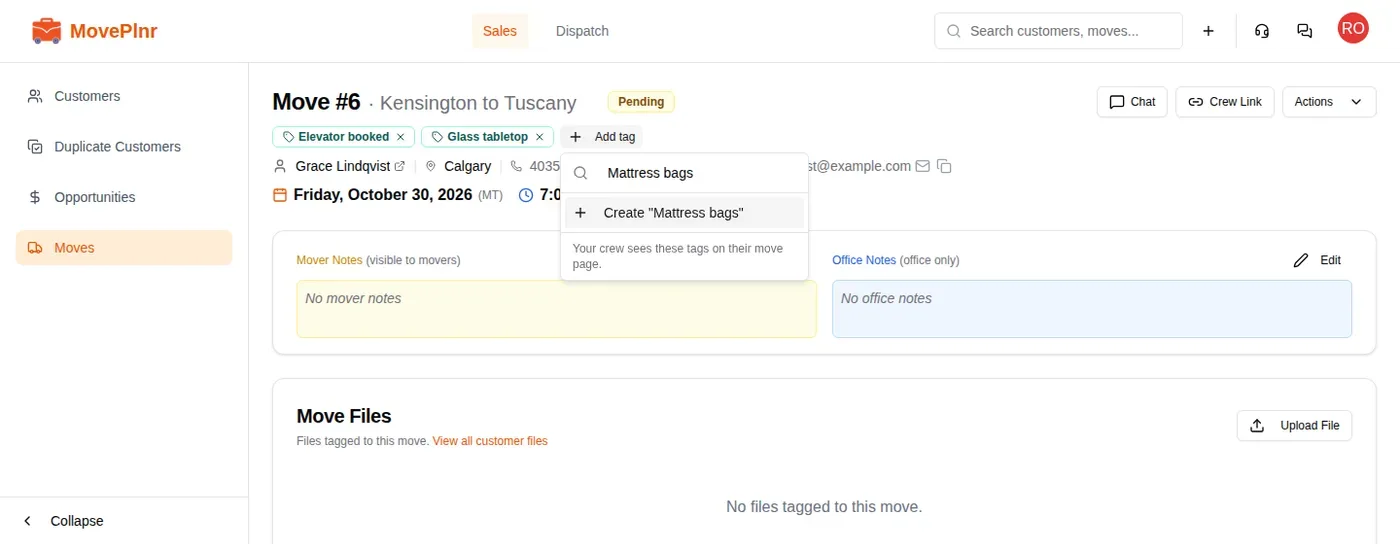
  4. Or type a new one in the box at the top of the list and pick the line that creates it.

The tag saves the moment you pick it. There is no save button.
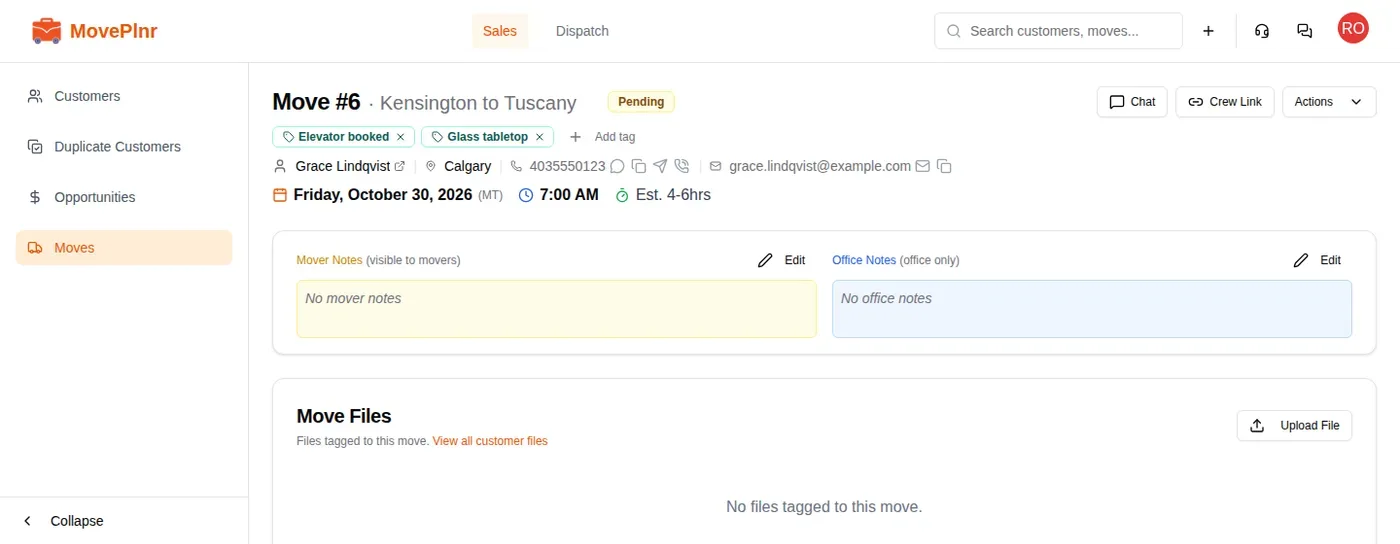
A move page with two tags under the move number
Tags sit under the move's number and name. The name now reads as plain text after the number.
The Add tag list showing the company's tags with a count beside each
Your company's tags, most used first, with how many moves carry each.
Typing a new tag in the Add tag list
Type a tag nobody has used yet and pick the line that creates it.

Remove a tag

Click the small x on the tag. It comes off straight away. When no move carries a tag any more, it drops out of Your tags too: there is no separate list of tags to manage.

Limits

A move takes up to 20 tags, and each tag up to 40 characters. Short ones read best on the dispatch board and the crew’s phone.

Find moves by tag

Do this in MovePlnr

On the Moves list

The Moves list shows each move’s tags under the customer, and its name under the move number.

  1. Open Moves from the Sales menu.
  2. Click All tags beside the status filter.
  3. Pick one or more tags. The list keeps every move that carries any of them.
  4. To go back to every move, open the filter again and clear the tags.

The search box at the top of the list finds a move by its name or its tags as well as by customer, phone or address.
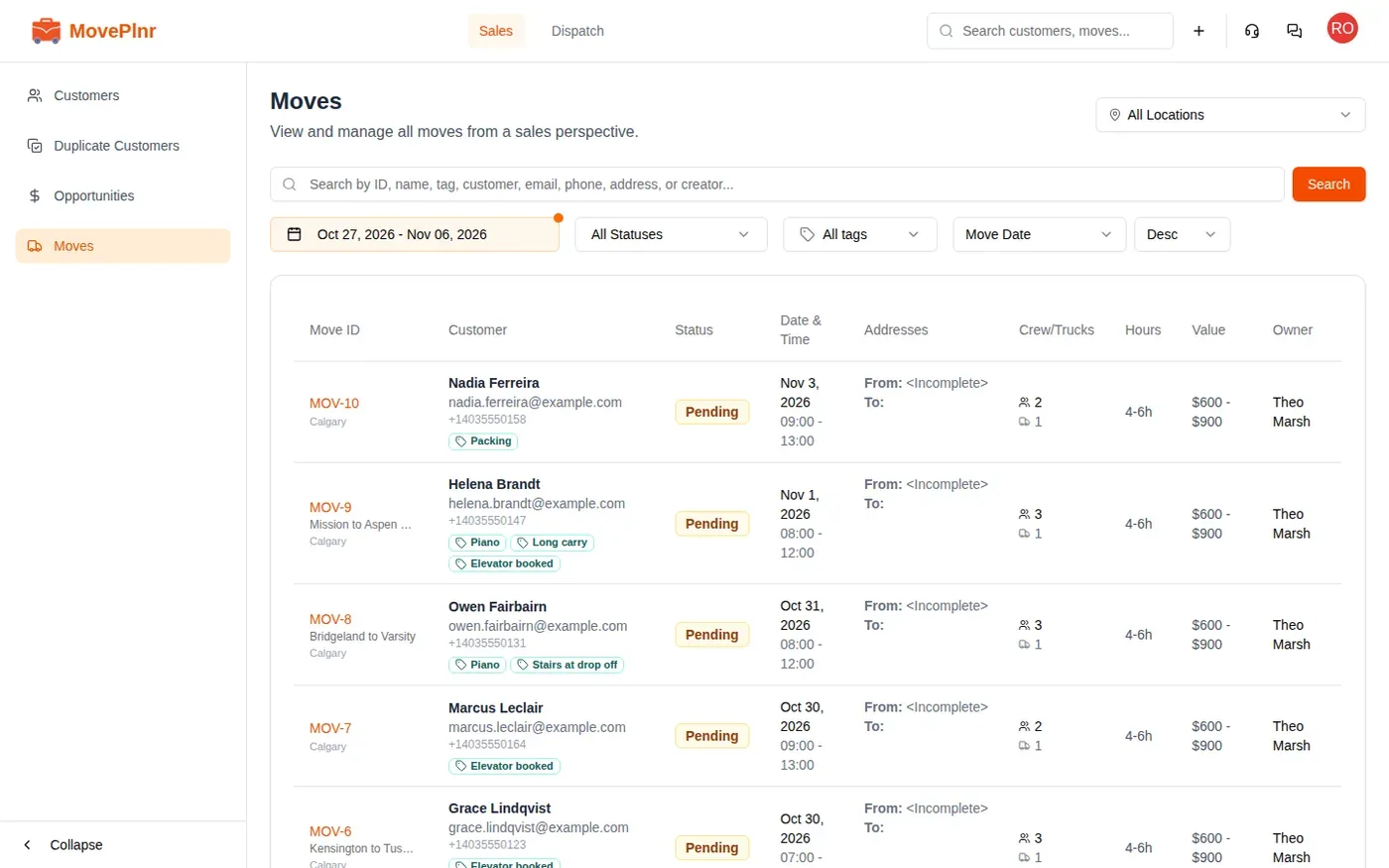
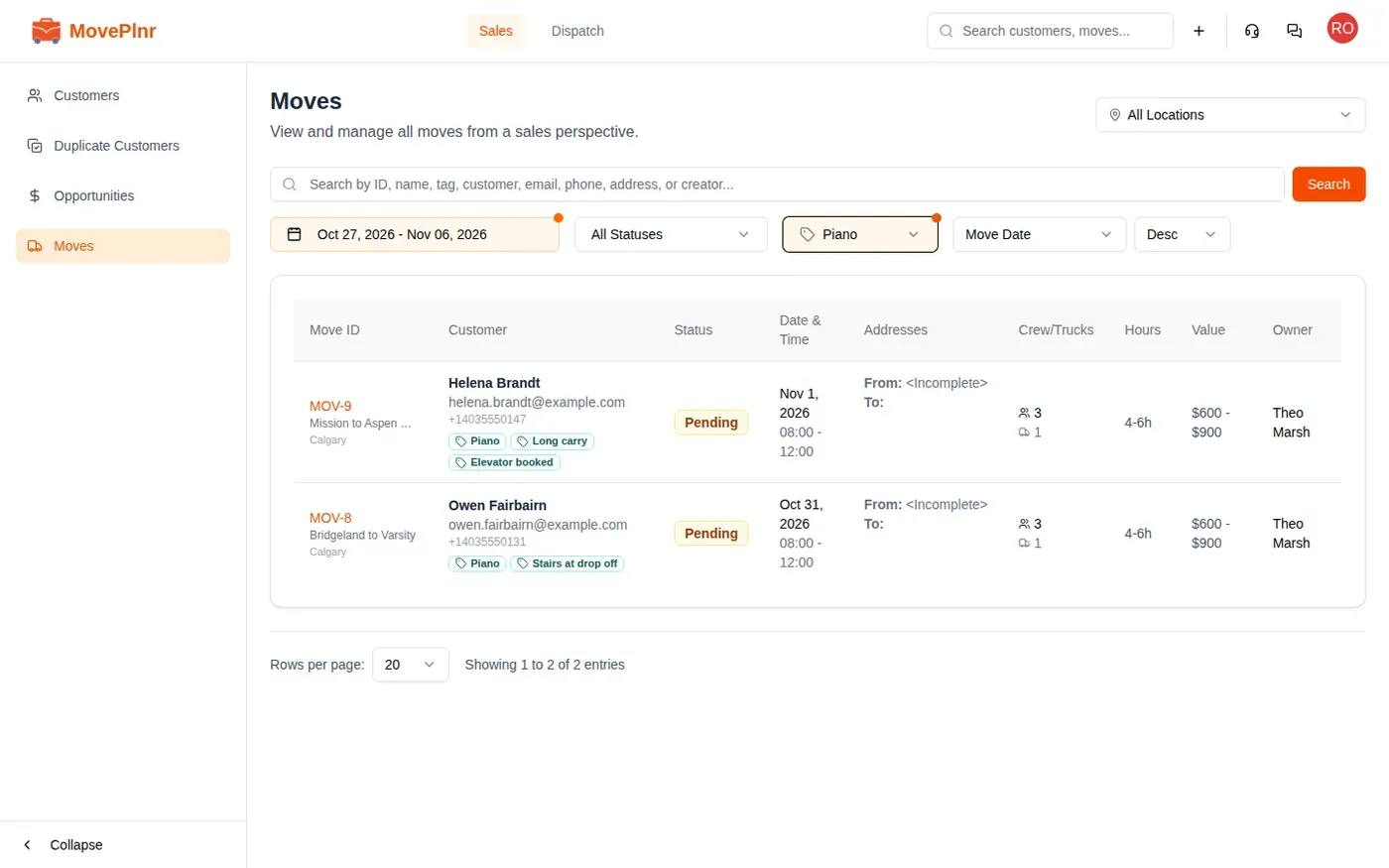
The Moves list with tags under each customer
Every move's tags, under the customer.
The Moves list filtered to the Piano tag
Filtered to Piano: the two piano moves this week, and nothing else.

Type a tag in the search bar at the top of any page. Moves that carry the tag come first in the results, each with its tags.
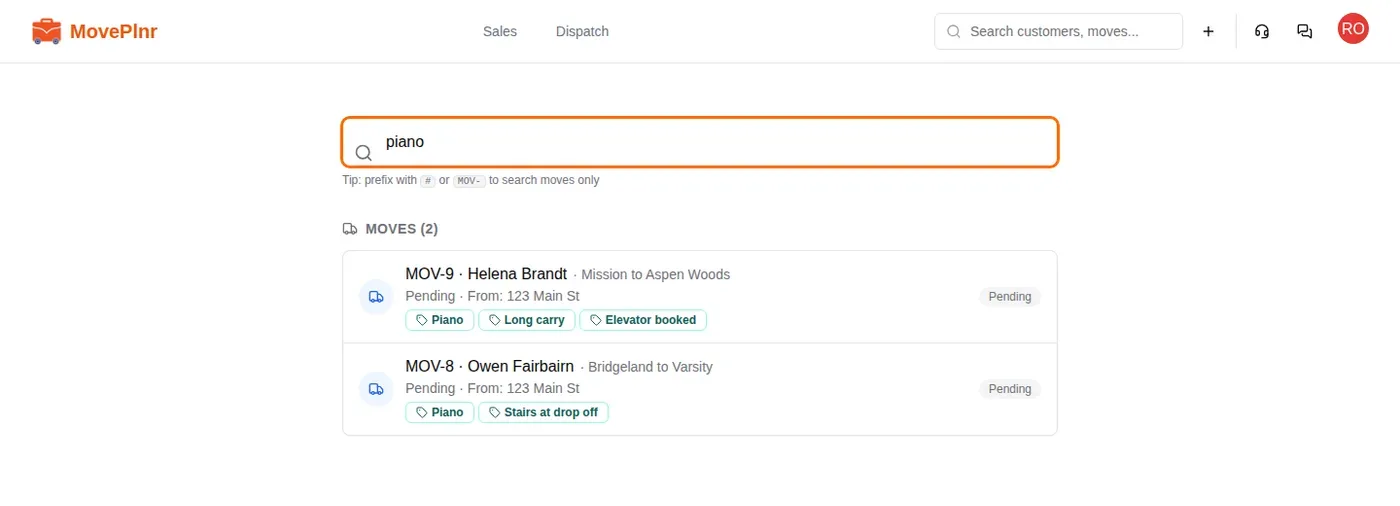
Search results for piano showing two tagged moves
Search for a tag and the moves that carry it come first.

Where tags show

Do this in MovePlnr

You add a tag once and it follows the move:

  • On the dispatch board, each job card on Job Assignments shows its tags beside the status, so the dispatcher sees the piano before picking the crew.
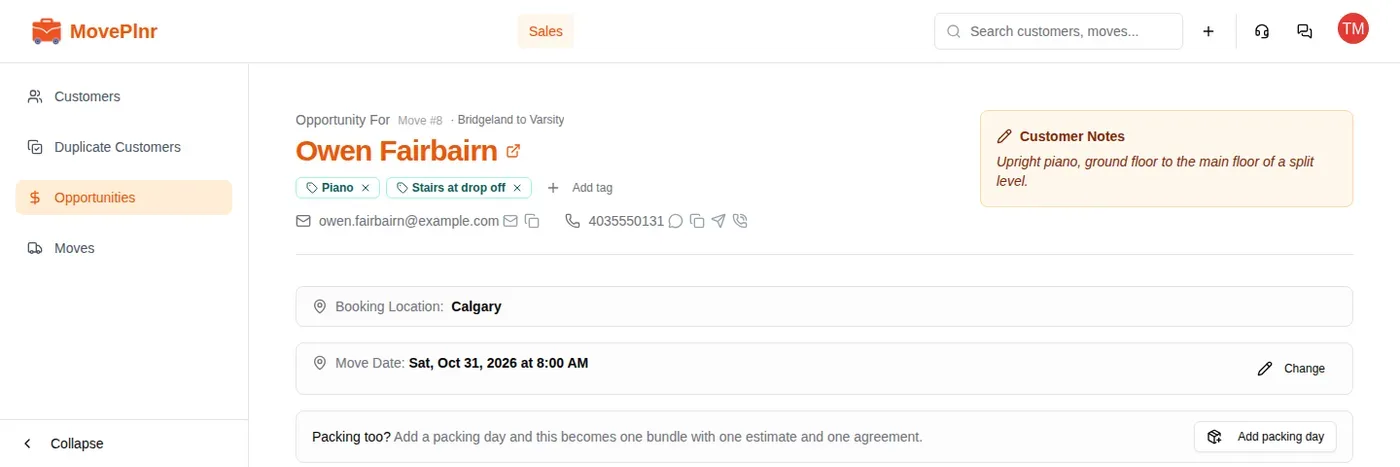
  • On the opportunity, a sales rep sees and edits the same tags at the top of the opportunity, under the customer’s name.
  • On the customer’s page, the move history shows each move’s tags.
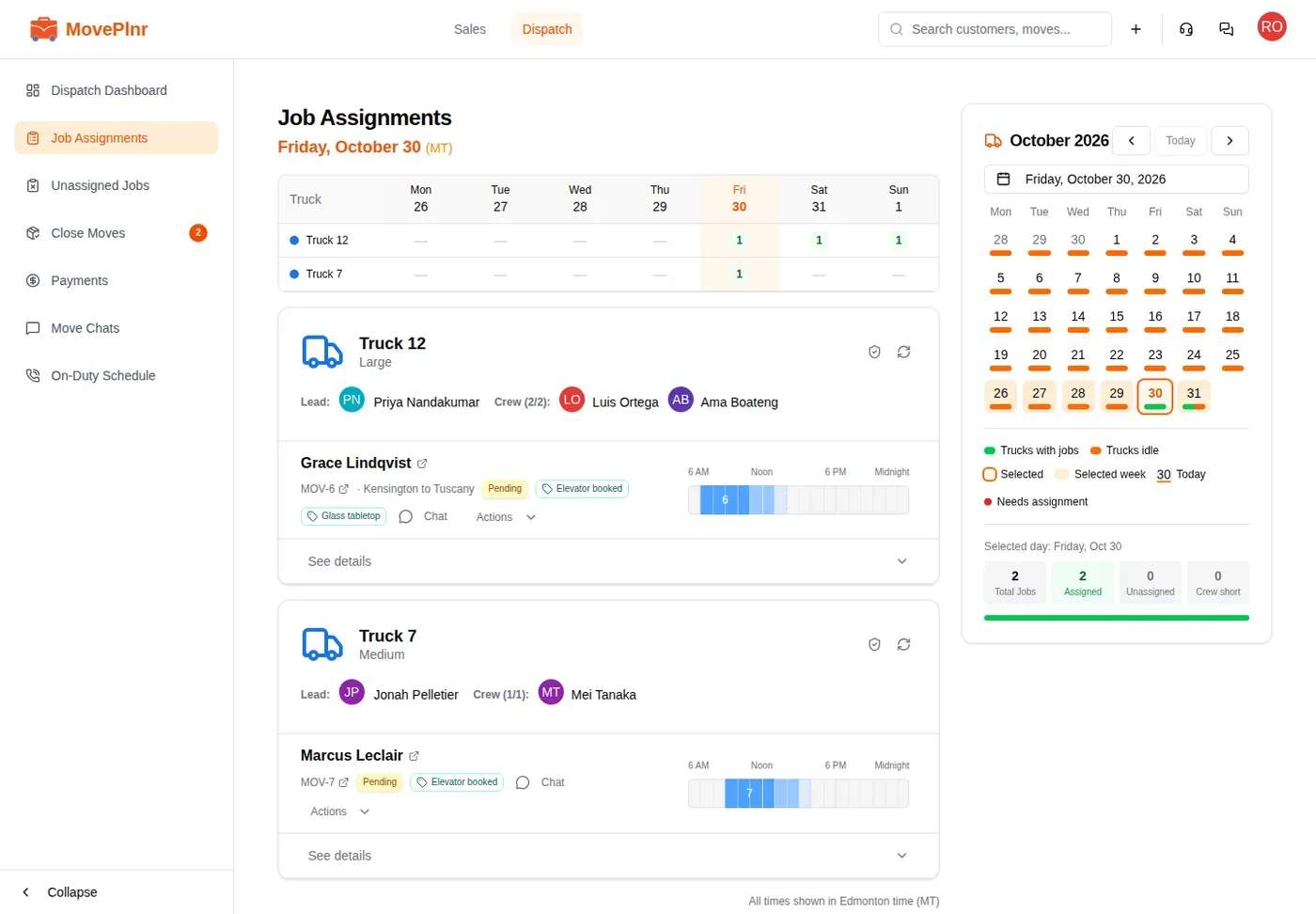
Job Assignments with tags on each job card
Tags on each job card on the board.
An opportunity with two tags under the customer's name
The same tags on the opportunity, where sales can add more.
A customer's move history with tags on the move
The customer's move history shows each move's tags.

What the crew sees

Every tag shows on the crew’s move page, under the move number and date. Crew leads and movers can read them but can’t change them. The Add tag list reminds you of this at the bottom, so write tags the crew can act on.
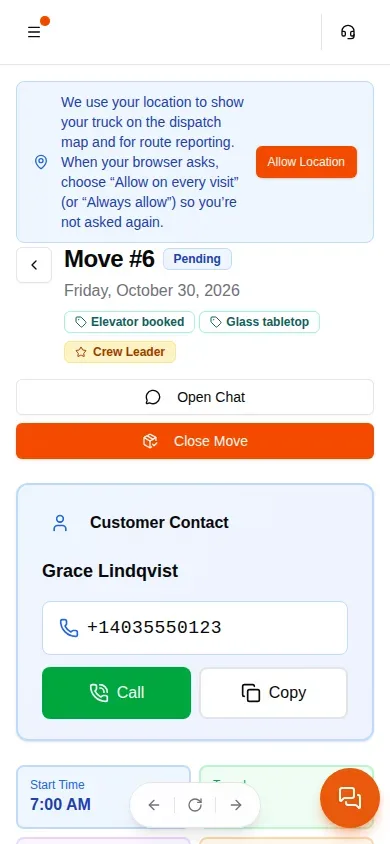
The crew's move page on a phone with two tags under the date
On the crew's phone: the tags, right under the date.

Questions about tags

How many tags can a move have?
Up to 20, each up to 40 characters.
Can I rename a tag everywhere at once?
Not yet. Add the new tag to each move and take the old one off. When no move carries the old tag, it drops out of the list.
Does the Moves filter need every tag I pick?
No. A move shows when it carries any of the tags you picked.
Can the crew add tags from their phone?
No. The crew sees the tags on their move page but only the office can add or remove them.
What happened to the move's name?
It still sits beside the move number, as plain text now, so it no longer looks like a tag. Click it on the move page to rename the move.

Updated October 30, 2026, captured on MovePlnr v4.13.0