
Open Catch a ride
Open Catch a ride from the Dispatch menu. It shows one branch at a time, so pick the branch in the location picker at the top right. A ride belongs to the branch whose truck runs it, so there is no all-branches view.
The page has two parts:
- Waiting for a ride on the left: every small job the customer is flexible on, with what is moving, the days that suit the customer, the time on site, the addresses, the phone number and the price.
- Upcoming rides on the right: the rides planned or booked for the next 30 days, with the truck, how many jobs, and how far along each one is.
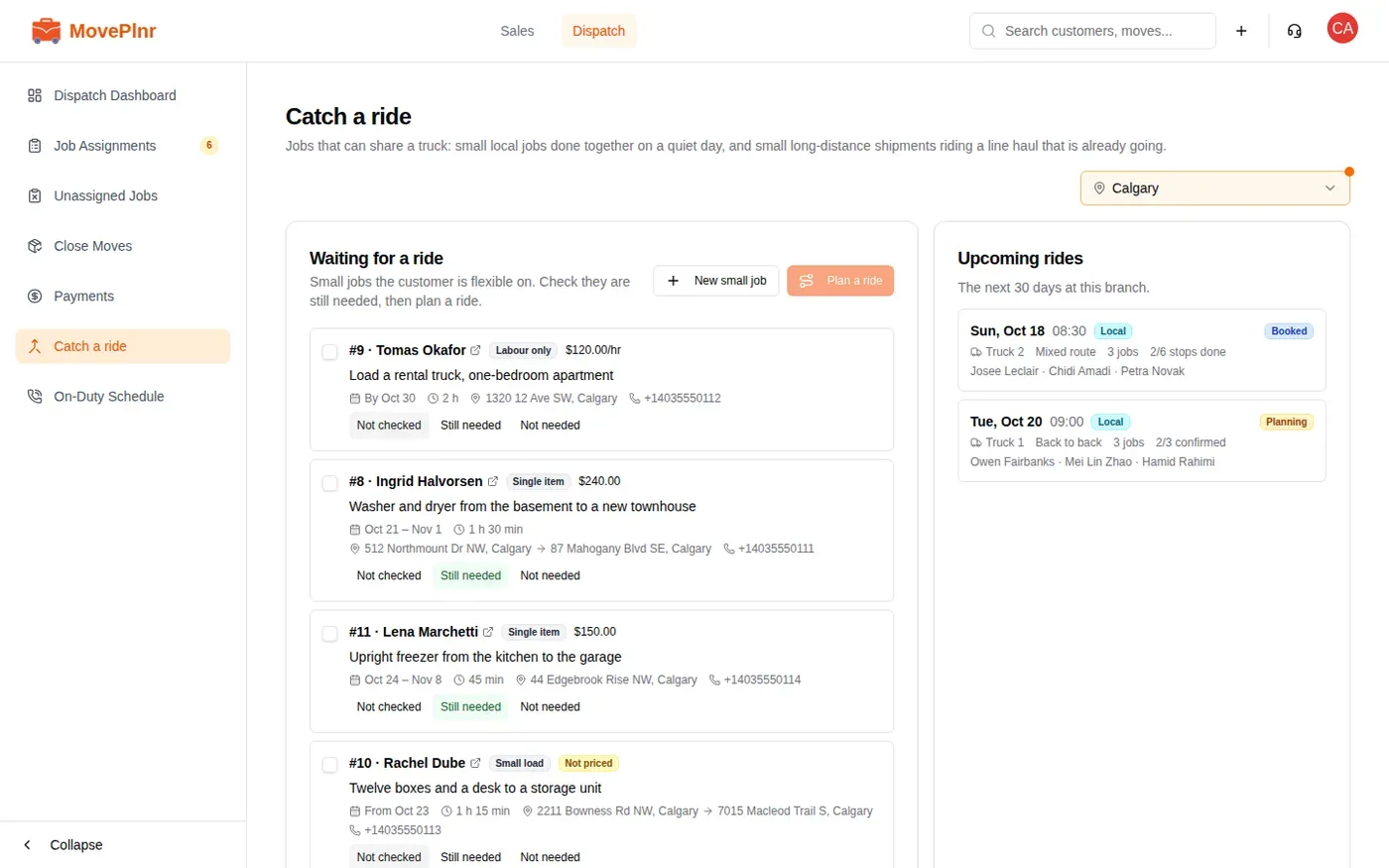
Catch a ride comes with the Catch a Ride (Local) add-on. A company admin turns it on under Add-ons. Company admins, dispatchers and sales reps can use it.
Add a small job
There are three ways in. All three make an ordinary opportunity with its own customer, and put it straight in the pool.
- On Catch a ride, click New small job. Sales reps find the same button on Opportunities, and in the plus menu in the top bar.
- Choose Existing customer and search, or New customer and type a name with a phone number or email.
- Pick the Kind: Labour only, Single item or Small load. Then say What is moving and the Time on site (min).
- If the customer can only do certain days, set Earliest day and Latest day. Leave them empty for any day.
- Set the pickup address. Add a drop-off unless the job stays in one building. A labour-only job has one address.
- Under Pricing, choose Flat for one price for the whole job, or By the hour, and pick the number of Movers. Leave the price empty to add it later. Click Add to pool.
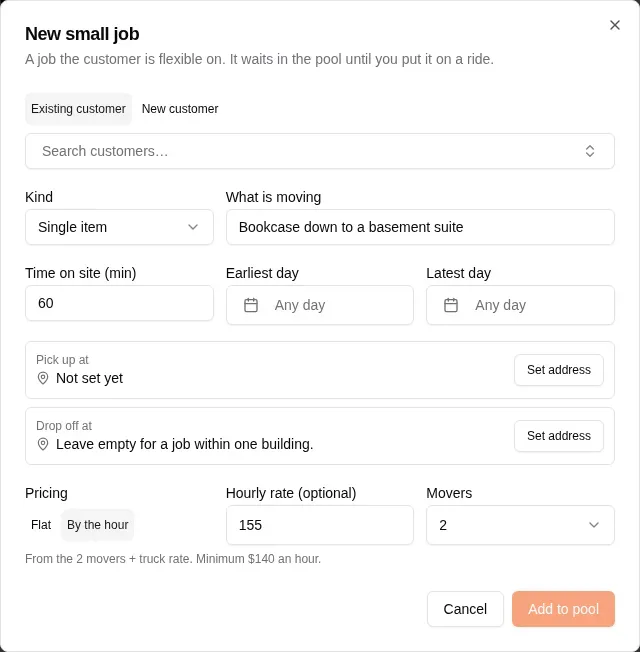
Price it flat or by the hour
A flat price is the total for the job. By the hour, the Hourly rate starts at your branch’s rate for that many movers and one truck (no truck for a labour-only job), the same rate an estimate would pick. The line under it names the rate and its minimum. You can change the rate, but not below that minimum. When the branch has no hourly rate for that crew, type one.
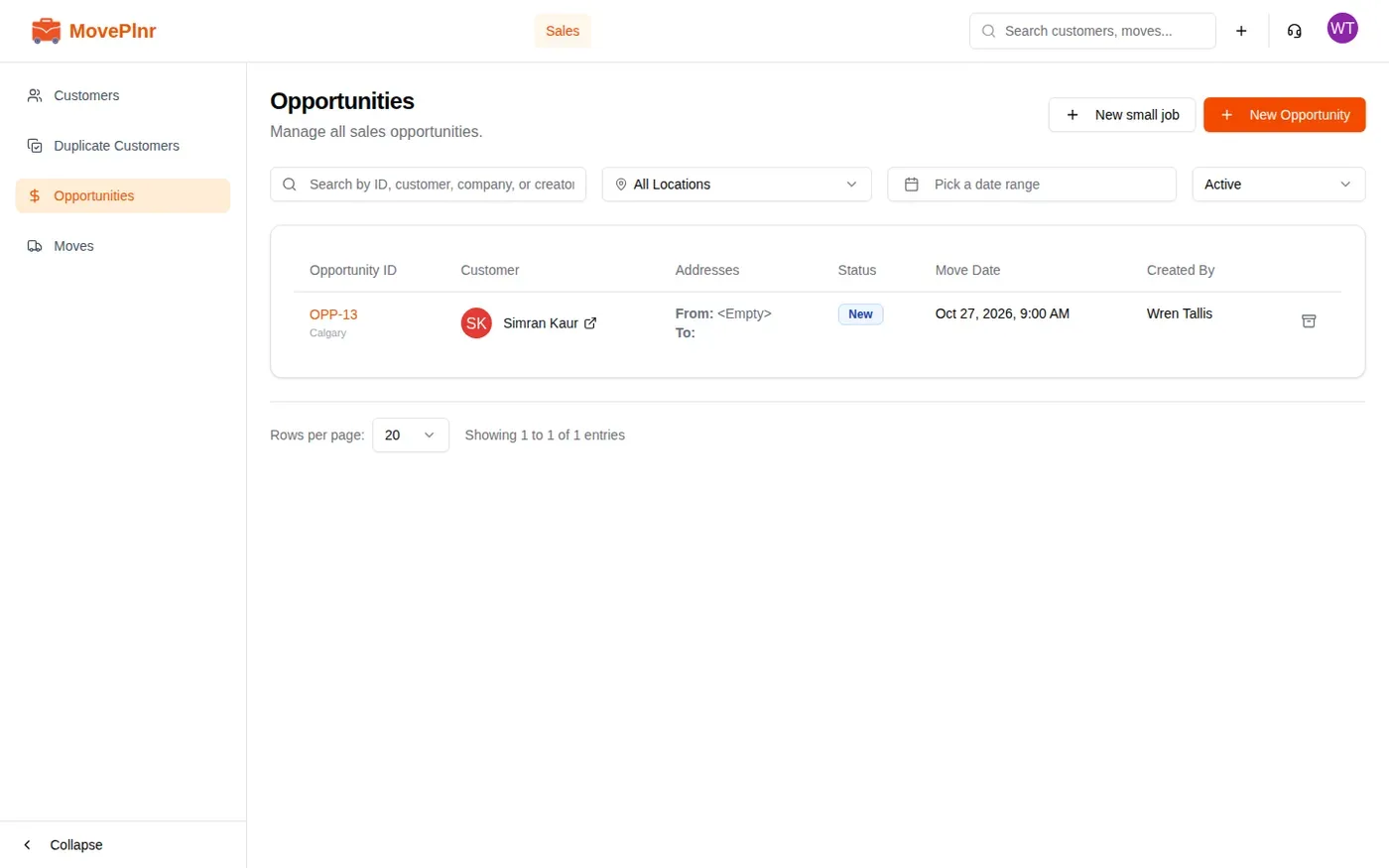
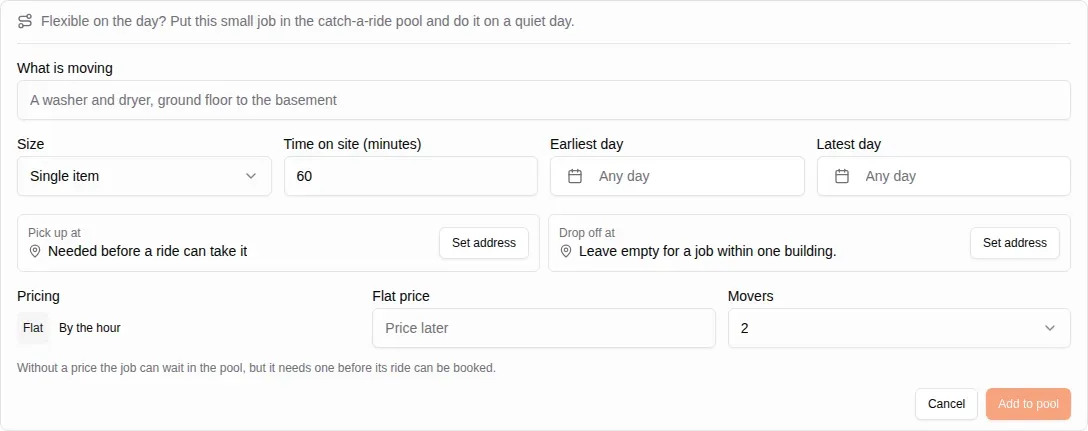
On an open local opportunity, the bar under the booking location asks whether the customer is flexible on the day. Click Catch a ride on it and fill in the same fields.
A job without a price can wait in the pool, marked Not priced. It needs a price before its ride can be booked.
Check the job is still wanted
Small jobs can wait a while, and plans change. Before you book, call the customer and mark what they said under each job: Not checked, Still needed or Not needed. Nothing is sent to the customer. It is your note of the call.
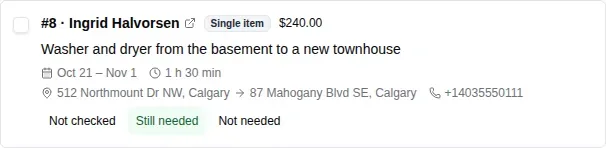
A job marked Not needed is greyed out and can’t be ticked for a new ride. If it is already on a ride, booking leaves it out and puts it back in the pool.
The opportunity page shows the same card, so the rep who took the call sees where the job stands: still waiting in the pool, or on a ride with a link to open it.

While the job waits for a ride, the ride sets its day and truck. You don’t pick them on the opportunity.
Plan a ride
- Tick the jobs that belong together, for example jobs in the same part of town with windows that overlap.
- Click Plan a ride. The button counts the jobs you ticked.
- Pick the Day. It starts on tomorrow, and blocked days are marked in the picker.
- Set Leaves at, the time the truck leaves the yard.
- Pick the Truck, or labour only when no truck is needed. Each truck in the list shows its day: Free all day, or the hours it is already busy that day. Under the list, your pick says when it is free.
- Choose how the stops are run: Back to back does one job at a time, each pickup straight followed by its drop-off. Mixed route mixes the pickups and drop-offs of different jobs in the shortest order, always picking a job up before dropping it off.
- Add Notes for the office if you like, then click Plan ride.
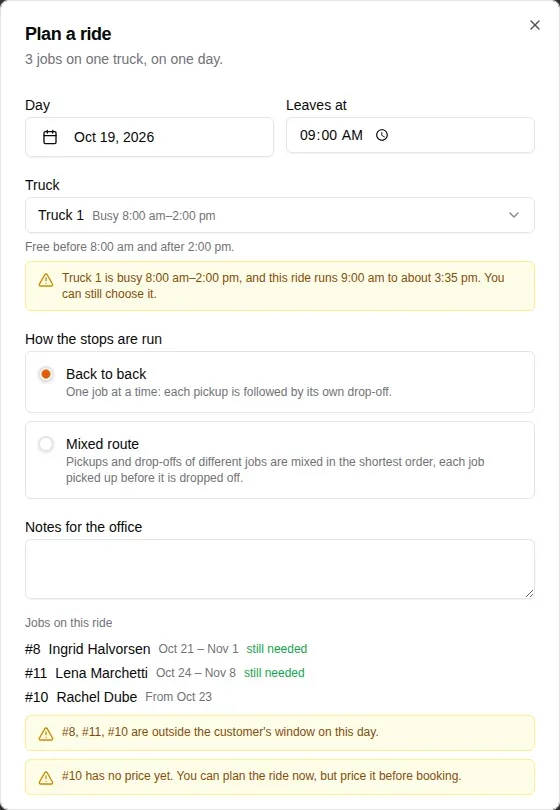
A truck counts as busy for a job already dispatched on it that day, for a reservation that isn’t confirmed yet (marked held), and for another ride still being planned on it (marked planned ride). When the ride, from the time it leaves to its planned finish, runs into one of those, or the truck is on a service hold that day, you see a warning. It is only a warning: you can still pick that truck.
The ride opens on its own page. Nothing is booked yet: the ride is in Planned, and you can still change everything.
Set the order
The ride page shows the day, the leaving time, a planned finish, the truck, the branch and an estimate of the kilometres. Below it, a line of steps tells you where the ride stands: Planned, Customers checked, Booked, On the road and Done.
Each stop has a planned arrival time, worked out from the yard, the distance between stops and the time on site. Between each pair of stops, and from your branch to the first, the page shows the drive to the next stop, like “about 10 min · 5.6 km”. It is an estimate from the straight-line distance on the map, not the roads.
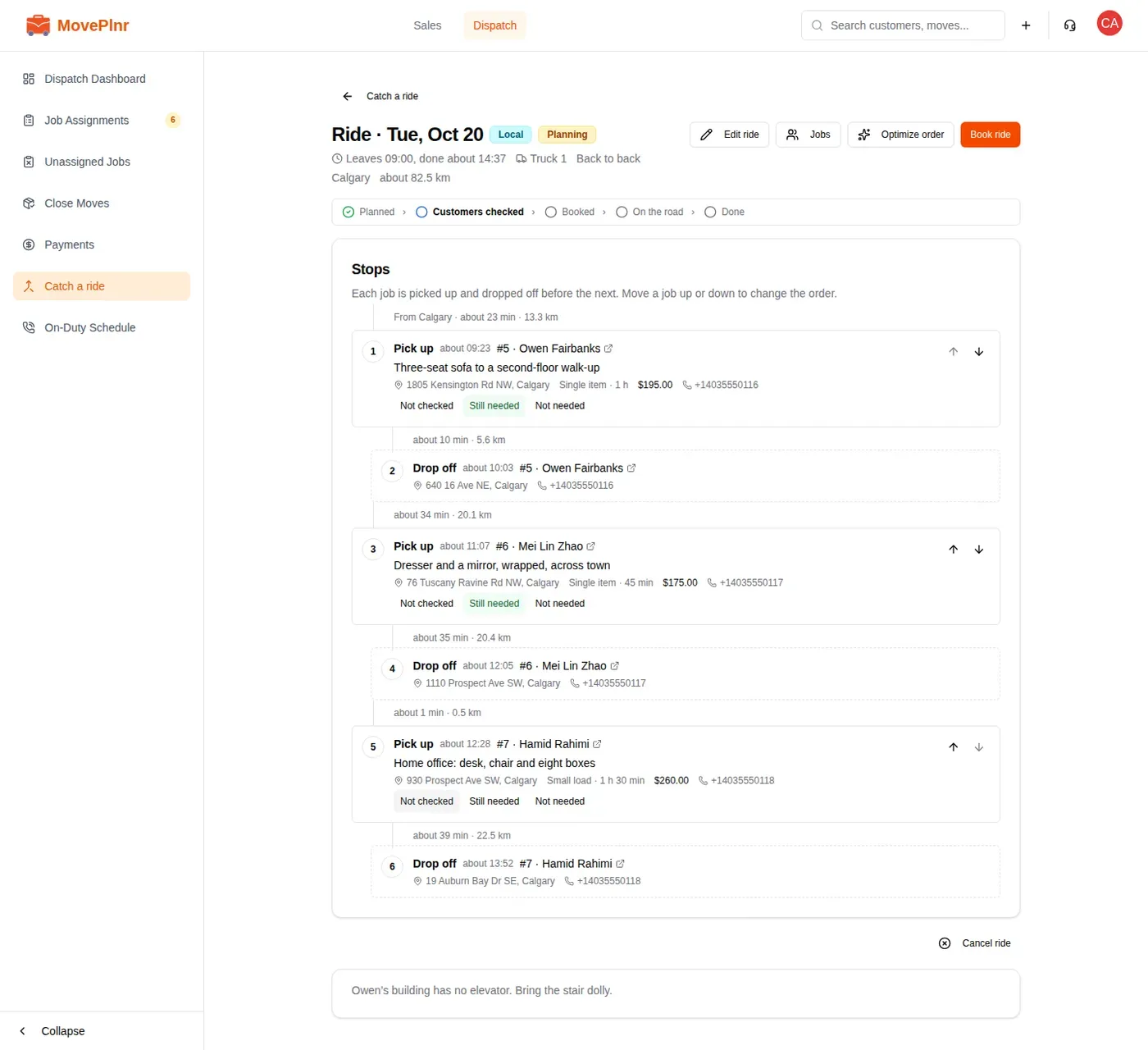
- Use the up and down arrows to change the order. On a back-to-back ride a job moves with its drop-off. On a mixed route each stop moves on its own, and MovePlnr refuses an order that drops a job off before it is picked up.
- Click Optimize order to put the stops in the shortest order the ride allows.
- Click Jobs to add a job from the pool or take one off. A job you untick goes back to the pool.
- Click Edit ride to change the day, the leaving time, the truck or how the stops are run. Its truck list shows each truck’s day the same way, leaving out the ride’s own jobs.
- Mark each customer’s answer right on the stop. Customers checked turns green once nobody is left on Not checked.
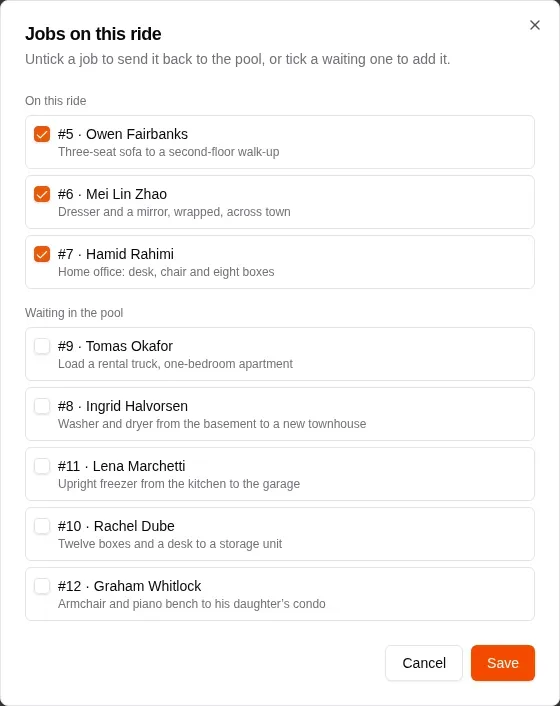
To drop the whole plan, click Cancel ride. Its jobs go back to the pool, ready for another ride.
Book the ride
- Click Book ride.
- Read the summary: the truck, the day, how many customers haven’t been checked, and which jobs aren’t needed any more.
- Click Book ride again, or Not yet to keep planning.
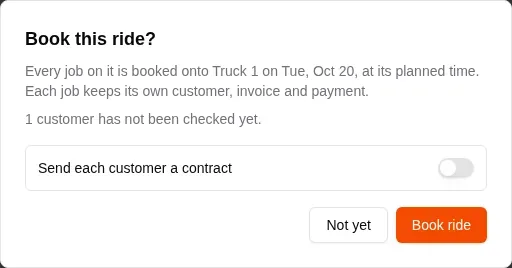
Booking turns each job on the ride into a booked move on the ride’s truck, on that day, at its planned time. Each job keeps its own customer, invoice and payment. A job with no name of its own is named after its place on the ride, like Ride 1/3.
MovePlnr won’t book a ride while a job on it has no price or no pickup address, when the day is blocked, or when the truck doesn’t belong to the branch. It names the job that is holding the ride up, so you can fix it and book again.
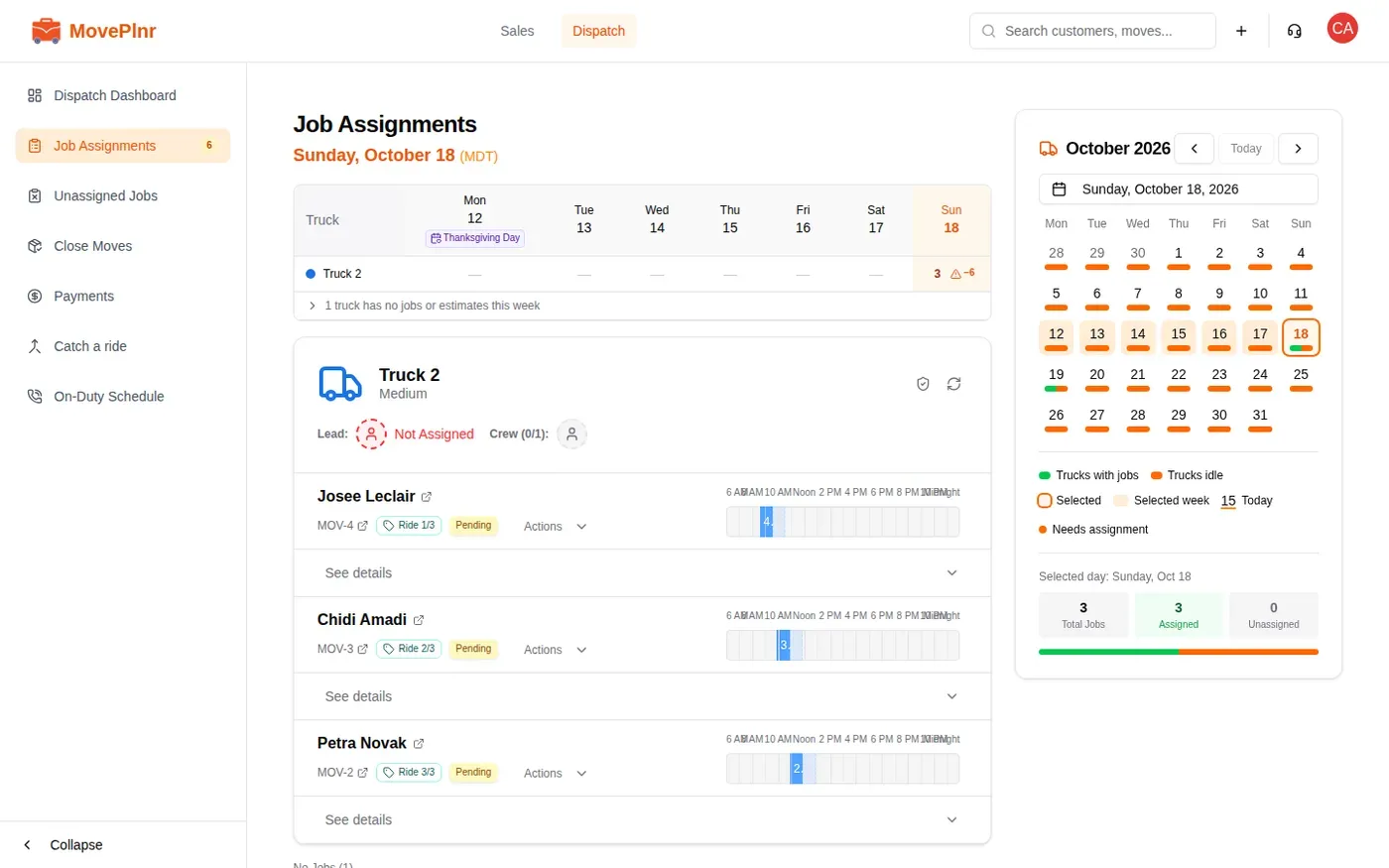
On Job Assignments, each booked job sits in the truck’s lane with a badge like Ride 1/3. Its bar starts at the job’s planned arrival on the ride and runs for its time on site.
Send each customer a contract
With the Contracts add-on, booking can email each customer a contract to sign. It is off by default, so a plain booking stays what it always was.
- On the ride page, click Book ride.
- Turn on Send each customer a contract.
- Pick the Contract. The list is the branch’s contracts, the same ones you offer on an opportunity, with the branch’s default picked first.
- Click Book ride.
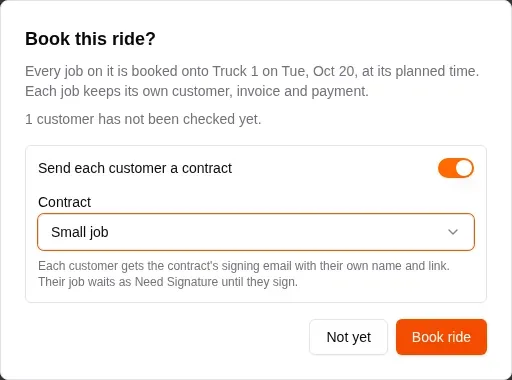
Each customer gets the contract’s signing email with their own name, move date and signing link. Their job is booked as Need Signature until they sign. The contract’s deposit, attachments and waivers go with it.
A customer with no email address, or one set to skip contracts, is named in the dialog before you book. That job is booked without a contract and doesn’t hold up the ride. If one job’s contract can’t be sent, booking stops at that job and names it. Fix it and click Book ride again: the jobs already booked aren’t sent a second contract.
Move a ride to another truck
A truck breaks down, or another job needs it. Move the whole booked ride in one go.
- On the ride page, click Change truck beside the truck’s name.
- Pick the new Truck, or labour only. The list shows each truck’s day, as when you plan a ride.
- Click Change truck.
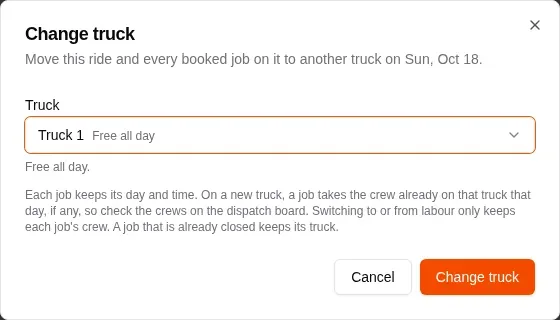
On the new truck, each job takes the crew already on that truck that day, if any, so check the crews on the dispatch board afterwards. Switching to or from labour only keeps each job’s crew. A job that is already closed stays where it is. A truck on a service hold that day can only be picked by someone who can override dispatch, with a reason that is kept with each job. A ride that is done or cancelled can’t be changed.
Run the ride
Once a ride is booked, its stops get Done and Skip buttons. Tick each stop as the crew works through it. Made a mistake? Undo puts the stop back.
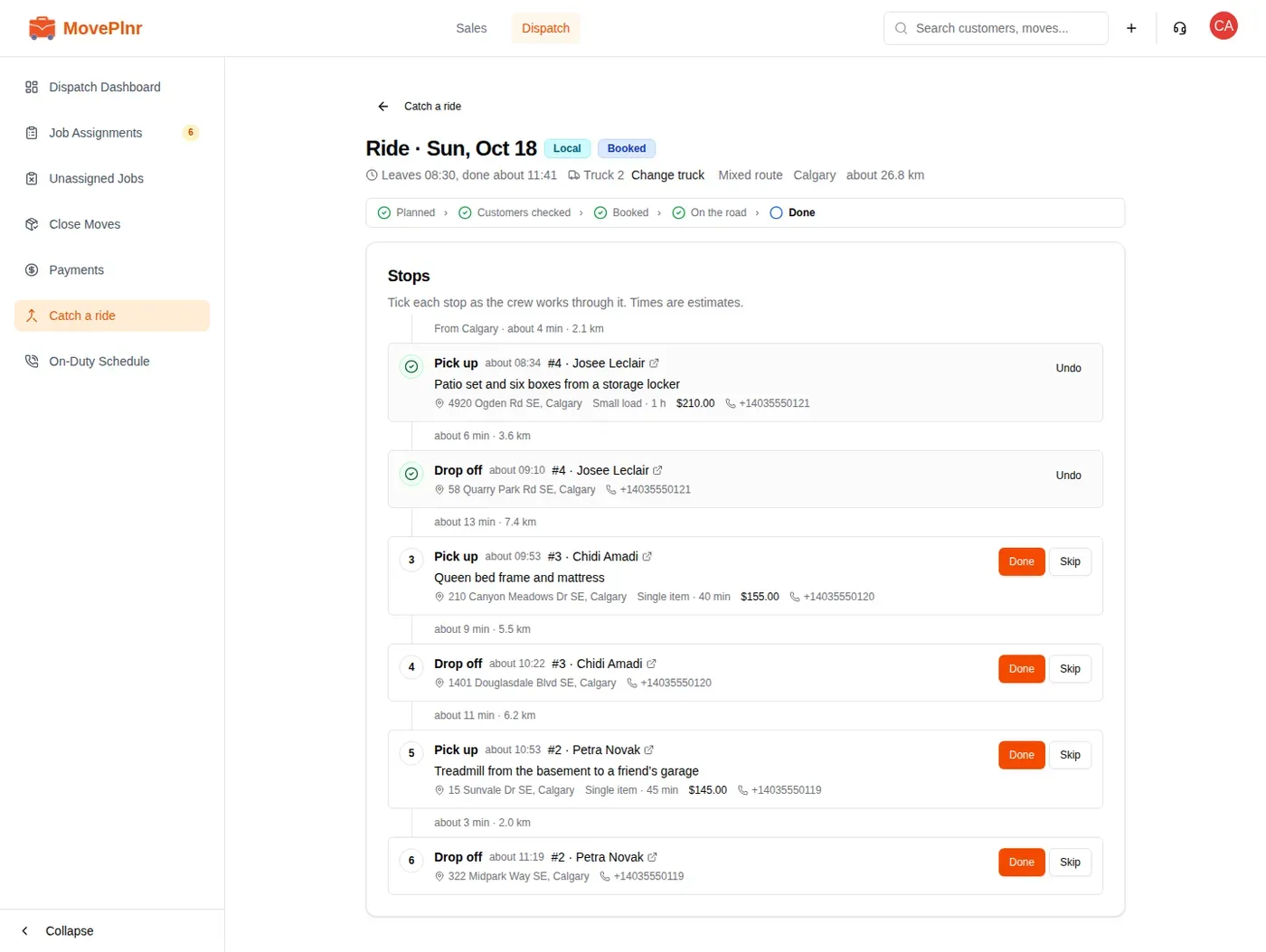
When your crews use move chats, they see the same stops in order on their phones and can tick their own stops there. When every stop is done or skipped, the ride reads Done.