
Where to find it
Open any move. The Stage timing card sits in the right column, under the Move Timer. It fills in by itself as the crew taps through the stages in the move chat, so there is nothing to start or stop.
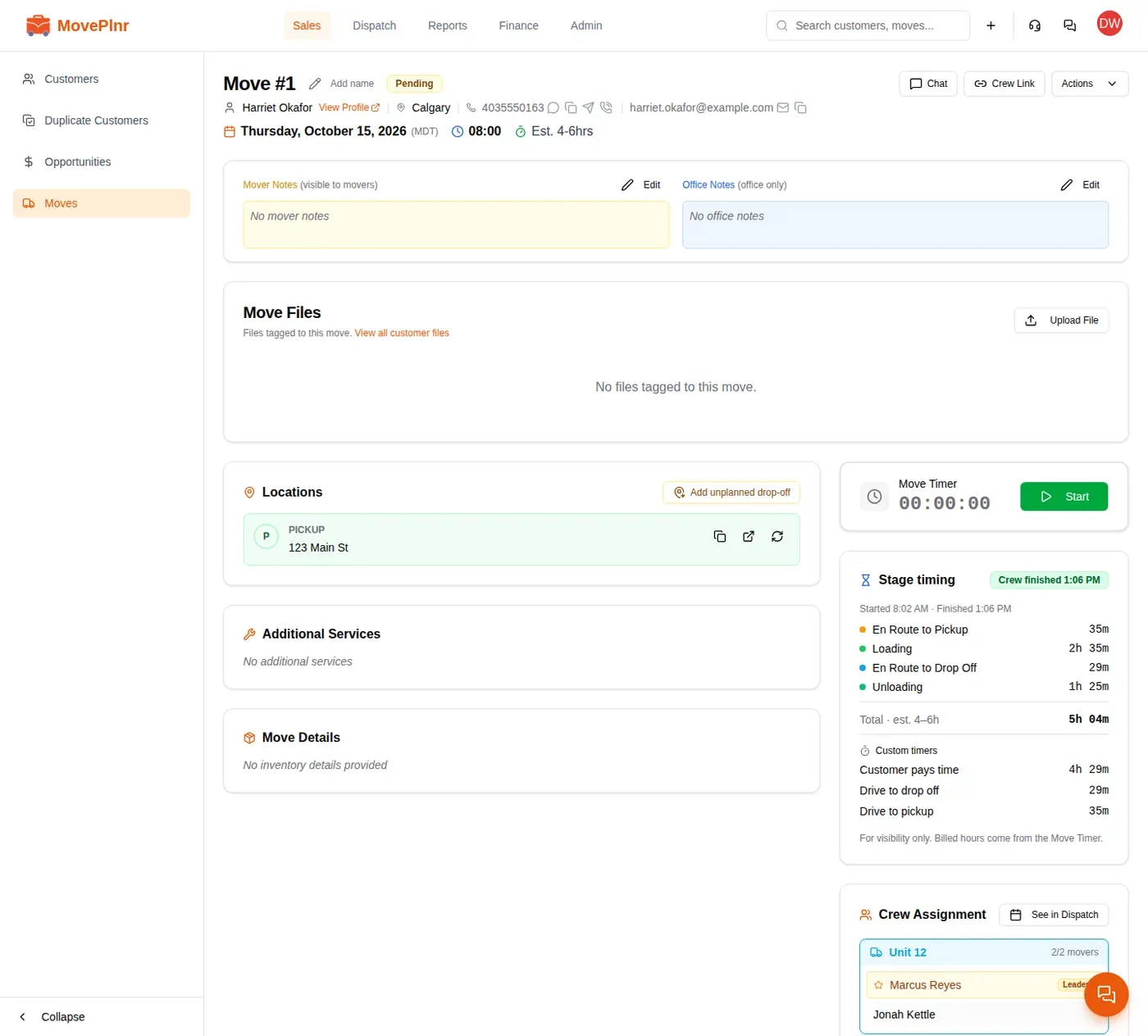
Until the crew enters the first stage, the card says there is no stage activity yet. The card appears when your company uses move stages. The stages themselves are set up under Admin, then Move Stages. Set up move stages and their steps covers that page.
Read a finished move
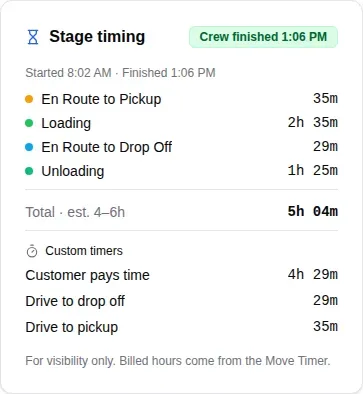
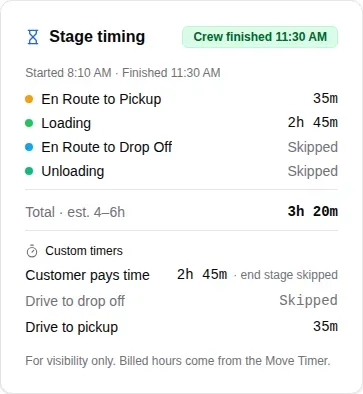
- The badge at the top gives the time the crew finished. The line under it says when the first stage started and when the last one ended.
- Each stage has its own row with the time the crew spent in it. A stage the crew entered more than once shows a count beside its name, and its time adds up every visit.
- The total runs from the first stage to the last. The estimate you quoted sits right beside it, so you can compare what was sold with what was worked.
- Your company’s custom timers come next, each with its own time.
Follow a move in progress
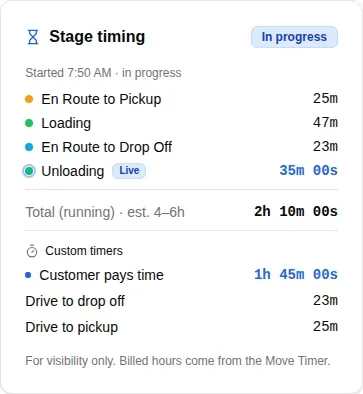
While the crew is working, the badge reads In progress and the stage they are in carries a Live tag. Its time counts up while the page is open, and so do the total and any custom timer that is still running. You can see how the day is going without calling the crew.
Two trucks on one move
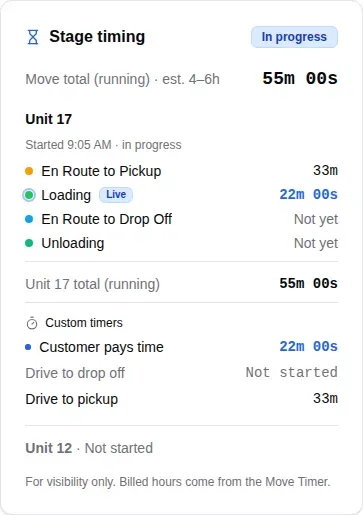
Each truck moves through the stages on its own. On a move with more than one truck, the card starts with the Move total and then shows a block for each truck, with its own stages, total and timers.
- A stage the truck has not reached yet reads Not yet.
- A custom timer that has not started reads Not started.
- A truck that has not rolled at all shows one line: its name and Not started.
The move only counts as finished once every truck on it has finished.
Stages that were skipped
Closing a move finishes every truck on it, even if the crew never tapped the last stages. Those stages read Skipped, and the finish time is when the move was closed.
A custom timer whose end stage was skipped still shows its time, marked end stage skipped: it stopped when the job moved past that stage. A timer that never started on the move reads Skipped too.
If the office closes a move before the crew taps any stage, the truck’s line reads Closed without stage tracking and shows no times, since nothing was measured.
Set up custom timers
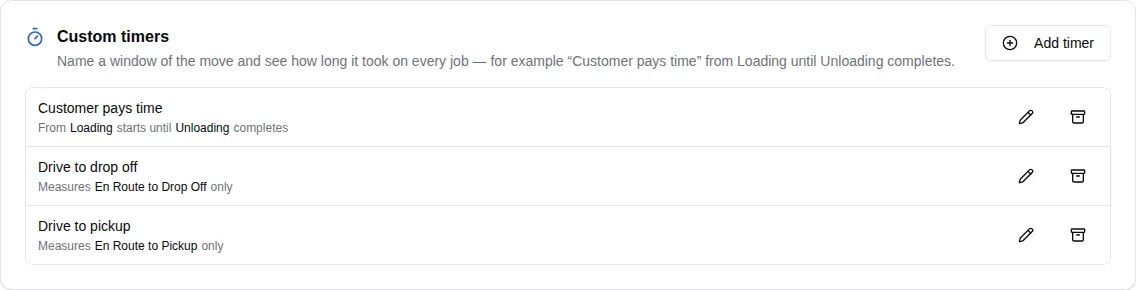
A custom timer measures one stretch of the job and shows it on every move. Use it for the numbers your office asks about: the time the customer pays for, the drive to the pickup, the time on the road between homes. Custom timers are an admin setting.
- Open Admin, then Move Stages. Custom timers sit under your list of stages, and each row says what it measures.
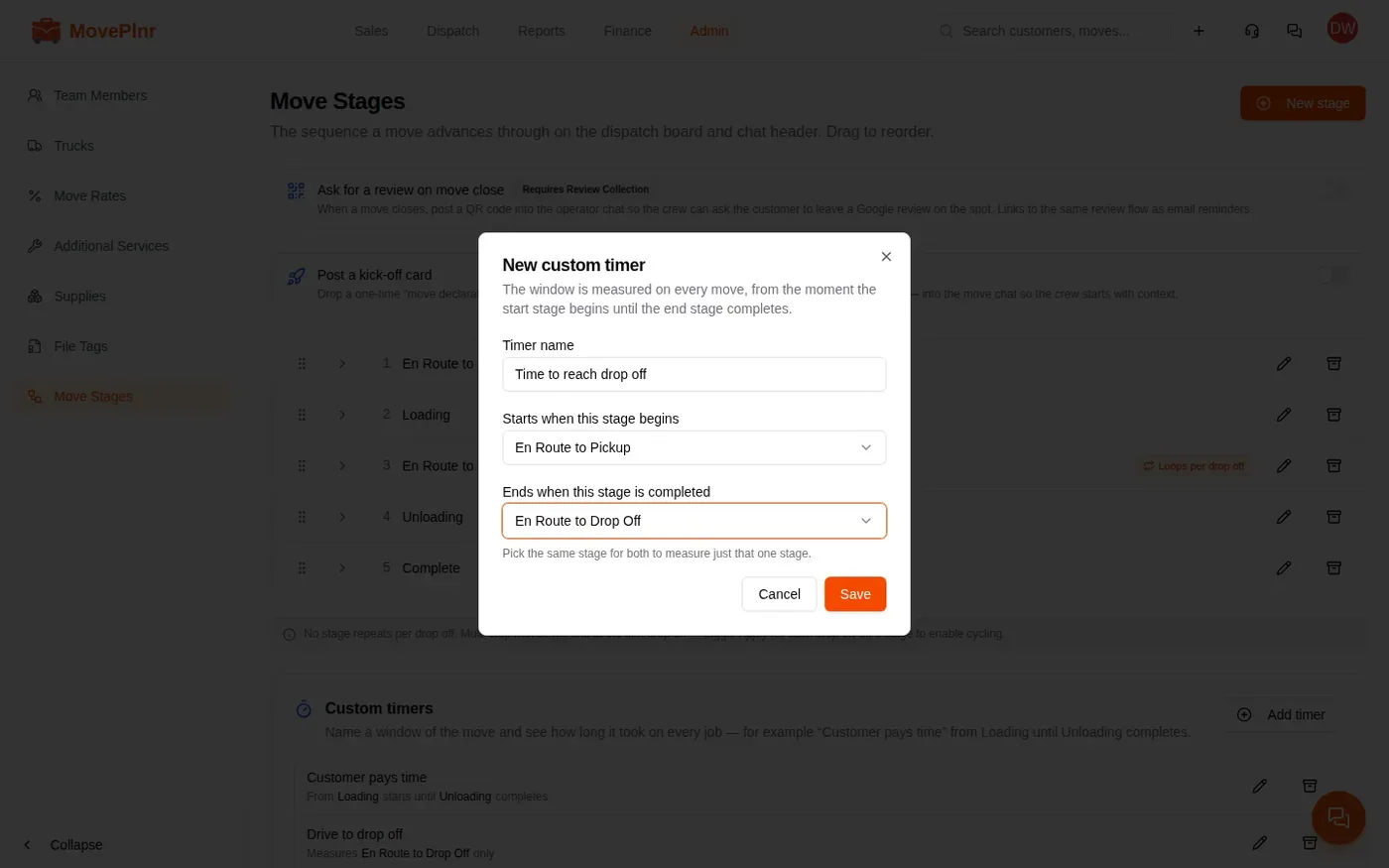
- Click Add timer.
- Type a Timer name your office will recognise.
- Under Starts when this stage begins, pick the stage that starts the timer.
- Under Ends when this stage is completed, pick the stage that stops it. The timer stops when the crew finishes that stage. Pick the same stage in both to time just that one stage.
- Click Save. The timer shows on the Stage timing card of every move.
The dialog helps you avoid a timer that tells you nothing new:
- A timer from your first stage to your last always equals the move total, and the dialog says so.
- If another timer already measures the same stages, the dialog names it.
- If the end stage comes before the start stage in your stage order, the dialog warns you. You can still save it, but it shows as not applicable on moves until you fix it.
Use the pencil on a row to change a timer, and the archive button to retire it. An archived timer leaves every move’s card, and you can bring it back from the archived list at the bottom of the section.