
Before you start
Move chats are part of the Crew Communication add-on. An admin turns it on for the company, and then Move Chats appears in the Dispatch menu. Crew members find the same chats under My Chats in their menu.
Dispatchers and admins see the chat of every job. A crew member sees the chats of the jobs they are on. Crew members join a job’s chat when they are dispatched to it.
Find the right chat
Open Move Chats. The list on the left has a card for every job in the date range: the truck, the location, the date and start time, the customer, the move number and the last message. A tag on each card says whether the job is Today, Upcoming or Past, and the job’s current stage shows beside it once the crew starts.
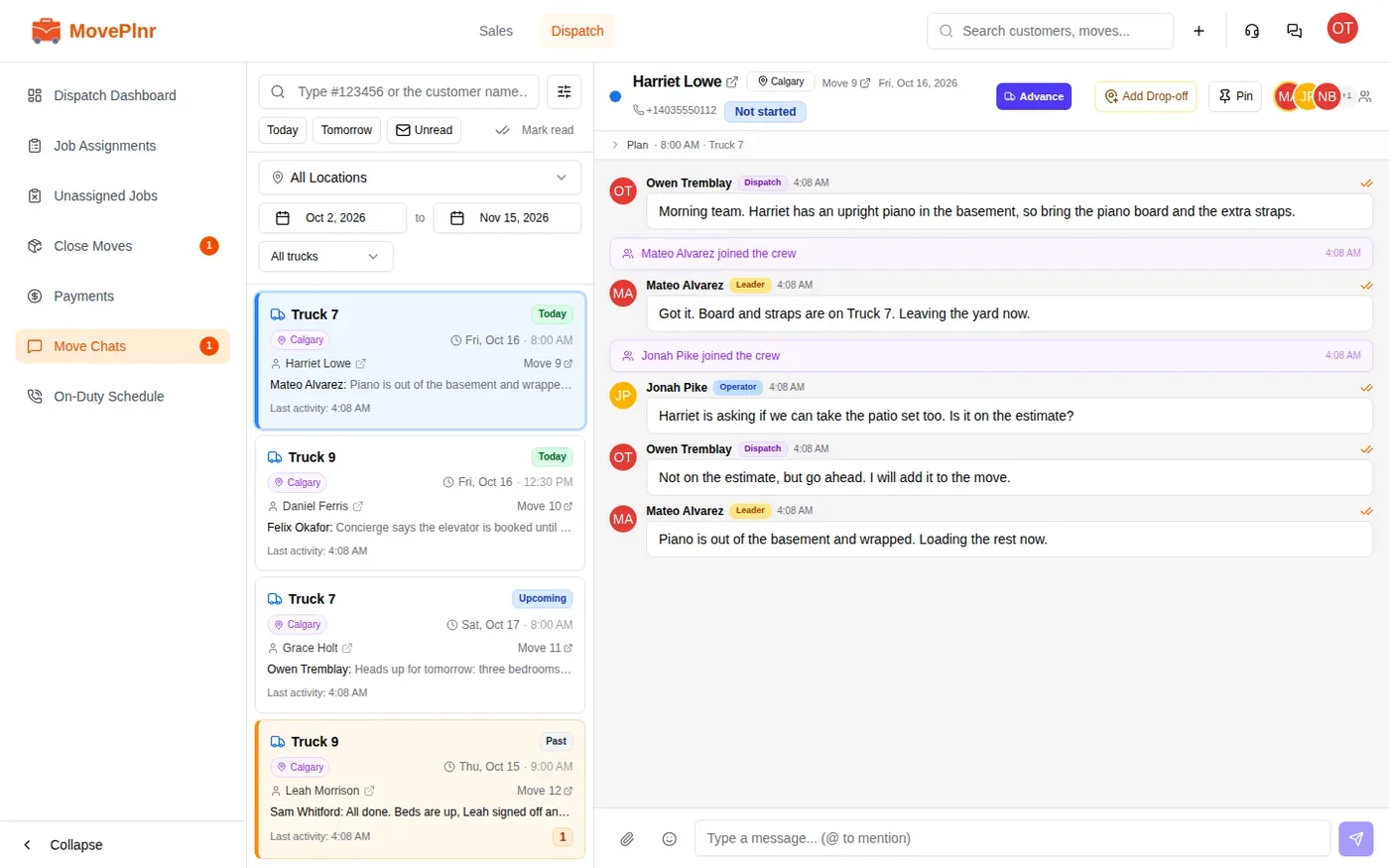
- Type a move number or a customer name in the search box.
- Click Today, Tomorrow or Unread to narrow the list in one click. Unread keeps only the chats with messages you have not read.
- Use All Locations, the two dates and All trucks to filter further. The button beside the search box hides or shows these filters.
- Click a card to open its chat.
A card with an orange edge and a number has unread messages. The count beside Move Chats in the menu is the total, so you can see from any page that the crew is waiting on you. Mark read clears the counts once you have caught up.
Talk to the crew
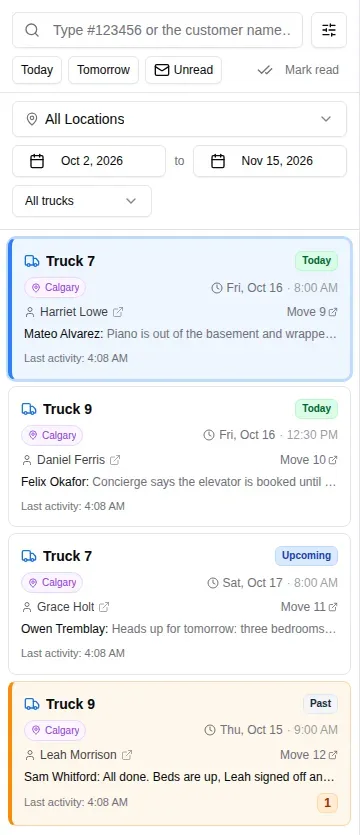
The chat header shows the customer, the location, the move number and date, and the stage the job is in. Under it, Plan shows the start time and the truck.
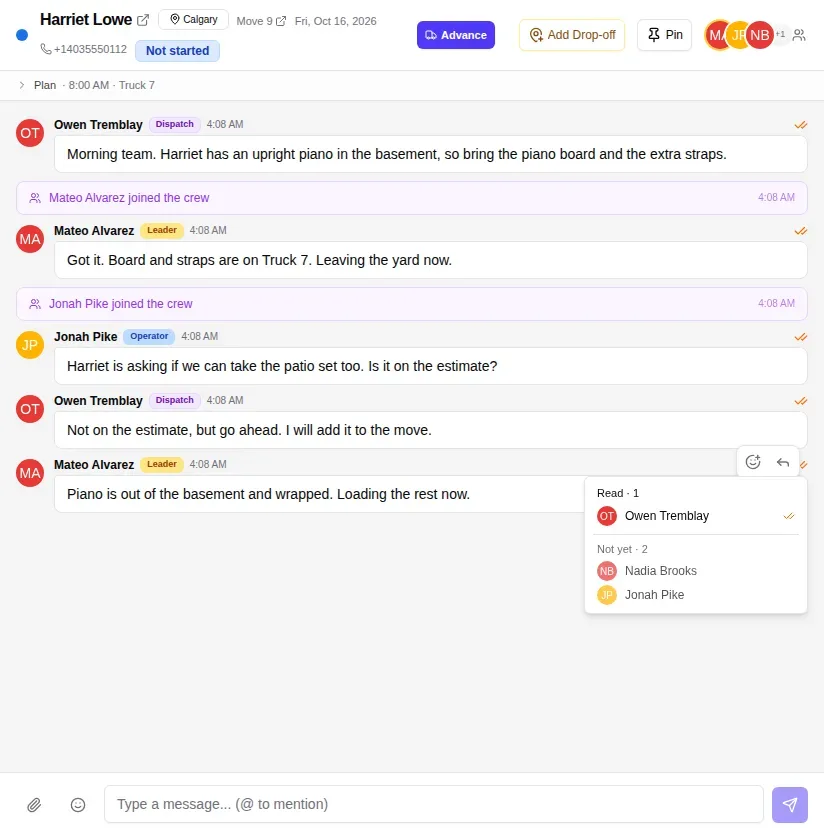
Each message shows who sent it, when, and a badge for their role: Leader for the crew lead, Operator for a mover, Dispatch for the office. The chat also logs what happens on the job, such as a crew member joining or the move advancing to a new stage, so the history reads in order.
Type in the message box at the bottom and press Enter to send. The paper clip attaches photos and files, and the smiley adds an emoji.
Mention people
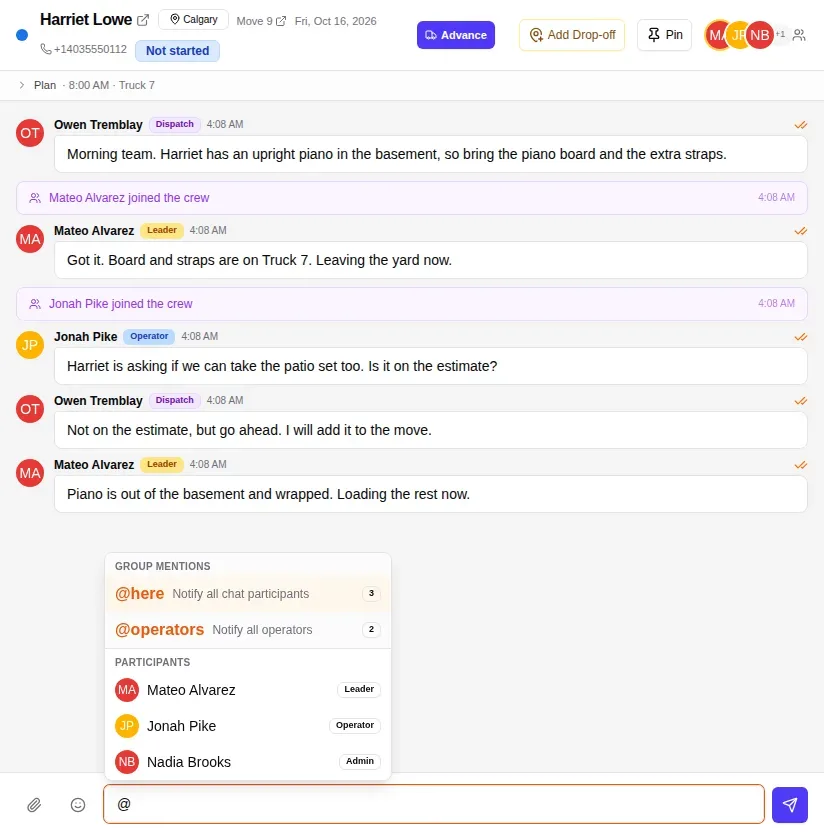
Type @ in the message box. A menu opens with everyone in the chat, and group mentions above them:
- @here notifies everyone in the chat.
- @operators notifies the crew.
- @dispatch notifies the dispatchers. It shows when the chat has a dispatcher other than you.
Pick a name or a group and finish your message. A mention stands out in the chat, and the people you mention get a notification.
Reply and react
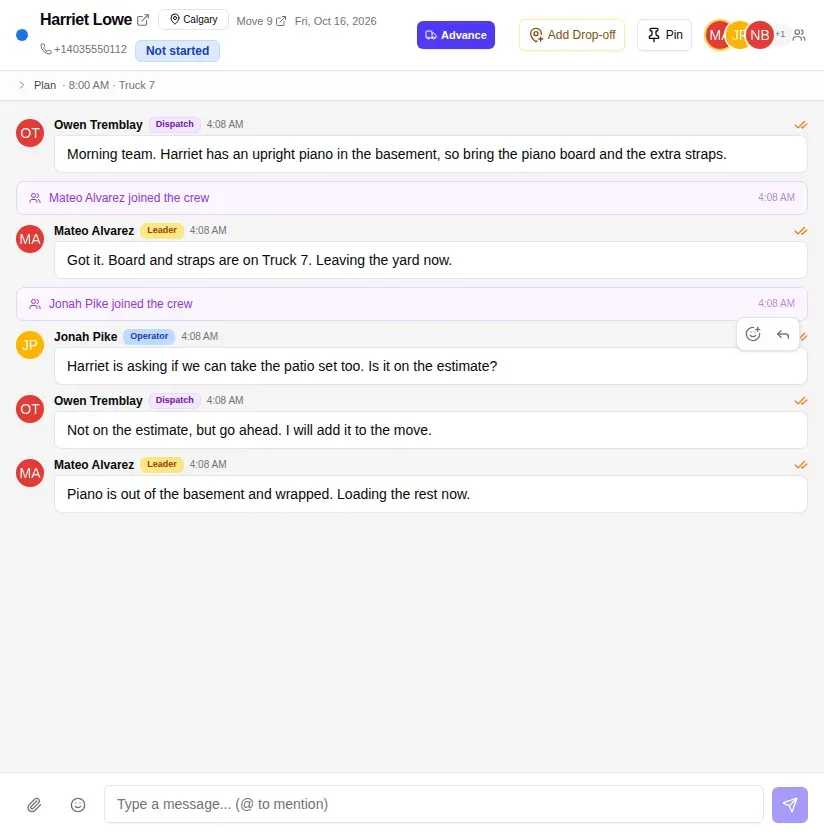
Point at a message and two buttons appear at its top right. The arrow replies to that message: the composer shows who you are replying to, and your reply carries a quote of the original, so the answer stays tied to the question. The smiley adds a reaction. One tap on an emoji tells the crew you saw it without another message.
See who has read a message
The double tick at the right of each message is grey until someone else in the chat reads it, then it turns orange. Click it to see who has read the message and who has not yet.
The crew and their details
The crew avatars at the top right of the chat open the list of everyone in it, grouped into crew, dispatch and admins. From there you can email a crew member, and call or text them when their profile has a phone number.
The crew’s side
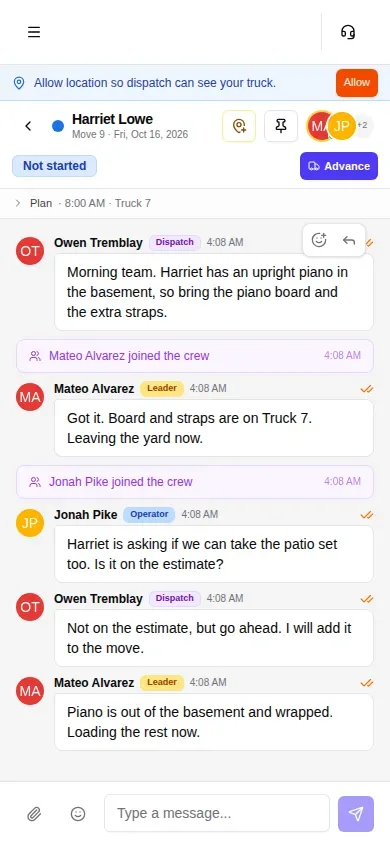
Crew members open their chats from My Chats in the menu, on their phone or a computer. The job they are working is at the top. They see the same messages, mentions, replies and reactions as the office, and they can advance the job’s stage from the chat as they work.
Post a kick-off card
A kick-off card is a summary of the job, posted into the move chat once so the crew starts with the plan in front of them. It shows the start time, the crew lead and the crew on each truck, and the pickup and drop-off addresses with a button to open each in Maps. When the job has them, it also shows the arrival window, the note for the movers, the services and the inventory. A button at the bottom opens the move.
An admin turns it on, once for the whole company:
- Go to Admin, then Move Stages.
- Turn on Post a kick-off card.
- Choose when it posts. On a schedule before the move posts it a set number of days before the move, at the hour you pick. When the move enters a stage posts it as soon as the job advances into the stage you choose.
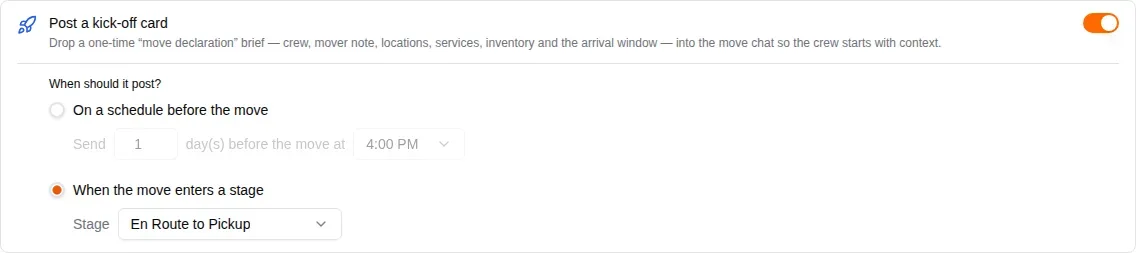
With the stage option, the card posts when anyone advances the job into that stage. In the chat, Advance moves the job to its next stage after you confirm, and the chat logs the change. Each chat gets one kick-off card, however often the job moves through that stage.