
Before you start
- You need an invite from your office. Someone with access to the team list adds you as a team member, with your email address, and MovePlnr sends the invite straight away.
- Get the MovePlnr app on the phone you take to work: from the App Store on an iPhone, from Google Play on Android. MovePlnr also works in your phone’s browser if you’d rather not install anything.
- Turning on notifications needs the notification settings page, which your company turns on as an add-on. If you can’t find it in your profile, ask the office.
Open your invite
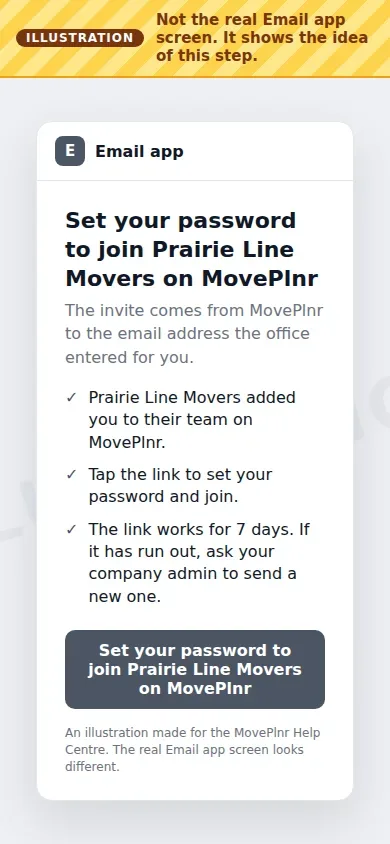
The invite comes from MovePlnr to the email address the office entered for you. The subject reads “Set your password to join” and then your company’s name. It never contains a password: you choose your own.
- Open the invite email on your phone.
- Tap the link that says Set your password to join your company on MovePlnr.
You’ll see an email like the illustration below. It is not a capture of a real inbox, and your own email app looks different.
Set your password
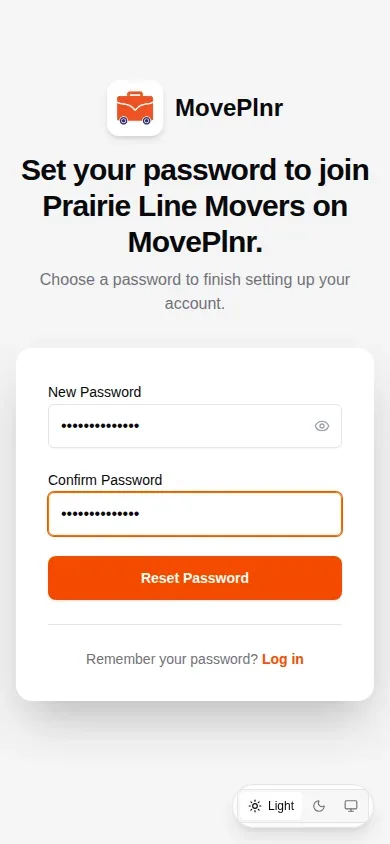
The link opens a page that names your company and asks you to choose a password.
- Type a password in New Password. Tap the eye to see what you typed.
- Type it again in Confirm Password. If the two don’t match, the page says so under the box.
- Tap Reset Password. The page confirms your password is set and offers a button to the login page.
Pick something you can type on your phone with gloves on, and that nobody on the crew could guess. Each invite link works once: after you set your password, sign in on the login page from then on.
Get the MovePlnr app
The MovePlnr app is on the App Store and on Google Play. Install it once and MovePlnr opens from its own icon, with notifications that reach you when it’s closed.
- On an iPhone, open the App Store. On Android, open Google Play.
- Search for MovePlnr. On your phone you can also tap MovePlnr on the App Store or MovePlnr on Google Play.
- Install the app and open it.
Sign in on your phone
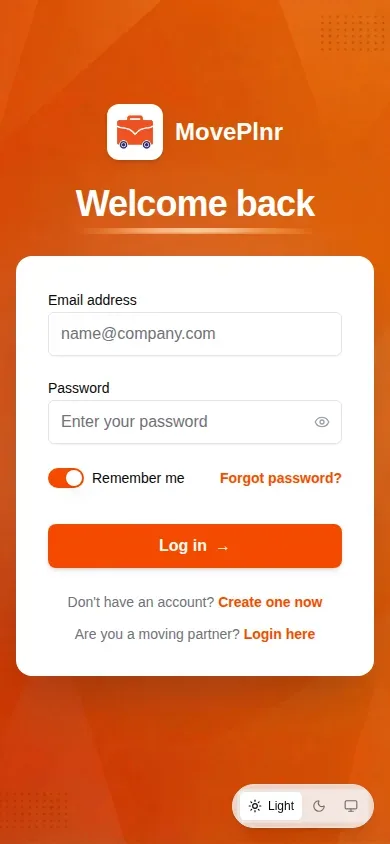
- Open the MovePlnr app: it starts on the login page. In a browser, the button after you set your password takes you there.
- Type your email in Email address and your password in Password.
- Leave Remember me on, so your phone keeps your email for next time.
- Tap Log in.
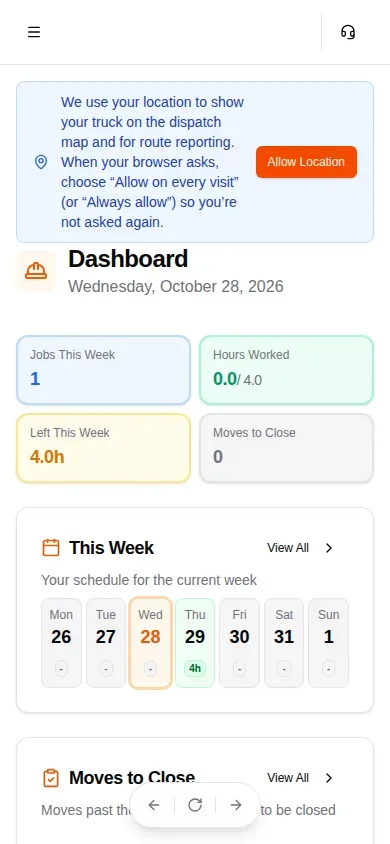
You land on your dashboard: your jobs and hours this week, the days you work, and any moves waiting for you to close.
The first time, a blue card at the top asks to use your location. It shows your truck on the dispatch map and records your route. In the app, tap Turn on and allow location when your phone asks. In a browser, tap Allow Location, then choose to allow it on every visit when your phone asks, so you are not asked again.
Or use the browser on your phone
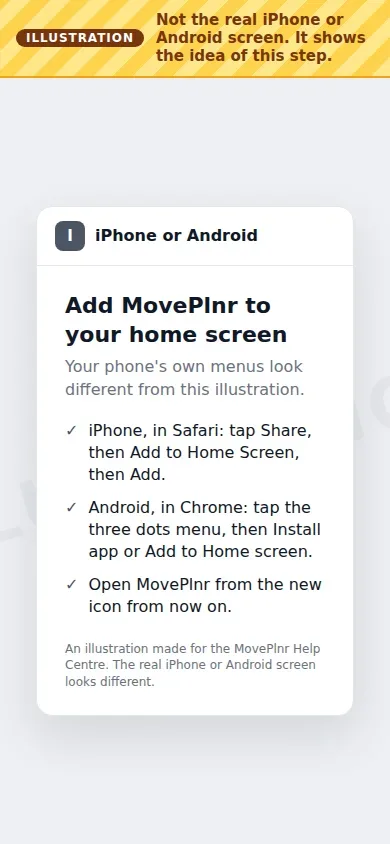
Rather not install the app? MovePlnr also runs in your phone’s browser: Safari on an iPhone, Chrome on Android. Sign in there, then put MovePlnr on your home screen so it opens with one tap, full screen. On an iPhone without the app, the home screen icon is also the only way to get notifications from MovePlnr.
On an iPhone
- Open MovePlnr in Safari and sign in.
- Tap the Share button.
- Tap Add to Home Screen, then Add.
- From now on, open MovePlnr from the new icon on your home screen.
On Android
- Open MovePlnr in Chrome and sign in.
- Tap the three dots menu at the top right.
- Tap Install app, or Add to Home screen, and confirm.
Your phone’s own menus look different from the illustration below. It shows the steps, not a real screen.
Turn on notifications
Notifications tell you about crew messages and changes to your work, even when MovePlnr is closed. Each phone has its own switch.
- Open the MovePlnr app, or MovePlnr from your home screen icon.
- Tap Edit My Profile at the bottom of your dashboard, then the Notifications tab.
- Under This device, turn on Push notifications, then allow notifications when your phone asks.
What the This device card says tells you where you are:
- A switch for Push notifications: you can turn them on right there.
- A note to add MovePlnr to your home screen: you are on an iPhone in Safari. Get the MovePlnr app, or add MovePlnr to your home screen and open it from the icon.
- Notifications are blocked: you told your phone no earlier. Open your phone’s settings, allow notifications for MovePlnr, then open MovePlnr again.
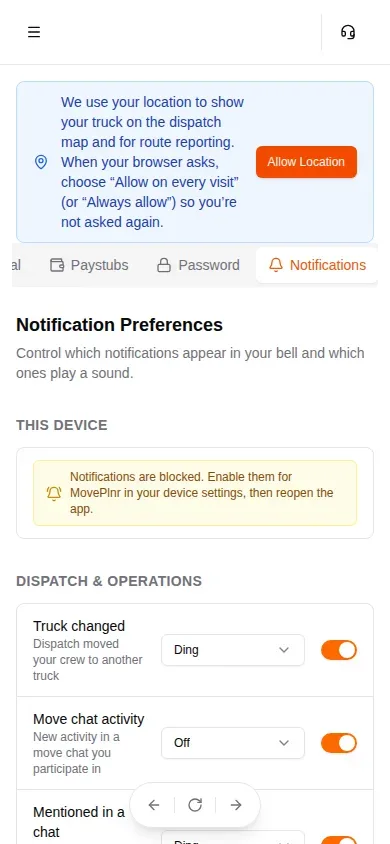
Below the card, Notification Preferences lists the notices you can get and the sound each one plays. Set up your notifications covers that list in full.
The sign-in code
Some people get a second step after the password: a 6-digit code, sent by email or by text, that lasts 10 minutes. It depends on what your access opens.
- Crew access signs in with the password alone, so most movers never see a code.
- If your access also opens office work, MovePlnr asks for the code when you sign in on a new phone or browser. Type the 6 digits and tap Verify. When the page offers them, you can get the code by text instead of email, and tick the box to remember the device for 30 days.
- No text arriving? Ask the office to check that your phone number is on your team member page.
Trouble getting in
The invite link has run out
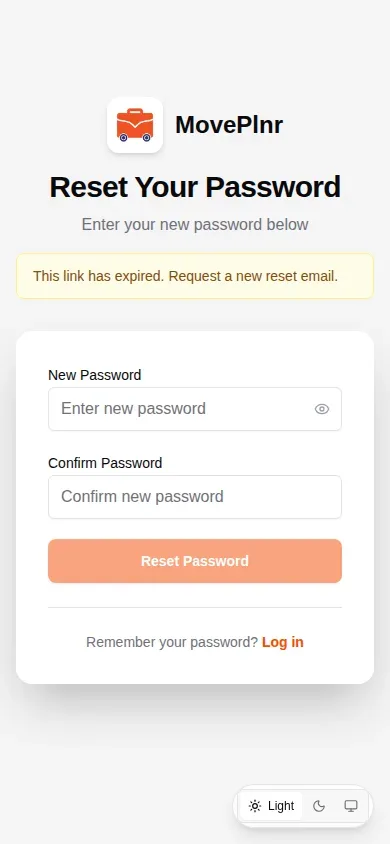
An invite link works for 7 days. Open it after that and the page says the link has expired. Ask the office to send you a new invite, then use the newest email: each new invite replaces the one before it.
You forgot your password
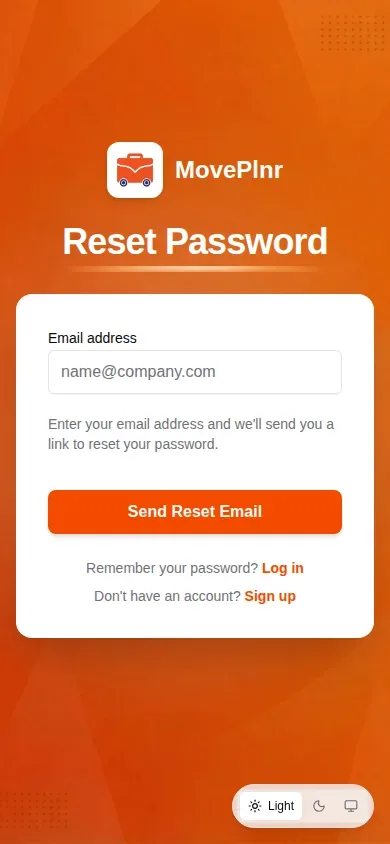
- On the login page, tap Forgot password?.
- Type the email address you sign in with and tap Send Reset Email.
- Open the email on your phone and follow the link to choose a new password. The reset link works for one hour.
Nothing arrived
Check your spam or junk folder for an email from MovePlnr. If it isn’t there, ask the office to check the email address on your team member page, fix it if needed, and send the invite again.