
Before you start
Two add-ons do the work here, and both sit on one card under Advanced Dispatch Control:
- Publishing Window holds every crew change for a few minutes before anyone is texted. If you add a mover and take them off again inside the window, nobody hears about it.
- Operator SMS Confirmation turns each “you’ve been added” text into a question: can you work this job? It needs the publishing window, so turn that on first.
An admin turns the add-ons on and sets them up. Admins and dispatchers work the board, publish changes and confirm movers by hand.
Set the windows
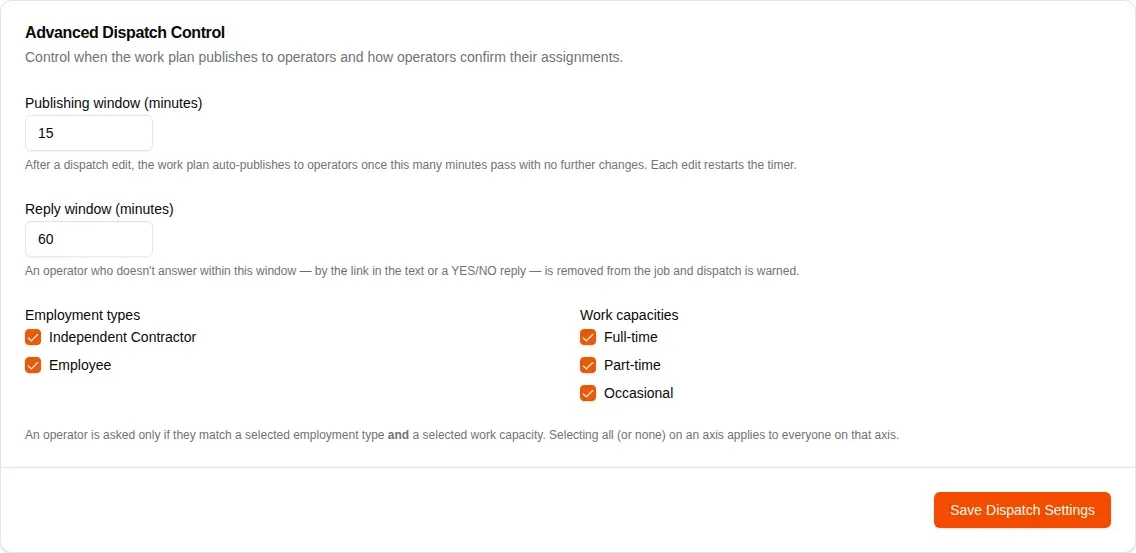
Open Other Settings and scroll to Advanced Dispatch Control.
- Set Publishing window (minutes). After your last change, the plan waits this many quiet minutes and then goes out by itself. Every edit restarts the timer. The default is 15.
- Set Reply window (minutes). A mover who has not answered by then comes off the job. The default is 60.
- Under Employment types and Work capacities, tick who should be asked. A mover is asked only when they match a ticked box on both lists. Leave everything ticked to ask everyone.
- Click Save Dispatch Settings.
Read the board
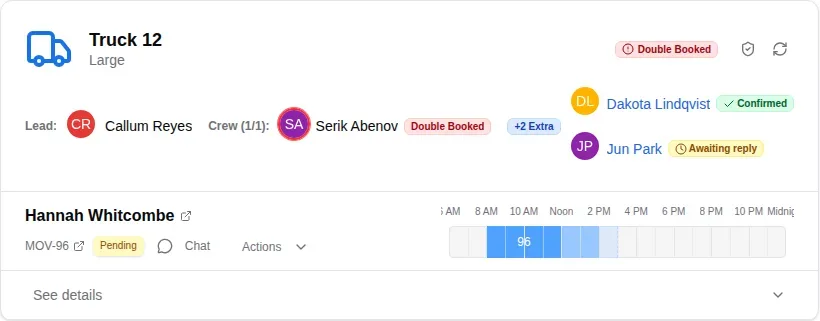
Open Job Assignments and pick the day. Each truck has a card with its lead, its crew and any extras. Next to each person, a badge tells you where they stand:
- Confirmed: they said yes.
- Awaiting reply: they were texted and the reply window is still running. Point at the badge to see how long is left.
- Double Booked: the same person is on another truck that day. The truck card carries the badge too.
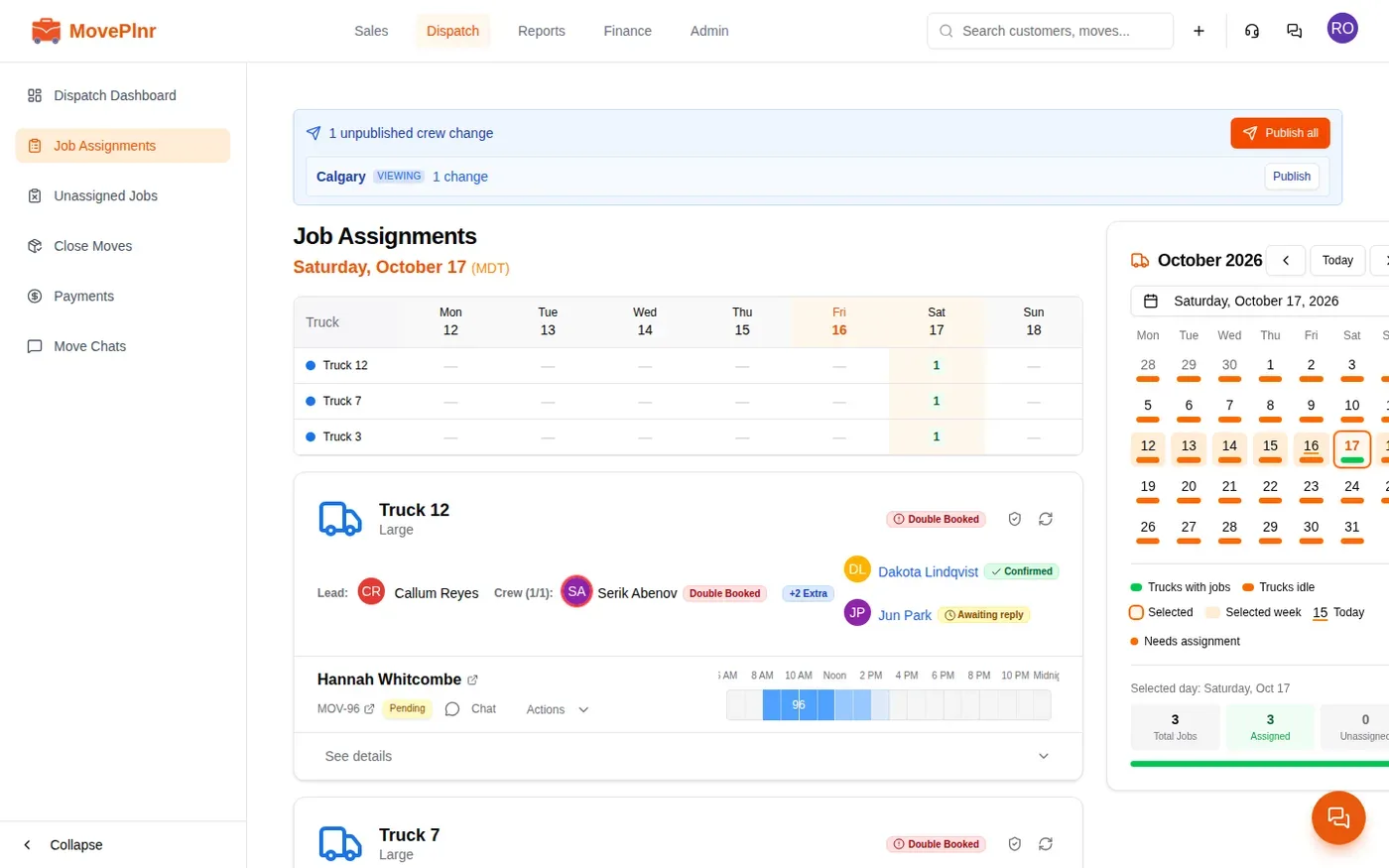
When a branch is short of crew for the week, the header links to the jobs that still need people.
Publish crew changes
With the publishing window on, adding or removing a mover texts nobody straight away. The banner at the top of the board counts your unpublished crew changes and lists each branch that has some.

You have three ways to send them:
- Do nothing. Each branch publishes by itself once its window passes with no new edits, and the banner shows the countdown.
- Click Publish on a branch’s row to send that branch now, or Publish all to send every branch.
- Click the Publish button on a single job card to send only that job’s changes.
How a mover confirms
When you publish, each mover you added gets a text naming the customer, the move number, the date and the start time, with a link to confirm or decline. They have the reply window to answer.
Tap the link
Do this: the surest way.
Reply by text
Do this: one job at a time.
What happens next:
- A yes keeps their spot, the badge turns Confirmed, and they get a text confirming their spot.
- A no takes them off the job and marks them unavailable for that day. You and the other admins and dispatchers get a notification.
- No answer in time takes them off the job too, with the same notification.
Confirm someone yourself
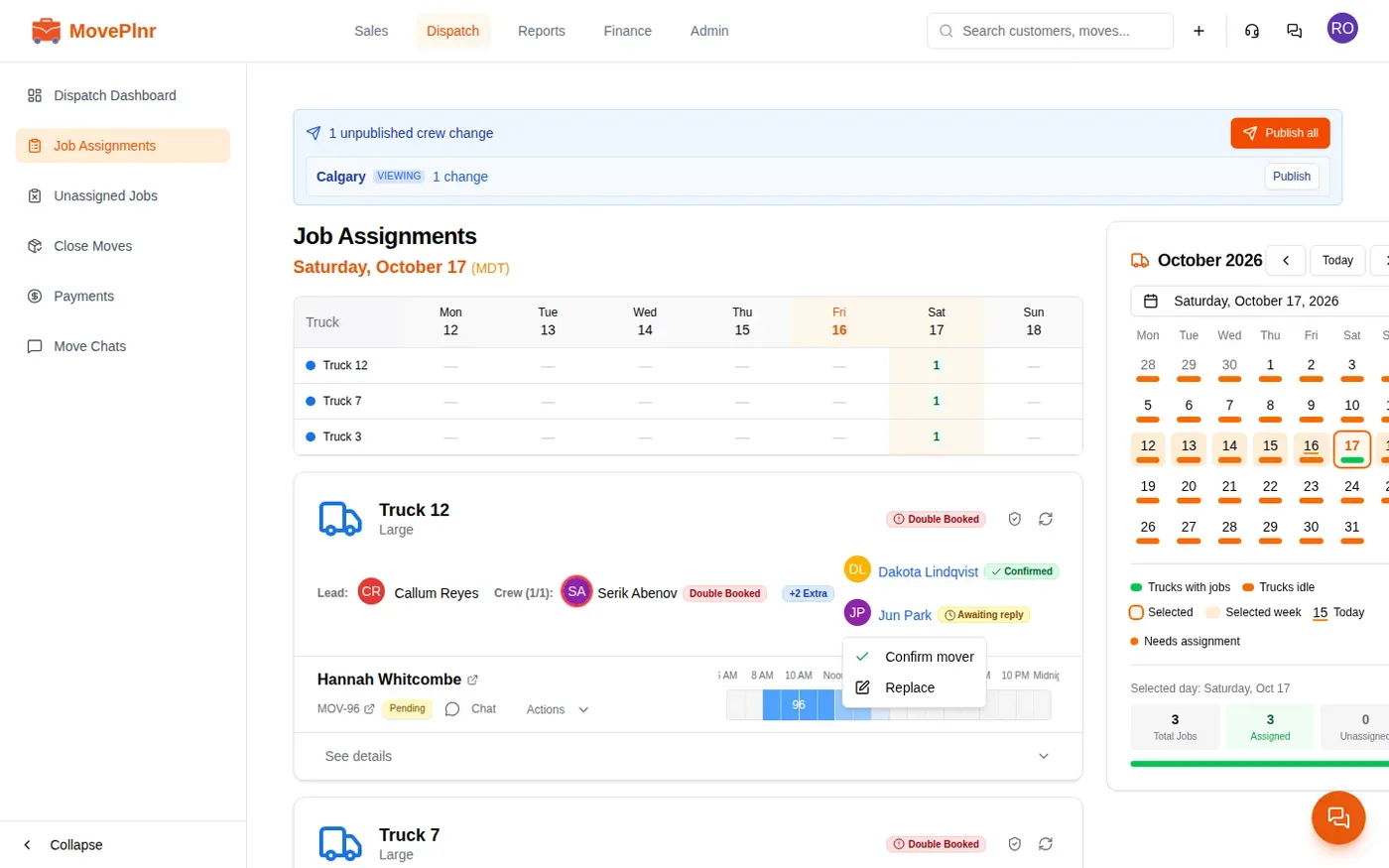
A mover called instead of texting back? Click their picture on the truck card and choose Confirm mover. The badge turns Confirmed and the reply window stops. The menu only offers it while the mover is still awaiting a reply.
Every job keeps a record of who was texted. Click See details on the job, then Offer history. Each line says who was offered the job and what came of it: confirmed, declined and marked unavailable for the day, timed out, or still awaiting a reply.

Avoid double booking
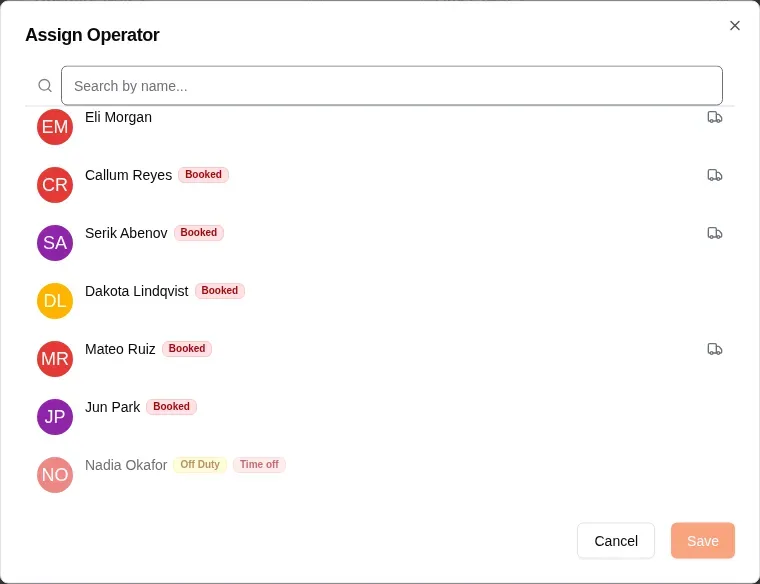
To add someone to a job, open it with See details and click an empty slot or Add Extra. The Assign Operator list puts the people who are free first. Everyone else sits behind the “Show more” link at the bottom, with a badge saying why:
- Booked: already on another truck that day.
- Off Duty: approved time off for that day.
- Declined today or Expired today: they said no to a job that day, or let a text run out.
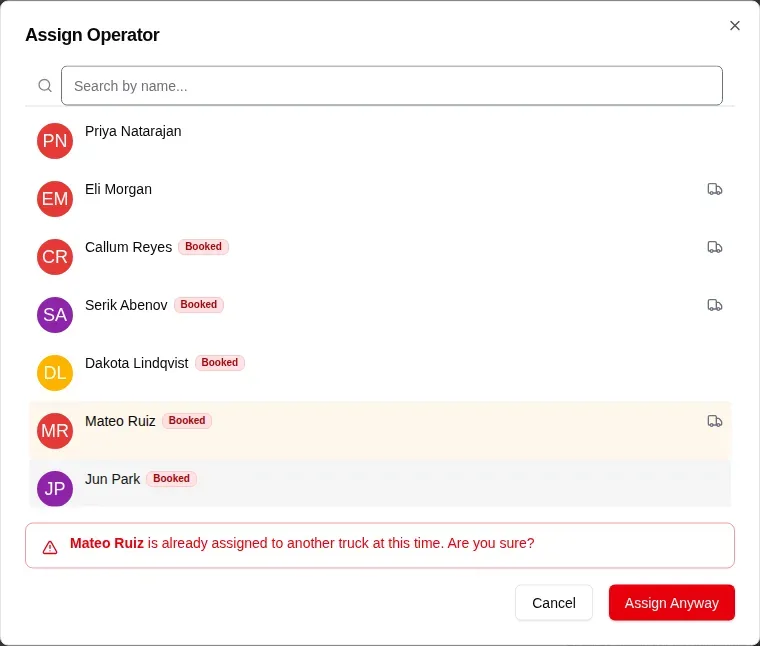
Pick someone who is booked and click Save, and MovePlnr asks before it goes ahead. Click Assign Anyway to put them on both trucks, or Cancel to leave the crew as it was.
Change the wording
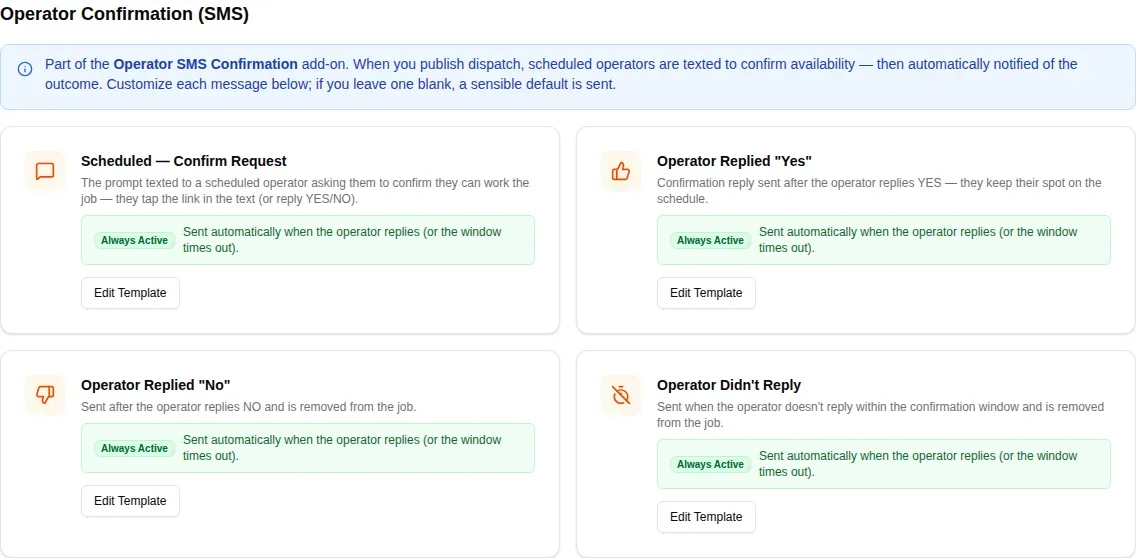
Each branch can rewrite the confirmation texts under Team Notifications. The Operator Confirmation (SMS) section has four: the confirm request itself, Operator Replied “Yes”, Operator Replied “No” and Operator Didn’t Reply. Click Edit Template on a card to change it. The request has two extra placeholders, the confirm link and the reply window. If you leave a template blank, MovePlnr sends its standard wording, and it adds the link to a request that leaves it out.
Introduce the crew to the customer
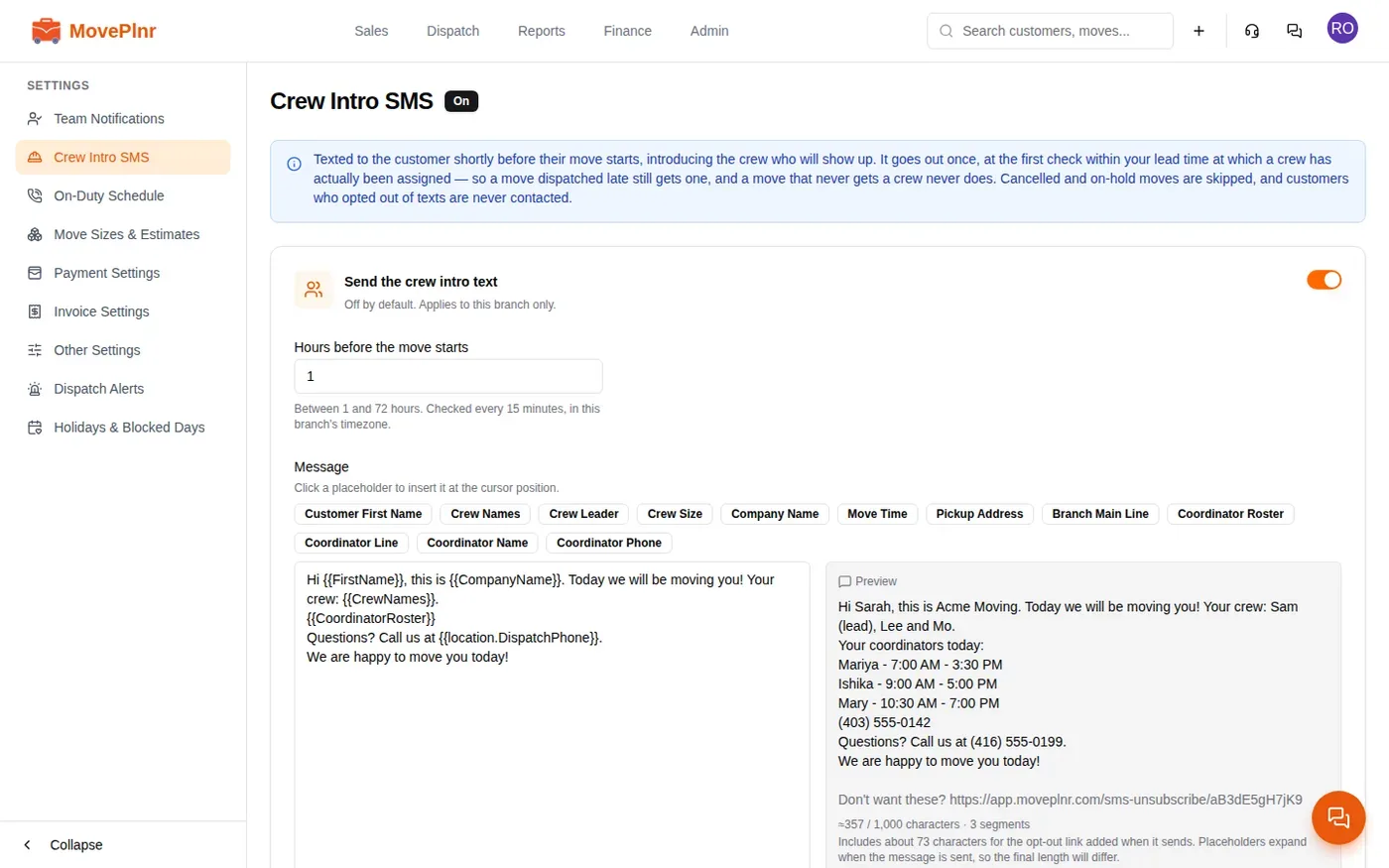
Crew Intro SMS texts the customer shortly before the move, naming everyone on the crew and the person to call at the office. It is off until you turn it on, and each branch has its own.
- Open Crew Intro SMS in the branch settings.
- Turn on Send the crew intro text.
- Set Hours before the move starts, from 1 to 72. MovePlnr checks every 15 minutes in the branch’s time zone.
- Edit the Message. Click a placeholder to drop it in: crew names, crew leader, move time, the coordinator roster and more. The Preview shows it with sample names.
- Save.
The text goes once per move, at the first check after a crew is assigned, inside your lead time. A move with no crew gets nothing. Cancelled and on-hold moves are skipped, and customers who opted out of texts are never contacted. When the branch has its own text number, the message comes from it.
On-duty coordinators
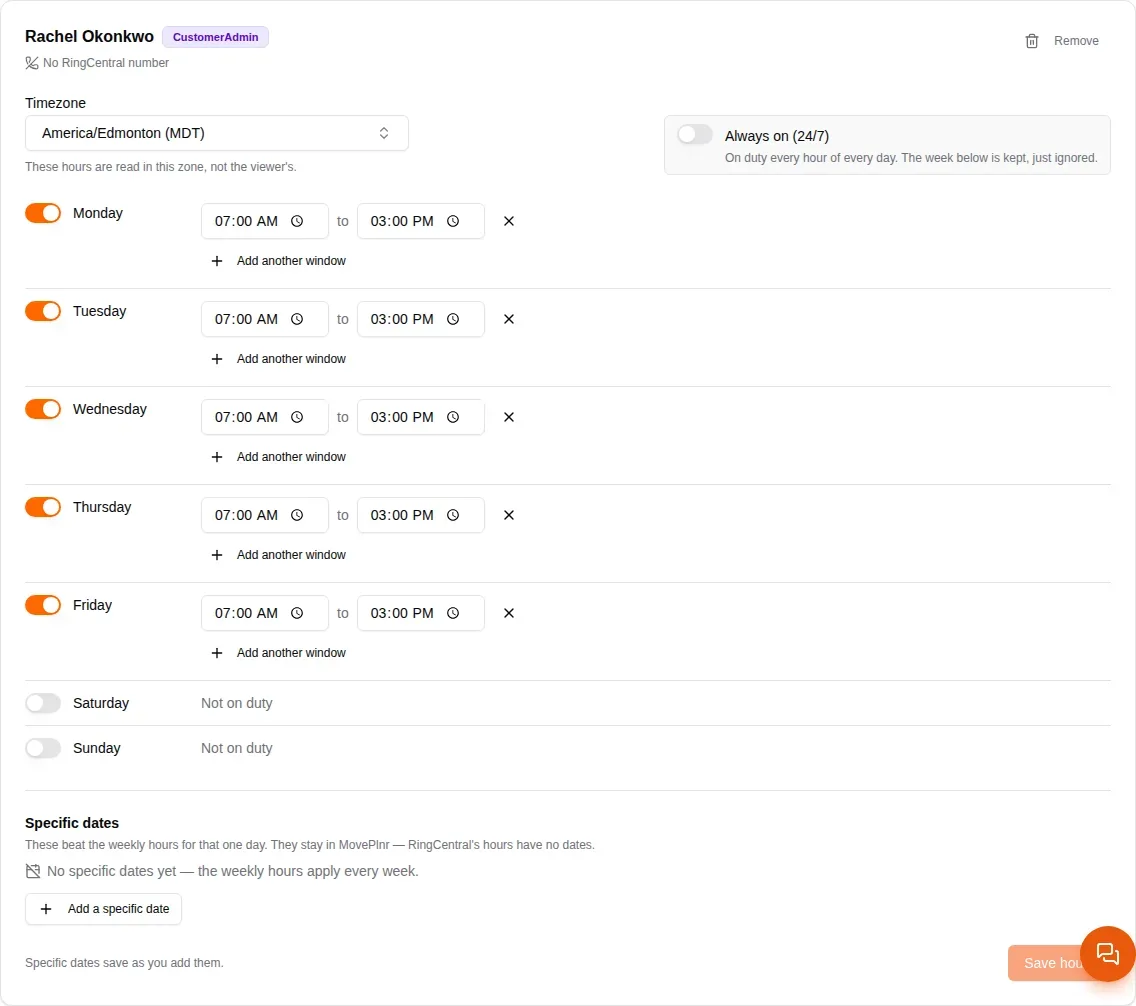
The coordinator roster in that text comes from On-Duty Schedule. Add the people who answer the phone and set their hours for each day. The coordinator on duty when the move starts is the one the customer is told to call.
- Open On-Duty Schedule and pick a team member under Add a coordinator.
- Switch on each day they work and set the hours. Use Add another window for a split shift, or Always on (24/7).
- Under Specific dates, click Add a specific date for a holiday or a one-off shift. A date beats the weekly hours for that day.
- Save the hours.
Using RingCentral? Under RingCentral sync, choose whether RingCentral or MovePlnr owns the hours. With RingCentral in charge, its work schedules are pulled in and kept in step, and the hours become read-only here. With MovePlnr in charge, you edit here and push them to RingCentral. Rosters can be per branch or one for the whole company.