Open the board
Open Job Assignments from the Dispatch menu. It opens on today, for your branch, with three parts:
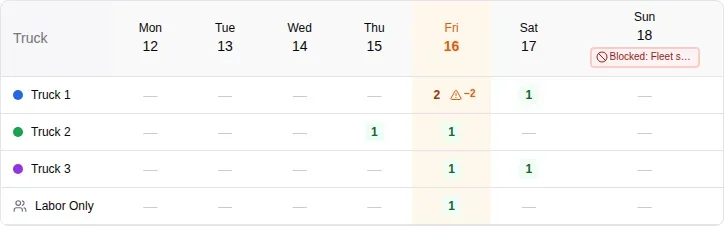
- The weekly overview across the top: one row per truck, plus a Labor Only row, and a count of jobs for each day.
- One card per truck below it, listing that truck’s jobs for the day in time order, with the lead and crew on each.
- A month calendar on the right. Click any date to plan it. The bar under each date shows how many trucks have work.
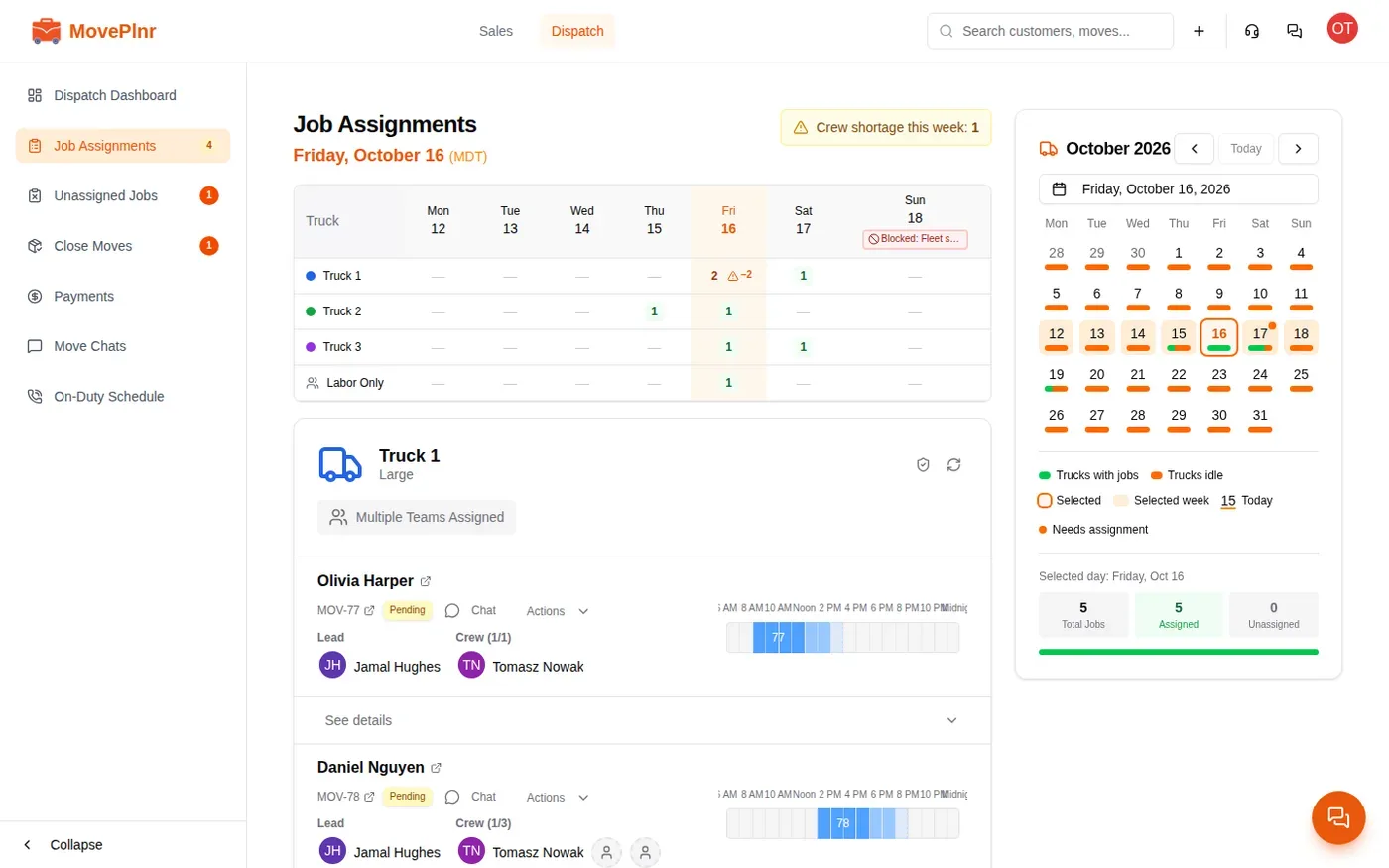
When the week still has jobs without enough people, Crew shortage this week appears at the top right with a count. Click it to open Unassigned Jobs.
Read the week
The weekly overview counts each truck’s jobs for every day of the week. Click a day to plan it. A small warning beside a count means a job that day is still short of movers, and the number says by how many.
Block a day
Some days you can’t take work: a fleet inspection, a staff day, a holiday you keep closed. Block the day and it shows on the board with its reason.
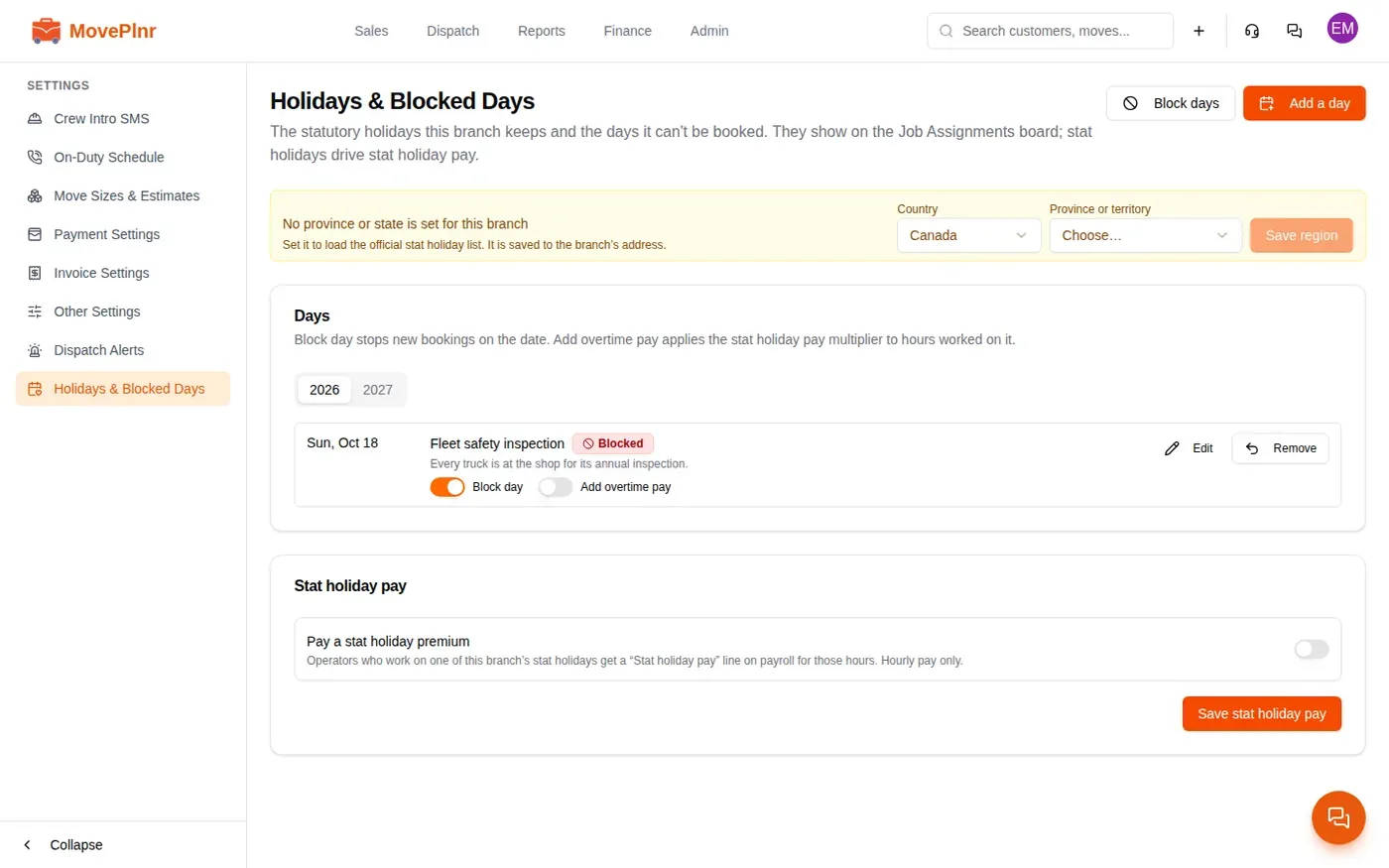
- Open the branch settings and choose Holidays & Blocked Days. This is an admin page.
- Click Block days, pick one date or a range, give it a title and, if you like, a note for the office.
- Before you save, MovePlnr lists any moves already booked on those dates. They stay booked. Only new bookings are refused.
On the board, the day carries a red chip in the weekly overview. Click it to read the title and the note.
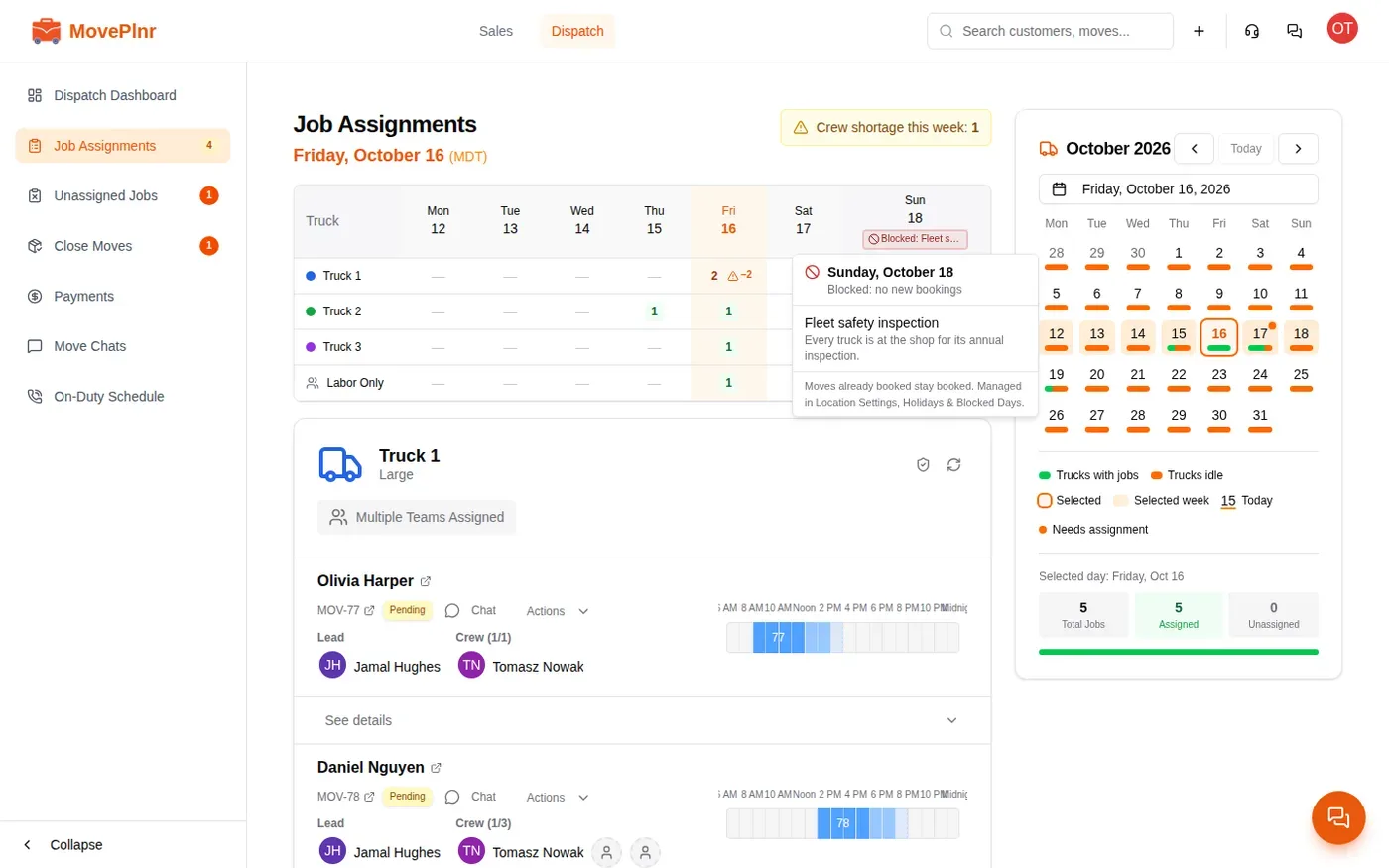
What a block does:
- Date pickers across the app mark the day as blocked.
- Nobody can book a new move on it or move a booking onto it, whatever their role. An admin who needs the day switches Block day off for it.
- A customer who picks the day on your website form sees that it isn’t available, with the title only. Your note stays in the office.
- When someone is turned away from a blocked day, the sale’s owner gets a notification so they can offer another date.
Stat holidays live on the same page. Switch Block day on for a holiday to close it the same way.
Put one mover on several jobs
A truck often runs two or three jobs a day with the same people. Add a mover once and MovePlnr carries them across.
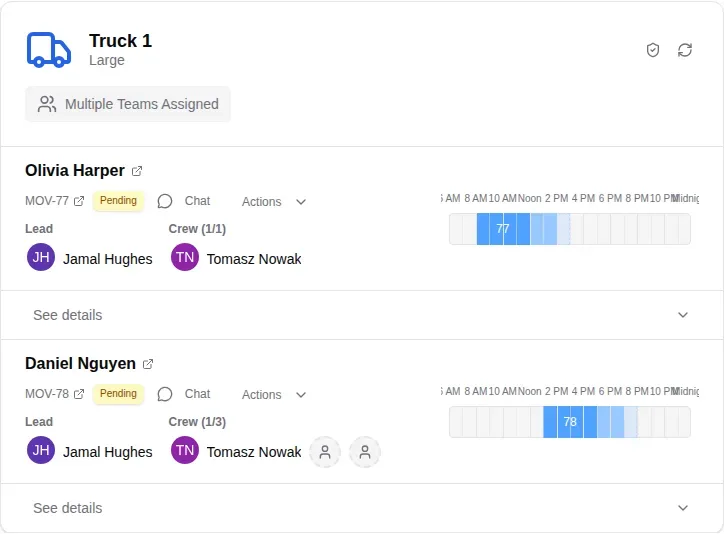
- On the truck’s card, click an empty seat on the job.
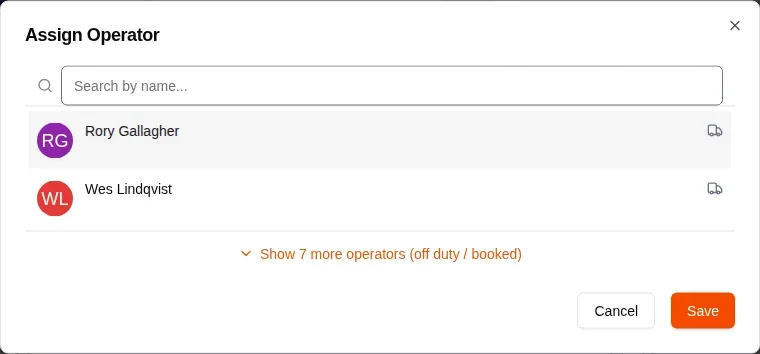
- In Assign Operator, pick a mover. Free movers come first. Anyone booked elsewhere or off duty sits behind the show more link, with a badge saying why.
- Click Save.
- If the same truck has earlier jobs that day without this mover, MovePlnr asks whether to add them there too. Every job is ticked. Untick any you want to leave, then click Add to 1 job (the button counts the jobs). Click Not now to add them to this job only.
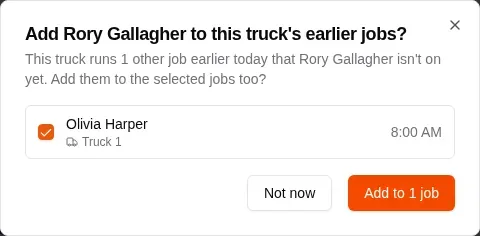
Later jobs on the same truck pick the mover up on their own, so you never have to add them twice. If you mark the mover as the driver, they drive every job you add them to.
Plan a multi-day move
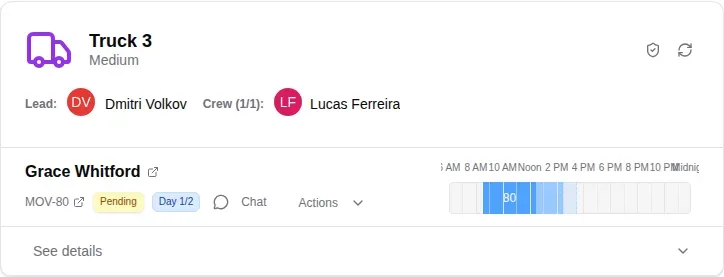
Some moves take more than a day. Give the move an end date in its schedule and it sits on the board for every day it covers. The truck and the crew are held for the whole span, so nobody books them for those days by mistake.
On each day, the job shows a badge that says which day it is, such as Day 1/2. Calendar capacity, crew availability and payroll all follow the full span.
Dispatch a labor-only job
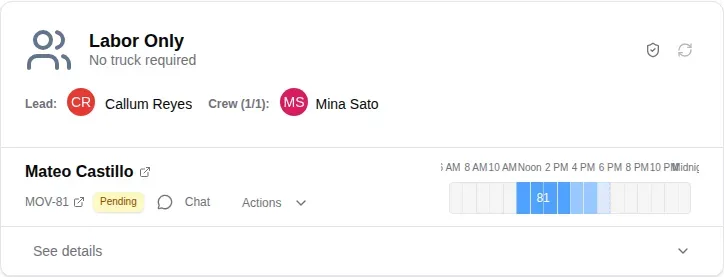
Loading help, unloading a customer’s own rental truck, moving furniture inside a building: some jobs need people and no truck. Book them as labor only.
- A labor-only job goes on its own Labor Only lane, marked No truck required.
- From Unassigned Jobs, a labor-only job skips the truck step. One click puts it on the lane, and you crew it there like any other job.
- The weekly overview counts labor-only jobs on their own row.
Follow each truck’s day
Open the Dispatch Dashboard to watch the day happen. Today’s Operations gives each truck a lane against the clock:
- The dashed bars are the plan for each job, and the red line is now.
- The actual lane fills in as the day runs: travel, time on site, time between jobs and back at the yard. The legend under the chart names each one.
- The badge beside each truck says what it is doing: not started, the job’s current stage, on the way to the next job, or done.
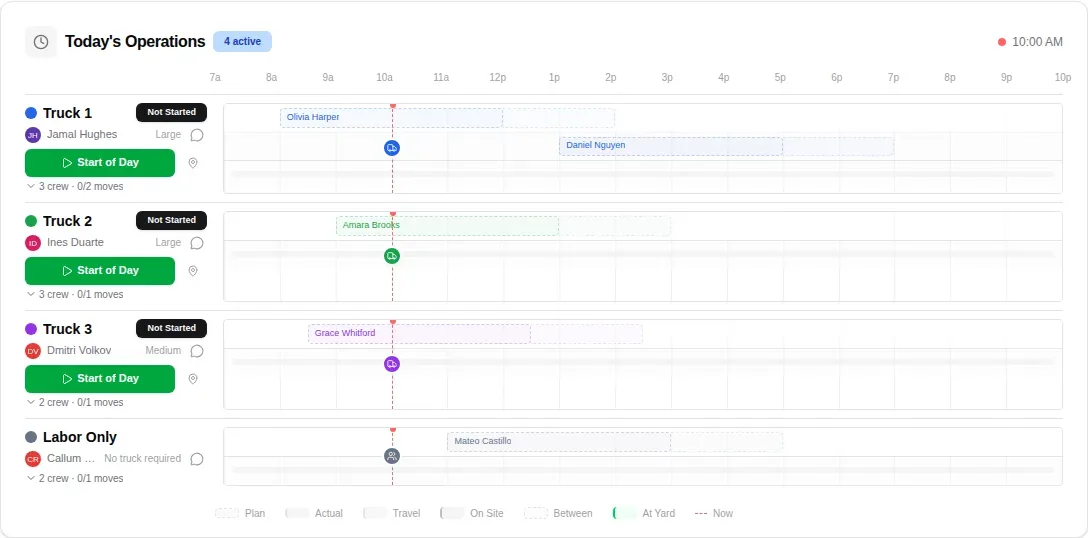
- When a crew heads out, click Start of Day on its truck. That starts the truck’s first job.
- The same button then shows the job’s next stage. Click it to move the job on. MovePlnr asks you to confirm first.
- When the last job is done, the button reads Finish Day. Click it when the truck is back at the yard.
The crew sees the same stages in the truck chat on their phones. They mark the truck loaded with a photo, and the crew lead gets the button to close the move when the job ends. The next job on the truck starts on its own. Move chats covers the chat side.
Turn on lane alerts
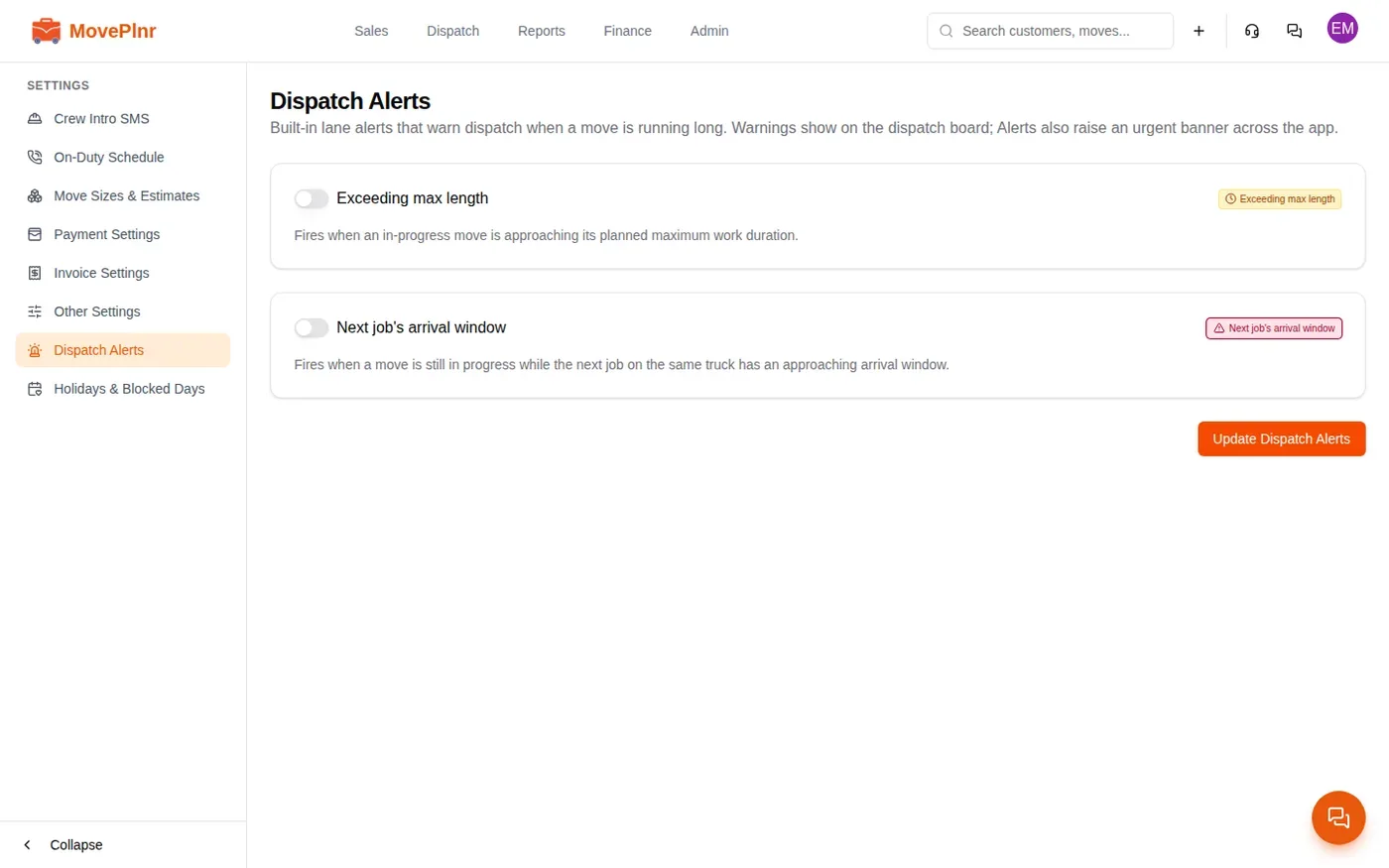
Lane alerts flag a job that is running long, right in its lane, so you can call the crew before the next customer is left waiting. An admin turns them on under Dispatch Alerts in the branch settings.
- Exceeding max length fires when a job in progress is getting close to its planned maximum hours.
- Next job’s arrival window fires when a job is still in progress and the next job on the same truck is coming up on its arrival window.
Switch on the ones you want and click Update Dispatch Alerts. Each alert shows as a chip on the job’s lane.