
Before you start
Google Ads needs the Google Ads Integration add-on. It sits on top of Source Attribution, which sits on top of Lead Sources, so those two need to be on as well. The Google Ads Performance and Google Ads Conversions reports also need the Reports add-on. A company admin turns them on in Add-on Management, where Google Ads Integration is listed under Sales.
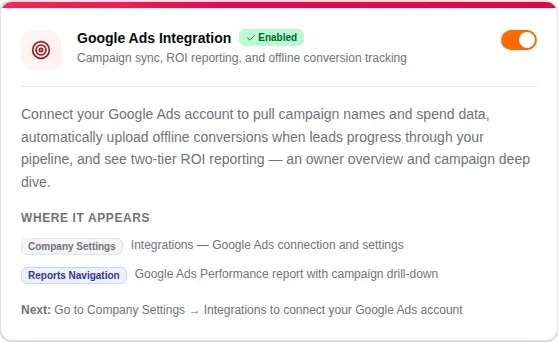
Company admins and marketing managers can connect Google Ads, change its settings and read both reports. You also need a Google login that has access to your Google Ads account.
How Google Ads and MovePlnr work together
- Someone clicks your ad. Google adds tags to the address of the page they land on: a click ID (gclid) and the campaign it came from (gad_campaignid), as long as auto-tagging is on in your Google Ads account.
- They send your website form. The lead arrives in MovePlnr with those tags, and your attribution rules set its lead source.
- Every night, MovePlnr pulls each campaign’s spend, impressions and clicks from Google Ads, and uploads the conversions that are waiting.
- As the lead moves through your pipeline, MovePlnr reports each stage back to Google Ads, so Google can bid for the searches that turn into booked and closed moves.
Open Google Ads Setup
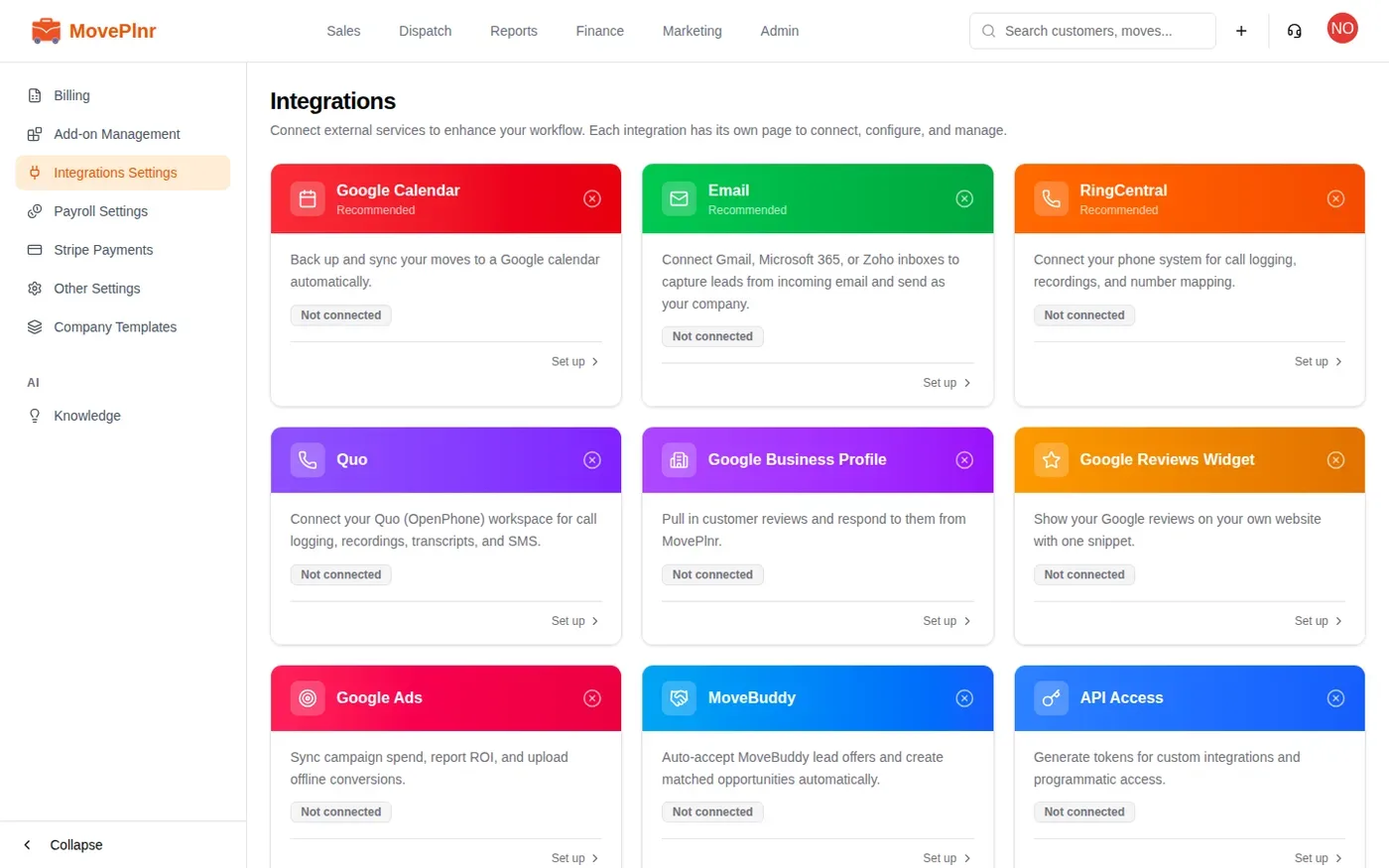
Marketing managers open Google Ads Setup from the Marketing menu, under Ads & Attribution. Admins also find it under Integrations Settings: click Set up on the Google Ads card.
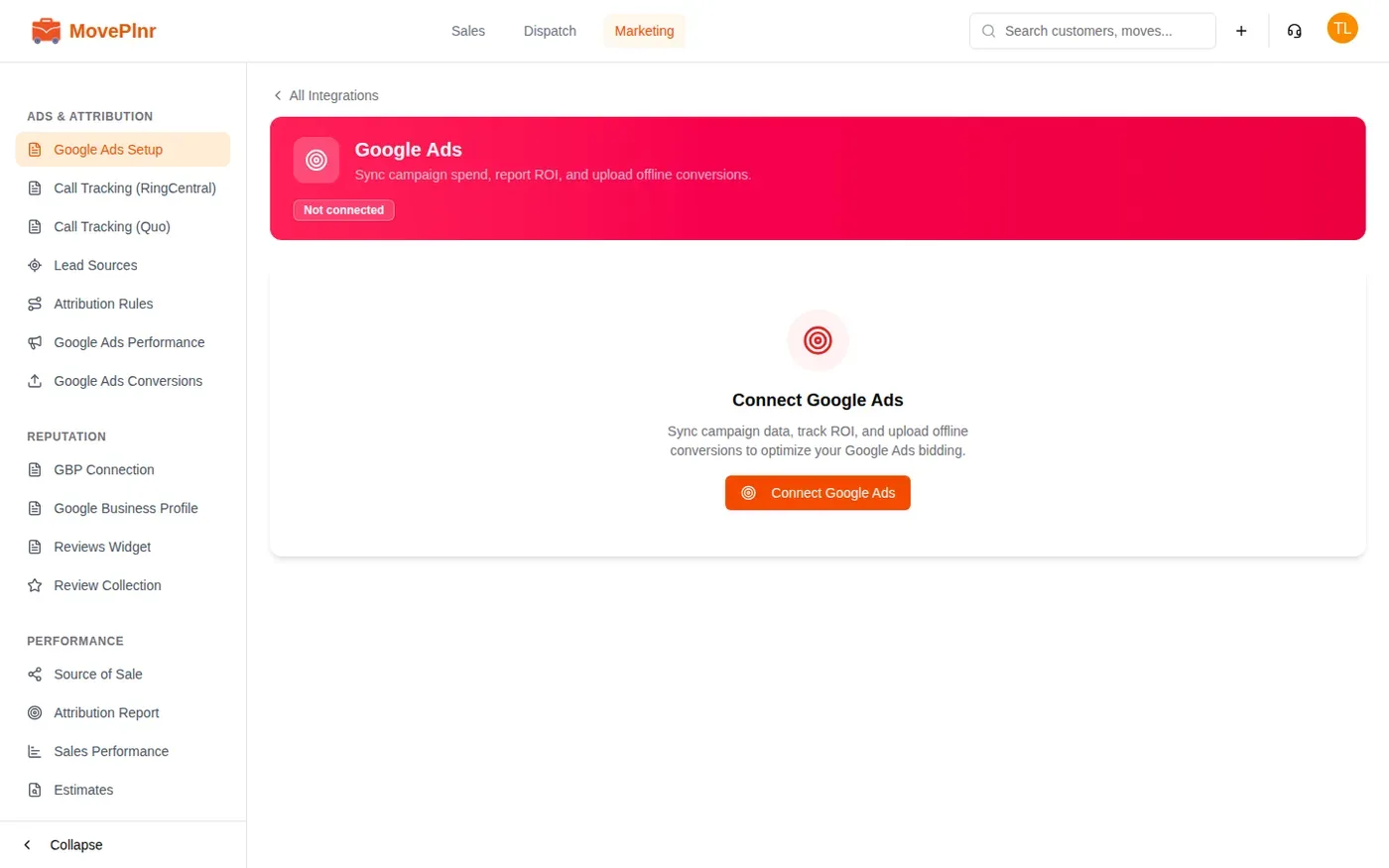
Until you connect, the page shows Not connected and one button.
Connect your account
- Click Connect Google Ads.
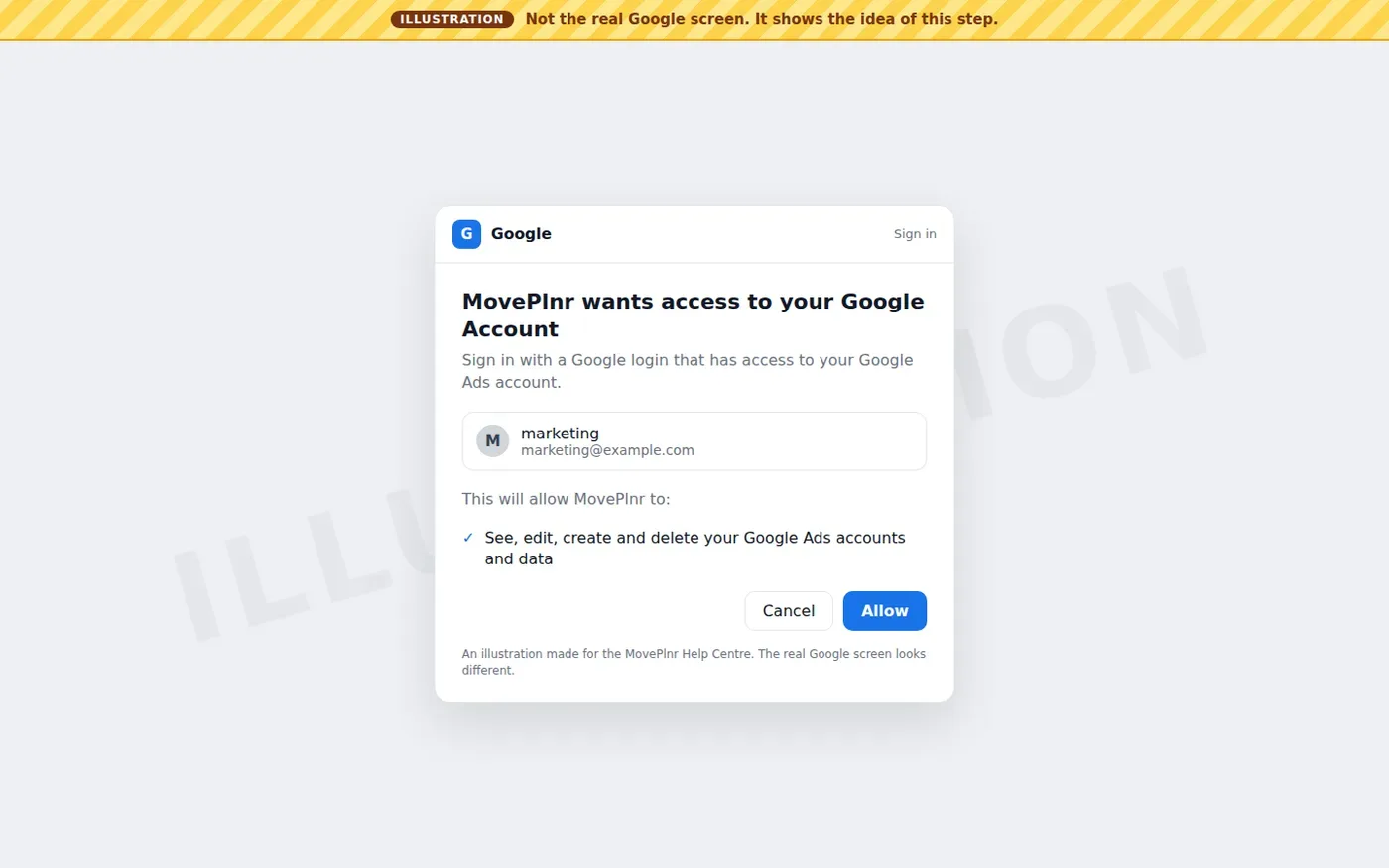
- A Google window opens. Pick the Google login that has access to your Google Ads account.
- Google asks you to let MovePlnr see and manage your Google Ads accounts and data. Click Allow.
- Back in MovePlnr, choose the Google Ads account to connect from the list, then click Connect Account.
You’ll see a Google screen like the illustration below. It is not a capture of Google’s site, and their own screen looks different.
Once it is connected, the top of the page shows the account name, its Google Ads account number, the Google login it uses and a Connected badge.
Finish the setup checklist
Under the account, the Setup Checklist has three rows.
Conversion actions
Click Set up on the Conversion Actions row. MovePlnr looks for its three conversion actions in your Google Ads account, MovePlnr Lead, MovePlnr Booked and MovePlnr Closed, links any that are already there and creates the missing ones. New ones use a 90-day click window, the longest Google allows. When all three are linked, the row gets a green tick.
Sync campaigns
Click Sync Now to pull your campaign names and the last week of spend right away, instead of waiting for the nightly sync. A message says how many campaigns came in. If you click it again within a few minutes, MovePlnr asks you to wait.
Backdate spend
After the first sync, a Backdate Spend Data row appears. Its From date starts at your earliest campaign’s date and its To date at today, so you can pull your whole history in one go. Change the dates if you only want part of it, then click Pull Data. A message says how many daily snapshots came in.
Choose your conversion tracking stages
Under Conversion Tracking Stages, a switch for each stage decides whether it is sent to Google Ads as a conversion. All three start on.
| Stage | Sent when | Value sent |
|---|---|---|
| Lead | A new opportunity is created | $0 |
| Booked | The move is booked, waiting for a signature or pending | The quote |
| Closed | The move is closed | The actual revenue |
Only leads that came from a Google ad click are sent, because Google matches each conversion to its click ID. A lead with no click ID is skipped.
Check the conversion uploads
The link at the bottom of Google Ads Setup opens Google Ads Conversions, also in the Marketing menu. It lists every conversion MovePlnr sent or tried to send: the move, the stage, the value, its status, when it was created and when it was uploaded.
- Uploaded means Google Ads has it.
- Pending means it goes up with the next upload.
- Failed shows the reason under the badge. Fix the cause, then click Retry on the row.
- Click too old means the ad click is older than the conversion action’s click window. Google won’t record it, and retrying won’t change that.
Click Exclude on a row to stop a conversion from ever being sent, for example a test move. MovePlnr asks first, because this can’t be undone.
Read the Google Ads Performance report
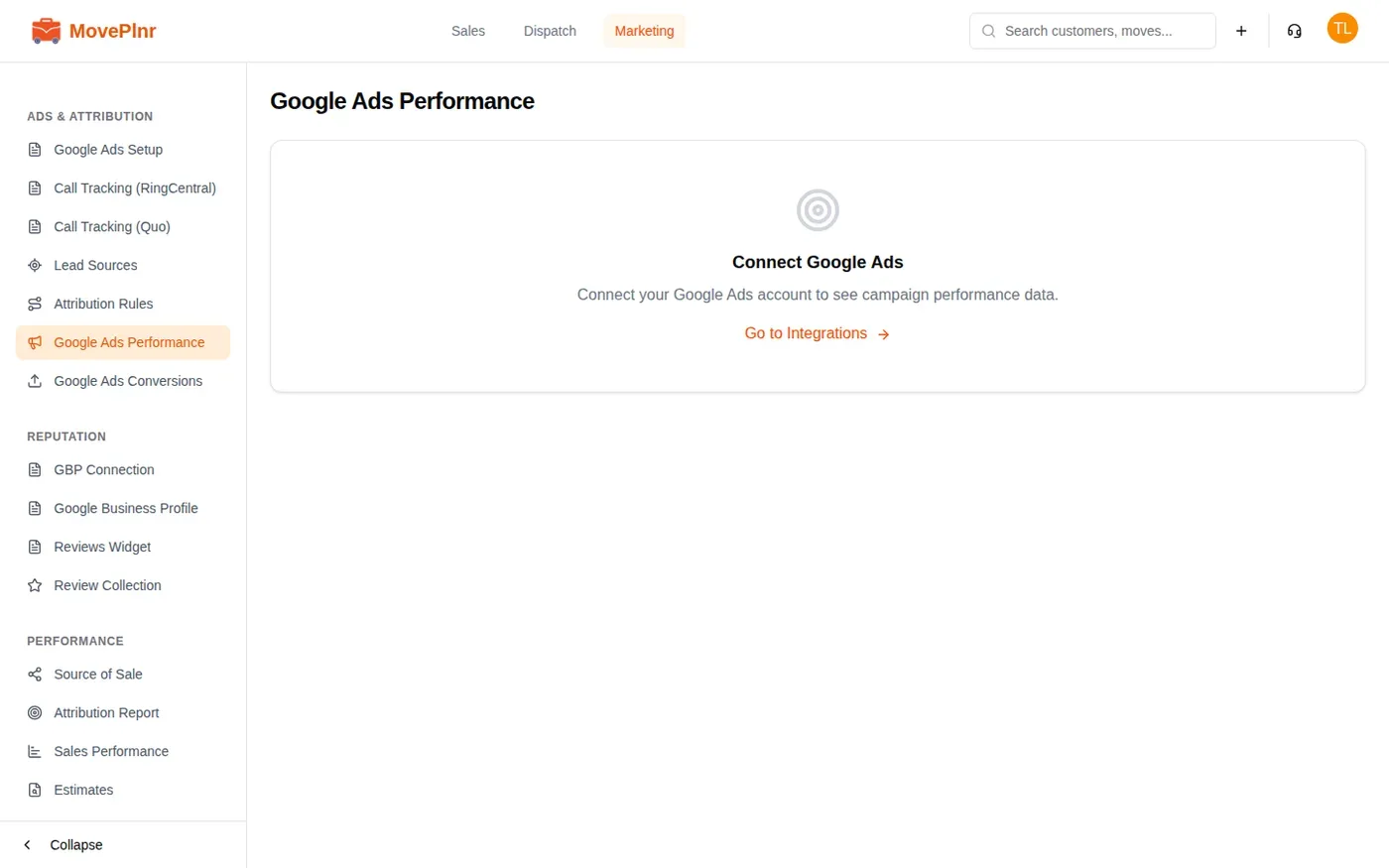
Open Google Ads Performance from the Marketing menu. Before you connect, it says so and links to the setup.
Once connected, pick a month and a year at the top right. The page then shows:
- When the spend was last pulled, with Refresh data to pull the latest now. After a refresh it counts down five minutes before you can refresh again.
- Four totals for the month: Total Ad Spend, Cost per Lead, Cost per Closed Move and ROAS, the revenue each ad dollar brought back.
- A red warning that lists any campaign that spent more than $50 in the month with no leads to show for it.
- Campaign Performance: one row per campaign with its spend, leads, booked, closed and cancelled moves, revenue, cost per lead (CPL) and ROAS. The ROAS badge is green at 3x or more and amber from 1x.
- How many conversions were uploaded that month, split into leads, booked and closed.
A lead counts toward a campaign when the page they sent your form from carried that campaign’s tag. Revenue is the total of the closed moves.
Drill into a campaign
Click a campaign’s row to open its deep dive for the same month.
- Conversion Funnel: Impressions, Clicks, Leads, Booked and Closed, side by side, with the percentage that made it from each stage to the next. Leads and Booked also show how many of them were booked, pending, closed or cancelled.
- Landing Page Performance: each page that brought leads from this campaign, with its leads, closed moves, revenue and conversion rate.
- Individual Leads: each customer, their status, move date, quote, revenue, days to close and landing page. Click a customer to open them in a new tab.
Change the login or disconnect
- Sign in again, at the top of Google Ads Setup, swaps the Google login the connection uses. The account, its conversion actions and your stage switches stay. Use it when the person who connected leaves, or when the page says the connection stopped working.
- The red bin disconnects Google Ads. It stops the nightly sync and the conversion uploads and removes the connection’s settings, so you start from the beginning next time.