
Before you start
Local Services Ads leads come in through your Google Ads connection, so you need:
- The Google Ads Integration add-on, with Source Attribution and Lead Sources under it, and the Sales Pipeline add-on for New Business. A company admin turns them on in Add-on Management.
- Google Ads connected on Google Ads Setup, with your Local Services ads running under that same Google Ads account. Connect Google Ads walks through it.
- To change the switch, a company admin or a marketing manager. Sales reps don’t need anything: the leads show up in their New Business.
Turn on Local Services Ads
- Open Google Ads Setup from the Marketing menu.
- Scroll to the Local Services Ads card, under the conversion tracking stages.
- Turn on its switch.
The switch starts off, because plenty of accounts run Search ads with no Local Services ad. Once it is on, MovePlnr also brings in the last 30 days of leads, so a call from last week isn’t missed.
See what happened to each lead
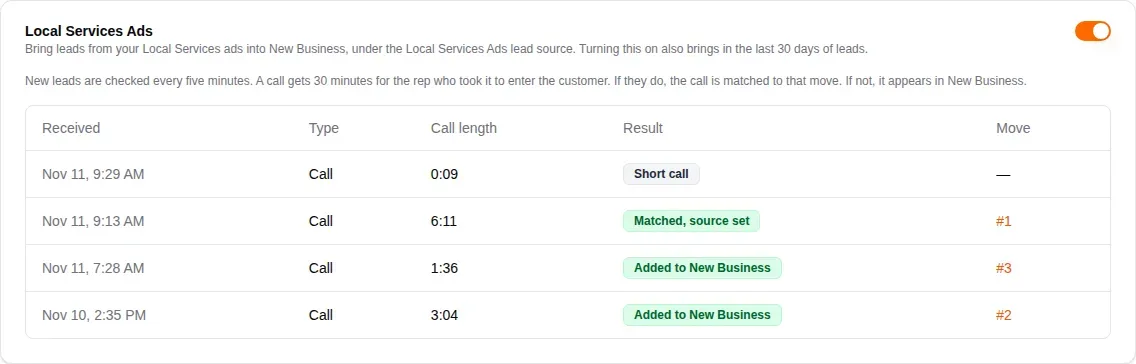
Google has no way to send these leads the moment they arrive, so MovePlnr checks your account for new ones every five minutes. The table on the card lists every lead it has looked at, newest first: when it reached Google, whether it was a call, how long the call lasted, the result and the move it belongs to. Click the move number to open it.
| Result | What it means |
|---|---|
| Added to New Business | Nobody had entered this caller, so MovePlnr created a new lead. |
| Matched, source set | A rep had already entered this caller as a new customer. The call is linked to that move and the customer’s lead source changes to Local Services Ads. |
| Matched to a move | The caller was already a customer, or arrived with an ad click on record. The call is linked to the move and the lead source stays as it was. |
| Short call | The call lasted less than 30 seconds, so it is left out. |
| No contact details | Google holds no phone number or email for the lead. |
| Declined | The lead was declined or disabled on Google’s side. |
Calls a rep already entered
Most Local Services leads are phone calls, and the rep who answers usually types the customer in while they talk. To keep that customer from appearing twice, MovePlnr gives each call 30 minutes before adding it. If it finds a customer with the caller’s phone number (or email) whose move was entered around the time of the call, it links the call to that move instead. If not, the call goes to New Business, so a missed or unlogged call still reaches someone.
Work the lead in New Business
A call nobody entered lands in New Business under Unclaimed, like any new lead, with a Local Services badge. Its lead source is Local Services Ads, a source MovePlnr adds the first time it needs one. It is an ordinary source, so it shows in your source reports and you can rename it.
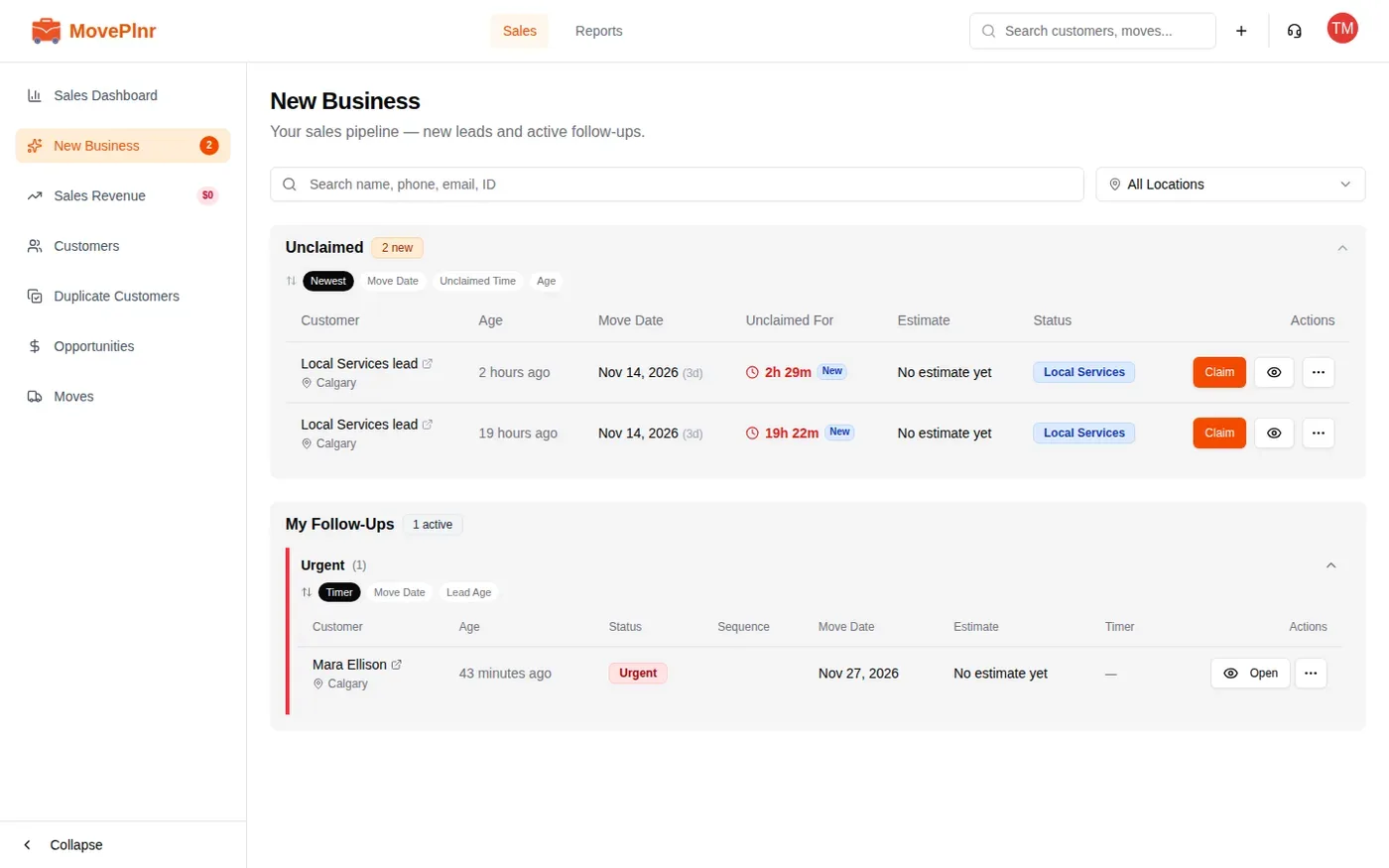
Google doesn’t share a caller’s name, so the customer is called “Local Services lead” until you rename them. Open the lead to see the caller’s phone number and, under Intake details, what Google reported: that it was a phone call, the job type when Google has one, and how long the call lasted. The timeline starts with Lead created via Local Services Ads.
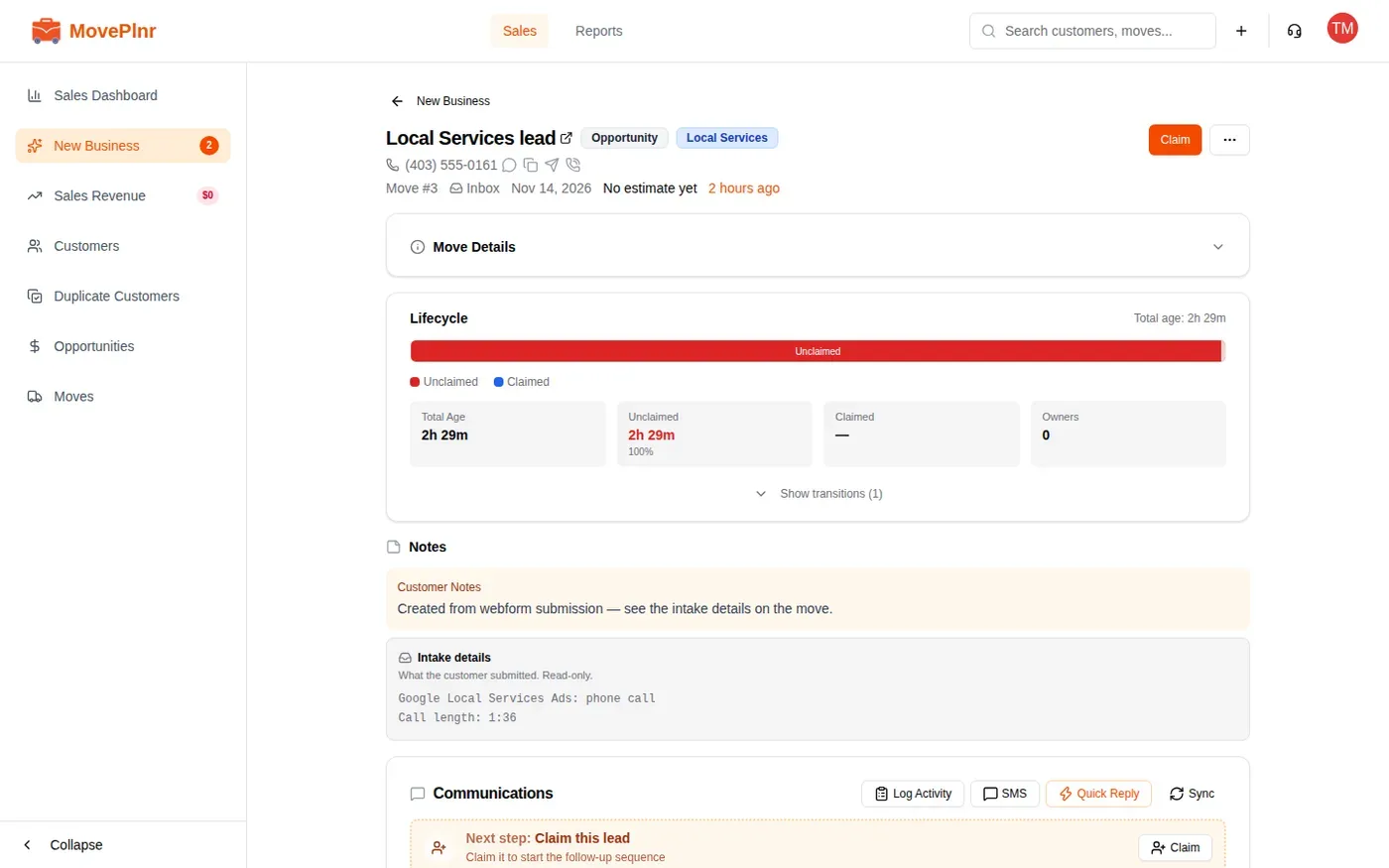
- Click Claim to take the lead. Its follow-up sequence starts.
- Call the customer back on the number shown.
- Add their name and the move details, then quote as usual.