Before you start
Messenger, Instagram and social posts need these add-ons, which a company admin turns on in Add-on Management:
- Meta (Facebook & Instagram), for the connection. It sits on top of Source Attribution, which sits on top of Lead Sources, so those two need to be on as well.
- Unified Inbox, to read and answer Messenger and Instagram messages.
- AI Social Media Manager, for the Social Media page. It needs Meta.
You also need a Facebook login that manages your business’s Facebook Page. For Instagram, link an Instagram business account to that Page in Meta’s own settings first.
Connect Facebook and Instagram
- Open Integrations from Company Settings and click Set up on the Meta card (Manage, once it is connected). Marketing managers find the same page as Meta Setup in the Marketing menu, under Ads & Attribution.
- Click Connect Meta. A Facebook window opens.
- Sign in with the Facebook login that manages your Page, and allow what MovePlnr asks for.
- Back in MovePlnr, pick your Facebook Page from the list.
You’ll see a Facebook screen like the illustration below. It is not a capture of Facebook’s site, and their own screen looks different.
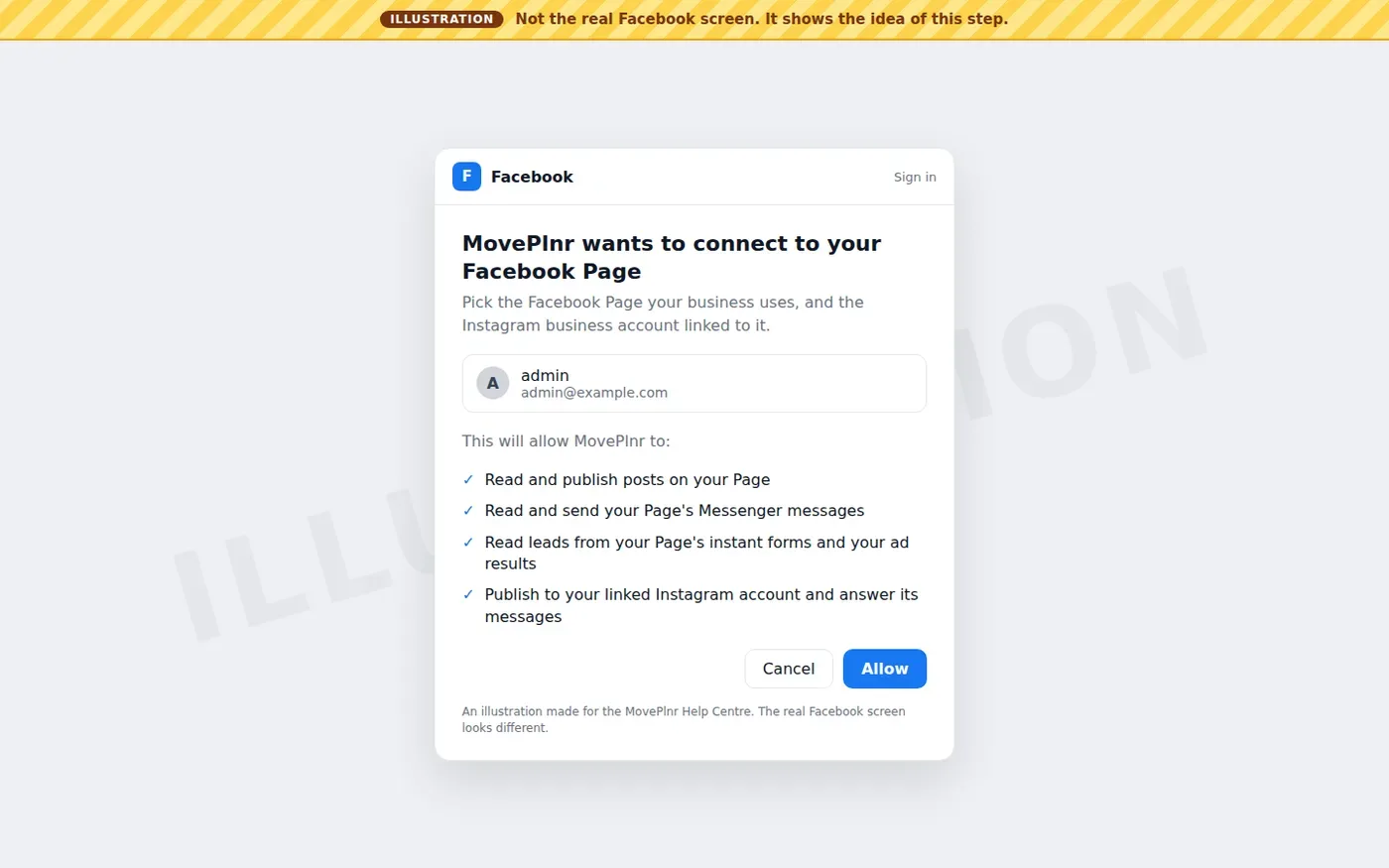
MovePlnr asks to read and publish posts on your Page, read and answer its Messenger messages, read leads from its instant forms and your ad results, and publish to the Instagram account linked to the Page and answer its messages.
Once you pick the Page, the Meta card on Integrations says Connected and names the Page. Meta Setup shows the Page, and the Instagram handle under it when an Instagram account is linked.
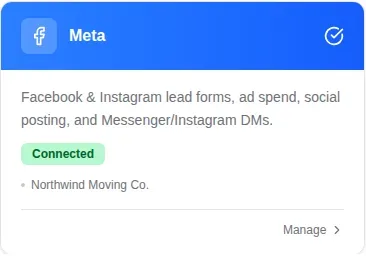
The same page also sets up Facebook lead forms, ad spend and the conversions sent back to Meta.
Answer Messenger and Instagram messages in the Inbox
Every message someone sends your Facebook Page or your Instagram account arrives in the Inbox, beside your email, texts and calls. New messages appear on their own, without refreshing.
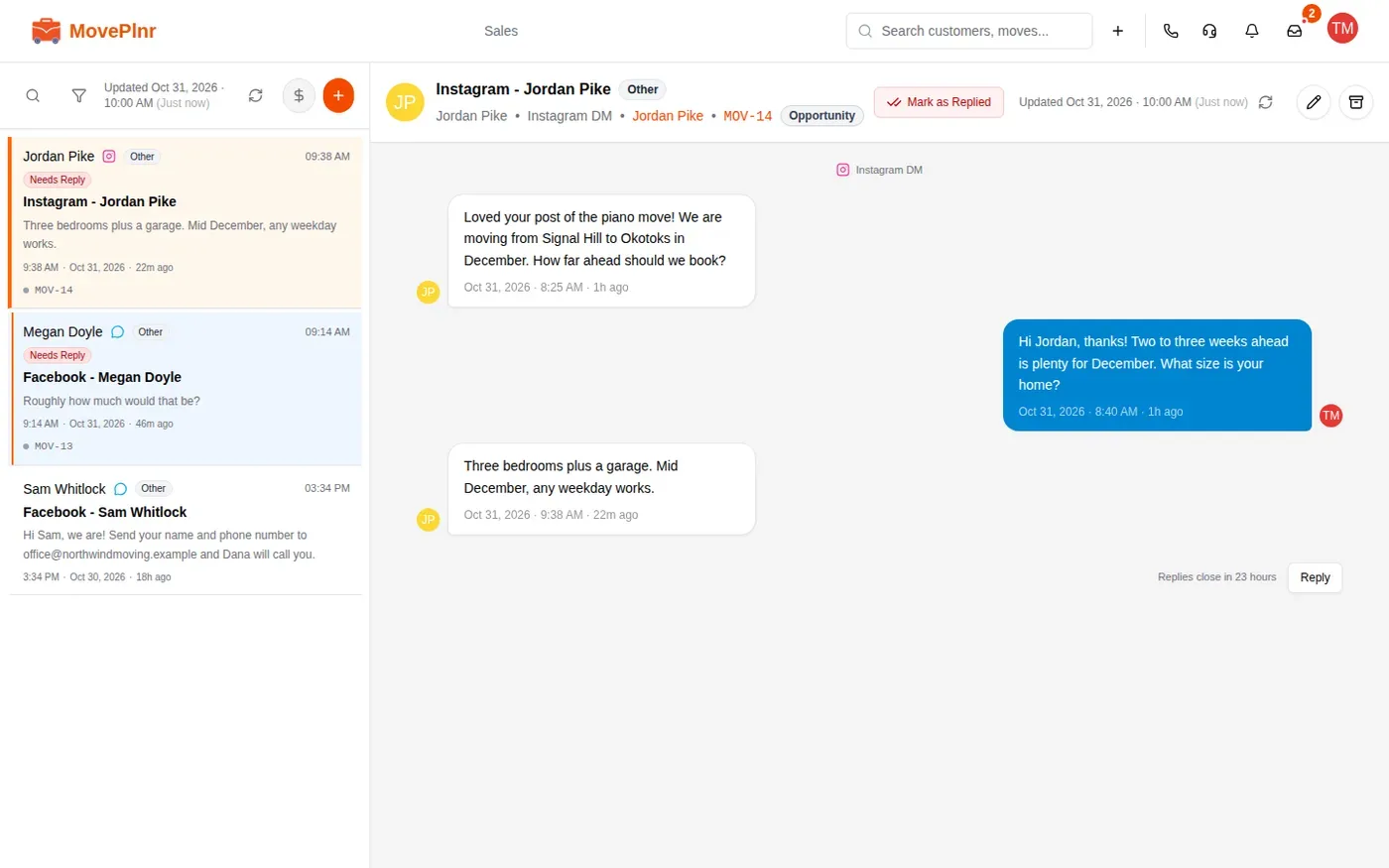
- A small Messenger icon or Instagram icon on each card shows where the message came from. Above the thread, a line says Facebook Messenger or Instagram DM.
- A thread waiting on you is marked Needs Reply. If you already answered some other way, click Mark as Replied.
- Click Reply, type your answer and send it. It goes out from your Page or your Instagram account, not from your own profile.
- To see only these threads, open the filter and set Type to Messenger or Instagram.
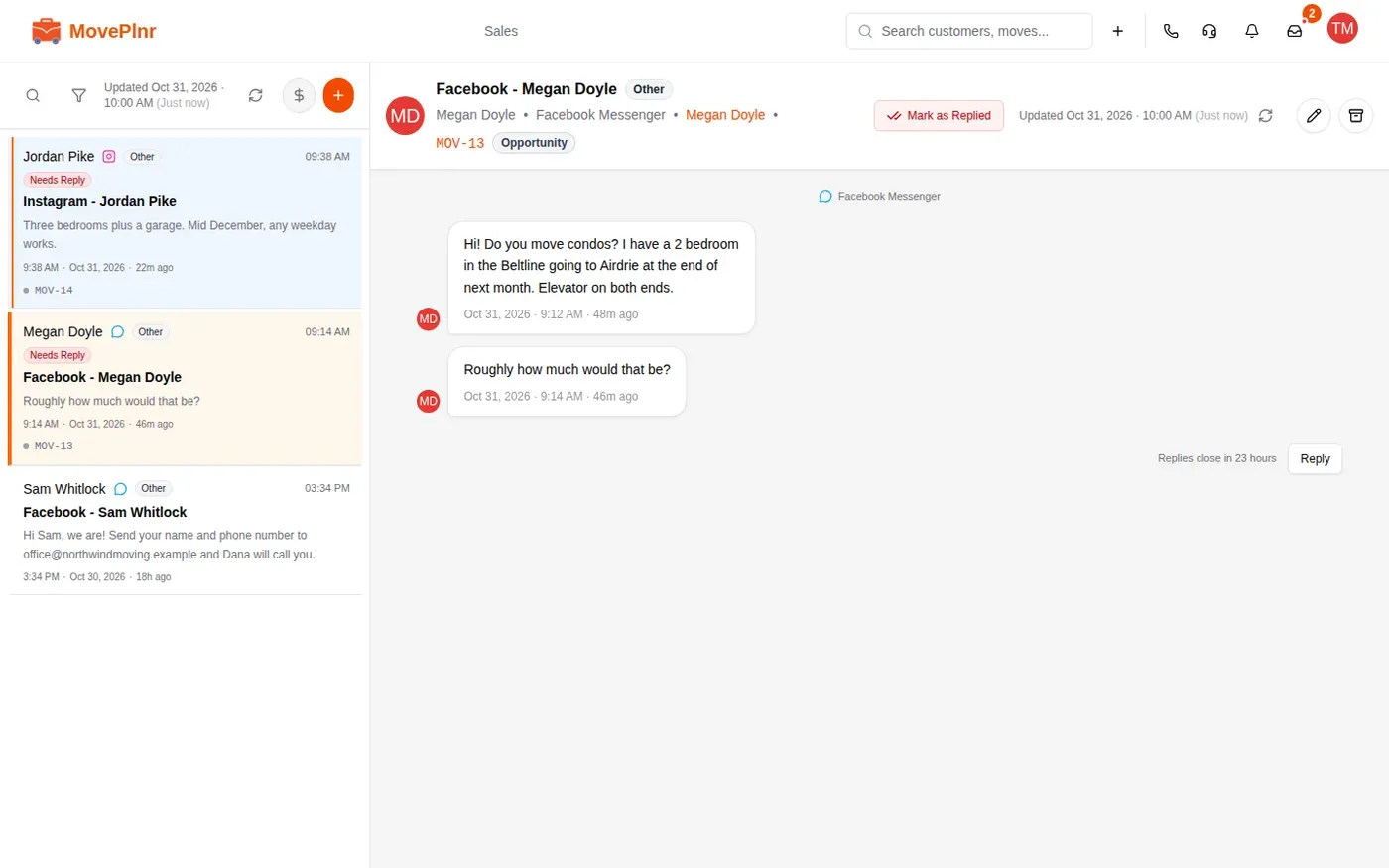
The reply window
Meta only lets a business answer for 24 hours after the customer’s last message. Beside Reply, the thread says when replies close. After that, the reply box is replaced by a note, and you can answer again once the customer writes back.
You can’t start a Messenger or Instagram conversation from MovePlnr. The customer always writes first.
When a message becomes a lead
When someone new writes to your Page or your Instagram account and the message reads like a moving or storage enquiry, MovePlnr creates a lead by itself:
- A customer with the name from their Facebook or Instagram profile, and no phone or email yet.
- An unclaimed opportunity at your main location, with the lead source Facebook Messenger.
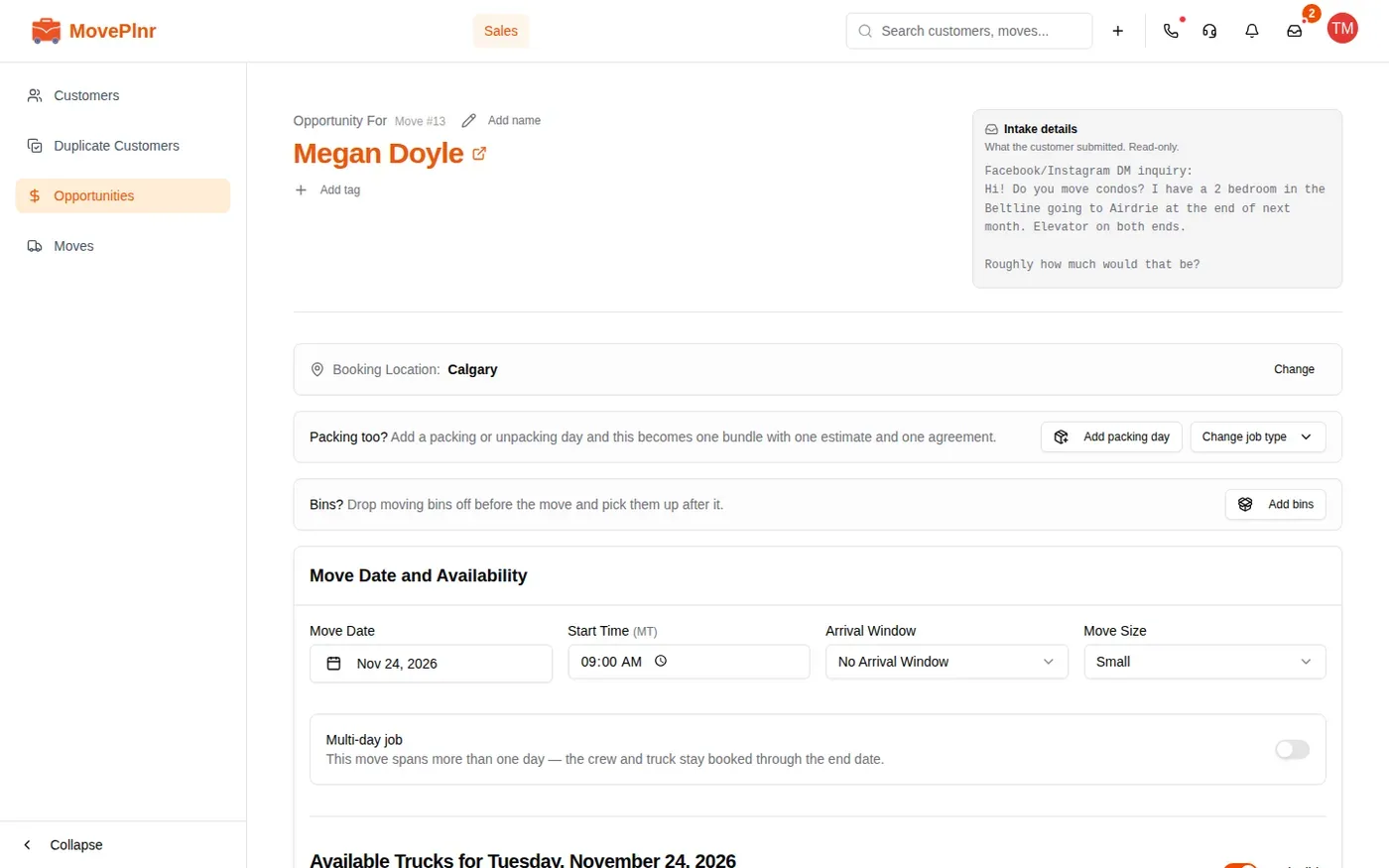
- Their messages in the opportunity’s Intake details, so whoever picks it up can read the ask without opening the Inbox.
The thread in the Inbox links to that customer and opportunity. Messages that aren’t about a move, like someone asking about a job, stay in the Inbox without a lead. MovePlnr checks again with each new message on a thread that has no customer yet, so a conversation that turns into a moving question still becomes a lead.
Ask for consent when you close a move
A post only features customers who agreed to it. On the close screen, before you finish closing the move, switch on Feature this move on social media when the customer is happy to be featured. You can then:
- Add their Facebook or Instagram usernames, if they’d like to be mentioned.
- Pick a featured photo from the move’s files, or upload one.
The finished move then joins the queue on the Social Media page.
Draft a post from a finished move
Open Social Media from the Marketing menu, under Social. The Queue tab lists every closed move whose customer agreed to be featured, newest first, with the revenue, crew, the number of photos, any review and the usernames to mention.
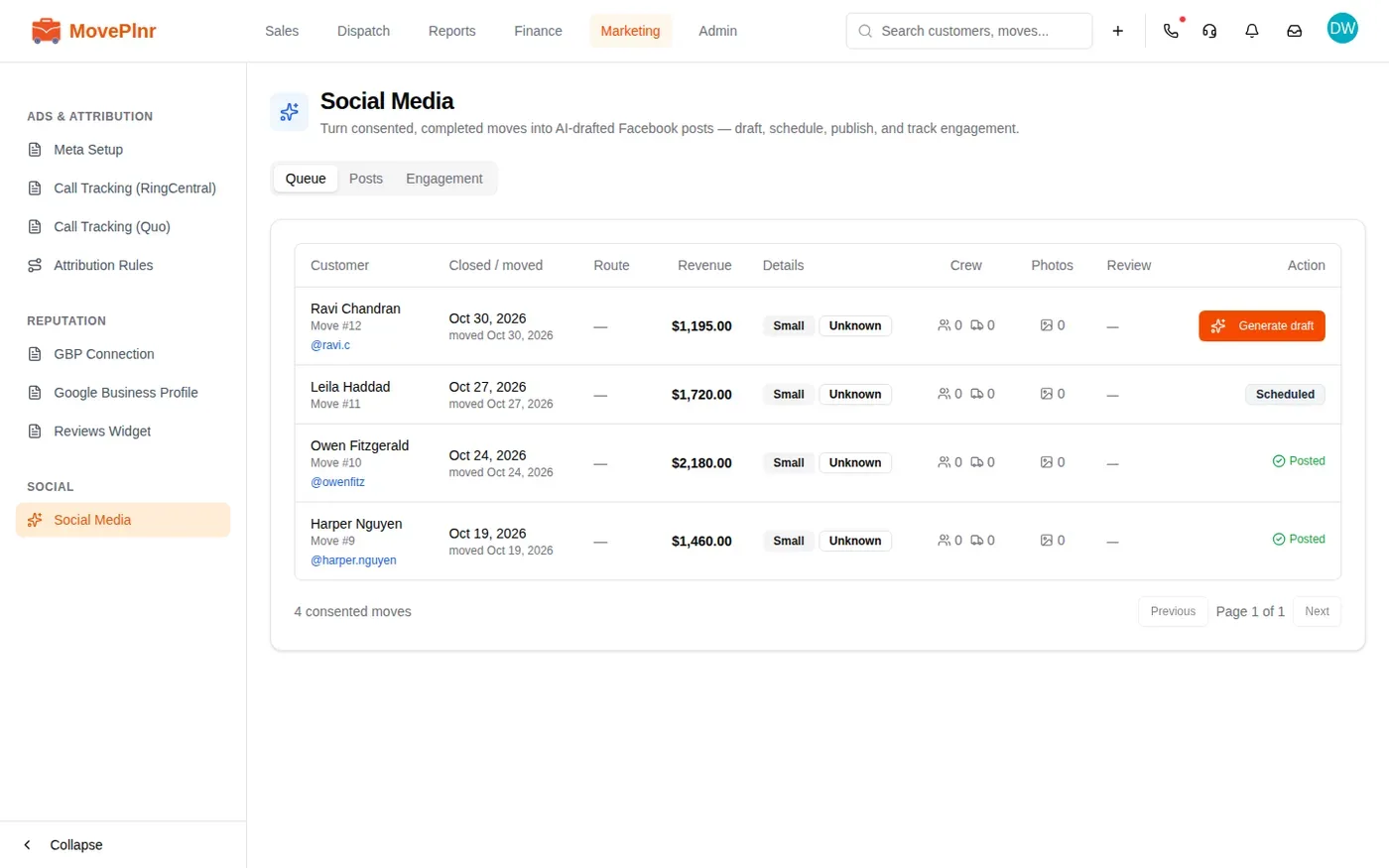
- Click Generate draft on a move. MovePlnr writes a caption and hashtags from the move and picks its photos.
- Read the caption and change anything you like. Click Regenerate for a fresh draft.
- Pick the photos to use. Photos the review left out are shown separately, with the reason; you can still include one if you’re sure it’s fine.
- Choose where it goes under Publish to.
- Click Save draft, pick a date and time and click Schedule, or click Post now.
A move can have more than one post. Once a move has one, its row says Draft, Scheduled or Posted instead of Generate draft. A post that failed shows the reason and the button again, so you can try once more.
Publish to Instagram
Under Publish to, turn on the Facebook Page, Instagram, or both. The Instagram switch shows the account linked to your Page.
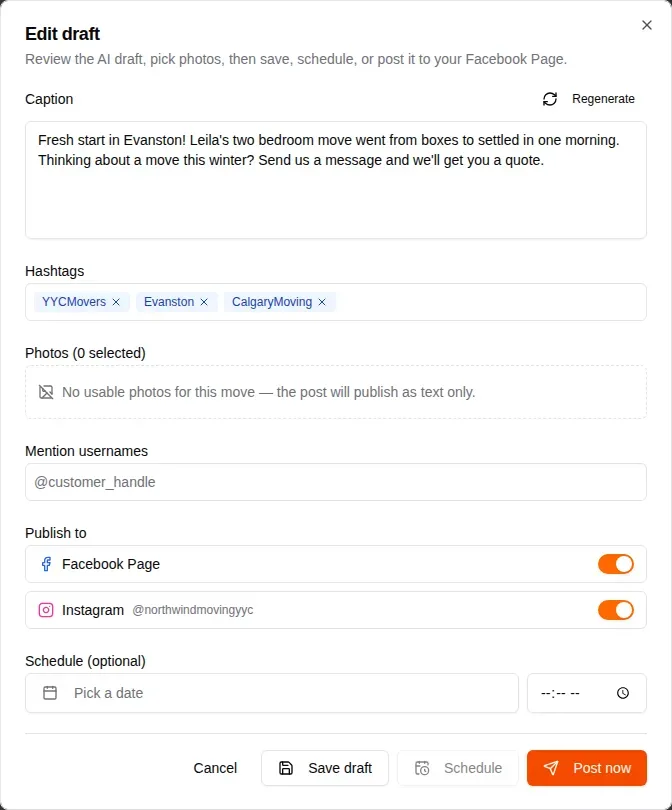
- Instagram needs at least one photo. MovePlnr turns each photo into a JPEG when you pick it, because that is the only kind Instagram takes.
- A post without photos goes to Facebook as text only. MovePlnr asks before it posts one.
- Meta doesn’t let apps tag people. The usernames you mention go into the caption as text, and the post reminds you to tag them by hand on Facebook.
The Posts tab lists every post. A scheduled one shows its time, with Edit and Cancel schedule. A published one links to its Facebook and Instagram posts. Archive removes a post from the list without touching Facebook or Instagram, and Delete on Facebook and Instagram too takes it down from both.
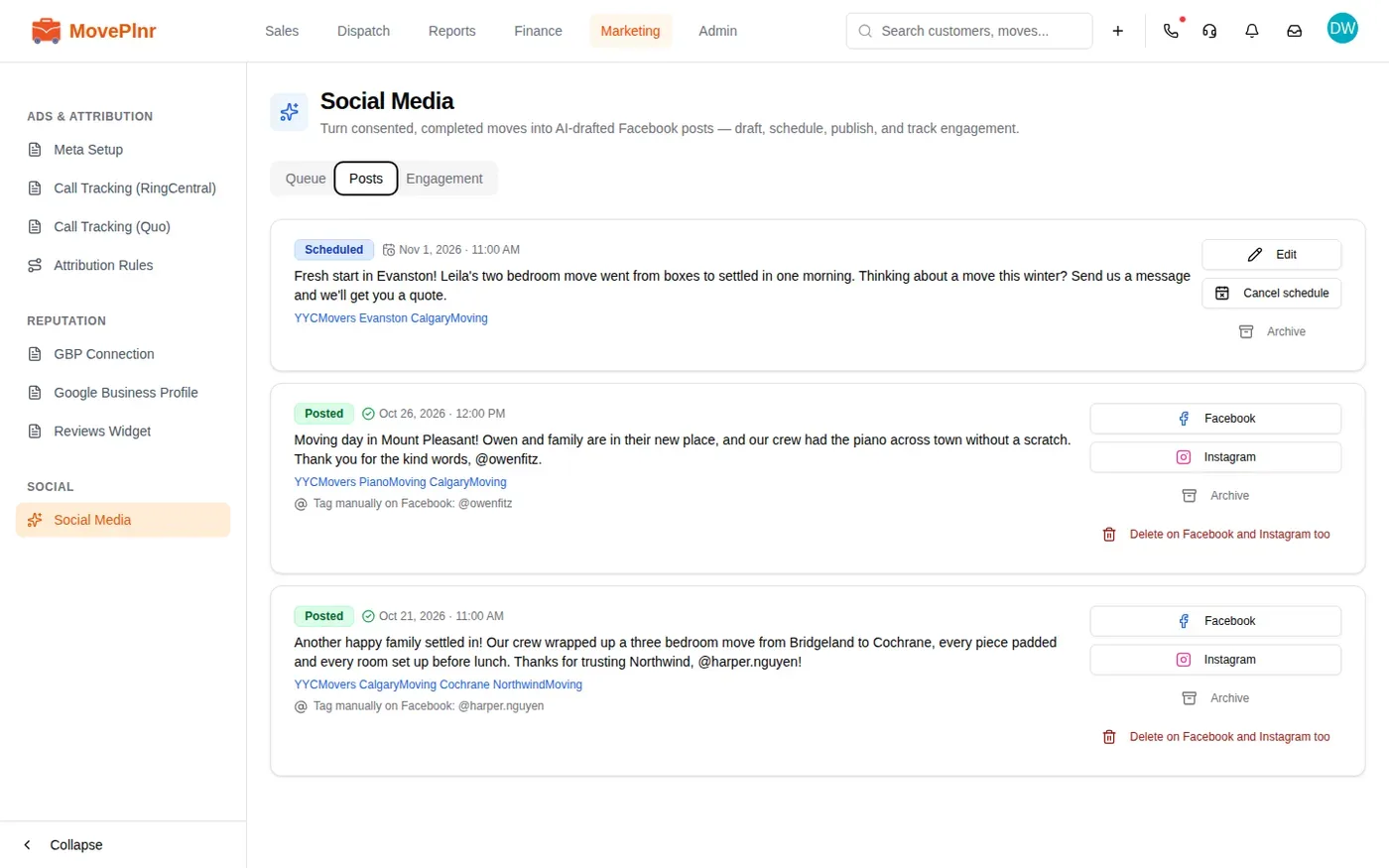
If a post went to one place but not the other, it shows as published with a note saying what didn’t go.
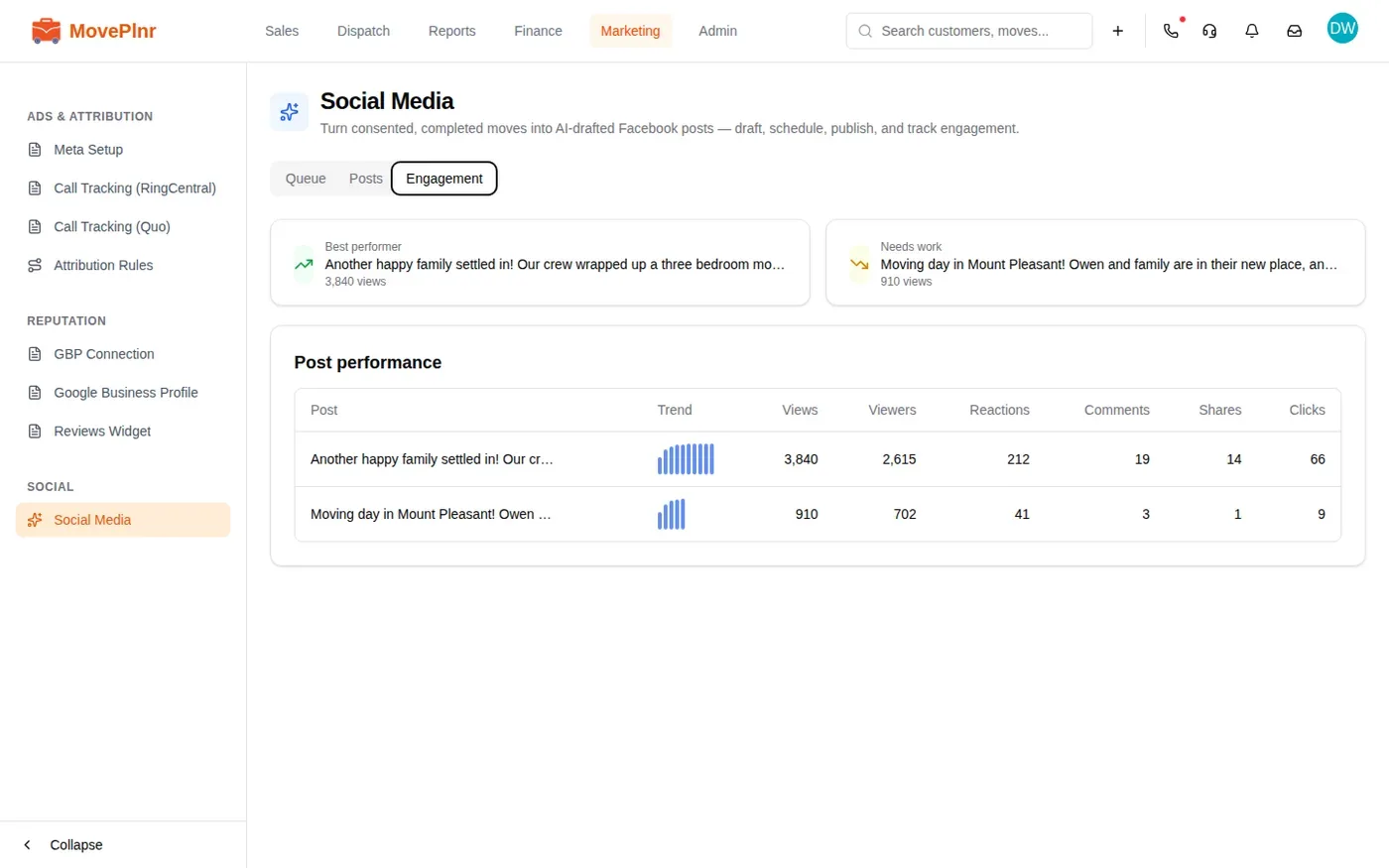
Check how your posts do
The Engagement tab reads each published post’s numbers from Facebook and Instagram every night: views, viewers, reactions, comments, shares and clicks, with a small trend for each post. Best performer and Needs work at the top show your strongest and weakest posts.