
Before you start
Review requests live in your location settings, under Review Collecting: Review Emails, Review Campaigns and Review Platforms. Your company needs the Review Collection add-on, and the Review Collection report also needs Reports. An admin turns them on in Add-on Management.
Company admins and marketing managers set up the emails and campaigns. Admins, marketing managers and dispatchers can read the report.
Each location has its own emails, campaigns and platforms, so set them up once per branch.
How a review request works
- A move closes. If a campaign is In Use for that location, MovePlnr schedules its emails for that customer.
- The first email arrives the next day, at the time you pick. Up to two more follow if the customer has not answered.
- The email asks one question: are you satisfied with our service? The customer clicks Yes, I am! or Not really.
- Yes opens a page where they rate you out of five stars. Five stars sends them straight to your Google review page. Fewer stars, or Not really, opens a short form that asks how you could do better. That feedback comes to you, not to Google.
- Once a customer has rated, the remaining emails in the sequence stop.
Write your review emails
- Open Review Emails. It lists every template for this location, its type, its subject and whether a campaign uses it.
- Click New Template, then Review request.
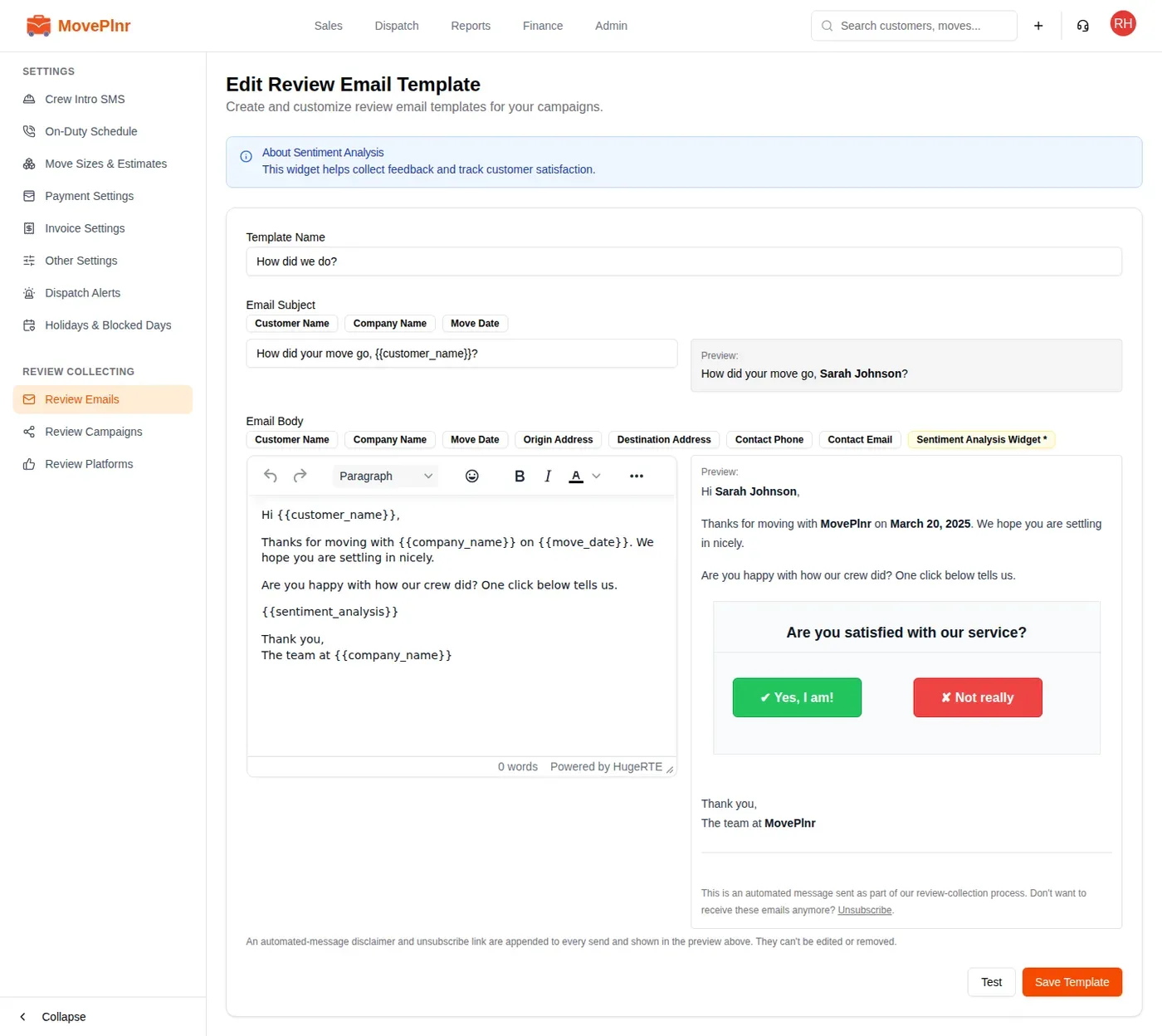
- Give it a Template Name your team will recognise, and write the Email Subject.
- Write the Email Body. Click a chip like Customer Name or Move Date to drop in the customer’s details.
- Add the Sentiment Analysis Widget. Every review request needs it: it is the question with the two buttons. The template won’t save without it.
- Check the preview on the right, then click Save Template. Test sends the email to you first.
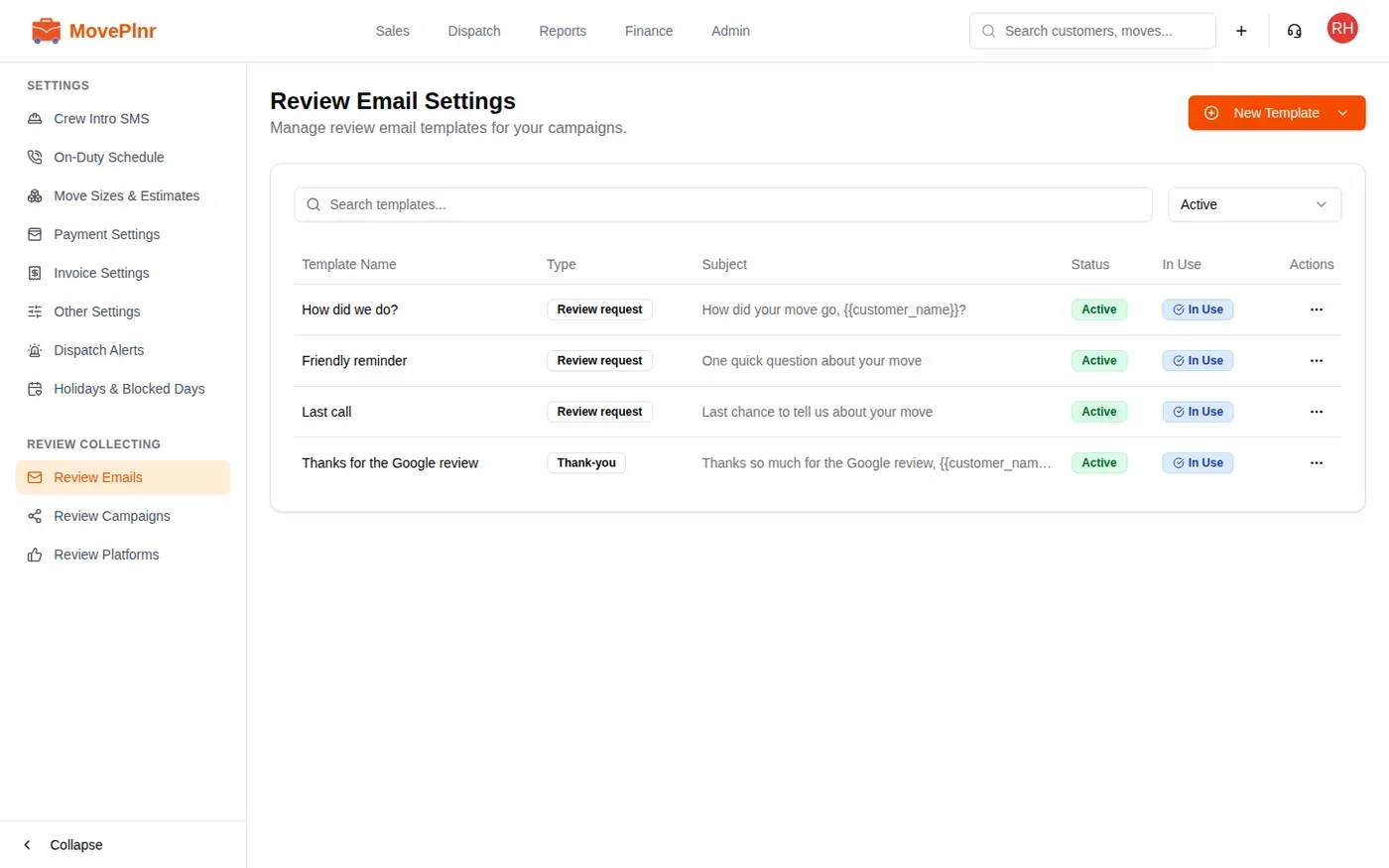
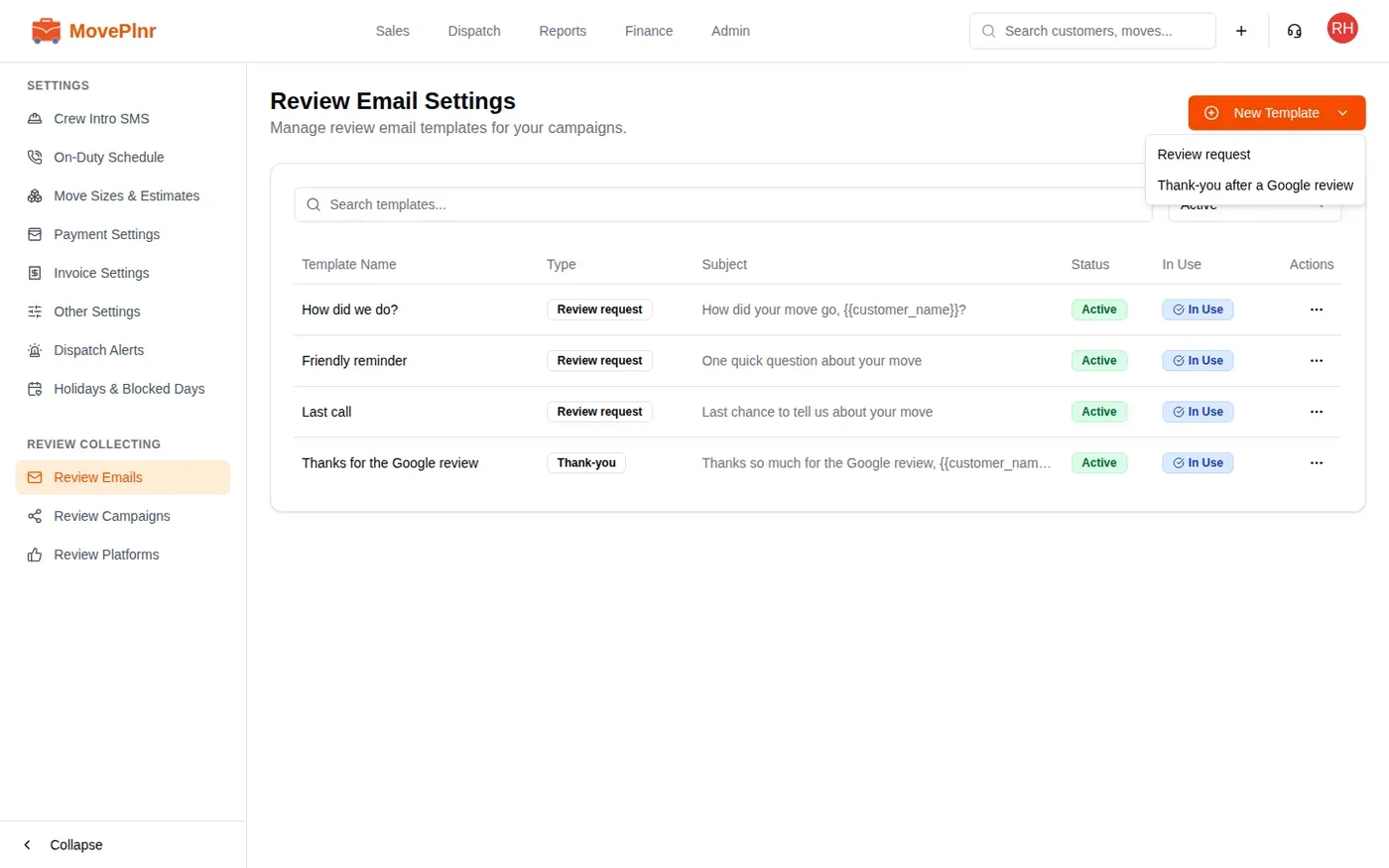
Write a separate template for each email you plan to send: a first ask, a reminder and a last call. A campaign uses each template once.
Create a campaign
A campaign decides when your emails go out and where five star customers are sent.
- Open Review Campaigns and click New Campaign.
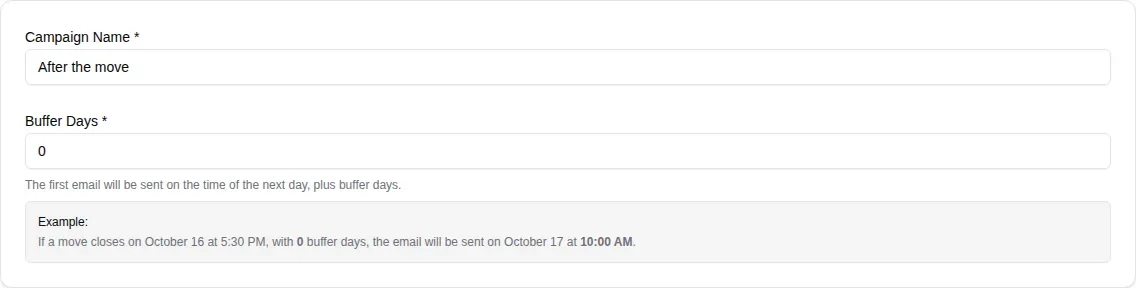
- Enter a Campaign Name.
- Set Buffer Days. With 0, the first email goes out the day after the move closes. Each buffer day waits one more day. The example under the box shows the date and time for a move that closes today.
- Enter your Google Place ID. Find Place ID opens Google’s Place ID Finder. Once it is in, Test Link opens your Google review page so you can check it is the right business.
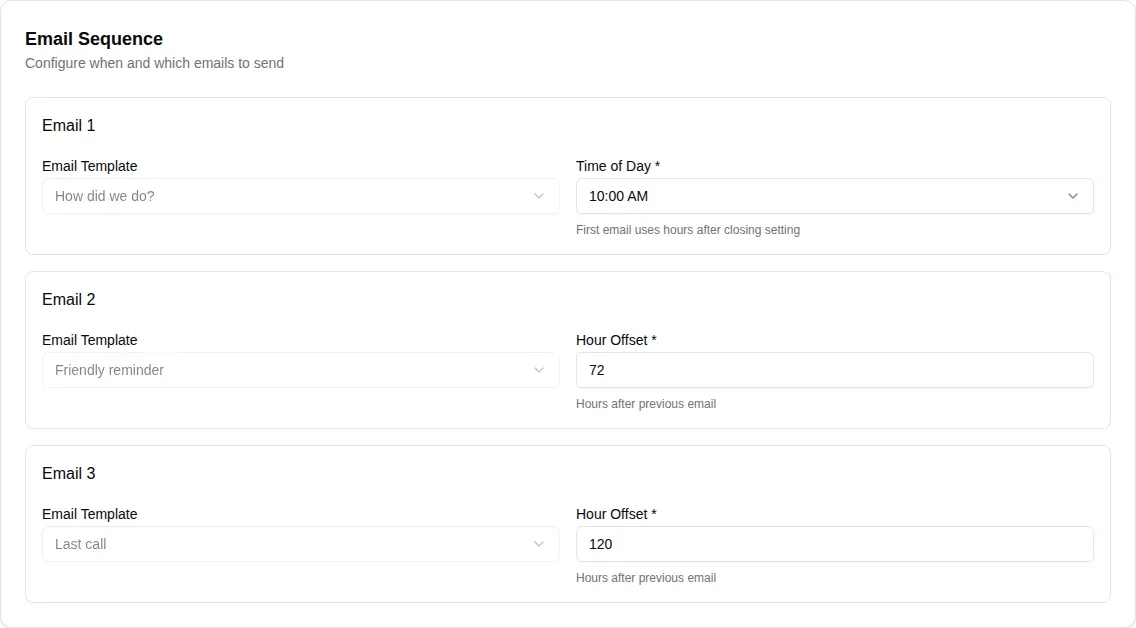
- Build the Email Sequence: pick a template and a Time of Day for the first email, then click Add Email for each reminder and set its Hour Offset, the hours after the email before it.
- Click Create Campaign.
Ask only after a good move
Turn on Filter by Move Rating to send a campaign only when the move was rated well. Under Only send if move rating is:, pick anything from 1 star or higher to Only 5 stars.

Test it, then turn it on
A new campaign sends nothing until you set it as in use. Test it first.
- On Review Campaigns, click the three dots on the campaign’s row and choose Test Campaign.
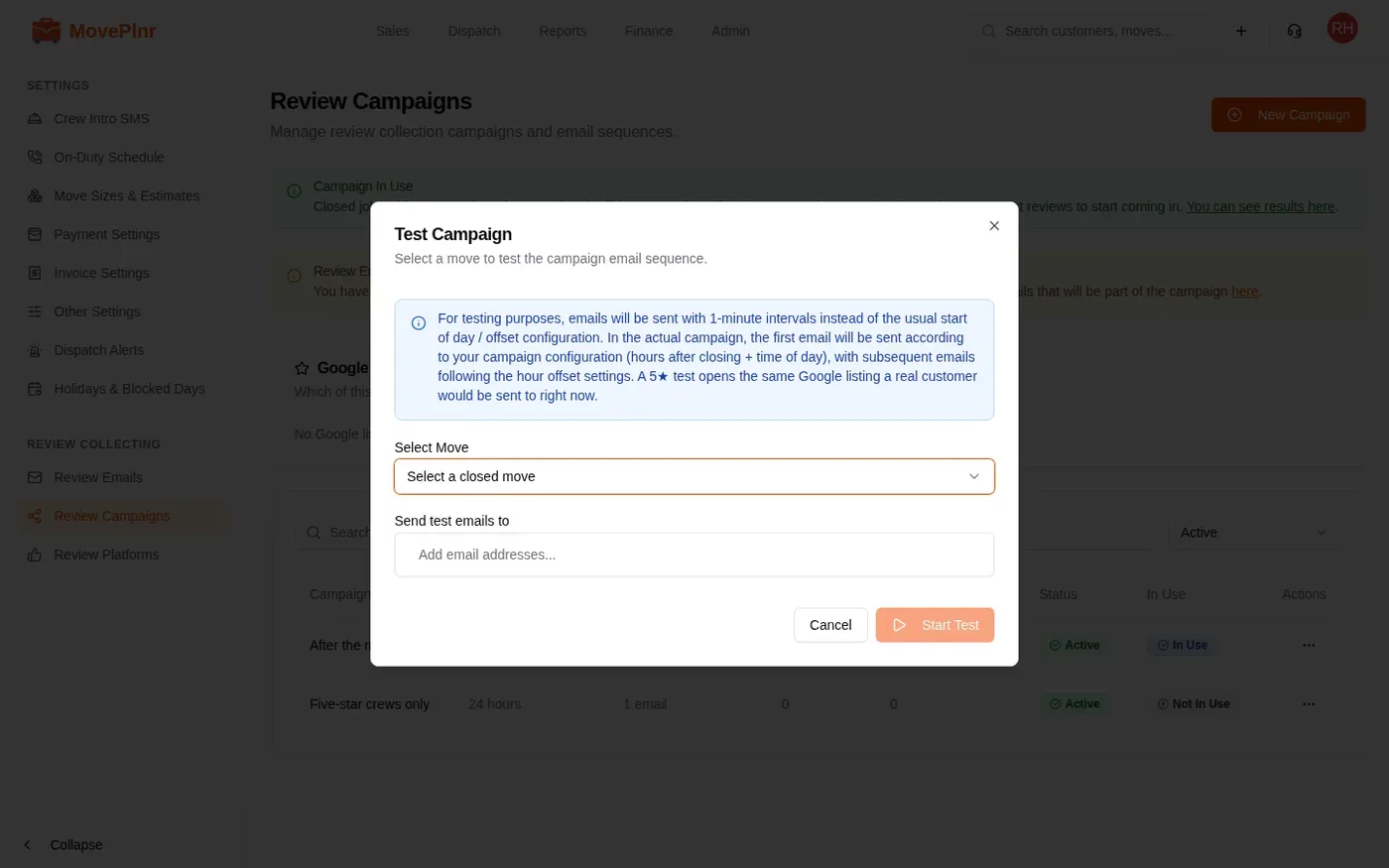
- Select Move: pick a closed move. The test fills in that customer’s details.
- Under Send test emails to, add your own email address, then click Start Test. The whole sequence arrives one minute apart, so you can read every email in a few minutes.
- When the emails look right, open the three dots again and choose Set as In Use, then confirm with Set as In Use.
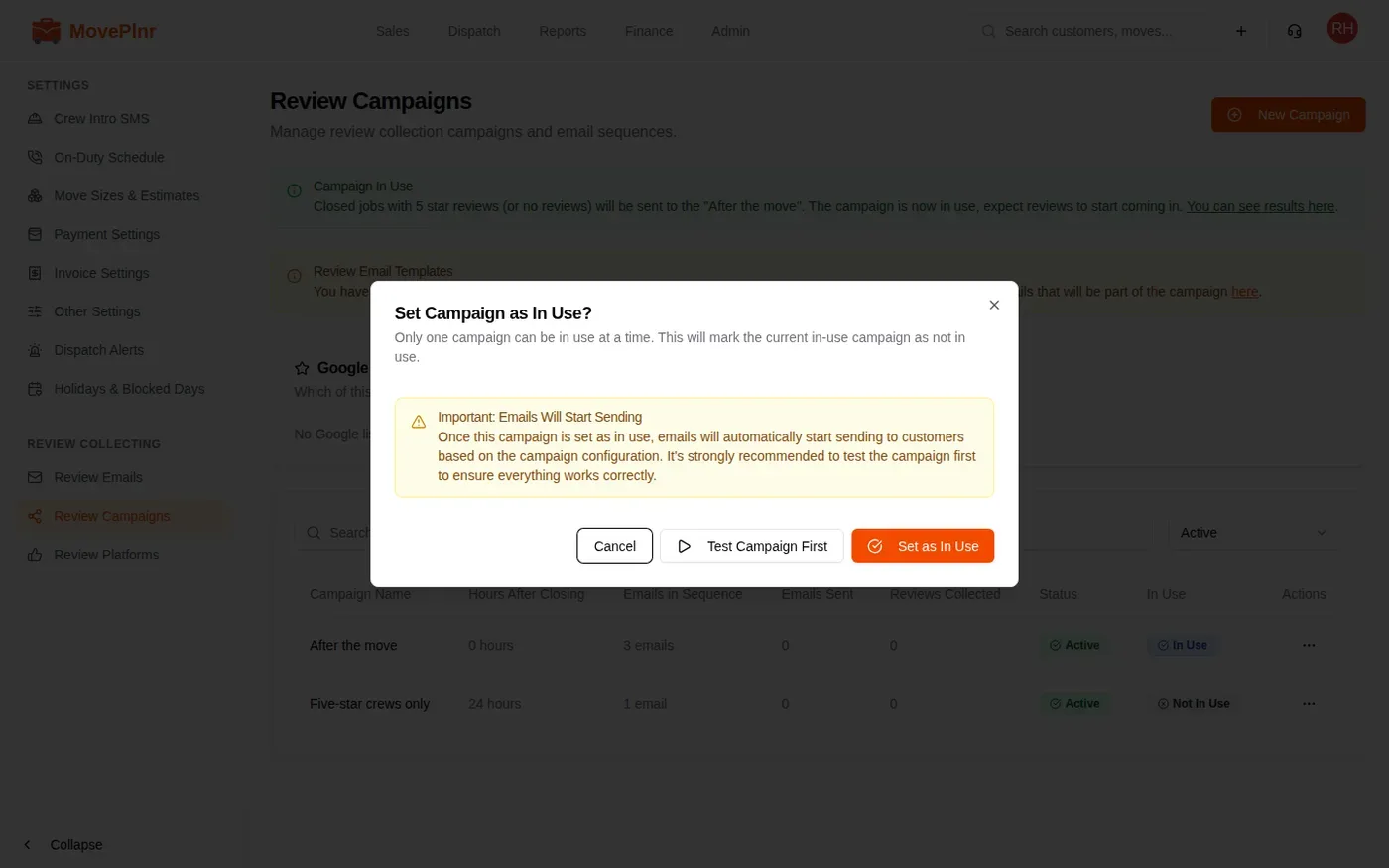
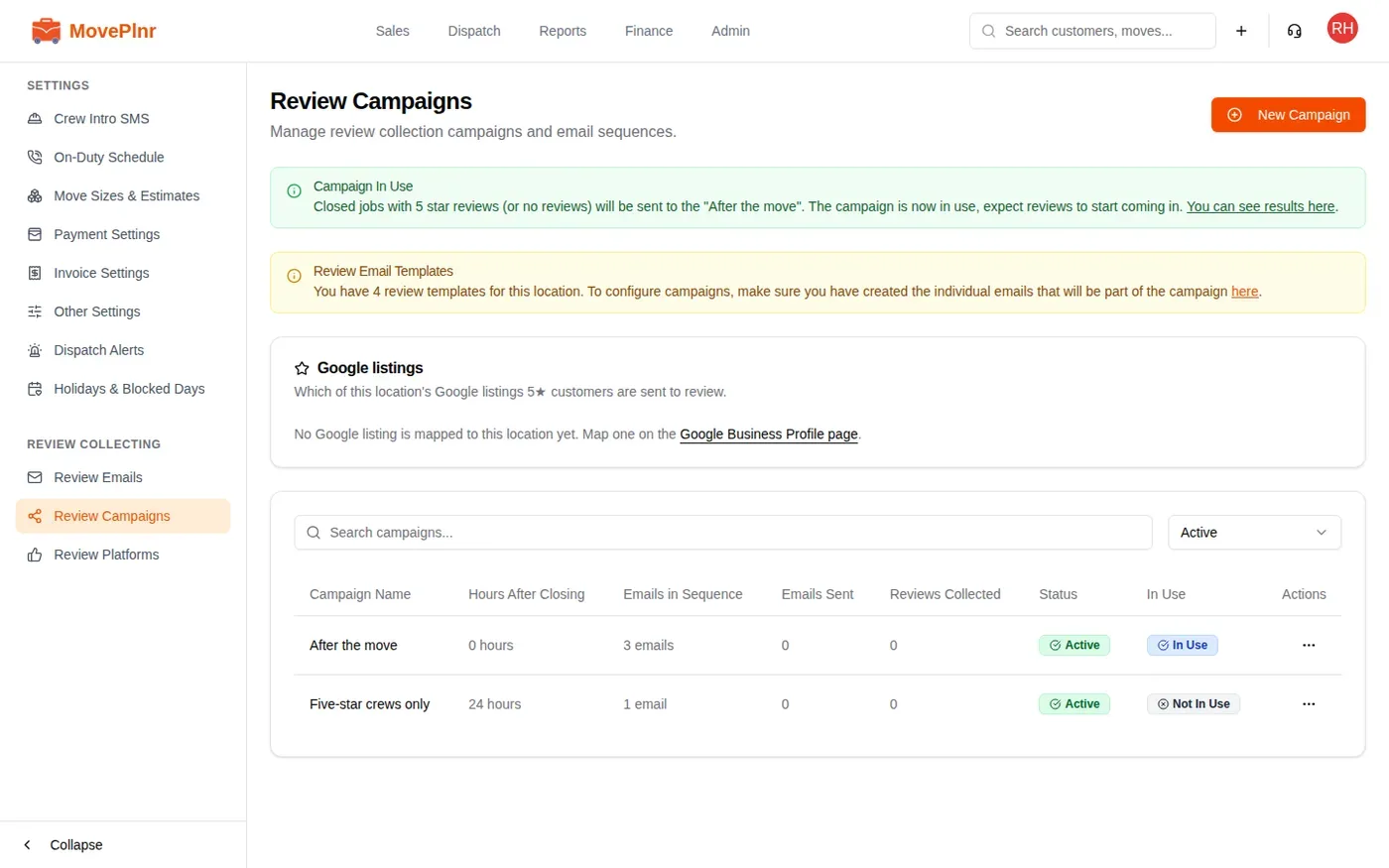
Only one campaign can be in use per location. The Campaign In Use banner names it, and every move that closes from then on gets its emails. If no campaign is in use, the page says No Active Campaign and no review emails go out. Turn Off in the same menu stops a campaign without deleting it.
Thank Google reviewers and ask again
When a customer leaves a five star Google review, the campaign can thank them and ask for a review on another site too, like Yelp or Facebook.
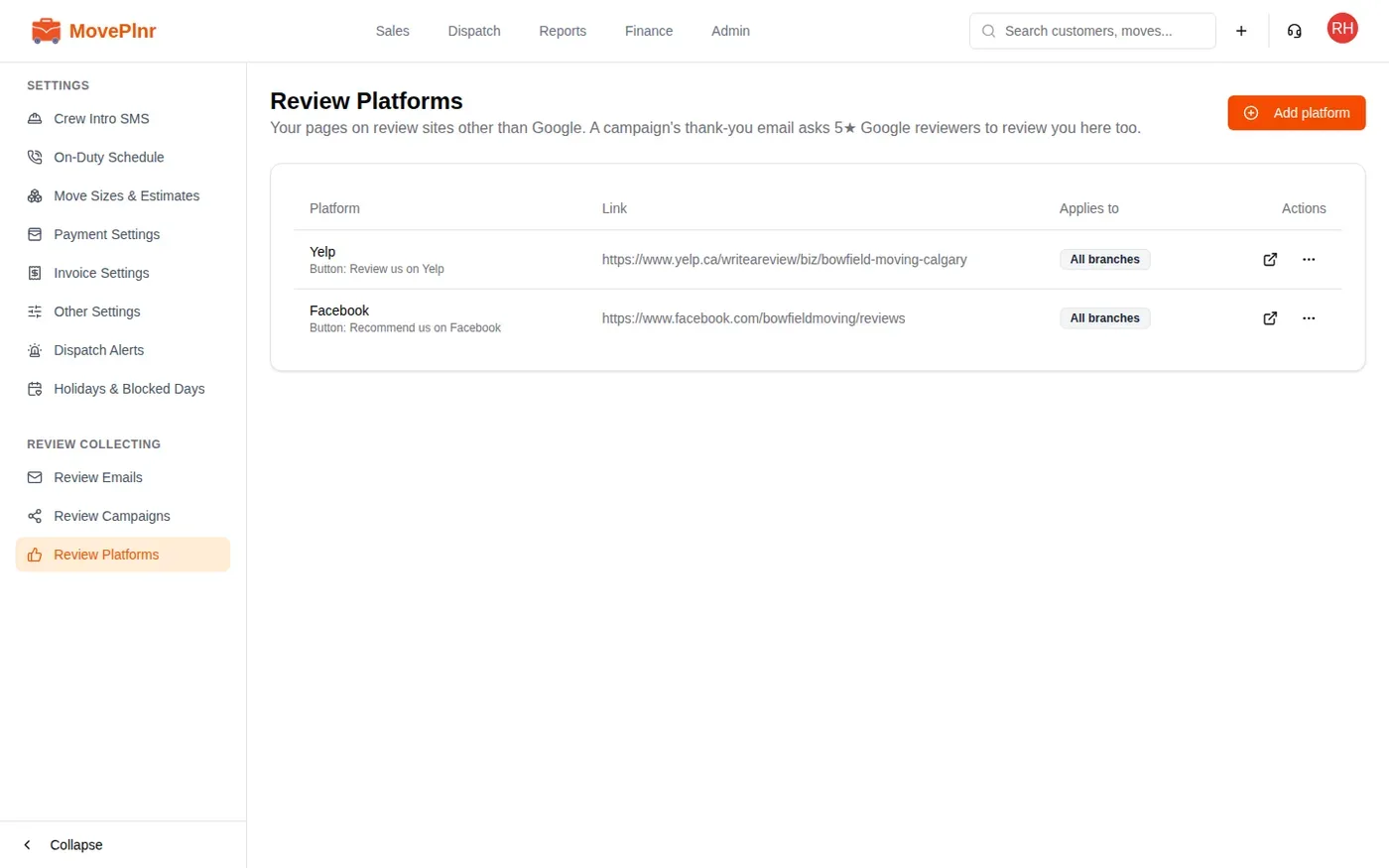
- Open Review Platforms and click Add platform. Pick the site, paste the link to your review page on it, and save. Add as many as you like.
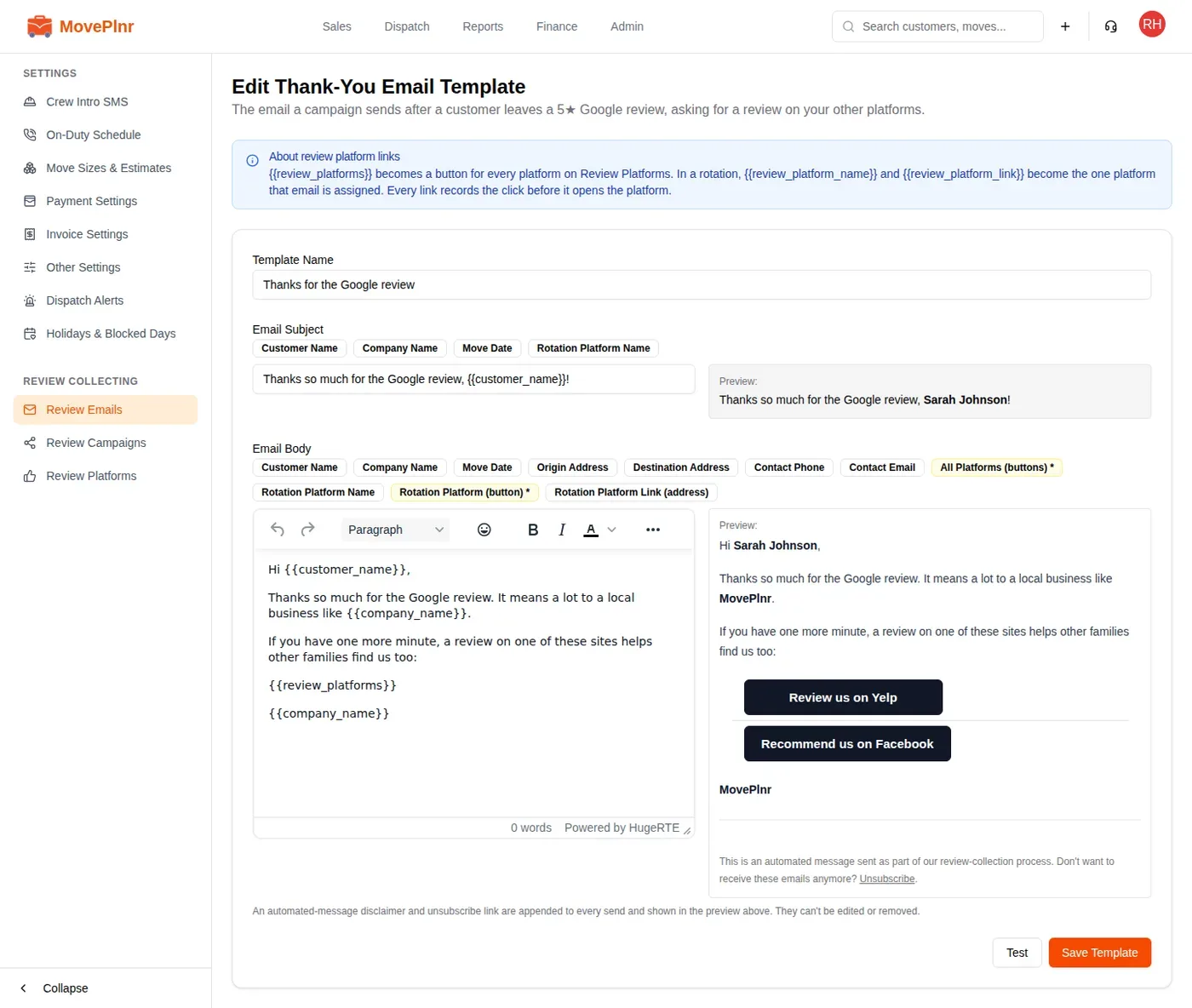
- Open Review Emails and click New Template, then Thank-you after a Google review. It starts with a ready-written thank-you. All Platforms (buttons) becomes a button for every platform you added.
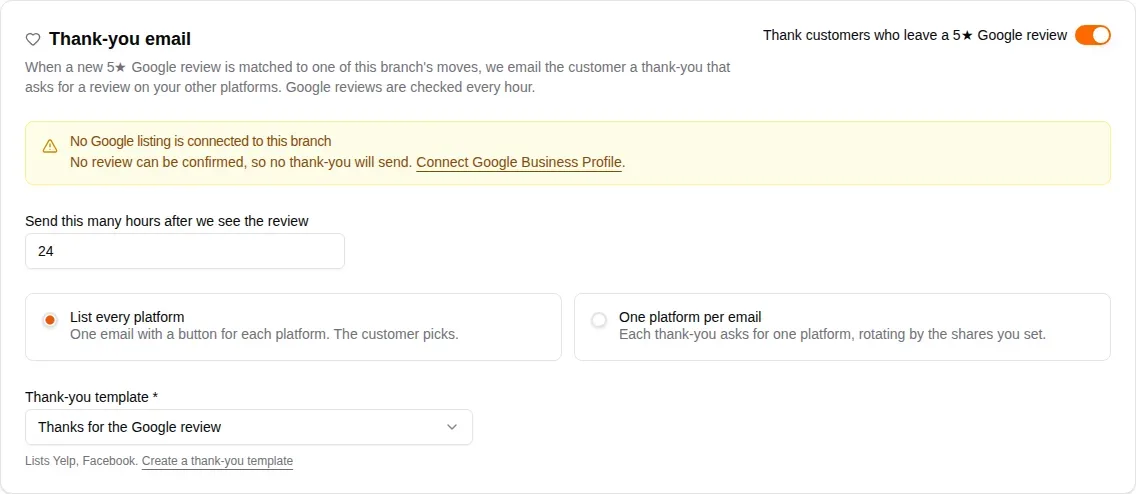
- Open your campaign and scroll to Thank-you email. Turn on Thank customers who leave a 5★ Google review.
- Set Send this many hours after we see the review.
- Choose List every platform to offer every site in one email, or One platform per email to send each customer to just one, shared out by the percentages you set.
- Pick the Thank-you template and save the campaign.
Track your results
Open Reports, then Review Collection. Pick a location, a time period and a campaign at the top. With more than one campaign, All Campaigns adds them all together.
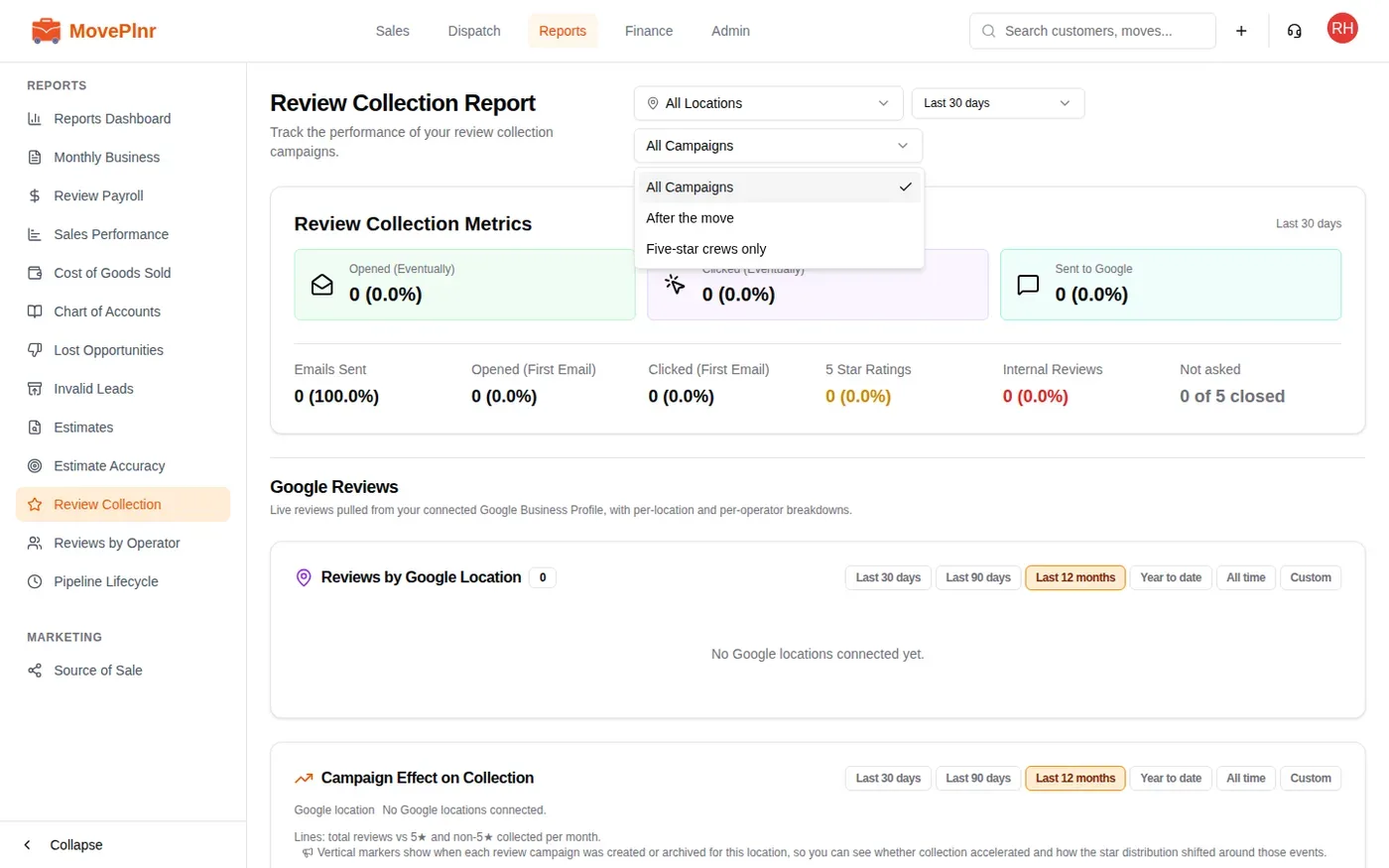
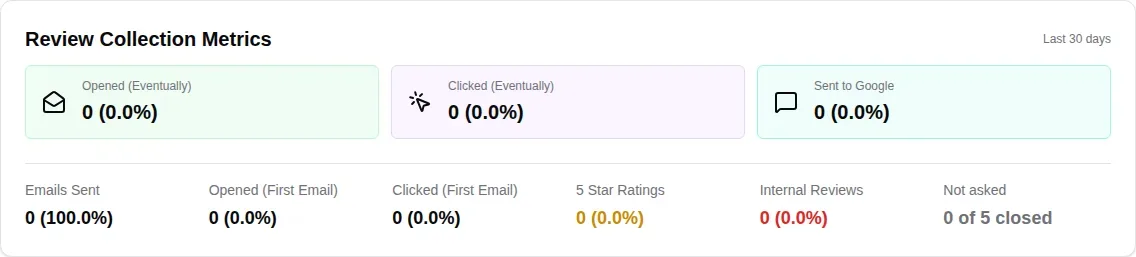
Review Collection Metrics counts the emails sent in the period you picked, and what customers did with them:
- Opened (Eventually) and Clicked (Eventually): customers who opened or clicked any email in the sequence. Opened (First Email) and Clicked (First Email) count only the first one.
- Sent to Google: customers who rated five stars and went on to your Google review page.
- 5 Star Ratings and Internal Reviews: five star ratings, and the feedback that came to you instead of Google.
- Not asked: closed moves that got no review email, out of all moves closed in the period. A move is not asked when the customer opted out, or when nothing was in use at the time it closed.
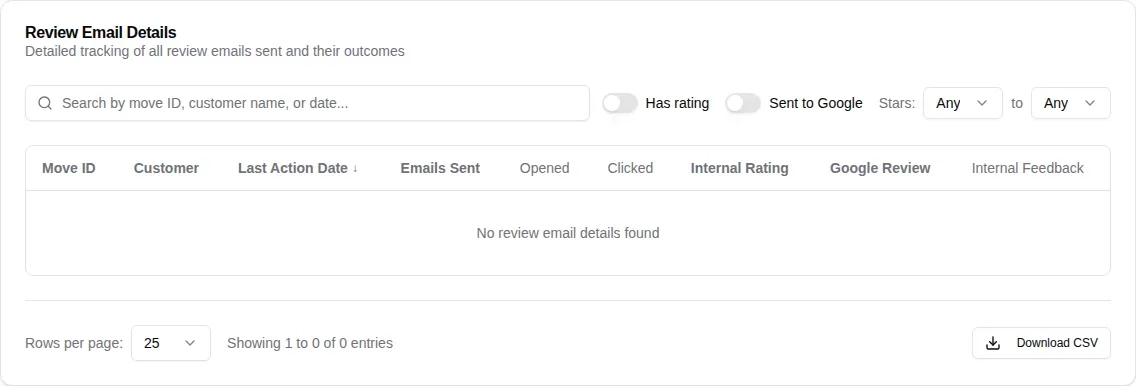
Further down, Email Performance by Attempt compares the first, second and third email, and Review Email Details lists every customer asked, with each email’s opens and clicks, their rating and any feedback. Search it, filter it by rating or by Sent to Google, and click Download CSV to take it into a spreadsheet.
With Google Business Profile connected, the report also shows your Google reviews by location, how collection changed after each campaign started, and every Google review with its stars, matched to the move it came from where MovePlnr can tell. Reviews by Operator has the same reviews by crew member.
Stop review emails for one customer
Some customers should never get a review email, like a business account or a customer who complained. Open the customer, edit them, and turn on Skip Review Collection. No campaign emails them after that, and the report counts their moves as not asked.
To leave out a whole kind of job, like a bin rental, mark its contract template to be left out of Google review requests. Moves on that contract never start a campaign.