
Before you start
Bundles are on for every moving company. You need permission to edit jobs to start a bundle or add a day; anyone who can see the job sees its bundle.
Packing and unpacking days are priced from your packing rates, not your move rates. Add them under Rates: pick the Packing kind when you create a rate, and set how many packers it is for. A packing day also brings a supply package when your branch has one sized for the home (a 3 bed package for a 3-bedroom house, for example).
Start a bundle from a new opportunity
When the customer asks for packing on the first call, start the bundle right away.
- Click New Opportunity.
- Under What kind of job is this?, choose Packing + move.
- Pick the move day, then when the packing day is: the day before, two days before, a date you pick, or decide later.
- Tick Add an unpacking day after the move if the customer wants one.
- Pick or create the customer. The move day and its packing day are created together, as one opportunity.
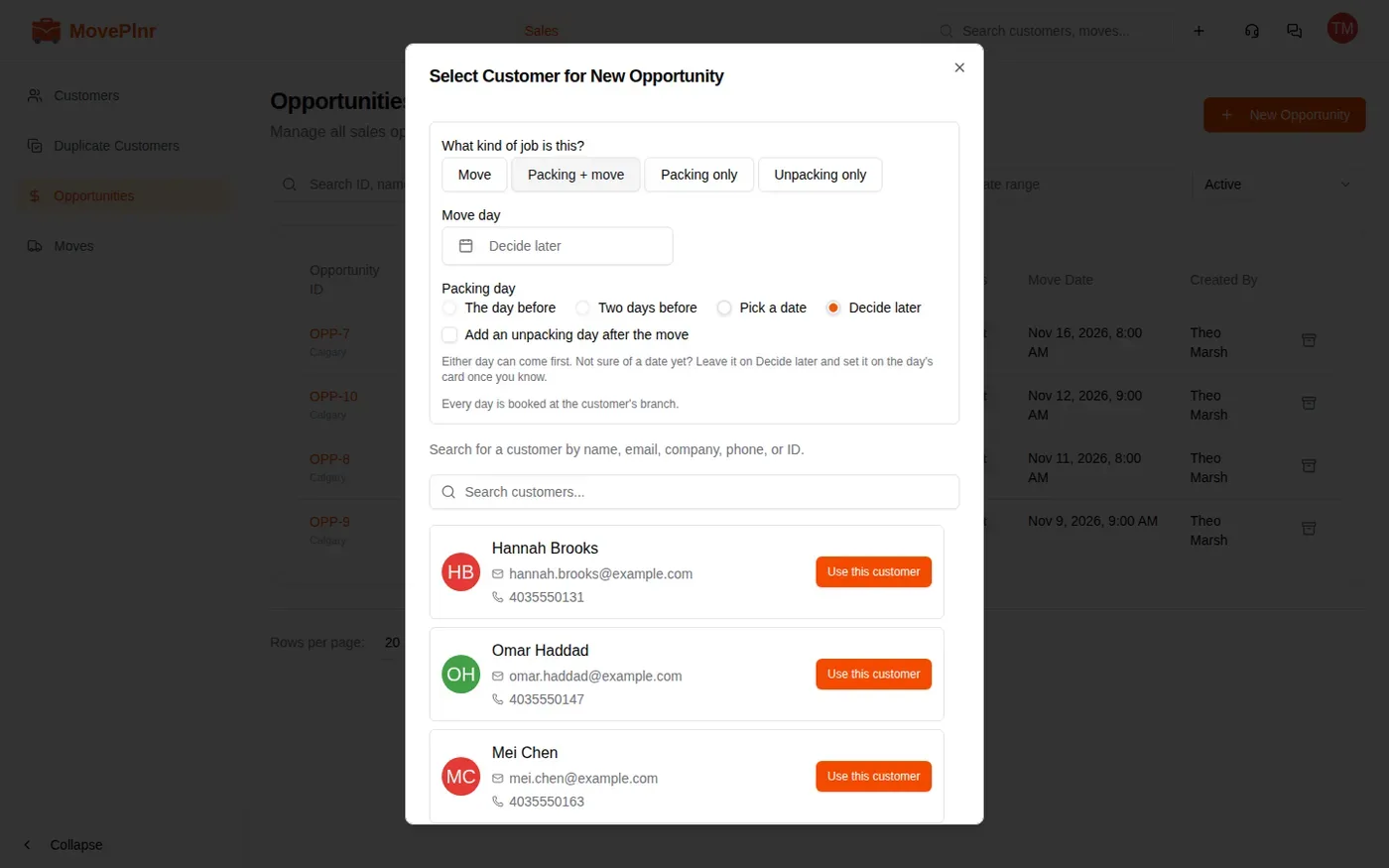
Either day can come first. Leave a date on Decide later and set it on the day’s card once the customer knows.
Add a packing or unpacking day to a move
More often the customer asks about packing once the move is already quoted. Every moving opportunity shows Packing too? under its header, and the same button is in Other Actions on the estimate. A job created as Packing only or Unpacking only doesn’t show it: that job is already the packing or unpacking booking. To make it part of a move, change its job type to a move first.
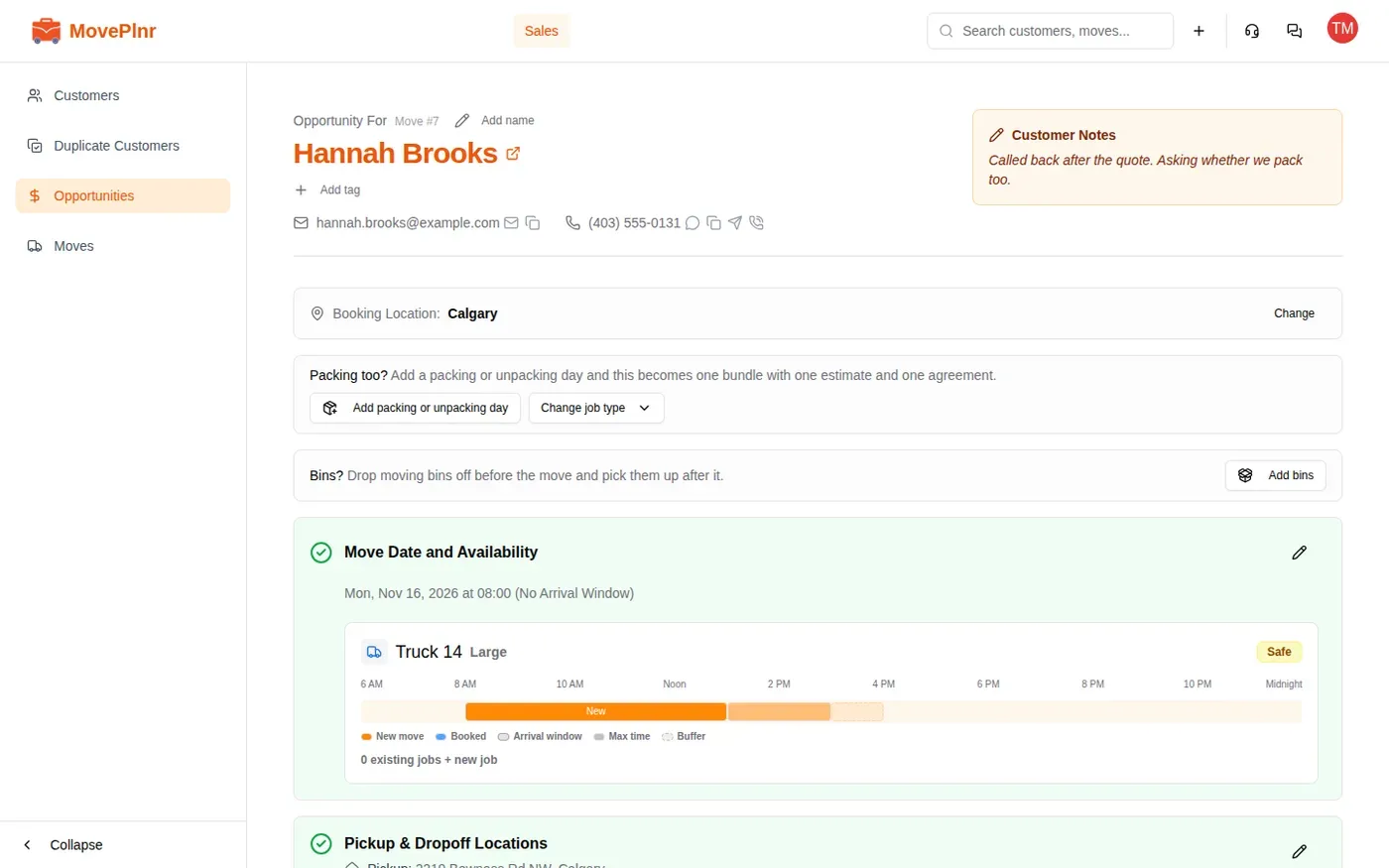
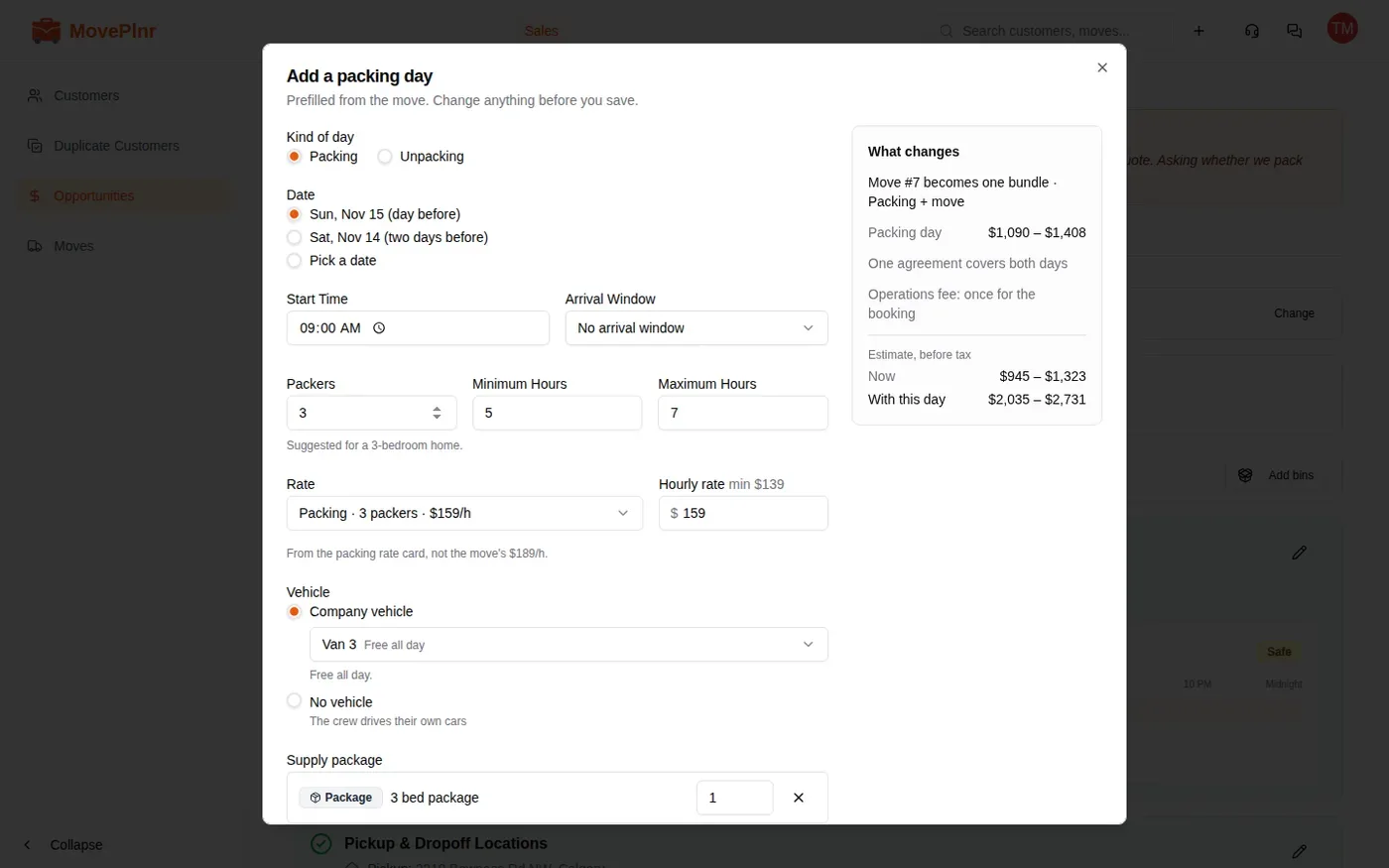
Click Add packing or unpacking day. The window comes prefilled from the move, and you can change any of it before you save:
- Kind of day: Packing or Unpacking. The window starts on Packing, and its title follows your pick.
- Date: for a packing day, the day before the move, two days before, or a date you pick. For an unpacking day, the day after the move or a date you pick.
- Start Time and Arrival Window.
- Packers, Minimum Hours and Maximum Hours, suggested from the size of the home.
- Rate: the packing rate for that many packers.
- Vehicle: a company vehicle with whether it is free that day, or No vehicle when the crew drives their own cars.
- Supply package: the branch’s package for the size of the home, plus any extra supplies.
- Crew notes, written for the packers.
The What changes panel on the right shows what saving does: the move becomes one bundle, the packing day’s price, that one agreement covers both days, how the operations fee is charged, and the estimate before and after the new day.
The button stays on a move that is already in a bundle, in Other Actions and on a booked move’s footer, so you can add another packing or unpacking day there too.
Work the bundle from the Days section
Once a move is in a bundle, a strip under the header says so: the bundle’s number, how many days it has and their dates, where its agreement stands, and the estimate range for every day together. The second line shows the bundle’s rules, such as the operations fee charged once. Bundle rules changes how the fee is charged and sets a full-service discount, a percent off the labour.
The Days section takes the place of the move’s date and truck section. It has one card per day, in date order: the kind of day, Day 1 of 3, the date and arrival window, the crew and vehicle, the rate and hours, the day’s estimate, its address and its supplies.
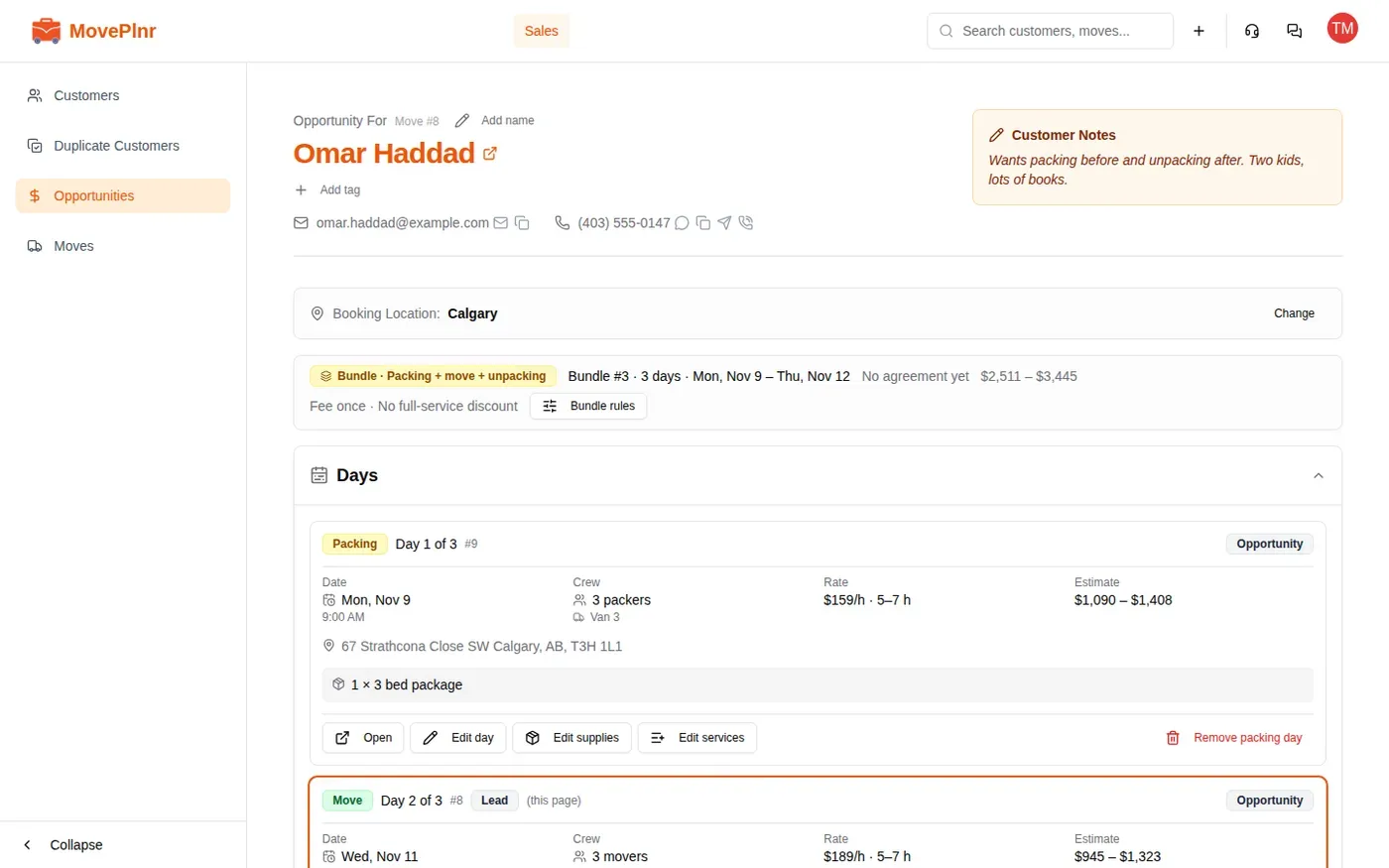
From a day’s card:
- Open goes to that day’s own page.
- Edit supplies changes what the packers bring.
- Remove packing day takes the day out of the bundle and cancels it. The move day can’t be removed while other days are still live.
Under the cards, Add a day adds another packing or unpacking day, and Reschedule all moves every day at once, keeping the same gap between each day and the move.
Each day keeps its own address. A packing day is at the move’s pickup, and an unpacking day at the drop-off, so set the pickup and drop-off on the move day and the other days follow.
Send one estimate and book every day
The move day carries the estimate, the agreement and the deposit for the whole bundle. Send the estimate from the move day’s Estimate & Finalize section, as you would for any move. It has a section for each day, then the operations fee and any full-service discount once for the booking, and one total.
When the customer says yes, Confirm Booking on the move day books every day of the bundle together, and the customer signs one agreement that lists all their days. They never see the word bundle: their messages talk about their packing day, their move and their unpacking day.
Dispatch the days
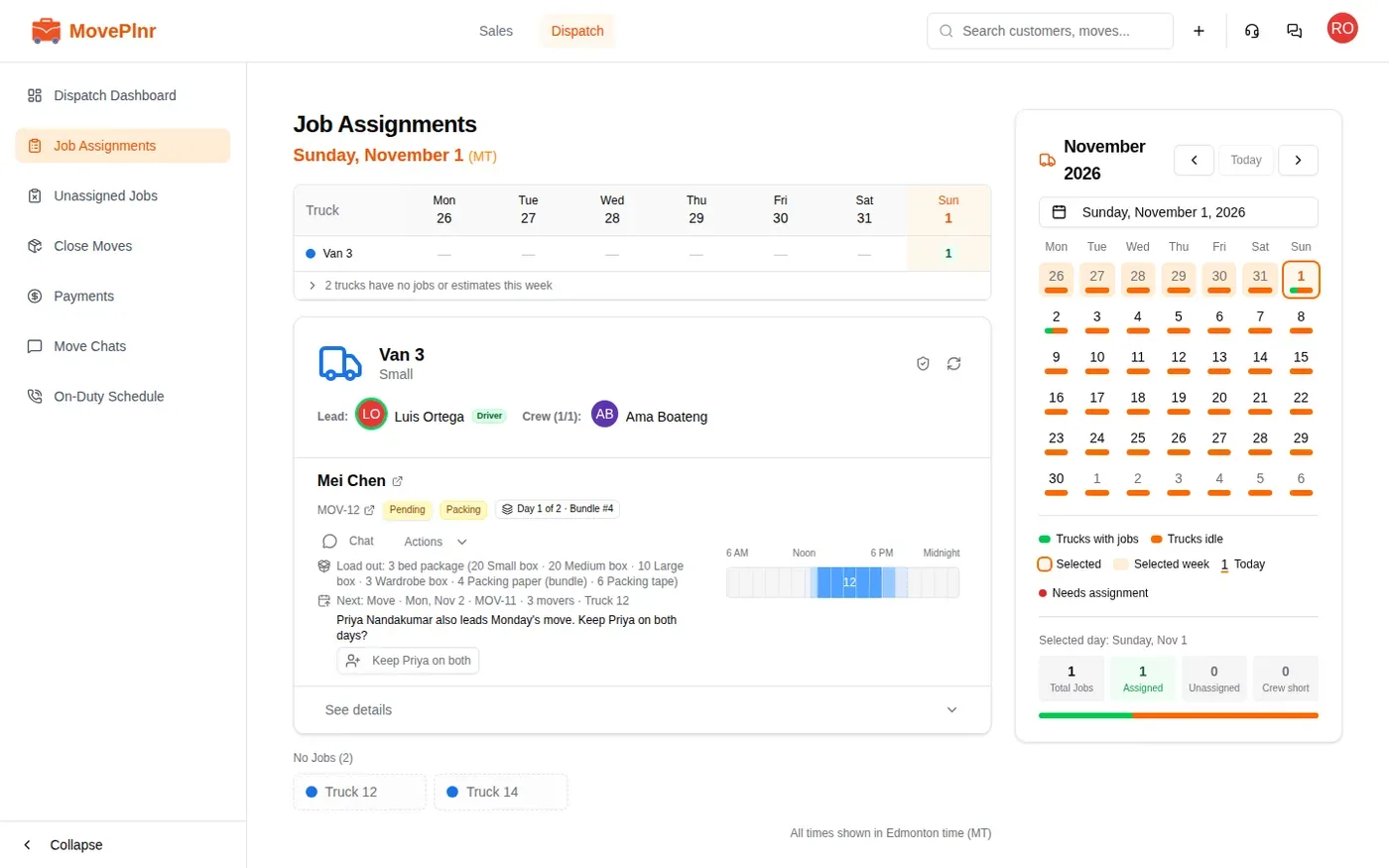
Each day lands on Job Assignments as its own job, on its own vehicle. A packing day shows its kind, a badge such as Day 1 of 2 with the bundle number, the supplies to load, and the next day of the bundle with its crew size and truck. When the next day has a different crew lead, the card offers to keep the same lead on both days.
Cancelling any day of a bundle asks to cancel every day, because the booking is one deal. To take out just one day, remove it from the Days section instead.
The crew on a packing day
On the crew’s phone, the job reads as a packing day: the work kind, Day 1 of 2, the packers, and a Load out card listing the boxes and paper to bring. This bundle lists every day of the booking with its date, time and crew, and a packing day with no drop-off says so, since everything stays at the house for the move.

If the packing won’t be finished in time, the crew taps Ask for another packing day. Dispatch and the salesperson get the request with the crew’s note.
Close the days and collect once
Each day is closed on its own, as any job is. A few things change on a bundle day:
- Packing labour and the supplies used are billed on the packing day. The move day bills only what is added that day.
- On a packing day with a later day, the crew writes a handoff note for the next crew, and can send the customer a progress text from it when the branch has that turned on.
- Payment defaults to Leave it for the end: the bundle has one statement, and the operations fee is on it once. Collect a payment now is still there when the customer wants to pay on the day.
After the last day closes, the customer gets one statement by email, with every day’s lines, the fee once, discounts, tax, payments and one pay link for the balance. The office sees the same statement under the estimate on any day of the bundle, with Record payment, which splits a payment across the days earliest first, and Send statement.