
Before you start
Sales Coaching is an add-on. Turn on Sales Coaching on your Add-ons page first. It works from the calls your phone system records, so the more of your sales calls go through it, the more there is to coach from.
Who can open it comes from each person’s preset:
- The owner and anyone on the Admin preset see everything, and can buy credits, unlock a deal and change credit settings.
- A coach, such as someone on the Sales manager preset, sees the same screens and runs the weekly review. Credit settings are read-only for them.
Let someone coach your team
Coaching comes with a person’s preset. The Sales manager preset includes Sales Coaching: it gives a sales rep the whole pipeline and the coaching portal. A coach usually keeps the Sales rep duty, so their own leads and commission carry on as before.
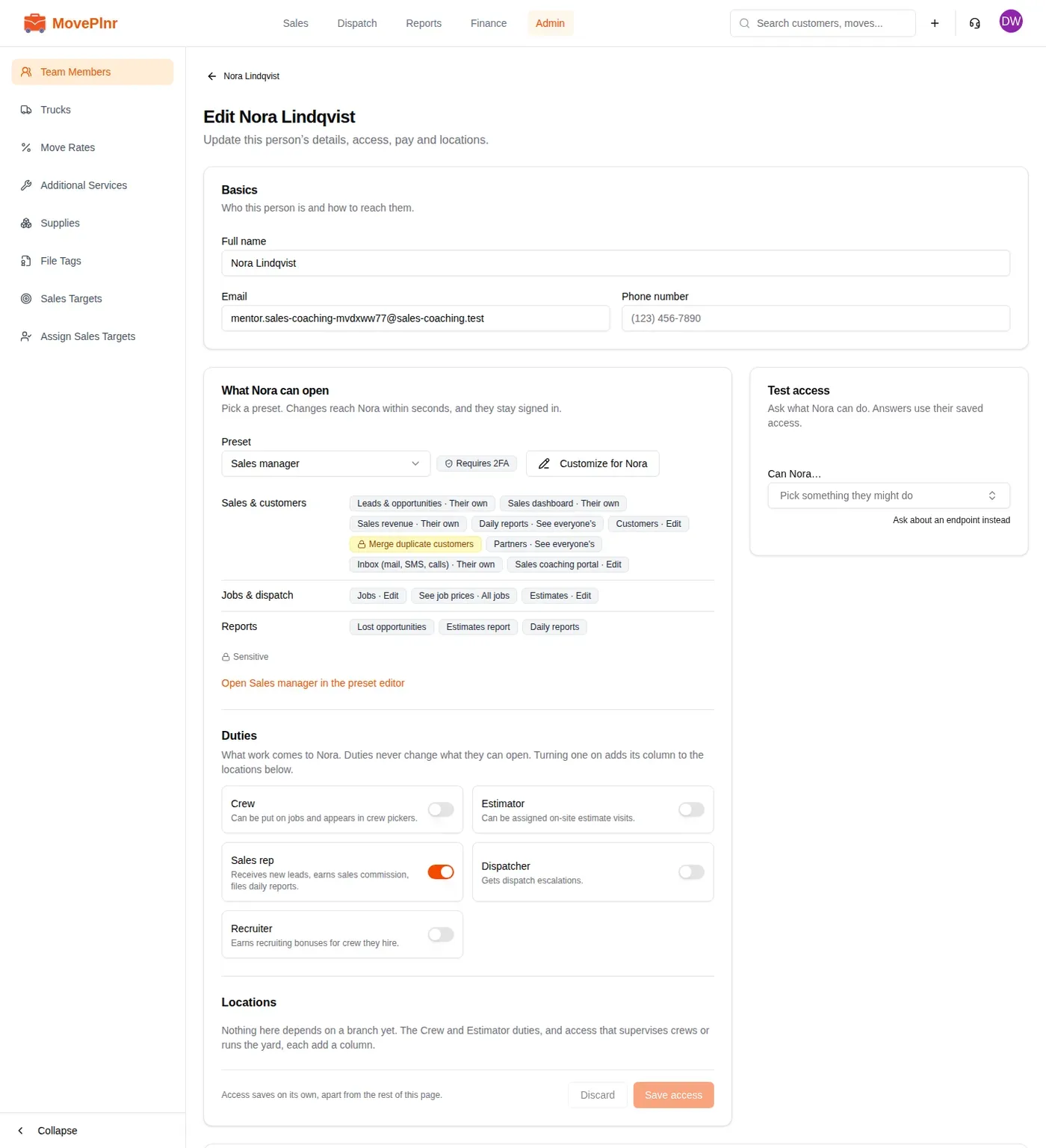
- Open Admin, then Team Members, click the person’s name and click Edit.
- In the card that says what they can open, choose Sales manager under Preset. Its list shows Sales coaching portal under Sales & customers.
- Leave Sales rep on under Duties if they still sell.
- Click Save access. The change reaches them within seconds, and they stay signed in.
Only the owner changes what a preset gives. To let another preset open Sales Coaching, or to let a coach buy credits, the owner adds it to that preset under Company Settings, then Access Presets. Buying credits, unlocking a deal and changing credit settings are one more item there, kept apart from the portal itself.
Open Sales Coaching
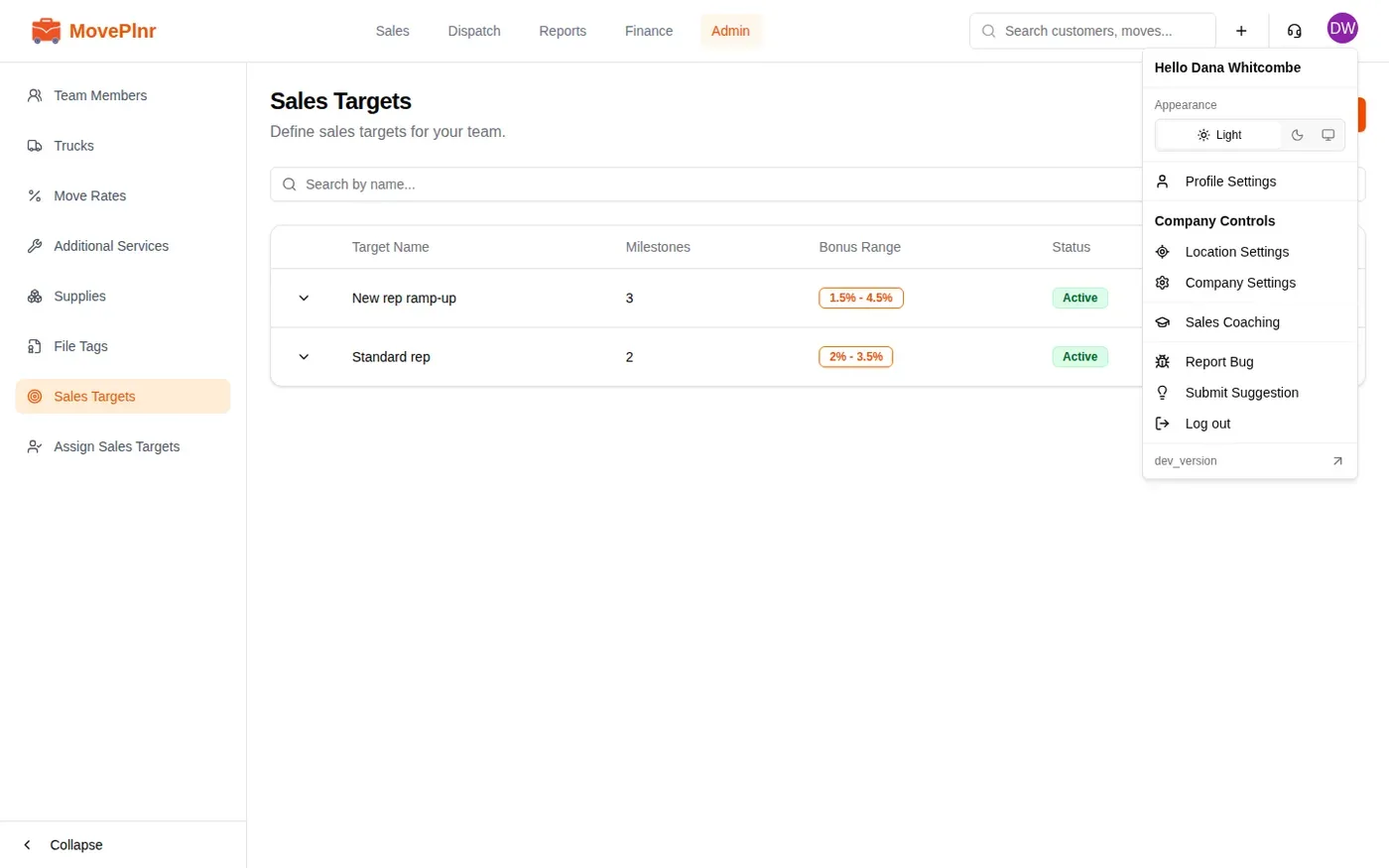
Sales Coaching has its own screen, outside the side menu. Click your picture in the top right corner and choose Sales Coaching. Four tabs run along the top: Team, Opportunities, Review and Credits. Your credit balance sits in the top right corner on every tab.
See your whole team
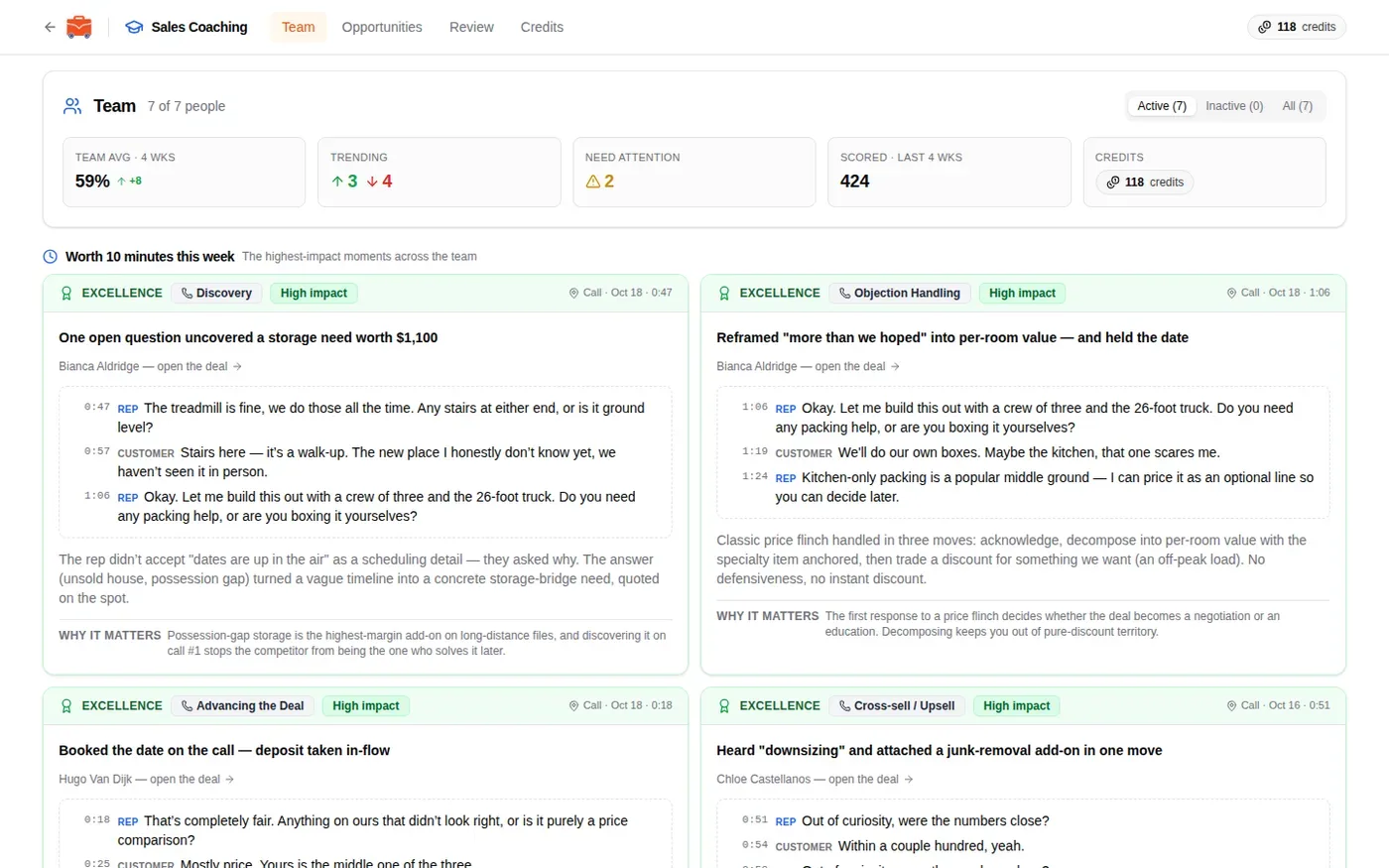
Team is where Sales Coaching opens. The top row gives the team’s average score over the last four weeks, how many reps are trending up or down, how many need attention, and how many conversations were scored.
Under it, Worth 10 minutes this week picks the strongest moments from across the team: the exact lines from the call, why they worked, and why it matters. Click a customer’s name on a moment to open that deal.
One card per rep
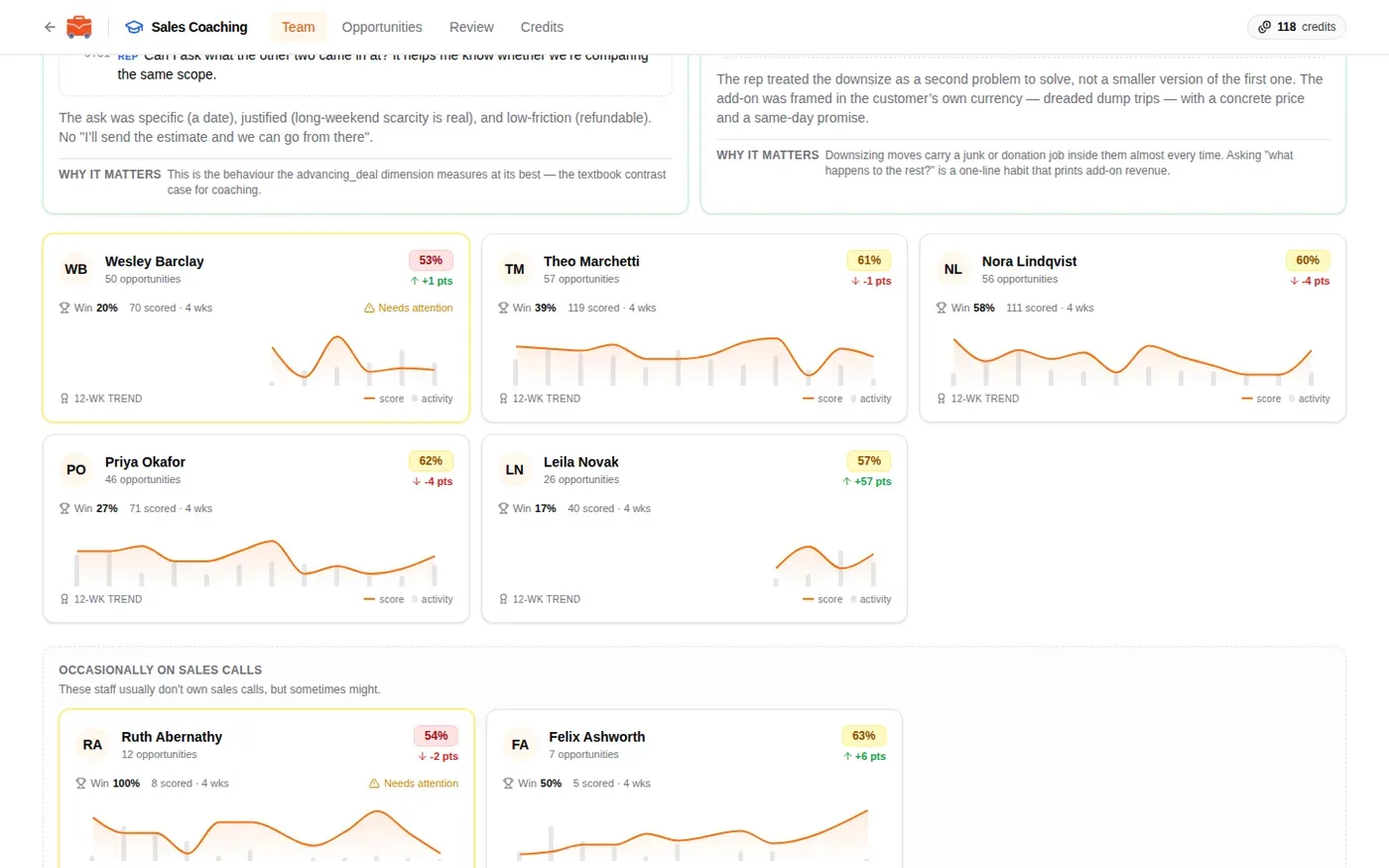
Each rep gets a card with their score, the change from the four weeks before, their win rate, how many conversations were scored, and a 12-week trend line. A yellow border and a warning mean the rep needs attention. People who only take the odd sales call, like a dispatcher, sit in their own group at the bottom so they don’t skew the team’s numbers. Switch between Active, Inactive and All at the top of the page to see reps who have left.
Read one rep’s profile
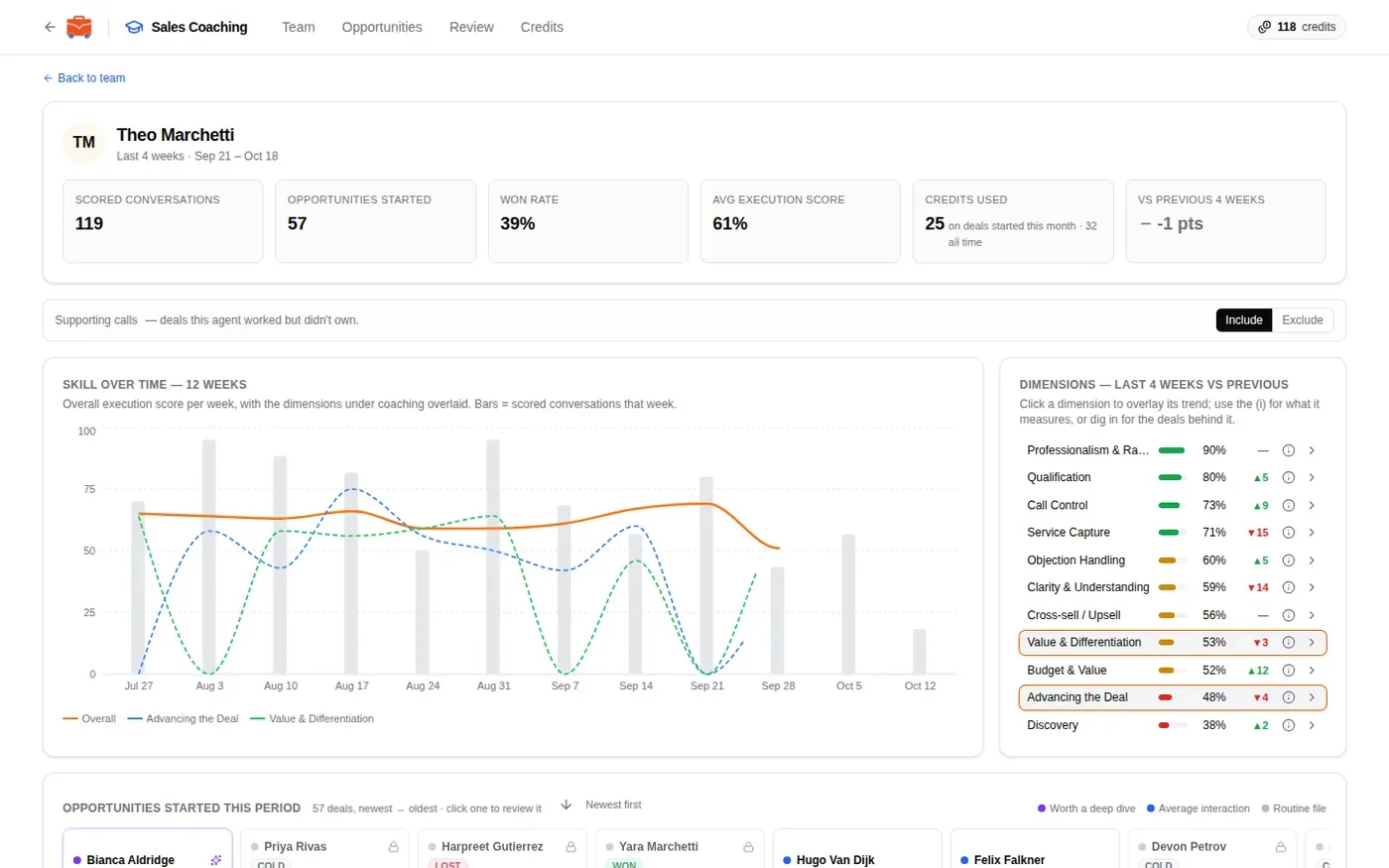
Click a rep’s card to open their profile. The top row covers the last four weeks: scored conversations, opportunities started, won rate, average execution score, credits used and the change from the previous four weeks.
The chart shows their overall score week by week for 12 weeks. On the right, every skill Sales Coaching scores is listed with this period’s percentage and the change. Click a skill to lay its trend over the chart, click the i beside it to read what it measures, or click the arrow to dig in.
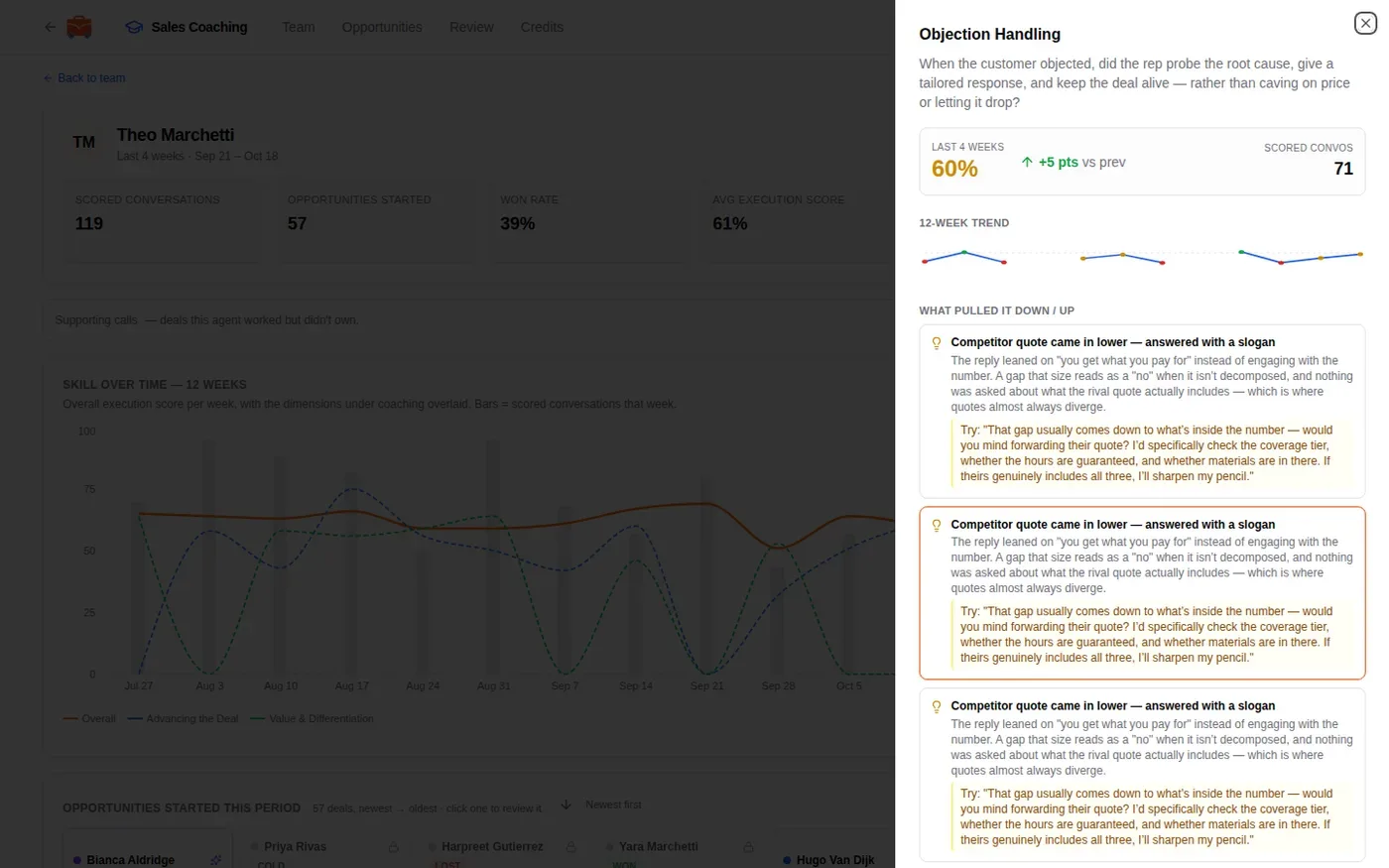
Digging into a skill opens a panel with its score, its trend and the moments that pulled it up or down, each with a line the rep could try next time.
Further down the profile are the rep’s deals for the period, their goals with progress toward each target, and a highlight reel of their best moments and the ones to think about. Use Include or Exclude at the top to count or drop calls the rep helped on but didn’t own.
Go through a deal
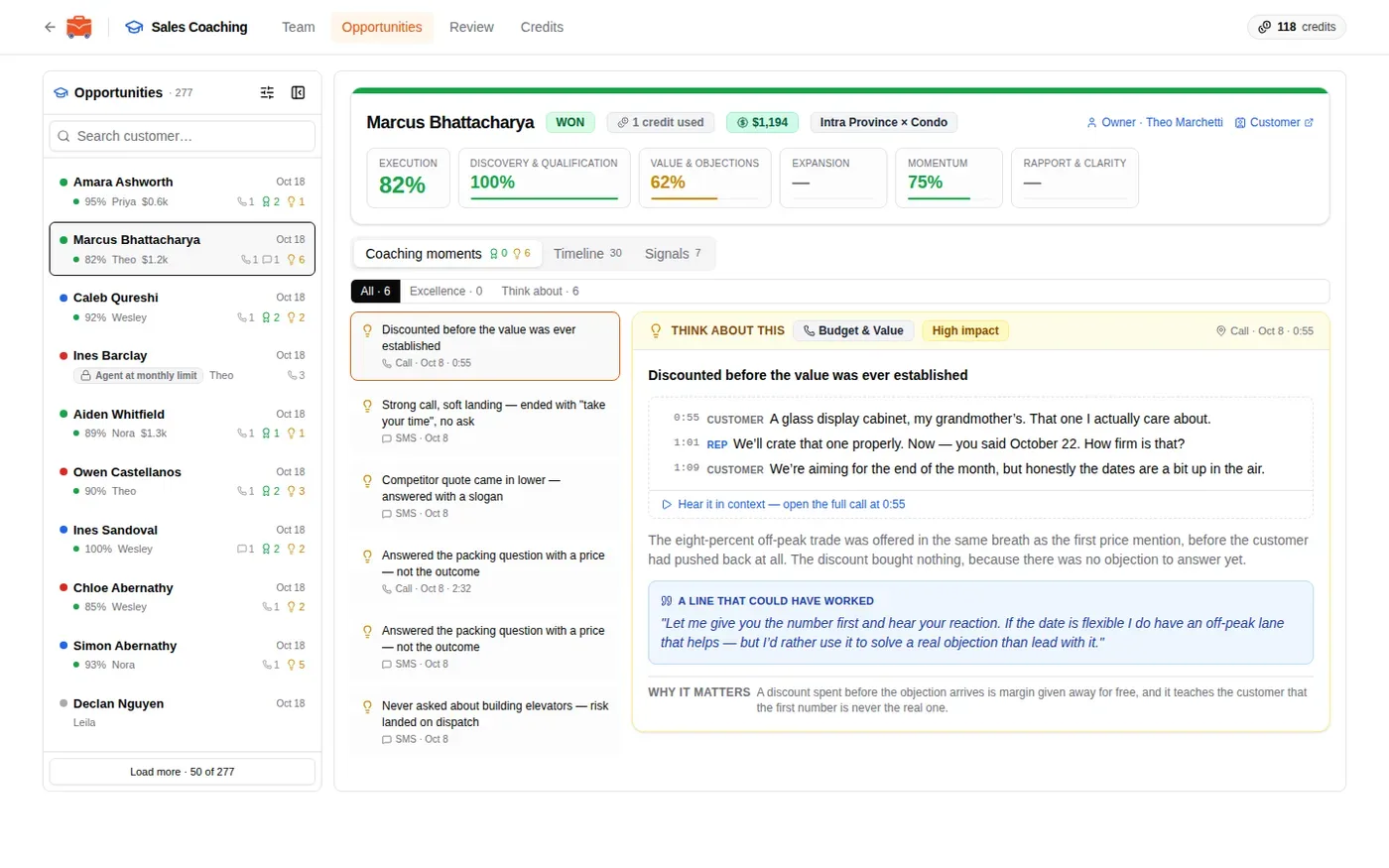
Opportunities lists every deal Sales Coaching has looked at, newest first. Search by customer, or use the filter button to narrow the list. Each row shows the rep, the score, and how many good moments and moments to think about it holds.
Open a deal to see its scores for each part of the sale, then three tabs: Coaching moments, Timeline (every call, email and text on the deal) and Signals (what the customer said about their move).
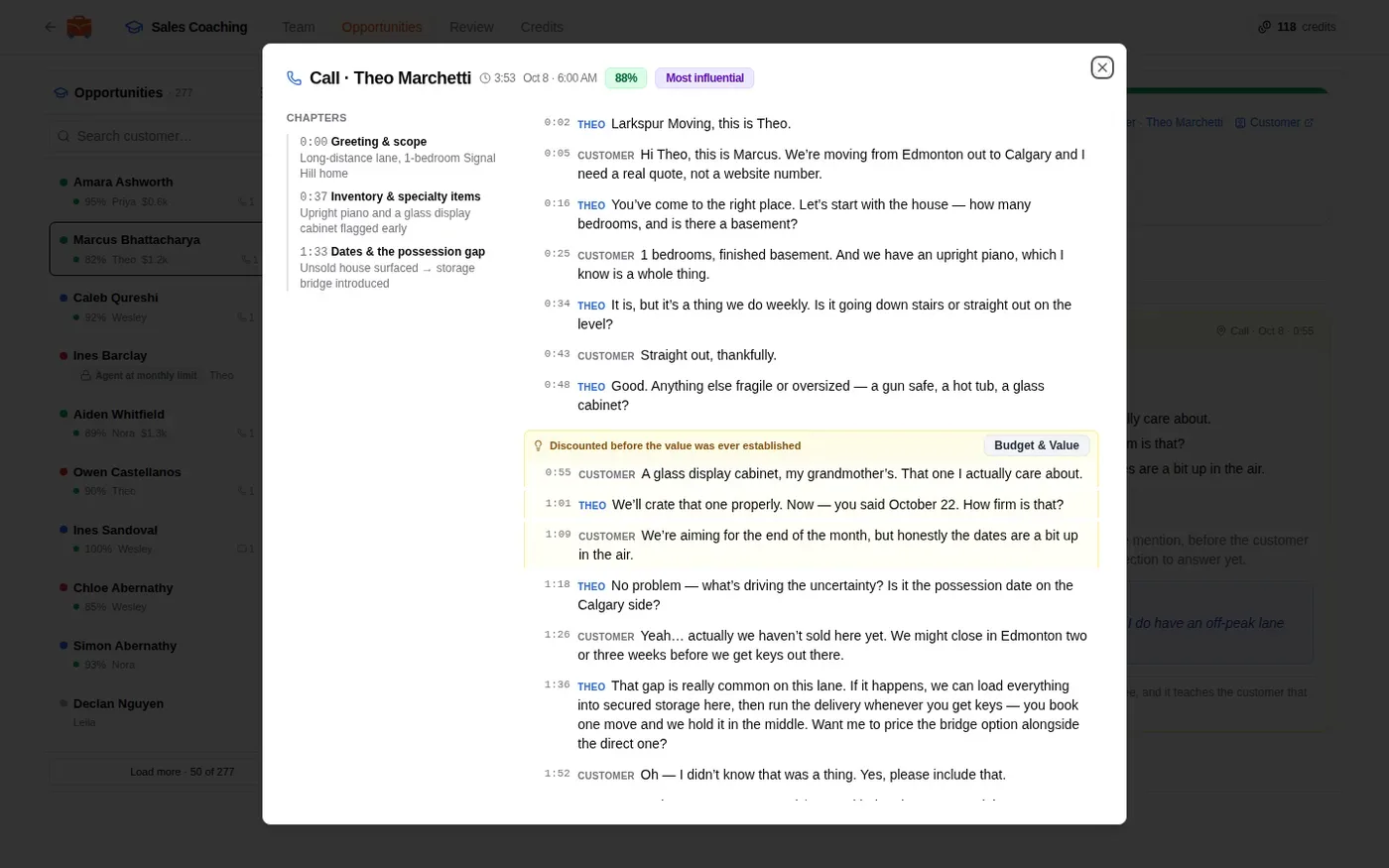
Under a moment from a call, click the link to hear it in context. The whole call opens with its chapters on the left and the moment highlighted in the transcript.
Deals that are locked
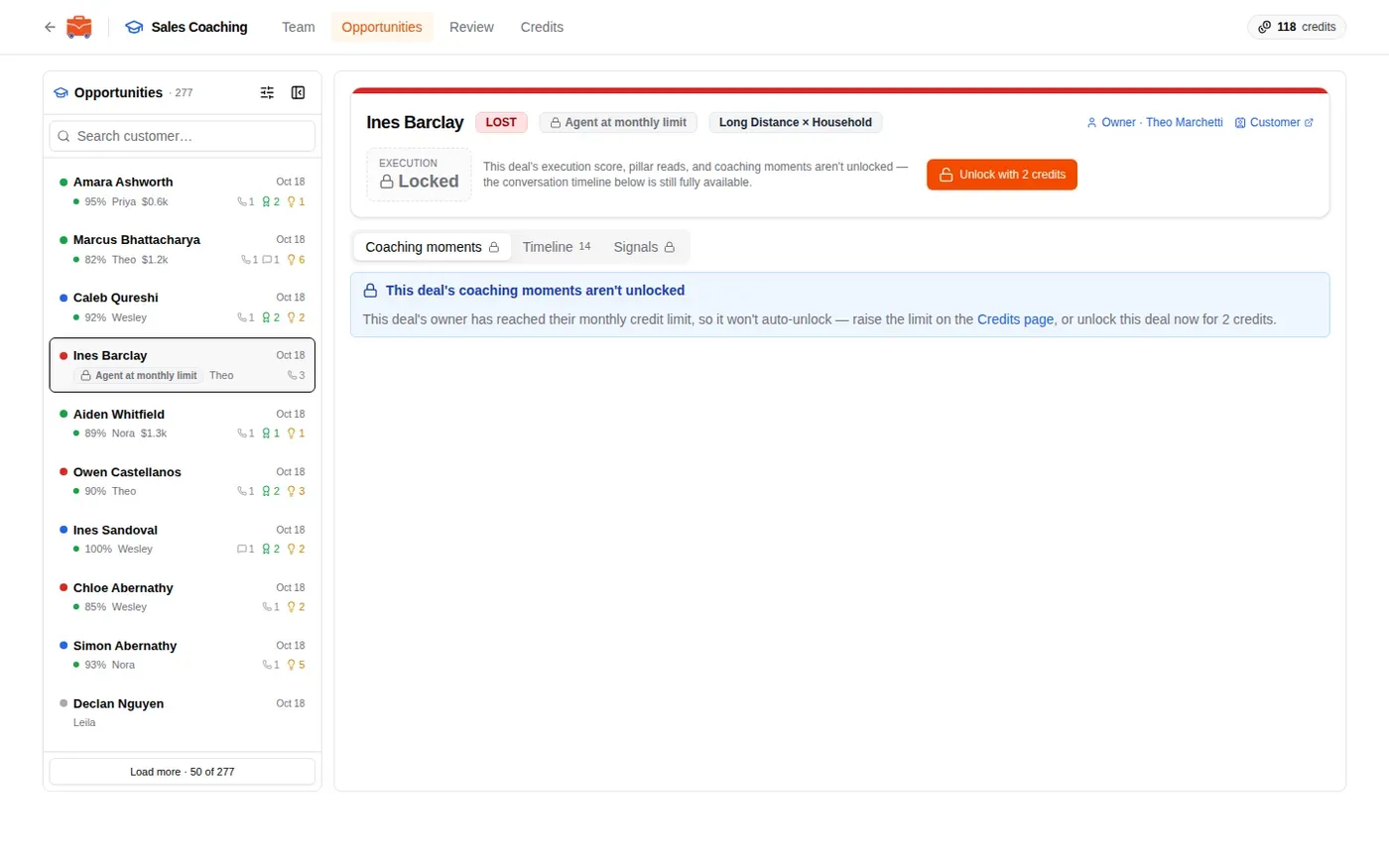
A deal’s scores and moments use one coaching credit. When a deal shows Locked, the reason is written on it: the rep reached their monthly limit, the deal is too old to unlock by itself, or the credits run out. The timeline stays open either way. Someone who can buy credits, like the owner, can unlock that one deal with the button beside it.
Run the weekly review
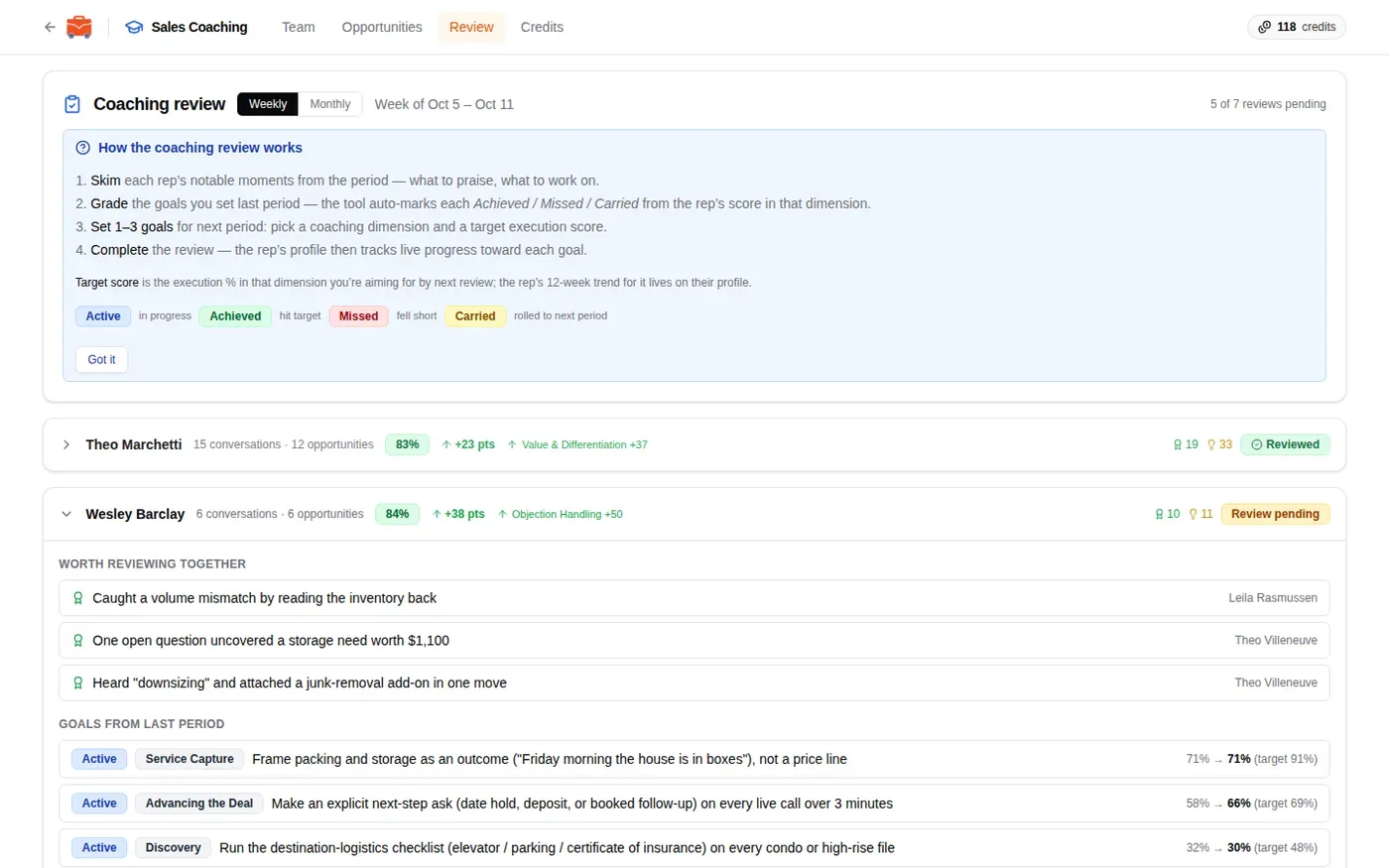
Review is a short meeting with each rep, once a week or once a month. Pick Weekly or Monthly at the top. The page says how many reviews are still pending for the period.
- Open a rep’s row. Worth reviewing together lists their notable moments from the period, good and bad. Click one to open it.
- Check Goals from last period. Each goal is graded for you from the rep’s score in that skill: achieved, missed or carried over.
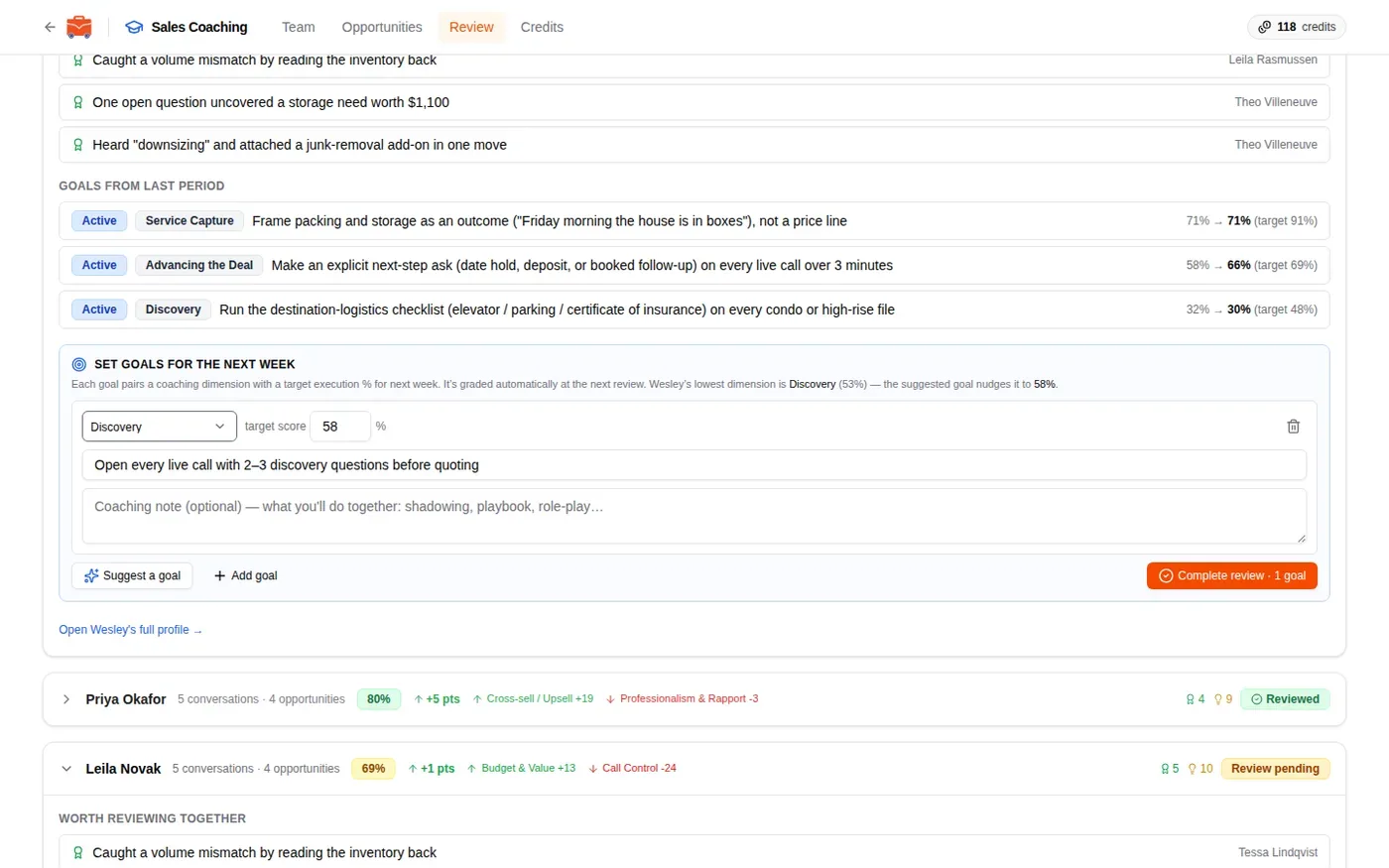
- Under Set goals for the next week, click Suggest a goal to start from the rep’s weakest skill, or Add goal to write your own. Set the target score and add a coaching note if you plan to shadow a call or role-play.
- Click Complete review. The rep’s row shows Reviewed, and their profile tracks each new goal from then on.
Manage coaching credits
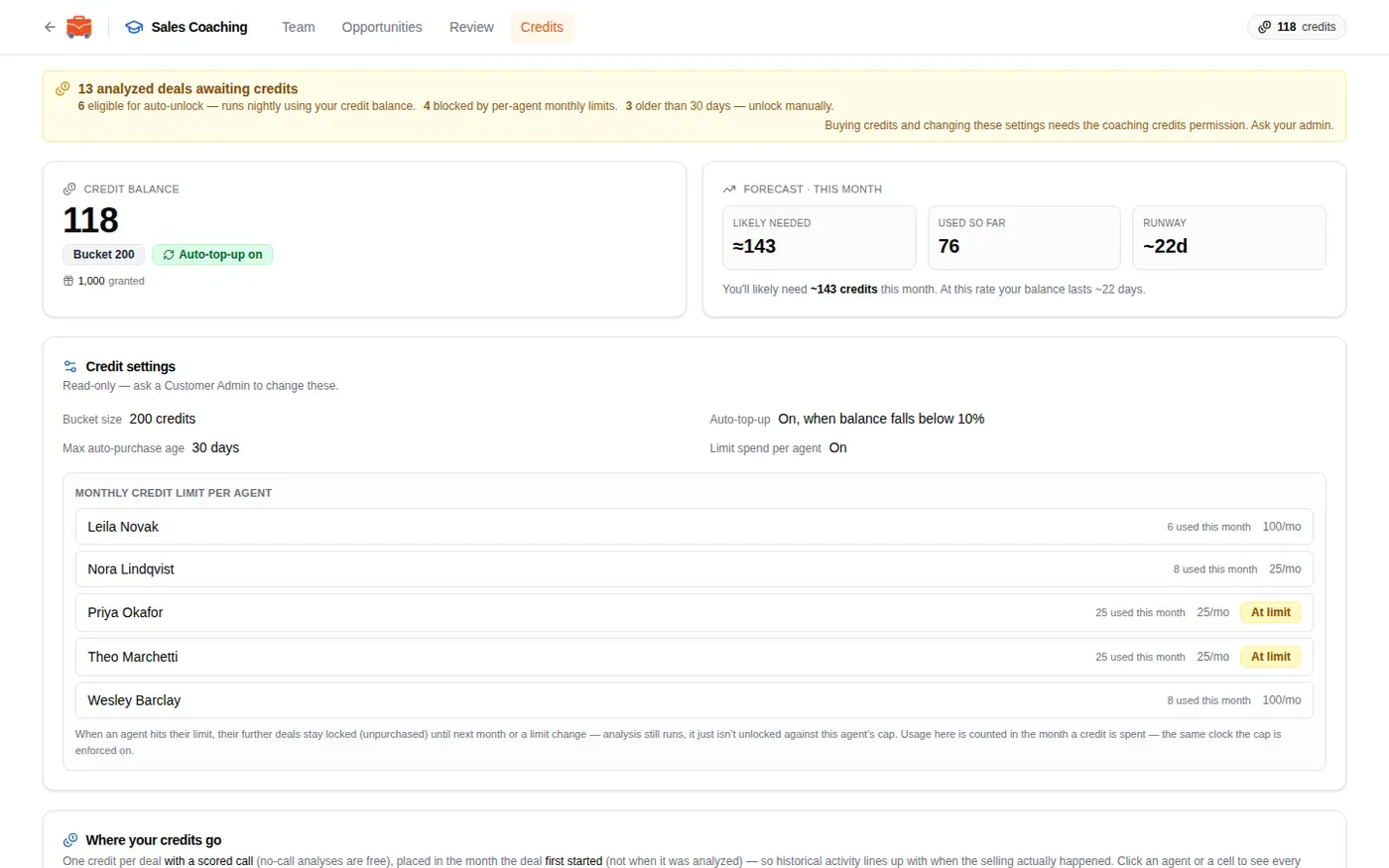
Credits shows your balance, what you have been granted, and a forecast of what this month is likely to need. A banner at the top counts the analyzed deals waiting for credits and why they are waiting. Only someone who can buy credits, like the owner, sees Buy credits.
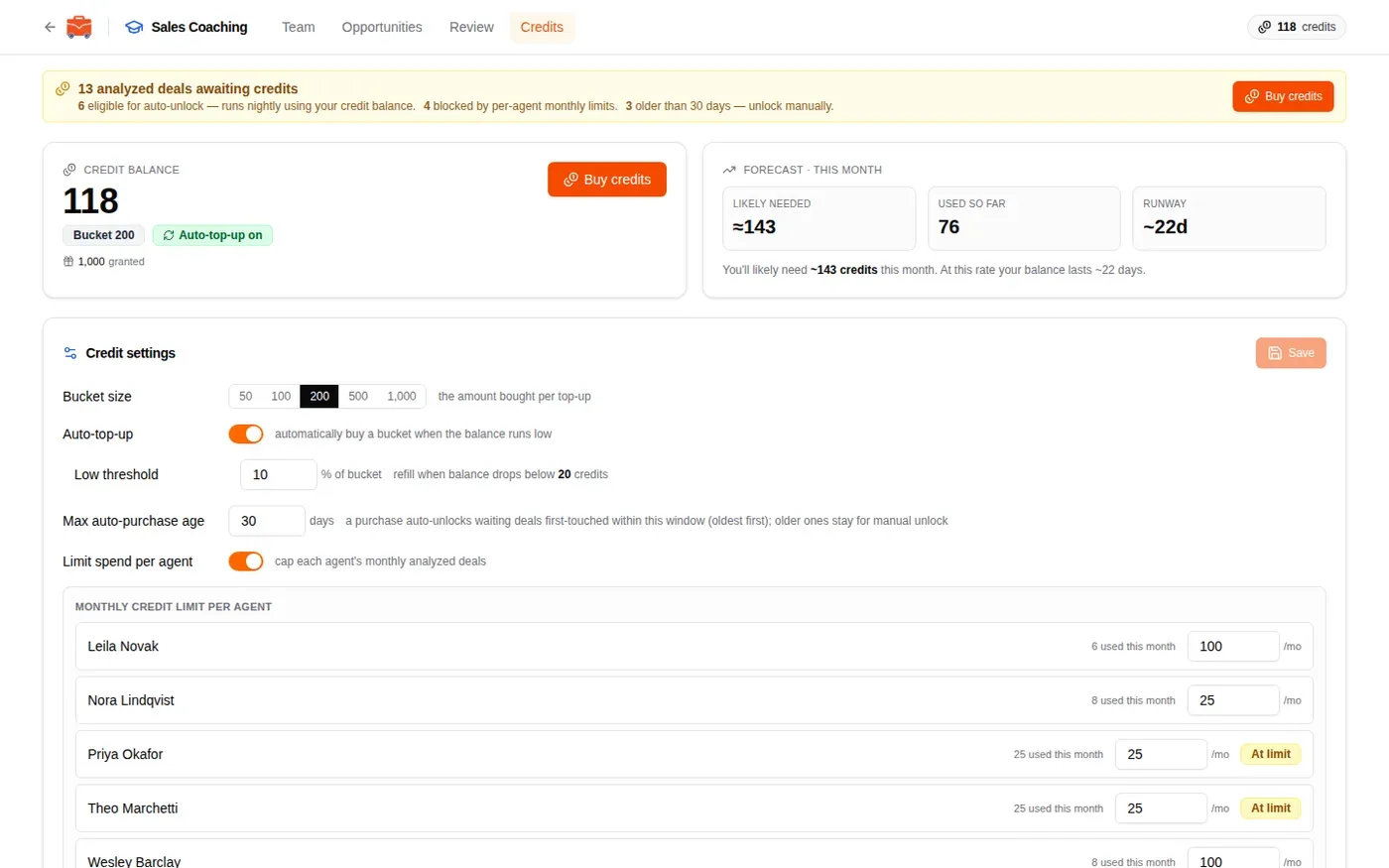
Under Credit settings:
- Bucket size is how many credits one purchase buys.
- Auto-top-up buys a bucket for you when the balance drops below the Low threshold.
- Max auto-purchase age decides how old a waiting deal can be and still unlock by itself after a purchase. Older deals stay for you to unlock by hand.
- Limit spend per agent caps how many deals each rep can use credits on per month. Set the number per rep. A rep at their limit shows At limit, and their next deals wait until next month or until you raise the limit.
Click Save after a change. Where your credits go at the bottom shows each rep’s use by month. One credit is used per deal with a scored call, counted in the month the deal started. Deals with no call are free.
A coach on the Sales manager preset sees the same page read-only, with a note that buying credits and changing these settings needs the coaching credits permission.
Set up a mentorship sales target
A mentorship target pays a new rep’s sales bonus in legs, and splits each leg between the new rep and an experienced rep who coaches them. You set it up in two places under Admin: Sales Targets to define it, and Assign Sales Targets to give it to a rep and pick the mentor. The Sales Targets add-on needs to be on.
Define the target
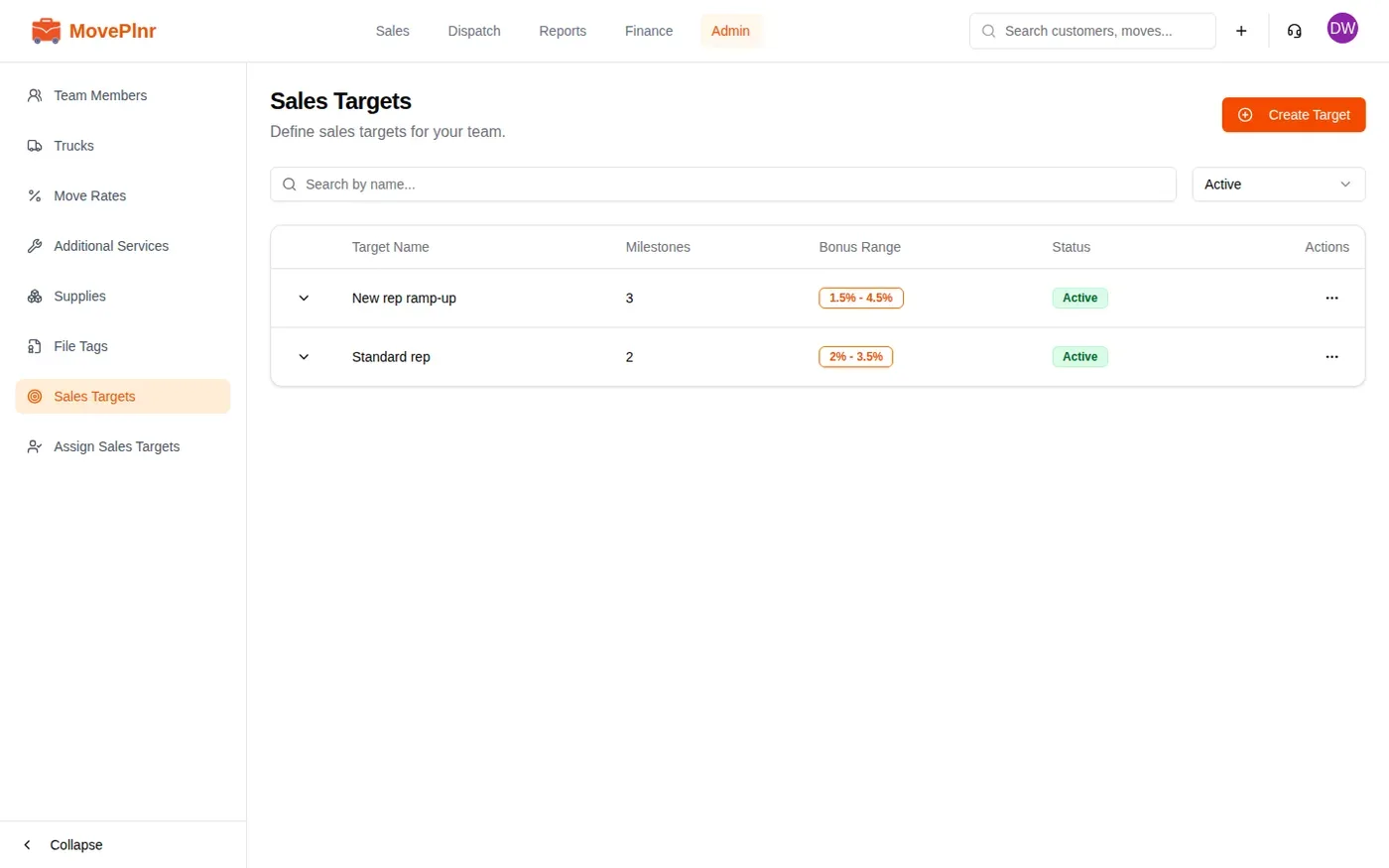
- Open Admin, then Sales Targets, and click Create Target.
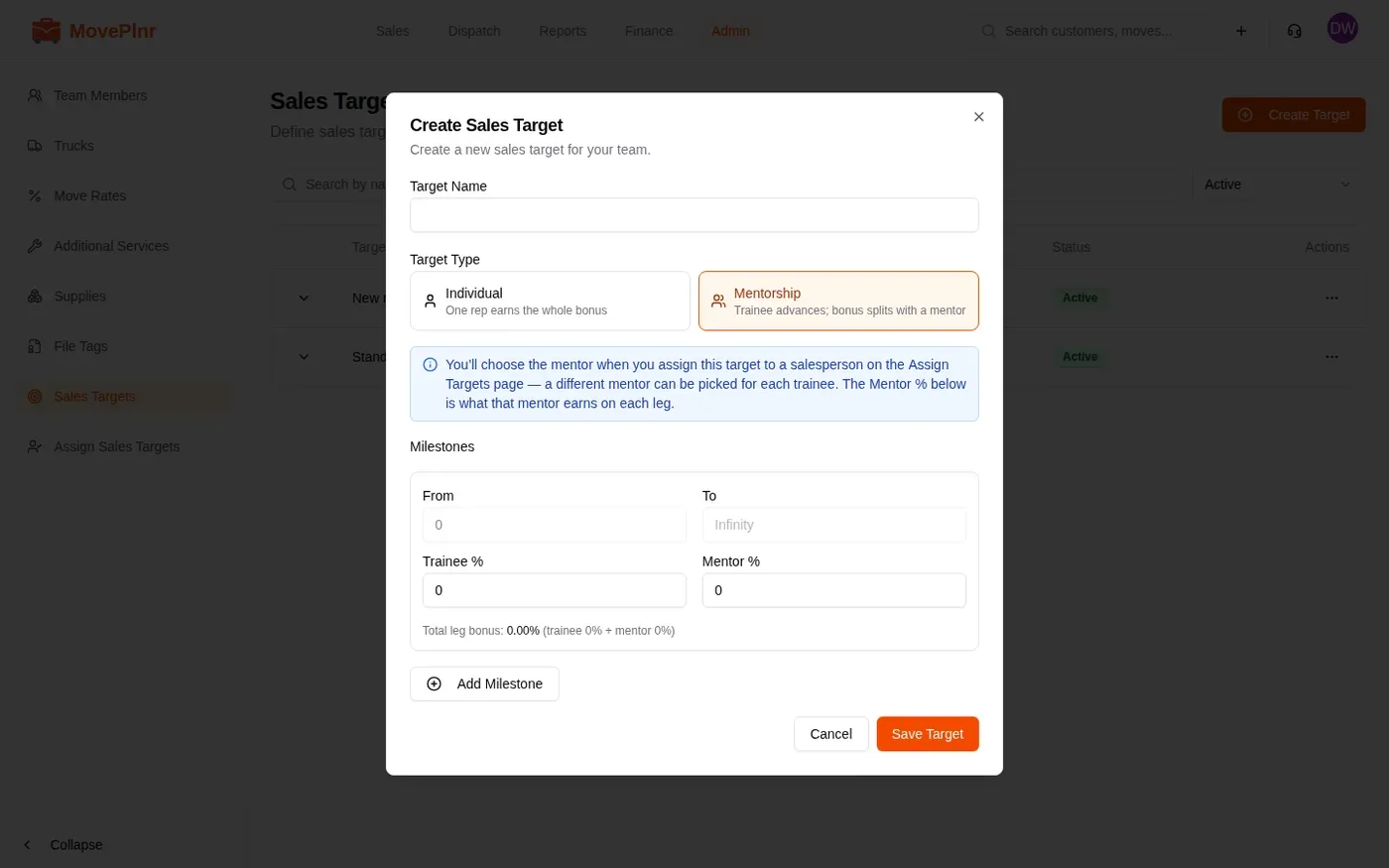
- Give it a name and choose Mentorship under Target Type.
- For each milestone, set From and To, then the Trainee % the new rep earns on that leg and the Mentor % the mentor earns. The total for each leg is shown under it. Click Add Milestone for another leg.
- Click Save Target.
The mentor isn’t part of the target. You pick one for each new rep when you assign it, so one target can serve every new rep on the team.
Assign it with a mentor
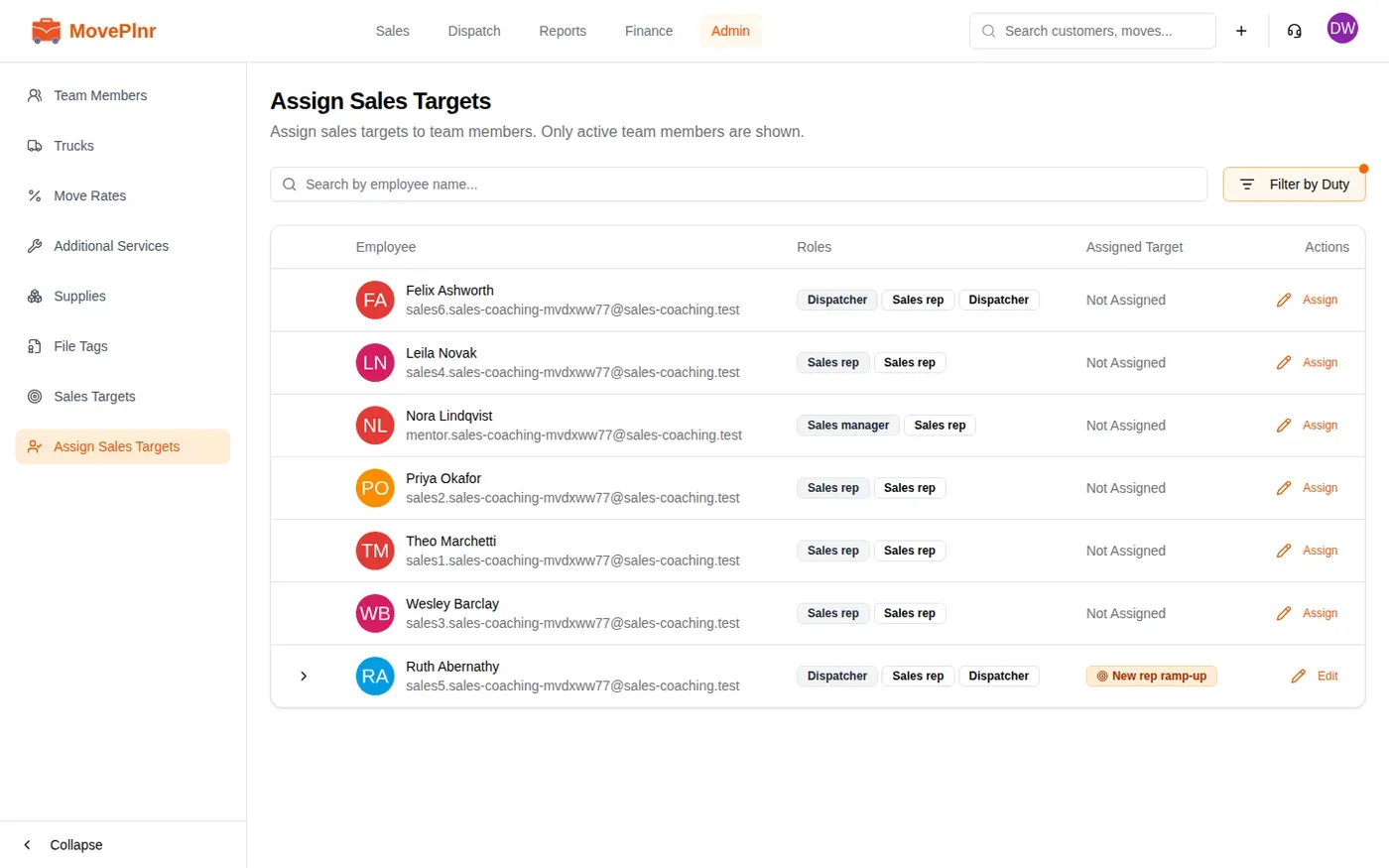
- Open Assign Sales Targets and click Assign on the new rep’s row (Edit if they already have a target).
- Choose the mentorship target. A Mentor / Manager picker appears; it is required.
- Pick the mentor and click Assign Target.
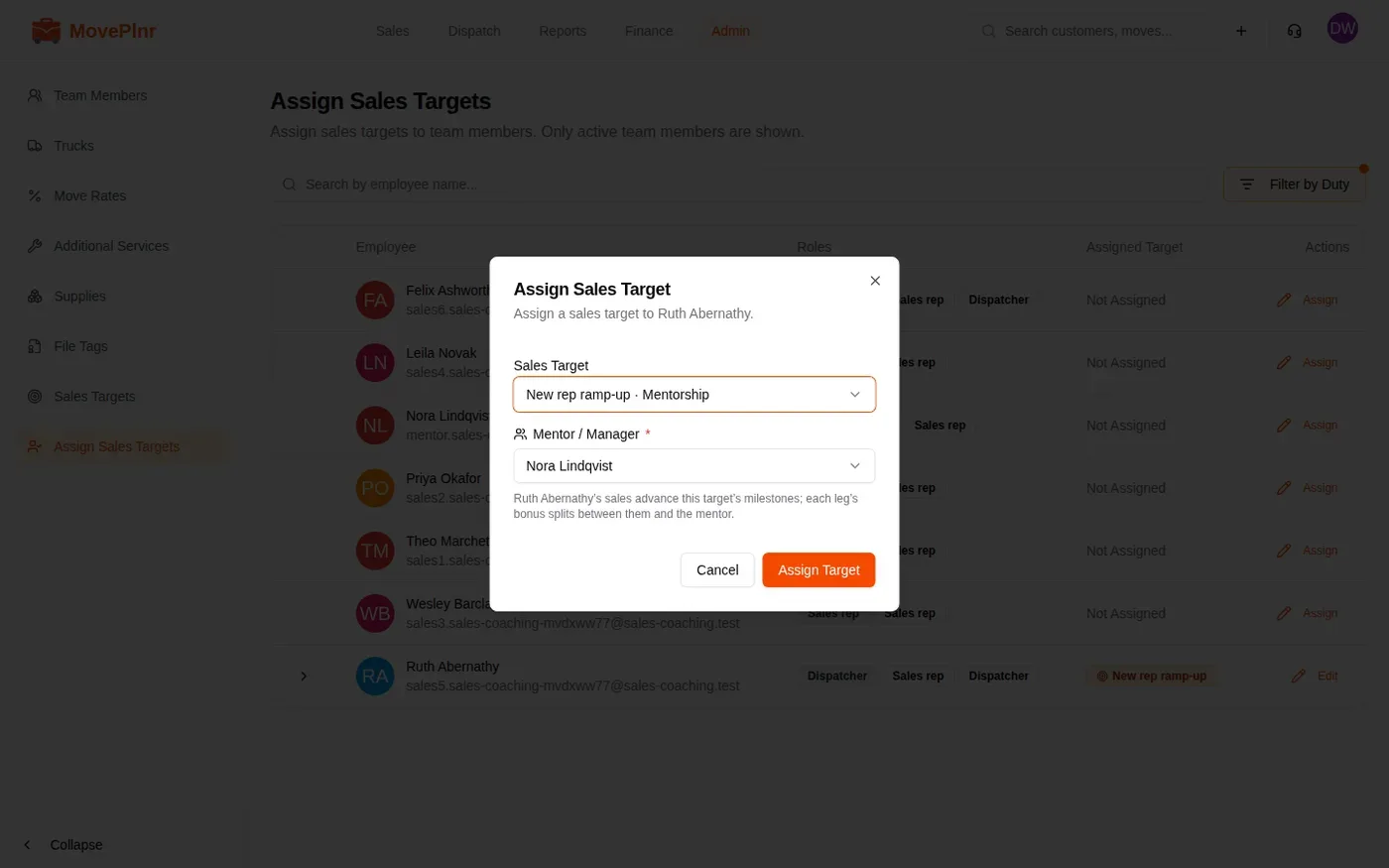
The new rep’s sales move them through the milestones, and each leg’s bonus is split as the target says. A rep can’t be their own mentor.