
Before you start
Financing runs through Stripe card payments. Your company needs an active Stripe account, and the location has to collect its payments through that account. The guide Take payments and close a move covers card payments in general.
Klarna and Affirm are approved by Stripe for each Stripe account. Turn them on in your Stripe dashboard, under Settings, then Payment methods. MovePlnr offers whichever of the two is live on the account.
Only a company admin can switch financing on for a location. Admins, sales reps and dispatchers can send applications. Only admins and dispatchers can capture or cancel a hold.
Turn on financing for a location
- Open company settings, click Stripe Payments, then open your Stripe account.
- Make sure the location is on under Payment collection by location.
- Under Buy now, pay later (financing), turn the location on.

A 10% financing fee applies to every financed payment. The customer pays it on top of the bill, and it covers what Klarna and Affirm charge.
Send a financing application
The application goes out from the opportunity, before the move. The customer is approved for the most the move could cost, and nothing is charged until you capture after the move.
- Open the opportunity and expand Estimate & Finalize. The Financing hold card sits under the estimate.
- Click Send financing application.
- Check the Customer Email.
- Check the Amount to Cover. MovePlnr suggests the top of the estimate, taxes included, rounded up to the next $10. Click Reset to suggested to go back to it.
- Click Send financing application at the bottom of the window.

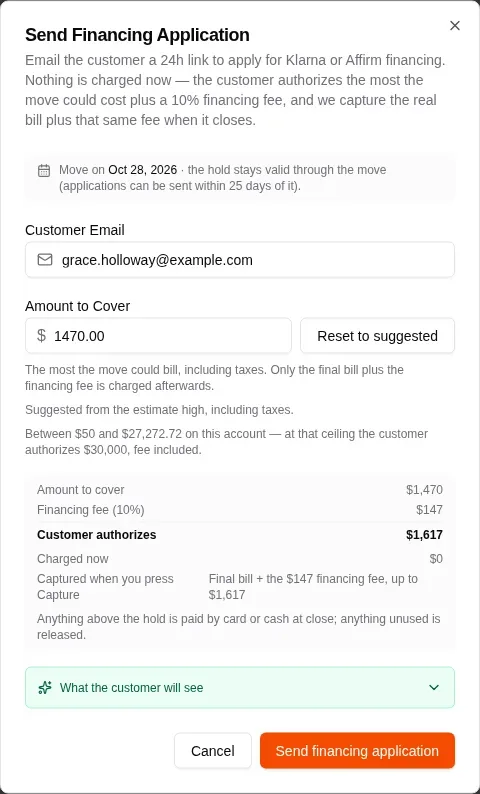
The window shows the whole sum before you send: the amount to cover, the 10% fee, what the customer authorizes, and $0 charged now. Open What the customer will see to read the email your customer gets.
What the customer gets
The customer gets an email with an Apply for financing button. The link is good for 24 hours. They pick Klarna or Affirm on a Stripe page, apply, and get an answer from the lender on the spot.
When you can send one
A hold only lasts so long: 28 days for Klarna and 30 days for Affirm, counted from approval. So MovePlnr only sends an application when the move is close enough for the hold to reach it: within 25 days of the move date when Klarna is on, or 27 days when you only offer Affirm.
The amount has to be at least $50. Klarna goes up to $17,500 in Canadian dollars or $10,000 in US dollars, and Affirm up to $30,000, fee included. Above the Klarna limit, only Affirm is offered.
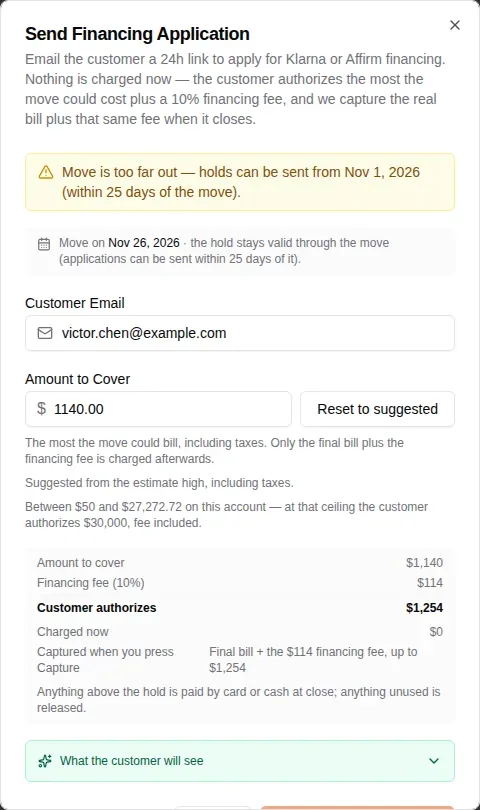
If the move is too far out, the window tells you the first day an application can go. Send it then.
Follow the application
The opportunity’s header and the Financing hold card both show where the application stands. The rep who owns the deal also gets a notification when the customer is approved or turned down.



What each status means:
- Sent, awaiting customer: the email is out and the customer hasn’t finished applying.
- Financing approved: the lender said yes, and the hold is in place.
- Customer left the checkout: the customer closed the Klarna or Affirm page without finishing. That isn’t a no. Call them, because the link still works until it expires.
- Declined: the lender said no. Collect the balance another way.
- Link expired: the customer didn’t apply within 24 hours. Click Send again to send a new link.
- Hold expires before move: the move date is past the end of the hold. Cancel it and send a new application closer to the move.
Click Cancel on the card to withdraw an application or release a hold. Cancelling a move also cancels its financing.
Capture the hold after the move
Closing a move does not charge the hold. You capture it yourself, for the final bill plus the same financing fee, up to the amount the customer was approved for. Whatever is left of the hold is released.
You can capture in two places:
- On the close screen, in the financing panel above Total Due. Click Capture and check the bill to settle.
- On Payments, when the move was closed with the hold still open. A yellow banner names the move and the hold.

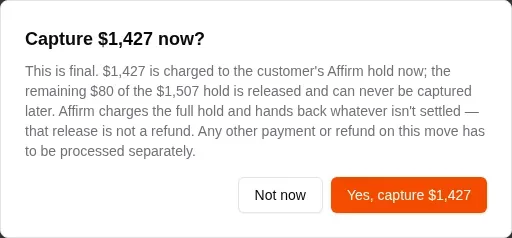
Capturing is final. Click Not now to back out.
If the bill comes in above the hold, capture the full hold and take the rest by card or cash on the close screen. With Affirm, the whole hold is charged and the unused part is handed back straight away. That isn’t a refund, and the invoice doesn’t change.
Find the financed payment
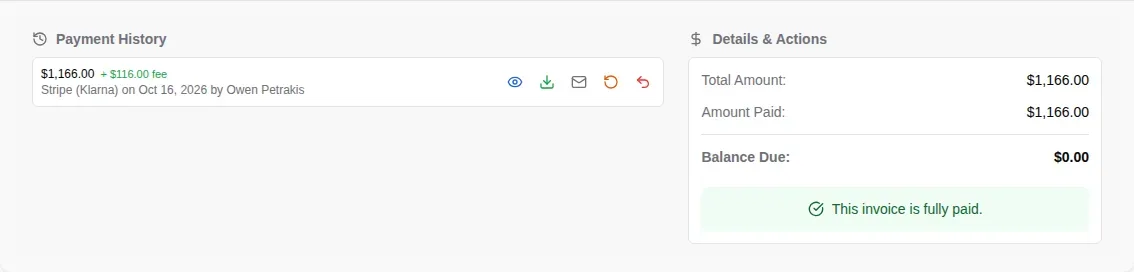
The captured payment lands on the move like any other, as Stripe (Klarna) or Stripe (Affirm), with the financing fee beside it. Expand the move on Payments to see it under Payment History.
Let a customer pay now with financing
A customer can also finance a balance they owe now, with no hold. Choose the Financing payment method when you take a deposit, on the close screen, or with Process Payment on Payments, then click Open Financing Options. MovePlnr emails the customer a link to pay the amount with Klarna or Affirm, with the same 10% fee on top.