
Before you start
The card reader works through Stripe card payments. Your company needs a connected Stripe account that is active, and the location you take payments for has to collect through that account. You turn that on in Stripe Payments, under Payment collection by location. The guide Take payments and close a move covers card payments in general.
You need a Stripe reader for each place you take payments: one at the front desk, one in each truck that collects at the door. Only a company admin can pair and remove readers. Anyone who can take a payment on a move can use them.
Pair a reader
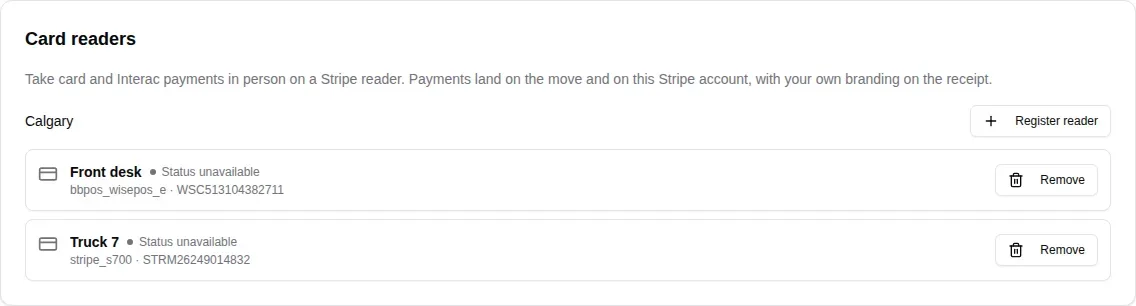
Readers belong to a location. Each location that collects through your Stripe account has its own list on the Card readers card.
- Open company settings and click Stripe Payments, then open your Stripe account.
- Scroll to the Card readers card and find the location the reader stays at.
- Click Register reader.
- On the reader, open its admin menu and choose Generate pairing code.
- In the Register a reader window, type a Name your team will recognize, such as the truck it rides in, and the Pairing code from the reader’s screen.
- Click Register.
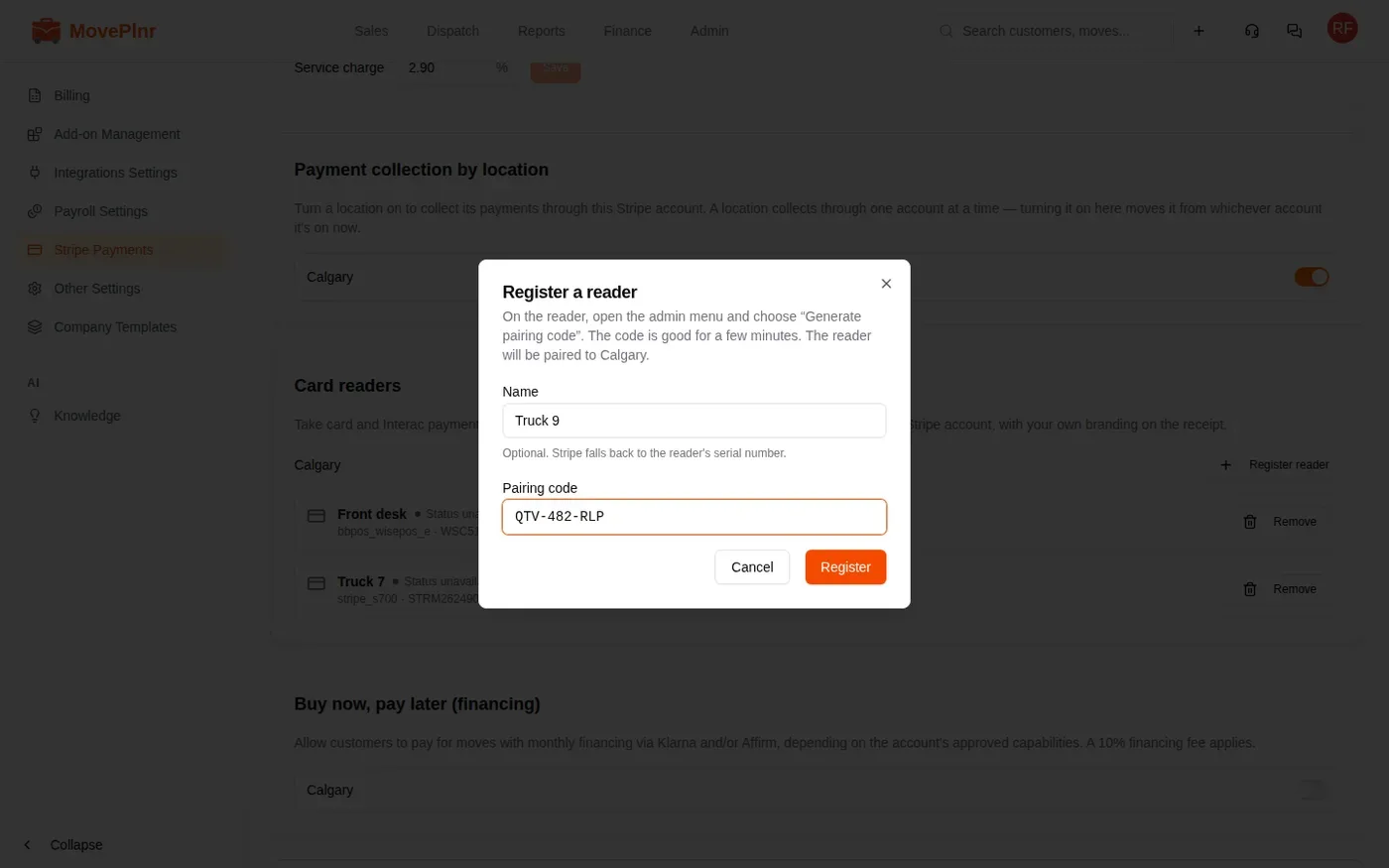
The name is optional. Without one, the reader shows up under its serial number. A code that has run out or was mistyped is refused with a message in the window: generate a fresh code on the reader and try again.
MovePlnr sets up each new reader for you. It offers a tip screen of 10, 15 and 20 percent when you allow tips, and it uses cellular data whenever no Wi-Fi is in range. That keeps a cellular reader working at a customer’s door. Stripe bills a monthly fee for each month a reader has cellular turned on. Readers without a cellular radio use Wi-Fi.
Take a payment on the reader
As soon as a location has a paired reader, Stripe (Card Reader) shows up as a payment method on that location’s moves. You can use it in three places:
- On the close screen, when you record a collected payment. Stripe (Card Reader) comes first in the list, marked Recommended.
- In a move’s payment window, to take a payment on a move that’s already closed.
- In the Apply Deposit window, to take a deposit before the move.
- Choose Stripe (Card Reader) as the payment method, then click Send to Card Reader. The Card reader payment window opens with the customer’s name and the move number.
- Enter the amount, or click Pay In Full for the whole balance. A deposit uses the deposit amount and can’t be changed here.
- Pick the card type: Credit or Debit. You have to choose one before you can send.
- Pick the reader. With only one reader at the location, it’s already chosen.
- Leave Let the customer add a tip on the reader ticked to show the tip screen. Deposits never offer a tip.
- Check the summary: what’s applied to the invoice, the service charge on a credit card, and the total the card is charged.
- Click Send to reader and hand the reader to the customer.
Debit is Interac and needs your Stripe account to charge in Canadian dollars. Debit never carries a service charge. Credit carries the same service charge as your other Stripe card payments.
The amount appears on the reader, and the customer taps, inserts or swipes their card. You’ll see a screen like the illustration below. The real reader looks different depending on the model.
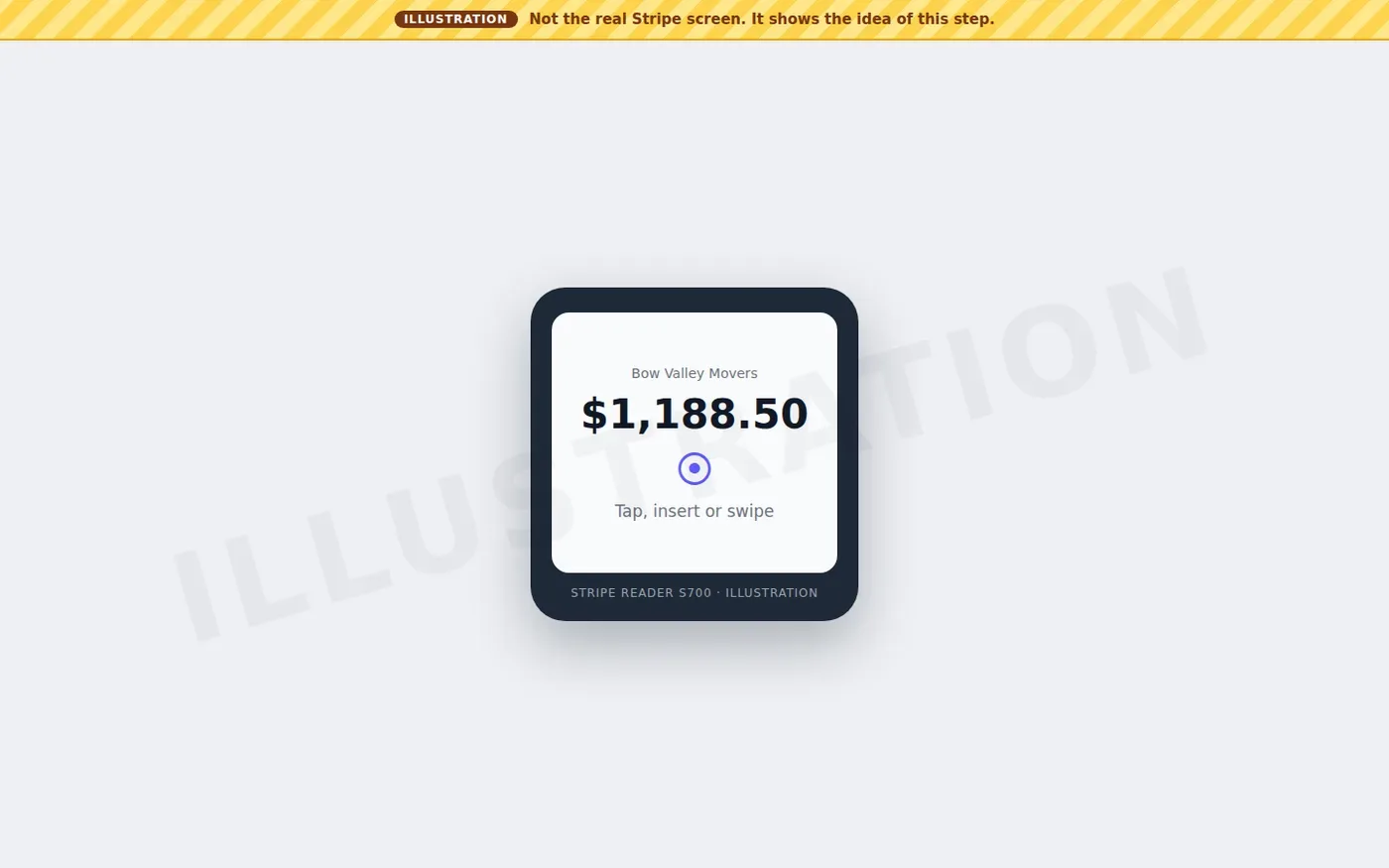
While the reader waits, the MovePlnr window shows which reader it’s waiting on and the amount. You can close the window. The payment is still recorded when the customer pays.
When the payment goes through
The window says Payment successful, with the amount charged, any tip and the card used. When part of the balance is still owing, it says how much and offers Add another payment, so you can take the rest on the reader or another way.
When it doesn’t
- A declined card shows the reason. Click Try another card to send the same payment to the reader again.
- If the customer used a debit card on a credit payment, or the other way around, click Re-run as Debit or Re-run as Credit. The amount is worked out again, since only credit carries the service charge.
- If the customer cancels on the reader, click Start over.
Find the payment
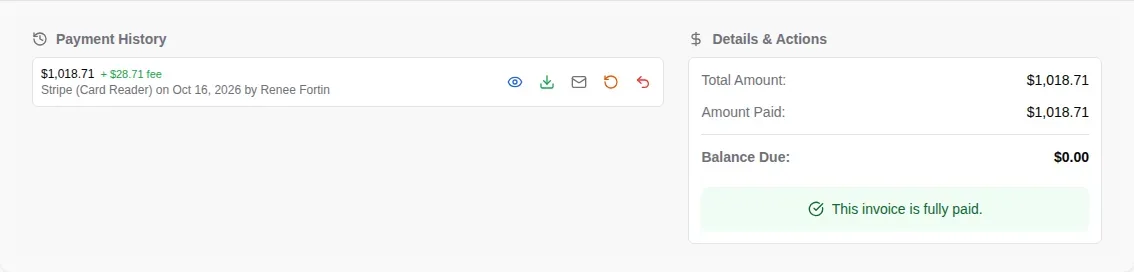
A reader payment is recorded on the move by itself, under the method Stripe (Card Reader). A deposit is recorded as Deposit (Stripe (Card Reader)) and finishes the deposit the same way a card deposit does. The person who sent the payment to the reader is recorded as the one who collected it.
Open Payments and expand the move to see it in its Payment History, with the service charge beside the amount.
A tip on the reader doesn’t count against the invoice, so it never pays down a balance.
Manage your readers
Each reader on the Card readers card shows its status: Online, Offline or Status unavailable when Stripe can’t be reached. The status only tells you where to look. MovePlnr offers a reader whether it shows online or not, and the reader itself reports a problem when you send it a payment.
- A reader marked Busy is in the middle of a payment, or got stuck after losing its connection. Click Reset to clear it.
- Click Remove to unpair a reader. It’s removed from Stripe and no longer offered at that location. You can pair it again later with a new code. A reader can’t be removed while a customer is paying on it.
- If the location moves to a different Stripe account, its readers are unpaired. Pair them again from the new account’s page.
- A reader marked Stripe account not active is fine, but the Stripe account it belongs to can’t take payments right now.
Questions the office asks
Why doesn't the card reader show up as a payment method?
The move’s location needs at least one paired reader, and it has to collect through an active Stripe account. Check the Card readers card for that location.
Can I close the payment window while the customer pays?
Yes. The payment is recorded on the move when the customer pays, even if nobody has the window open.
Does the customer pay a service charge on the reader?
Only on a credit card, and only when your Stripe account has a service charge set. Debit never carries one.
Can a mover take a payment at the customer's door?
Yes. Pair a reader for the truck and take it along. With no Wi-Fi in range, a cellular reader connects over cellular data.