
Set up payment methods
Every way your office takes money is a payment method, set per location. A new location starts with Cash, Credit Card, Debit Card, Invoice and E-Transfer.
- Open Payment Settings in the location settings.
- Click Add Payment Method to add another, for example Cheque.
- Turn on Send Invoice by Default for a method when a payment by that method should email the customer an invoice.
- Turn on Enable Service Charge and enter a percentage to pass a card fee on to the customer.
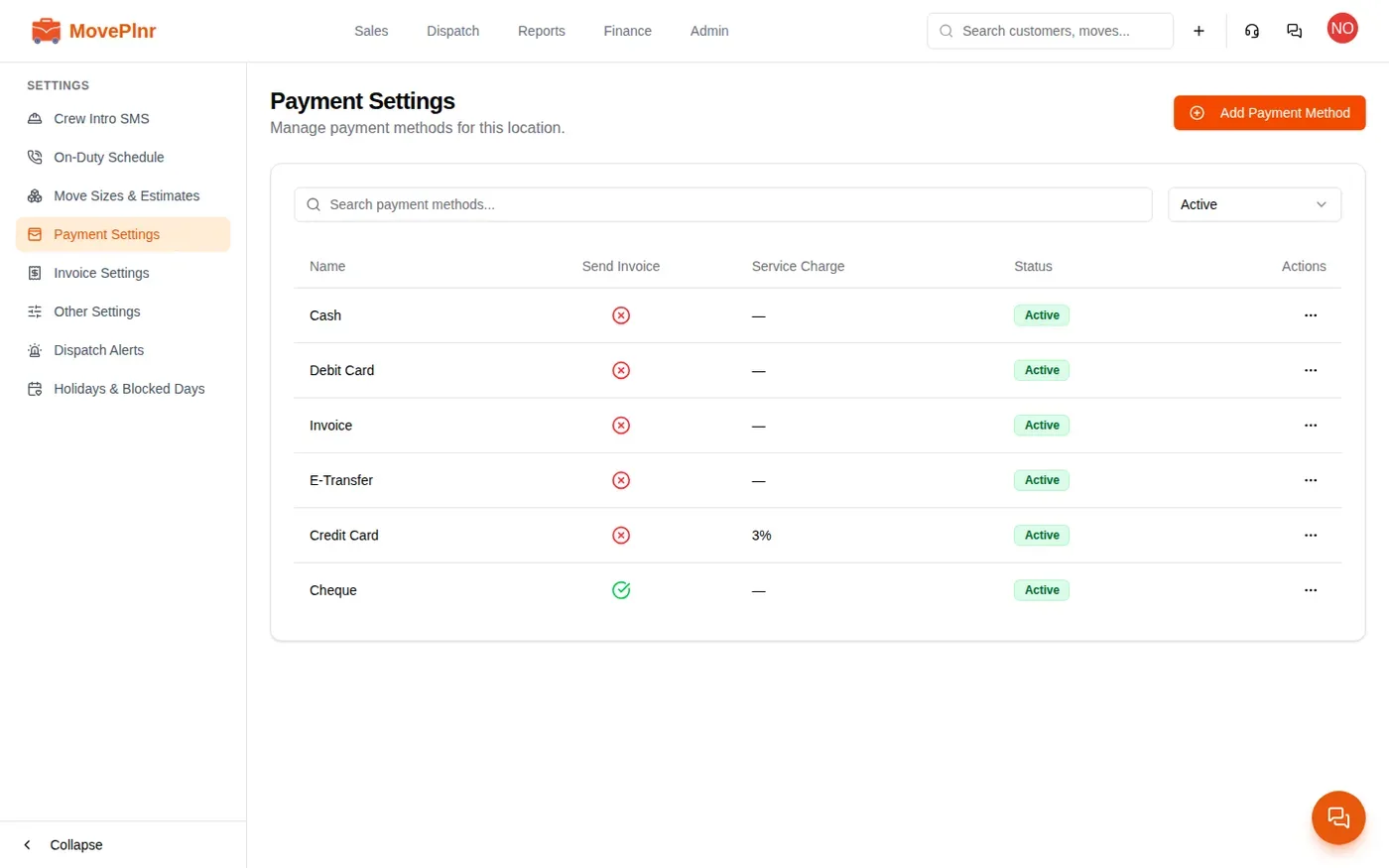
A service charge is added on top of what the customer owes. It never reduces the invoice: the customer pays the invoice amount plus the fee.
Collect a deposit
Take a deposit any time before the job runs, while the move is still pending.
- Open the move and click Actions.
- Choose Apply Deposit.
- Pick the Payment Method, then enter the Amount in dollars, or switch to a percent of the estimate.
- Check Total to Collect, then click Apply Deposit.
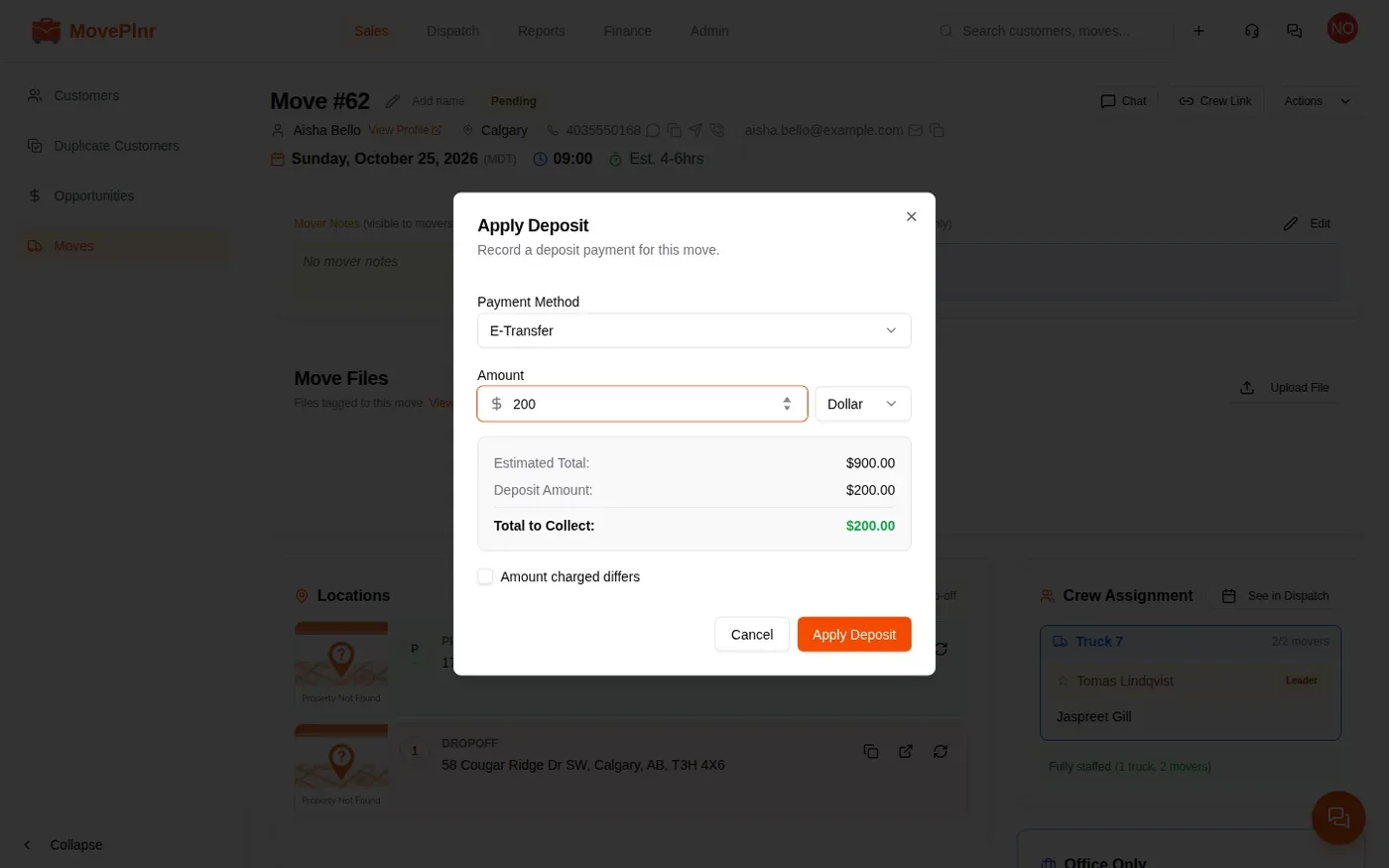
The move then shows the deposit beside its status, and the deposit sits on the move until it is closed. At close it is already on the invoice, taken off what the customer still owes.
Close a finished move
Once a job’s date has passed, it waits on Close Moves until someone closes it. The menu shows how many are waiting.
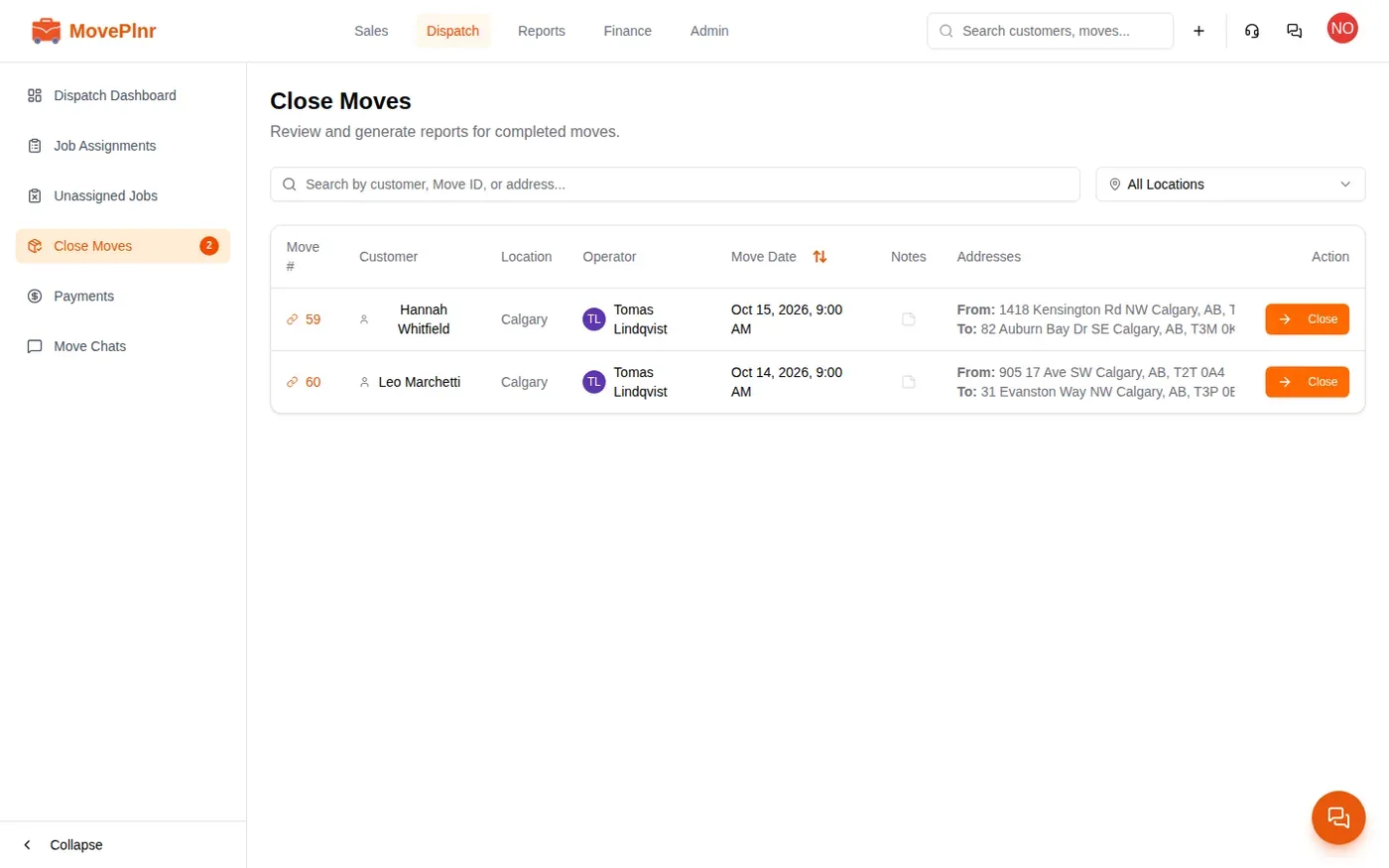
Click Close on a row to open the move’s close screen. Work down it from the top.
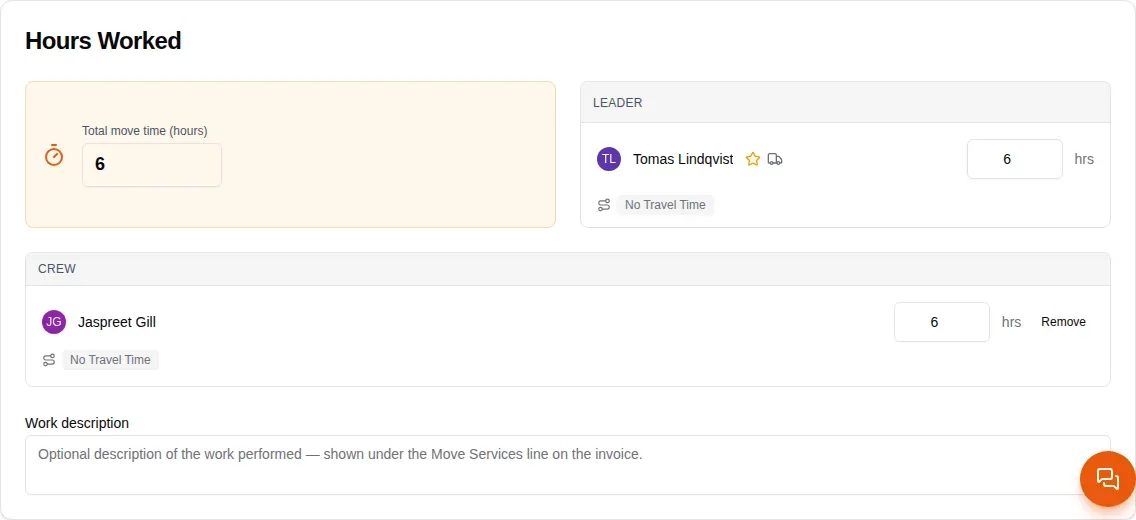
Hours Worked
Enter the Total move time (hours). Each person on the crew starts with those hours. Change one person’s hours if they left early or joined late, add someone who wasn’t scheduled, or take someone off with Remove.
Invoice
The Invoice card adds up the job as you go: the move services at the hourly rate, the tax, any payment already taken, and the Total Due.
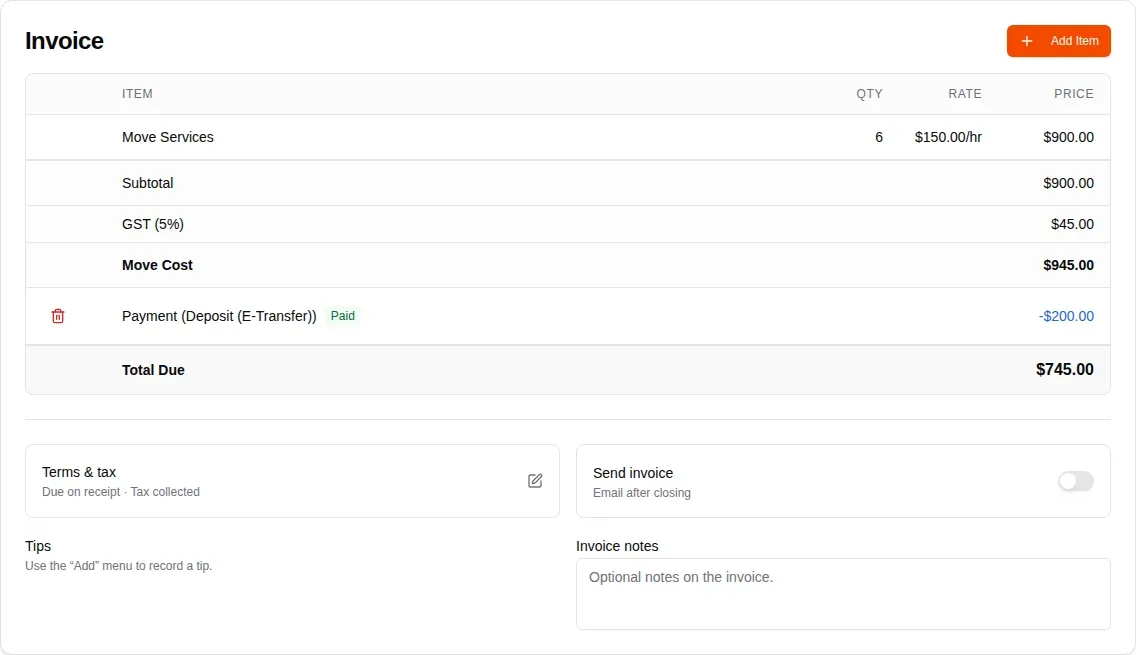
Click Add Item to put anything else on the invoice.
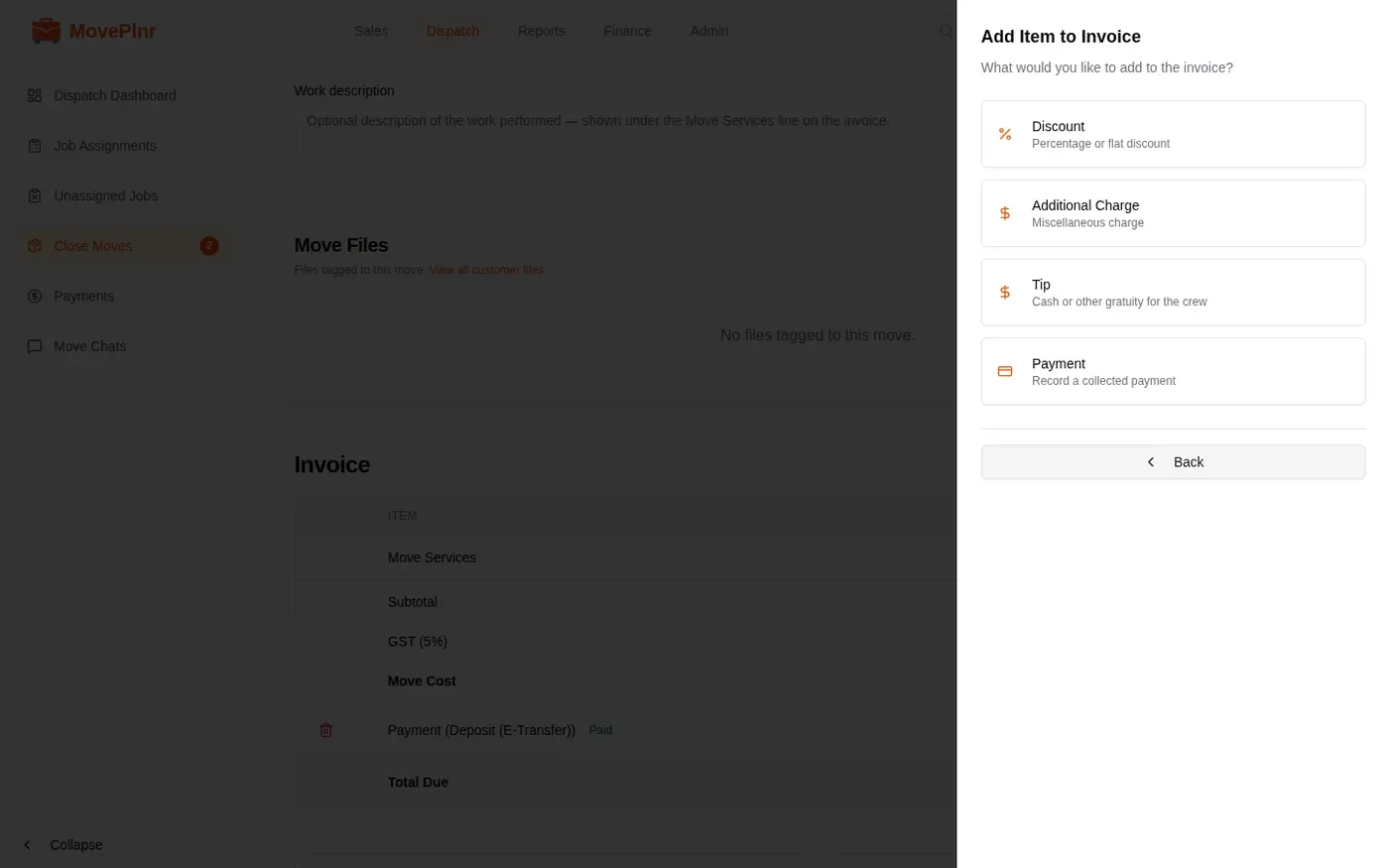
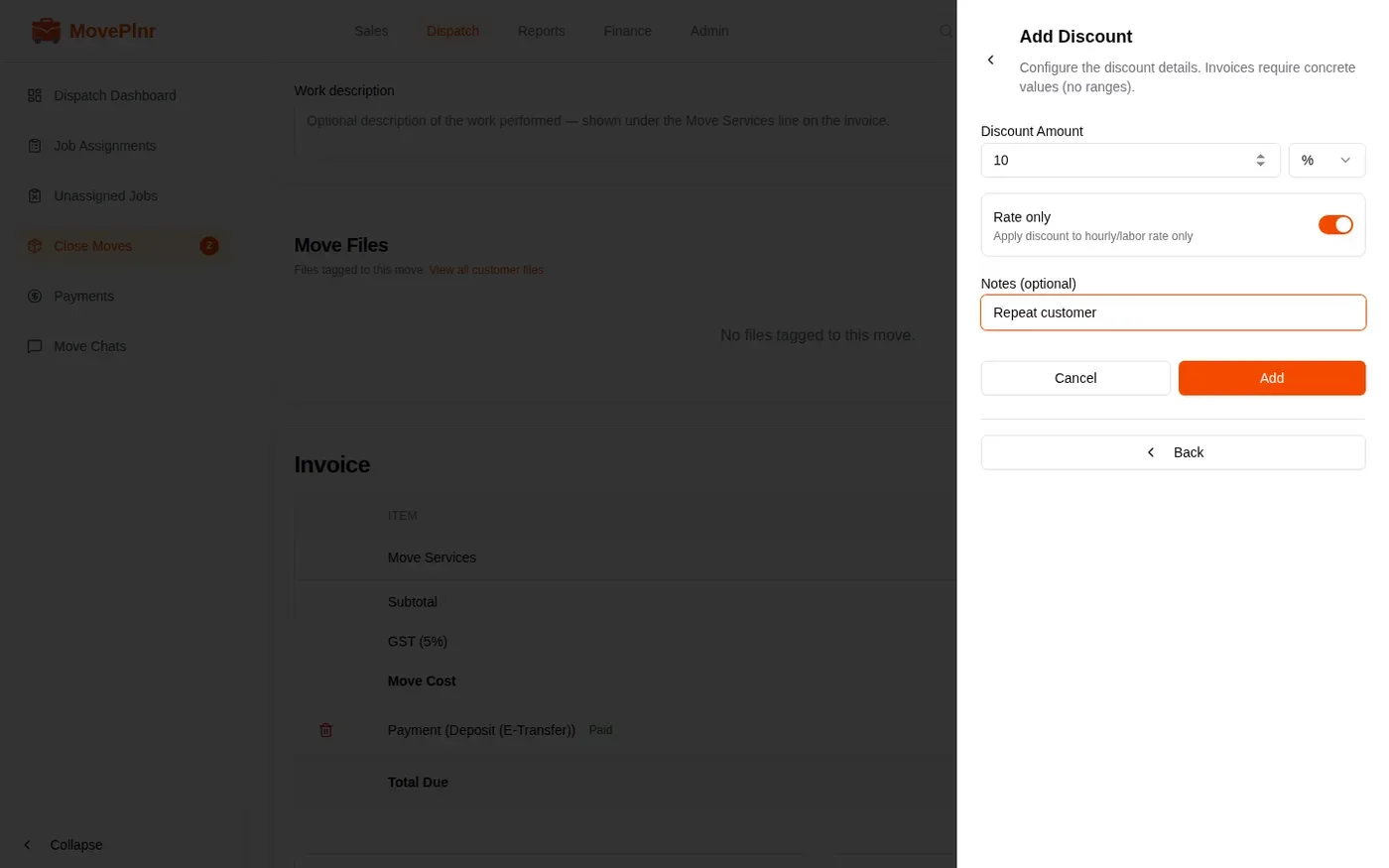
- Discount takes a percent or a dollar amount. Rate only applies a percent to the hourly rate alone.
- Additional Charge adds any other charge, with a note.
- Tip records a cash tip for the crew. Tips paid by card or payment link are added for you.
- Payment records money you collected. It is only offered while something is still due.
Record the payment
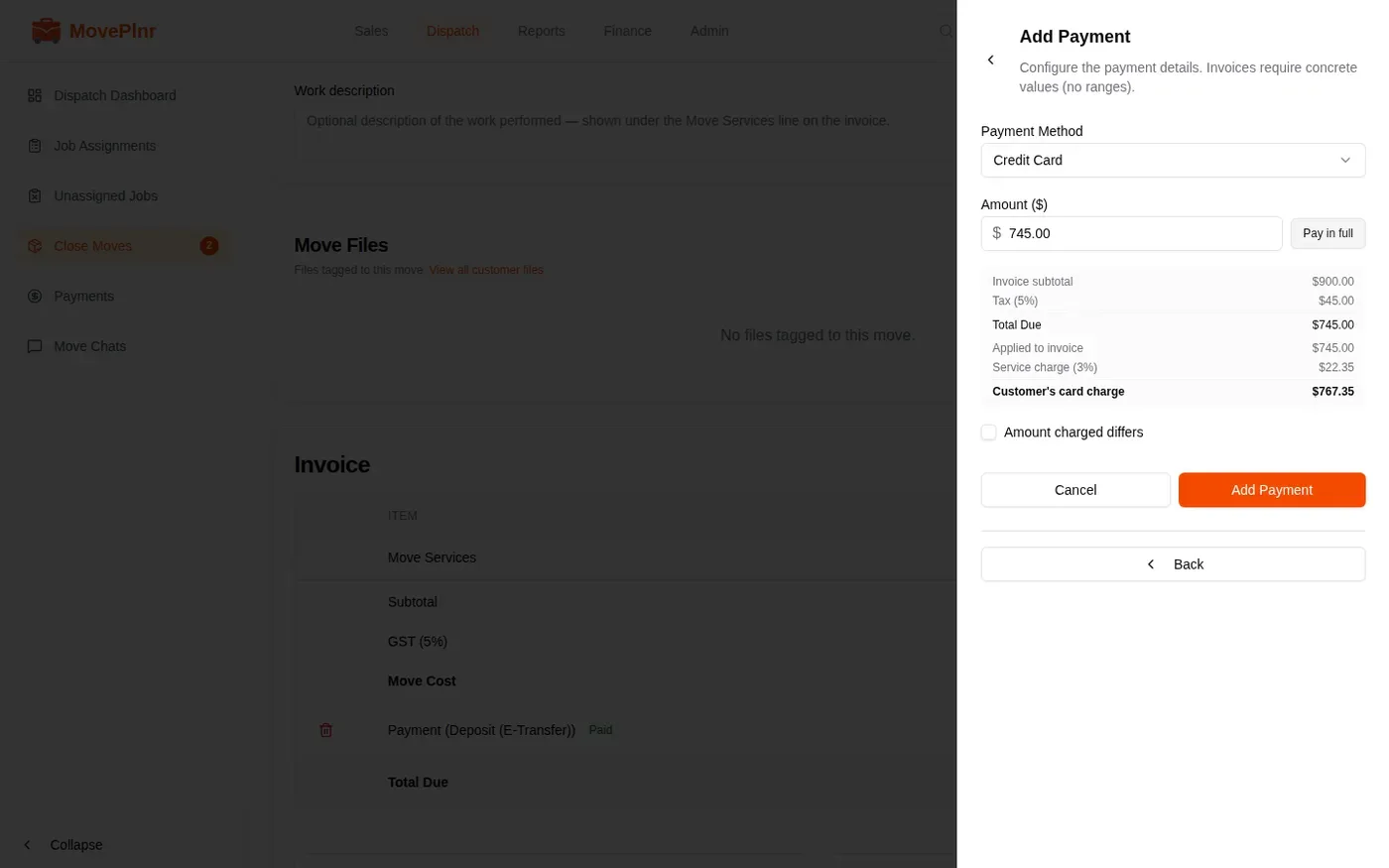
- Click Add Item, then Payment.
- Pick the Payment Method.
- Click Pay in full to fill in the balance, or type a part payment in Amount ($).
- Check the lines below the amount. A method with a service charge shows Applied to invoice, the service charge, and Customer’s card charge: the total to charge the customer.
- If the terminal charged a different total, tick Amount charged differs and enter what it charged.
- Click Add Payment.
Send the invoice and close
Below the invoice, Terms & tax sets the payment terms and whether tax applies. Turn on Send invoice to email the customer the invoice when the move closes. Add Invoice notes for the customer and Closing notes for the office.
Then click Confirm close. If nothing has been paid and a balance is still owed, MovePlnr asks first. Click Add Payment to record one, or Close Without Payment to close with the full amount unpaid.
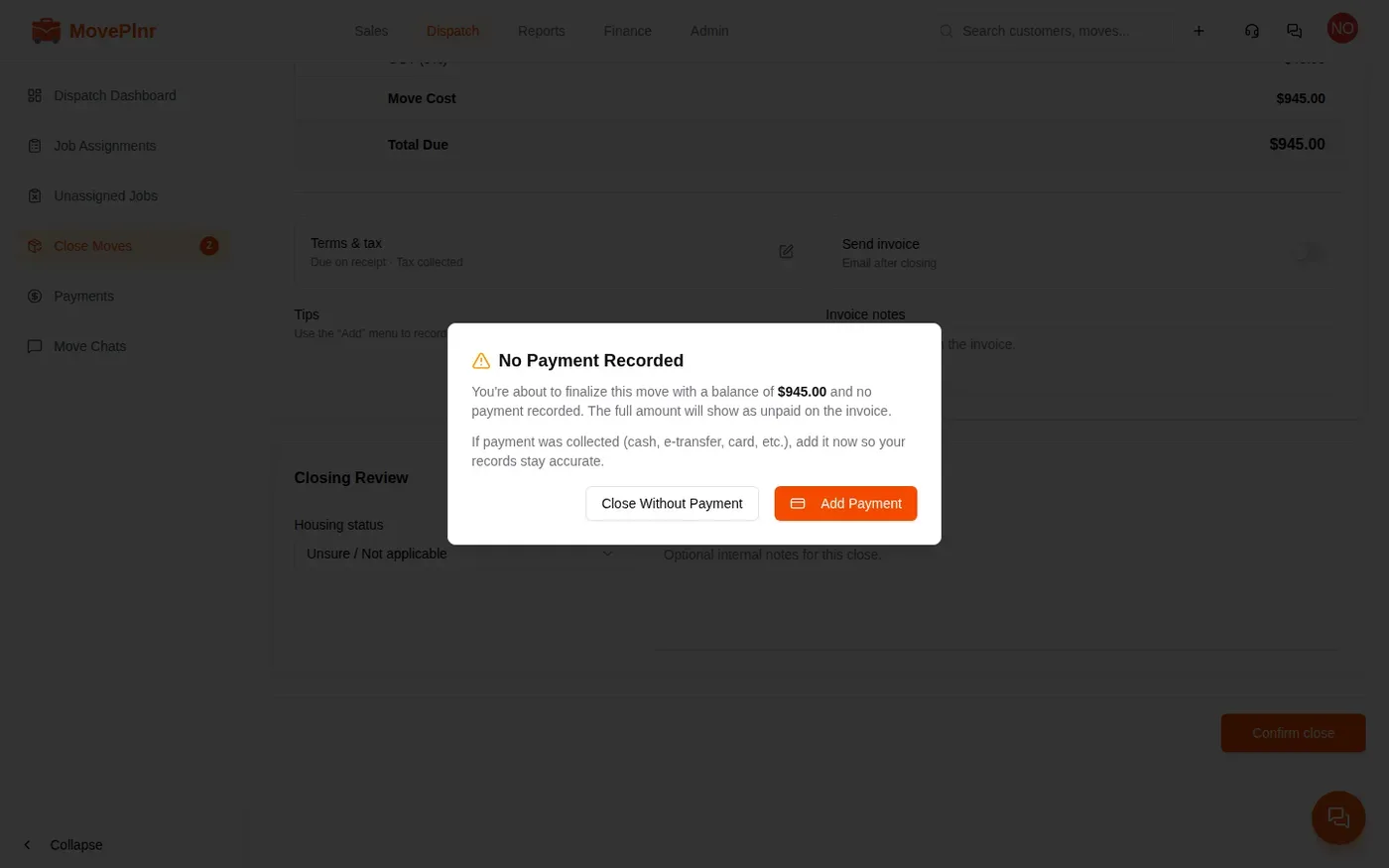
The move closes and opens on its own page. Anything still owed now shows on Payments.
Take card payments with Stripe
When your company connects a Stripe account and a location turns on card payments, Add Payment offers three more ways to take a card:
- Stripe (Card): the customer types their card into a payment form on your screen.
- Stripe Payment Link: MovePlnr emails the customer a link. The payment shows as pending until they pay, and you are notified when they do.
- Stripe (Card Reader): MovePlnr sends the amount to a Stripe card reader at the location. The customer taps their card, and the payment records on the move by itself. You can close the window while you wait.
You’ll see the reader’s own screen, like the illustration below. The real reader looks different.
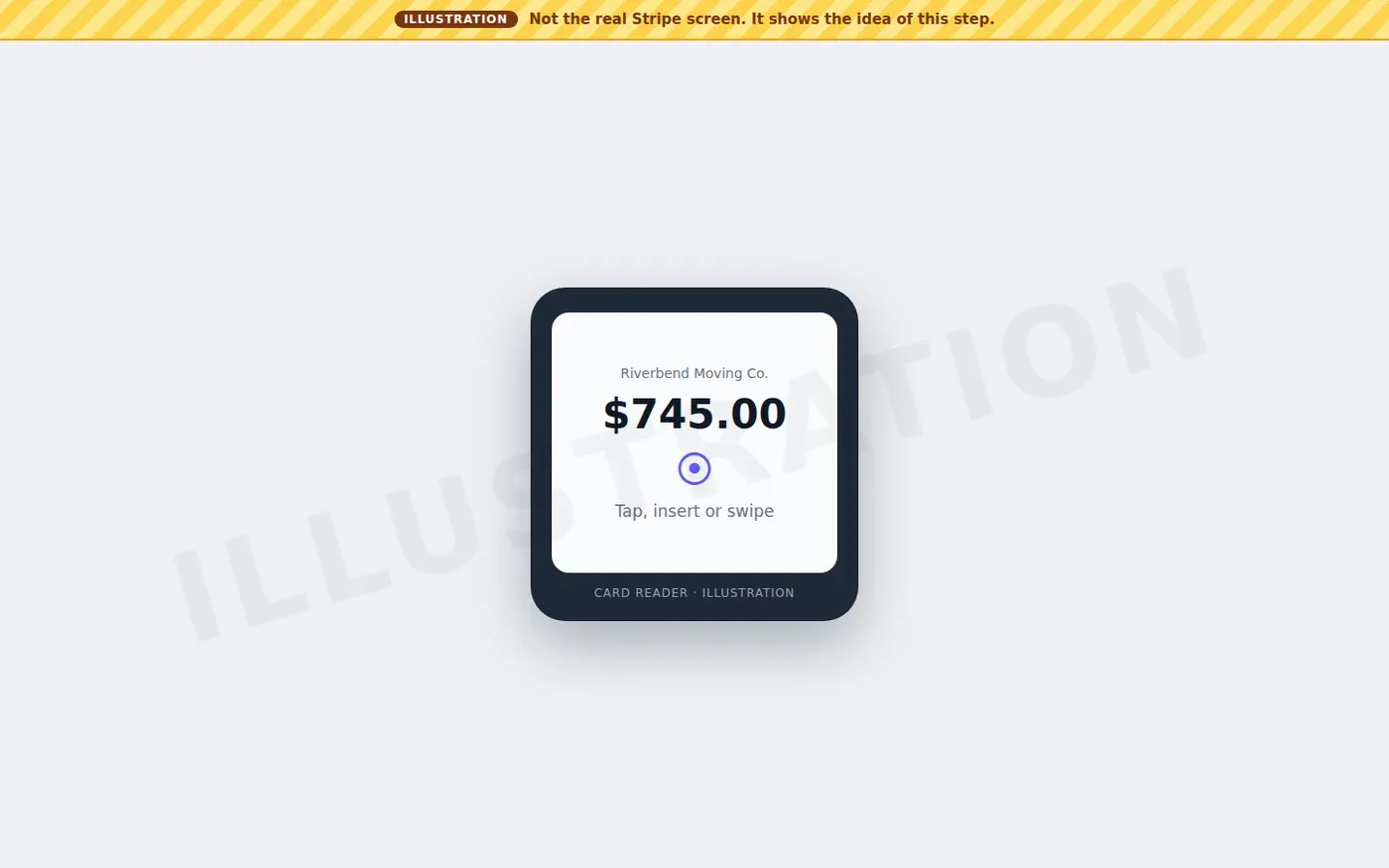
The card fee for Stripe payments is set on your Stripe account in MovePlnr, and it is added to the customer’s charge the same way as a service charge. When Send invoice is on, the email can include a Pay now link so the customer pays the balance online.
Track payments
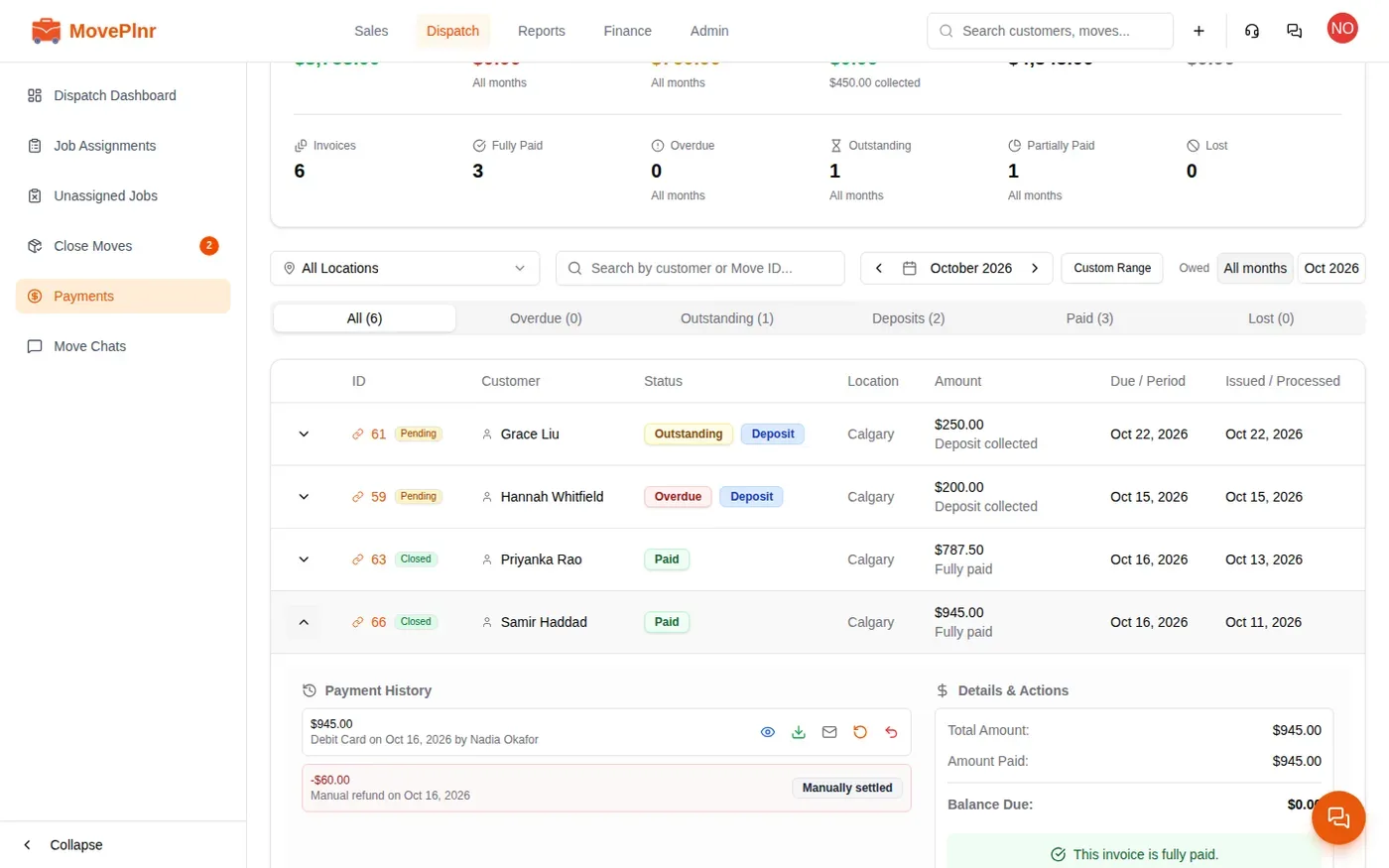
Payments lists every move with money on it for the month you pick: what was paid, what is still owed and what is overdue. The summary at the top adds it up.
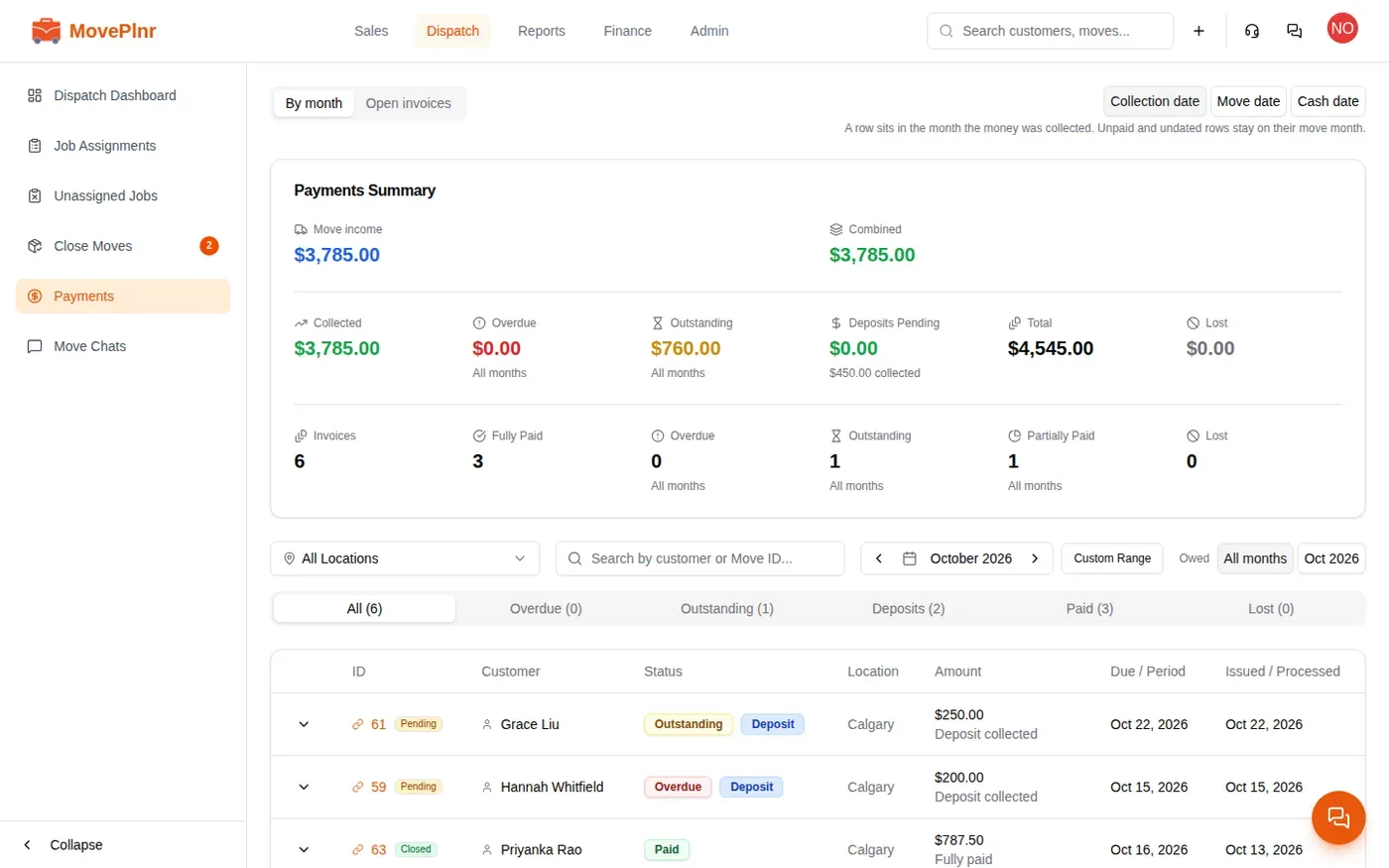
- Switch between Collection date, Move date and Cash date to choose which date puts a payment in a month.
- The tabs split the list: Overdue, Outstanding, Deposits, Paid and Lost.
- Open invoices shows everything still owed, whatever the month.
Deposits lists the deposits collected on moves that have not closed yet, and the deposits still owed, whatever month is picked.
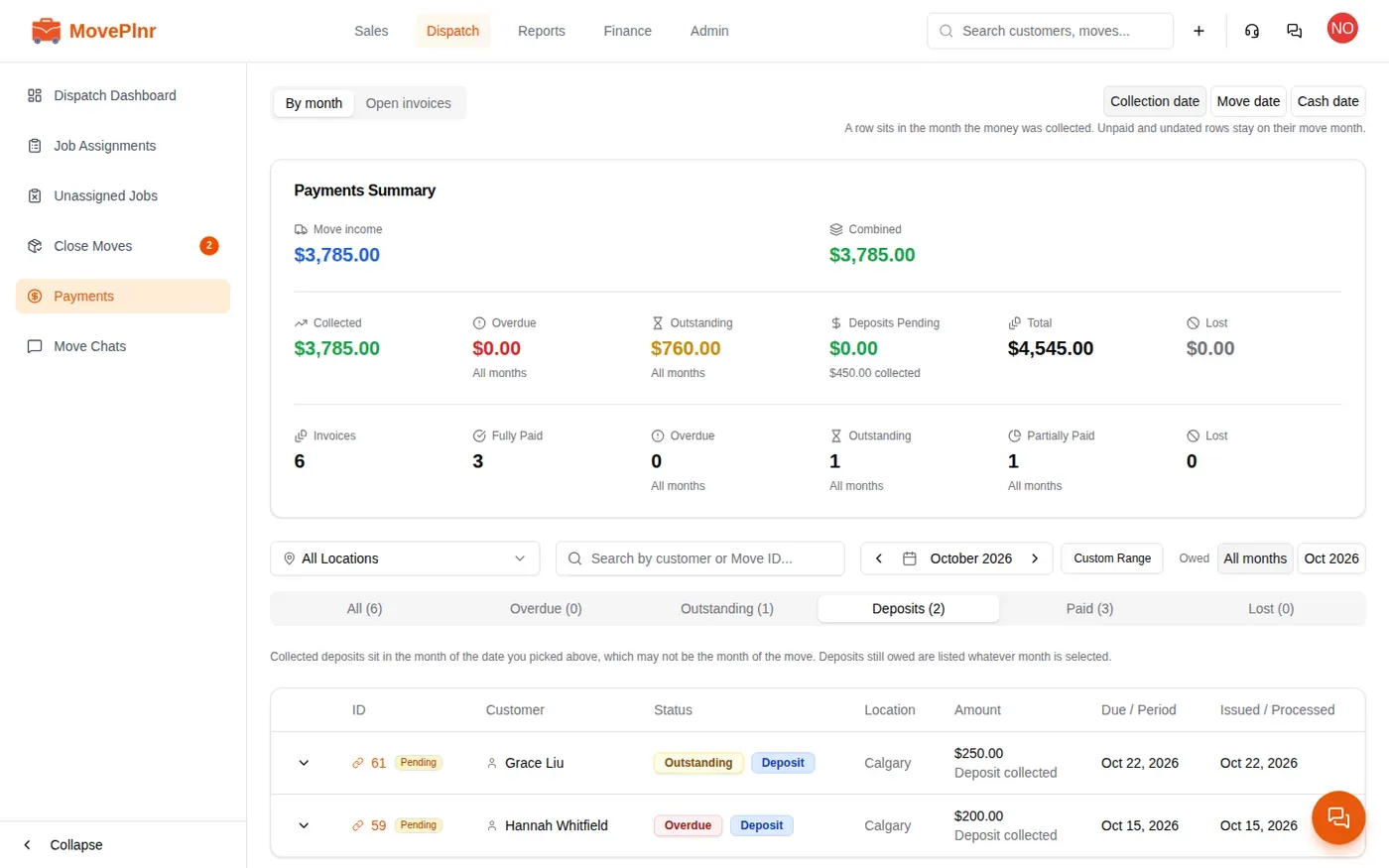
Click a row to open it. Payment History lists each payment and refund, with buttons to view, download or email the invoice. Details & Actions shows the total, what was paid and the balance due. On a move with money still owed, Process Payment records a payment and Reminder sends the customer a reminder.
Refund a payment
Office admins can refund a payment from Payments.
- Open the move’s row and find the payment under Payment History.
- Click the refund button beside it.
- Enter the Refund Amount and a Reason (optional).
- Turn on Send invoice? to email the customer an updated invoice.
- Click the button to record the refund.
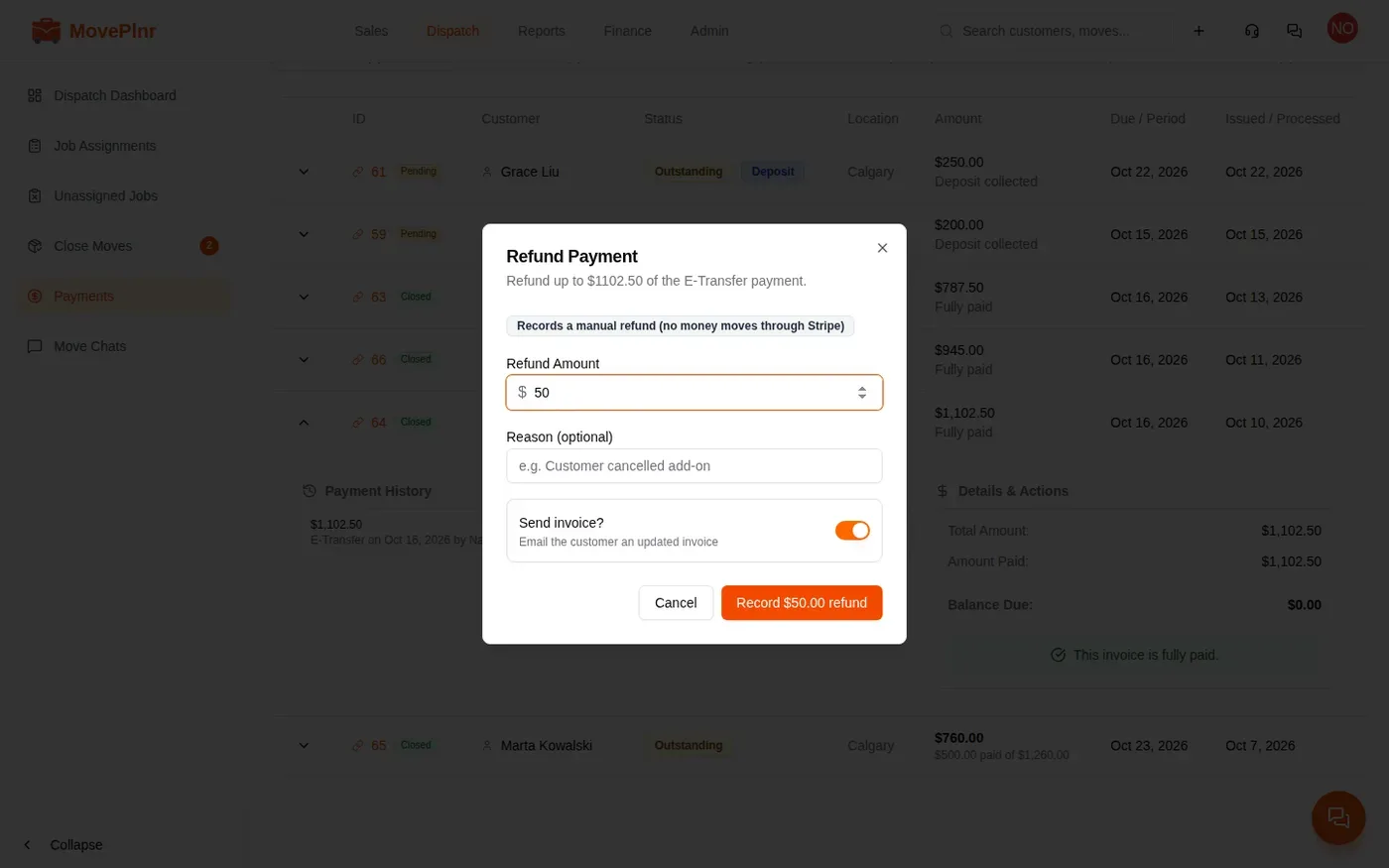
A refund on a Stripe payment sends the money back to the customer’s card. A refund on any other method records that you paid it back yourself: no money moves through MovePlnr.