Before you start
Storage is an add-on. Once an admin turns it on, Storage appears in the Sales menu, Storage Facilities appears under Admin, and every opportunity gets a Storage section. Storage bills on its own schedule, separately from the move.
Set up your facilities
A facility is a place you store goods. Set each one up once, and sales picks from it every time they quote.
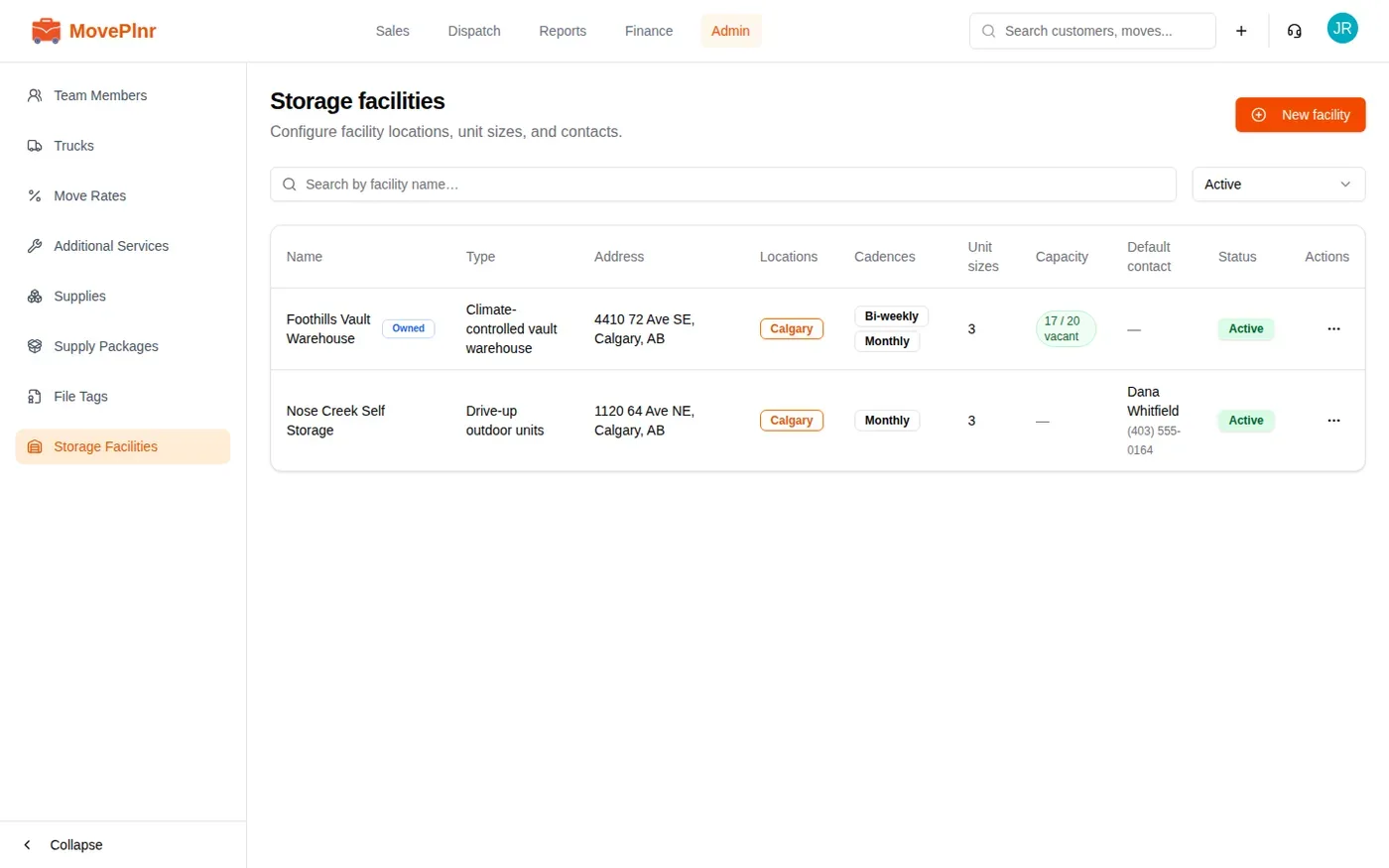
- Open Admin, then Storage Facilities.
- Click New facility.
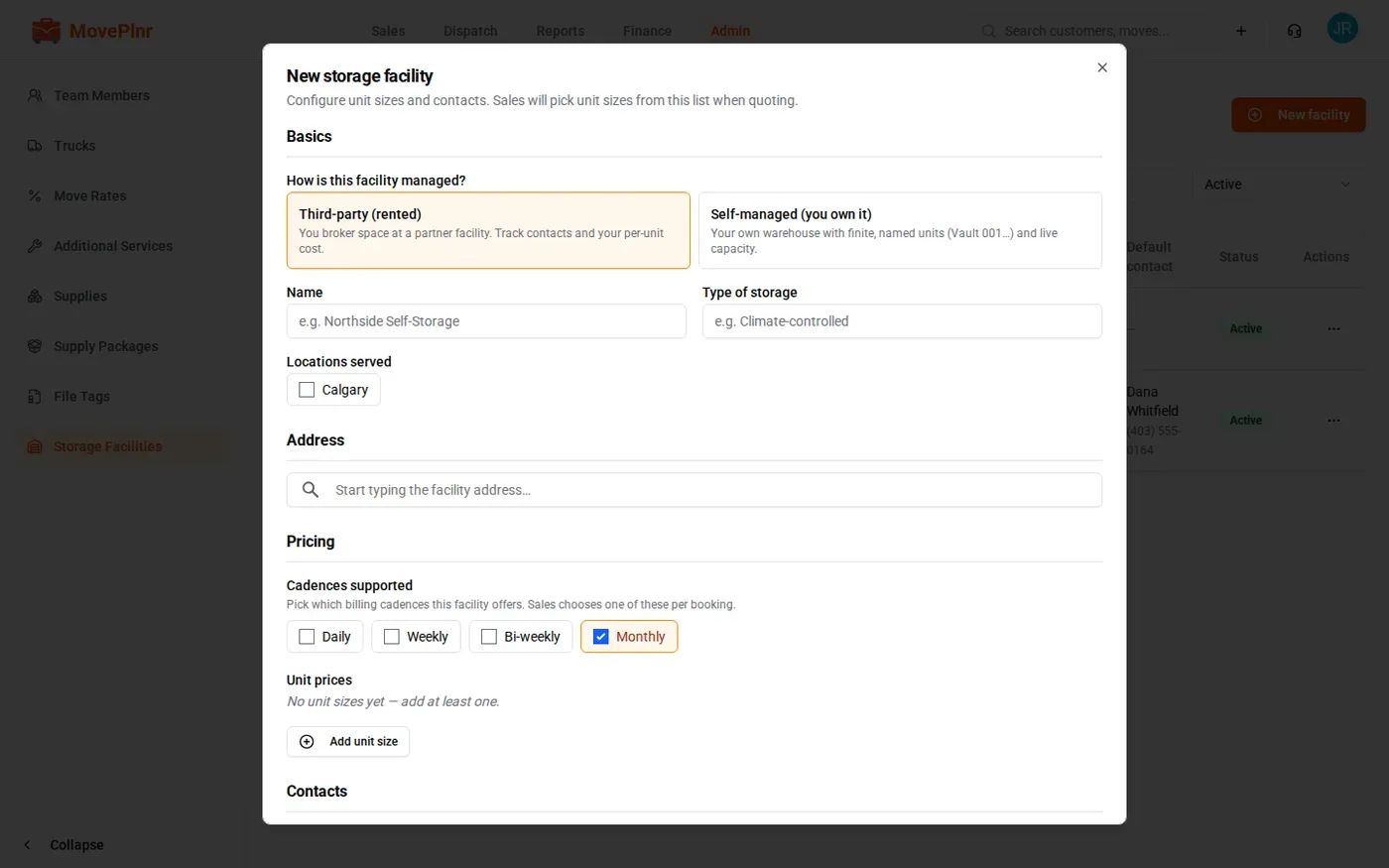
- Choose how the facility is managed:
- Third-party (rented): you rent space at a partner facility. You add its contacts and what each unit costs you.
- Self-managed (you own it): your own warehouse, with named units such as vaults and live capacity.
- Give it a name and a type of storage, tick the locations it serves, and enter the address.
- Under Cadences supported, tick how often customers can be billed: daily, weekly, every two weeks or monthly.
- Click Add unit size for each size you rent, with its default price and the lowest price sales may quote.
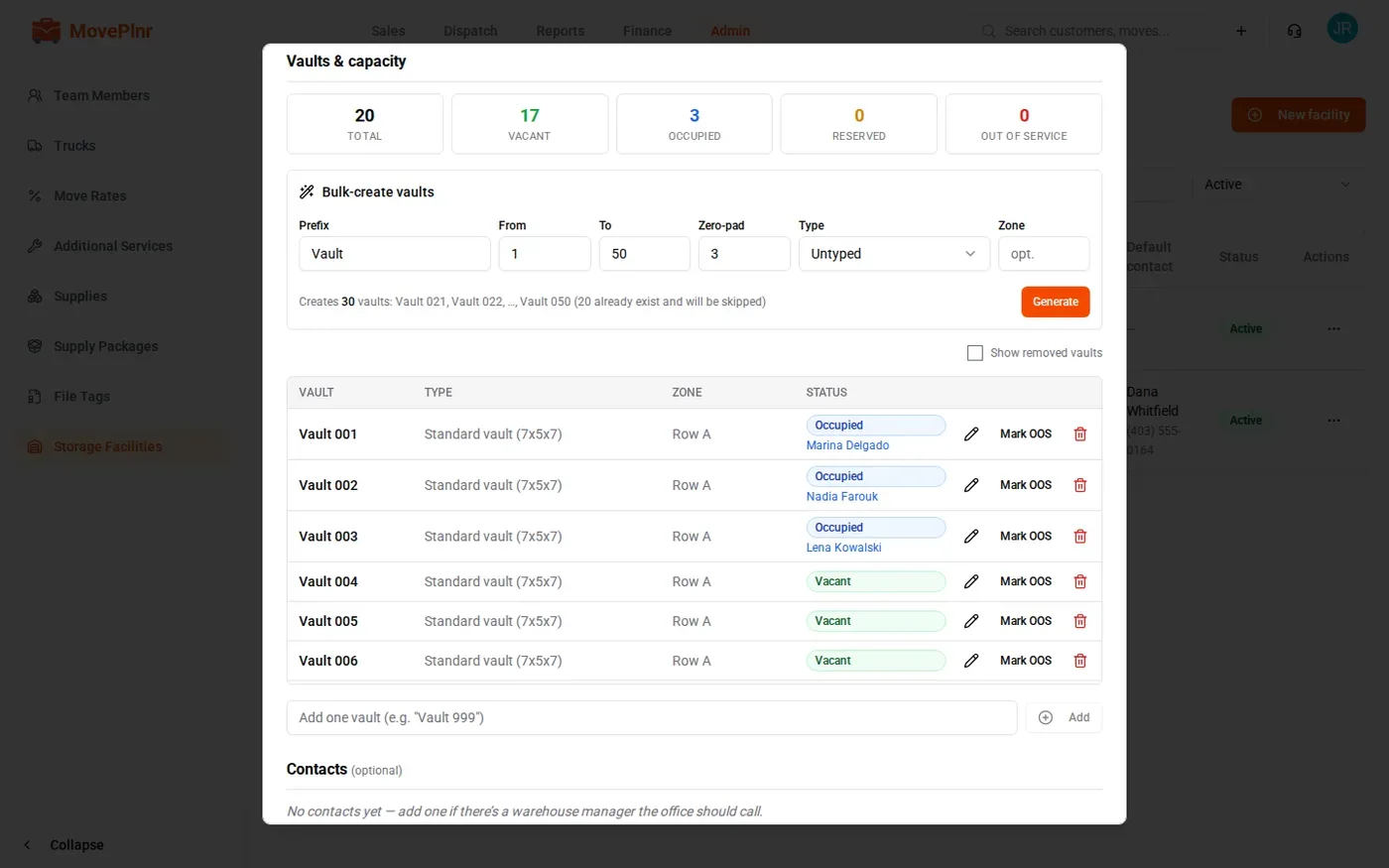
For a warehouse you own, the facility also holds its units. Use Bulk-create vaults to make a numbered run of them at once, with a size and a zone, and Mark OOS to take one out of service. The counts at the top show how many are vacant, occupied, reserved and out of service.
Quote storage on a move
You quote storage from the opportunity, beside the move itself.
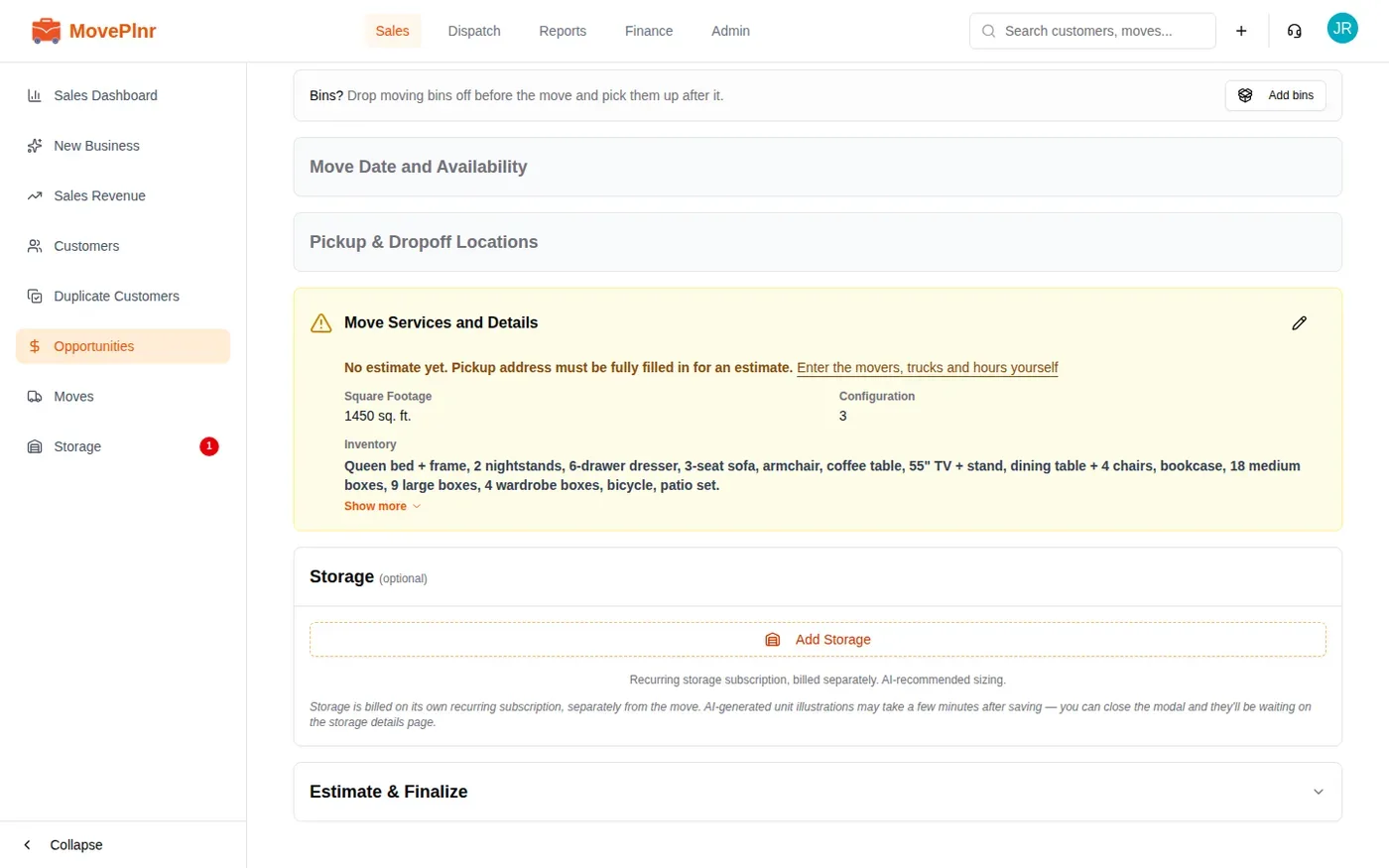
- Open the opportunity and fill in Move Services and Details first: square footage, rooms and inventory. Add Storage stays off until they are there, because they drive the suggested unit sizes.
- Open the Storage section and click Add Storage.
- Pick a facility. For your own warehouse, the form shows how many units are free.
- Choose Everything from the move, or the partial option and list just the items going to storage.
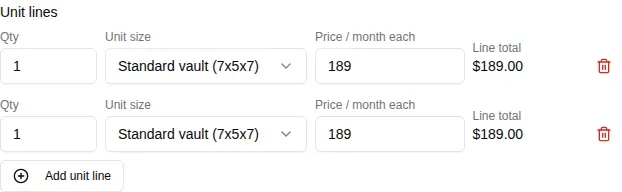
- Pick the billing cadence, then check the unit lines. MovePlnr suggests sizes from the inventory; change the quantity, size or price as you need. A price below the facility’s lowest price is flagged.
- Set the expected duration, a description the customer sees, and internal sales notes. Turn on Collect sales tax if the storage is taxed.
- Click Save storage quote.
Billing starts on the day of the move. After you save, MovePlnr draws a picture of the recommended units for the customer. It can take a few minutes, and it waits for you on the booking’s page.
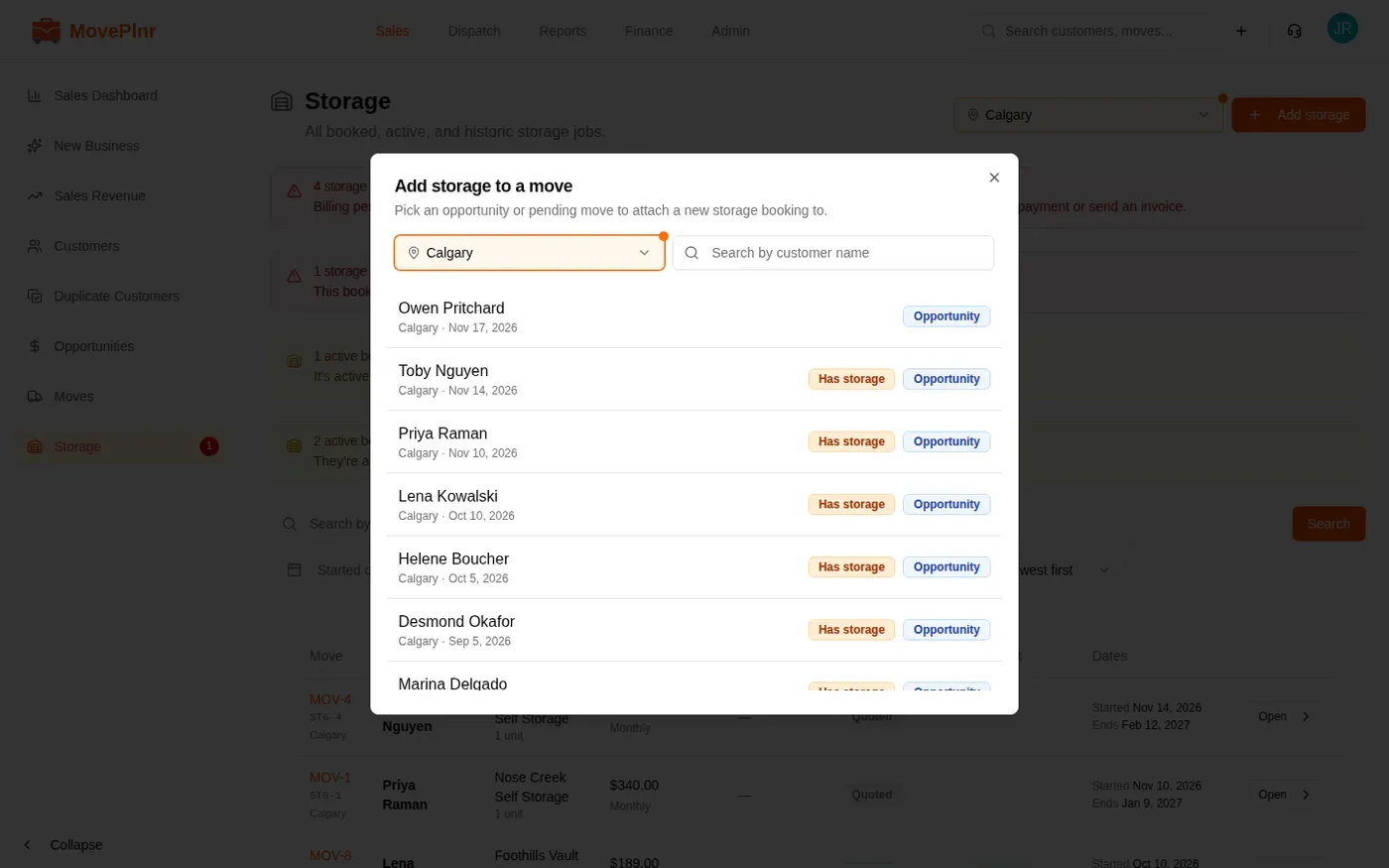
Find a booking
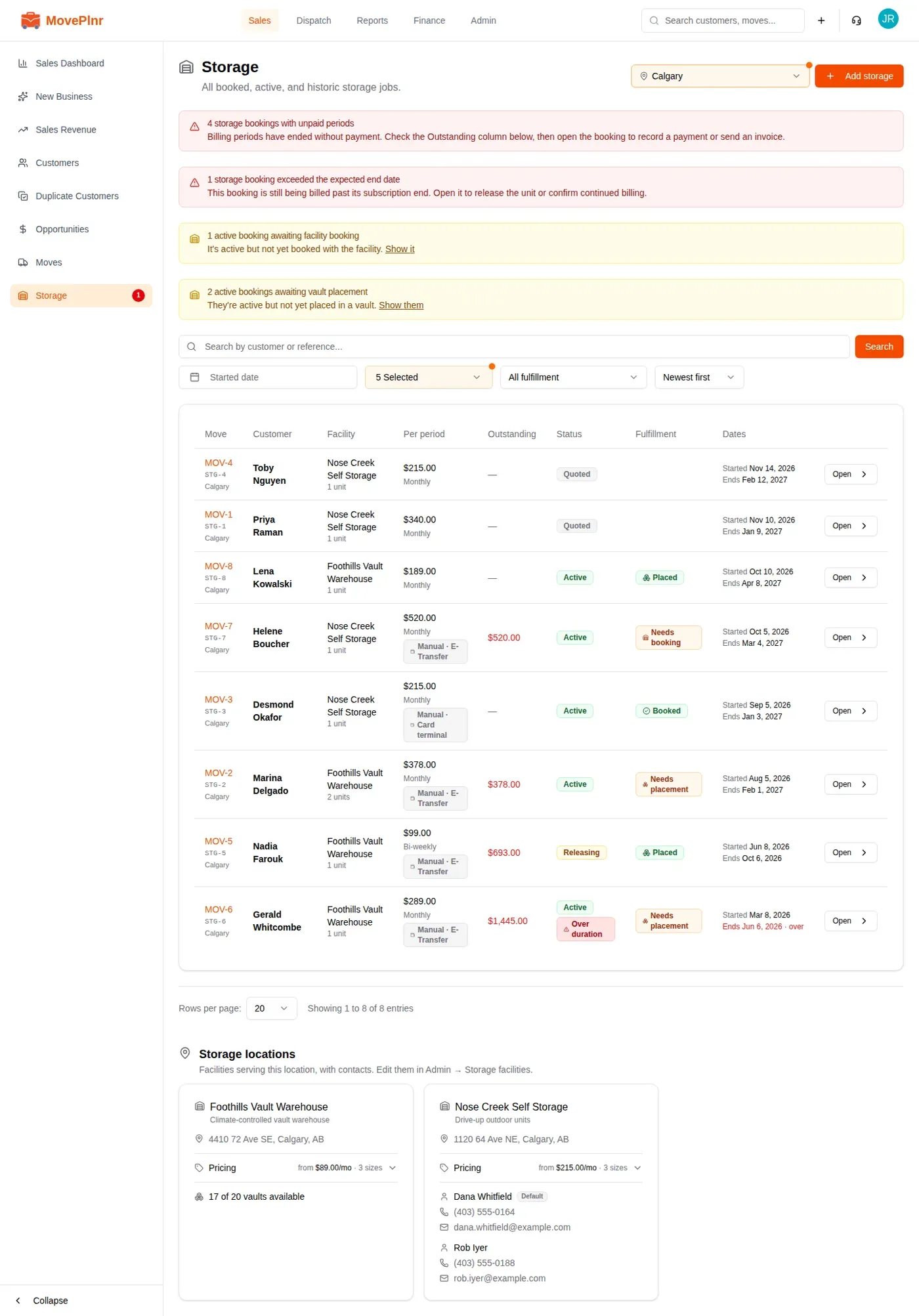
The Storage page lists every booking for the location: the facility, the price per period, what is outstanding, its status, whether it is booked or placed, and its dates.
The banners at the top are your to-do list. They count bookings with unpaid periods, bookings past their expected end, bookings not yet reserved with a third-party facility and bookings not yet placed in a vault. Show them filters the list to just those. Below the list, Storage locations shows each facility with its prices and contacts.
Activate the booking
A saved quote is Quoted. Nothing is charged until you activate it.
- Open the booking and click Activate storage.
- Pick how the customer pays.
- A card through MovePlnr, when your location takes cards: the booking bills the card every period by itself. You can also send the customer a payment link.
- Any other method your location uses, like e-transfer or a card terminal: the booking is billed outside MovePlnr, and you record each payment as it comes in.
- Confirm. The booking turns Active.
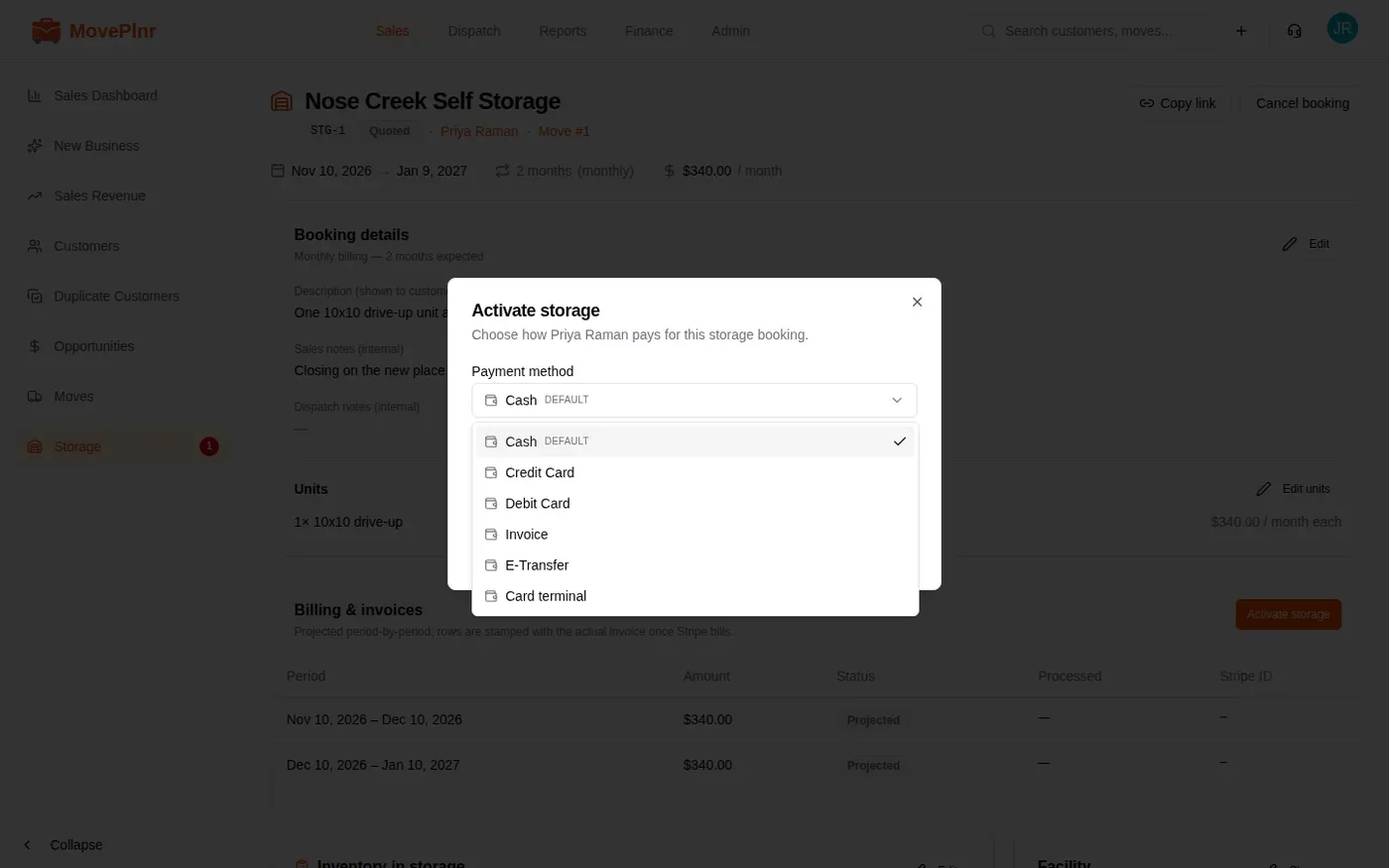
If the customer changes their mind before you activate, Cancel booking removes the quote. Nobody is charged.
Collect what is owed
The top of a booking says everything at once: its status, the balance due, whether it is placed, the dates, the price per period and the move it came from.
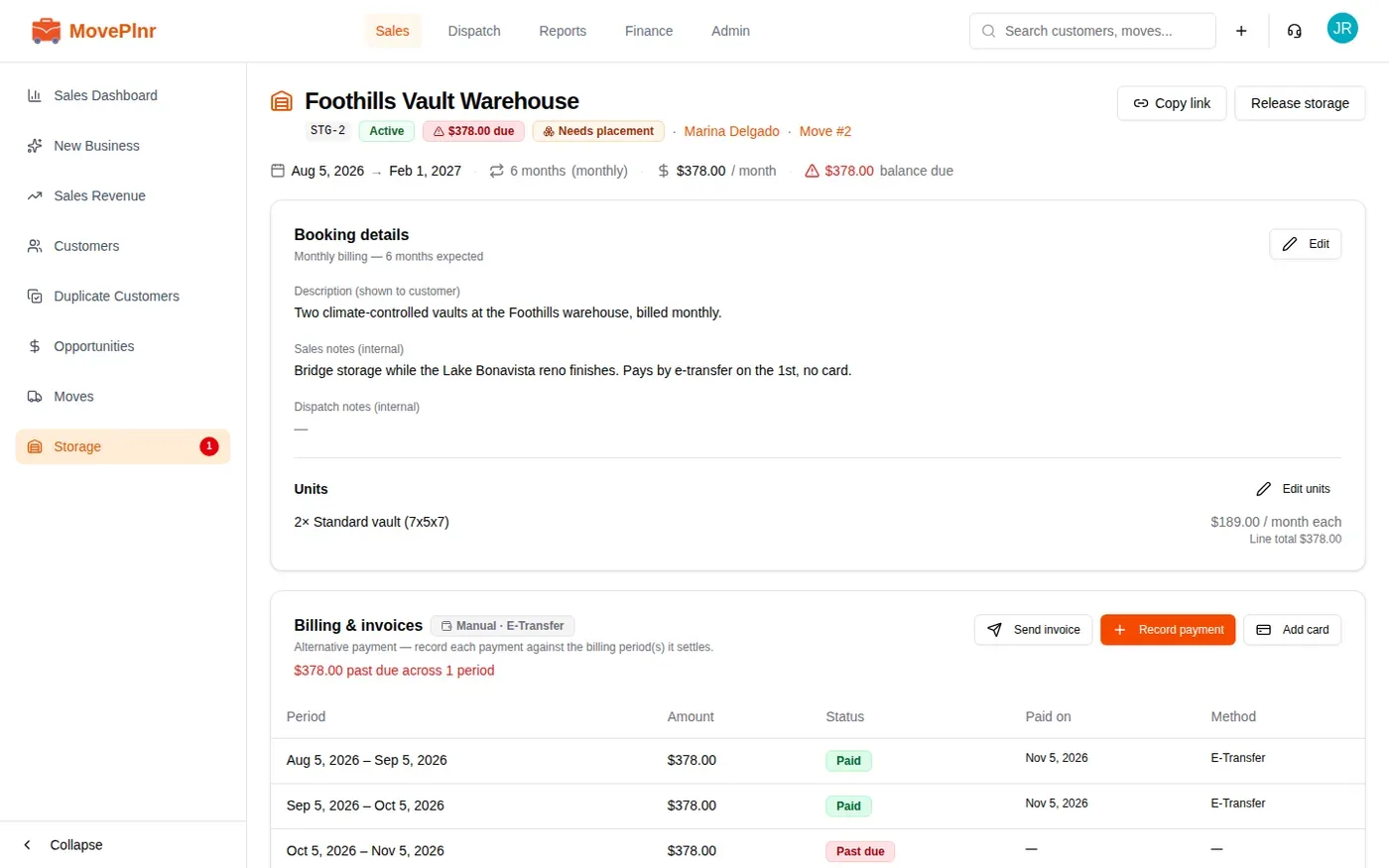
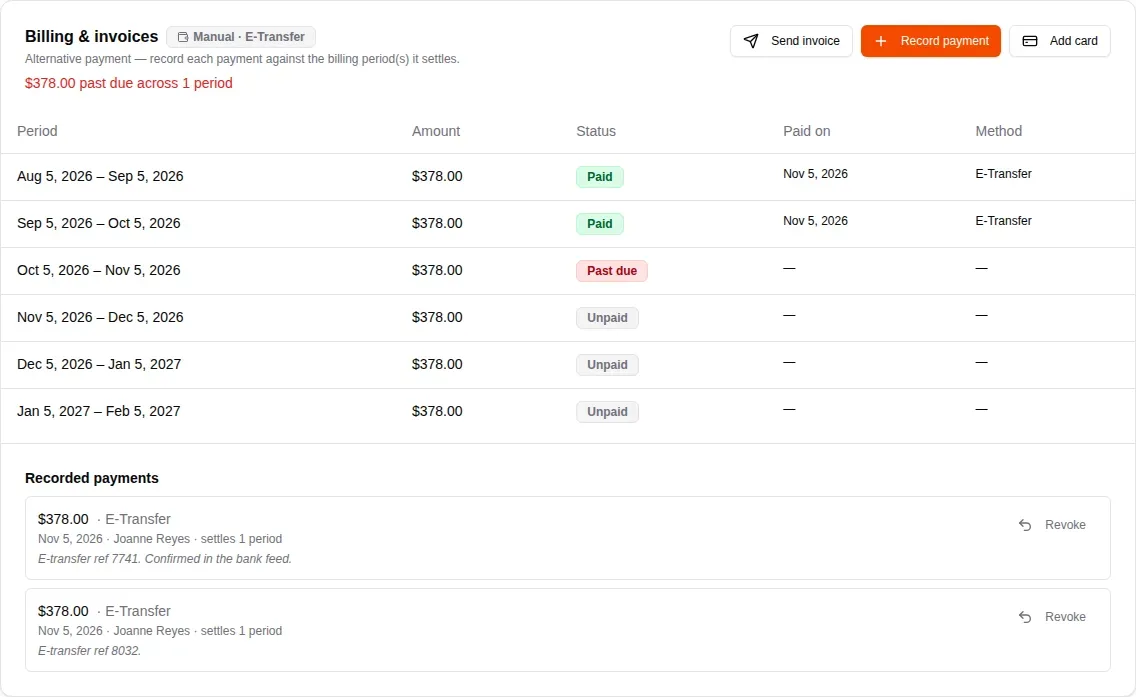
Billing & invoices lists every period with its amount and status: Paid, Past due or Unpaid for a period still to come. On a booking billed to a card, the period waiting for its charge reads Next charge and the date. Below it, Recorded payments shows who recorded each payment and when, with its note.
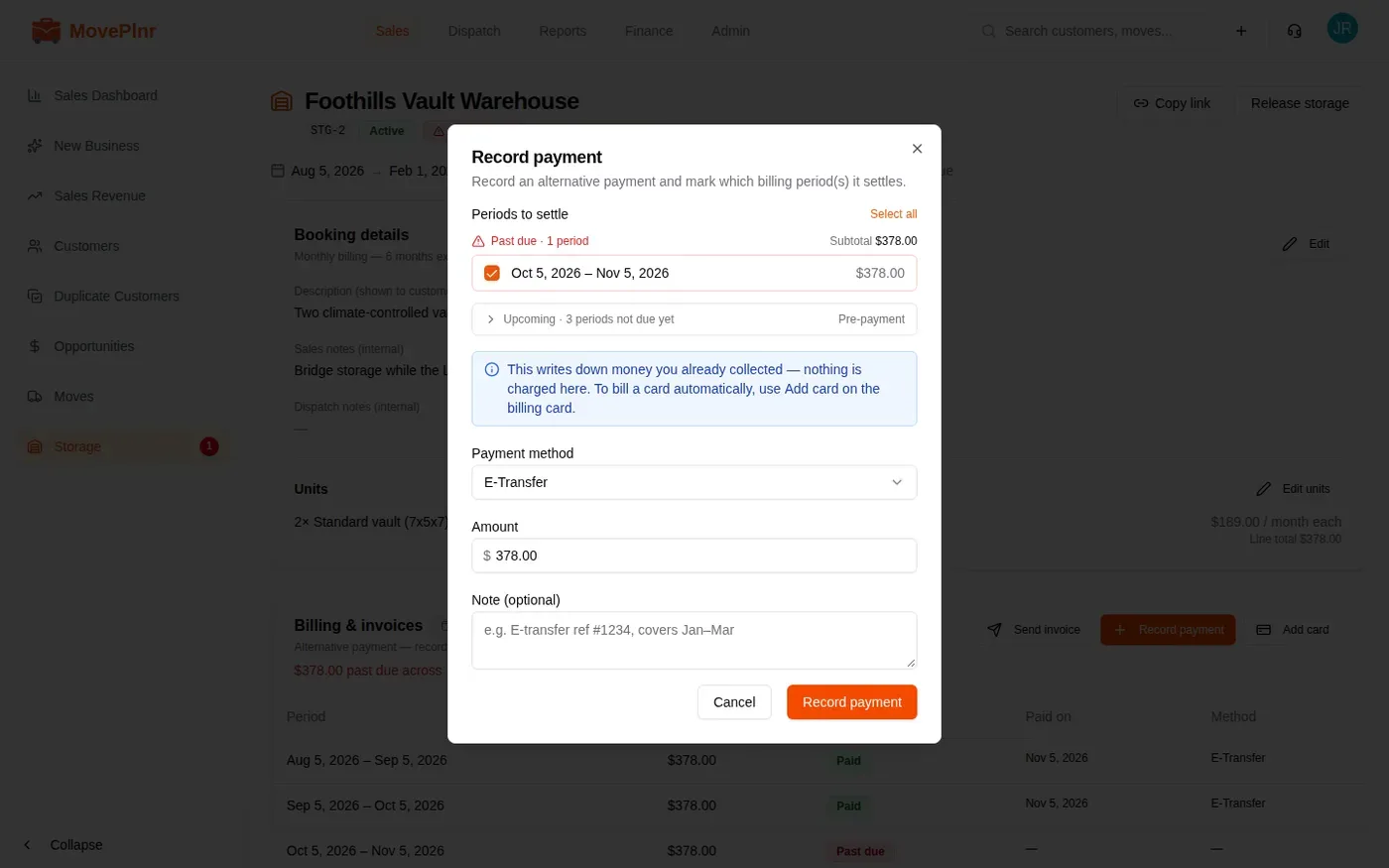
Record a payment
- Click Record payment.
- Tick the periods it settles. Past-due periods come first. Open Upcoming to take a payment in advance.
- Pick the payment method, check the amount and add a note, like the e-transfer reference.
- Click Record payment.
Recording a payment writes down money you already collected. It never charges anyone. To bill a card automatically, use Add card on the billing card. A payment recorded by mistake can be taken back with Revoke.
Send an invoice
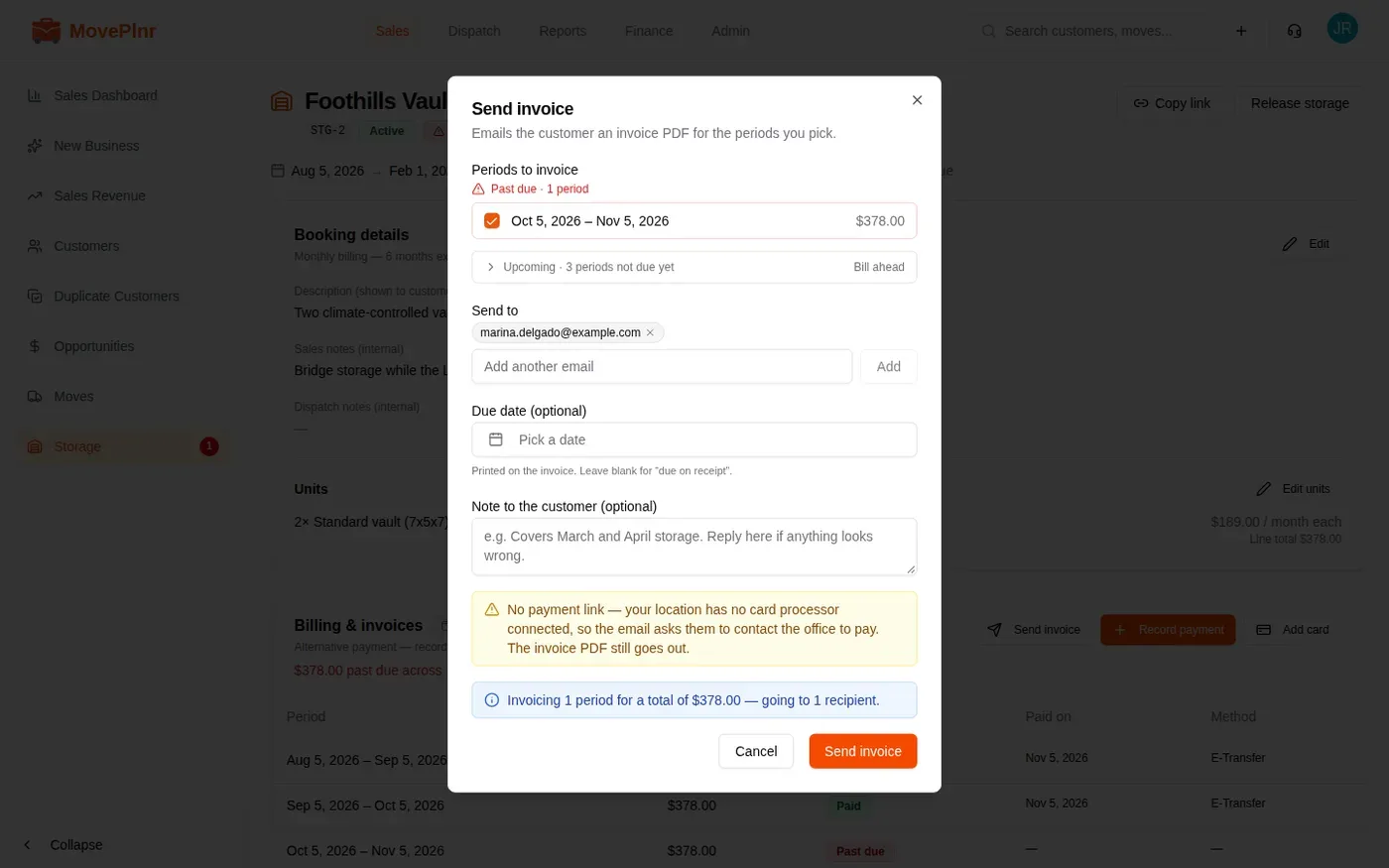
Click Send invoice, tick the periods to bill, check who it goes to, and add a due date and a note if you like. The customer gets the invoice as a PDF. When your location takes cards through MovePlnr, the email carries a link to pay; otherwise it asks them to contact the office.
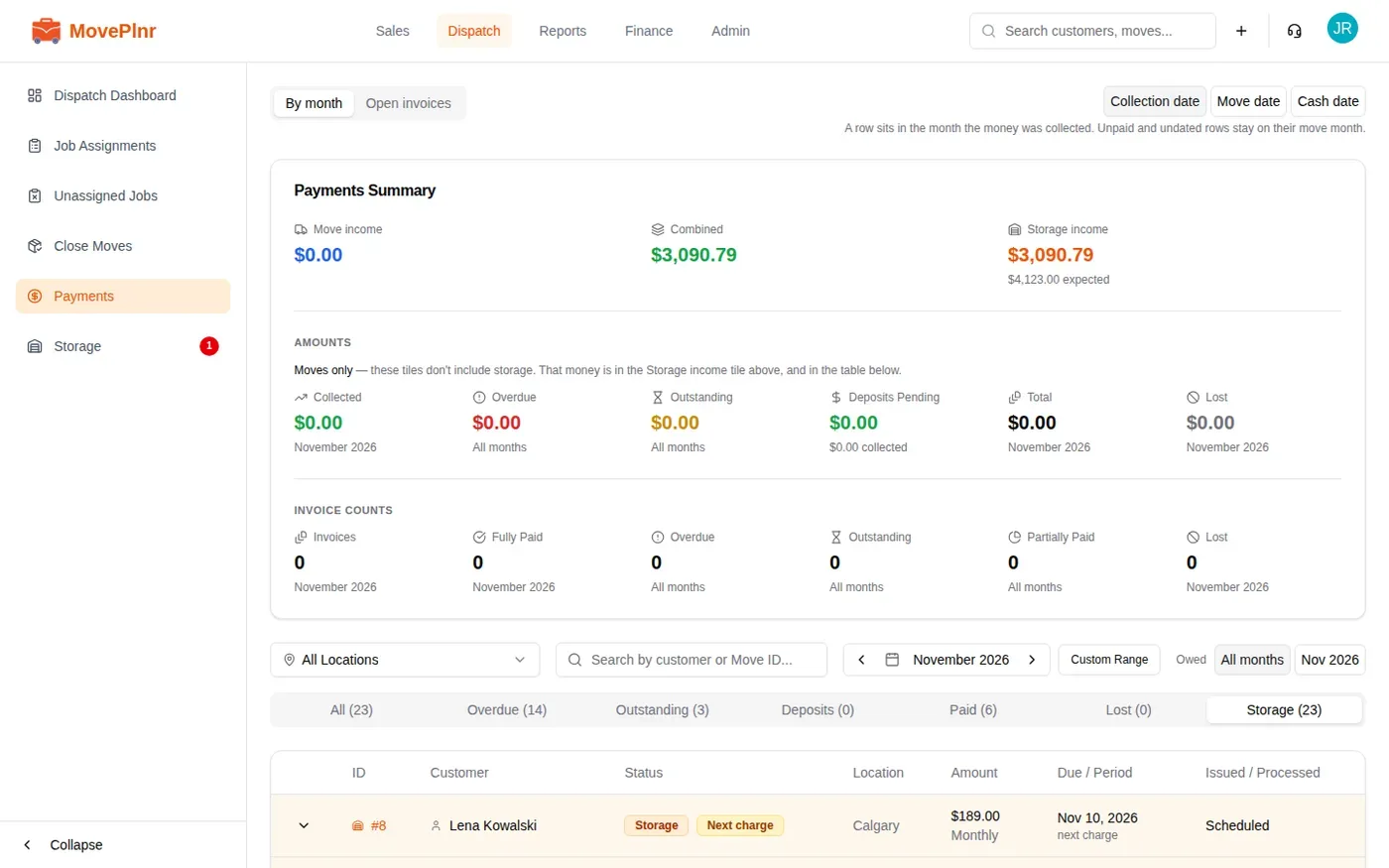
Unpaid storage also shows on Payments. Its Storage tab lists every storage period with its status, and Storage income sits beside move income at the top.
Record a payment on a card-billed booking
A booking billed to a card charges it through Stripe every period. Stripe bills on its own date, which can be a few days after the period starts, so the period it is about to charge reads Next charge with that date. That period is not late, and it stays out of the balance until the date passes with no charge. The periods after it read Projected.
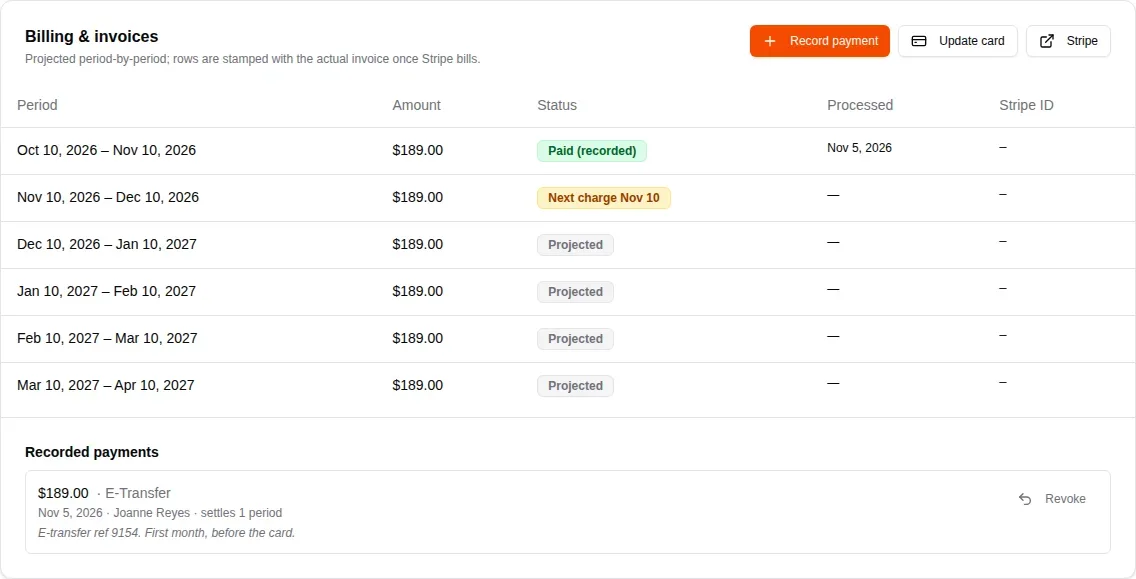
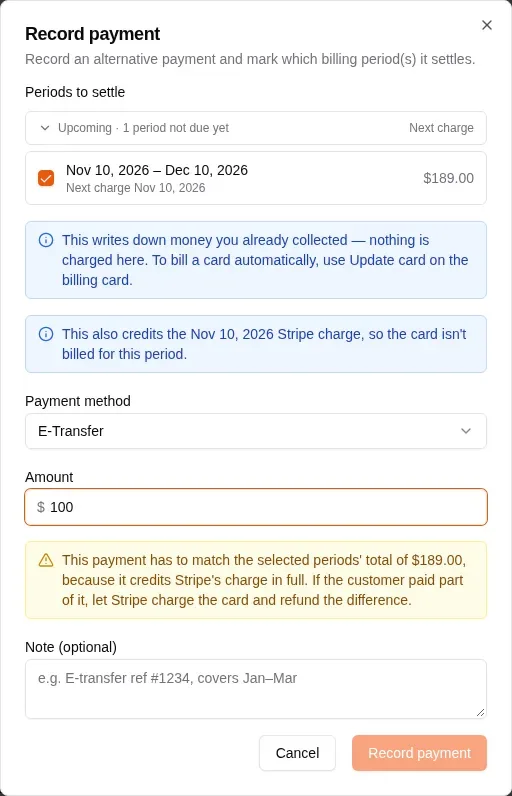
Sometimes the customer pays that period another way, like an e-transfer or the card terminal. Record it, and the card isn’t charged for it.
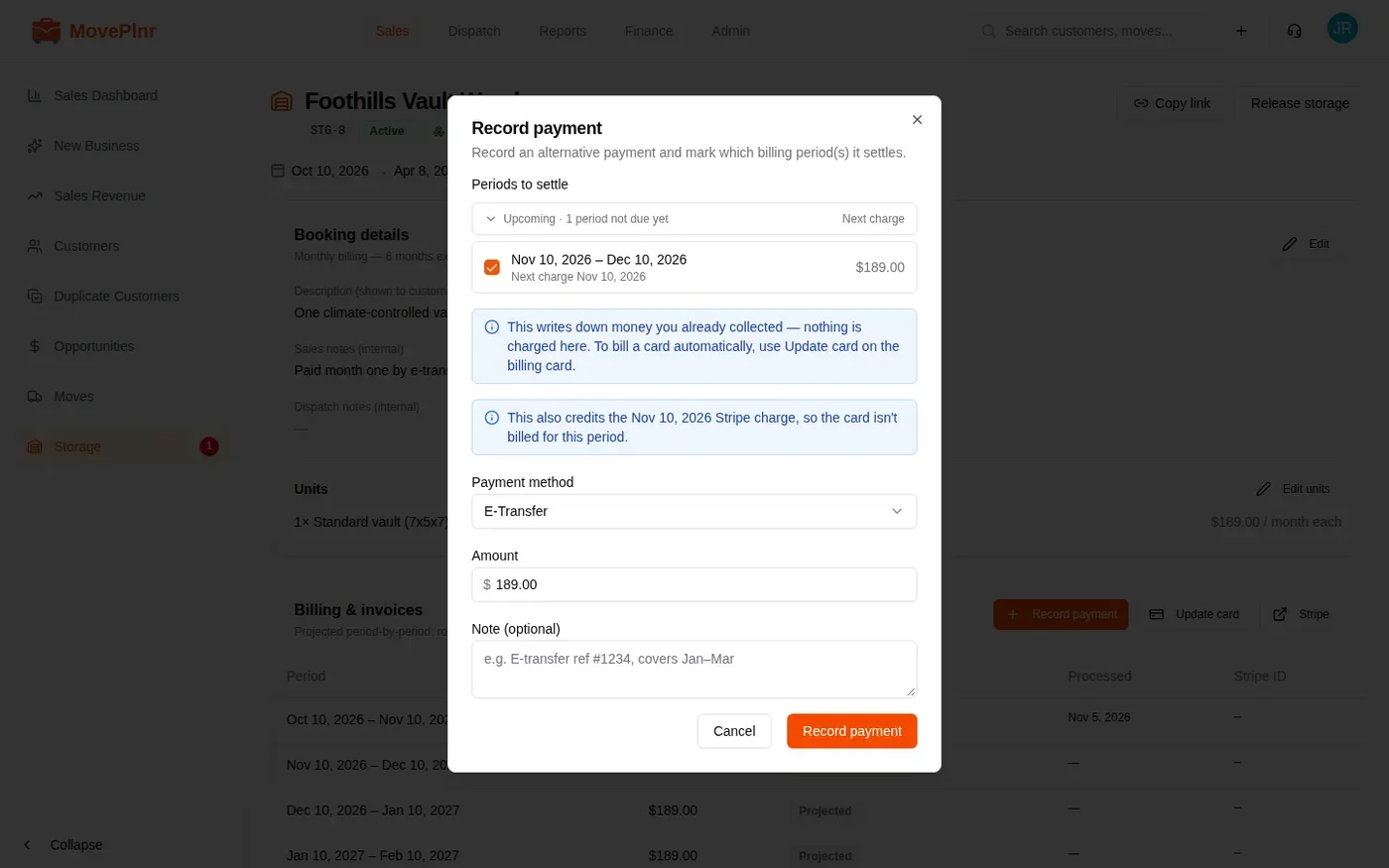
- Click Record payment. The period that reads Next charge is already ticked.
- Pick the payment method and add a note, like the e-transfer reference. Leave the amount at the period’s full price.
- Click Record payment.
Recording that period credits the Stripe charge, so the renewal comes to $0 and the card isn’t billed for it. Under Recorded payments, the payment is marked as credited on Stripe.
It works for whole periods, and for the next charge only:
- The payment has to cover the whole period. A part payment is refused, because Stripe would still bill the rest. If the customer paid part of it, let Stripe charge the card and refund the difference.
- A later period waits until it is the next charge. Record payment only offers the next charge and any period that is past due.
- A period Stripe has already billed is collected by hand. When a charge fails, use Record payment on that period’s row instead: it closes the invoice on Stripe, so the card stops being retried.
To change the card itself, click Update card on the billing card. A credit you recorded by mistake can be taken back with Revoke, and the card is then charged for that period as usual.
Place the goods
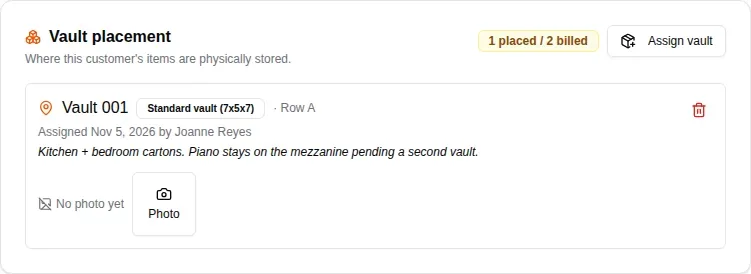
For your own warehouse, Vault placement shows which vaults hold this customer’s goods and how many are placed against how many are billed.
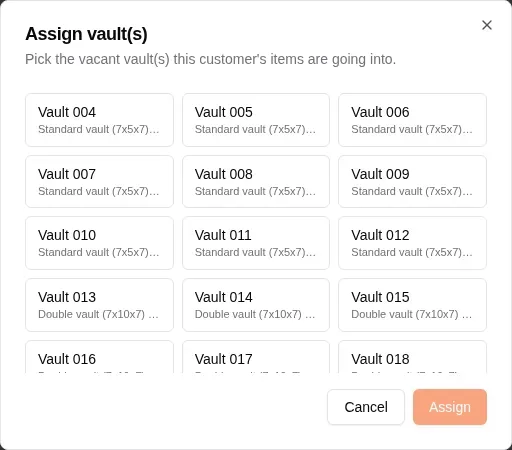
- Click Assign vault.
- Pick the vacant vaults the goods are going into, and click Assign.
- Click Photo on a placed vault to add a picture of what went in.
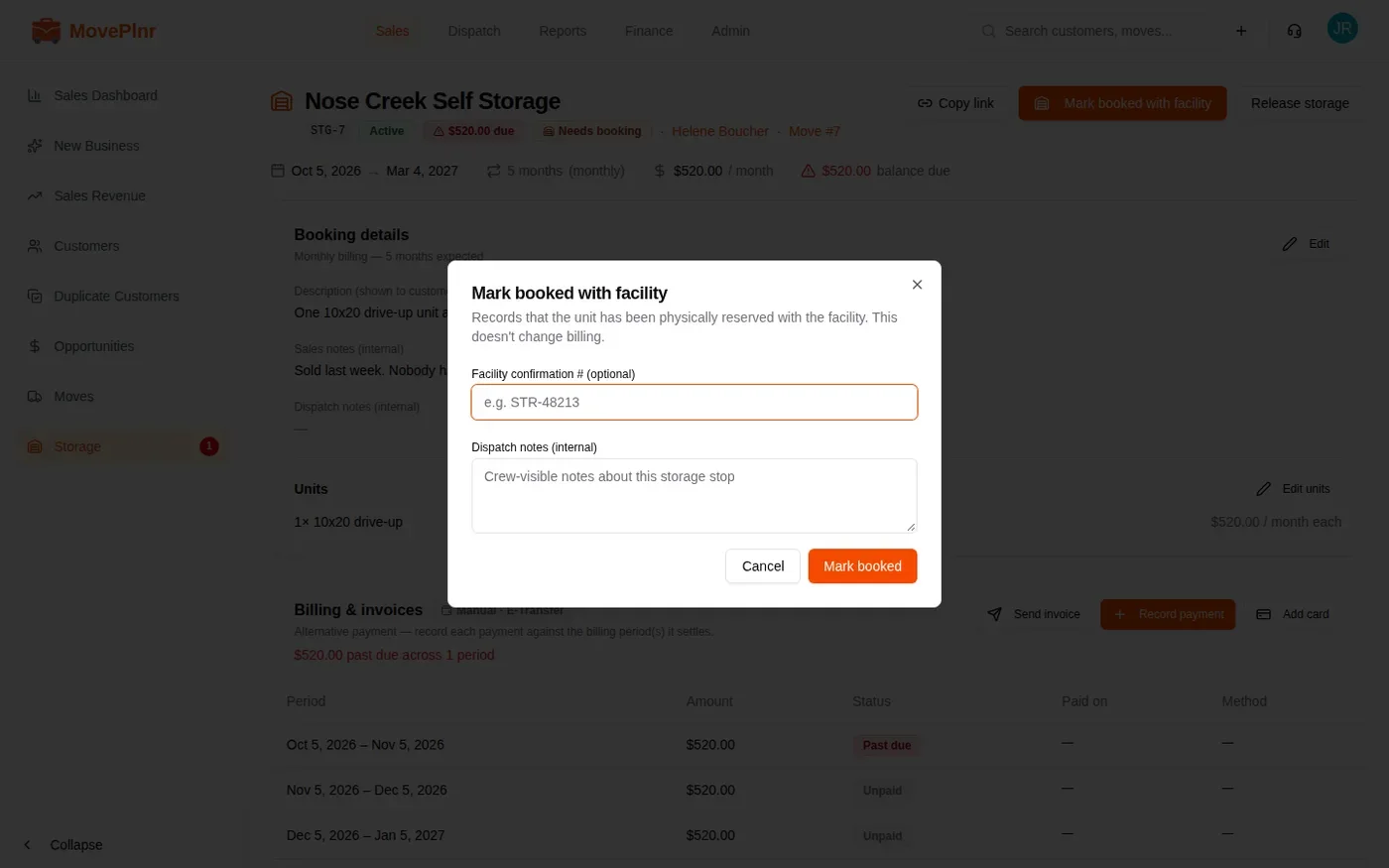
For a third-party facility, reserve the unit with them first, then click Mark booked with facility. Add their confirmation number and any notes for the crew, and click Mark booked. It records the reservation; billing does not change.
Release storage
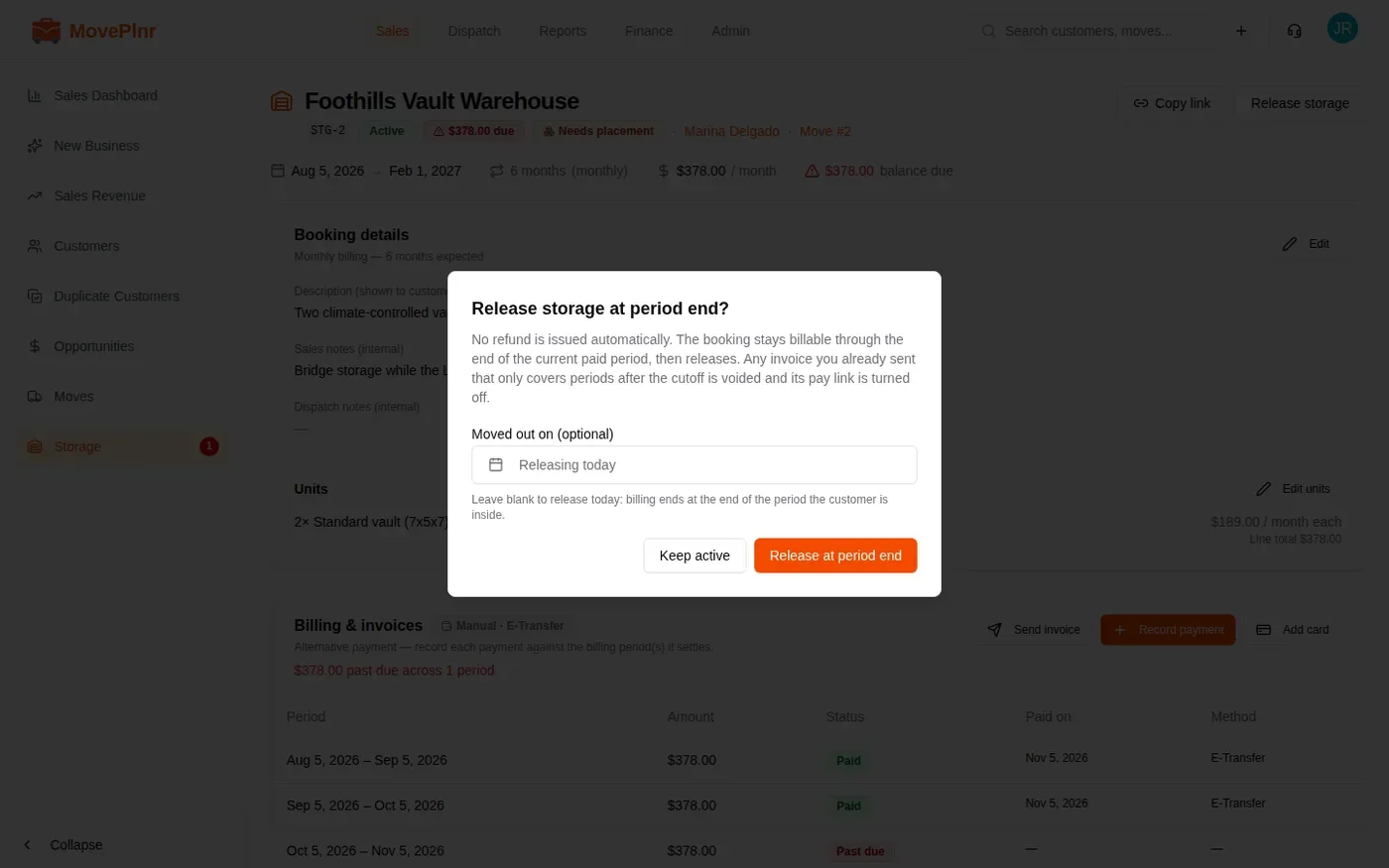
When the customer moves out, open the booking and click Release storage.
- Leave Moved out on blank to release today. Billing then ends at the end of the period the customer is in.
- If they left earlier, pick the date they moved out.
- Click Release at period end, or Keep active to back out.
No refund is issued automatically. An invoice you already sent that only covers periods after the cutoff is voided, and its payment link is turned off. The booking shows Releasing until the last period ends.