Open a pay period
Open Finance, then Process Payroll. The page opens on the current pay period. Use the arrows beside the dates to step back to the period you are paying, or Today to come back.
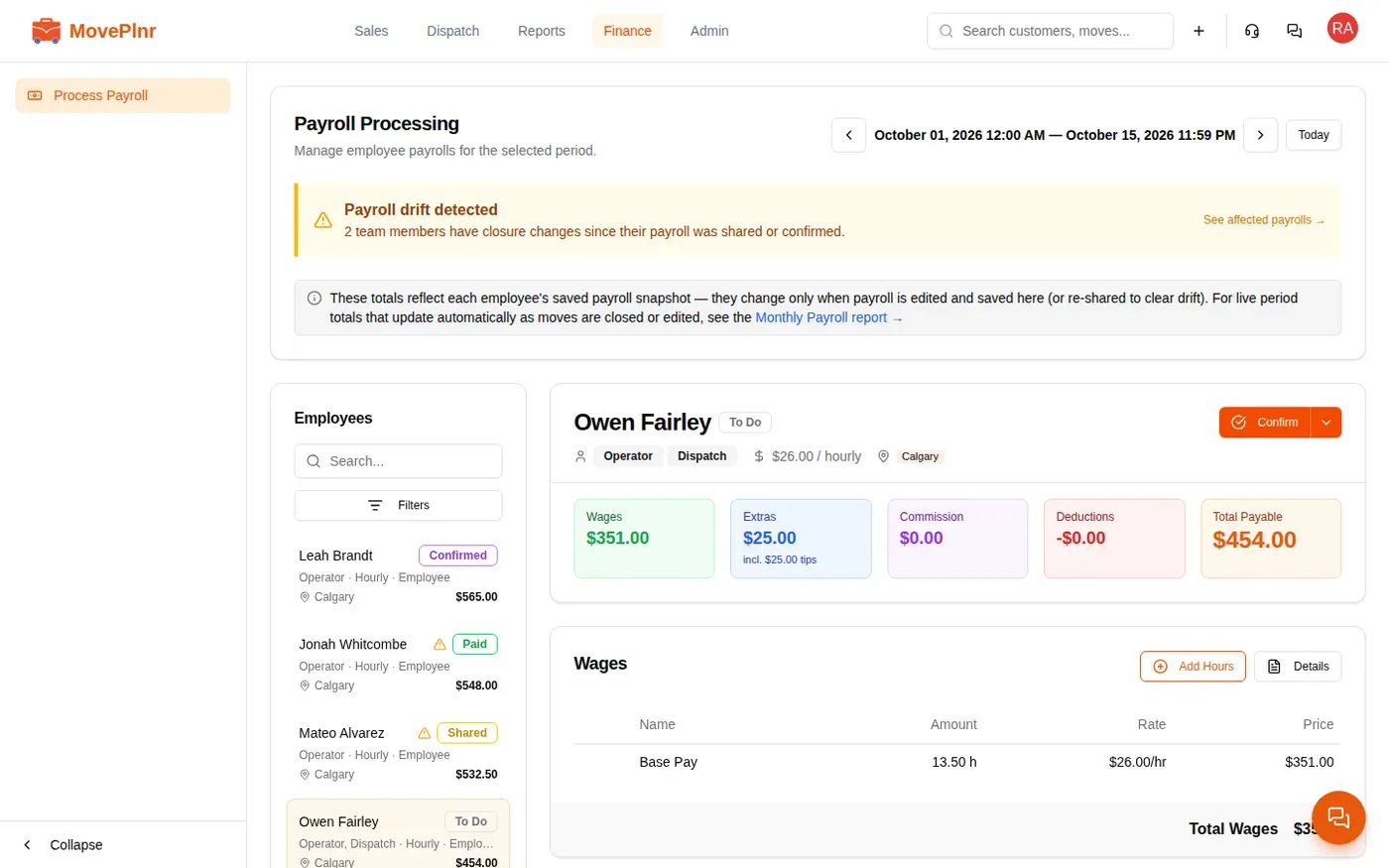
- Employees lists everyone with something to pay this period, largest total first, with their status: To Do, Saved, Shared, Confirmed or Paid.
- People with nothing to pay are hidden. Search by name to find them anyway.
- Filters narrows the list by role, status, location or employment status.
- A warning at the top flags anything that needs a look before you pay: payroll drift, missing travel time, or someone with hours and a $0 pay rate.
The totals on this page are each person’s saved payroll. For live totals that move as jobs close, use Review Payroll (below).
Check one person
Click a name. The top of their payroll adds it up: Wages, Extras, Commission, Deductions and Total Payable.
- Wages shows Base Pay: the hours from every job they closed in the period, at their pay rate. Click Details for the job by job breakdown, or Add Hours for time worked off a job.
- Extras carries tips from closed jobs, the long hours bonus when you use one, and anything you add with Add Extra.
- Deductions holds anything you take off with Add Deduction. When your company turns on strike deductions, a resolved damage claim can add one for you.
- Independent contractors registered for GST or HST get a tax line on top of their pay.
Approve reported hours
Office staff paid by the hour can report time that no job recorded, such as a shift in the warehouse or a late finish. Your company needs the Report Hours add-on.
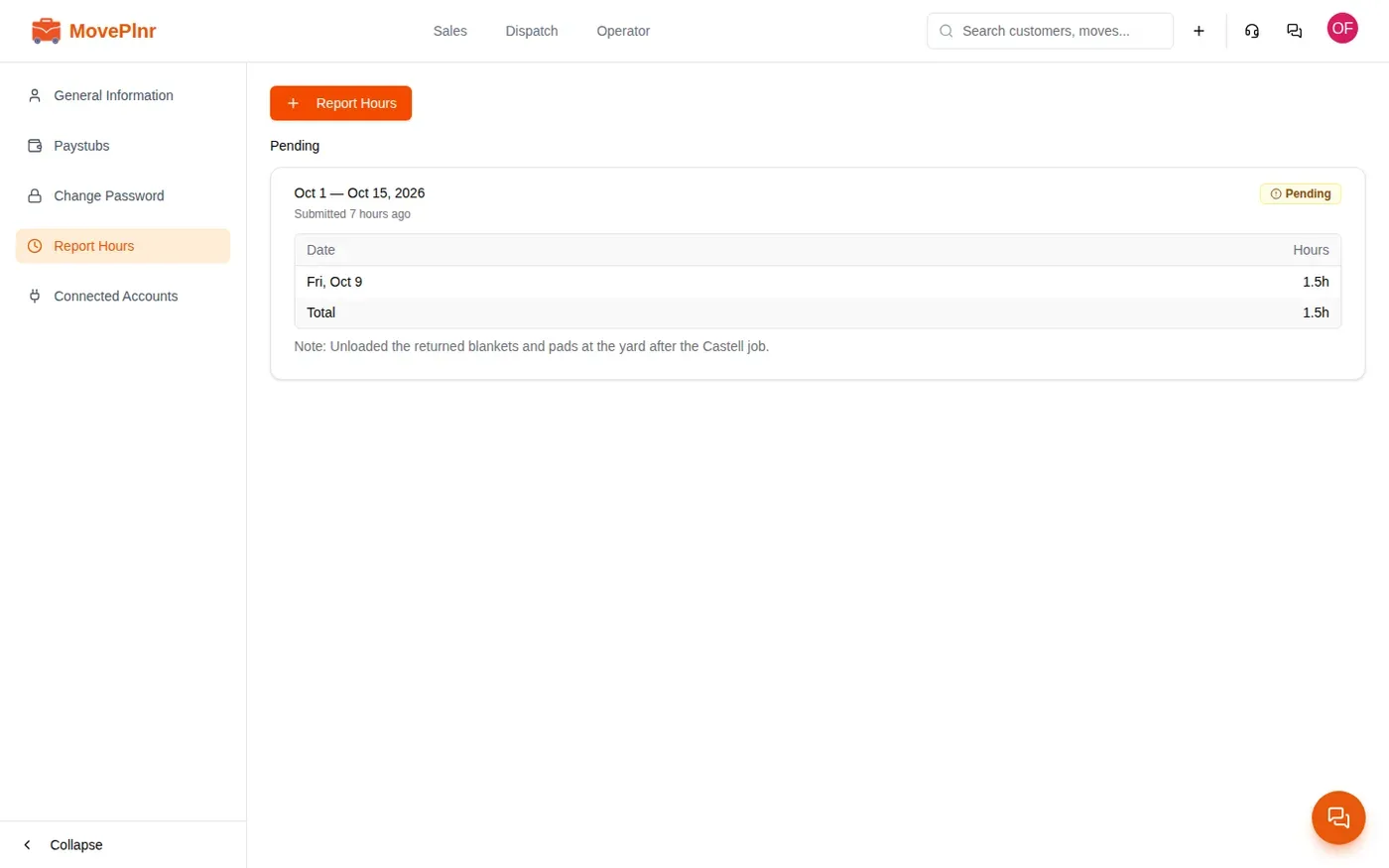
- The employee opens their profile and clicks Report Hours.
- They pick the pay period, add each day and the hours, and write a note.
- The claim waits as Pending on their side, and you get a notification.
On Process Payroll, their payroll shows a Reported Hours card. Check the days and the note. To approve fewer hours than asked, type the number in the adjust box. Add a review note if you like, then click Approve or Decline.
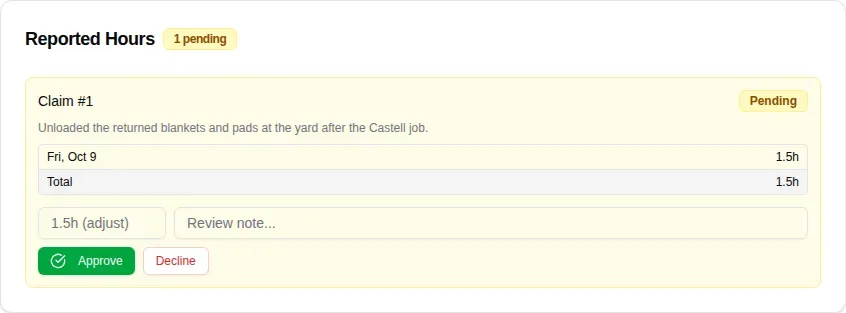
Approved hours are added to their wages for the period. Approve claims before you confirm the payroll.
Stat holiday pay
Each branch keeps its own stat holidays. Open the location settings and choose Holidays & Blocked Days. The official list comes from the province or state in the branch’s address.
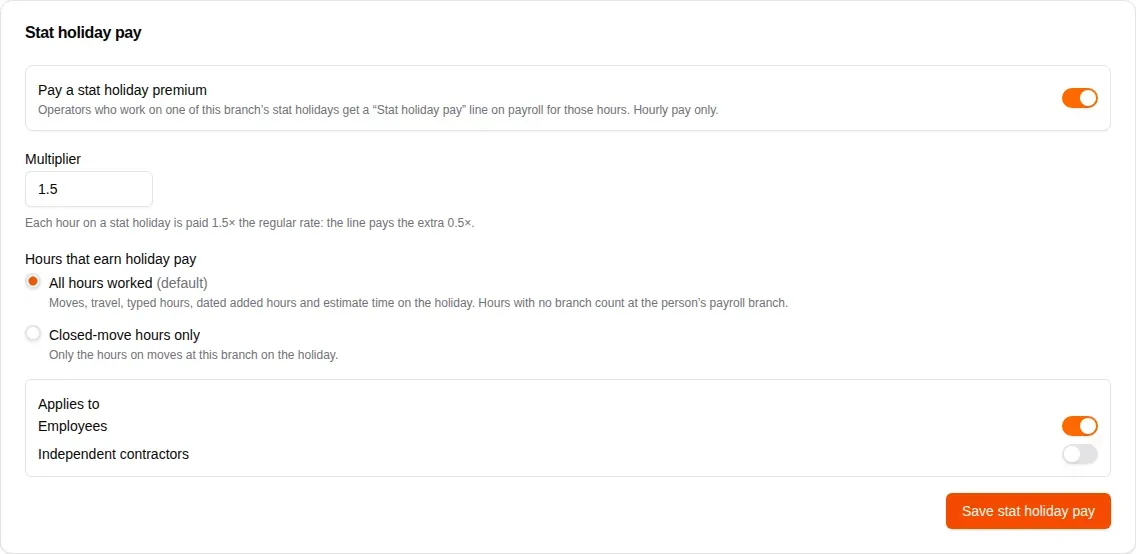
To pay extra for work on those days, turn on Pay a stat holiday premium in the Stat holiday pay card.
- Enter the Multiplier, for example 1.5 for time and a half.
- Under Hours that earn holiday pay, choose All hours worked or Closed-move hours only.
- Under Applies to, choose employees, independent contractors or both.
- Click Save stat holiday pay.
In the list of days, Add overtime pay decides whether a holiday earns the premium, and Block day stops new bookings on it. Use Add a day for a holiday of your own.
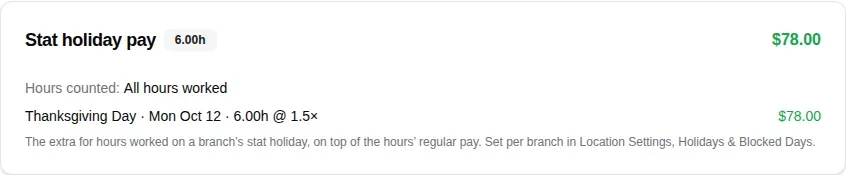
Anyone who works on one of those days then gets a Stat holiday pay card on their payroll: the holiday, the hours, and the extra over their regular rate. It is for hourly pay only.
Share, confirm and pay
Every payroll moves through the same steps. The main button does the next one, and the arrow beside it holds the rest.
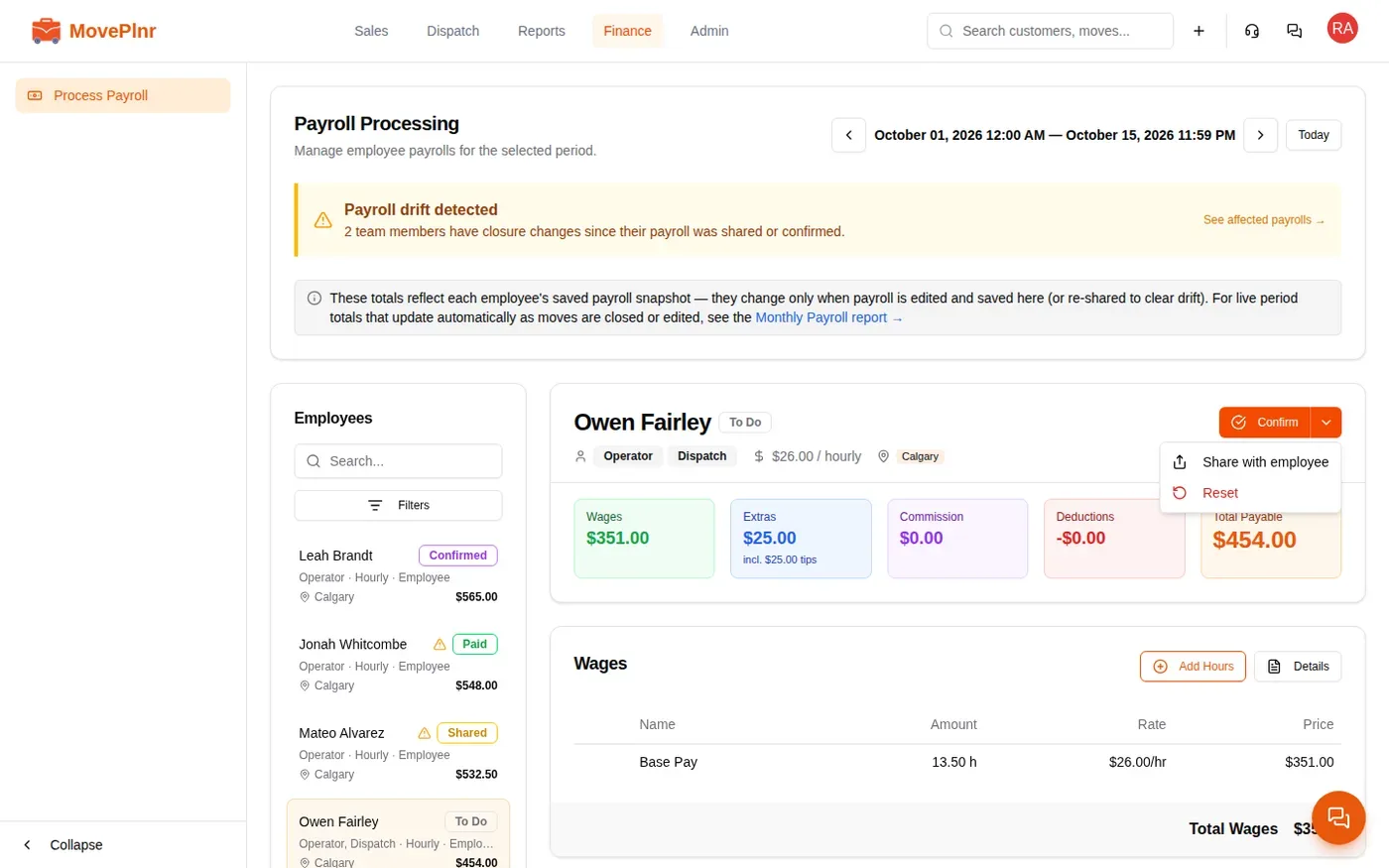
- Share with employee sends the payroll to the employee to review before you confirm it. It shows as Shared.
- Confirm locks in the figures. It shows as Confirmed.
- Reset throws away the saved payroll and rebuilds it from the jobs.
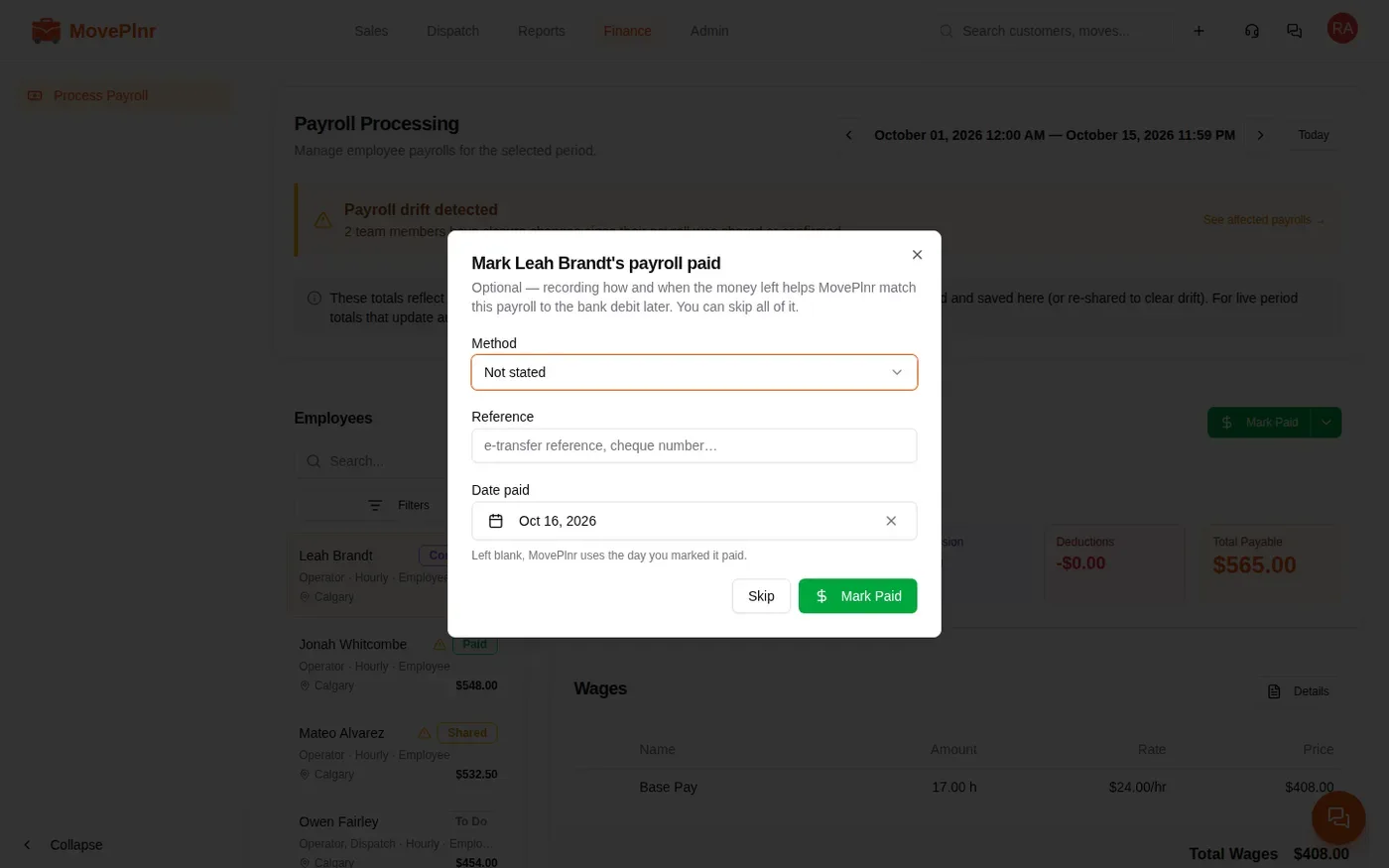
- Mark Paid records that the money went out. You can add the Method, a Reference and the Date paid, or click Skip.
The payroll shows who confirmed it and who marked it paid, and when.
When a job changes after payroll
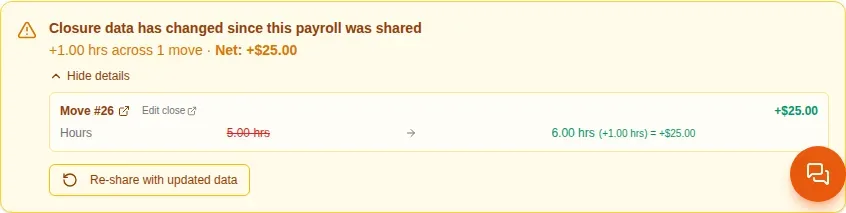
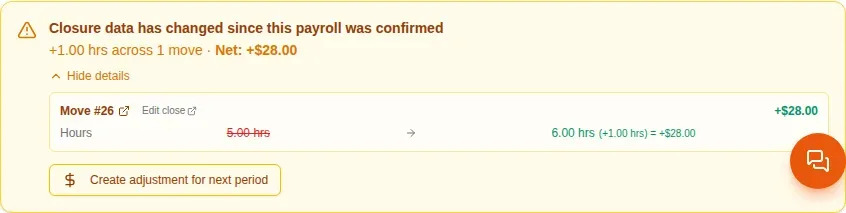
Sometimes a closed job is edited after its payroll was shared or confirmed: more hours, a new tip. MovePlnr compares every shared, confirmed and paid payroll with the jobs behind it. When they disagree, the page shows Payroll drift detected, the person gets a warning icon in the list, and their payroll explains what changed.
Click See details to see each job that changed, the old and new figures, and what it is worth. Edit close opens the job’s close screen.
How you fix it depends on where the payroll is:
- Shared: click Re-share with updated data. The payroll takes the new figures and goes back to the employee. Anything you added by hand stays.
- Confirmed: the same button reads Unconfirm & re-share with updated data.
- Paid: the money has already gone out, so click Create adjustment for next period. The difference lands on the person’s next payroll as an adjustment.
Unconfirm a payroll
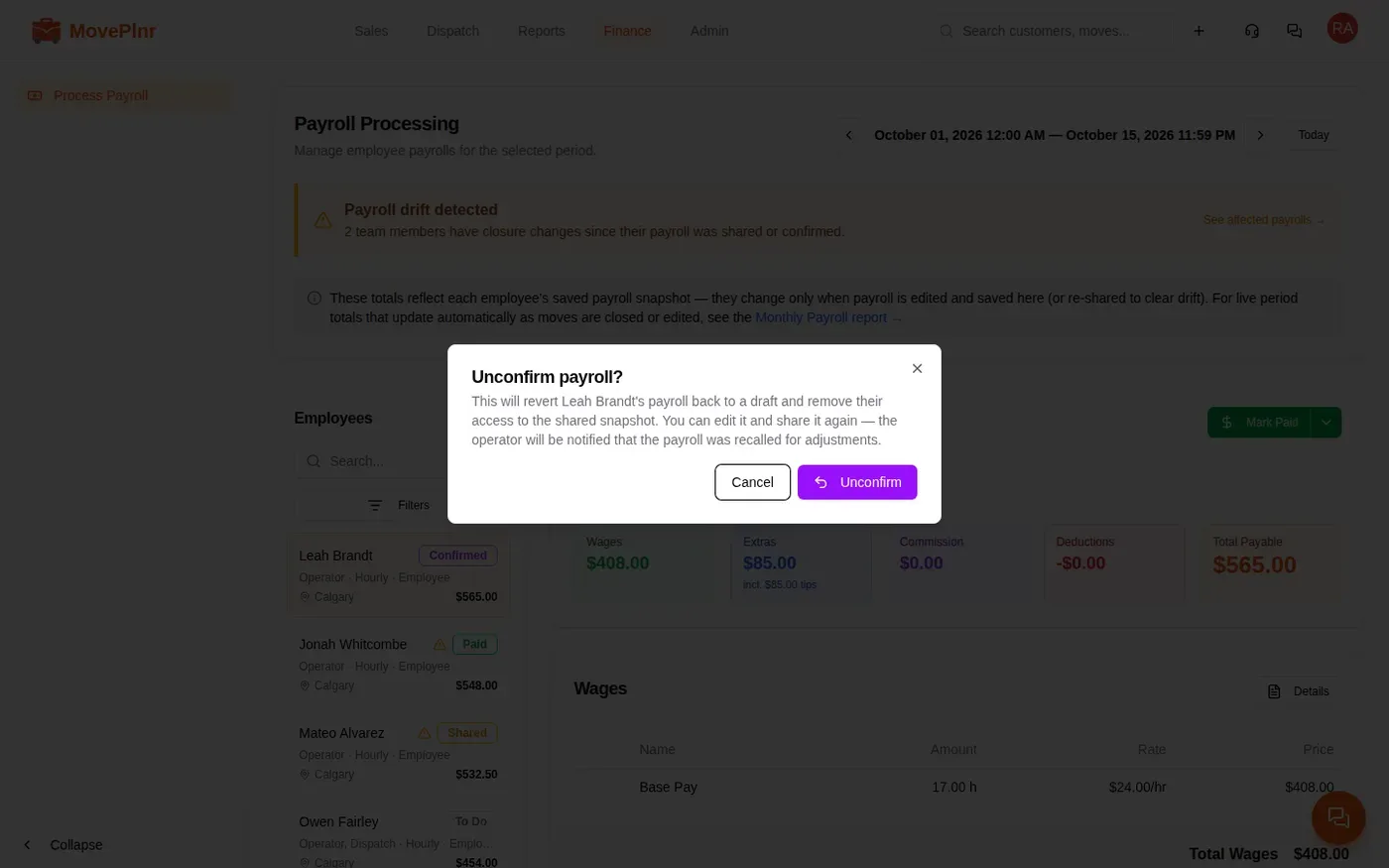
Need to change a payroll you already confirmed? Click the arrow beside Mark Paid, choose Unconfirm, and confirm in the window. The payroll goes back to being editable, and the employee no longer sees it until you share it again.
Payroll settings
Company-wide rules live in Payroll Settings, under the company settings.
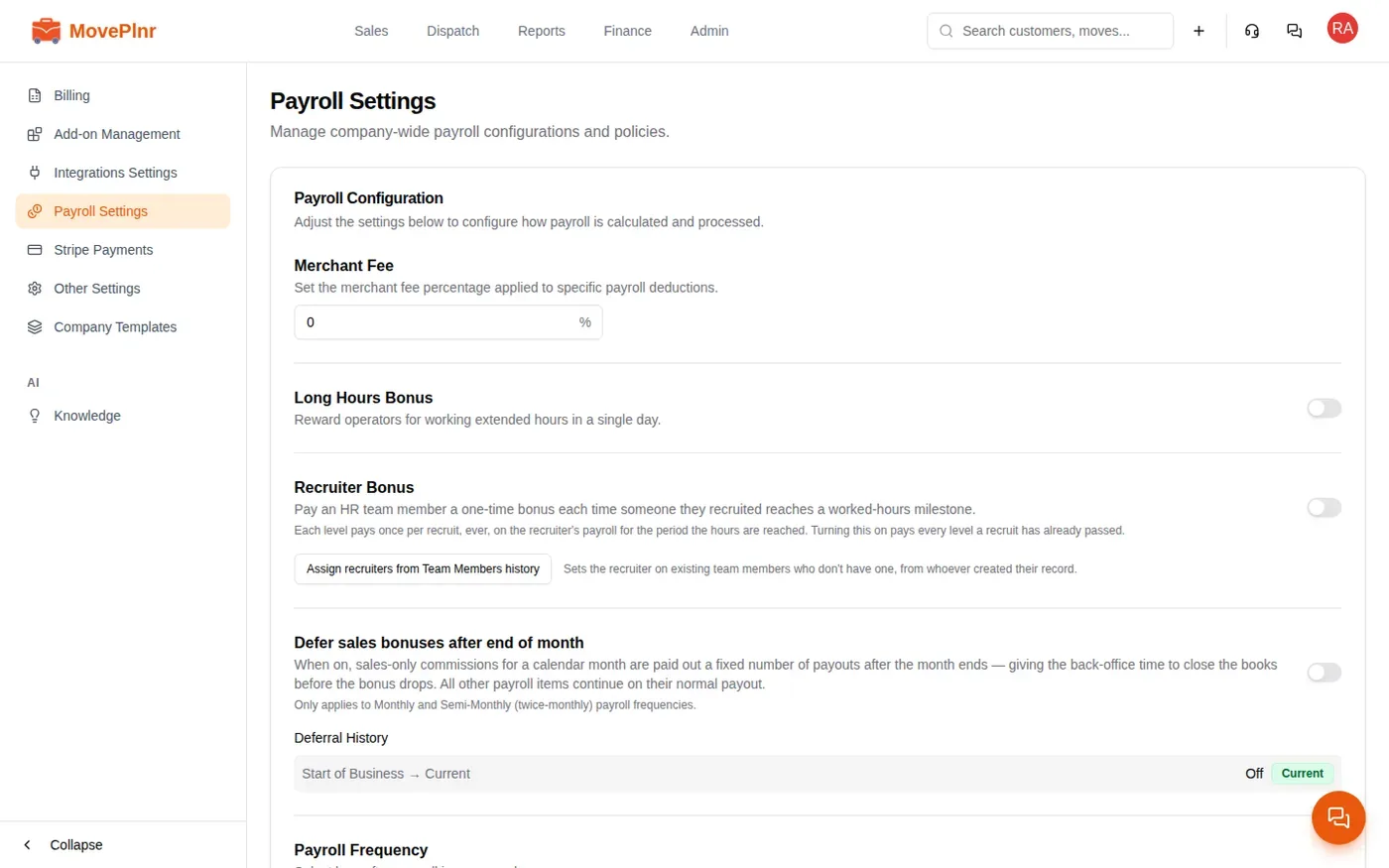
- Payroll Frequency sets the pay period: daily, weekly, semi-monthly, monthly or bi-weekly. A change starts from a future period, and the history shows every past frequency.
- Long Hours Bonus pays a set bonus for a long day.
- Merchant Fee takes a percentage off card tips.
- Defer sales bonuses after end of month holds sales commissions for a set number of payouts.
- Contractor Taxes sets the GST, HST or PST rates charged on independent contractors’ payroll.
- When your company uses estimators, an estimator bonus pays a flat amount for each closed job the crew finished within the hours the estimator suggested.
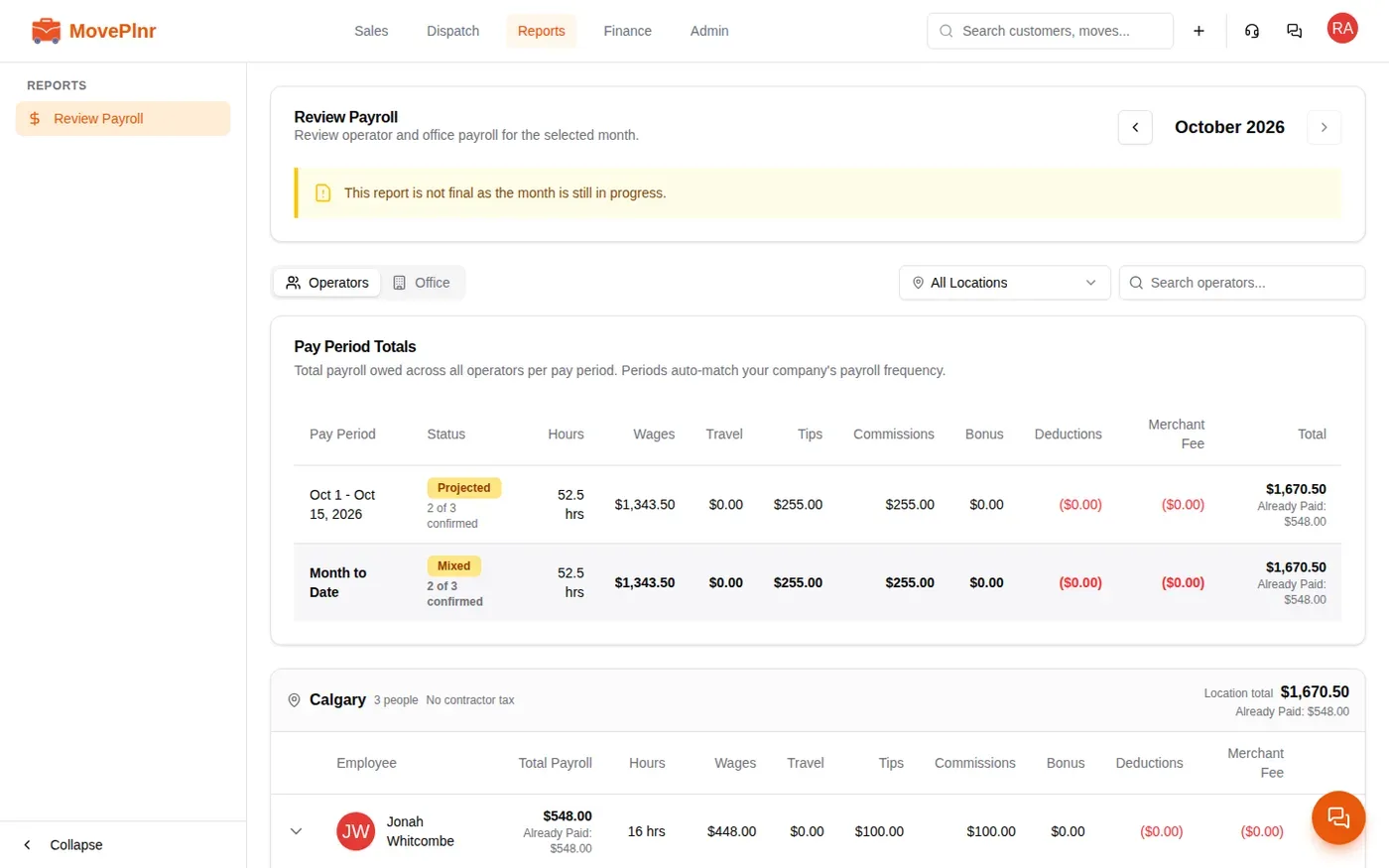
Review Payroll
Review Payroll, under Reports, adds up a whole month with live figures from every closed job: each pay period, how many payrolls are confirmed, what is already paid, and every person by location. Use it to check totals before you pay, and to see what a change to a job does to the month.