How it works
- The recruiter is a team member with the Recruiter duty. Each new hire can be credited to one recruiter.
- You set a ladder of levels, each one an hours figure and an amount.
- When a recruit’s total hours worked pass a level, the amount lands on the recruiter’s payroll for that pay period.
- Each level pays once per recruit, ever. A recruit who passes 120 hours earns their recruiter the 120 hour amount one time, and the next payout comes at the next level.
Hours worked counts the hours on closed jobs, hourly time, time on estimates, approved reported hours and any Additional Hours added on a payroll. Travel time does not count.
Choose your recruiters
Anyone with the Recruiter duty can be credited with a new hire and paid the bonus. The usual way to give it is the Recruiter preset, which comes with the duty and lets the person add crew members and manage the files and pay of the people they added.
- Open Admin, then Team Members, and click the person.
- Click Edit.
- Under Preset, pick Recruiter. To keep someone’s own preset and only add the duty, turn on Recruiter under Duties instead.
- Click Save access. Access saves on its own, apart from the rest of the page.
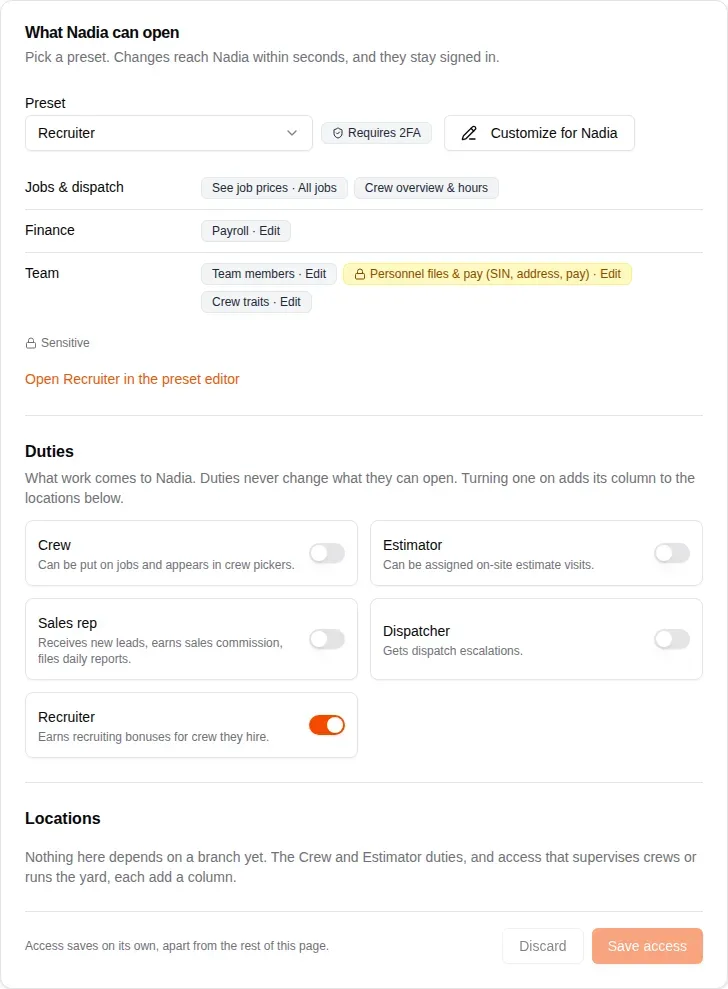
A duty never changes what someone can open. A dispatcher or an office manager can recruit too: give them the Recruiter duty and keep their preset.
Set up the levels
- Open your company settings and choose Payroll Settings.
- Turn on Recruiter Bonus. One empty level appears.
- Fill in the hours and the amount: At 120 h worked pays $100, for example.
- Click Add level for each step up the ladder. Each level needs more hours than the one above it, and every amount must be more than $0.
- Click Save Changes at the bottom of the card.
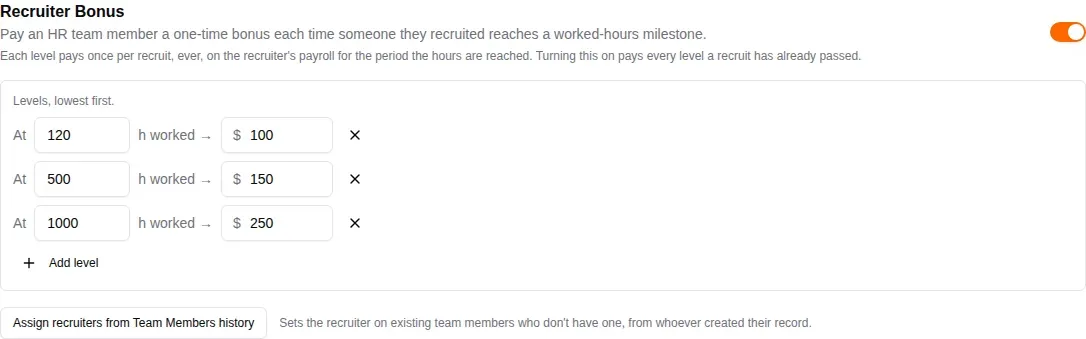
To take a level away, click the cross at the end of its row. To stop paying bonuses at all, turn Recruiter Bonus off and save.
Credit the recruiter
When someone with the Recruiter duty adds a new team member, they become that person’s recruiter on their own, unless they pick someone else. Anyone else sets it by hand, when they add the person or later.
When you add a team member
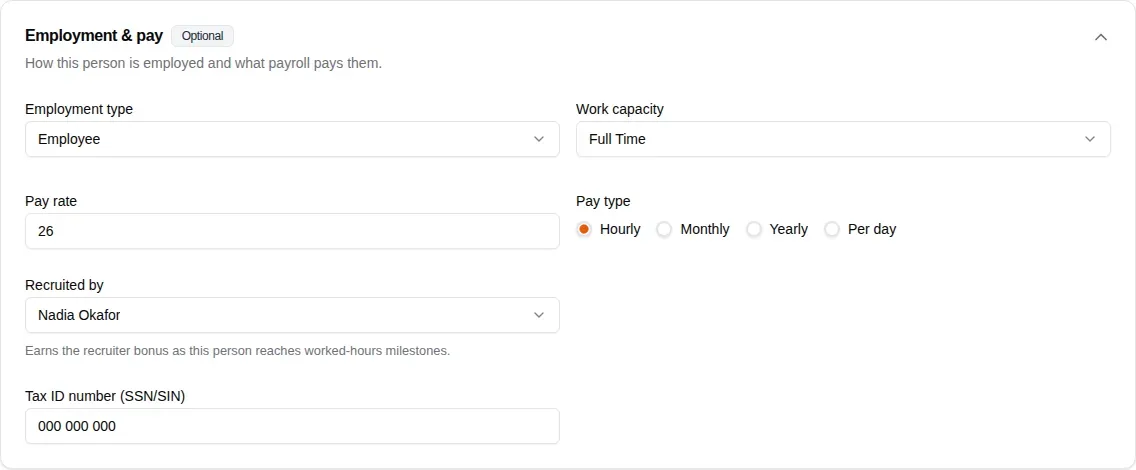
Recruited by sits in the Employment & pay card. The card is marked Optional and starts closed, so open it to pick the recruiter.
- Open Admin, then Team Members, and add a team member.
- Fill in the basics and pick a preset.
- Click Employment & pay to open it.
- Under Recruited by, pick the recruiter. The list holds your active team members with the Recruiter duty.
- Add the team member.
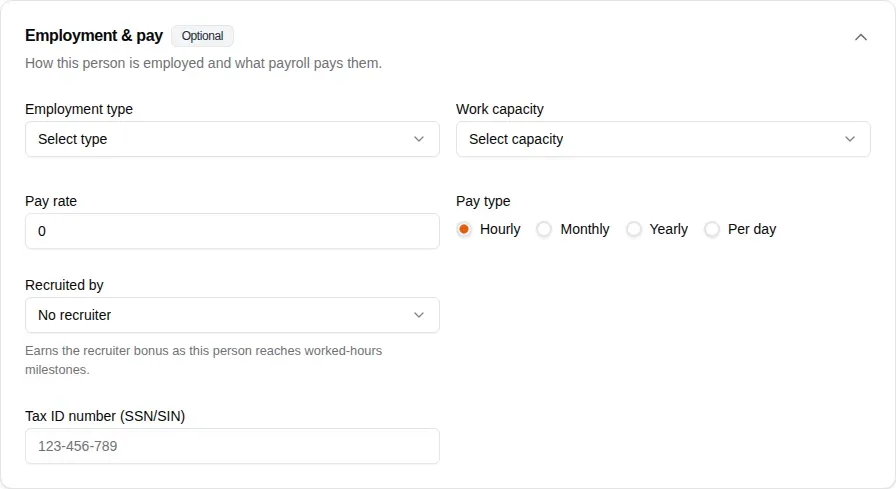
If nobody on the team has the duty yet, the hint under the field reads “Nobody on the team has the Recruiter duty yet, so there is no one to credit.” Give someone the duty first (see above).
Copy from a team member fills a new person’s access, pay setup and crew settings from someone already on the team. It never copies Recruited by: that belongs to each person, so set it yourself.
On someone already on the team
- Open Admin, then Team Members, and click the person.
- Click Edit.
- In Employment & pay, pick the recruiter under Recruited by. Choose No recruiter to clear it.
- Click Save changes.
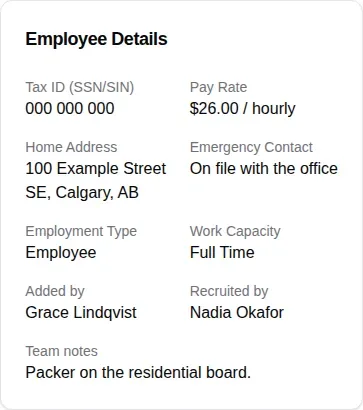
Credit everyone at once
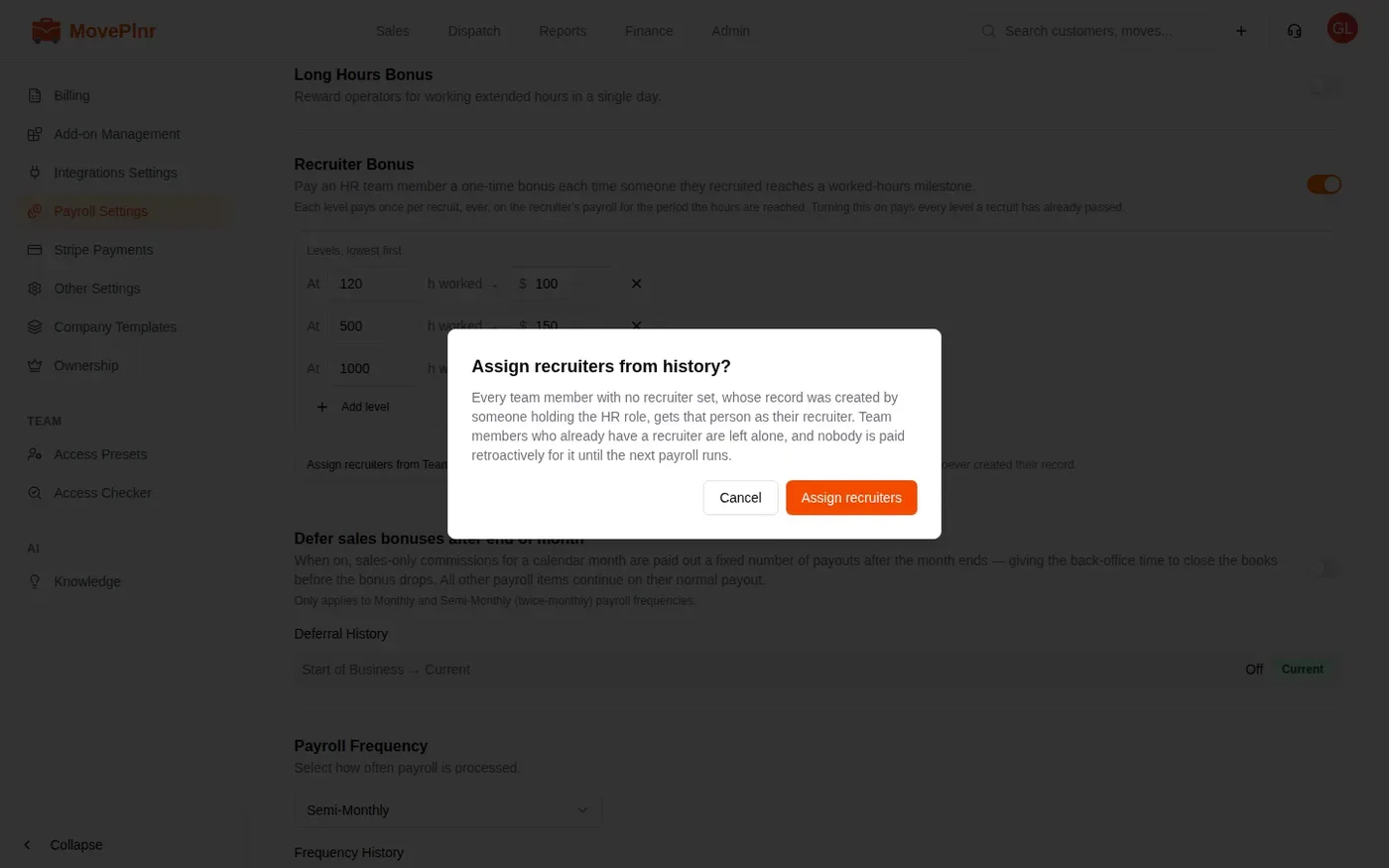
Your team was hired before you turned this on, so nobody has a recruiter yet. Back in Payroll Settings, click Assign recruiters from Team Members history, then Assign recruiters. Everyone with no recruiter whose record was created by someone with the Recruiter duty gets that person as their recruiter. Team members who already have one are left alone.
See the bonus on payroll
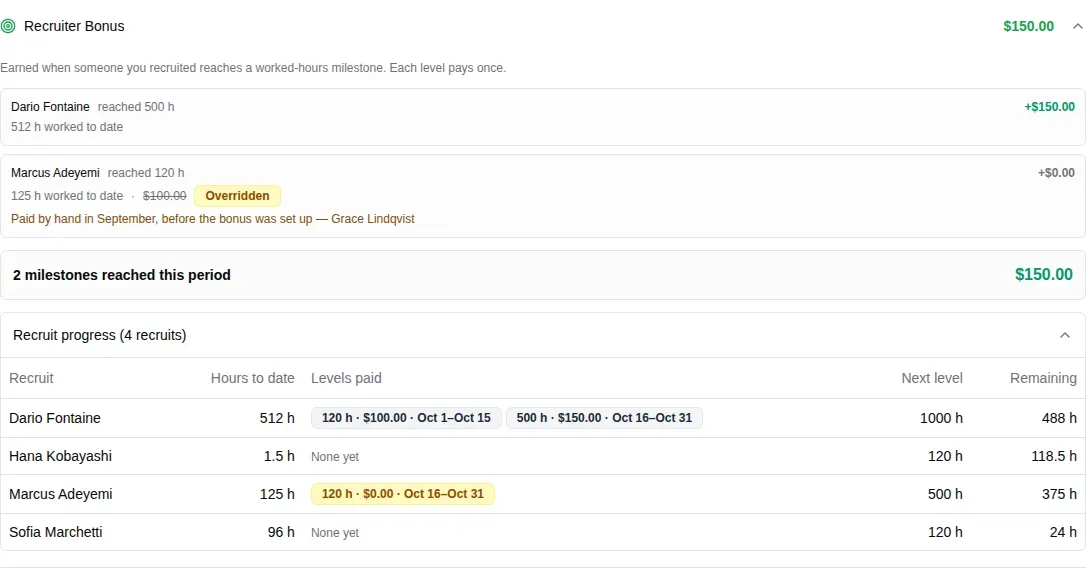
Open Finance, then Process Payroll, pick the pay period and click the recruiter’s name. Their Wages table has a Recruiter Bonus row: how many milestones this period, how many recruits they have, and the amount.
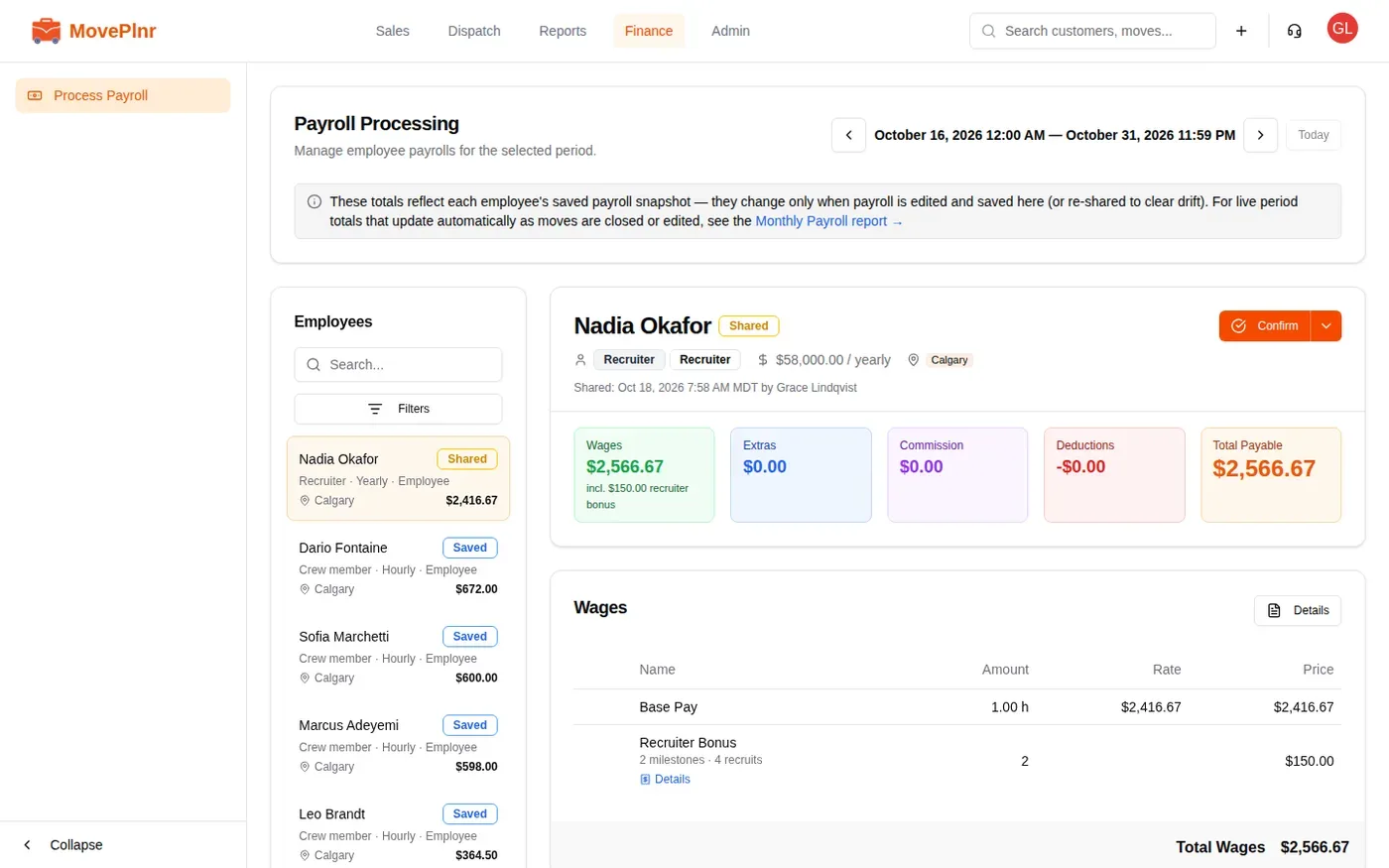
Click Details under the row. Each milestone reached this period gets a line: the recruit, the level they reached and their hours worked to date. Below them, open Recruit progress for every recruit with hours: the levels already paid and in which pay period, the next level, and the hours still to go.
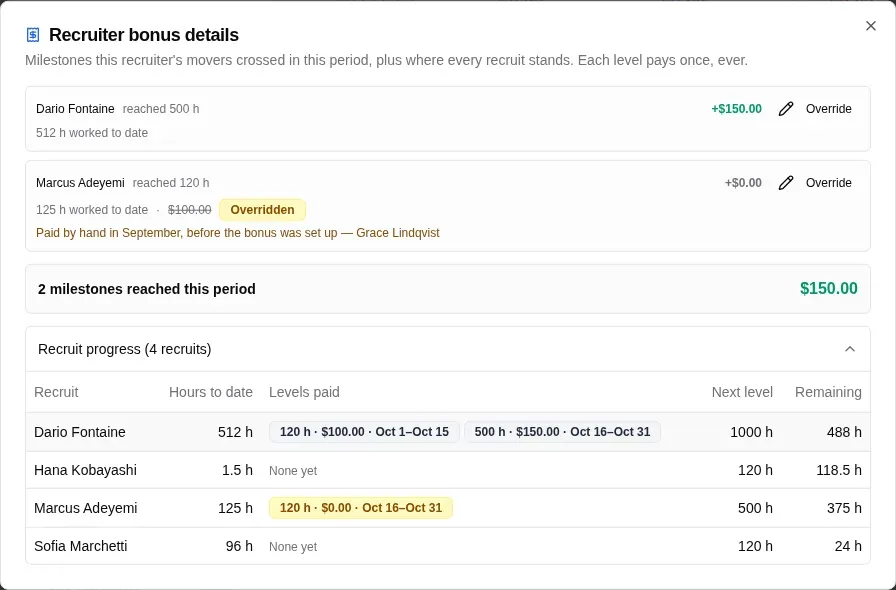
The bonus is added to the payout on its own. It is not part of Extras, and no merchant fee comes off it. It is saved, shared, confirmed and paid with the rest of the payroll.
Override a milestone
Sometimes a level should not pay its full amount, most often because you already paid it by hand. Only an admin can override, and not once the payroll is paid.
- In Details, click Override on the milestone’s line.
- Set the Amount. $0 keeps the milestone marked as paid without paying it again.
- Write the Reason. It is required, and the recruiter sees it on their paystub.
- Click Save override.
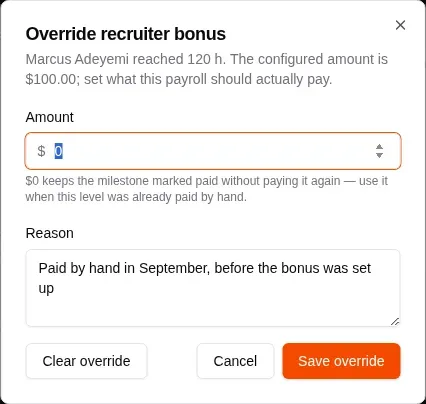
The line then shows the original amount struck through, an Overridden badge and your reason. To go back to the level’s amount, open Override again and click Clear override.
What the recruiter sees
The recruiter opens their profile and chooses Paystubs. Once you share or confirm a payroll, its Pay Summary has a Recruiter Bonus section with the same lines, any override and its reason, and Recruit progress. They can read it but not change it.