Every month you get a score out of 100 and a grade. This page shows where it comes from, how to raise it, and how quizzes fit in. Start with the four-minute video.
In this video
Tap a chapter to jump straight to it. Captions are part of the video.
Find your score
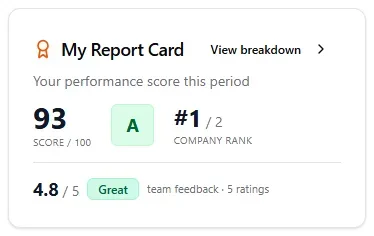
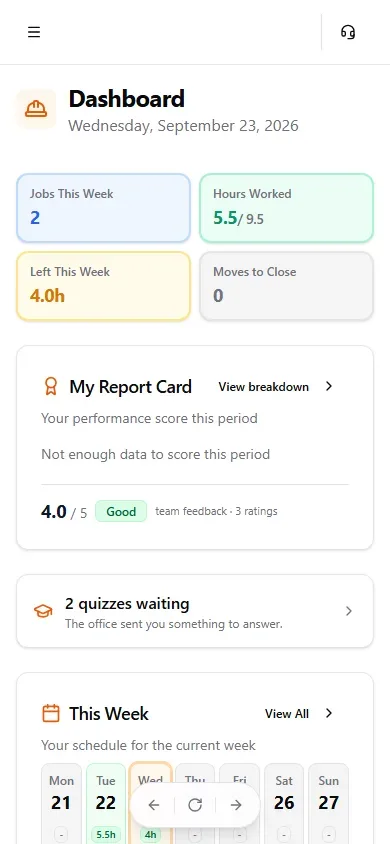
Open MovePlnr on your phone. Your dashboard shows My Report Card: your score, your grade and your rank.
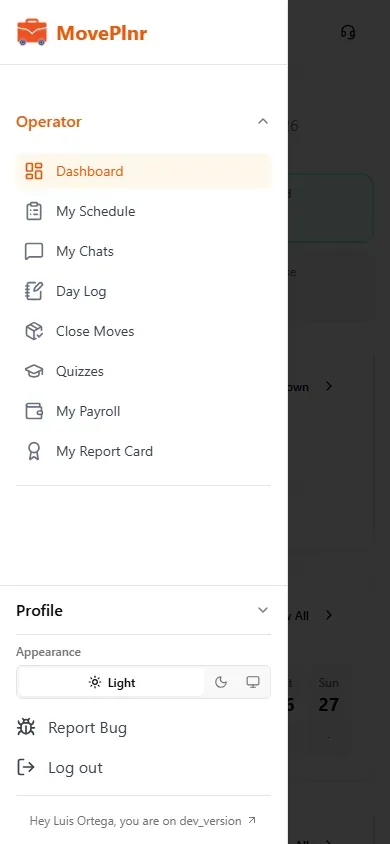
Tap View breakdown to open the whole card. It is also in the menu, under My Report Card.
Your score, grade and rank, every time you open the app.
Tap the menu: Quizzes and My Report Card are under Operator. Quizzes shows a count when one is waiting.
Your grade and rank
Your score is out of 100, and it sets your grade. Your company decides where each grade starts. Many set them high, so an A has to be earned over a full month of work.
FDCBAA+
05565758595
An example set of grade floors. Your office can tell you theirs.
One month at a time
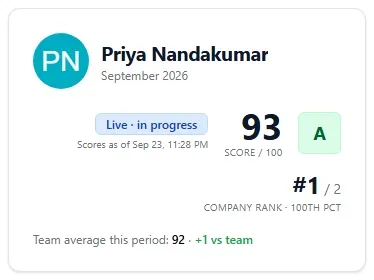
This month is Live. It moves as work comes in, and it updates overnight.
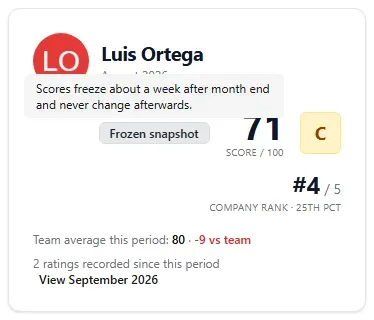
Last month is Frozen. About a week after a month ends, its score locks and never changes again.
Your rank, like #2 / 5, is your place among the crew who worked enough moves that month.
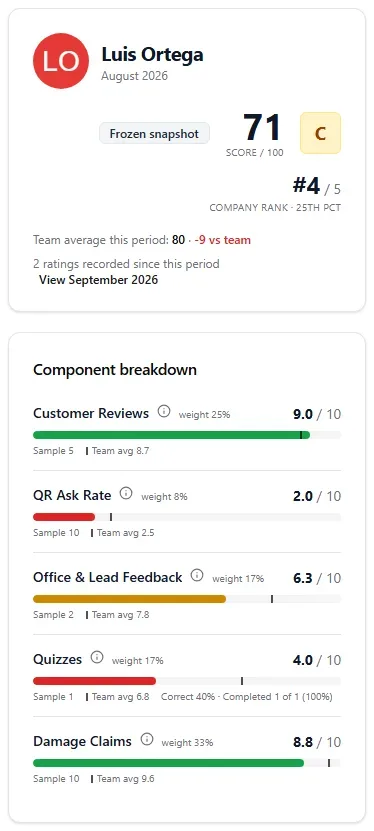
The top of your card: score, grade, rank, and how you compare with the team.
No score yet?
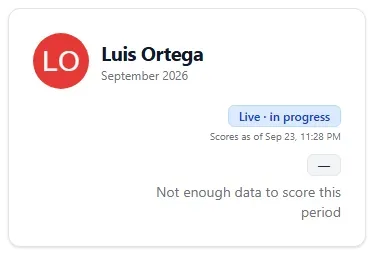
You need a minimum number of moves in the month before you get a score, often 10. Until then your card says there is not enough data. That is not a bad grade. It means the month is still young.
Not enough moves yet this month. Not a bad score.
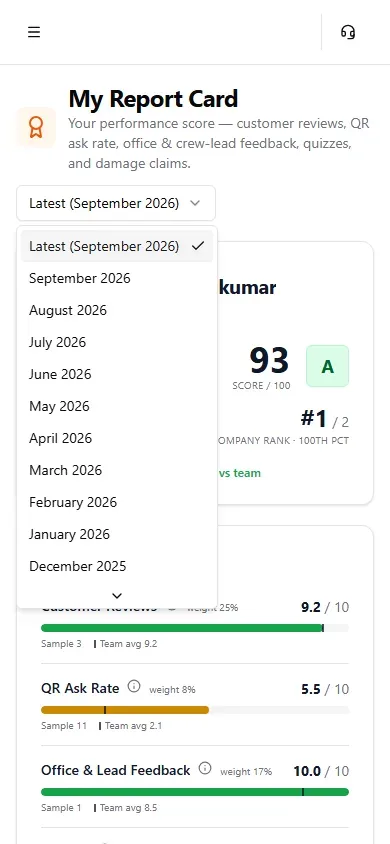
Pick any month to look back. A finished month is marked Frozen.
A frozen month never changes, whatever happens after.
What counts
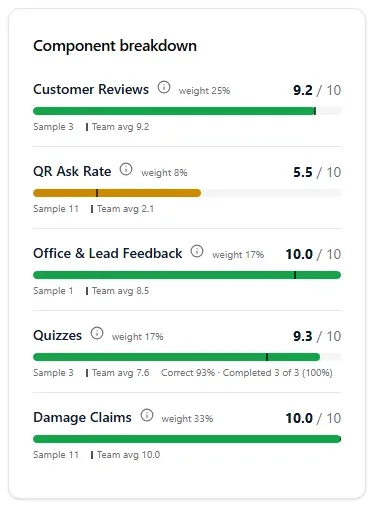
Five things make up your score. Each one scores out of 10. Your company decides how much each one counts, and each line on your card shows its weight.
Customer reviews
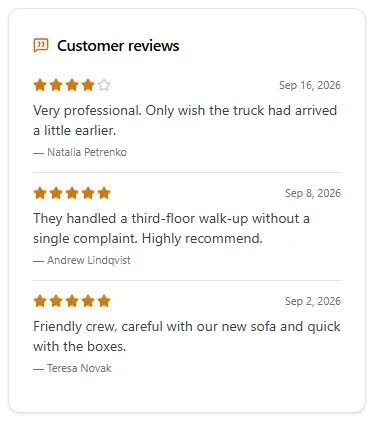
Every Google review on a move you worked counts for everyone on that crew. Five stars is full marks.
Do this: a clean, careful job, then ask.
Asking for a review
How often you ask the customer, compared with the moves you worked. Showing the QR code counts. Sending a request counts. Once per move is full marks.
Do this: ask at the end of every job.
Damage claims
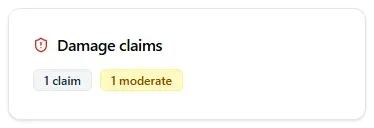
A settled claim counts against the crew members marked at fault. Bigger claims cost more: up to $100, up to $300, over $300. No claims means full marks.
Do this: wrap it, pad it, walk it.
Team feedback
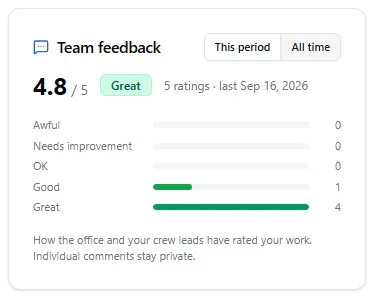
Ratings from the office and your crew leads, from Awful to Great. You see the rating. You never see who left it or what they wrote.
Do this: the things a lead notices.
Quizzes
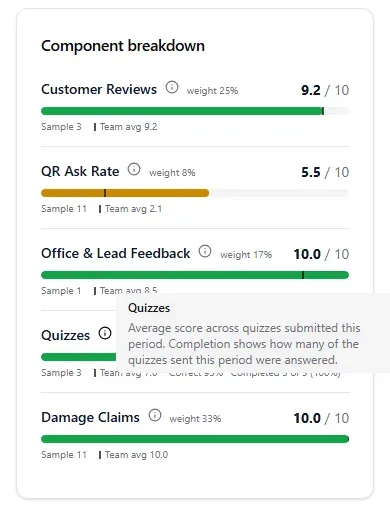
Your average score on the quizzes you answered this month. Beside it: how many of the quizzes you were sent you answered.
Do this: answer every quiz, even a late one.
Five lines, each out of 10, each with its weight. The tick on each bar is the team average.
On a computer, point at the i beside a line and it says what that line measures.
A C with room to grow. The short bars are the ones to work on.
Read your card
From top to bottom: your score and rank, the five lines, your score over the last months, your team feedback, the month in numbers, and the reviews and claims behind it.
Team feedback averages every rating you have been given. It opens on All time; switch it to This period to see just this month, which is the part that counts toward this month’s score.
Tap to see all of it
The whole card on your phone.
How the office and your crew leads rated you. Never who, never the note.
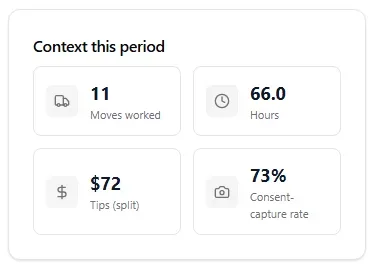
Your moves, hours and tips for the month.
The Google reviews credited to you.
A claim you were marked at fault for, and how big it was.
Answer a quiz
The office sends short quizzes: lifting, loading, stairs, talking to customers. You answer on your phone and see how you did straight away.
When a quiz arrives, your dashboard says a quiz is waiting, and Quizzes in the menu shows how many. If your phone allows notifications from MovePlnr, you get one too. Tap the dashboard card.
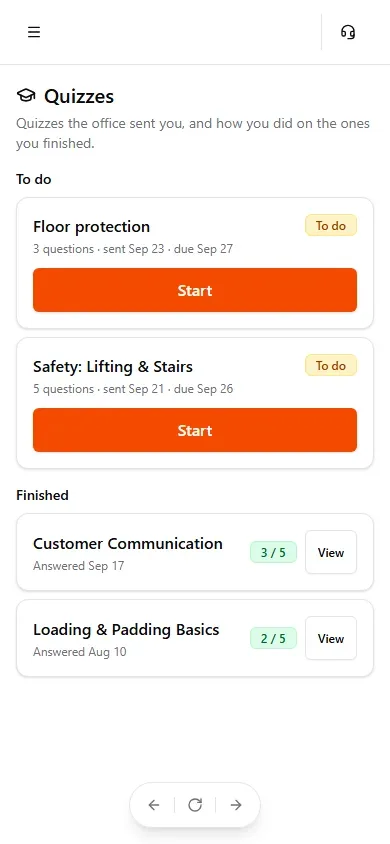
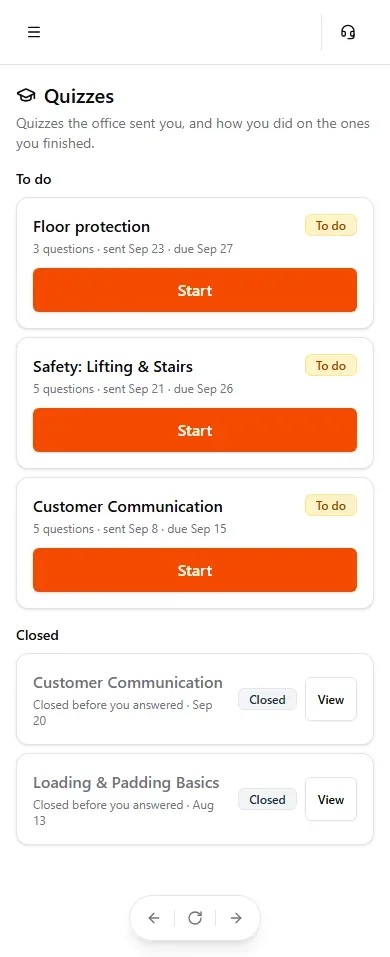
Under Quizzes, To do comes first. Tap Start.
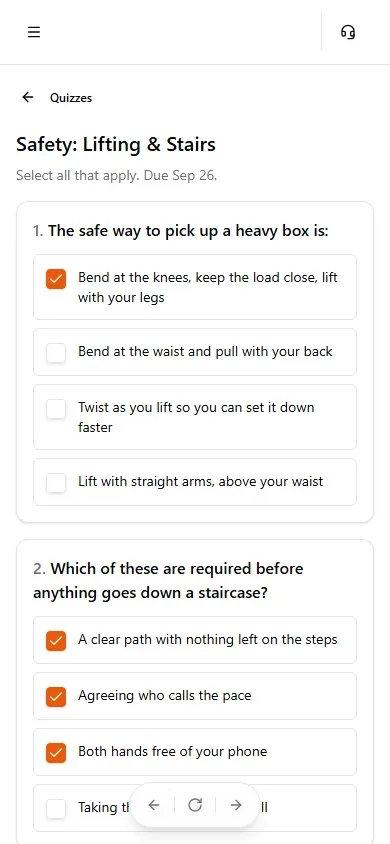
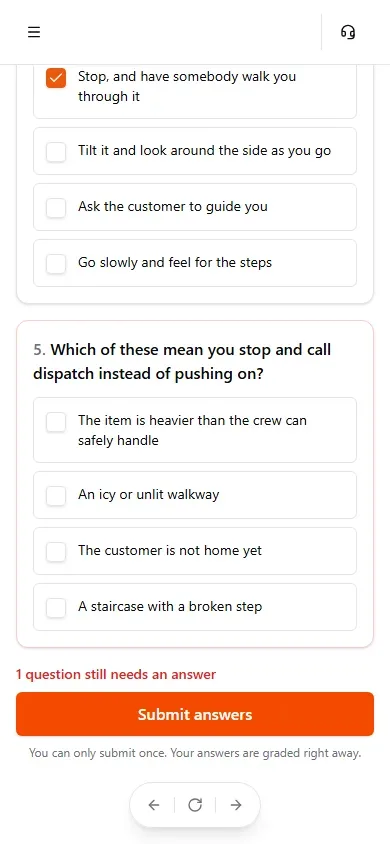
Tick every answer that is right. Select all that apply means it: some questions have more than one right answer, and you need them all.
Tap Submit answers. If one is blank, the page tells you and nothing is sent.
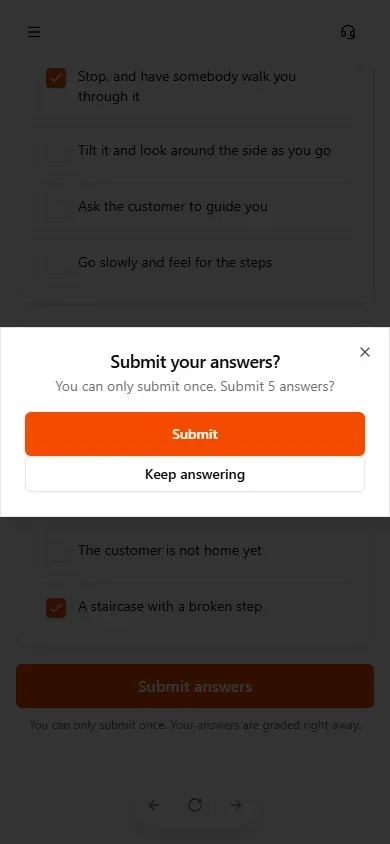
Confirm. You get one attempt, and it is marked straight away.
The dashboard says a quiz is waiting. Tap the card.Screenshot from September 23, 2026
To do first, then closed, then finished with your score.Screenshot from September 23, 2026
Select all that apply.Screenshot from September 23, 2026
Miss one and the page says how many are still blank.Screenshot from September 23, 2026
One attempt. Marked the moment you submit.Screenshot from September 23, 2026
Tap to see all of it
Your score, and the right answer to anything you missed.Screenshot from September 23, 2026
How it shows on your card
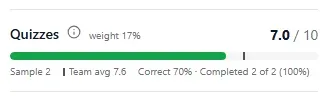
The Quizzes line shows two numbers: how you scored on the quizzes you answered, and how many you answered out of the ones you were sent. A quiz you skip is never counted as a zero. It shows up as not answered, and that is the part the office notices. A quiz you answer today reaches your card overnight.
Correct on the ones you answered, and how many you answered.
A quiz that closed
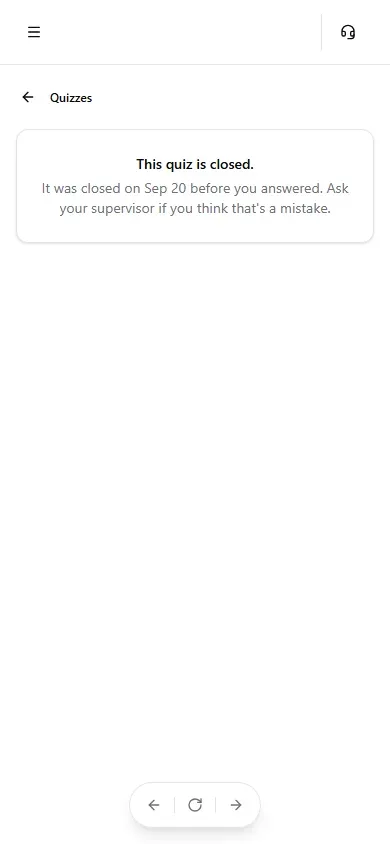
The office can close a quiz before you get to it. It moves to Closed and can no longer be answered. If you think that is a mistake, ask your supervisor. They can open it back up.
A quiz closed before you answered moves to its own group.Screenshot from September 23, 2026
Ask your supervisor if you think it closed by mistake.Screenshot from September 23, 2026
Ask for the review
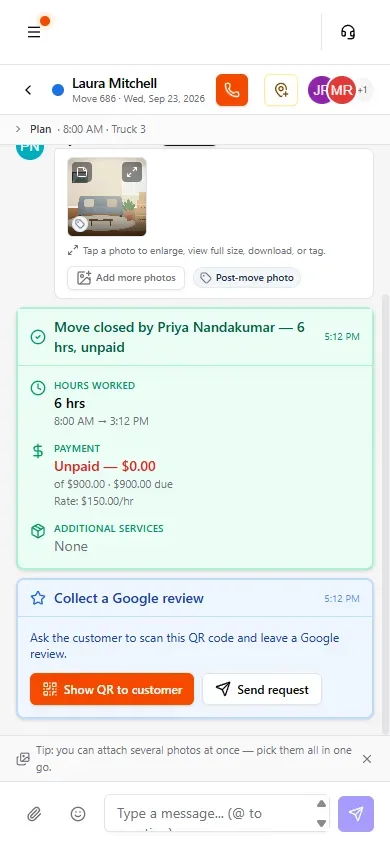
When the move is closed, the crew chat gets a Collect a Google review card. There are two ways to ask, and both count for whoever taps.
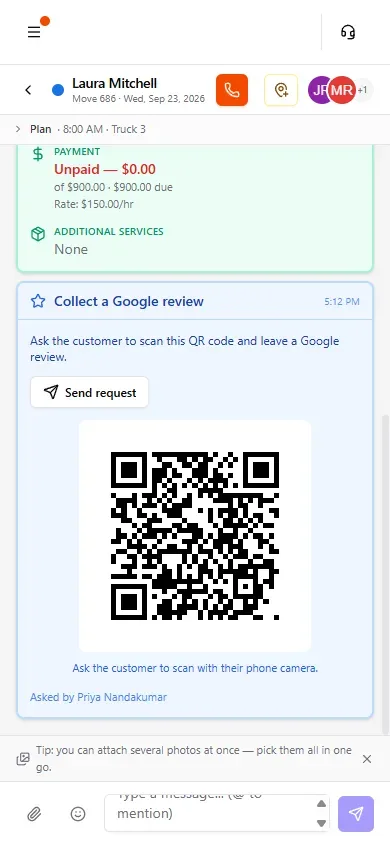
In person: tap Show QR to customer and hand them your phone. They scan it with their camera.
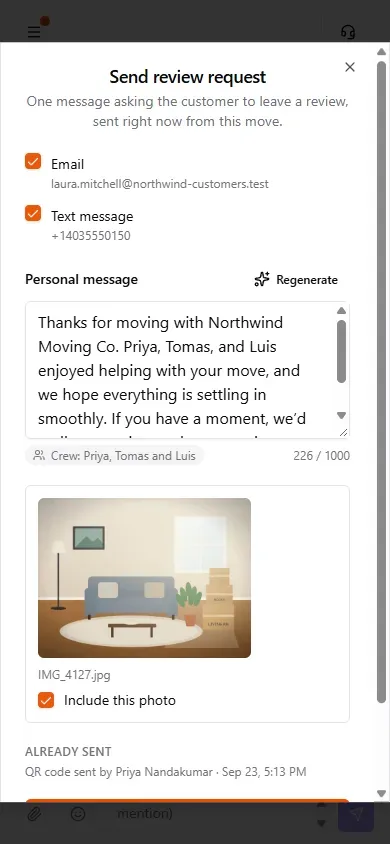
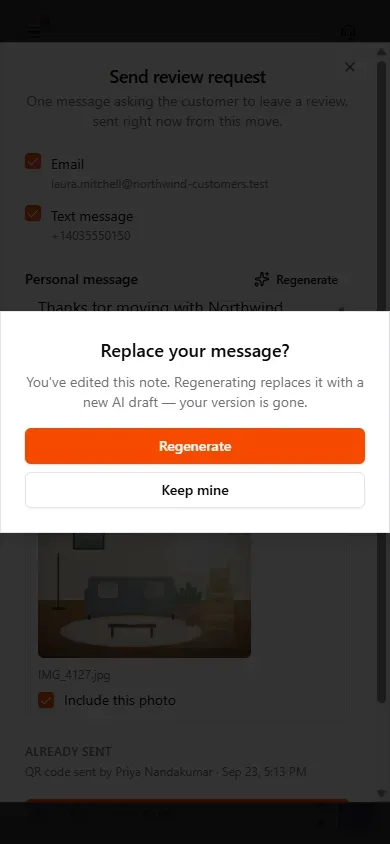
By message: tap Send request. A short note is already written, naming the crew. Change it if you like, then tap Send request. It goes by email, text or both, with a photo from the job.
After the close, the chat offers both ways to ask.Screenshot from September 23, 2026
The customer scans the code with their phone camera.Screenshot from September 23, 2026
The note is written for you. Change it if you want.Screenshot from September 23, 2026
Changed the note? Regenerate asks before it replaces yours.Screenshot from September 23, 2026
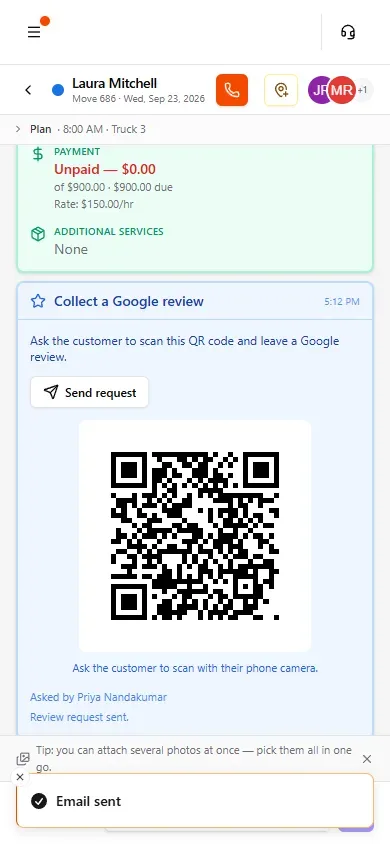
Sent. The card says so, so nobody on the crew asks twice.Screenshot from September 23, 2026
Rate your crew
If you are the lead on a move, your close screen has Rate your crew. It is optional. Rate whoever stood out, good or bad.
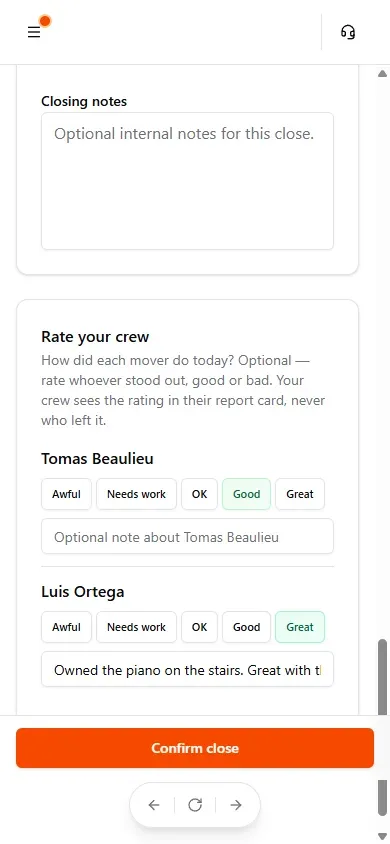
Open the move to close it and scroll to Rate your crew.
Tap Awful, Needs work, OK, Good or Great for each person you want to rate. Add a note if it helps.
Close the move as usual. The ratings go with it.
Only the lead sees this. Your crew sees the rating, never who left it.Screenshot from September 23, 2026
Questions crews ask
Why is there no score this month?
You have not worked enough moves yet this month. Once you reach the minimum, your score, grade and rank appear.
Someone rated me today. Why has my score not moved?
Scores update overnight. Check again tomorrow.
Can last month's score still change?
Not once it is frozen, about a week after the month ends. Anything that happens after that counts toward the month it happened in.
Can I see who rated me?
No. You see the rating. You never see who left it or the note they wrote.
I missed a quiz. Is that a zero?
No. A skipped quiz is never counted as a zero. It shows as not answered on your Quizzes line.
Does my score go down if I ask for a review and the customer does not leave one?
No. Asking counts on its own. A review that comes back is a bonus for the whole crew.
Who can see my card?
You, and the office. Other movers cannot see your card or your score.
Updated September 24, 2026, captured on MovePlnr v2.359.0