
The leaderboard
- Open Reports and pick Operator Report Cards. Owners and dispatchers can open it.
- The month you are in comes up first, marked Live. It updates overnight while the month runs.
- Read the grade tiles across the top, then the Leaderboard: rank, grade, score out of 100, a small bar for each part of the score, and the moves each mover worked.
- Click a row to open that mover’s card.
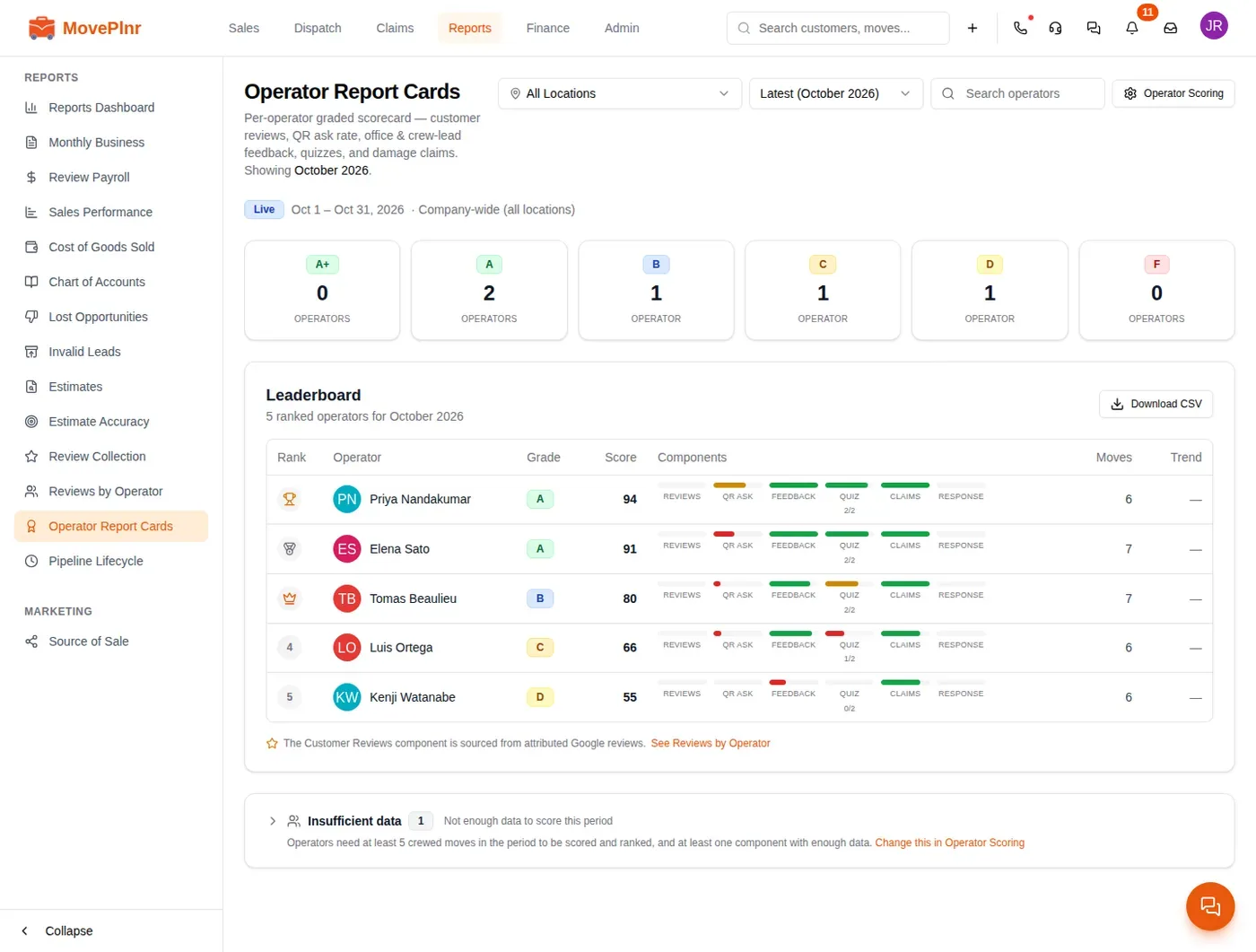
A finished month stays open for a week after it ends, so late Google reviews still count. Then it locks for good and never changes again.
Movers who worked too few moves in the month are not ranked. They sit under Insufficient data at the bottom, with how many moves they have so far. You set the minimum in the scoring settings, below.
Find one mover, or look further back
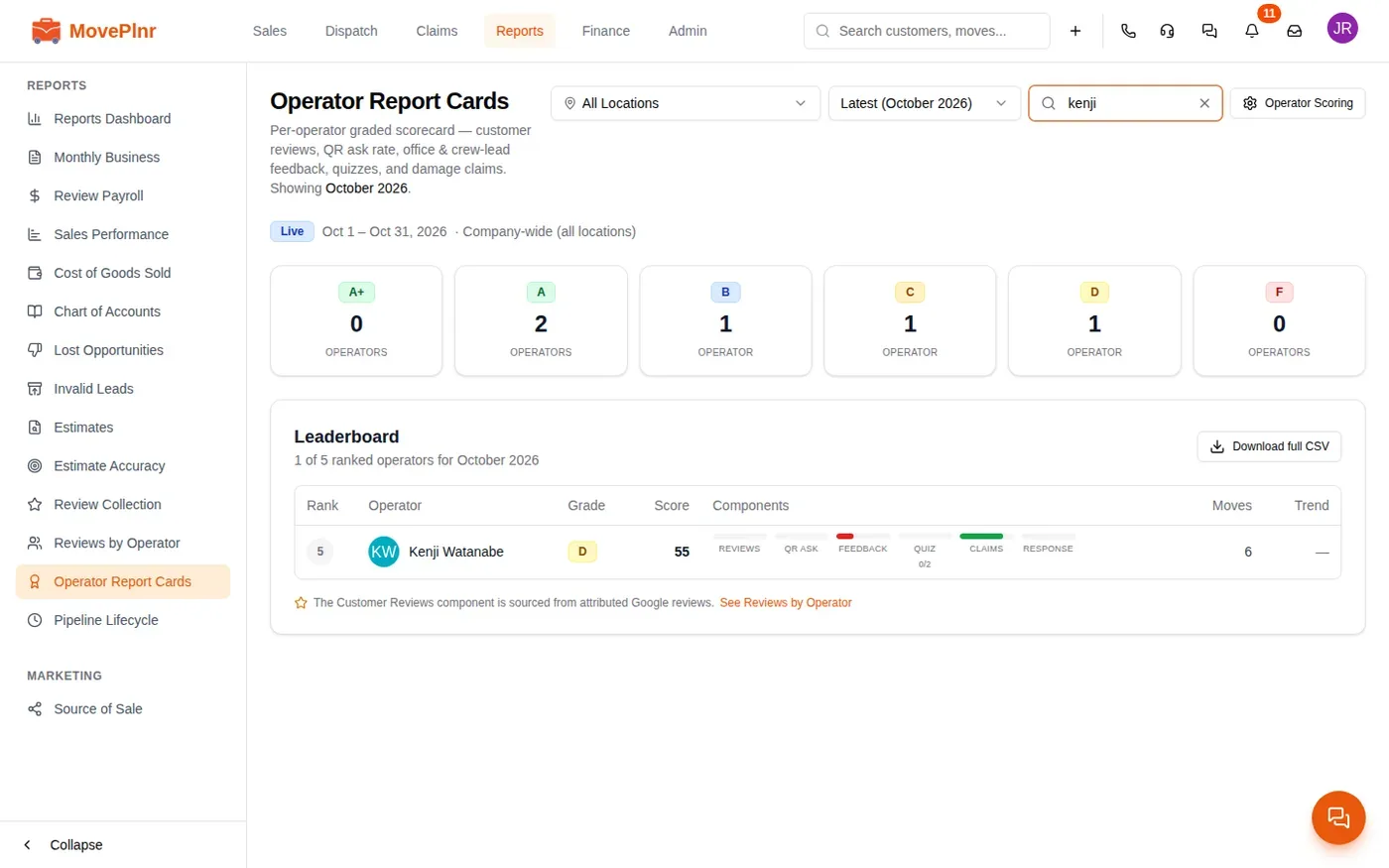
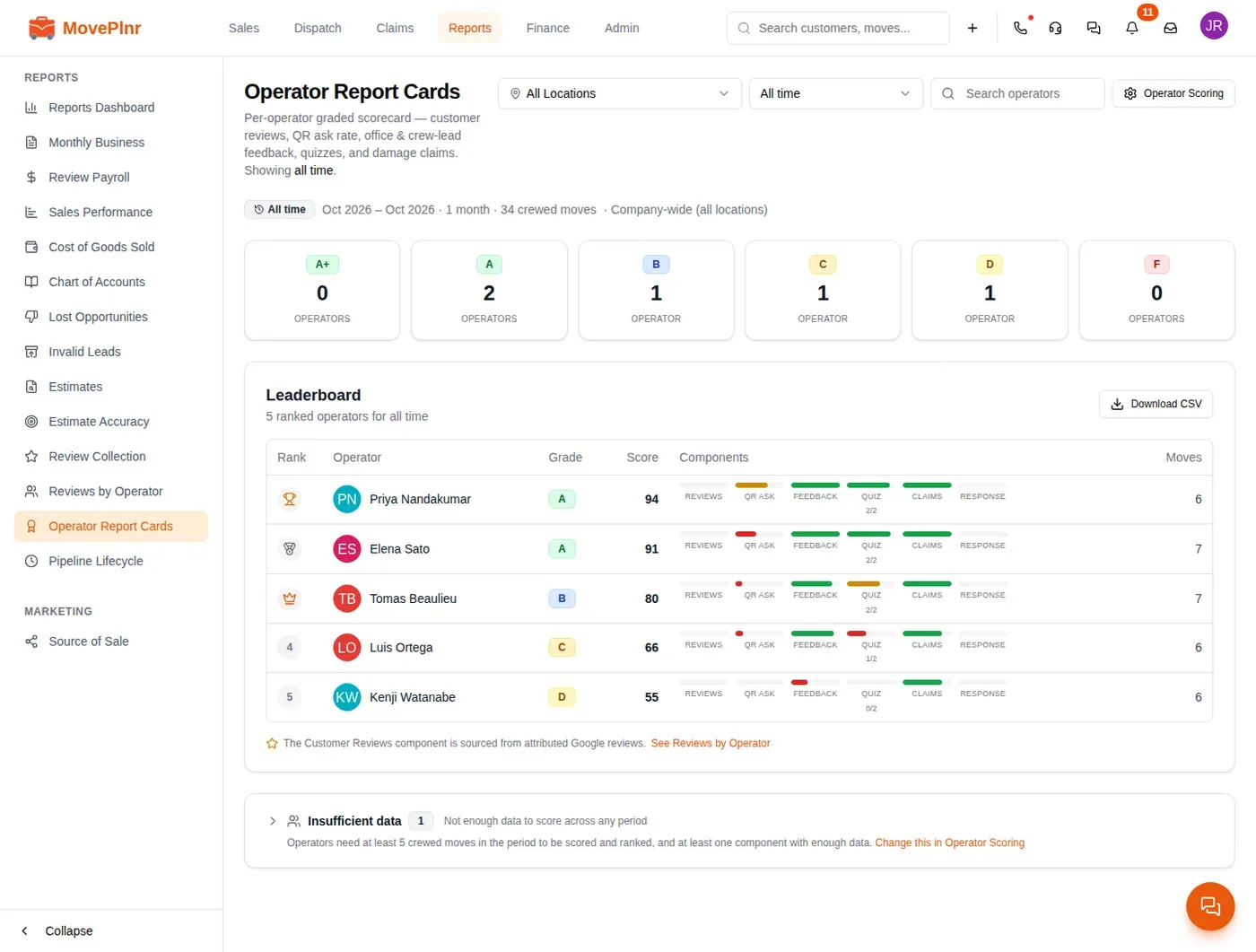
Type a name in the search box beside the month picker to narrow the board. The ranks stay as they are, so you still see where that person stands. Pick All time in the month picker to rank everyone across every scored month. Download CSV saves the whole board, whatever you searched for.
Read one mover’s card
The card shows how the score is made. Component breakdown lists each part with its score out of 10, its weight, how much data is behind it, and a tick for the team average.
Customer Reviews
Do this: credited to the whole crew.
QR Ask Rate
Do this: one ask per move is full marks.
Office & Lead Feedback
Do this: from Awful to Great.
Quizzes
Do this: answered quizzes only.
Damage Claims
Do this: settled claims, by size.
Below that come the score over past months, the Team feedback card, the month in numbers, and the reviews and claims behind the score. Back to leaderboard returns you to the board. Recompute now scores the current month straight away instead of waiting for the night.
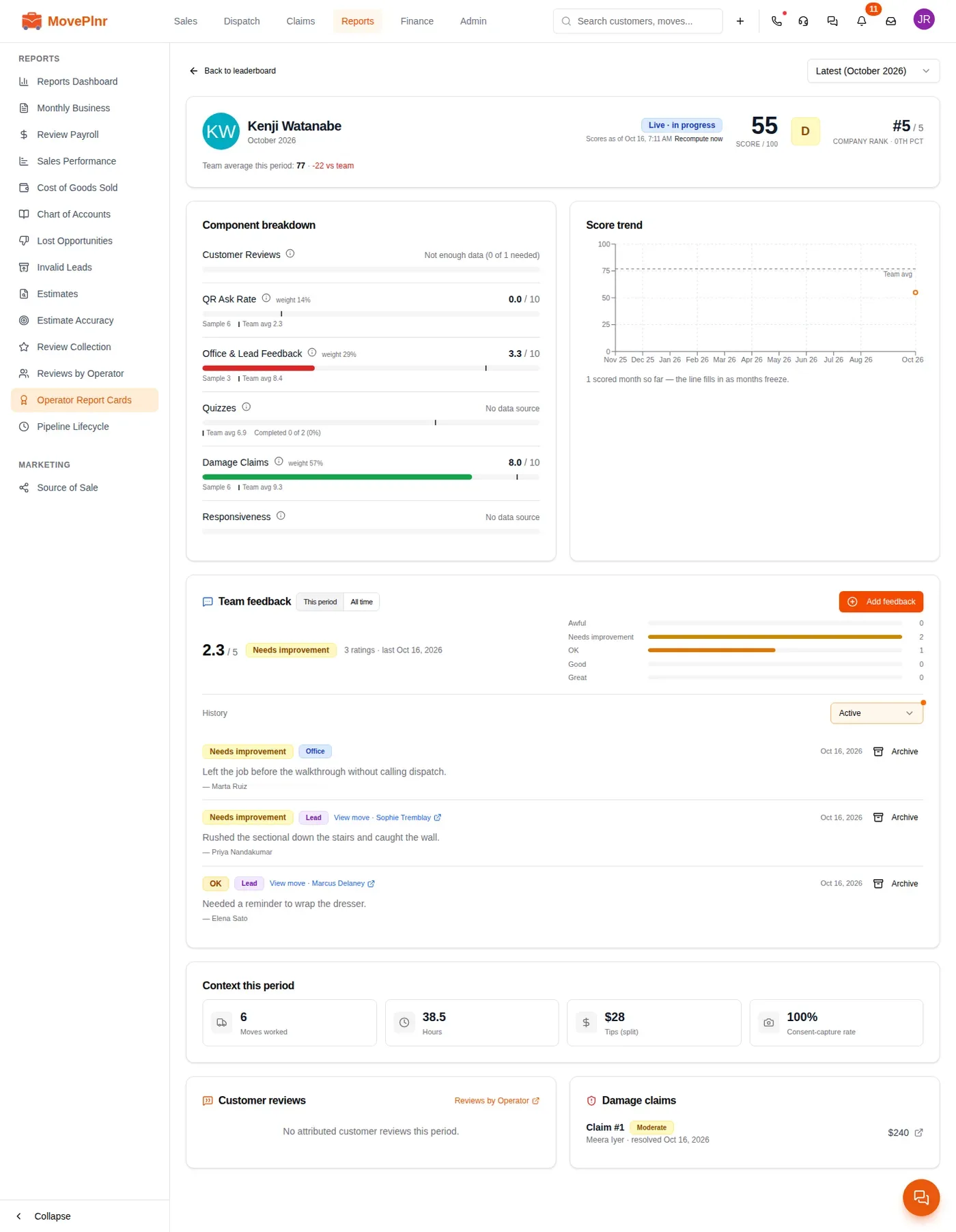
A part with no data yet says so and drops out. The other parts then share its weight, so nobody is scored on a guess.
Rate a mover from the office
- On the mover’s card, find Team feedback and click Add feedback.
- Pick a rating, from Awful to Great. Add a note if it helps.
- Click Save feedback. The rating counts toward the month you give it in.
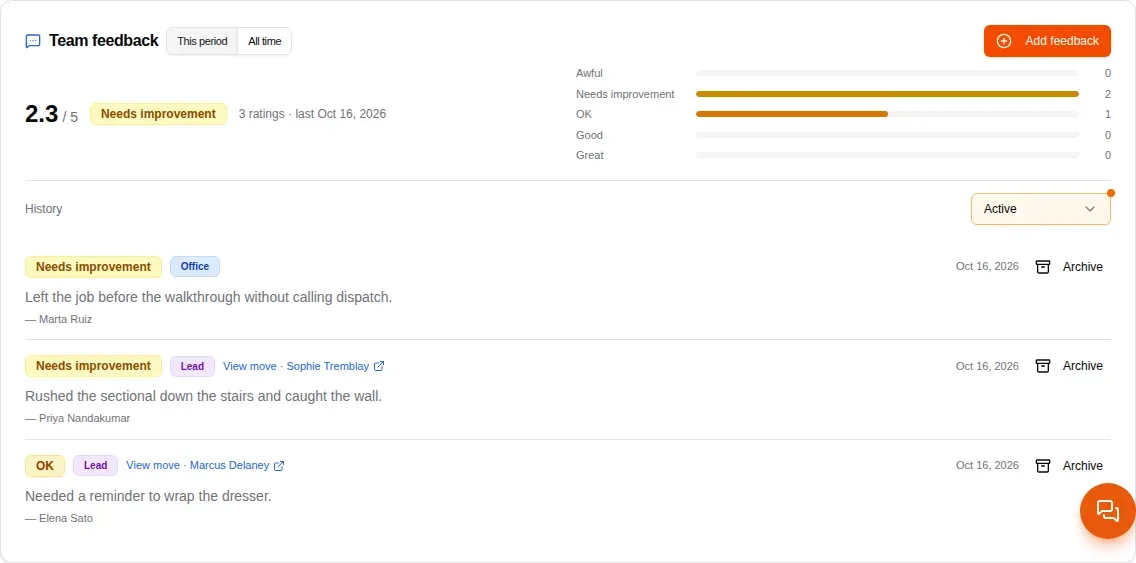
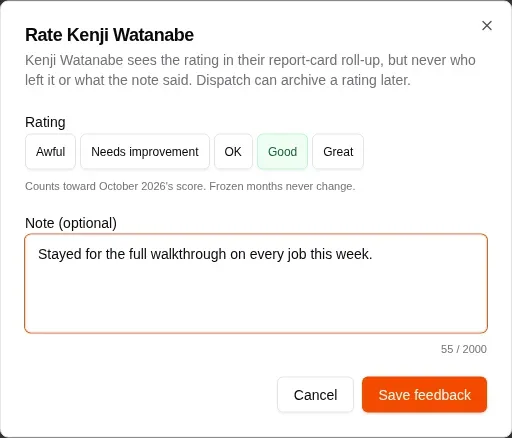
Each rating is tagged Office or Lead. If one was left against the wrong person, click Archive on it and it stops counting. You can bring it back later from the history filter.
What your crew leads rate at close
When a crew lead closes a move on their phone, the close screen has Rate your crew. It is optional: the lead rates whoever stood out, good or bad, and can add a note. Only the lead of that move sees it.
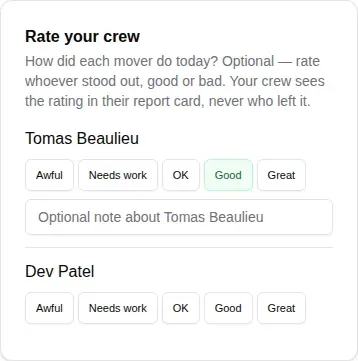

Your movers see their side in the app, under My Report Card. The crew guide walks them through it.
Set how the score is worked out
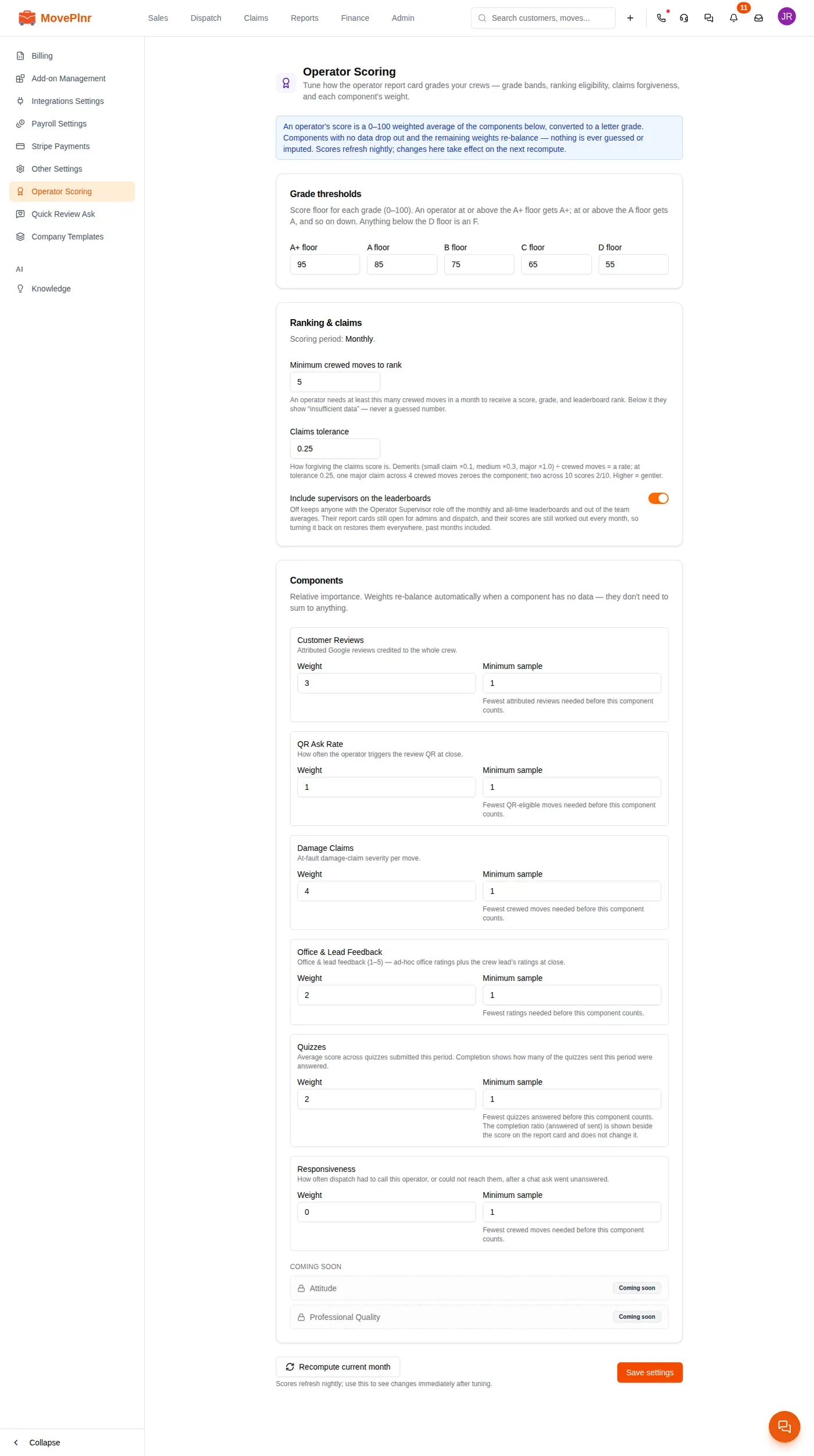
Click Operator Scoring on the leaderboard. It is also under company settings. Only an admin can change it.
- Under Grade thresholds, set the lowest score for each grade. Anything below the D floor is an F.
- Set Minimum crewed moves to rank. Below it, a mover shows as not enough data instead of a grade.
- Claims tolerance decides how forgiving the claims part is. A higher number is gentler.
- Turn on Include supervisors on the leaderboards if supervisors should be ranked with everyone else.
- Under Components, give each part a weight and the smallest amount of data it needs before it counts. Weights do not have to add up to anything.
- Click Save settings, then Recompute current month to see the change now.
Ask for a review at every close
Open Admin, then Move Stages, and turn on Ask for a review on move close. From then on, when a move closes, its crew chat gets a review card with a QR code. The crew shows it to the customer, who scans it with their phone camera. Whoever shows it gets the credit on their card.
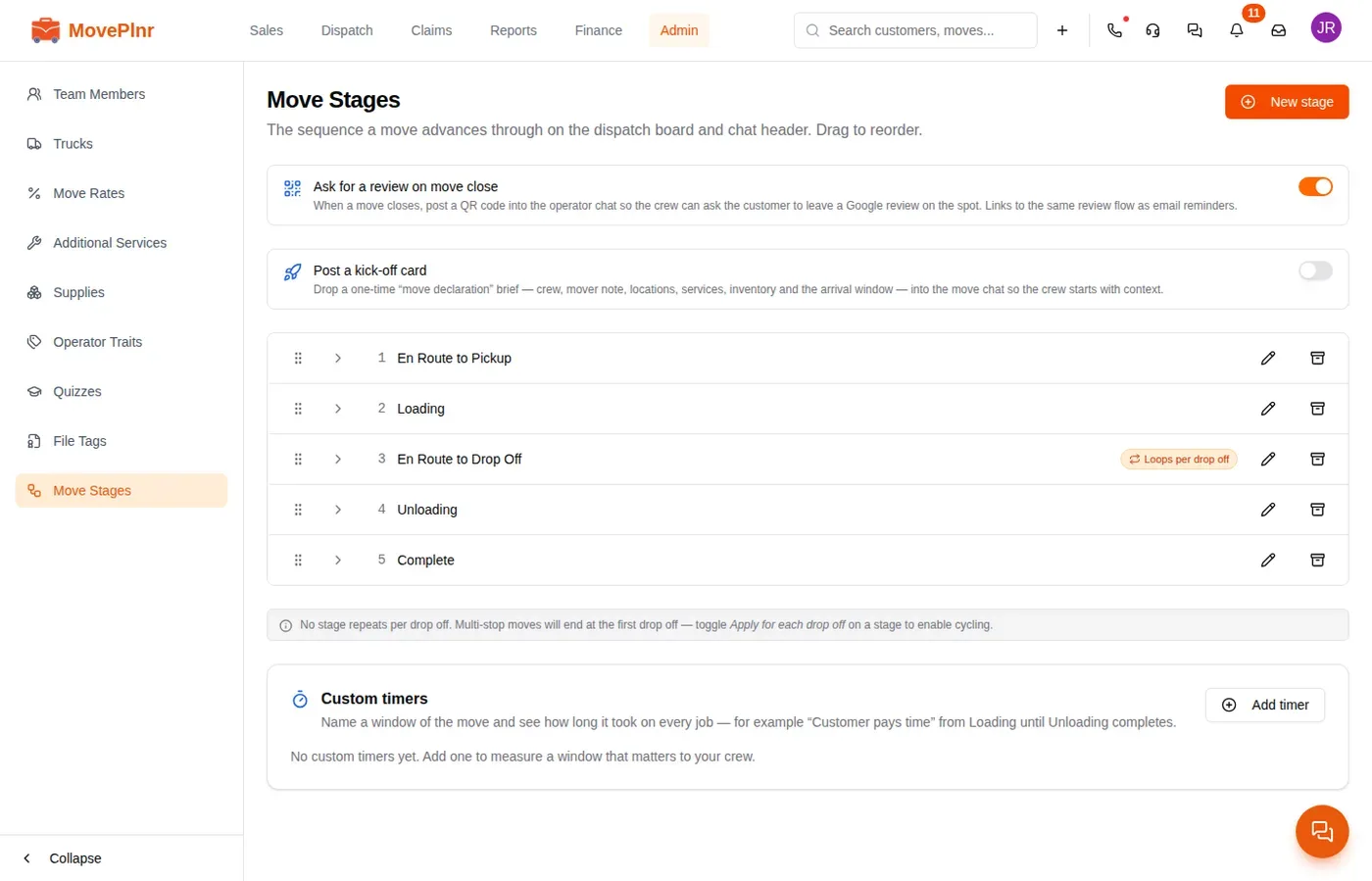
The crew can also show the code, or send the review link by email or text, from the close screen itself. Either way it counts as an ask.
Send a quiz to the crew
- Open Admin, then Quizzes, and click New quiz. Give it a title and a short description.
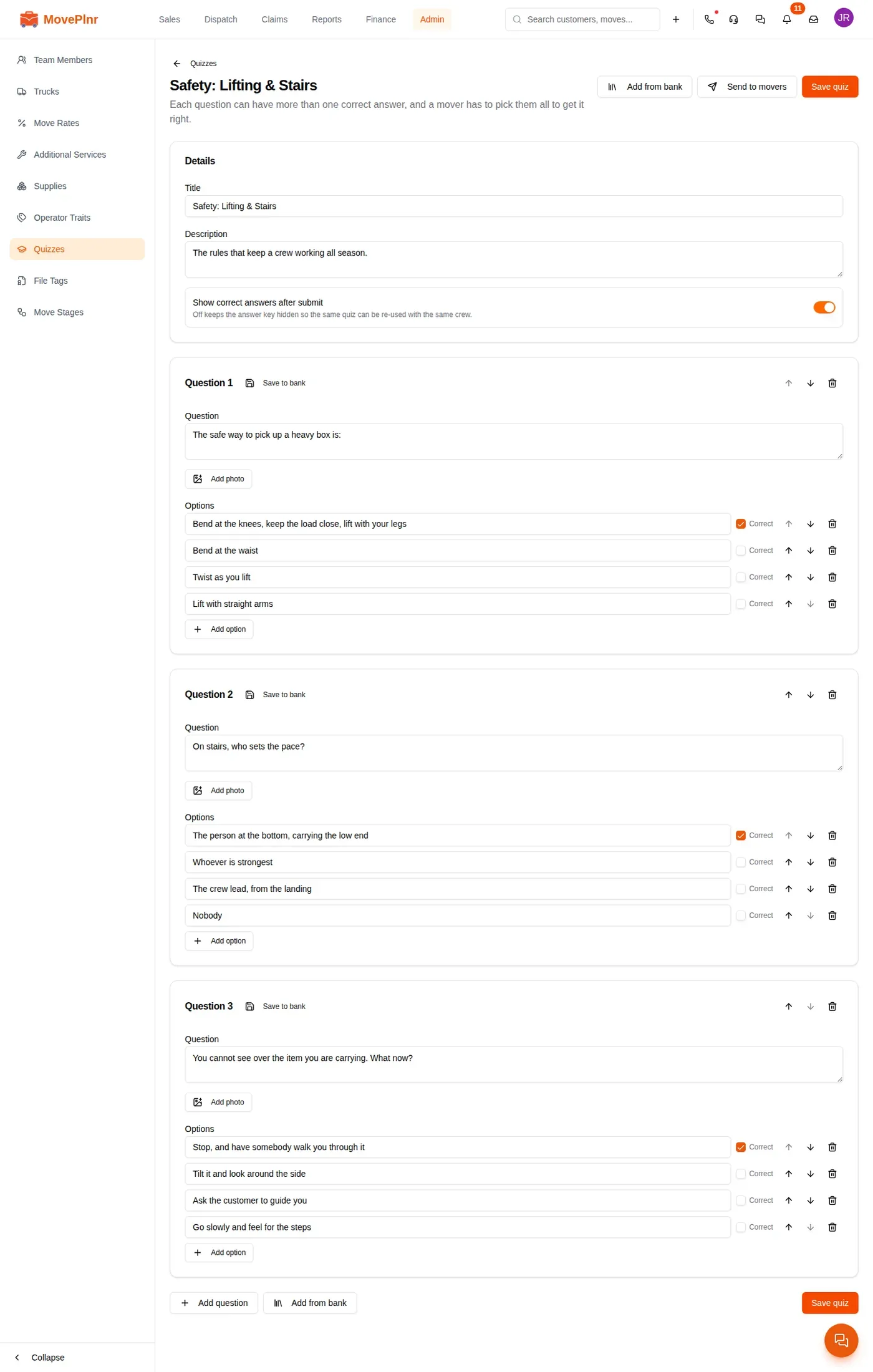
- Write each question and tick every right answer. A question can have more than one, and a mover has to pick them all.
- Click Add from bank to reuse a question you wrote before.
- Leave Show correct answers after submit on if the crew should see the answer key when they finish.
- Click Save quiz.
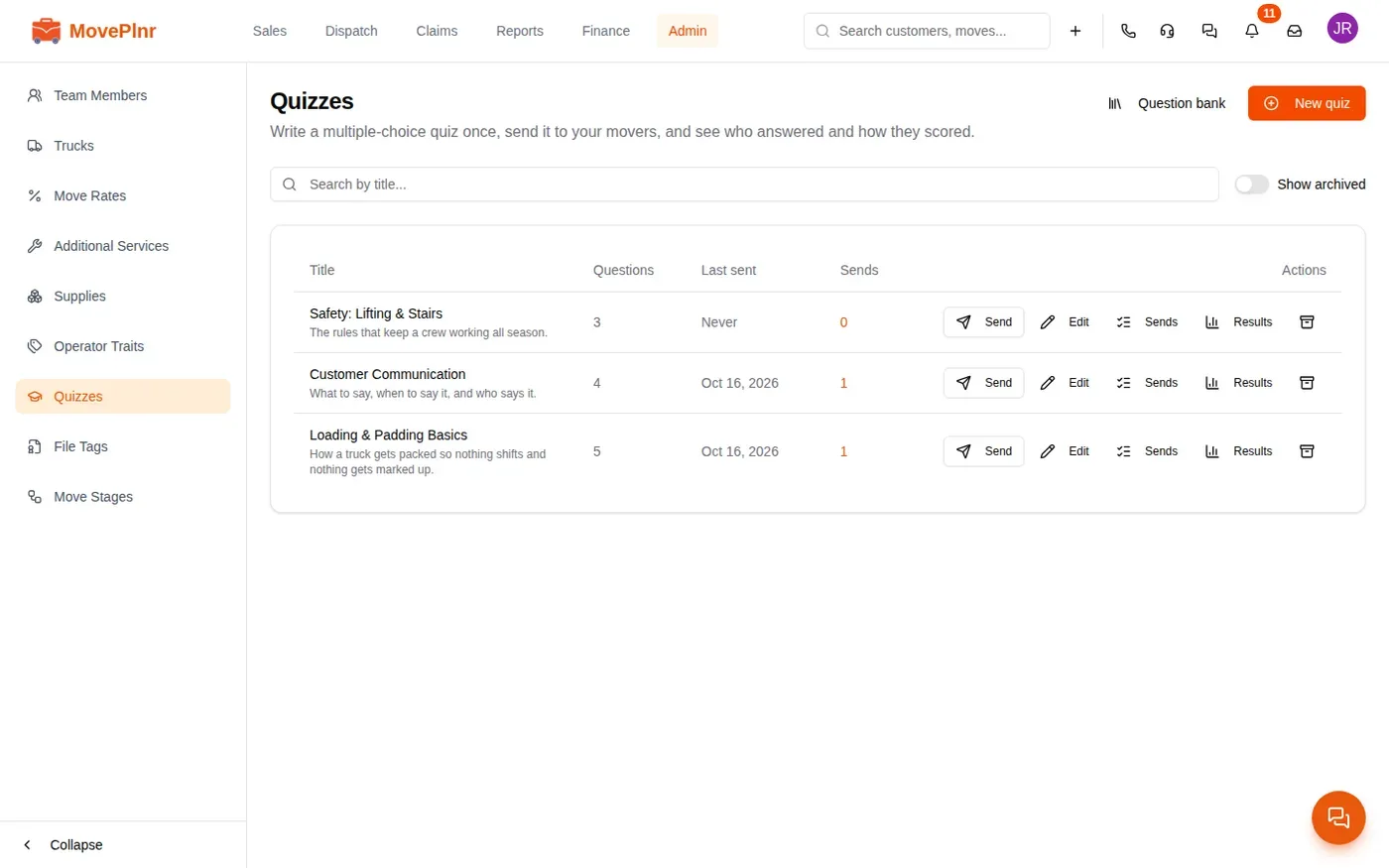
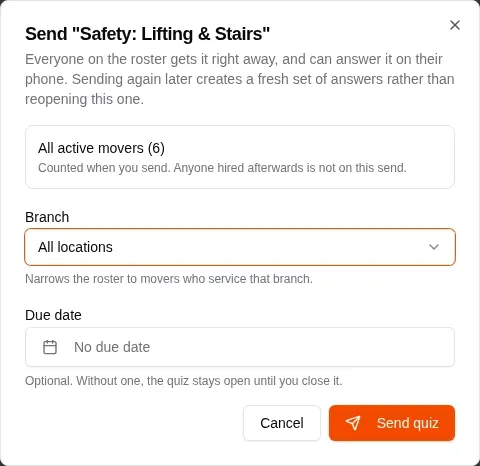
To send it, click Send on its row. Pick a Branch, or leave it on all locations, and a Due date if you want one. Click Send quiz. Everyone on that roster gets it on their phone straight away.
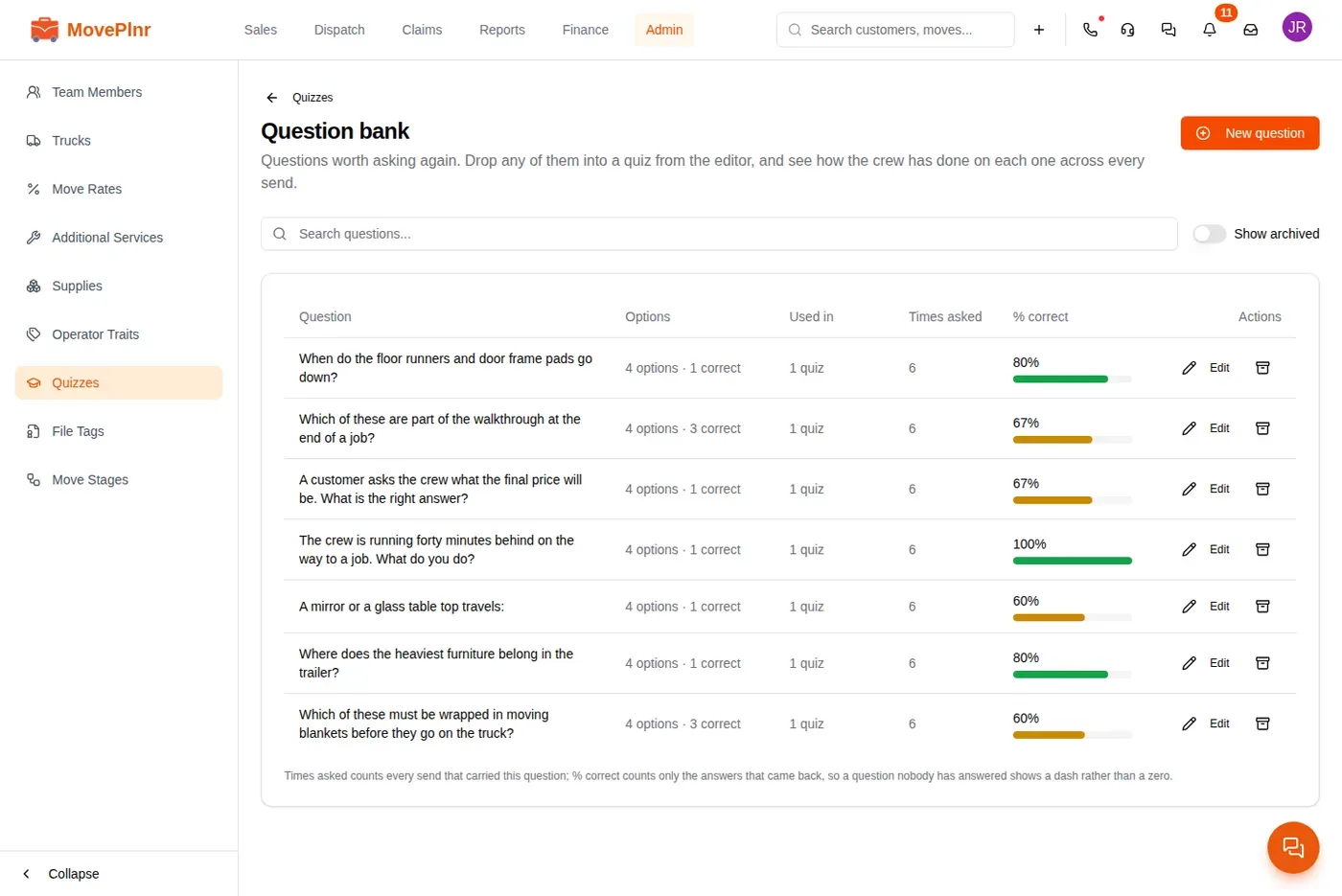
The Question bank keeps every saved question with how often it was asked and how many got it right. A question most of the crew gets wrong is the one to talk about at the next meeting.
See how a quiz went
Click Sends on a quiz to see each time it went out, then open one. The top shows how many were sent, how many answered, the Completion and the Average score. The questions come hardest first. Each mover’s row says Submitted with a score, or Missed if the quiz closed before they answered.
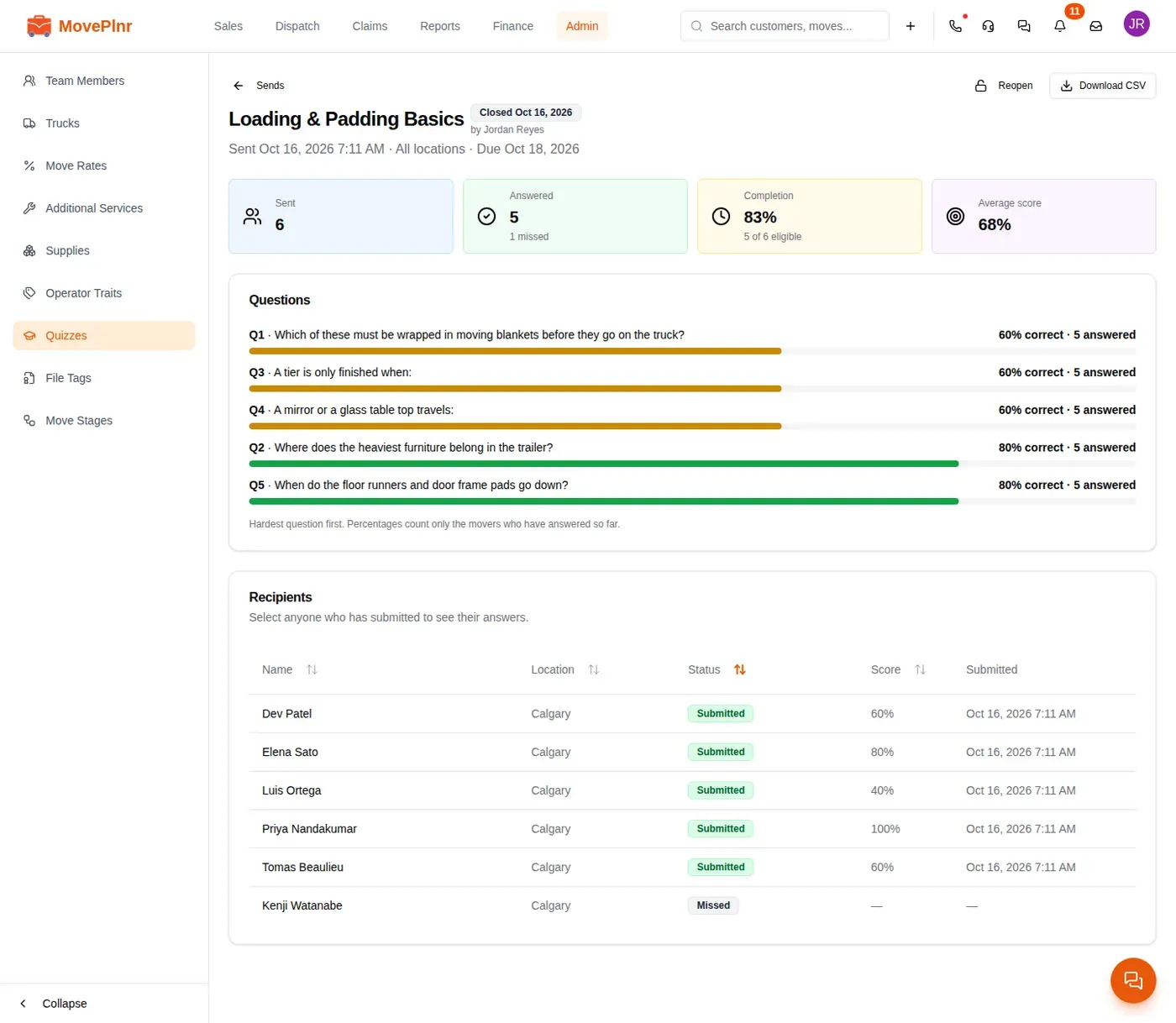
A quiz you close moves to the crew’s closed list. Click Reopen to give them another chance. Results adds up every send of the same quiz.
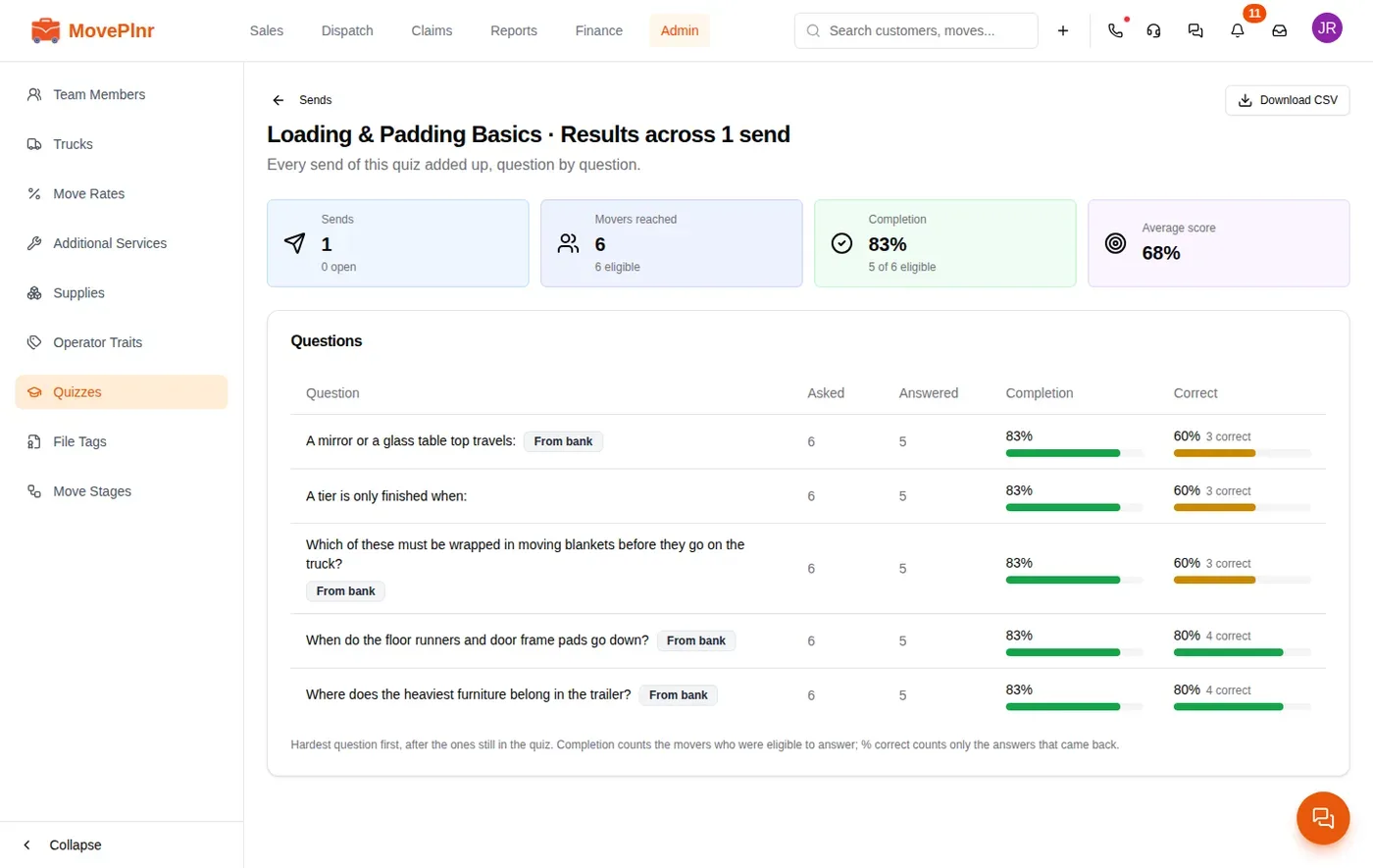
A skipped quiz is never scored as a zero. It shows as not answered on the mover’s card, beside the score on the ones they did.