
Before you start
- Install the latest MovePlnr app from the App Store or Google Play and sign in. Older versions of the app can’t receive these notifications, so crews on them keep getting texts.
- The notification switch for the phone lives in your notification preferences, which need the Notification Preferences add-on. An admin turns it on under Add-ons.
- Dispatchers and admins have nothing to set up. Crew changes go out the way they always have, and MovePlnr picks a notification or a text for each person.
What you get
Three crew notices come as phone notifications:
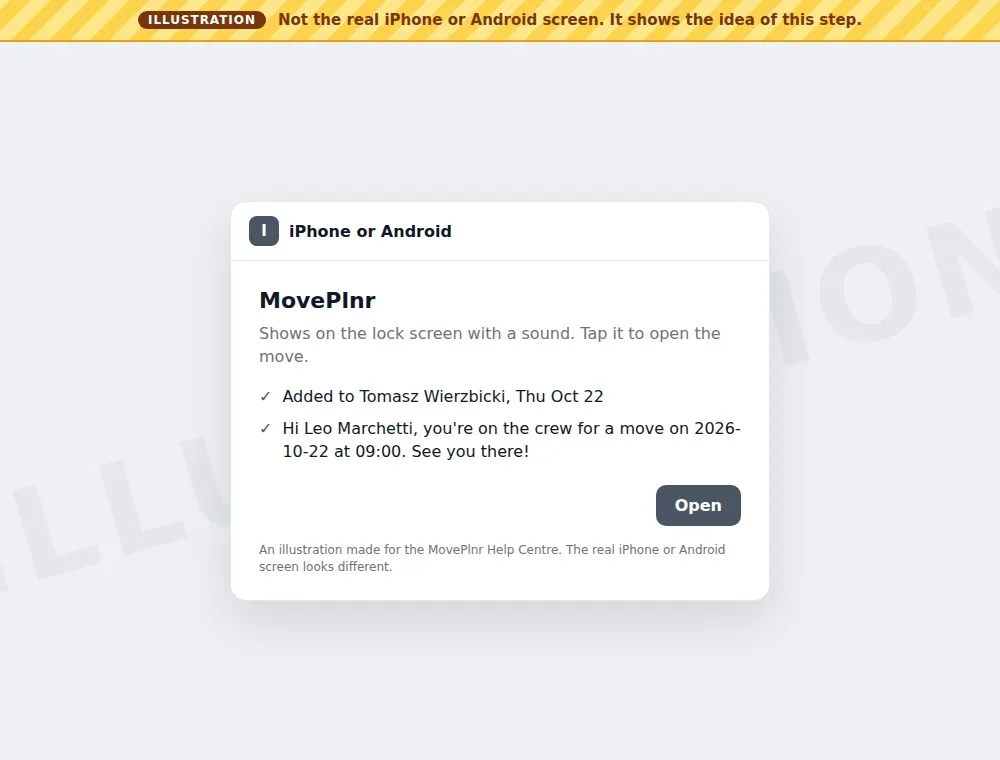
- Added to a move: titled “Added to” with the customer’s name and the day of the move. Tap it to open the move.
- Removed from a move: sent when dispatch takes you off a move, or when the move is cancelled or goes back to being a quote. Tap it to open your schedule.
- Confirm a move: when your company asks crews to confirm by text, the request reaches the app as well. Tap it to answer yes or no.
These notices make a sound and show on the lock screen. On Android they sit in their own Crew notices channel, so you can set how they sound in your phone’s settings.
The text under the title is your company’s own crew message, the same one you would get by text, with any links taken out. The tap opens the move instead.
You’ll see a notification like the illustration below. It is not a capture of a real phone, and your own lock screen looks different.
Turn on notifications on your phone
The first time you sign in to the new app, it asks whether MovePlnr may send you notifications. Choose to turn them on, then allow them when your phone asks.
Said not now? You can turn them on later:
- Open your profile from the menu.
- Choose Notifications.
- Under This device, tap Turn on next to Push notifications, then allow notifications when your phone asks.
Once they are on, the card says they are on for this phone. If it says notifications are off for MovePlnr, you told your phone no earlier: open your phone’s Settings, find MovePlnr and allow notifications. Each phone has its own setting, so do this on every phone you use.
See your notices in the app
Every notice also lands on your Notifications page, so nothing is lost if you swipe one away. Tap a notice to open its move, or tap Mark all as read when you have seen them all.
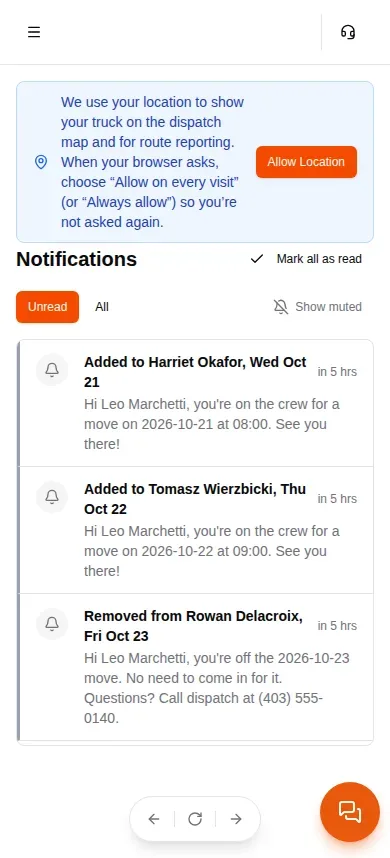
The notices for being added to or taken off a move are always delivered. They don’t appear in your notification preferences, so you can’t switch them off by mistake.
When a text goes instead
MovePlnr sends the notification when your phone can receive it. If it can’t, you get the text message, the same as before. That happens when:
- you are on an older version of the app, or only use MovePlnr in a browser;
- notifications are off for MovePlnr on your phone;
- you signed out of the app on your phone.
Once a phone takes the notification, the added and removed texts are not sent as well. A confirmation request is different: the text still goes out with the notification, because it has a deadline and your yes or no counts either way.
When the notices go out
Dispatchers work the same way as before. The notice goes out when the crew change is sent:
- With the Publishing Window add-on, changes wait until you publish them or the window passes. Click the publish button on the job, or publish the whole branch.
- Without it, the notice goes out as soon as you save the change.
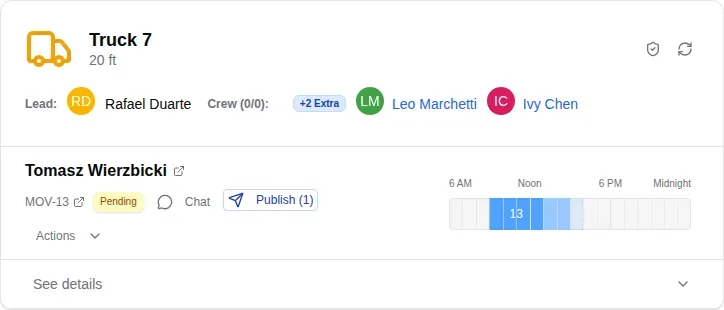
MovePlnr checks the move again at that moment. If you added someone and took them off before publishing, or the move is no longer booked, nobody is told. Moves on hold and moves in the past don’t send an added notice either.
Change the wording
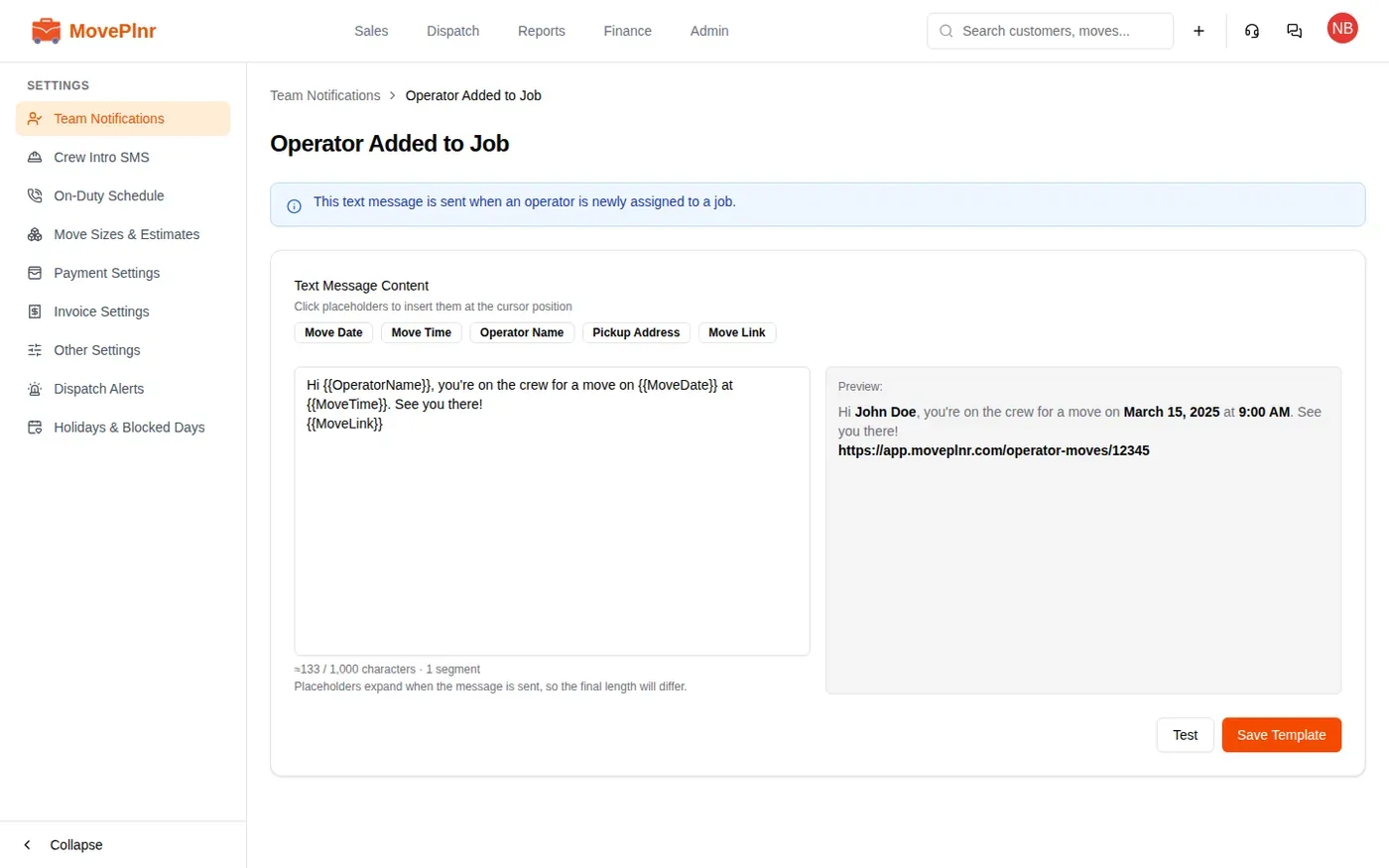
The message under the title comes from the branch’s crew text templates. Admins edit them in the branch settings.
- Open Team Notifications in the branch settings.
- Find Operator Added to Job or Operator Removed from Job under Automatic Notifications and click Edit Template.
- Write the message. Click a placeholder, such as Move Date or Operator Name, to drop it in where the cursor is. The preview on the right shows it with sample details.
- Click Save Template.
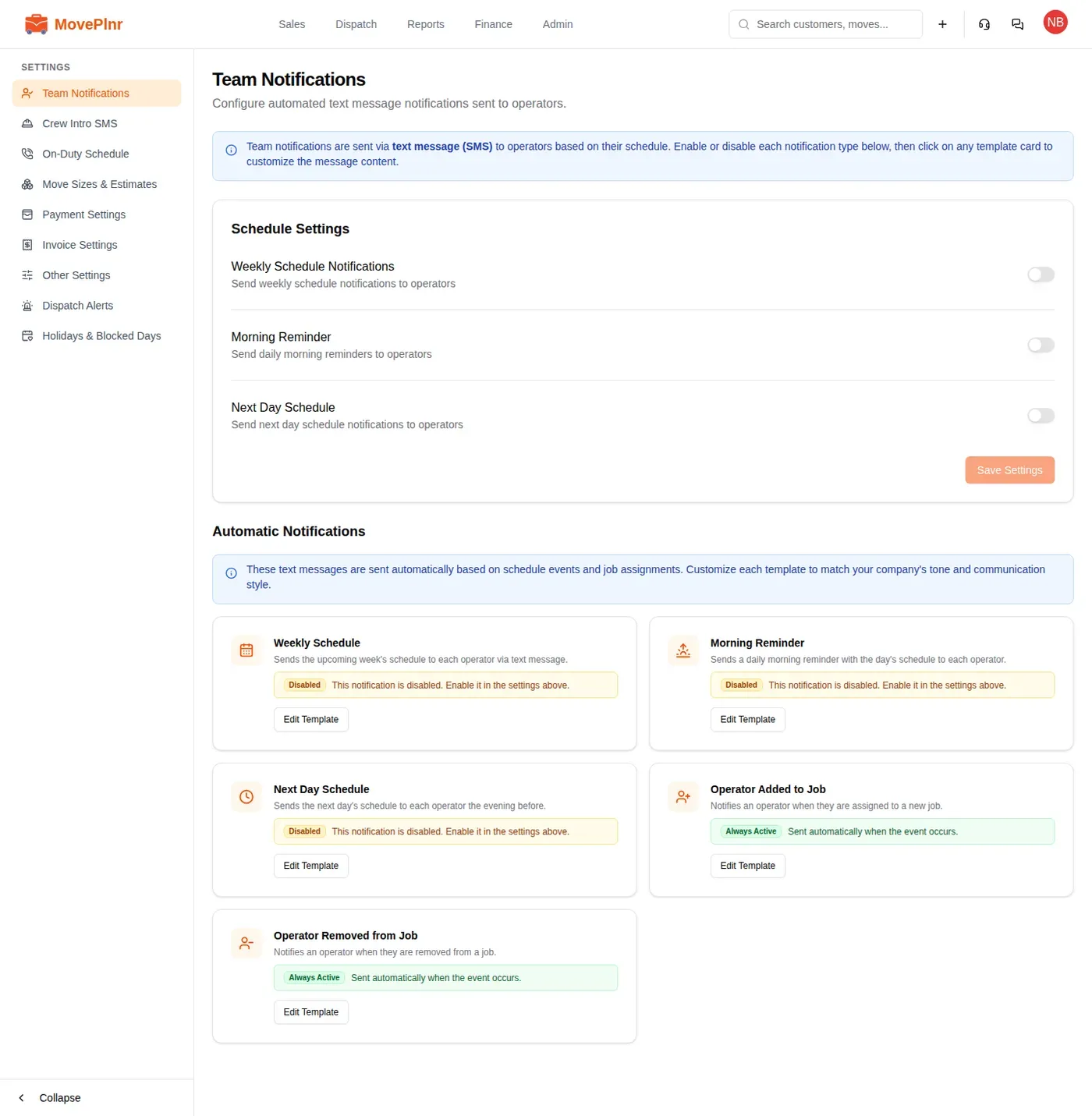
If a template is left blank, no text goes out, and the notification shows the move number and the customer’s name instead of a message.