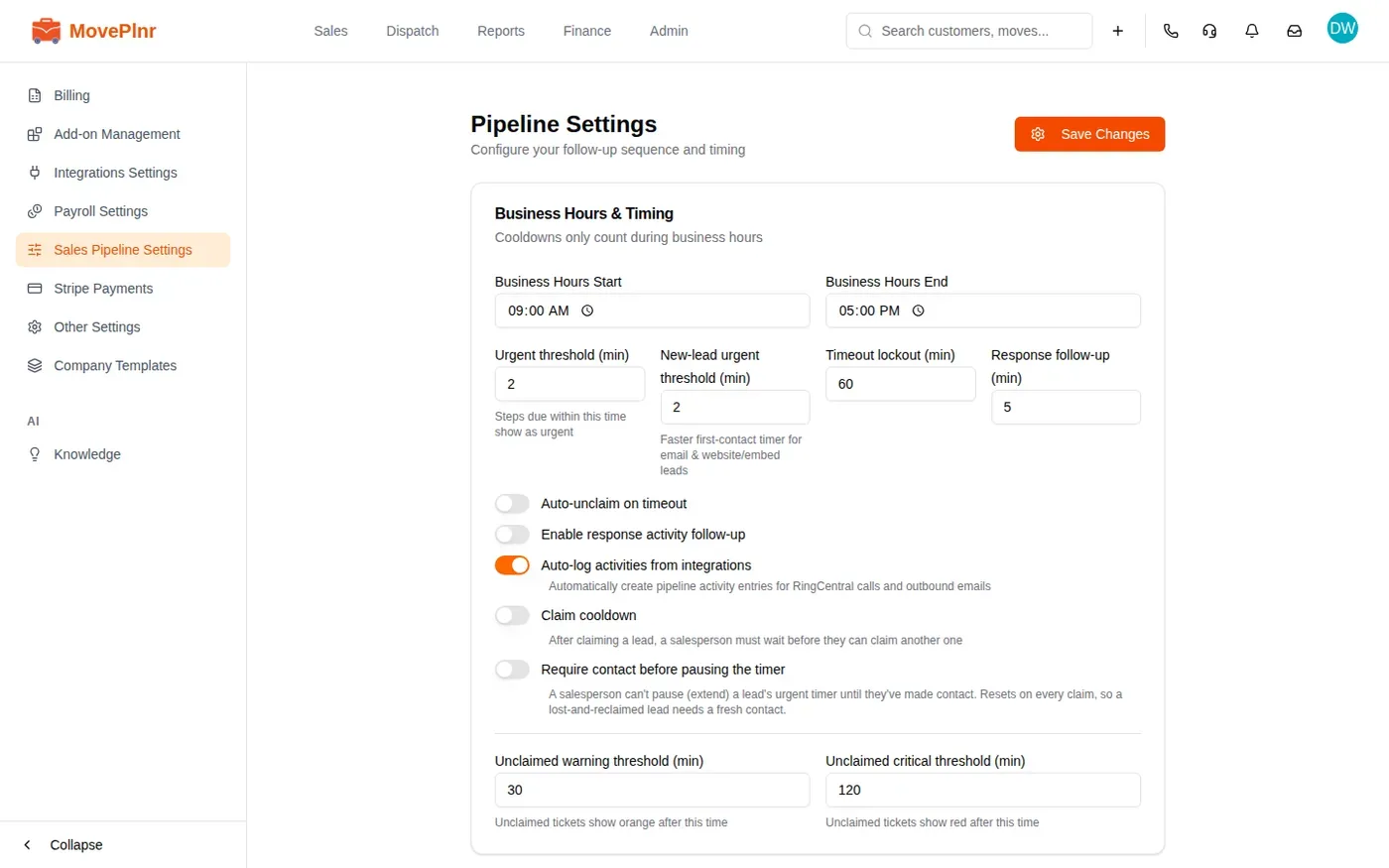
Before you start
New Business comes with the sales pipeline add-on. An admin turns add-ons on for the company. Open it from New Business in the Sales menu. The number beside it is how many leads are waiting to be claimed.
Read the New Business page
The page has two parts.
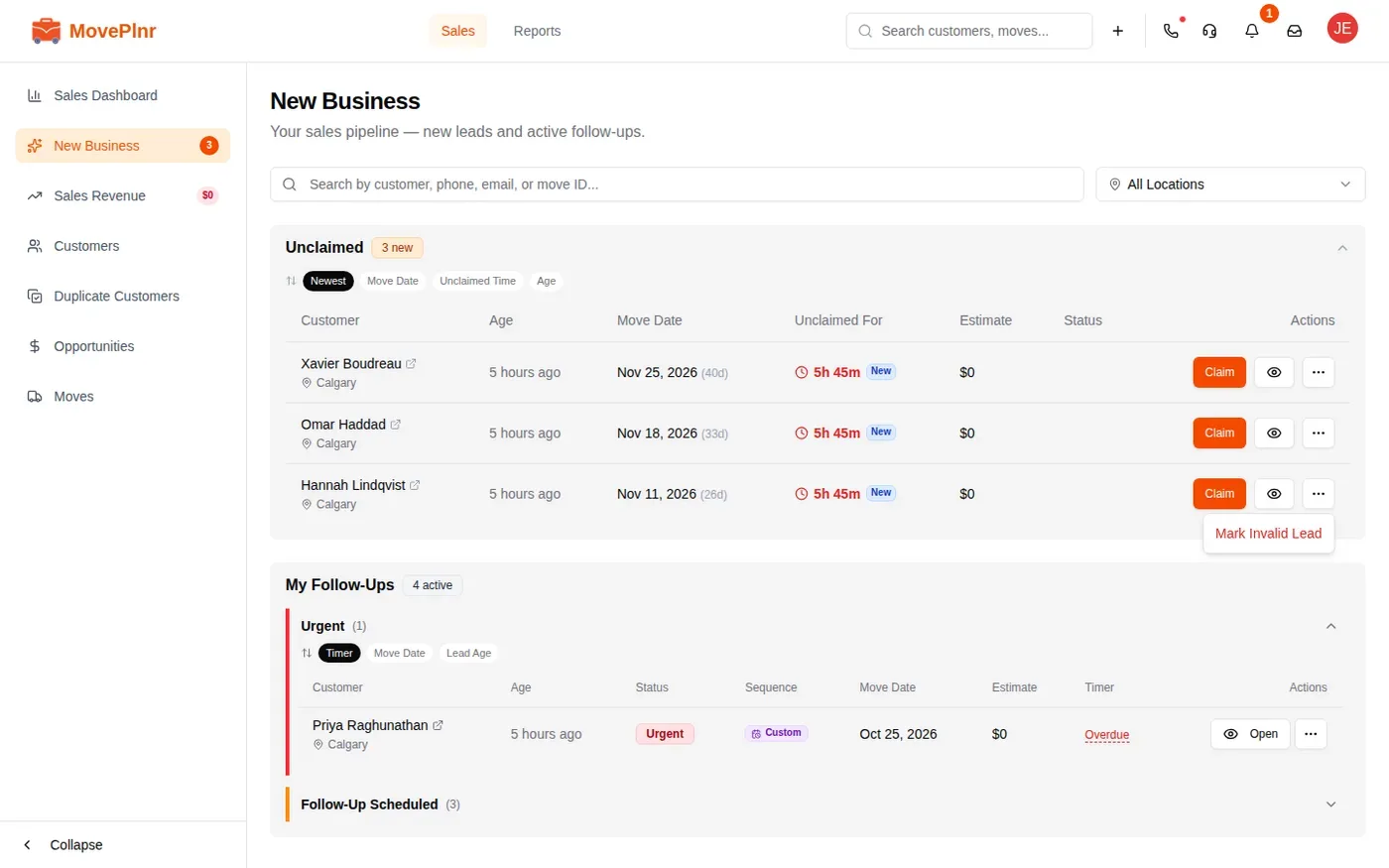
- Unclaimed lists new leads nobody has taken yet, newest first. Each row shows the move date, how long the lead has waited and its estimate.
- My Follow-Ups lists the leads you own, sorted by what needs you first. Urgent leads are at the top. Follow-Up Scheduled holds the leads whose next follow-up is still ahead of you.
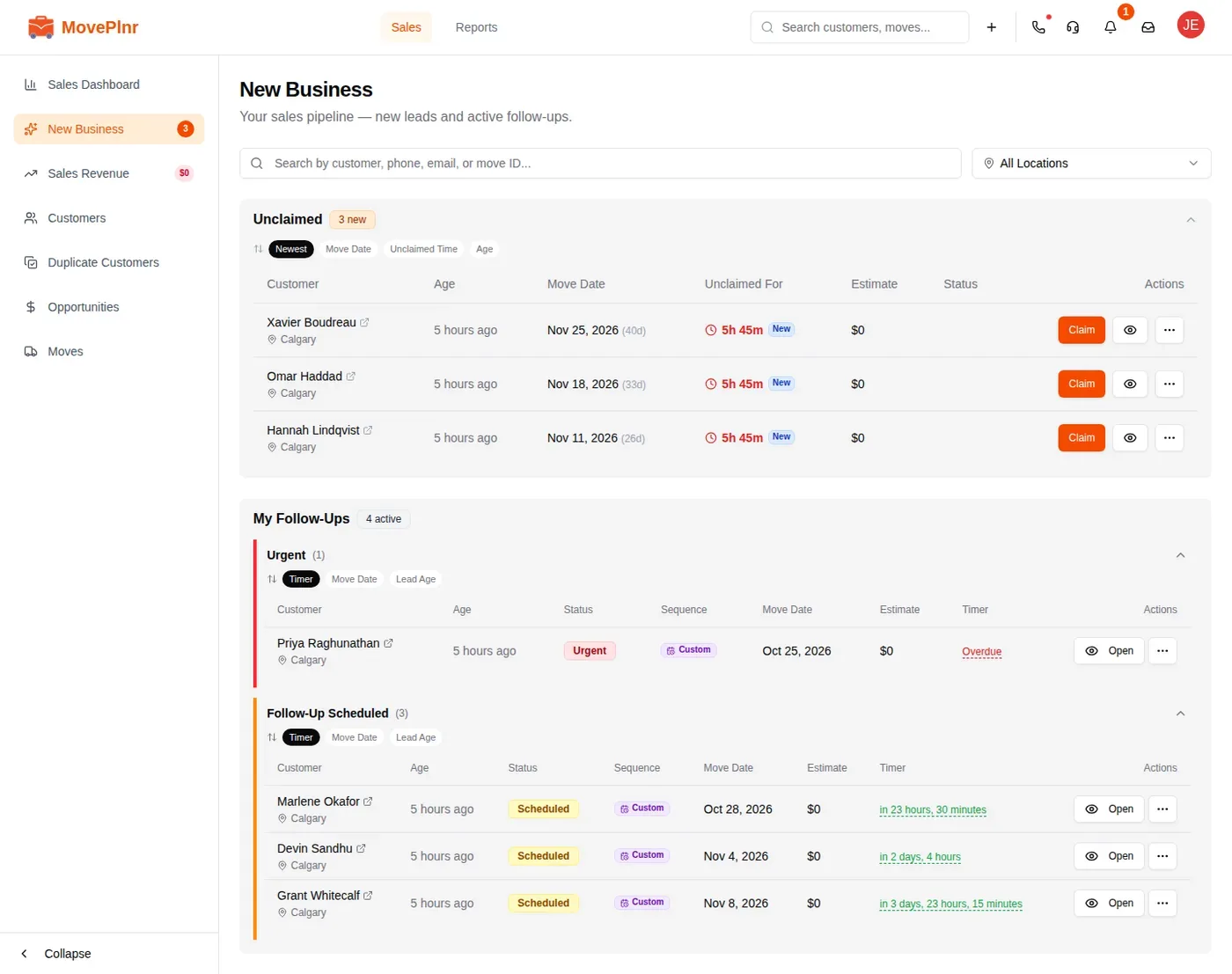
Use the search box to find a lead by customer, phone, email or move number. Click Open on a row, or the eye button on an unclaimed lead, to see the lead.
What owners see
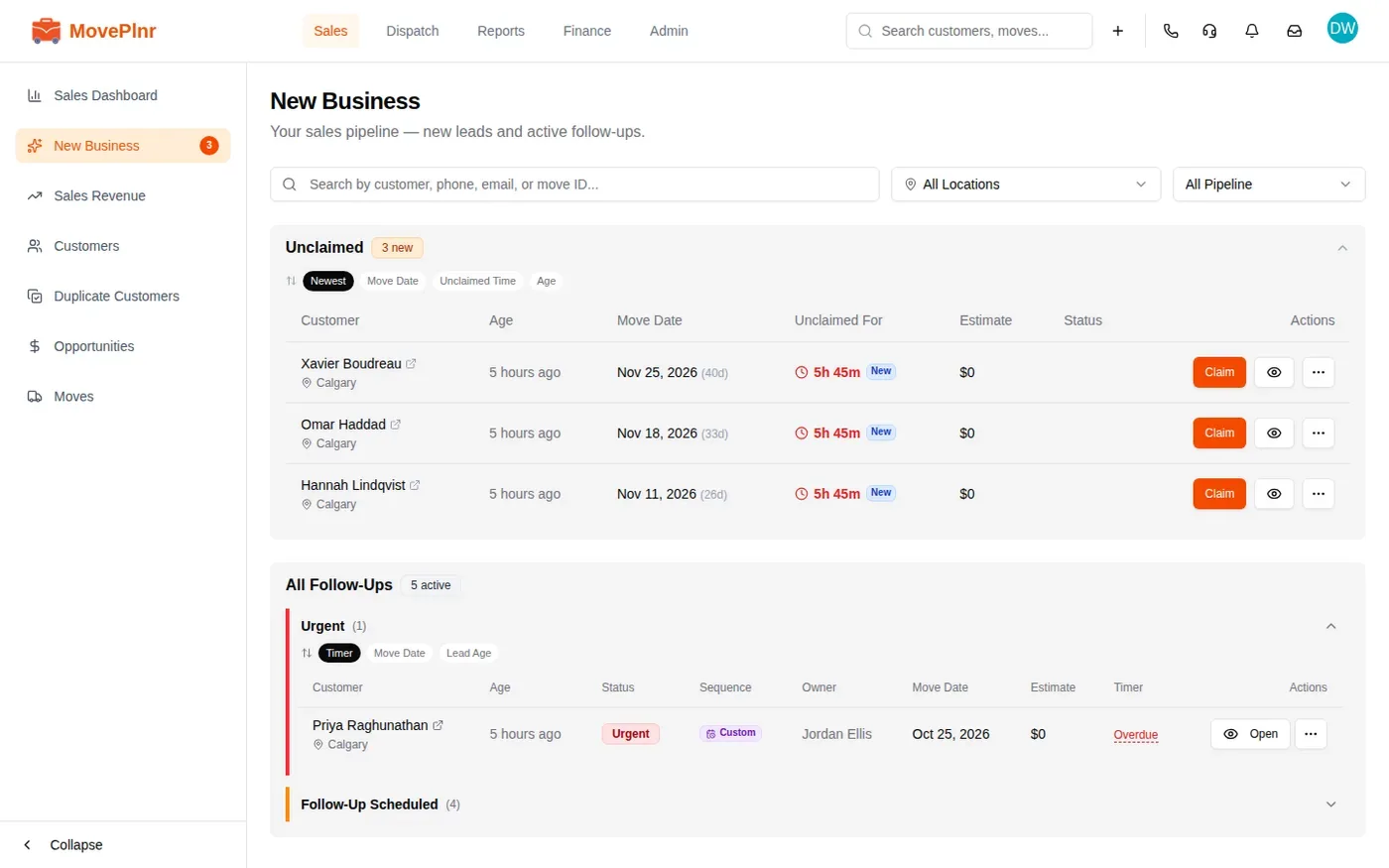
Admins, marketing managers and dispatchers see everyone’s leads. The page opens on All Pipeline, the follow-ups are titled All Follow-Ups, and an Owner column shows which rep has each lead. Pick a rep in the same menu to see only their leads, or My Pipeline to see your own.
Claim a lead
- Find the lead under Unclaimed.
- Click Claim. The lead is yours and opens on its own page.
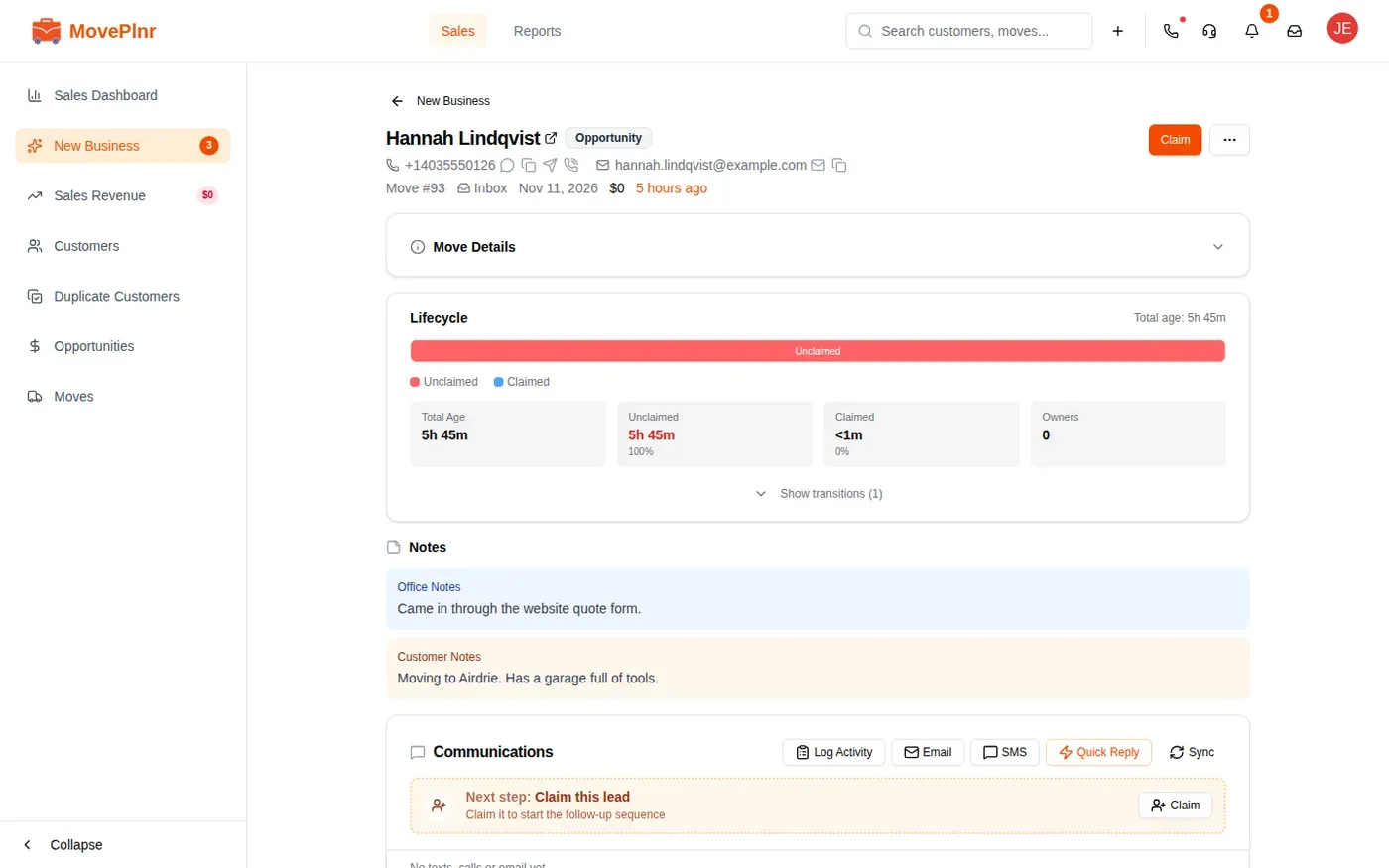
You can also open the lead first and claim it from there. Until someone claims it, the lead page says so: Claim this lead.
Admins can hand a lead to a rep instead: on the lead’s row, the three dots menu has Assign to.
Spam or a test? Mark it invalid
When a lead is not a real customer, click the three dots on its row and choose Mark Invalid Lead. It leaves the pipeline. An admin can bring it back from the Invalid Leads report.
Work the lead
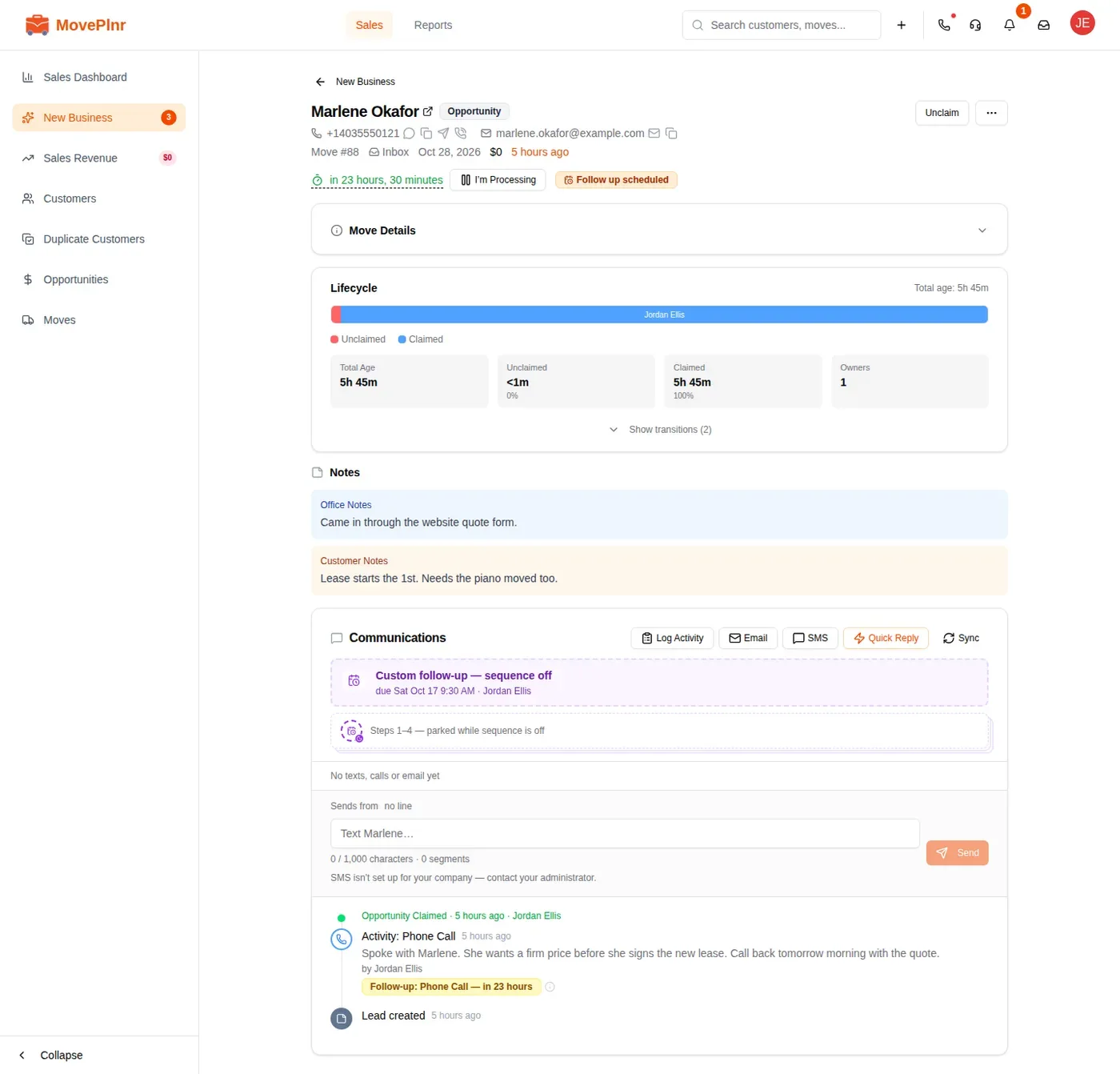
The lead page keeps everything about one lead in one place.
- The header: the customer, their phone and email, the move number, the move date and the estimate. Under it, the timer shows how long until the next follow-up is due, and a tag says where the lead stands: Follow up scheduled or Urgent.
- Move Details: open it to see the addresses and the size of the move.
- Lifecycle: how long the lead sat unclaimed, how long it has been claimed, and how many reps have owned it.
- Notes: the office’s notes and what the customer told you.
- Communications: the next step in your follow-up sequence, the conversation with the customer, and every activity on the lead.
Calls, texts and emails you make from MovePlnr log themselves as activity and move the lead to its next step. You do not need to log them twice.
Schedule a follow-up
When the customer asks you to call back at a set time, schedule it yourself.
- In Communications, click Log Activity.
- Pick how you will follow up: call, SMS or email.
- Add a note if it helps.
- Turn on Custom Follow-up and pick the date and time. Times are in the move location’s time zone.
- Click Schedule Follow-up.
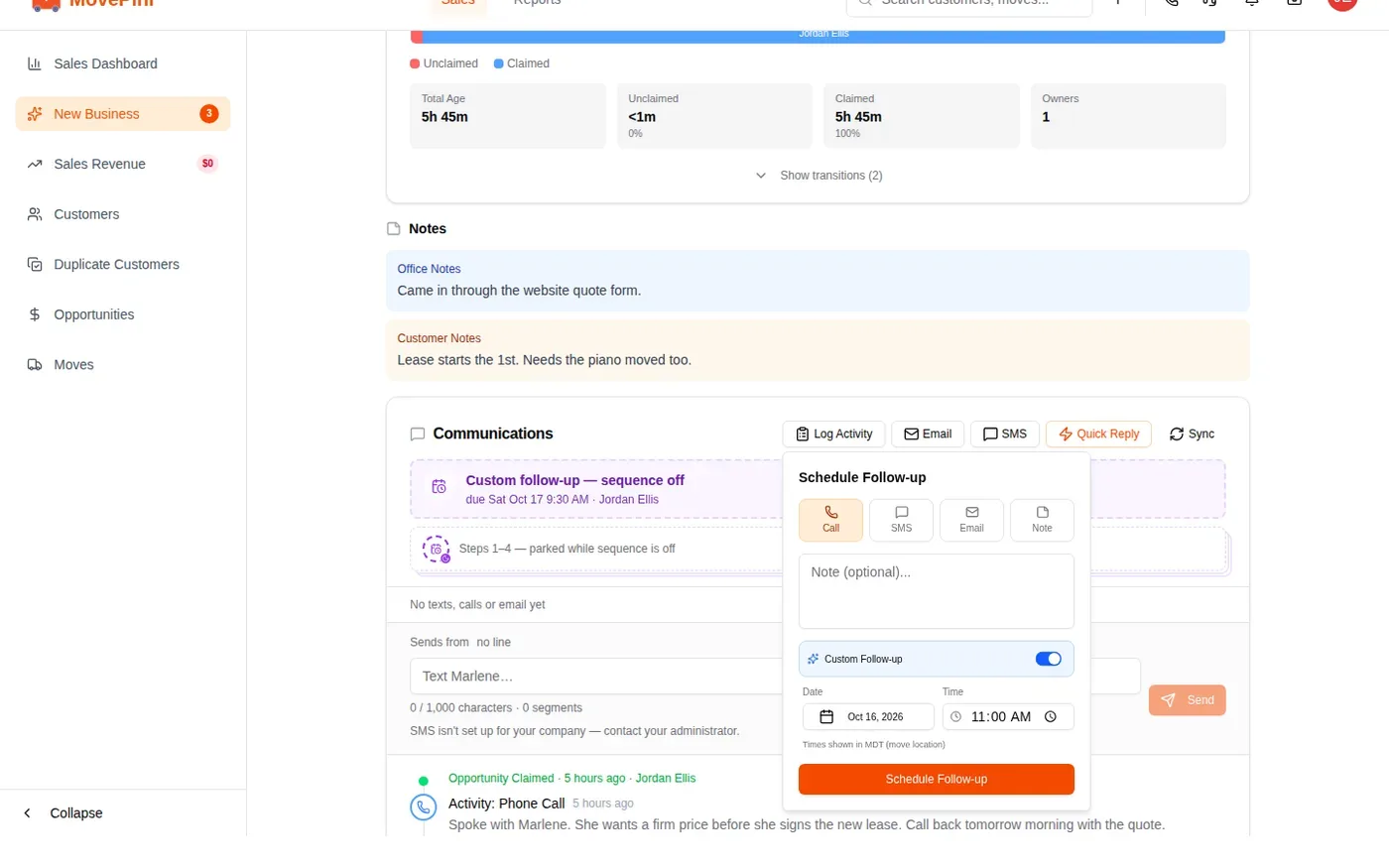
A custom follow-up replaces the automatic sequence for that lead. The lead moves to Follow-Up Scheduled until the time comes.
Know why a lead is urgent
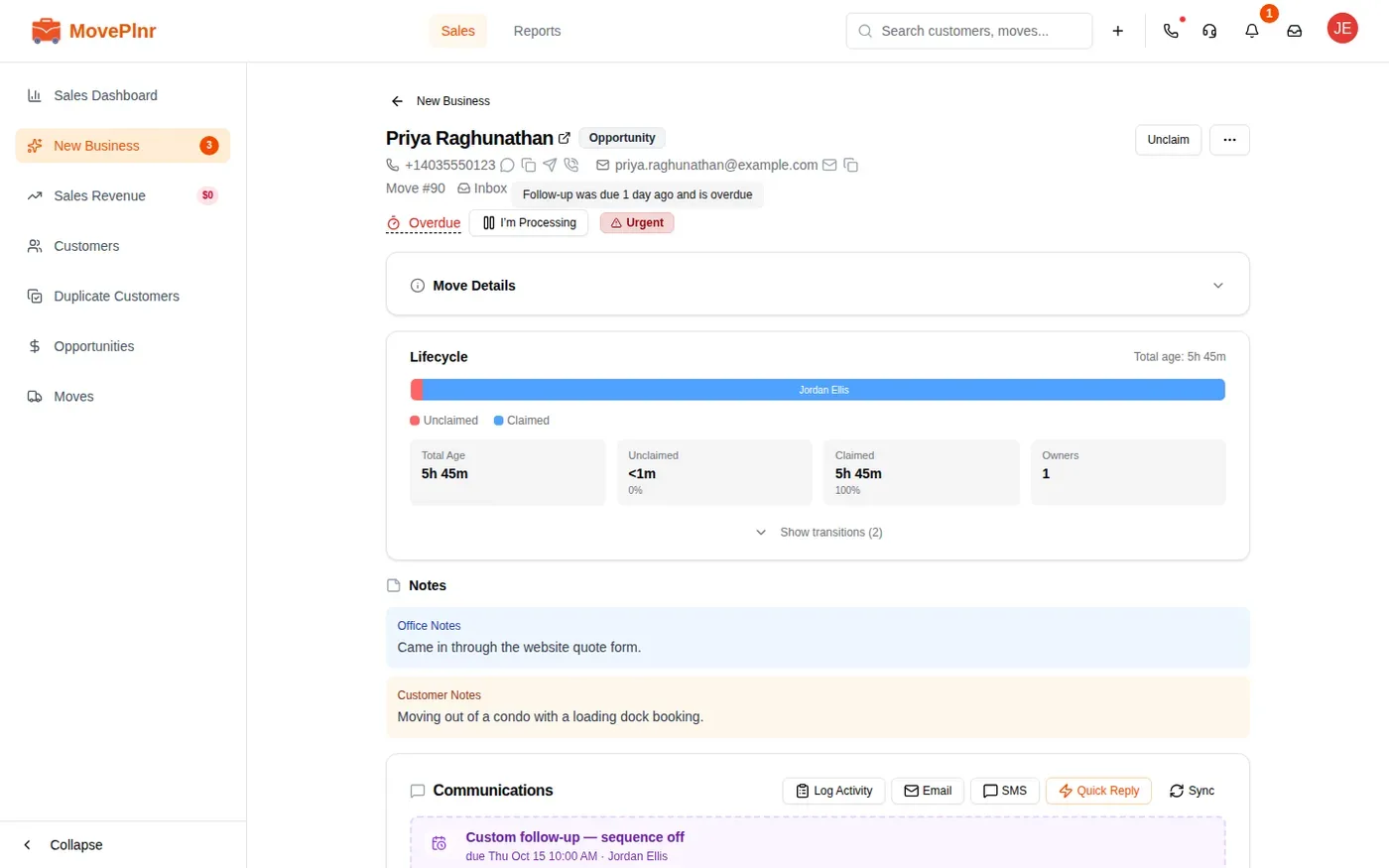
A lead turns Urgent when its follow-up is overdue, when nothing has been logged on it yet, or the moment the customer replies and is waiting for you. Point at the Urgent tag on the lead page to see which.
When a customer answers a text or an email, the lead shows that the customer replied. Answering them by email, call or text clears it on all of their moves. If you answered outside MovePlnr, log a note with Log Activity and turn on Mark as replied.
When the follow-up sequence runs out, the Communications feed shows when the lead will be archived.
Send pricing
Once the opportunity has an estimate, you can email the customer their pricing without building a full estimate.
- Open the lead’s opportunity: click the three dots at the top of the lead page, then View Full Opportunity.
- Open Estimate & Finalize.
- Click Other Actions, then Send Pricing.
- Check the email address, pick the template and subject, and set the follow-up task that goes with it.
- Write or adjust the email, then send it.
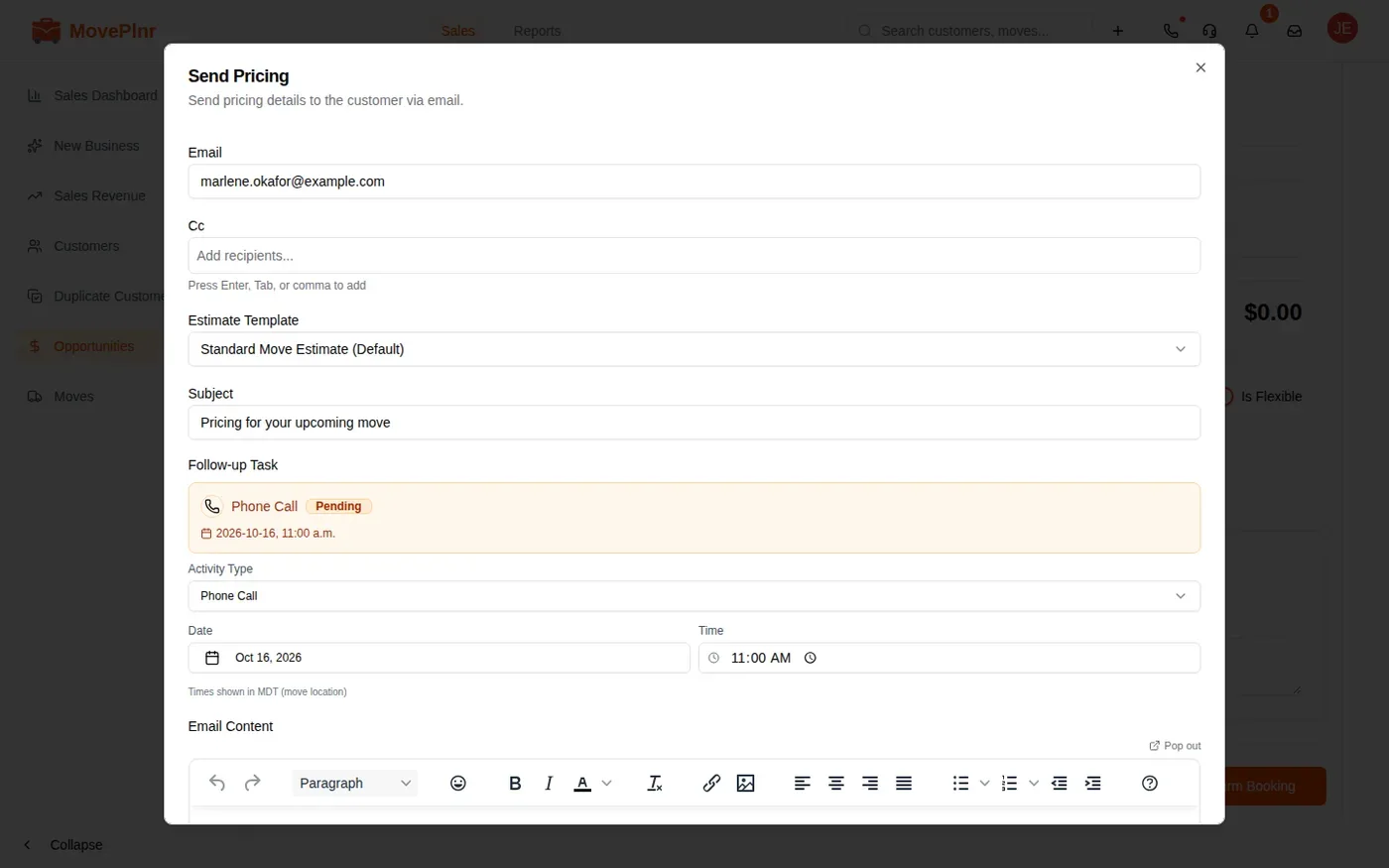
Send Pricing appears when your company has the Estimates add-on. The full estimate flow is in Build and send estimates.
Close out a lost lead
When the customer goes elsewhere, mark the lead lost so it leaves your follow-ups.
- On the lead page, click the three dots at the top right.
- Choose Mark as Lost.
- Pick the reason, or choose Other and type it.
- Click Yes, Mark as Lost.
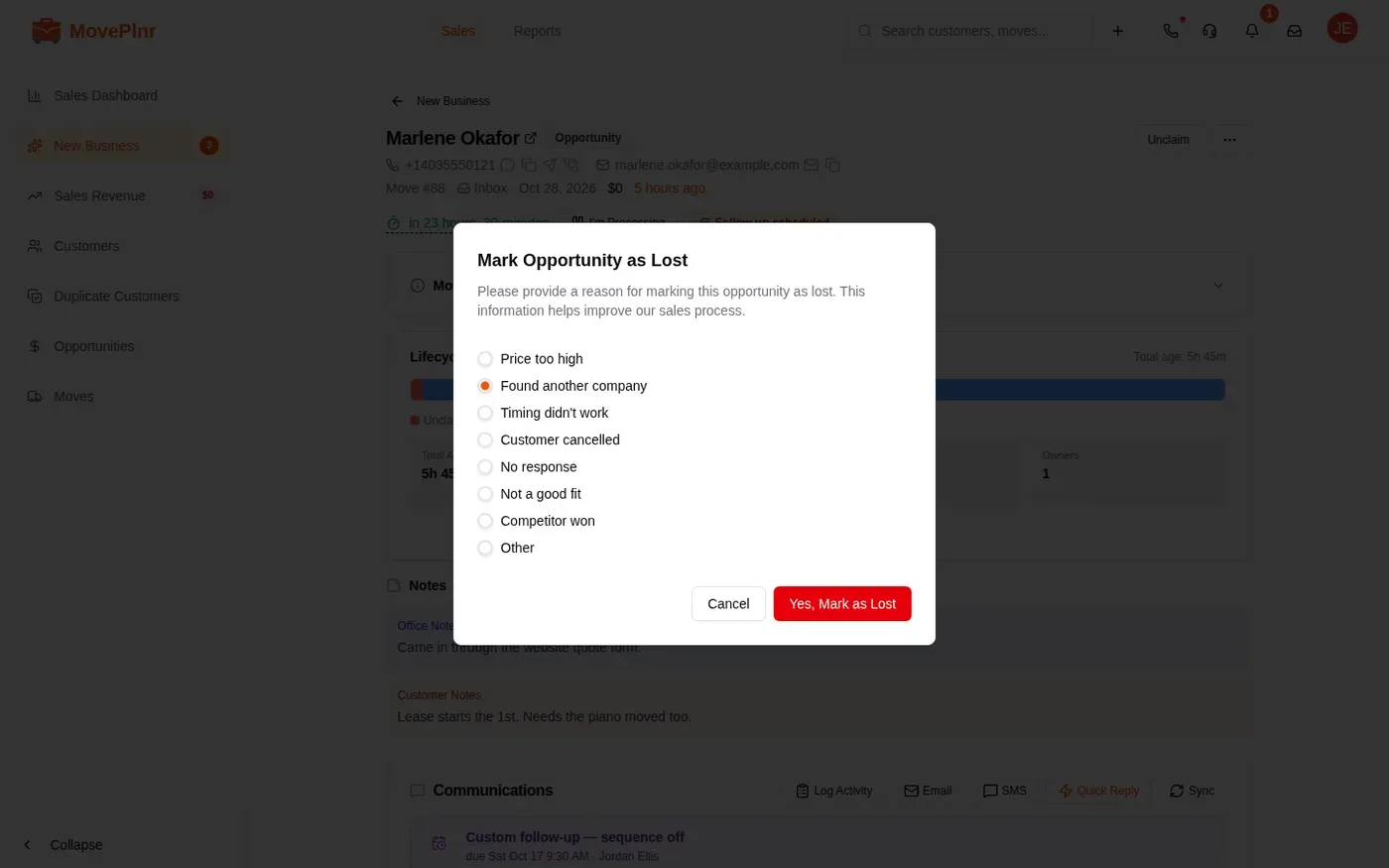
To give a lead back to the team without closing it, click Unclaim instead.
For owners: see how leads move
The Pipeline Lifecycle report, under Reports, shows how quickly leads get claimed and how long they wait. Pick the month and location. Per Salesperson compares the reps, and Violators lists leads that sat unclaimed past the threshold you set.
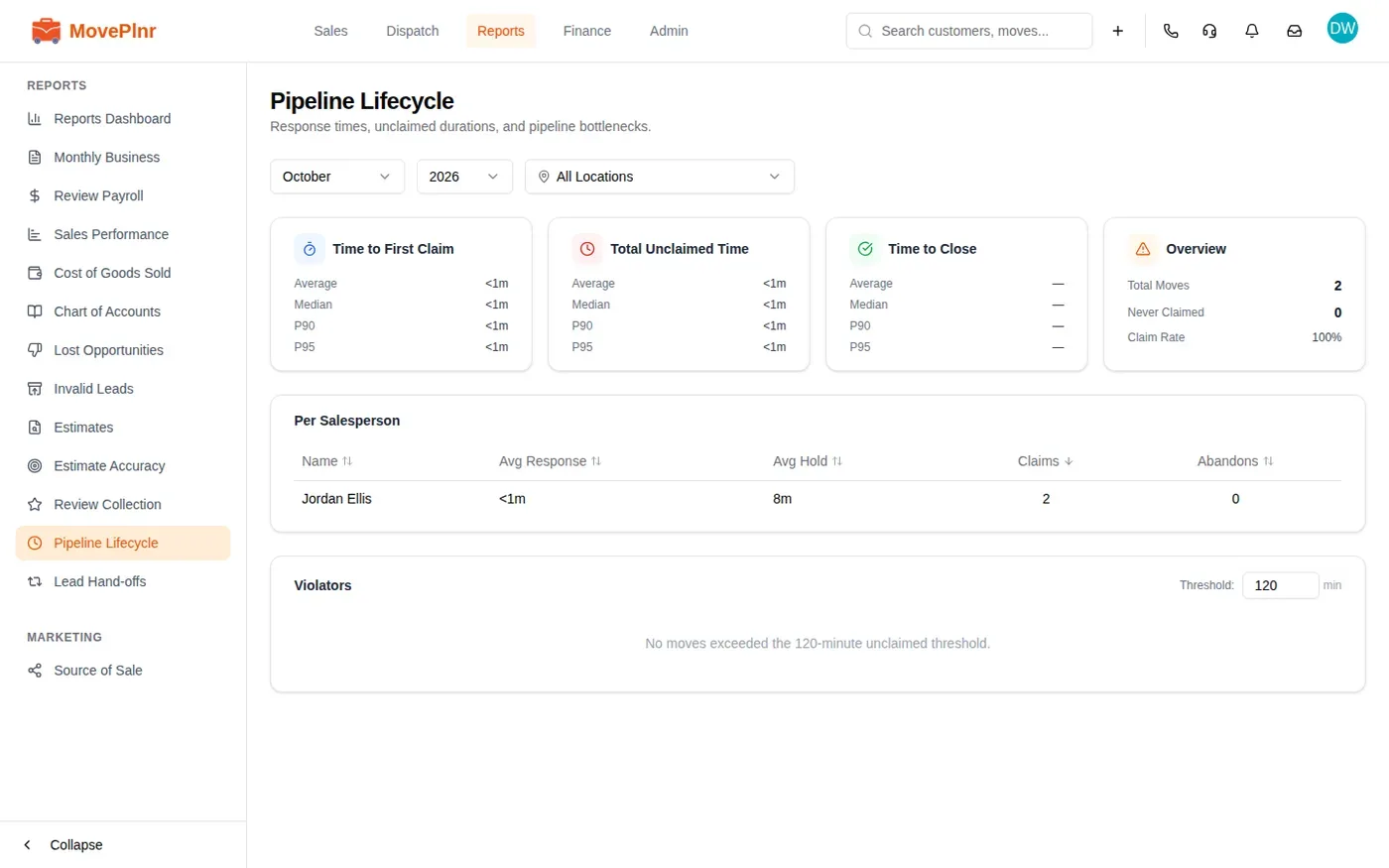
The follow-up sequence, business hours and timers live in Pipeline Settings. That is also where Auto-log activities from integrations is turned on or off, if your team would rather log activity by hand.